How to fix
“There might be a problem with the driver for the Ethernet adapter” error
on Windows
Resolve the "There might be a problem with the driver for the Ethernet adapter" error on Windows 10 or 11 effortlessly. Expert-tested solutions await!

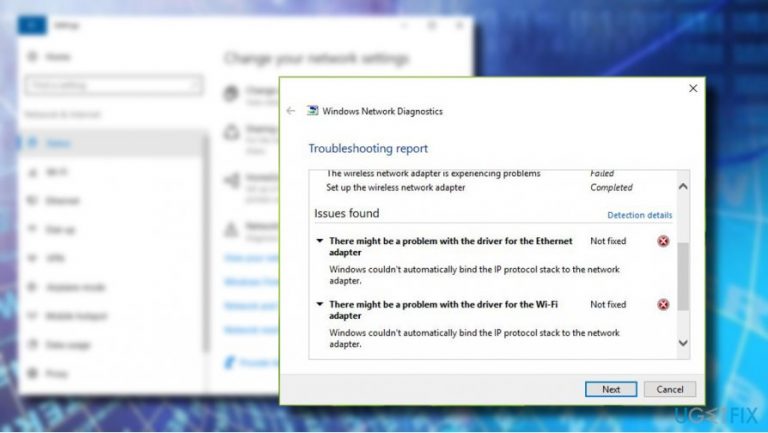
What causes How to fix “There might be a problem with the driver for the Ethernet adapter” error on Windows?
- Problem with the Ethernet adapter driver
- Recent Windows OS updates causing driver issues
- Software flaws affecting the device
- Issues arising during VPN setup
- Malware or additional programs interfering with the system
Repairs Windows system files, removes malware, and restores a clean OS state — without reinstalling.
All of a sudden, my PC started having an issue with the Internet connection. When I try to open the browser or perform any other task that requires an Internet connection, I get an error “There might be a problem with the driver for the Ethernet adapter.” I understand that the problem is Ethernet adapter, but I don’t know how I could fix that. Please help.
“There might be a problem with the driver for the Ethernet adapter” error is the issue that, in most cases, is associated with an Internet connection. However, as it has been reported by a few Windows users,[ref en-1] the problem can also occur under different instances, e.g. while setting up a VPN connection. However, Microsoft hasn't acknowledged the issue or released an official solution for the problem.
The error does not provide any codes that could help to isolate the culprit. While the message itself seems to be indicating the problematic point – Ethernet adapter – people have already reported that updating or reinstalling network adapter drivers did not fix “There might be a problem with the driver for the Ethernet adapter” error.
Finally, you should pay attention to recent Windows OS updates also caused some issues with drivers and programs[ref en-2], so it is possible that "There might be a problem with the driver for the Ethernet adapter" error is not so big of a deal, and your device has no serious issues. If you updated your device recently, check the Internet for the more recent update and install it because there is an opportunity that your device is completely fine, but the software flaw is causing issues.
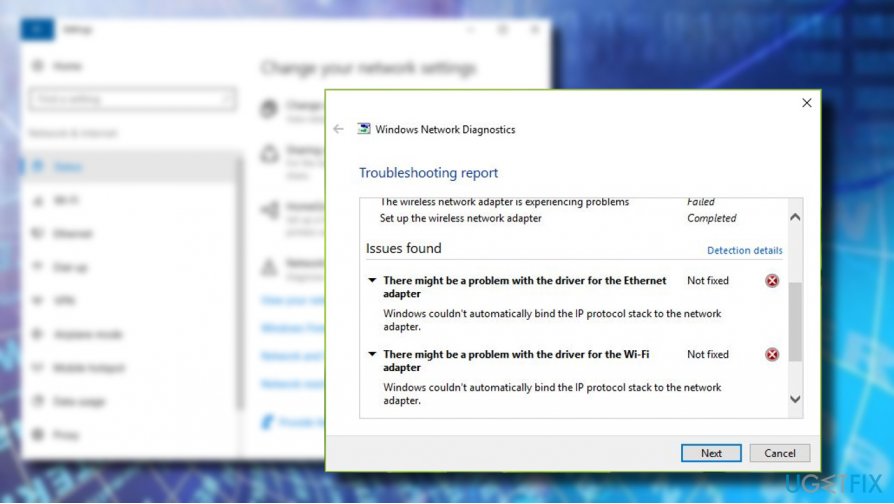
It’s also advisable to switch your accounts, for example, from the Local Account to the Microsoft Account or vice versa when reinstalling or updating drivers. If that did not help, we provided a couple of fixes that can help. Also, do not forget to scan the system using anti-malware tools to make sure that this error is not affected by additional programs on the system.
“There might be a problem with the driver for the Ethernet adapter” fix
If your Windows device is updated and the OS installed is flaw-free the only thing you need to do before fixing the issue is scanning the system for malware damage[ref en-3] with tools like [d1]. The system optimizer indicates any flaws, virus damage or existing programs on the device. You can remove possible threats and then follow our guidelines.
This video will provide you with required information:
[youtube E018COYJaB4]
Update Network Adapters to get rid of “There might be a problem with the driver for the Ethernet adapter” error
- Right-click on Windows key and select Device Manager.
- Expand the Network adapters section.
- Click on your Network Adapter and select Update Driver Software.
- Wait for the drivers to be updated and check if the error “There might be a problem with the driver for the Ethernet adapter” has been fixed. If it didn’t, try re-installing the driver.
- Re-open Device Manager and expand the Network Adapter section.
- Click on your network adapter and select Uninstall.
- After that, reboot your PC.
- When the system reboots, re-open Device Manager and click Action.
- Select Scan for hardware changes. When the scan is completed, opt for the system to install missing drivers automatically. If the process fails, navigate to the driver’s manufacturer website and download the latest driver manually.
Enter the Network & Internet settings category
- Press Windows key + I and open Network & Internet.
- Open Status tab on the left pane and scroll down until you see a link Network Reset.
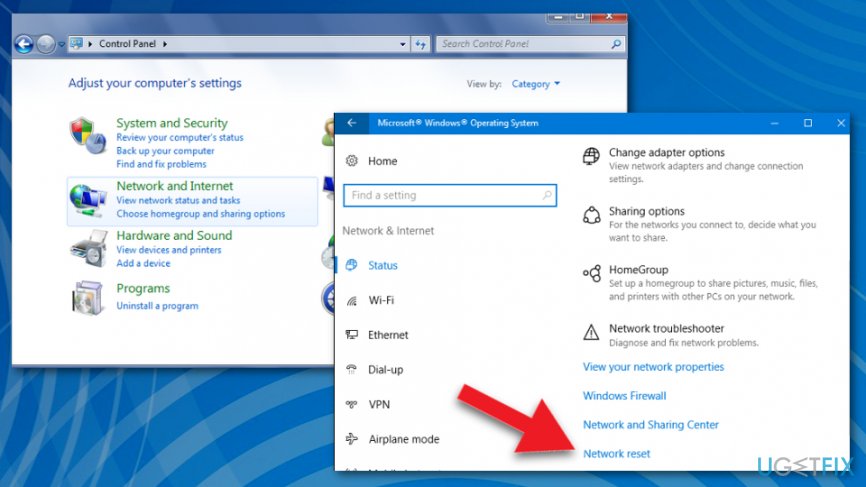
How to fix ethernet adapter error network status - Click on Network reset link. After that, you should receive the following notification:
"This will remove then reinstall all your network adapters, and set other networking components back to their original settings. You might need to reinstall other networking software afterwards, such as VPN client software or virtual switches."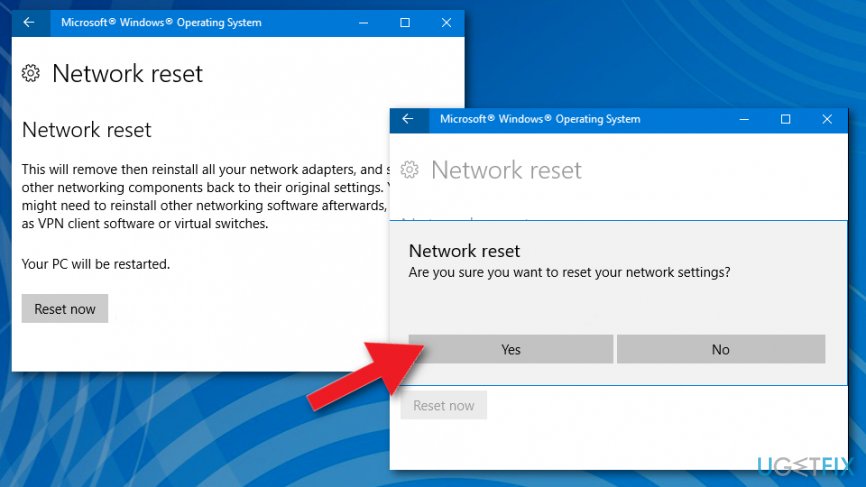
How to fix ethernet adapter error network reset - If you agree with that, click Reset now button.
- Click Yes on the confirmation window and wait for the Network reset to be completed.
Check the Dependency Services of the WLAN AutoConfig
- Press Windows key + R, type services.msc, and press Enter.
- Find the WLAN AutoConfig service and click on the Dependencies tab.
- Check what services are listed under WLAN AutoConfig service and make sure that the startup type of them all is Automatic.
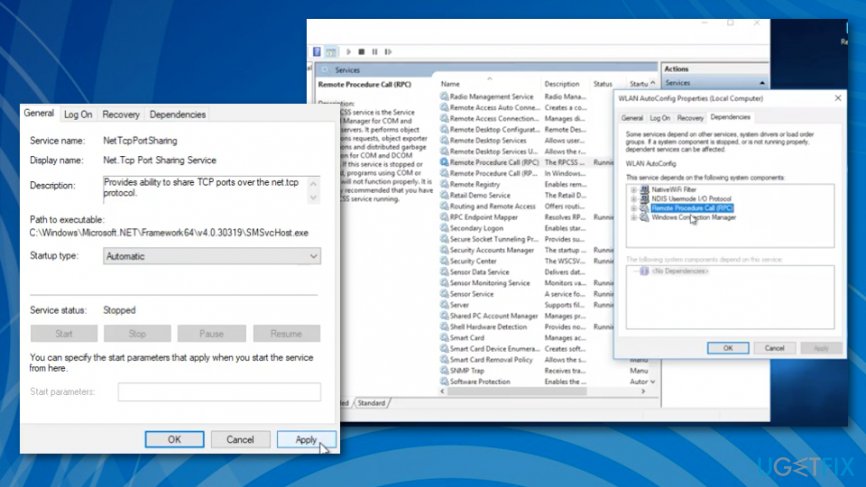
How to fix ethernet adapter error internet startup automatic - If they are not, make sure to set their Startup type to Automatic.
- After that, reboot your PC.
Reset the Winsock entries and TCP/IP stack to troubleshoot the "There might be a problem with the driver for the Ethernet adapter" issue
- Press Windows Key + X together and select Command Prompt with administrators rights
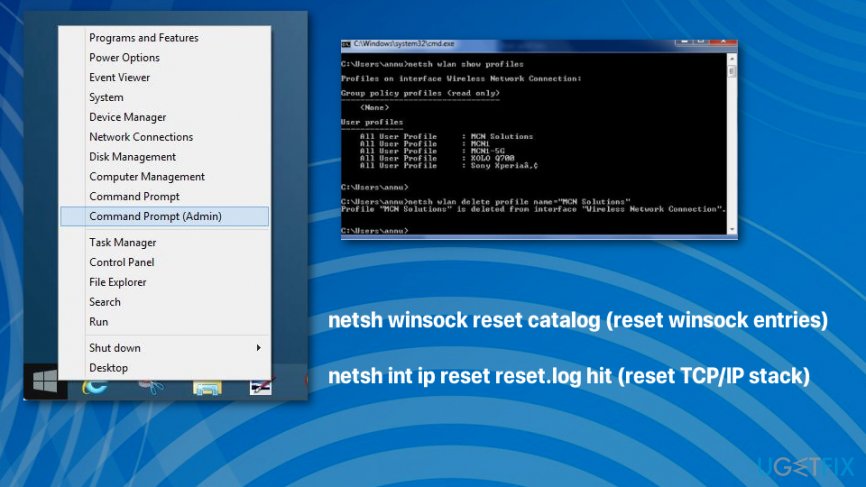
How to fix ethernet adapter error command prompt - Type the following commands and press Enter after each one:
netsh winsock reset catalog (reset winsock entries)
netsh int ip reset reset.log hit (reset TCP/IP stack)
Bottom line
To fix the error, consider updating or reinstalling the network adapter drivers, switching between Local and Microsoft accounts, and scanning the system with anti-malware tools. If these steps do not resolve the issue, check for recent Windows updates and install them.
Frequently asked questions
You can update your Ethernet adapter driver by right-clicking the Start button, selecting Device Manager, expanding the Network adapters section, right-clicking your Ethernet adapter, and choosing 'Update driver'.
In Device Manager, right-click your Ethernet adapter, select 'Properties', navigate to the 'Driver' tab, and click 'Roll Back Driver' if the option is available.
If reinstalling the driver doesn't resolve the issue, consider running the Network Troubleshooter by going to Settings > Update & Security > Troubleshoot > Additional troubleshooters > Network Adapter.




Report an issue
What's wrong with this guide? We review every report and update or remove content.
Report received — thank you. We'll review and fix it.
You need a free account to submit a report.
Be the first to comment