How to fix
“There was a problem resetting your PC” error
on Windows
Troubleshoot the "There was a problem resetting your PC" error on Windows 10 effectively. Get your system back on track with expert-tested solutions!

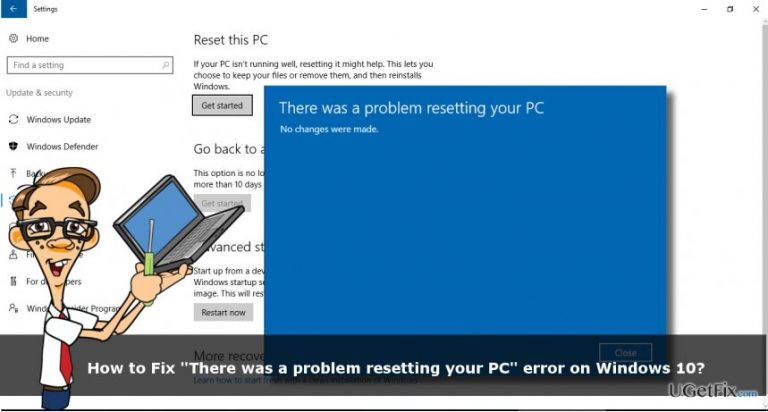
What causes How to fix “There was a problem resetting your PC” error on Windows 10?
- The PC came with pre-installed Windows 10 version
- The manufacturer enabled compression to reduce disk space
- The USB recovery drive was created using the 'Create a recovery drive' feature
- The PC was booted using Troubleshoot -> Reset this PC -> Remove everything
Repairs Windows system files, removes malware, and restores a clean OS state — without reinstalling.
Hi, guys. I tried to use the “Reset this PC” option, but the reset failed with an error “There was a problem resetting your PC”. What should I do next?
“Reset this PC” is an option introduced to Windows OS with the Windows 10 version. Windows 8 has the “Refresh your PC” and “Reset your PC” options, which work in the same way as Windows 10 “Reset your PC.” This feature is a quick solution when the PC owner needs to restore Windows to its factory default configuration. It’s similar (not equal) to Windows reinstalling using a Media Creation Tool, but is far faster and convenient. Unfortunately, the “Reset this PC” function may fail to work due to various reasons. One of the most common issues encountered by people is the “There was a problem resetting your PC” error. It’s a known issue, which emerged along with the release of Windows 10. According to experts, this failure occur if all of the following conditions are true:
- The PC came with pre-installed Windows 10 version;
- The manufacturer enabled compression to reduce the disk space required for pre-installation.
- The USB recovery drive was created using a “Create a recovery drive” feature in Windows 10.
- The PC was booted by performing these steps: Troubleshoot -> Reset this PC -> Remove everything.
Luckily, you can fix “There was a problem resetting your PC” error with no difficulty. For that, please perform the methods provided below:
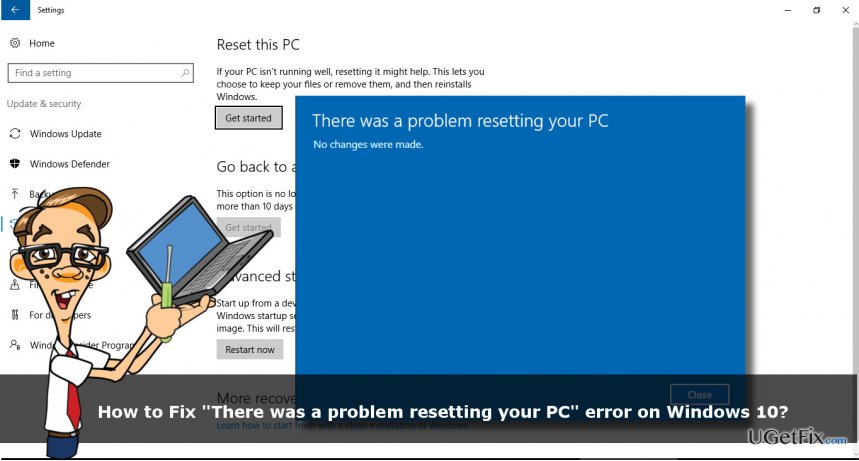
Method 1. Use a USB Recovery Drive
IMPORTANT: by performing the steps below, you agree with the removal of all your personal files, apps, drives, and settings. The system will be restored to factory state.
- Boot the system using a USB recovery drive.
- Select Troubleshoot and Recover from a drive.
- Follow the on-screen instructions to recover the PC.
Method 2. Use an elevated Command Prompt
If the Method 1 is not appropriate for you, try these steps:
- Right-click on Windows key and select Command Prompt (Admin).
- Copy sfc /scannow command, paste it into Command Prompt window, and press Enter.
- Then reset your PC by entering the following commands (press Enter after each of them):
cd %windir%\system32\config
ren system system.001
ren software software.001 - Finally, type exit to close Command Prompt and reboot the system.
Method 3. Use a System Restore Point
- Hold power button to turn off your PC and then restart the system.
- Before Windows logo shows up, press F8 to boot into Safe Mode.
- Log in to your account if required.
- Once the system boots up, disable your antivirus.
- Click Windows key and type system restore.
- Select Create a restore point, select System Restore and hit Next.
- Select the latest system restore point and click Next.
Method 4. Run a scan with an anti-malware
Any error can be triggered by a virus. Therefore, if none of the fixes listed above helped you to fix “There was a problem resetting your PC” error, we would recommend scanning the system with [d1] or another professional anti-malware. It will fully optimize the system and remove virus/malware if detected.
Bottom line
To fix the 'There was a problem resetting your PC' error, you can use a USB recovery drive or an elevated Command Prompt to run system checks. If these methods do not resolve the issue, further troubleshooting may be necessary.
Frequently asked questions
First, try running the Windows Recovery Environment and use the Startup Repair option. If that doesn’t work, consider using the System File Checker tool to repair corrupted files.
Yes, certain third-party software can interfere with system processes and lead to this error. Uninstalling problematic applications may help resolve the issue.
Yes, you can attempt to perform a repair install using Windows 10 installation media, which allows you to keep your files while repairing the system.




Report an issue
What's wrong with this guide? We review every report and update or remove content.
Report received — thank you. We'll review and fix it.
You need a free account to submit a report.
Be the first to comment