How to fix
“There was an error communicating with the Steam servers” error
on Windows
Resolve the "There was an error communicating with the Steam servers" issue on Windows 10/11 quickly and easily. Expert-tested solutions ensure you're g…

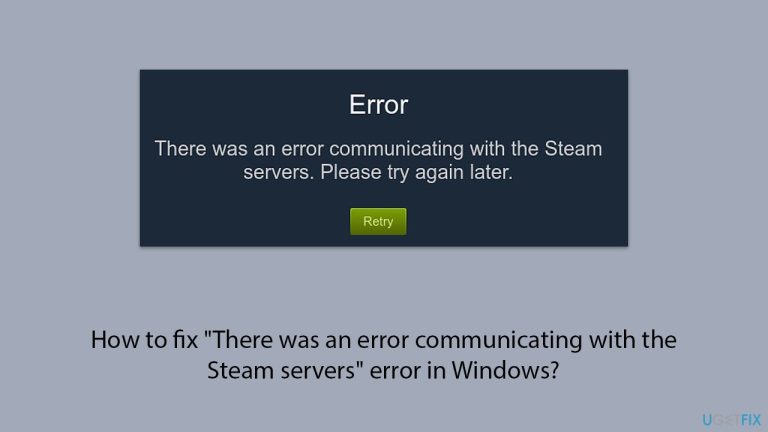
What causes How to fix “There was an error communicating with the Steam servers” error in Windows?
- Internet connectivity problems
- Steam server maintenance or excessive traffic
- Firewall and antivirus programs blocking Steam
- Background applications interfering with connectivity
Repairs Windows system files, removes malware, and restores a clean OS state — without reinstalling.
I've been experiencing issues with the Steam Client since yesterday. Whenever I attempt to log in, it repeatedly says that there is a network issue. Even when I manage to log in, the client begins to verify my login details and consistently displays the error message "There was an error communicating with the Steam servers." What can I do to fix this?
Users frequently encounter the "There was an error communicating with the Steam servers" error which blocks them from accessing online features on the Steam platform. They find themselves unable to access Steam features after this error occurs while attempting any Steam action including login and retail purchases and multiplayer gameplay.
Possible causes of the error
- The "There was an error communicating with the Steam servers" error appears because of multiple factors:
- Internet connectivity problems create unstable or poor networks which prevent Steam from contacting its servers.
- Steam server maintenance or excessive traffic sometimes causes the problem that leads to this error.
- Firewall and antivirus programs sometimes block Steam by mistake which leads to disconnection from the servers.
- Steam can experience interruptions from background applications which include VPN or third-party network utility programs.
How users experience this error
The "There was an error communicating with the Steam servers" error has become a common issue for numerous Steam users who try to access their accounts or perform updates. The error shows resistance to both Steam and computer restarts indicating that system-wide network configuration or deeper system problems exist.
Potential solutions
The resolution of this problem requires users to check their network status while confirming security applications do not block Steam and examining other programs which might interrupt connectivity. It is also worth checking whether Steam servers are up and running.
There are numerous other solutions that we suggest trying, all of which can be found below. Additionally, we recommend you try running a scan with a PC repair app [d1], which is designed to automatically tackle Windows issues related to corrupted DLL and other system files, broken registries, bugged caches, and more.
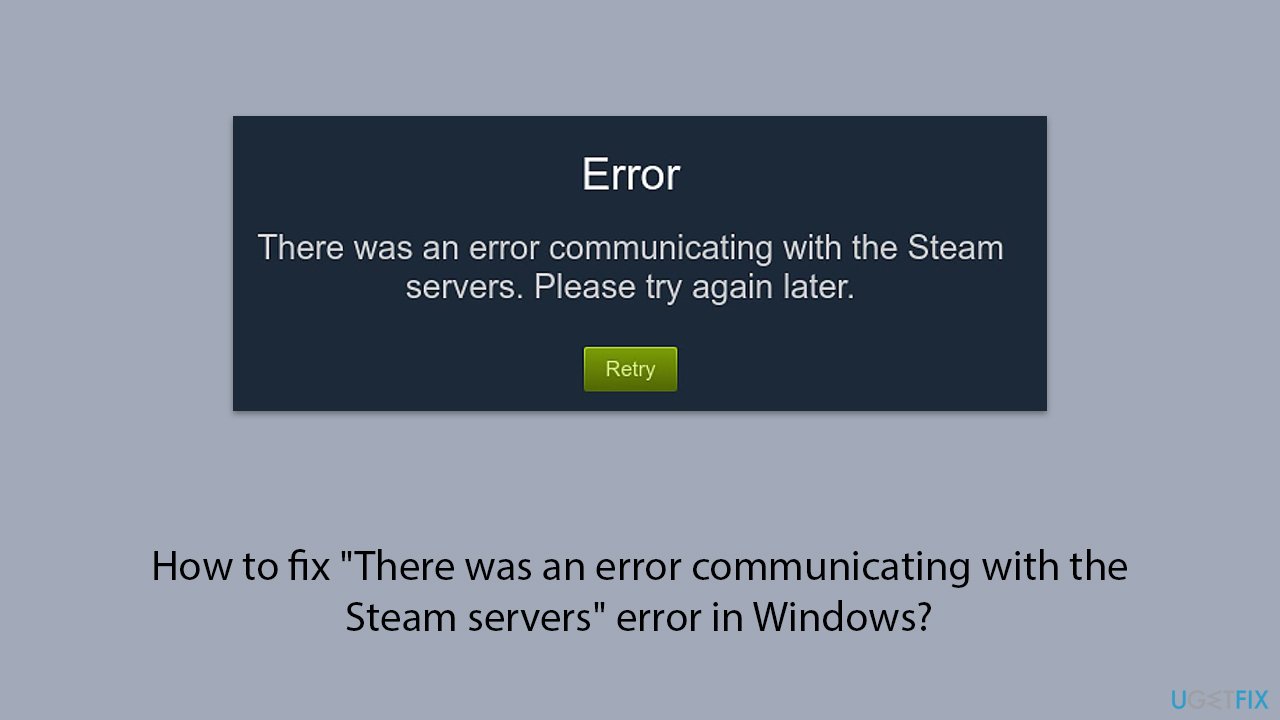
Fix 1. Check Steam server status
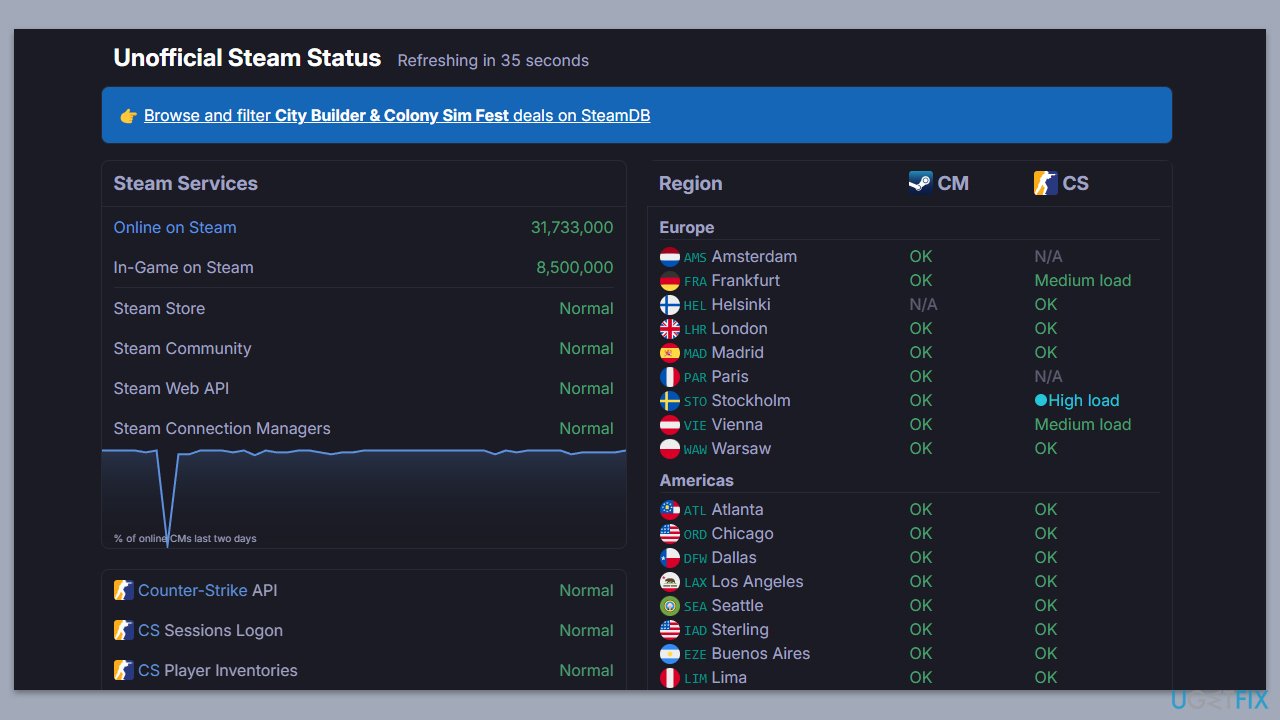
Sometimes, the error happens due to Steam's servers being down or undergoing maintenance. If the issue is on Steam’s end, waiting until the servers are back online is the only solution.
- Visit the website that monitors the Steam server status.
- If there’s an ongoing outage, wait for Steam to resolve the issue.
Fix 2. Run Network troubleshooter
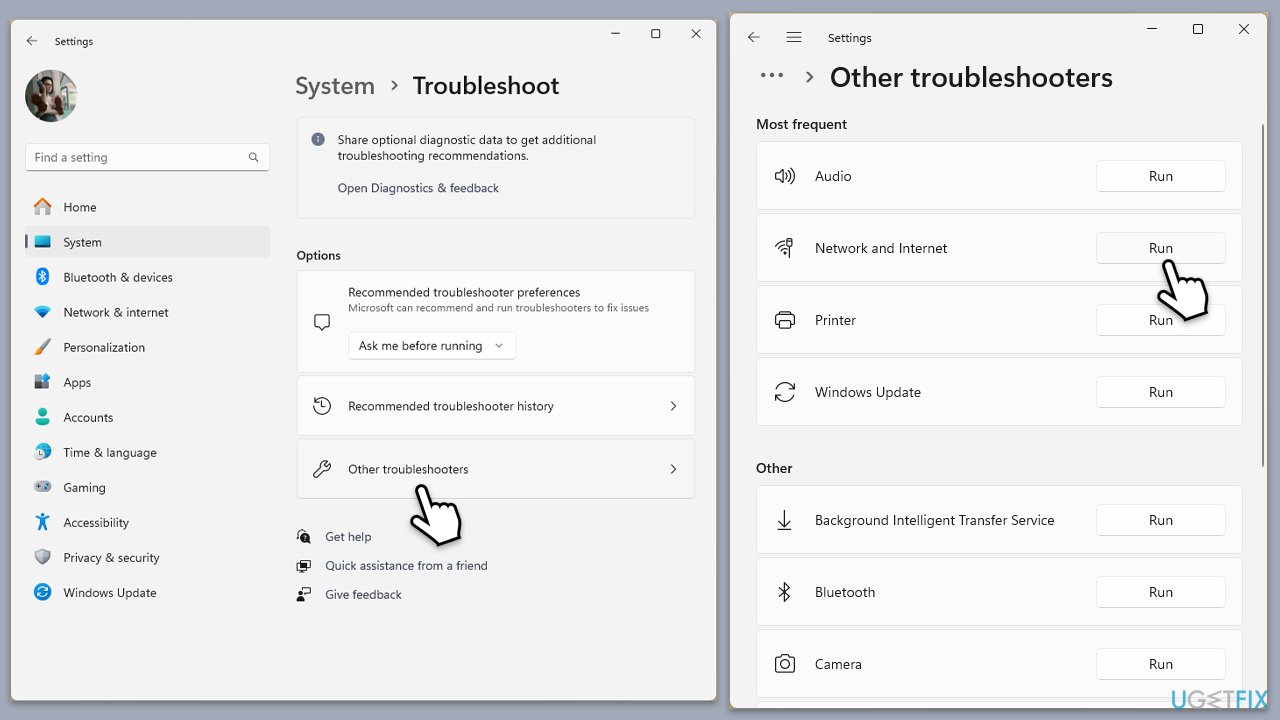
If there is an underlying network issue affecting Steam’s connection, running the built-in Windows Network Troubleshooter can help diagnose and resolve it.
Windows 11:
- Type Troubleshoot in Windows search and press Enter.
- Select Other troubleshooters.
- Find Network & Internet troubleshooter from the list and select Run.
- Wait till the process is finished and apply the offered fixes.
- Restart your computer.
Windows 10:
- Right-click on Start and pick Settings.
- Go to the Network & Internet section.
- On the right side, find the Advanced network settings section.
- Click Network troubleshooter and wait.
- The fixes will be automatically applied.
Fix 3. Disable VPN and proxy settings
VPNs and proxies can interfere with Steam’s ability to communicate with its servers, causing connection failures.
- Disable a VPN to switch to your default network, if applicable.
- Right-click on Start and pick Network connections.
- Navigate to the VPN section and disable it if it's connected.
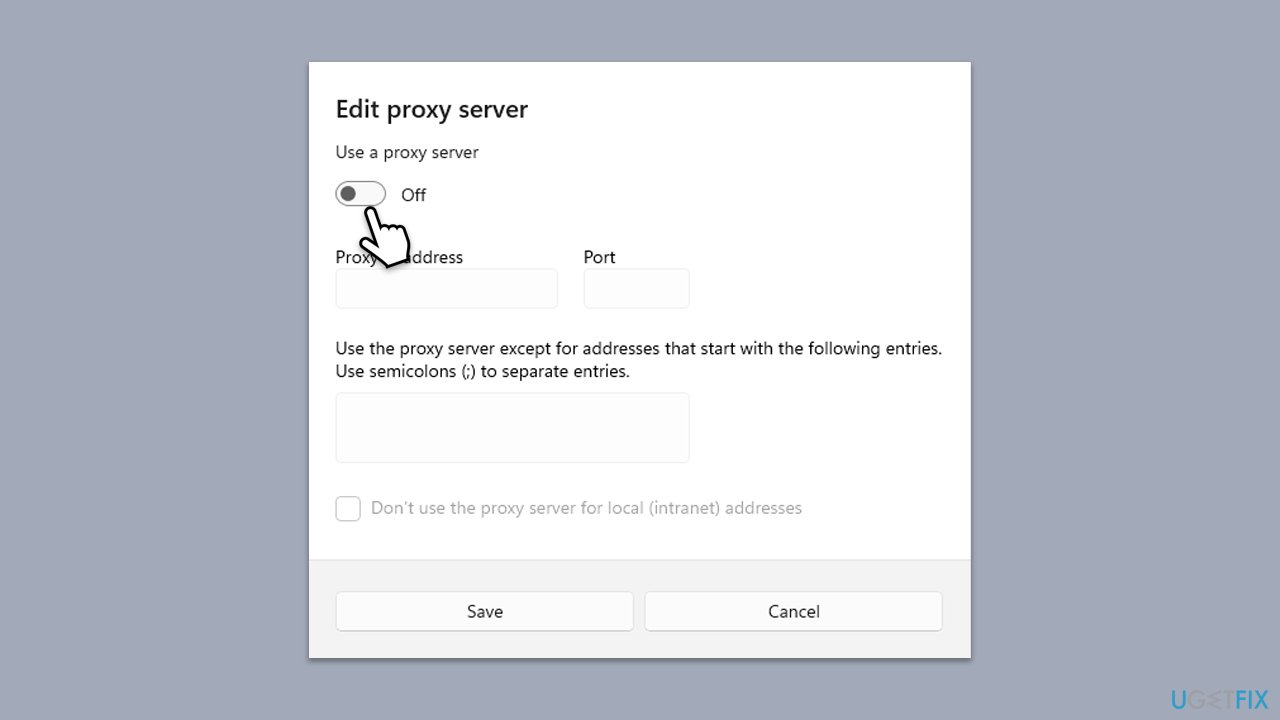
- Then select Proxy.
- Here, disable Proxy if it's enabled.
Fix 4. Allow Steam through Windows Firewall
Windows Firewall may be blocking Steam’s access to the internet, preventing it from connecting to the servers.
- Type in Control Panel in Windows search and press Enter.
- Go to System and Security and click on Windows Defender Firewall.
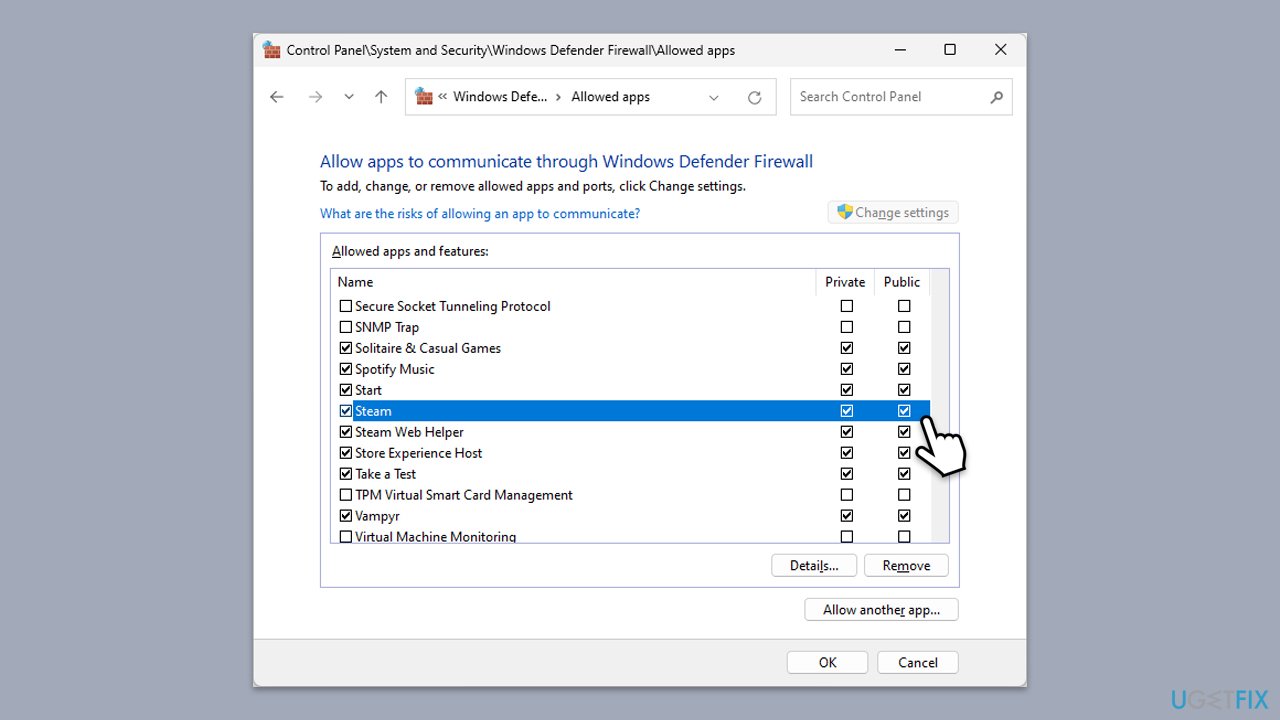
- On the left side of the window, click Allow an app or feature through Windows Defender Firewall.
- Click Change settings (if you are not on an administrator account, you will be asked to enter a password).
- Scroll down and enable Private and Public access to the following entries:
Steam
Steam Web Helper - Finally, click OK.
Fix 5. Flush DNS and reset network settings
If there are network configuration issues, clearing the DNS cache and resetting network settings can help restore connectivity.
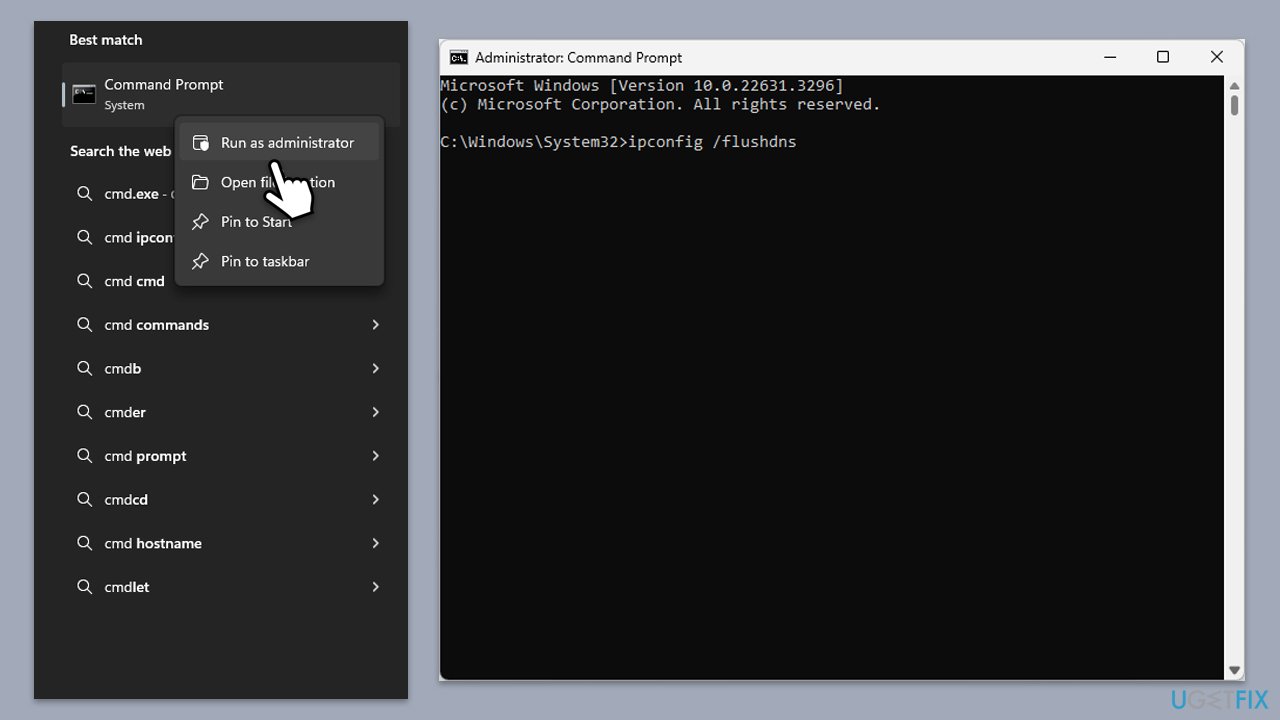
- Type cmd in Windows search.
- Right-click on Command Prompt result and pick Run as administrator.
- When the User Account Control window shows up, click Yes.
- In the new window, copy and paste the following commands, pressing Enter each time:
ipconfig /flushdns
ipconfig /registerdns
ipconfig /release
ipconfig /renew
netsh winsock reset - Reboot your system and check if the issue is resolved.
Fix 6. Change Steam’s download region
Steam assigns a download region based on your location, but switching to a different one can sometimes resolve connection issues.
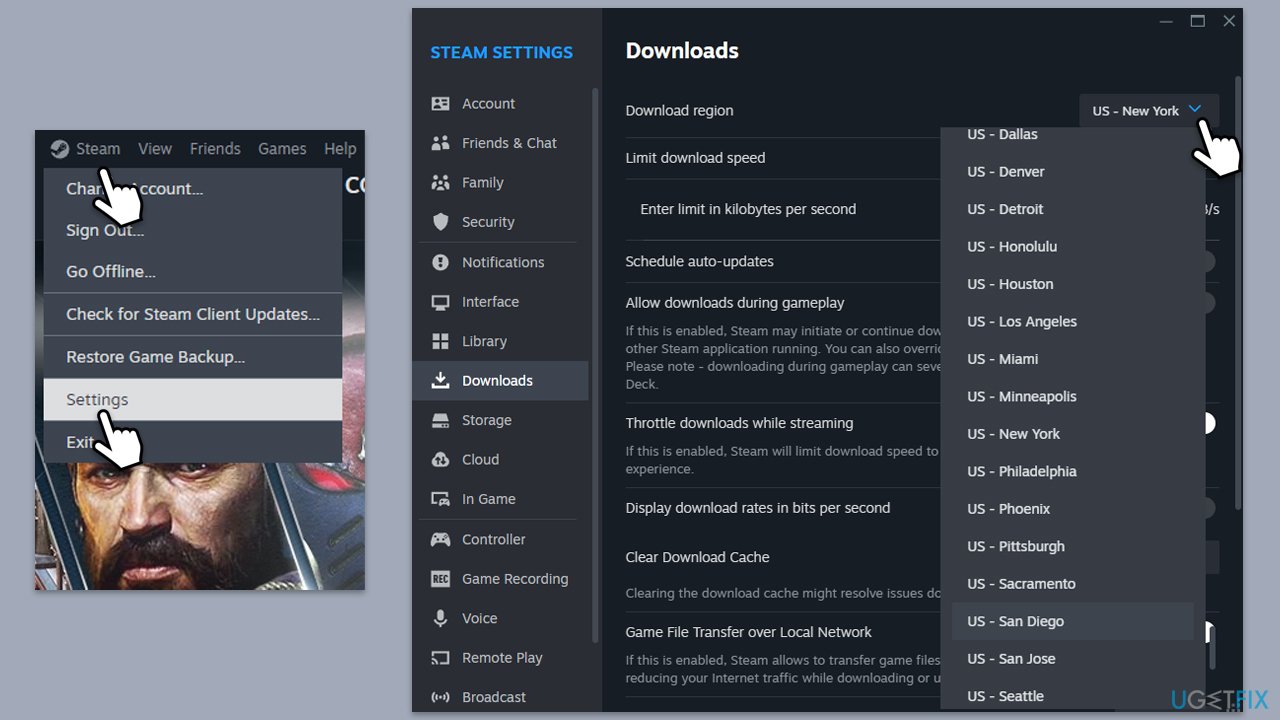
- Open Steam and go to Settings.
- Click on the Downloads tab and find the Download Region option.
- Select a different region from the dropdown menu.
- Restart Steam and check if the issue is resolved.
Fix 7. Run Steam as an administrator
Insufficient permissions may prevent Steam from establishing a connection with its servers. Running the application as an administrator can help bypass these restrictions.
- Right-click on the Steam shortcut or executable file.
- Select Run as administrator from the context menu.
- Log in to your Steam account and check if the error is resolved.
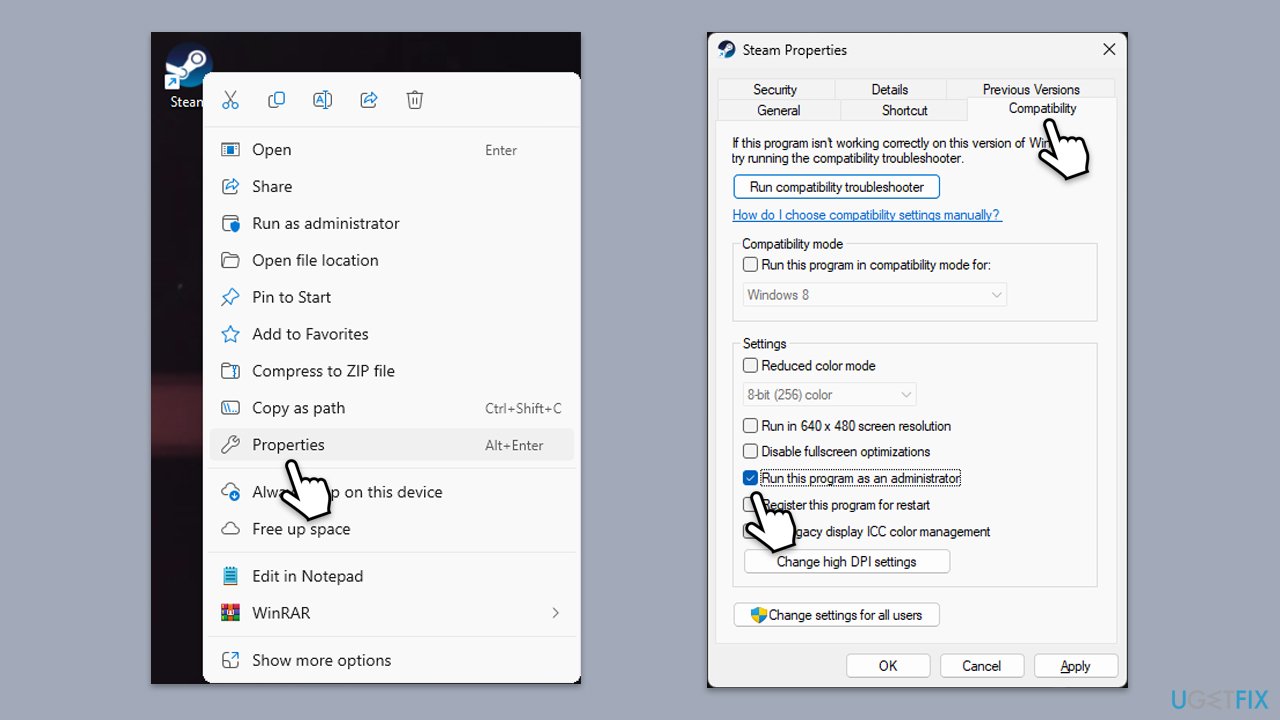
If the issue is fixed, you can set Steam to always run as admin as follows:
- Right-click on the Steam shortcut or executable file and select Properties.
- Go to the Compatibility tab.
- Check the box next to Run this program as an administrator.
- Click Apply and then OK.
- launch the game as normal.
Fix 8. Reinstall Steam
If all else fails, a corrupted Steam installation could be the cause. Reinstalling Steam can help fix any corrupted files that might be preventing it from working properly.
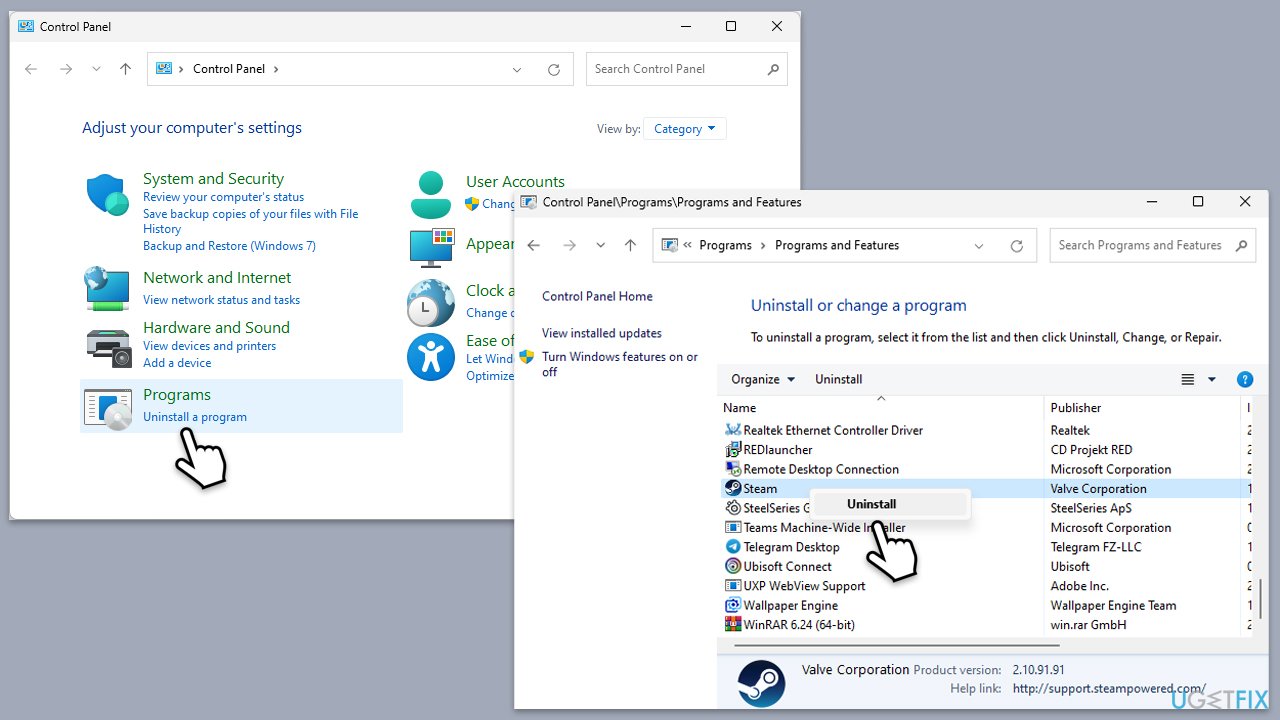
- Type Control Panel in Windows search and press Enter.
- Go to Programs > Uninstall a program.
- Find Steam, right-click, and select Uninstall.
- Follow the prompts to remove the app.
- Reboot your PC and then reinstall Steam from the official website.
Bottom line
To fix the error, users should check their network status, ensure security applications are not blocking Steam, and examine other programs that might disrupt connectivity. Additionally, verifying the status of Steam servers is crucial. If these solutions do not resolve the issue, consider running a scan with a PC repair app.
Frequently asked questions
First, check your internet connection to ensure it is stable, then restart your router and try launching Steam again.
Open Steam, go to Settings, then Downloads, and select a different download region from the dropdown menu to see if it resolves the communication error.
You can use the Windows Network Troubleshooter by going to Settings > Update & Security > Troubleshoot > Additional troubleshooters, which may help identify and fix network-related issues affecting Steam.




Report an issue
What's wrong with this guide? We review every report and update or remove content.
Report received — thank you. We'll review and fix it.
You need a free account to submit a report.
Be the first to comment