
How to fix “There was an error trying to load your shopping cart” error on Steam?

Prefer to fix it yourself? The manual steps follow.
- 8methods
- 2 minutes for a restart, 10 to 15 minutes for the network and cache fixes
- Easy
Applies to Steam client on Windows 11 and Windows 10; the Steam store in Chrome, Edge and Firefox
8 methods in this guide
There was a sale on Steam and I was looking forward to buying several games. However, each time I try to purchase something, I receive "There was an error trying to load your shopping cart. Please try again later." Any ideas?
"There was an error trying to load your shopping cart" means the Steam store could not fetch your cart from Valve's servers. It is almost never your account or your card. Exit Steam completely and reload the cart first, then check whether Steam is down and restart your router.
Your PC could not get the cart from Steam's servers, so the store shows an error instead. Start with Fix 1: exit Steam from its menu, end any leftover Steam processes and open the cart again. If the store is down for everyone, only waiting helps (Fix 2). If it keeps failing, restart the router and renew your IP address (Fix 3), and turn off any VPN or proxy, which Steam Support says declines purchases (Fix 4).
| Error | "There was an error trying to load your shopping cart. Please try again later." on an "Oops, sorry!" page, or, in the current cart, "There was a problem updating your cart" with a code such as Error code 2. |
|---|---|
| Where it appears | When you open the cart or press Add to Cart, in the Steam client or on store.steampowered.com. Often during big sales. |
| Main cause | The request for your cart did not reach Steam or came back empty: a stale client session, a busy or down store, a broken network path, or a VPN or proxy. |
| Fastest fix | Exit Steam through Steam > Exit, end leftover Steam processes in Task Manager, start Steam and open the cart again (Fix 1). |
| Also written as | "Steam cart not loading", "Steam cart won't load", "Steam cart broken", "Steam error updating cart", "error code 2 Steam cart", "error code 8 Steam cart". |
| Affects | Every current Steam client on Windows 11 and Windows 10, and the store in any browser. Windows 10 left Microsoft support on 14 October 2025. |
| Vendor status | Valve has no article for this message. Steam Support's advice for failing purchases: switch between the client and the website, and remove any IP proxy or VPN. |
| Your money | A cart that does not load has not charged you. If a purchase fails at checkout, Steam saves the cart for 72 hours and emails you a link to it. |
| Time to fix | 2 minutes for a restart; up to 15 minutes for the network and cache fixes. |
Facts checked on 15 October 2026. Steps written for the Steam client and the Steam website on Windows 11 (25H2 and 26H2) and Windows 10 22H2, read against Steam Support's purchasing articles and reports in Steam's own forums.
What "There was an error trying to load your shopping cart" means on Steam
The Steam cart is not stored on your PC. Every time you open it or add a game, the store asks Valve's servers for the current cart of your account. When that answer does not arrive, Steam shows an error page instead of the cart. The message tells you nothing about why, and it does not mean your purchase was refused.
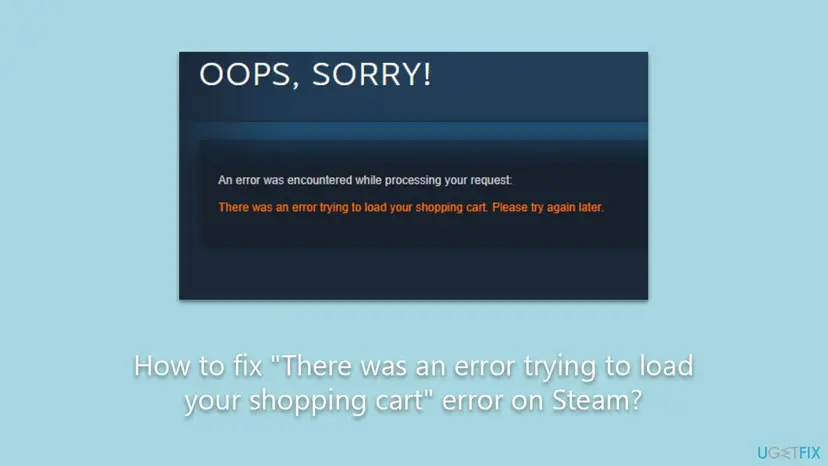
- The full message
- The page reads "Oops, sorry!", then "An error was encountered while processing your request:", then "There was an error trying to load your shopping cart. Please try again later."
- The current form
- In the current store a small box says "There was a problem updating your cart", often with a number. A user in Steam's Help and Tips forum in May 2024 quoted it as "There was a problem updating your cart Error code 2".
- The error codes
- Valve does not publish what the cart codes mean. Users see Error code 2 most often and sometimes Error code 8. We could not confirm the difference, and the fixes below are the same for both.
- What it is not
- It is not a declined card, a region block or an account ban. Those have their own messages on the checkout page, listed by Steam Support under purchasing issues.
The reader's question mentions a sale, and that is typical. Big Steam sales send millions of people to the store at the same moment. If the store is overloaded, the cart fails for many people at once and nothing on your PC fixes it. Fix 2 shows how to tell.
What causes the Steam shopping cart error, from most to least common
Valve does not list causes for this message. The ranking below combines Steam Support's purchasing advice with what users report in Steam's own forums. Each cause points to the fix that tests it.
| How often | Cause | Sign | Fix |
|---|---|---|---|
| Most often | A stale session in the Steam client or its web helper. | Steam has been open for a long time; a refresh or restart sometimes helps. | Fix 1 |
| Often | The store is busy or down, usually at the start of a sale. | Fails in every browser and on every network; others report it too. | Fix 2 |
| Often | A broken network path: the router, the IP address or the DNS cache. | Error code 2; store pages or sign-in also fail while other sites work. | Fix 3 |
| Less often | A VPN, proxy or a browser's secure-connection tool. | Started after turning on a VPN, or fails only with it on. | Fix 4 |
| Less often | A broken cache or cookie in the client or one browser. | Fails in the client but works on the website, or the other way round. | Fix 5 to Fix 7 |
| Rarely | A firewall or security program blocking the Steam web helper. | Started after installing or updating a security product. | Fix 8 |
How to fix the Steam shopping cart error
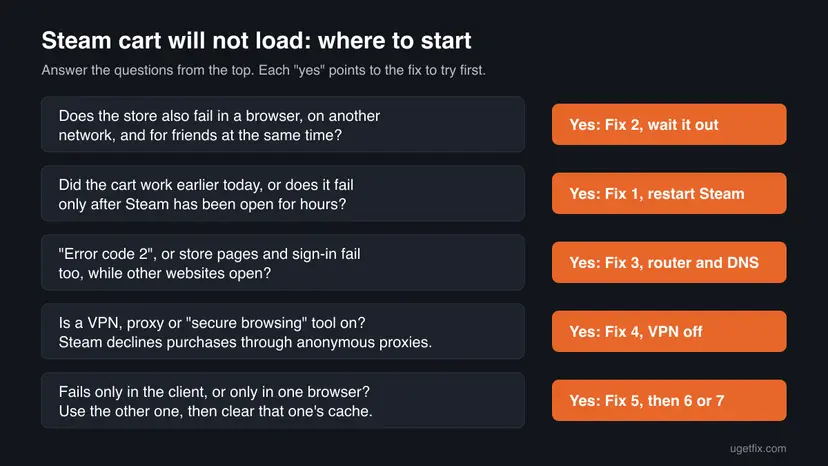
Fixes 1 and 2 take two minutes and solve most cases. Fixes 3 and 4 are for network problems, Fixes 5 to 7 for a cache in the client or the browser, and Fix 8 for security software. Open the cart again after each fix.
| What you see or have | Start with |
|---|---|
| Steam has been open for hours, or a page refresh helped once. | Fix 1 |
| A big sale just started, or friends see the same error. | Fix 2 |
| "There was a problem updating your cart" with Error code 2, and sign-in or store pages fail too. | Fix 3 |
| A VPN, proxy or traffic-filtering tool is on. | Fix 4 |
| The client fails but the website works, or the other way round. | Fix 5 |
| Only the Steam client shows the error, even after a restart. | Fix 6 |
| Only one browser shows the error. | Fix 7 |
| It started after installing a firewall or antivirus. | Fix 8 |
Fix 1. Exit Steam completely and open the cart again
2 minutesNo riskEveryone, first. Especially when Steam has been running for hours or since the last sleep.
The store and the cart run in Steam's web helper, which keeps its own sign-in session. When that session goes stale, cart requests fail while the rest of the client looks normal. Closing the window does not end it; only a full exit does. Users in Steam's forums report that ending Steam in Task Manager, or simply refreshing the page, cleared the cart error.
- On the cart page, press F5 (in the client, right-click an empty part of the page and select Reload if it is offered). If the cart opens, you are done.
- Open the Steam menu in the top left corner and select Exit. Closing the window only hides Steam.
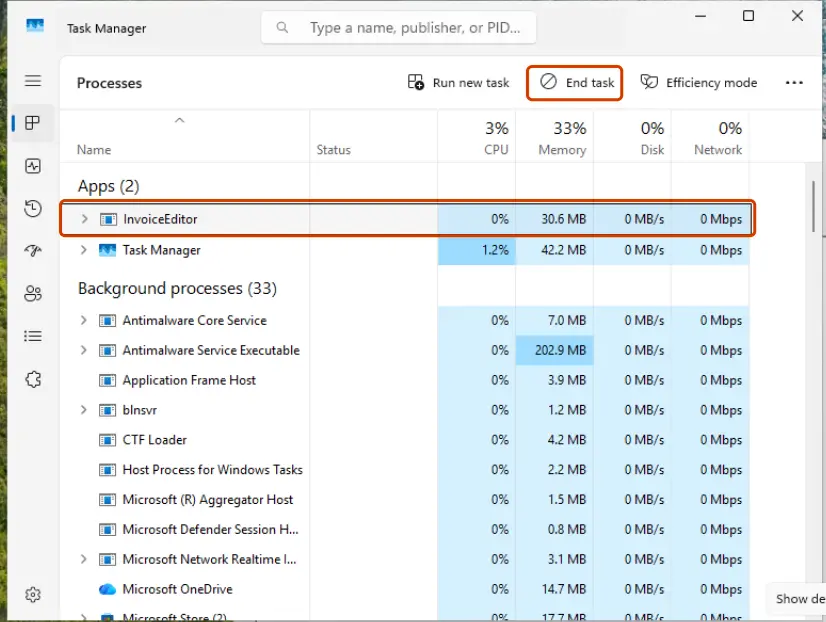
- Press Ctrl + Shift + Esc to open Task Manager.
- If Steam or Steam Client WebHelper is still listed, select it and select End task: Close a frozen app (Task Manager, Force Quit)
- Start Steam again and sign in if asked.
- Open the store and select the cart at the top right.
It worked if: The cart opens with your games and prices, and Add to Cart works again.
If not: If the error comes back at once, check whether the store is down in Fix 2.
Fix 2. Check whether the Steam store is down, and wait if it is
2 minutesNo riskA big sale has just started, or the error appears in every browser and on every device.
If Valve's store servers are overloaded or under maintenance, carts fail for everyone at once. No fix on your PC can change that, and repeating the other fixes only costs time. Steam Support's message itself says to try again later.
- On the same PC, open
https://store.steampowered.com/in a browser you do not normally use for Steam. - On your phone, switch off Wi-Fi and open the store over mobile data.
- Open
https://store.steampowered.com/stats/, the page Steam Support links for server status, and see whether it loads. - Look at an outage tracker such as DownDetector for a spike of reports in the last hour.
- If the store fails everywhere, wait 30 to 60 minutes and try again. Sale prices stay for the whole sale, not for the first hour.
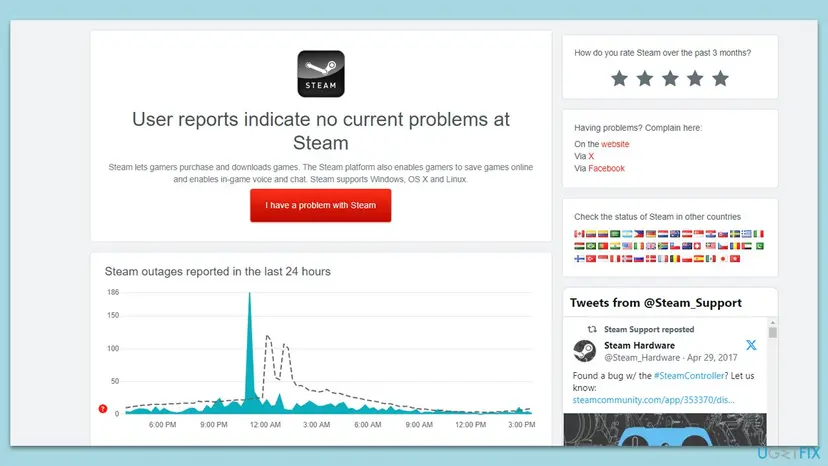
It worked if: Either the store works on other devices, which points to your PC or network, or it fails everywhere and starts working again after a while.
If not: If the store works on your phone's mobile data but not on your home network, go to Fix 3.
Fix 3. Restart the router and renew your IP address and DNS cache
10 minutesLow riskYou see "There was a problem updating your cart" with Error code 2, or Steam sign-in and store pages fail too while other sites open.
In a May 2024 thread on Error code 2, the user who opened it fixed it by restarting the modem and router. Another user reported the same result with ipconfig /release, /flushdns and /renew, and a third confirmed it in October 2025. These give your PC a fresh address and forget stale DNS answers for Steam's servers.
- Exit Steam through Steam > Exit.
- Unplug the modem and the router, wait 30 seconds, plug the modem in, wait until its lights settle, then plug in the router.
- When the PC is back online, open the Command Prompt as administrator.
- Run
ipconfig /release, thenipconfig /flushdns, thenipconfig /renew, one at a time. - Start Steam and open the cart.
- Open an elevated command window. Right-click Start and select Terminal (Admin), or type cmd in the search box, right-click Command Prompt and select Run as administrator. Select Yes when Windows asks for permission.
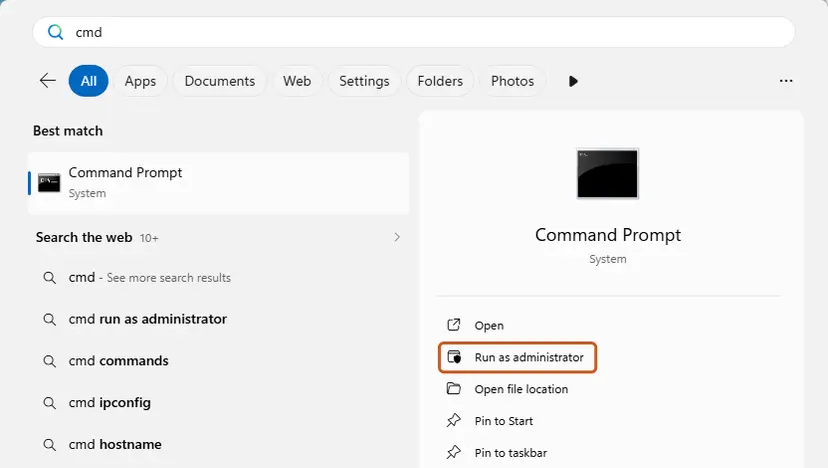
Search for cmd and choose Run as administrator. Screenshot: Windows 11 26H2. - Flush the DNS cache. Type the command below and press Enter. Windows forgets the website addresses it looked up earlier and asks for them again.
ipconfig /flushdns - Reset Winsock. Type the command below and press Enter. It returns the Windows sockets catalog to its default state.
netsh winsock reset
Both commands report success; the Winsock reset asks for a restart. Screenshot: Windows 11 26H2. - Reset TCP/IP. Type the command below and press Enter. If you entered an IP address or DNS server by hand, note it first: you may need to enter it again.
netsh int ip reset - Get a new IP address. Run these two commands one after the other. The connection drops for a moment between them.
ipconfig /release
ipconfig /renew
These steps were written for Windows 11 24H2 and later. The full page with the other versions and what each result means: Reset the network and flush DNS
The full network reset at the end of that procedure is not needed for this error. If the router restart alone helps, you can skip the commands.
It worked if: Store pages load quickly again and items go into the cart without an error box.
If not: If the error stays and a VPN or proxy is in use, go to Fix 4. Otherwise go to Fix 5.
Fix 4. Turn off a VPN or proxy and test the cart without it
5 minutesLow riskA VPN app, a proxy, a browser's built-in VPN or a traffic-filtering tool is on.
Steam Support tells users with failing purchases to "disable or completely remove any IP proxy or VPN software" and restart, and states that "all transactions that are initiated through anonymous proxies will be declined by Steam". A VPN also changes which store region Steam sees, which can break the cart.
- Disconnect the VPN app and close it from the notification area.
- In Windows, open Settings > Network & internet > Proxy and check that Use a proxy server is off unless your work needs it.
- Turn off any browser VPN or proxy extension.
- Restart the PC, as Steam Support advises.
- Open Steam or the store and load the cart.
One user reported the opposite: the cart worked only with a VPN set to their own country. That points to a broken route at the internet provider, not to the VPN being the fix. Restart the router (Fix 3) and contact the provider, and buy without the VPN, because Steam declines purchases through anonymous proxies.
It worked if: With the VPN off, the cart loads and checkout shows prices in your own store currency.
If not: If nothing changes, turn the VPN back on for other use and go to Fix 5.
Fix 5. Use the Steam website instead of the client, or the other way round
3 minutesNo riskThe error appears in one place only, or you want to finish a purchase now and fix the cause later.
This is Steam Support's first advice for failing purchases. Its words: "please try purchasing through the Steam client, or vice versa." The two use separate caches and sessions, so a fault in one often does not touch the other.
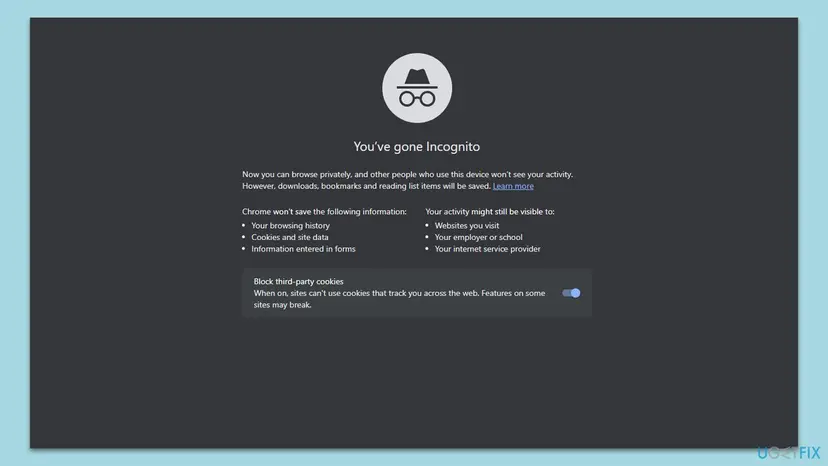
- If the client fails, open a private window: in Chrome press Ctrl + Shift + N, in Edge and Firefox press Ctrl + Shift + P.
- Go to
https://store.steampowered.com/, sign in and open the cart. - If the website fails, open the Steam client and buy from its store instead.
- Add the games again if the cart is empty in the other place. The cart belongs to your account, so it usually matches.
It worked if: The cart opens in the other place and you can complete the purchase.
If not: If only the client fails, clear its browser data in Fix 6. If only one browser fails, clear that browser in Fix 7.
Fix 6. Delete the Steam client's web browser data
3 minutesLow riskThe cart fails in the Steam client after a full restart, but works on the website.
The client keeps its own browser cache and cookies, separate from Chrome or Edge. A broken store cookie there makes every cart request fail. The client's own text says this button deletes "all Steam browser cached files, cookies, and history". Your games are not touched; you sign in to store pages again.
- In the client, open the Steam menu and select Settings.
- Open the In Game page.
- Next to Delete Web Browser Data, select Delete and confirm.
- Exit Steam through Steam > Exit and start it again.
- Open the store, sign in if asked, and load the cart.
Our guide to the Steam web content error also shows how to empty the htmlcache folder by hand, if this button does not help.
It worked if: The store loads fresh, asks you to sign in once on web pages, and the cart opens.
If not: If the client still fails, check security software in Fix 8.
Fix 7. Clear the browser's cookies and cache for Steam
3 minutesLow riskThe cart fails in one browser but works in a private window or another browser.
A private window working while the normal one fails means the normal window holds a bad cookie, cached script or extension for Steam's store. Clearing cookies and cached files for the store removes it. You are signed out of Steam in that browser.
- Press Ctrl + Shift + Delete in Chrome, Edge or Firefox.
- Set the time range to All time.
- Check Cookies and other site data and Cached images and files, then delete.
- Turn off ad blockers and script blockers for
store.steampowered.com. - Open the store, sign in and load the cart.
- Choose what to delete. Check Cached images and files. Check Cookies and other site data too if a site will not sign you in. Uncheck anything you want to keep.
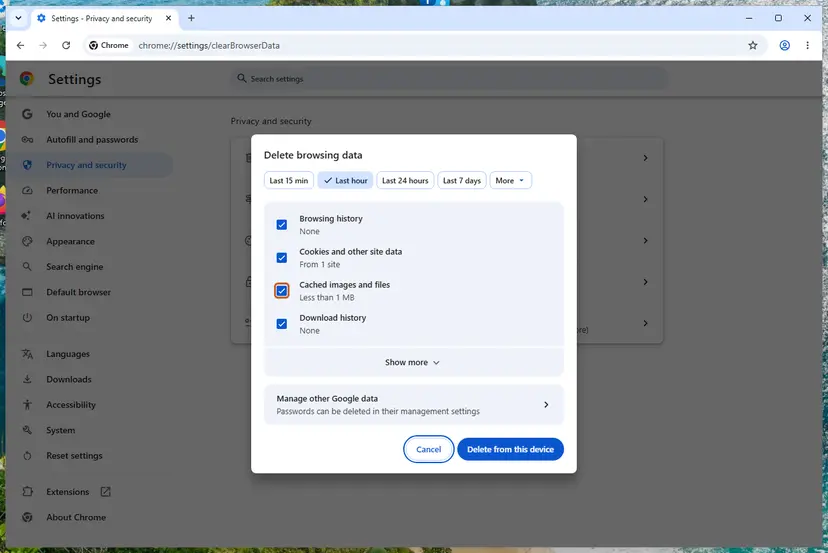
Chrome: Delete browsing data, with the time ranges at the top. Screenshot: Windows 11 26H2. - Delete the data. Select Delete from this device.
These steps were written for Chrome for Windows (screenshot: Windows 11 26H2). The full page with the other versions and what each result means: Clear the browser cache and cookies
It worked if: After signing in again the cart loads in your normal browser window.
If not: If the cart still fails only in this browser, use the client or another browser for the purchase and go to Fix 8.
Fix 8. Allow Steam through the firewall and test security software for one try
10 minutesLow riskThe error began after installing or updating a firewall, antivirus or other security program.
The store and cart are loaded by steamwebhelper.exe, a separate program from steam.exe. A firewall rule for Steam alone may not cover it, and some security programs inspect web traffic in a way that breaks the store's secure connection.
- Open Control Panel > System and Security > Windows Defender Firewall.
- Select Allow an app or feature through Windows Defender Firewall, then Change settings.
- Make sure Steam and Steam Web Helper are checked, then select OK.
- In a third-party security program, add the Steam folder to its exceptions. The default is
C:\Program Files (x86)\Steam. - To test, pause protection for one try and turn it back on right after: Turn off Microsoft Defender protection for a moment
Pausing is a test, not the fix. If the cart works with protection paused, turn it back on and add the exception for Steam instead. Do not shop or browse with protection off.
It worked if: With the exceptions in place and protection on, the cart loads.
If not: If nothing changed, collect the details in the next section and contact Steam Support.
If the Steam shopping cart still will not load: what to check and what to send
The cart error leaves no log you can read on the PC. Your test results are the record, so note them before you contact anyone. Steam Support asks for your account name and "the exact error message that you are seeing".
- Take a screenshot of the error, including any code such as Error code 2 or Error code 8.
- Note where it fails: the client, which browsers, which networks, and whether a private window works.
- Note whether a VPN, proxy or security program was on, and whether turning it off changed anything.
- Open
https://help.steampowered.com, choose Purchases and describe the problem with these details. - If the store fails only on your home network and works on mobile data, call your internet provider too.
- It is not hardware. A failing cart is a network or session problem, never a disk or graphics fault.
- It is not an account limit. A restricted or locked account shows its own message at sign-in or checkout.
- If a purchase failed at checkout, look for Steam's email with a link to your saved cart. Steam keeps it for 72 hours. If the purchase failed before the checkout page, Steam did not save it.
- If you see a pending charge after a failed purchase, Steam Support says banks can hold the funds for up to 30 days, and Steam does not collect them.
How to keep the Steam cart working during sales
- Exit Steam from its menu now and then, and after the PC wakes from sleep.
- Add games to your wishlist before a sale, so the cart takes a minute, not an hour.
- Keep a second way in: the client and a browser where you are signed in.
- Allow Steam and Steam Web Helper in your firewall and security software.
- Do not buy through a VPN or proxy: Steam declines those purchases.
- Do not hit Add to Cart again and again in the first minutes of a big sale.
- Do not uninstall Steam to fix the cart: Steam Support warns that uninstalling through Windows deletes your games.
- Do not leave antivirus protection paused after a test.
If you still use Windows 10, note that Microsoft stopped its updates on 14 October 2025. Steam's store runs in a current browser engine, and an up-to-date Windows 11 is the safest base for it.
Frequently asked questions
Why is my Steam cart not loading?
Because the store could not get your cart from Valve's servers. The most common reasons are a stale session in the Steam client, a store that is busy or down at the start of a sale, a broken network path at your router, or a VPN or proxy. Start by exiting Steam from its menu and ending leftover Steam processes in Task Manager (Fix 1). If the store fails on every device, wait. If it fails only at home, restart the router and renew your IP address (Fix 3).
What does "There was a problem updating your cart" mean on Steam?
It is the current cart's version of the same error. The store tried to add or remove a game and Valve's servers did not confirm the change. It often comes with a number such as Error code 2. Nothing was bought or charged. Reload the page first; users in Steam's forums report that a refresh or a full Steam restart is often enough. If it repeats, restart the router and run the ipconfig commands in Fix 3, which several users confirmed for Error code 2.
What is error code 2 or error code 8 on the Steam cart?
Valve does not publish the meaning of the cart error codes, so we cannot confirm what each number stands for. Error code 2 is the one users report most, usually together with failing store pages or sign-in, which points to the network. Error code 8 is reported less often. The fixes are the same: restart Steam fully (Fix 1), check whether the store is down (Fix 2), then restart the router and renew the IP address and DNS cache (Fix 3).
Is Steam down when my cart won't load?
Sometimes, mostly in the first hours of a big sale. To tell, open the store in another browser and on your phone over mobile data. Open the stats page that Steam Support links for server status, and look at an outage tracker for a spike of reports. If the store fails everywhere, wait 30 to 60 minutes. If it works on mobile data but not on your home network, the cause is at your router or provider, and Fix 3 applies.
Will I lose the sale price if my Steam cart is broken?
Not because of the error. Steam sale prices apply for the whole sale period, not to the first buyers. A cart that fails to load has not reserved anything, so the price you pay is the store price when you check out. If a purchase fails on the checkout page, Steam saves your cart for 72 hours and emails you a link to it. If the sale ends in that time, we could not confirm from Valve whether the saved cart keeps the sale price, so finish the purchase before the sale ends.
Does a VPN cause the Steam cart error?
It can. Steam Support tells users with failing purchases to disable or remove any IP proxy or VPN and restart, and says Steam declines all transactions made through anonymous proxies. A VPN can also put you in another store region, which breaks the cart. Turn it off, restart, and try again (Fix 4). If the cart works only with a VPN, your provider's route to Steam is the problem: restart the router and contact the provider.
Should I use the Steam client or the website to buy?
Either works, and switching is Steam Support's first advice for failing purchases: if the website fails, buy in the client, and the other way round. The two keep separate caches and sign-in sessions, so a fault in one often does not affect the other. A private browser window is a good test, because it starts without stored cookies and extensions. Your cart belongs to your account, but if it looks empty in the other place, add the games again.
Does clearing Steam's web browser data delete my games?
No. Delete Web Browser Data in Steam > Settings > In Game removes only the client's browser cache, cookies and history. Your installed games, saves and library stay. You may have to sign in again on store and community pages. The step that does remove games is uninstalling Steam through Windows: Steam Support warns that it deletes all game and user data. To repair the client, use the fixes on this page or reinstall Steam over its existing folder.
I searched for this error in another language. Does this page apply?
Yes. People search for the cart error in Russian, Turkish, Spanish and other languages, for example "не удалось обновить корзину стим" or "hata kodu 2". The store shows the message in your Steam language, but the cause and the fixes are the same. Start with a full Steam restart (Fix 1), check whether the store is down (Fix 2), then restart the router and renew your IP address (Fix 3). If you already tried everything, turn off any VPN (Fix 4) and switch between the client and the website (Fix 5).
Sources
- Steam Support: Purchasing Issues (try the client or the website, remove IP proxy and VPN software, pending charges) (help.steampowered.com)
- Steam Support: Retrying a failed purchase, saved shopping cart (72 hours, email link) (help.steampowered.com)
- Steam Community, Help and Tips: Can't Add items to cart (error 2) (user reports, May 2024 to December 2025) (steamcommunity.com)
Did this fix work?
One click, no account. It tells the next reader which guides are worth their time.
Questions and experiences: fix “There was an error trying to load your shopping cart” error on Steam
Still broken, or found a fix we did not cover? Ask here: members and our editors answer. Reading is open; writing needs a free account.
…