How to fix
“There’s a problem with our connection to the controller” error 0x800708CA
on Windows
Resolve the "There's a problem with our connection to the controller" error 0x800708CA in Windows 10 or 11 quickly and easily. Expert-tested solutions!

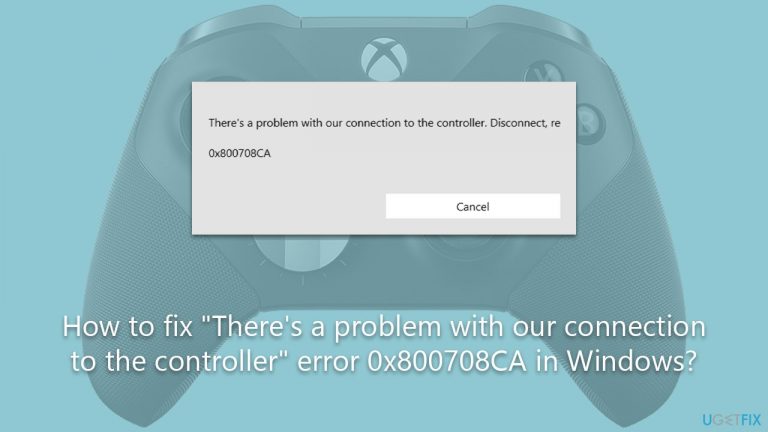
What causes How to fix “There’s a problem with our connection to the controller” error 0x800708CA in Windows?
- Network connection issues
- Bugs in the operating system
- Controller’s software bugs
- Improperly configured network settings
- Outdated controller drivers
Repairs Windows system files, removes malware, and restores a clean OS state — without reinstalling.
Hi. I seem to have problems with connecting an Xbox controller to my PC. When pairing, I receive an error 0x800708CA with the message "There's a problem with our connection to the controller."
As gaming evolves, so too does the demand for increasingly versatile equipment. A common example of this is the use of Xbox controllers on personal computers. Xbox controllers are typically used on their native console, but due to the flexibility they offer, many PC users find them convenient for a wide variety of games, allowing a more immersive experience.
This integration, however, isn't always seamless. One of the recurring issues users face is error 0x800708CA, manifested as the message "There's a problem with our connection to the controller." Most users complaining about the issue were using Xbox Elite Series 2 controller.
This error is primarily associated with network connection issues, which are a common cause of miscommunications between the Xbox controller and the PC. Alternatively, it can also be attributed to various bugs in the operating system or the controller’s software, interfering with the pairing process and ultimately disrupting the user experience. In both scenarios, the user finds themselves unable to use the controller effectively, leading to frustration.
Addressing the 0x800708CA error requires a comprehensive approach that involves troubleshooting network connections, updating system software, and resolving potential bugs. Depending on the underlying cause of the problem, you may need to adjust your system's network settings, update your controller's drivers, or perform other technical solutions that could help to rectify this issue.
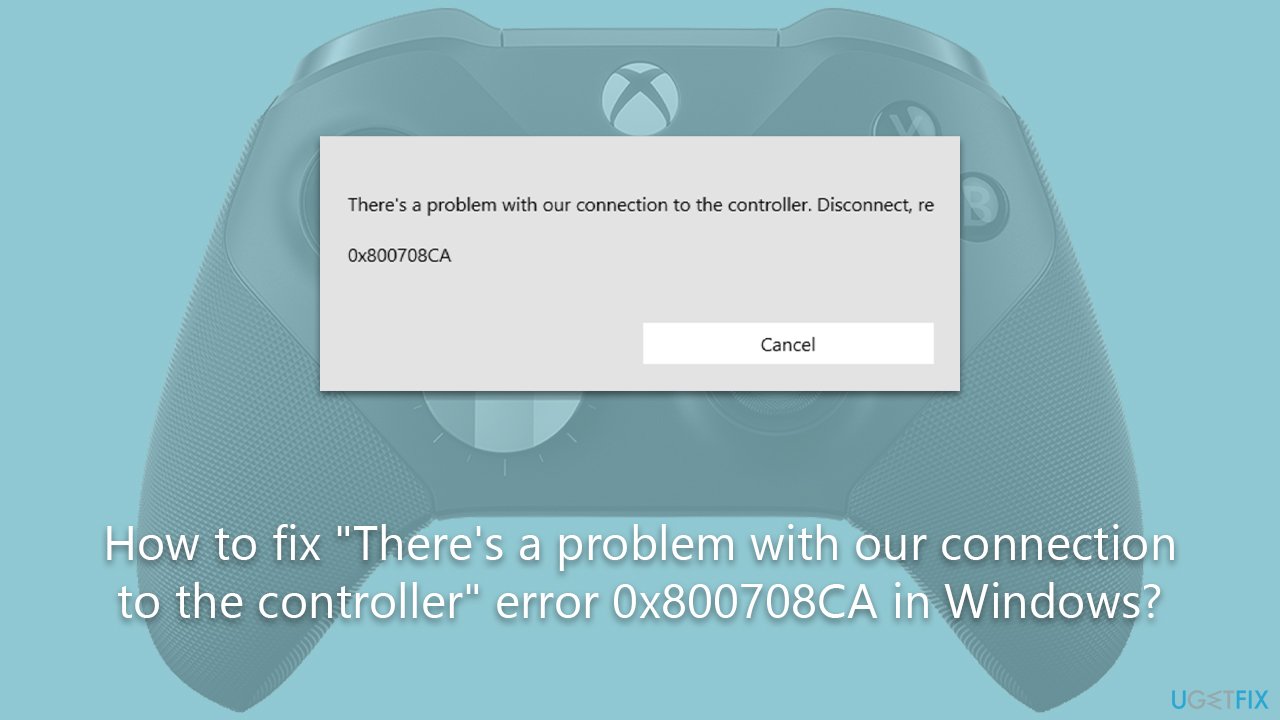
Detailed instructions on how to fix the error 0x800708CA can be found below. These steps are designed to guide users through the process of diagnosing and fixing the problem and restoring the connectivity between their Xbox controller and PC. It's important to remember that patience and diligence are key when navigating technical issues like this one, as the correct solution may require a combination of several different steps.
Additionally, employing the use of a PC repair tool, such as [d1], may prove beneficial in maintaining the health of your system. While not a direct solution for the 0x800708CA error, such a tool can assist in identifying and resolving other system issues, which in turn, can enhance the overall performance and stability of your PC, making it less prone to similar issues in the future.
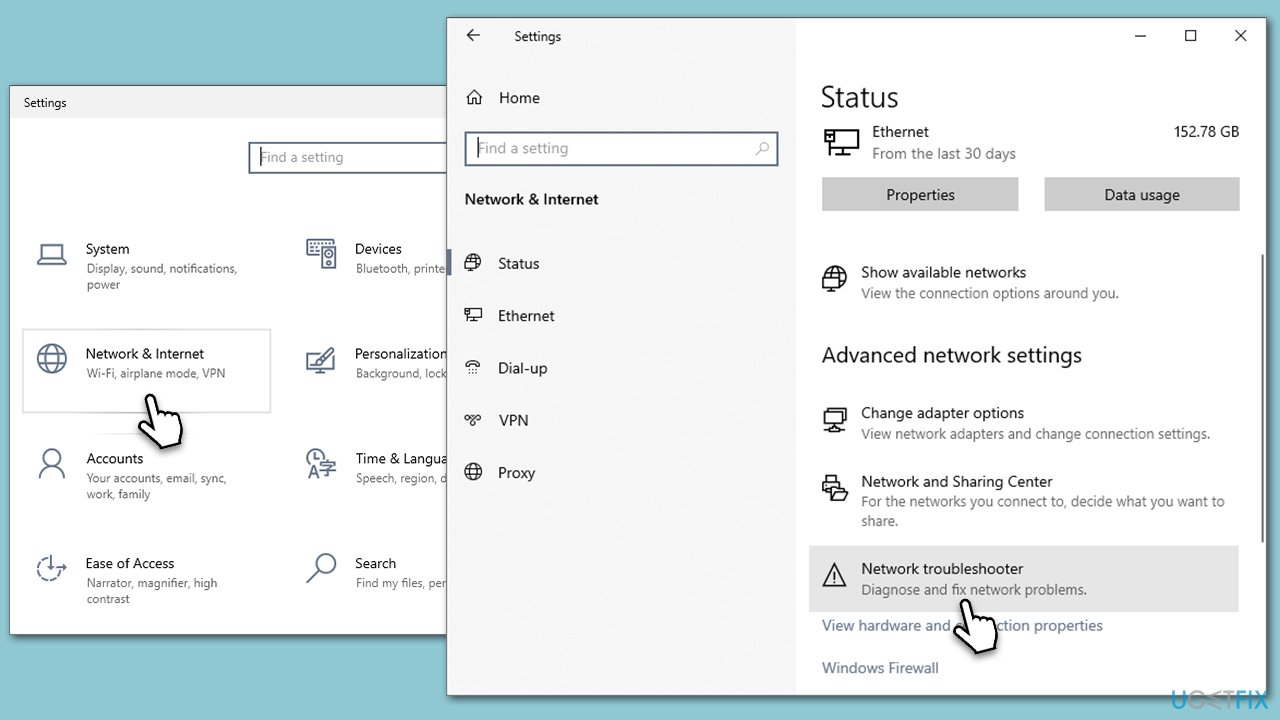
Fix 1. Run network troubleshooter
The network troubleshooter is a built-in Windows tool that identifies and fixes problems with network connections. If a network issue is causing the 0x800708CA error, this tool can help rectify it.
- Right-click on Start and pick Settings.
- Go to Network & Internet section.
- On the right side, find the Advanced network settings section.
- Click Network troubleshooter, specify the problem, and wait till the scan is finished.
- When done, apply all the recommendations.
Fix 2. Install all Windows updates
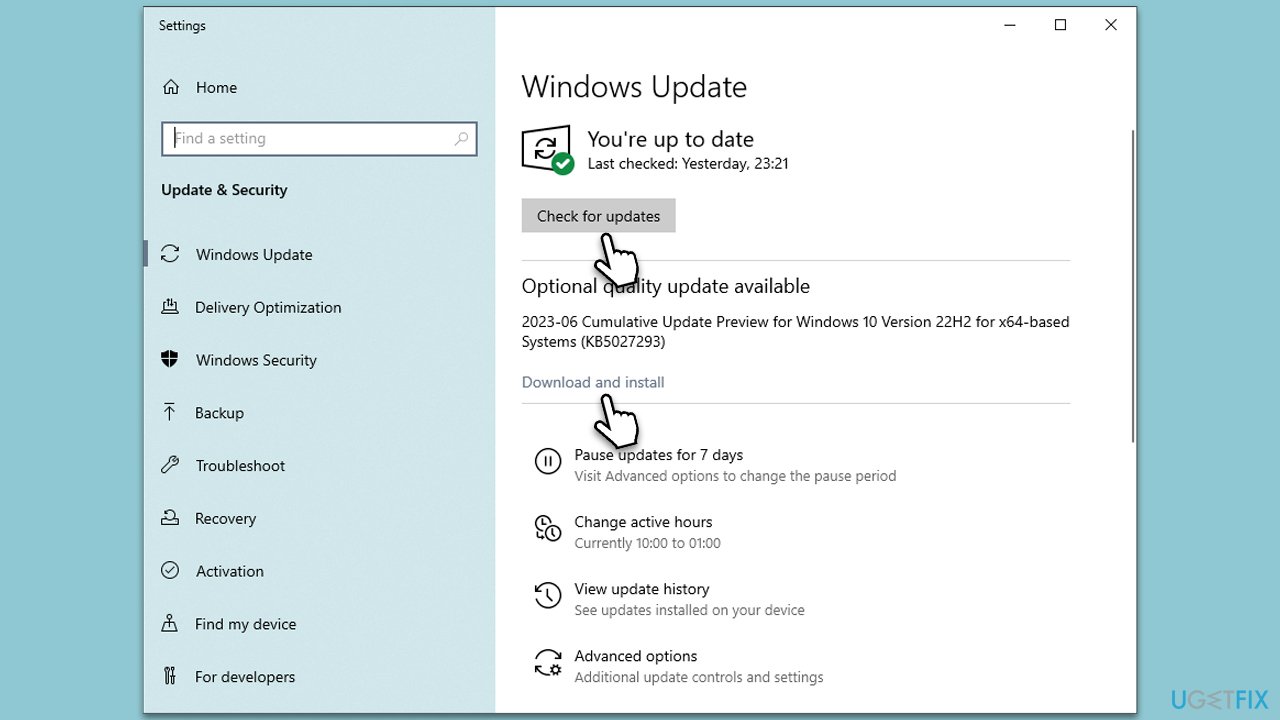
Sometimes, bugs in your system can cause the error. Updating your system can fix these bugs.
- Type Updates in Windows search and press Enter.
- On the right side of the window, press Check for updates.
- If there are optional updates available, install them as well.
- Restart your system.
Fix 3. Download and install Xbox Identity Provider
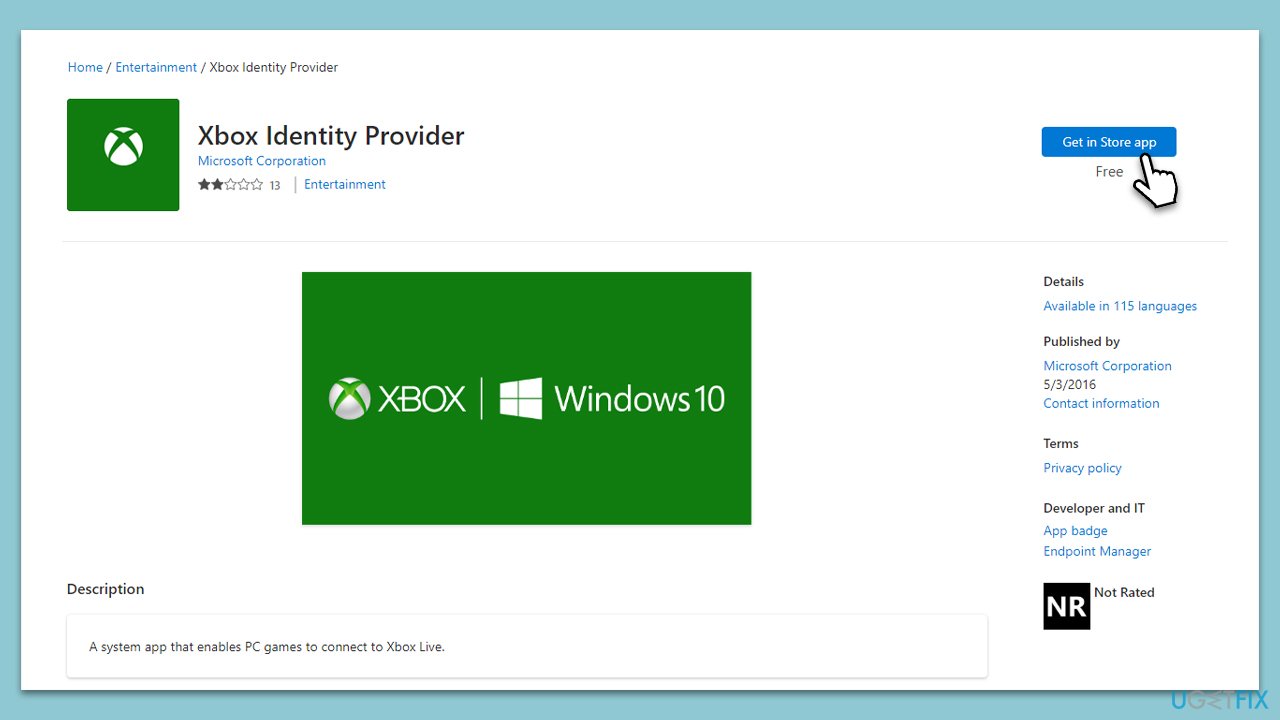
The Xbox Identity Provider is a crucial app that helps your Windows system recognize and authenticate Xbox Live-enabled apps and games. Installing this can help resolve certain errors, including the 0x800708CA error, by improving the communication between the PC and the controller.
- Open your web browser.
- Navigate to the official Xbox Identity Provider download page.
- Click the Get in Store app button to install it.
- Try pairing your controller again.
Fix 4. Re-pair the controller
At times, the pairing process between the PC and the controller might fail, causing the error. Re-pairing could help establish a successful connection.
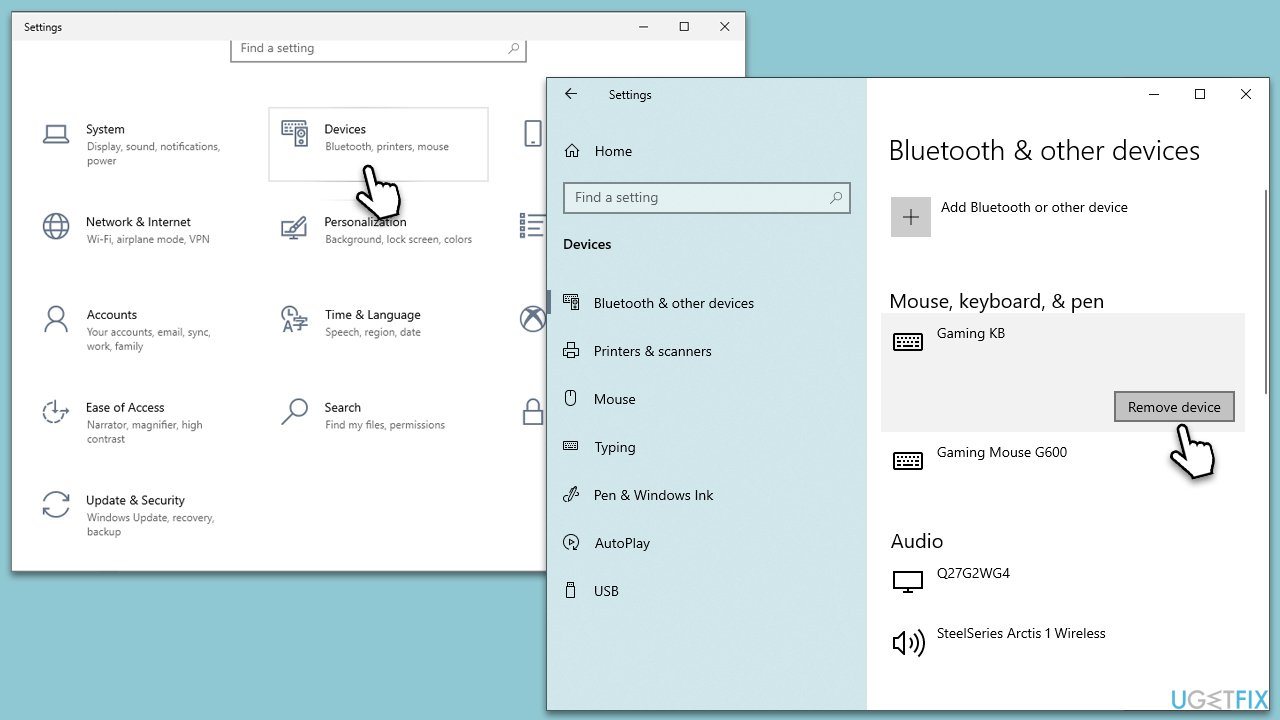
- Go to Settings on your PC.
- Click on Devices, then Bluetooth & other devices.
- Select your Xbox controller and click on Remove Device.
- Try to re-pair the controller by clicking on Add Bluetooth or other device.
Fix 5. Update the Xbox Accessories app
The Xbox Accessories app can sometimes have outdated software, causing it to malfunction or not sync correctly with the controller. Updating this app ensures it operates with the latest enhancements and bug fixes, improving its performance and potentially solving the 0x800708CA error.
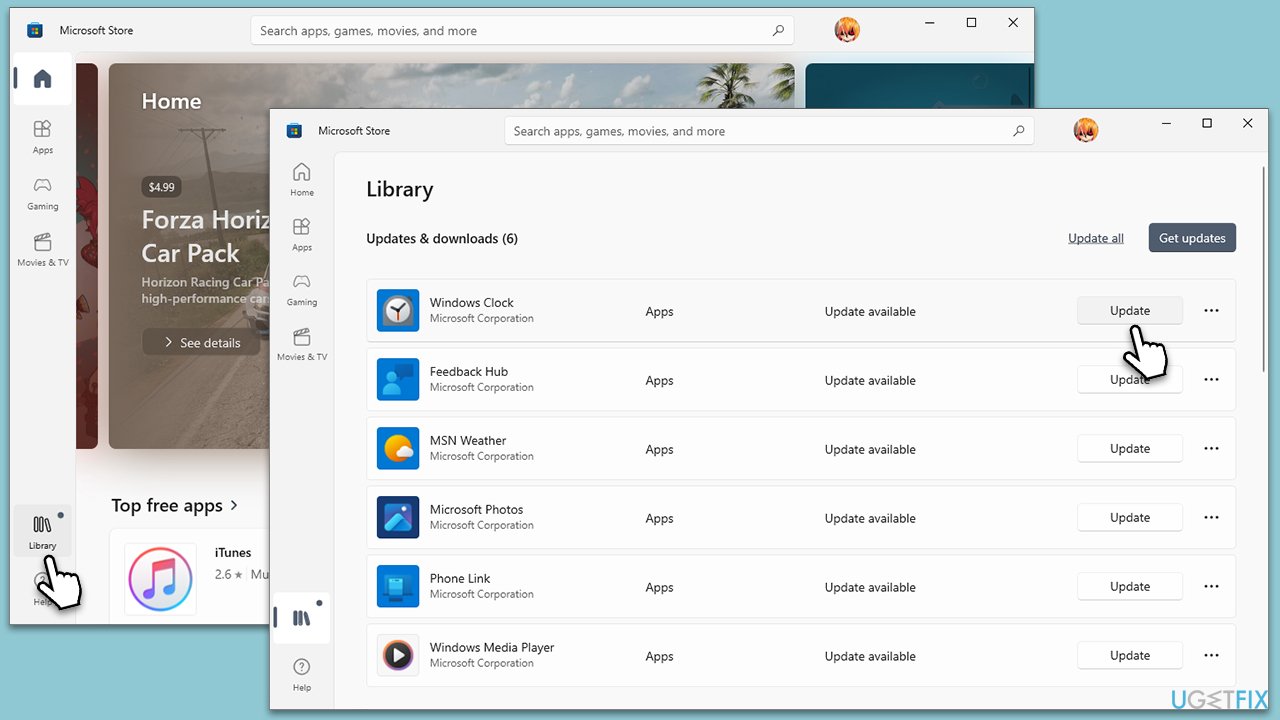
- Launch the Microsoft Store from the taskbar or start menu.
- Select your Library.
- Look for the Xbox Accessories app in the list. If an update is available, it will appear here.
- Click on the Update button next to the Xbox Accessories app.
- Wait for the update process to finish, then restart the app.
- Try connecting your Xbox controller again. If necessary, re-pair the controller to your PC.
Bottom line
To fix the error 0x800708CA, users should troubleshoot network connections, update system software, and resolve potential bugs. Adjusting network settings and updating controller drivers may also be necessary. If none of these solutions work, consider using a PC repair tool for further assistance.
Frequently asked questions
This error typically occurs due to network connectivity issues or conflicts between your controller and Windows 10 settings.
You can reset the controller settings by navigating to Settings > Devices > Bluetooth & other devices, removing the controller, and then re-pairing it.
Yes, make sure your Windows 10 or Windows 11 is updated to the latest version, as updates often include fixes for connectivity issues.




Report an issue
What's wrong with this guide? We review every report and update or remove content.
Report received — thank you. We'll review and fix it.
You need a free account to submit a report.
Be the first to comment