How to fix
“This app can’t open” Error
on Windows
Resolve the "This app can't open" error on Windows 10 effortlessly. Get expert-tested solutions to enjoy seamless app functionality. Fixed in minutes!


What causes How to Fix “This app can’t open” Error on Windows 10?
- Corrupt Windows App Store
- Expired license
- Issues with Windows Store Cache
- Conflicting third-party applications
- Antivirus or firewall conflict
Repairs Windows system files, removes malware, and restores a clean OS state — without reinstalling.
Hey. I’m running Windows 10 Pro on a 32 bit OS. For some reason, I cannot open any of Win 10 applications. When I double click on the application I want to open, it seems to be loading at first, but then the loading screen disappears and “This app can’t open” pop-up shows up. Do you have any ideas on why this issue might have occurred? Thanks!
“This app can’t open” error is the issue with either Windows Store or the applications. The pop-up appears when you try to click on the application and it cannot load, so the message shows up. Programs like Alarm Clocks, Calculator, Calendar, Mail, or News, Photos, Phone, and other Windows apps can cause this message stating that the particular app can't open.[ref en-1]
The more common causes of this “This app can’t open” error can include corrupt Windows App Store, expired license or issues with Windows Store Cache. Also, third-party applications and antivirus or firewall conflict can be the reason why you encounter such pop-ups. There might also be a few solutions to this issue. If you continuously see this pop-up, then it’s clear that your PC is malfunctioning and that it needs proper maintenance.
“This app can’t open” message does not indicate a virus infection of fatal system error.[ref en-2] Usually, this message and problems with the app loading emerge due to incorrect app settings, conflicting anti-virus software or third-party applications but the reason for such Windows system errors often can be the particular OS Update or programs, so diagnosis is the first thing you should do - checking possible causes. 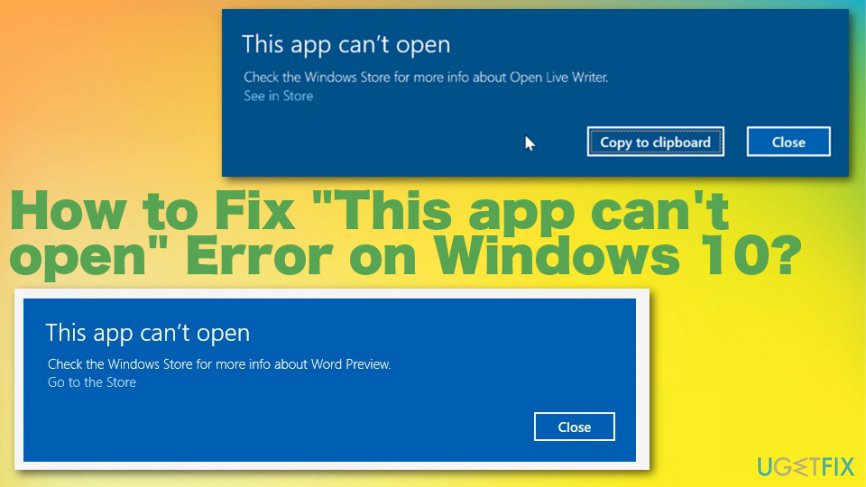
There is a variety of “This app can’t open” error variants, so its causes may also vary. The following are the most common examples:
This app can’t open.
X can’t open while User Account Control is turned off.
Turn on User Account Control.
This app can’t open.
The problem with Windows is preventing Microsoft Edge from opening. Refreshing your PC might help for it. Refresh.
This app can’t open.
Microsoft Edge can’t be opened using the Built-in Administrator account. Sign in with a different account and try again.
This app can’t open.
There is a problem with Groove Music. Contact your system administrator about repairing or reinstalling it.
“This app can’t open” error possible fixes
“This app can’t open” error is irritating because it prevents from launching needed applications, which is why in some of the cases the PC might become useless. This system error is typical for Windows 10 OS, so we are going to explain what steps could be taken in order to fix it on this particular OS.
However, as soon as you receive this pop-up, your immediate response should be a full scan with a PC optimization tool, such as [d1]. This tool will check and fix system inconsistencies automatically, so after a scan, you may find all apps working normally. Since there is a little possibility that unwanted applications cause the issue, the system optimization tool can help you with fixing those and even detecting malware.[ref en-3]
Run Windows Troubleshooter
To find out what kind of problems related to Windows apps have emerged, you should try to run an Automatic Windows Troubleshooter for apps. For this purpose, navigate to this page and press Run Troubleshooter. Then wait for the scan to be completed.
Check for Windows updates
- Press Windows key + I at the same time then choose Update & security.
- Then click Check for updates and install any pending updates.
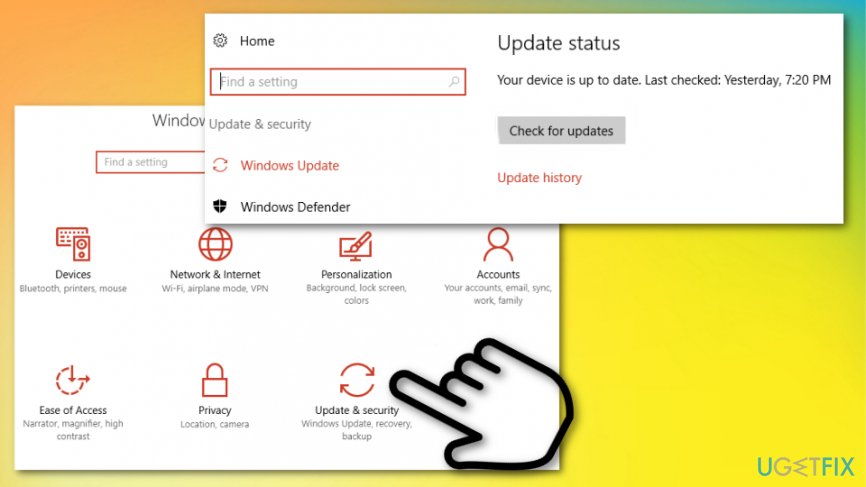
How to fix this app cant open error on windows 10 windows updates - Reboot the system to see if the “This app can’t open” error got fixed.
Reset Windows Store Cache
- Press the Windows key and R at the same time to open a Run window.
- Then type wsreset.exe to reset your Windows Store cache.
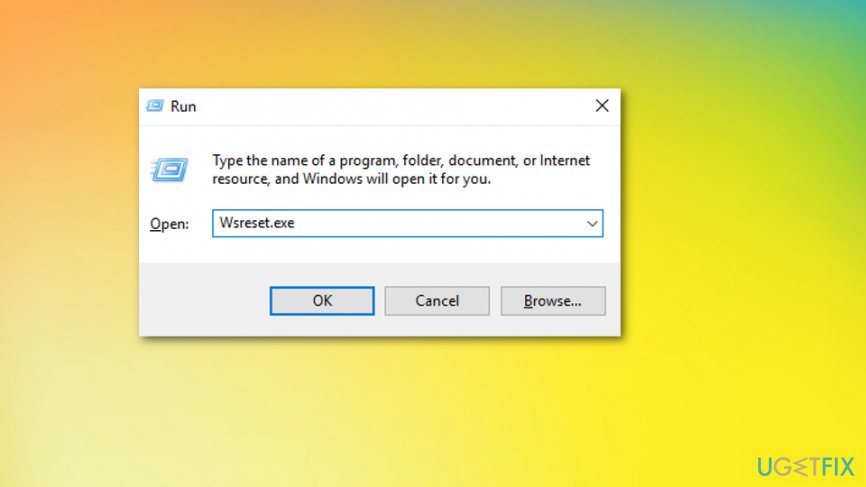
How to fix this app cant open error on windows 10 windows store - Restart the PC and check if there is any difference.
Disable/Uninstall antivirus
It’s not advisable to keep the system unprotected. Nevertheless, “This app can’t open” error is commonly triggered by anti-virus, so the only way to find out if that’s the case is to disable it for a moment. For this purpose, locate the icon of your antivirus on the toolbar, right-click it, and select Close or Quit. After that, try to open the apps that ended up with an error code before. If the error is gone, then our recommendation would be to uninstall the current anti-malware and install another one.
Run a clean boot
- Click Win key, type System Configuration, and press Enter.
- Go to the Services tab and select Hide all Microsoft services.
- Select Disable all and then go to the Startup tab.
- Select Task Manager, mark all items that you want to turn off, and select Disable.
- Close Task Manager and press OK on the System Configuration dialogue box.
- Now click Win key + R, type msconfig, and press Enter.
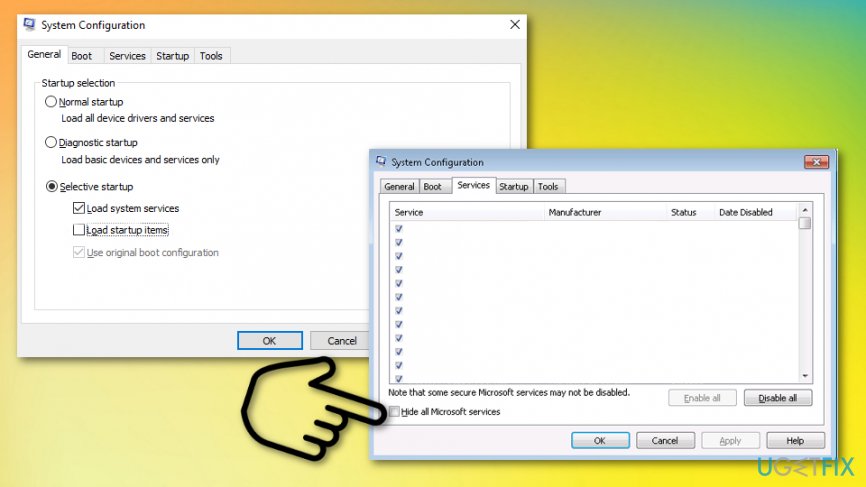
How to fix this app cant open error on windows 10 system configuration - Go to the Services tab, place a check on Hide windows services and close everything.
- Reboot the system
Create a new User Account to fix "This app can't open" error
If the previous methods did not help to remove “This app can’t open” pop-up, the last thing you could try is creating a new Unser Account. For this purpose, do the following:
- Click Win key and type Settings.
- Click on the search results and then type Add, delete and manage other user accounts in the search box of the Settings window.
- Select Add someone else to this PC option and follow the instructions.
Bottom line
To fix the "This app can't open" error, you can try refreshing your PC, turning on User Account Control, or signing in with a different account. If these solutions do not resolve the issue, further diagnosis may be necessary to identify underlying problems.
Frequently asked questions
Try running the app as an administrator by right-clicking on it and selecting 'Run as administrator.' If that doesn't work, check for any pending Windows updates that might fix compatibility issues.
Right-click on the program's shortcut, select 'Properties,' and under the 'Compatibility' tab, check 'Run this program in compatibility mode' for an earlier version of Windows.
Ensure that your Windows 10 is updated regularly and that your applications are installed from trusted sources to minimize the risk of errors.




Report an issue
What's wrong with this guide? We review every report and update or remove content.
Report received — thank you. We'll review and fix it.
You need a free account to submit a report.
Be the first to comment