How to fix
“This application package is not supported for installation” error
on Windows
Resolve the "This application package is not supported for installation" error on Windows 10 or 11 easily. Quick fixes that are expert-tested!

What causes How to fix “This application package is not supported for installation” error in Windows?
- Unsupported architecture
- Missing dependencies
- Incorrect application package version
- Sideloading from untrusted sources
Repairs Windows system files, removes malware, and restores a clean OS state — without reinstalling.
Hello. I tried to install a program on my Windows computer but I received the "This application package is not supported for installation" error. How do I bypass this issue?
Some users may receive the error message "This application package is not supported for installation by app installer" when attempting to install a msixbundle or appx package downloaded from a third-party source on their Windows 10 or 11 computers. This error can occur for a variety of reasons, including unsupported architecture, missing dependencies, or an incorrect application package version.
This error can be particularly aggravating when the user is attempting to install an application that is not available on the Microsoft Store or when the Store servers are unavailable. Fortunately, there are several potential solutions to this problem, including checking for Developer Mode, determining whether the package is compatible with the system architecture, updating the operating system, and installing required dependencies or missing certificates.
It is important to note, however, that sideloading[ref en-1] applications can pose a security risk because it allows users to circumvent the Microsoft Store's security checks. As a result, before installing any applications outside of the Microsoft Store, users should only sideload them from trusted sources and ensure that their computer has adequate security measures in place.
In this guide, you will find 2 steps that should help you fix "This application package is not supported for installation" error in Windows. If you experience any other operating system issues, we recommend using a maintenance tool like [d1]. It can fix most system errors, BSODs,[ref en-2] corrupted files, and registry[ref en-3] issues. Otherwise, follow the step-by-step instructions below.
Enable Developer Mode
To resolve the error, verify if Developer Mode is enabled on your Windows computer as it's a necessary requirement for sideloading applications onto your PC.
- Press the Windows key + I at the same time to open the Settings app.
- In the left pane of the Settings app, locate and click on the Privacy & Security tab.
- Scroll down the right pane of the Privacy & Security tab until you find the For Developer options section.
- Click on the For Developer options section to expand it.
- Toggle the switch labeled Developer Mode to turn it on.
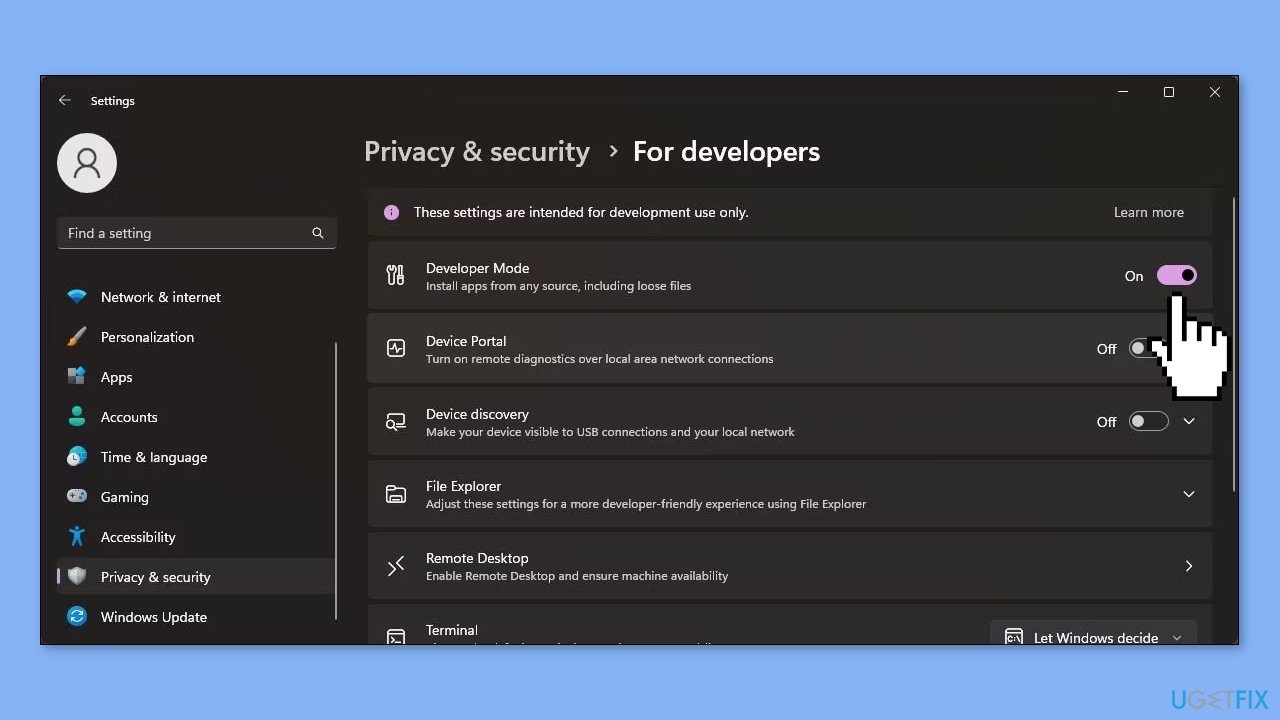
- Once developer mode is enabled, you can use PowerShell to sideload an Msixbundle or AppxPackage on your Windows computer.
Method 1. Use the PowerShell
PowerShell can be used to sideload and install msix files on your Windows computer, which also applies when attempting to sideload an application that is not Store signed.
- Press the Windows key and type PowerShell in the search bar.
- Right-click on Windows PowerShell in the search results and select Run as administrator.
- In the PowerShell window, type the following command: Add-AppxPackage -Path $MsixFilePath
- Replace MsixFilePath with the file path of the msix file saved on your PC. For example, if the Msixbundle file is located in C:\Users\Username\Downloads\Msixbundle, the full command to install the file should look like this: Add-AppxPackage -Path $C:\Users\Username\Downloads\Msixbundle\Files.Package.msixbundle
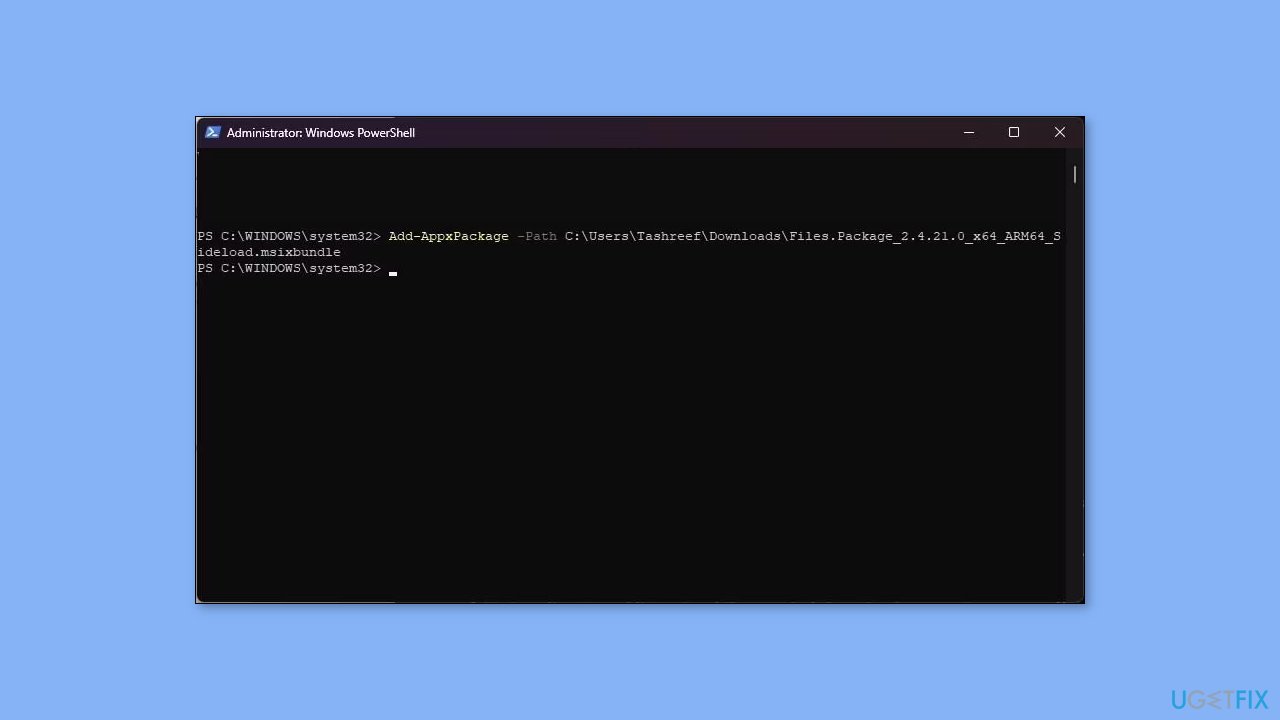
- To get the file path, right-click on the package and select Copy as path.
- Press Enter to run the command and wait as PowerShell installs the app.
- Once the installation is complete, type exit and press Enter to close the PowerShell window.
Method 2. Use the App Installer
App Installer is an official application package installer for Windows 10 that allows you to install msixbundle and appxpackage files with just a double click. It can be a useful alternative if you prefer not to use Windows PowerShell and its associated commands.
Although App Installer was originally released for Windows 10, it works equally well on Windows 11. However, before installing App Installer, it's important to create a restore point on your Windows computer to prevent conflicts with your system's ability to sideload apps using PowerShell. To install App Installer, follow these steps after creating a restore point:
- Open the Microsoft Store and go to the App Installer page.
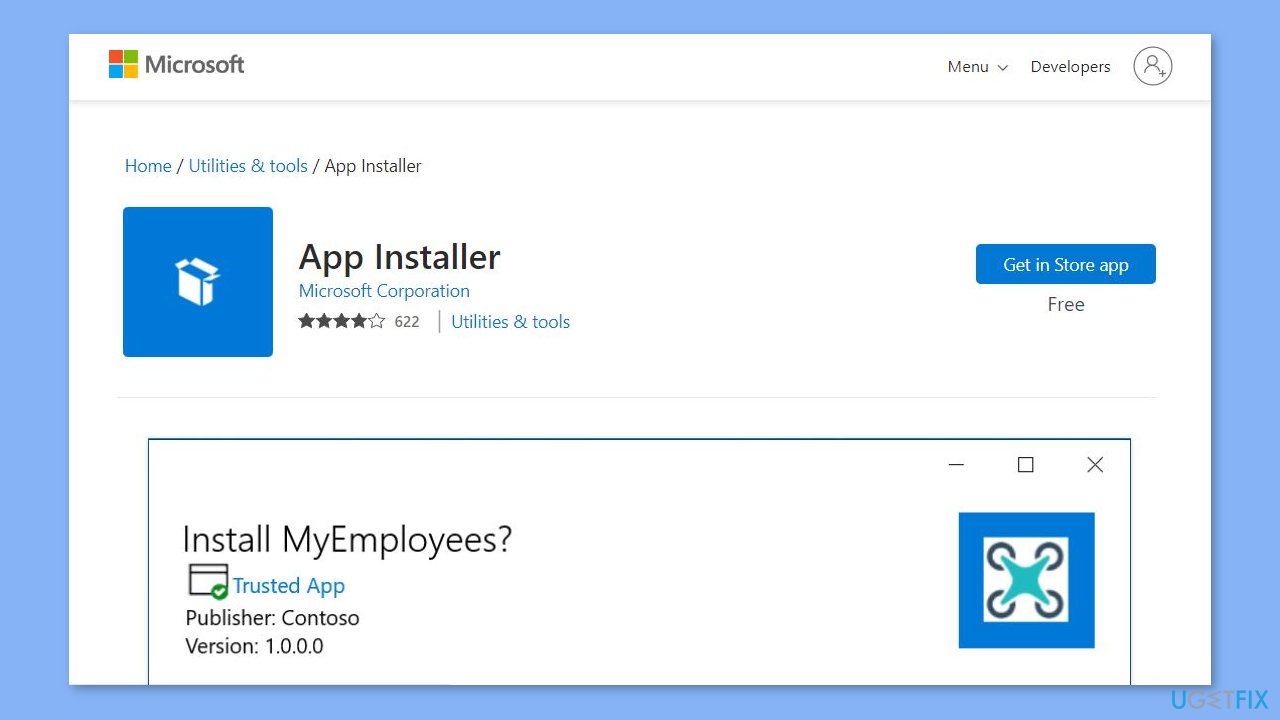
- Click on the Install button to download and install the app installer.
- Once installed, locate and double-click on the .appx or .msixbundle app package you want to install.
- Click on the Install button in the app installer dialog.
- The installer may download the required dependencies and then install the app.
- Once the installation is complete, the newly installed app will auto-launch.
Bottom line
To fix the 'This application package is not supported for installation' error, ensure Developer Mode is enabled, check the package compatibility with your system architecture, update your operating system, and install any required dependencies or missing certificates. If these solutions do not resolve the issue, consider using a maintenance tool to address other potential system errors.
Frequently asked questions
This error usually indicates that the application you're trying to install is incompatible with your version of Windows 10 or is corrupted. Ensure that the application is designed for Windows 10 and try downloading it again.
To fix this issue on Windows 11, check if the app requires specific system requirements and ensure your system is fully updated. Additionally, try running the installer as an administrator to bypass permission issues.
Yes, Windows 10 may block installations from unknown sources or apps that are not from the Microsoft Store. You can change this setting in 'Settings' > 'Update & Security' > 'For developers' and select 'Sideload apps'.




Report an issue
What's wrong with this guide? We review every report and update or remove content.
Report received — thank you. We'll review and fix it.
You need a free account to submit a report.
Be the first to comment