How to fix
“This device is currently in use” error when ejecting external drive
on Windows
Solve the "This device is currently in use" error when ejecting external drives on Windows 10 or 11 effortlessly. Expert-tested solutions await!


What causes How to fix “This device is currently in use” error when ejecting external drive in Windows?
- Background processes or system services using the drive
- File indexing services preventing ejection
- Antivirus scans accessing the drive
- Recently used files or apps not releasing the drive
- Windows Explorer locking the drive due to open file paths or preview windows
Repairs Windows system files, removes malware, and restores a clean OS state — without reinstalling.
I can't safely eject my Seagate Expansion Portable Drive. Every time I try, I get an error saying it's in use, even though I've closed all the visible programs. I'm worried about damaging the drive since I had a similar issue with another external drive before. That one ended up getting corrupted and now prompts me to format it whenever I connect it.
The "This device is currently in use" error is one of the more common problems Windows users confront while trying to safely remove an external drive from the computer. Essentially, this means the system thinks the drive is in use, and thus it cannot be safely removed. This can become quite worrying, especially if one has heard that forcing the removal of a drive could result in the loss of data or corruption of the drive.
The "This device is currently in use" error will typically indicate that some process, program, or background service is still using the external drive. This error may occur even after one has closed all visible programs and windows; this can be very confusing and frustrating. The problems can happen with almost any external drive type, including USB flash drives, portable hard drives, and other types of mass storage devices.
There are a couple of reasons why the "This device is currently in use" error might occur. A common cause is that even when the user does not see them, background processes or system services may still be using the drive. File indexing services, antivirus scans, or other system utilities that monitor external drives can prevent the safe ejection process.
Also, recently used files or apps that were stored on the drive may not have fully released their grasp of it yet. Sometimes, Windows Explorer itself can lock the drive because of opened file paths or preview windows.
If you're getting the "This device is currently in use" error, go through the following steps in order to troubleshoot it. These may be as easy as closing background processes and making sure that no files are open, to a bit more detailed actions like restarting the Windows Explorer process or disabling some services.
Below, you will find the manual instructions for these solutions - first, starting from the easiest steps and then moving on to more comprehensive approaches. It would also help if, after the update, the repair tool [d1] was run to scan and fix any underlying problems with Windows that might cause this error, thereby stopping any potential data loss or further system issues.

Fix 1. Close all open files and applications
Ensure that no files stored on the external drive are open, as this can trigger the "This device is currently in use" error.
- Check for any files or applications that may still be using the drive.
- Close all programs and windows that may have accessed files from the external drive.
Fix 2. Check background processes
Background processes can sometimes hold onto the external drive, causing the "This device is currently in use" error.
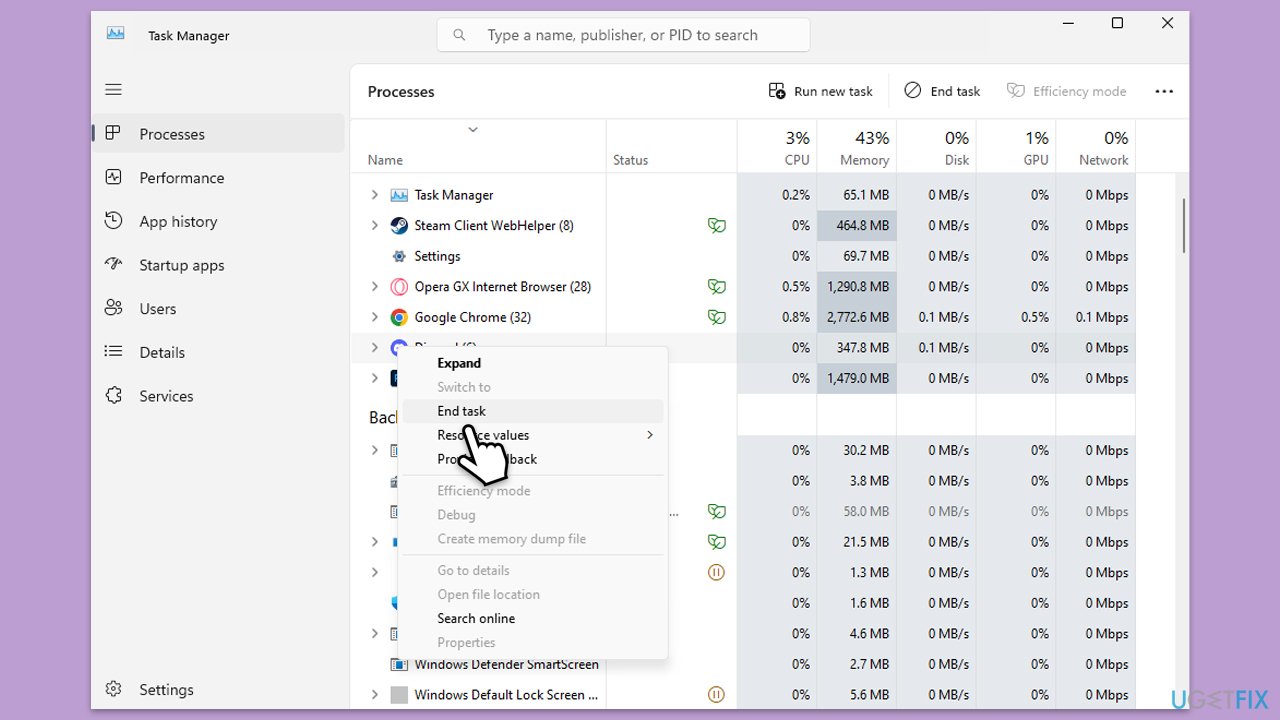
- Press Ctrl + Shift + Esc to open Task Manager.
- Go to the Processes tab and examine the list for any processes related to the drive or applications that might use it (e.g., backup software, media library services, cloud sync programs).
- Right-click on any process you suspect and select End task.
Fix 3. Restart Windows Explorer
Windows Explorer itself can sometimes prevent the external drive from being ejected safely.
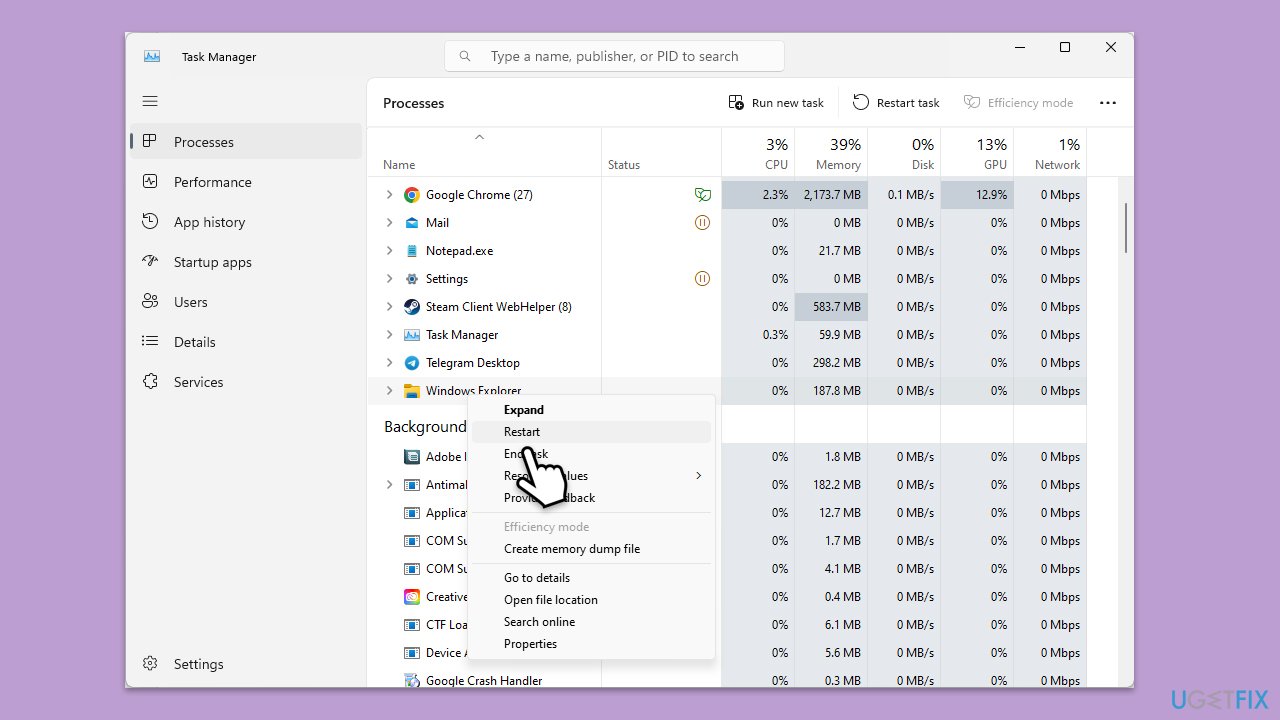
- Press Ctrl + Shift + Esc to open Task Manager.
- Click More details if needed.
- Look for Windows Explorer.
- Right-click and select Restart.
- Several UI elements will disappear for a few moments and reappear soon thereafter.
Fix 4. Safely eject using Disk Management
Using Disk Management can help bypass the "This device is currently in use" error by ensuring the drive is not being accessed.
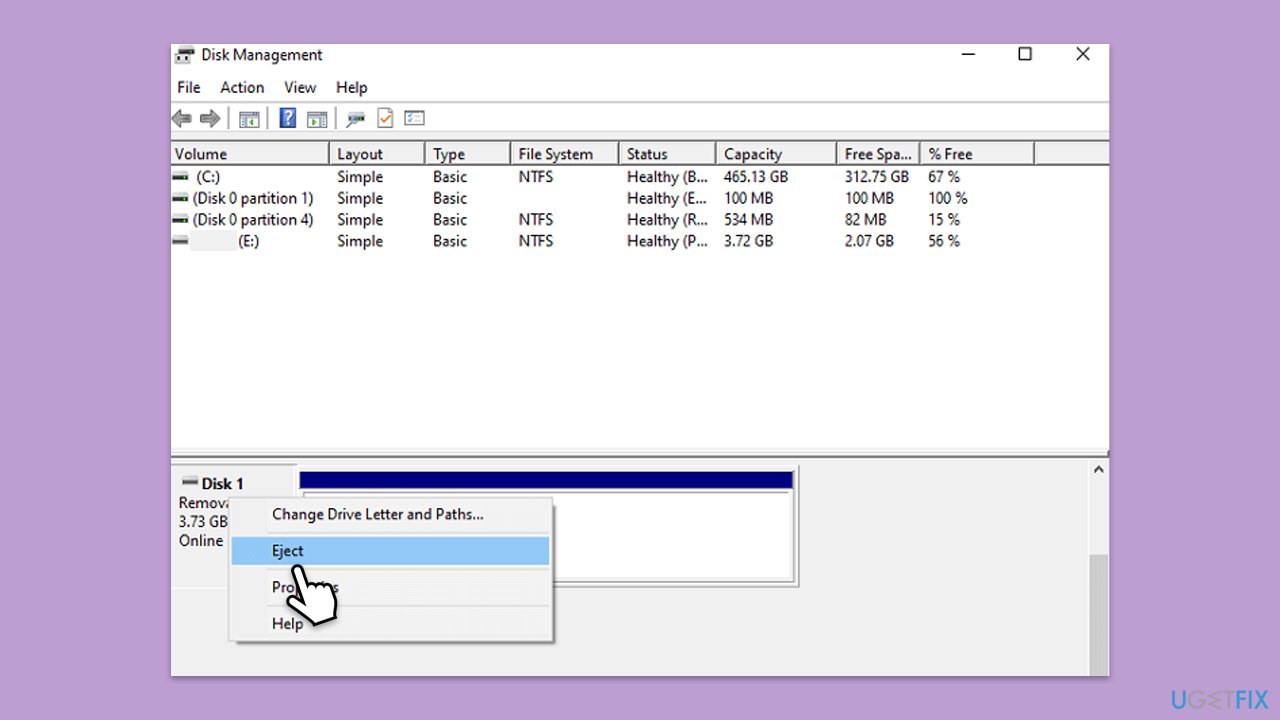
- Press Win + X and select Disk Management.
- Wait for Disk Management to load and locate your external drive in the list of drives.
- Right-click on the external drive and select Eject or Remove.
- If the Eject option is not available, select Offline to temporarily disconnect the drive, then try removing it safely.
Fix 5. Disable antivirus scanning temporarily
Antivirus programs may lock external drives as part of their real-time scanning.
- Right-click on your antivirus icon in the system tray and select Disable temporarily.
- Eject the drive safely and re-enable the antivirus software afterward.
Fix 6. Log off and log back in
Logging off and logging back into your Windows account can release any system hold on the drive.
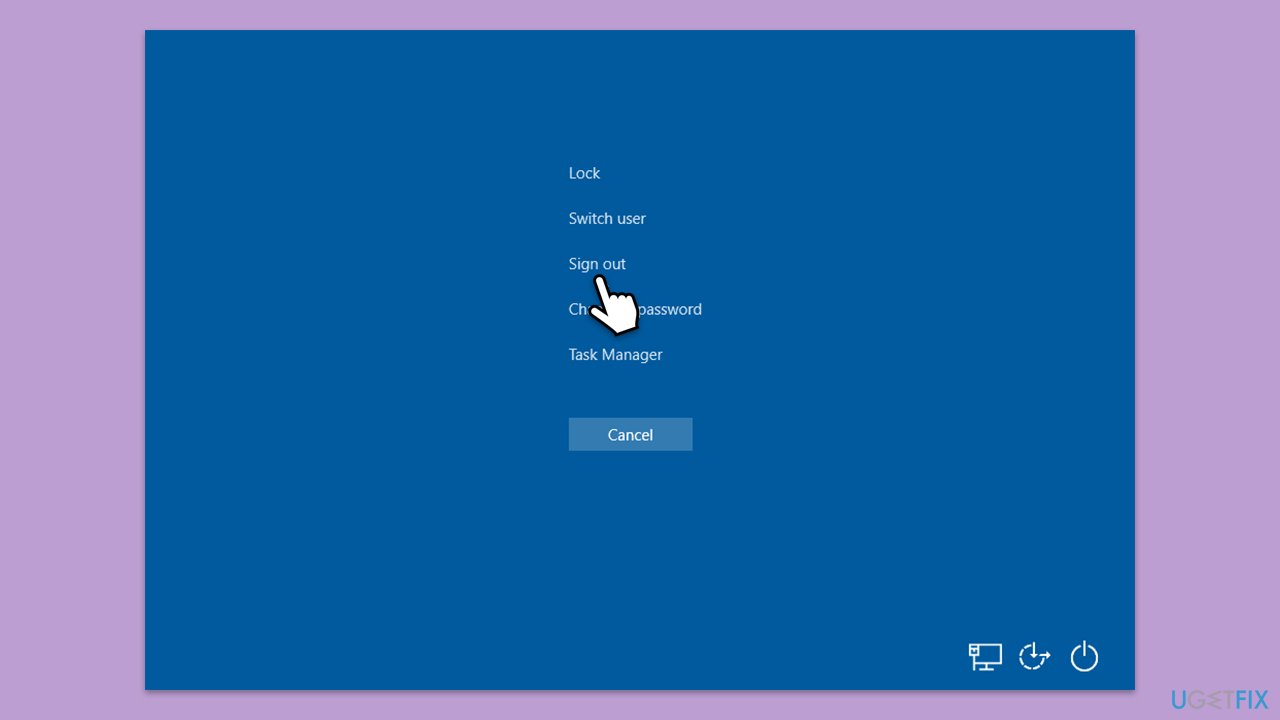
- Press Ctrl + Alt + Del and select Sign out.
- Log back in and try to safely eject the external drive.
Fix 7. Use Safe Mode
Starting Windows in Safe Mode can help identify if a third-party application or service is causing the "This device is currently in use" error.
- Open Windows Settings.
- Select System.
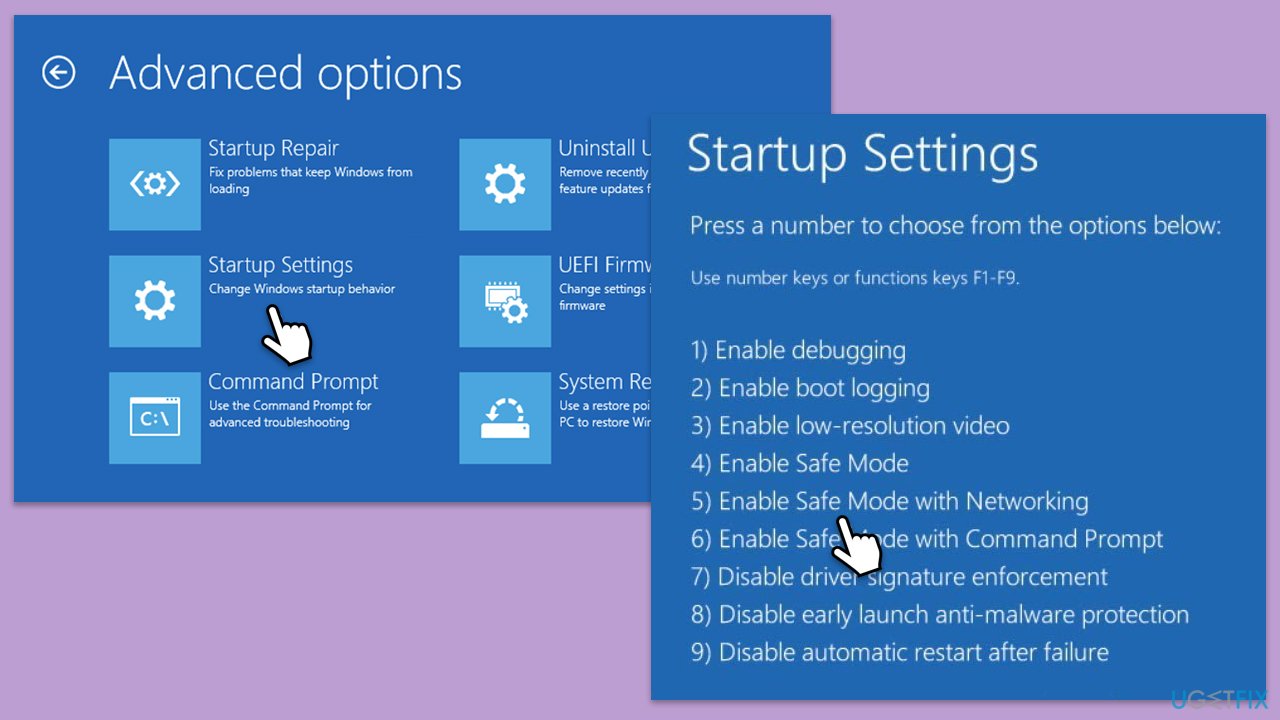
- Under Recovery options, next to Advanced Startup, click Restart now.
- After a reboot, you will be presented with several options - pick Troubleshoot.
- Go to Advanced options > Startup Settings and then pick Restart.
- After a reboot, pick either 4/F4 for Safe Mode or 5/F5 for Safe Mode with Networking.
- Restart your PC and try to eject the drive in Safe Mode.
Fix 8. Disable file indexing for the external drive
File indexing can lock the drive, preventing safe ejection.
- Open File Explorer and right-click on the external drive.
- Select Properties from the context menu.
- In the General tab, uncheck the option Allow files on this drive to have contents indexed in addition to file properties.
- Click Apply, and when prompted, select Apply changes to drive X:, subfolders, and files, then click OK.
- Wait for Windows to apply the changes and then try to eject the drive.
Bottom line
To troubleshoot the 'This device is currently in use' error, try closing background processes, ensuring no files are open, and checking for any system services that might be using the drive. If these steps do not resolve the issue, consider restarting your computer or using the Task Manager to identify and end any processes that may be holding onto the drive.
Frequently asked questions
You can close any applications that might be using files on the drive, or use the Task Manager to end any processes that are accessing the drive before attempting to eject it again.
This error usually occurs because a background process or application is actively using the external drive; identifying and closing these processes can resolve the issue.
Yes, you can use the 'Safely Remove Hardware' option in the system tray or restart your computer to ensure all processes are terminated before trying to eject the drive.




Report an issue
What's wrong with this guide? We review every report and update or remove content.
Report received — thank you. We'll review and fix it.
You need a free account to submit a report.
Be the first to comment