How to fix
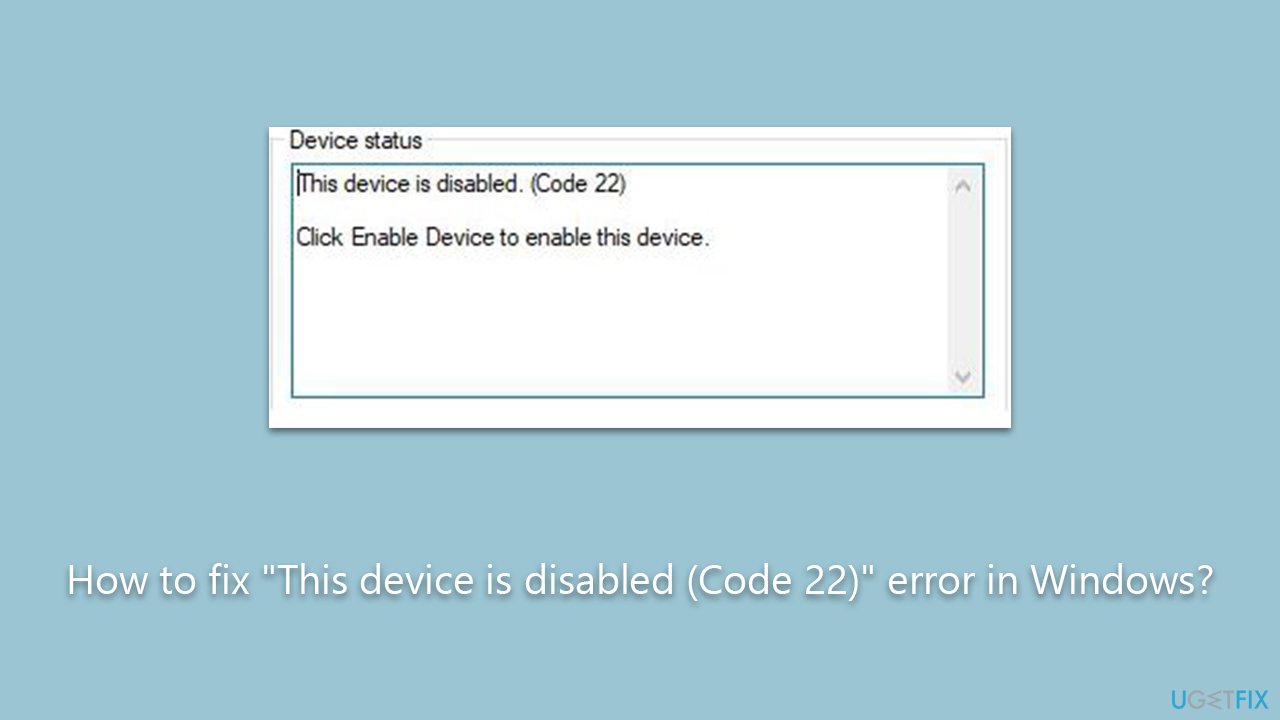
“This device is disabled (Code 22)” error
on Windows
Resolve the "This device is disabled (Code 22)" error on Windows 10 or 11 effortlessly. Expert-tested solutions for quick fixes and zero traces left.


What causes How to fix “This device is disabled (Code 22)” error in Windows?
- Manual intervention
- System-level conflicts
- After a Windows update
- Post-software installation
- During a system reboot
Repairs Windows system files, removes malware, and restores a clean OS state — without reinstalling.
Hi. I was trying to connect my newest SSD I just purchased, and I keep receiving the "This device is disabled (Code 22)" error. I am running Windows 11 - I hope there's something that can be done, as this SSD is brand new, and I don't want to return it.
The "This device is disabled (Code 22)" error in Windows is a device driver-related issue commonly encountered by users. This error typically occurs when connecting an external device, such as a USB drive or a printer, to a Windows computer. It signifies that the device has been disabled and cannot function properly with the system. This guide aims to provide an understanding of how and when this error occurs and hint at some potential solutions.
The "This device is disabled (Code 22)" error usually manifests in the Device Manager, a built-in utility in Windows that allows users to view and control hardware connected to the system. When you connect an external device and encounter this problem, the Device Manager will display a yellow exclamation mark next to the device's name. Upon checking the device’s properties, the Status box will indicate "This device is disabled. (Code 22)" as the reason for the malfunction.
The error is triggered when the operating system deems the device as disabled either due to manual intervention or because of system-level conflicts. Situations where this error appears include after a Windows update, post-software installation, or during a system reboot.
While each situation may vary, resolving the "This device is disabled (Code 22)" issue often involves enabling the device via the Device Manager, updating the device drivers, or tweaking system settings. Detailed instructions for these solutions can be found below.
In addition to these manual methods, users might also consider using a PC repair tool like [d1]. While it may not directly fix the "This device is disabled (Code 22)" error, this application can resolve corrupted system files, clear out registry issues, and clean up system junk, thereby improving the overall health of the computer.
Fix 1. Enable the device in Device Manager
The Device Manager in Windows allows you to manage hardware settings. A disabled device will be flagged, and you can manually enable it from here.
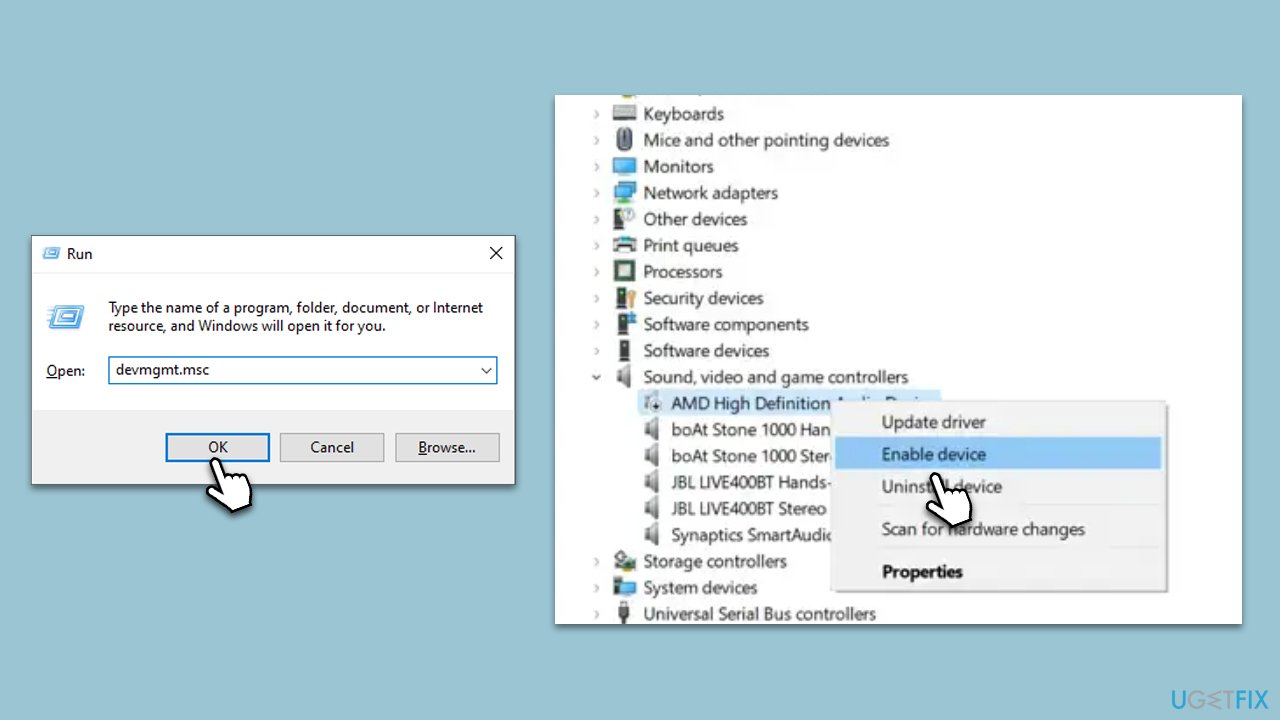
- Open the Run dialogue box by pressing the Win key + R.
- Type devmgmt.msc and hit Enter.
- Locate the disabled device (it will have a yellow exclamation mark).
- Right-click on the device and choose Enable device.
- Restart your computer.
Fix 2. Update the device driver
Outdated or incompatible drivers can cause devices to be disabled. Updating the driver can often solve this issue.
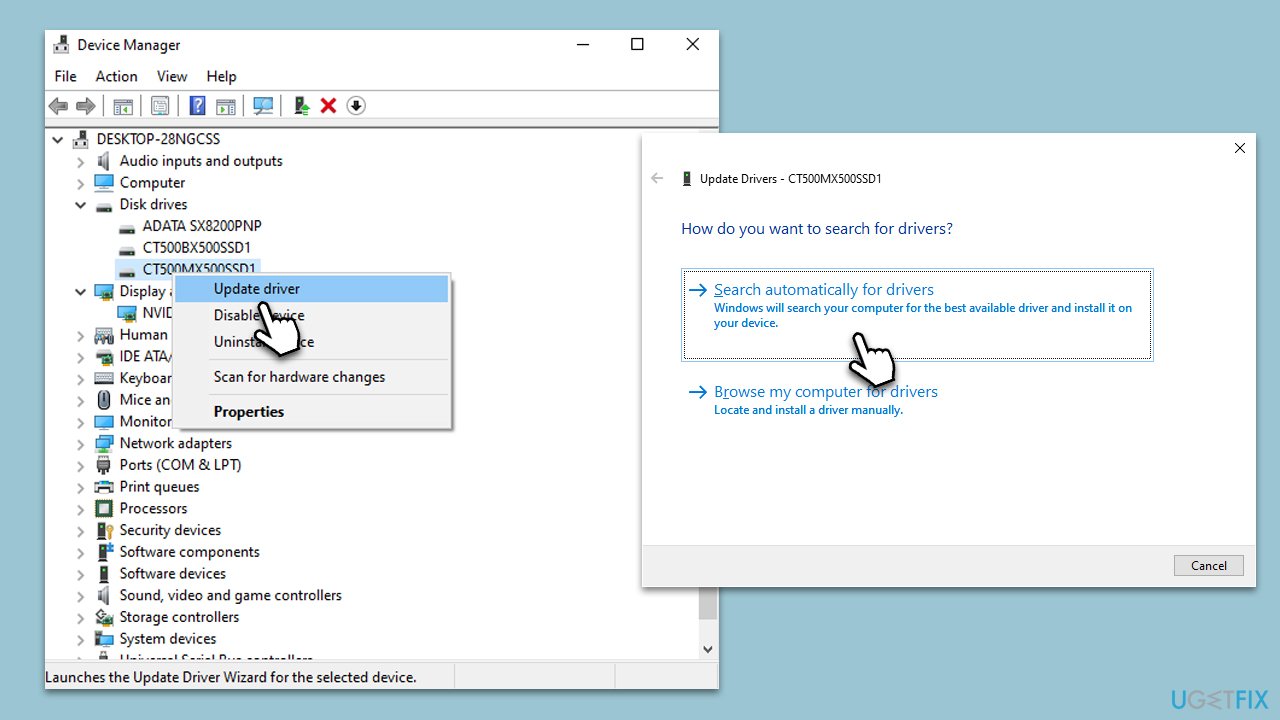
- Open Device Manager.
- Right-click on the disabled device.
- Choose Update driver.
- Select Search automatically for drivers.
- Wait till drivers are downloaded and installed.
- Restart your computer.
If you are looking for a faster way to update your all drivers to avoid driver issues, we recommend trying an automatic updater [rev id="DriverFix"].
Fix 3. Roll back the driver
If the device was working before and recently started showing the error, a recent driver update might be the culprit.
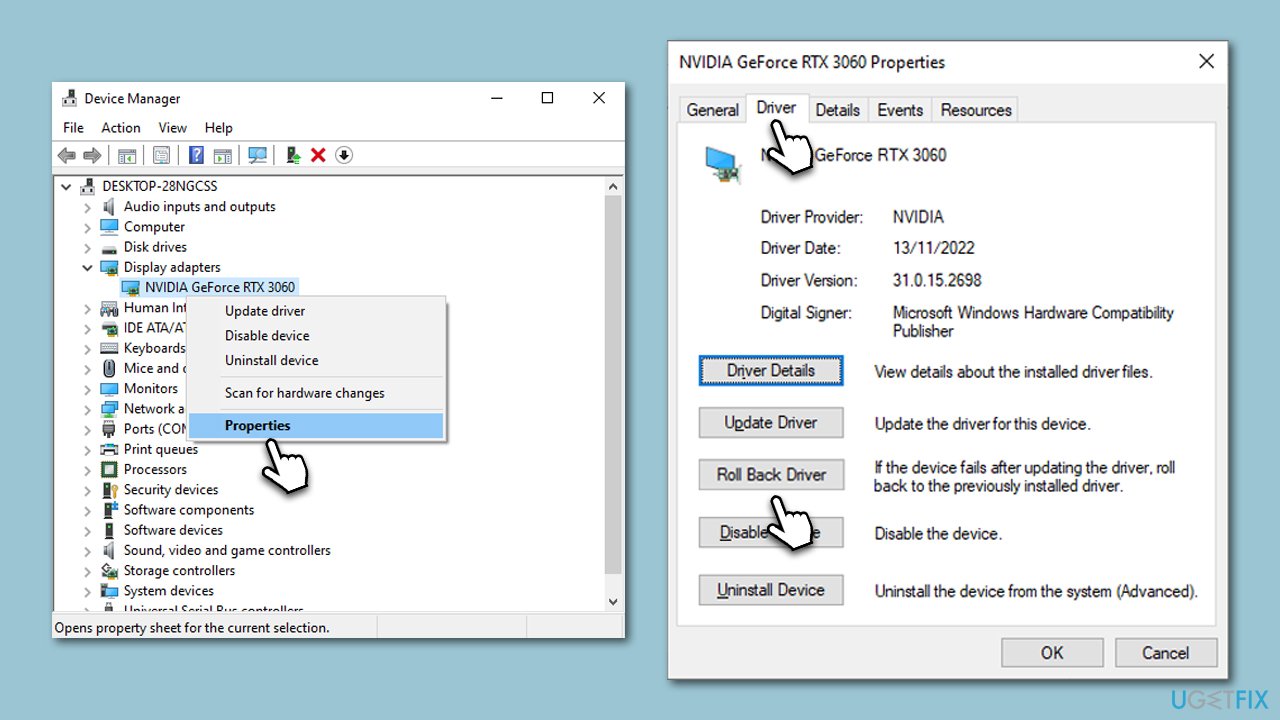
- Open Device Manager.
- Right-click on the disabled device.
- Go to Properties.
- Navigate to the Driver tab.
- Click Roll Back Driver and follow the on-screen instructions.
- Restart your computer.
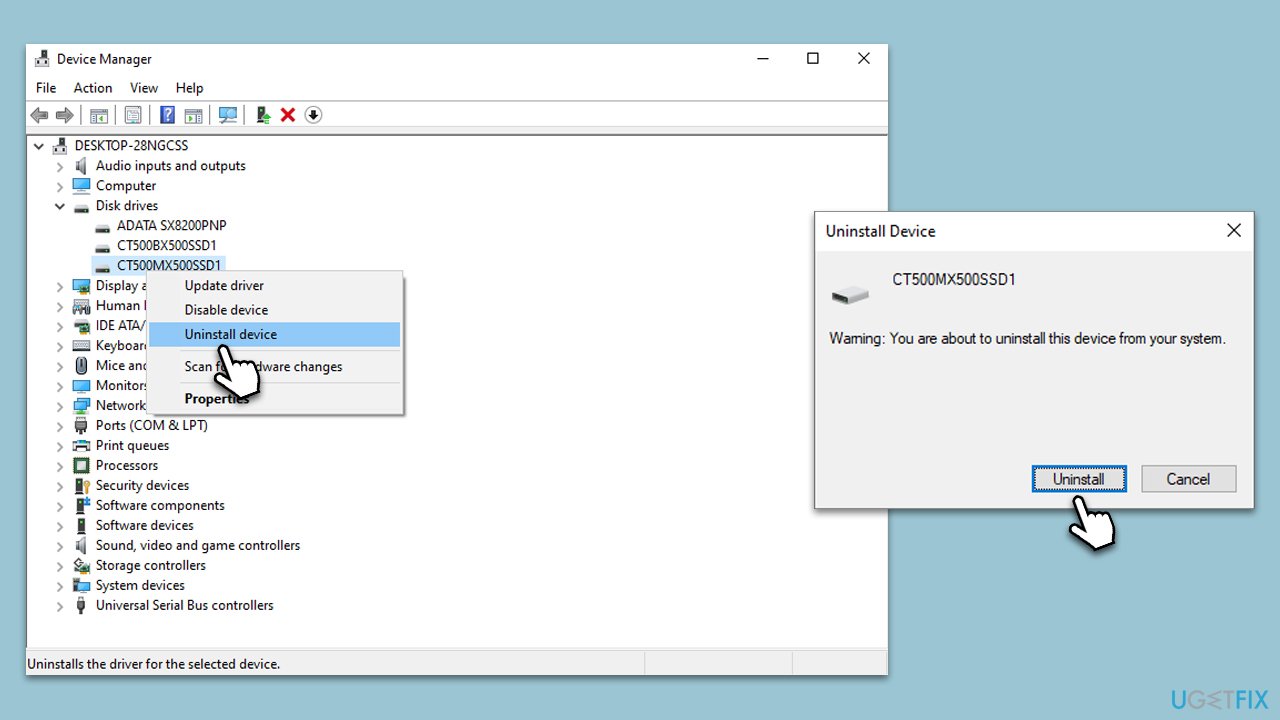
Fix 4. Uninstall and reinstall the device
This method involves removing the device from your system and reinstalling it, forcing Windows to set it up anew.
- Open Device Manager.
- Right-click on the disabled device.
- Choose Uninstall device.
- Disconnect the device from your computer.
- Reconnect the device and let Windows reinstall the drivers.
- Restart your computer.
Fix 5. Try System Restore
- Type "Create a restore point" into the Windows search bar and select the matching result.
- In the System Properties window that appears, go to the System Protection tab.
- Click System Restore.
- Follow the on-screen instructions and select a restore point from when the device was working properly.
- Confirm your choice and proceed with the restoration process.
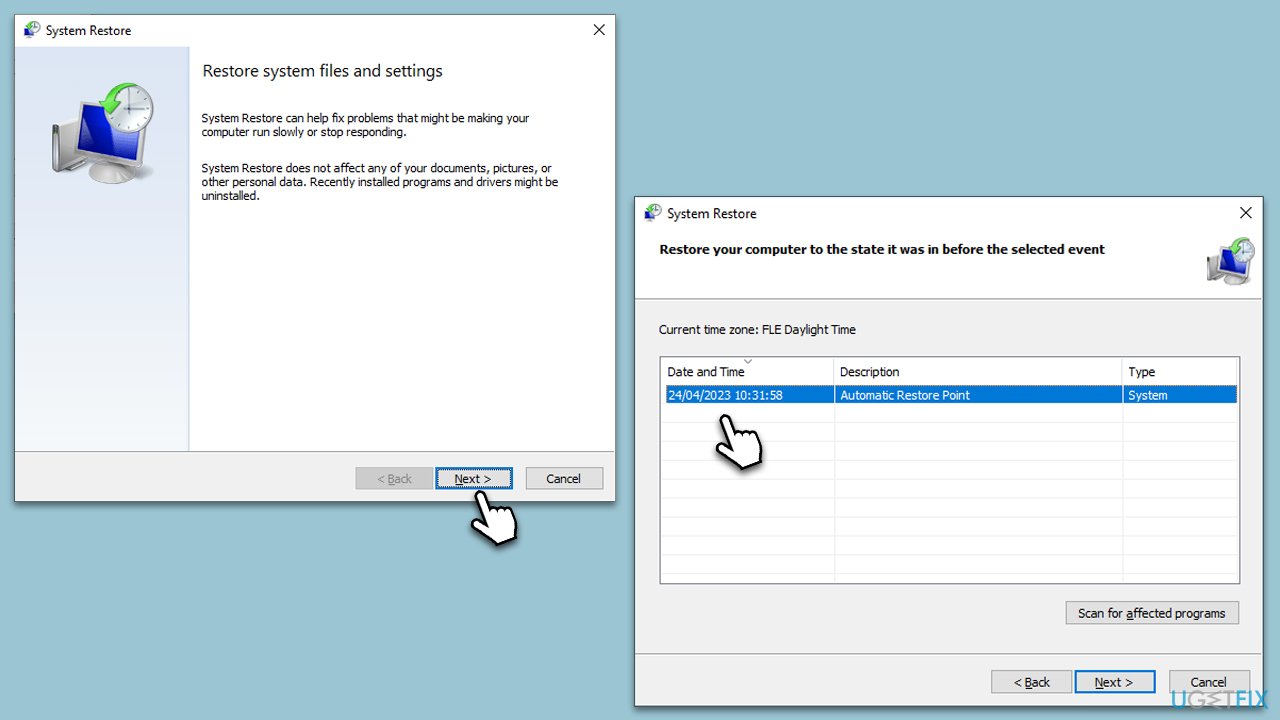
Your computer will restart, and the chosen restore point will be applied. This will undo changes to system files, installed programs, and settings back to a state where the device was functional. Check to see if the "This device is disabled (Code 22)" error has been resolved after the computer reboots.
Fix 6. Install Windows updates
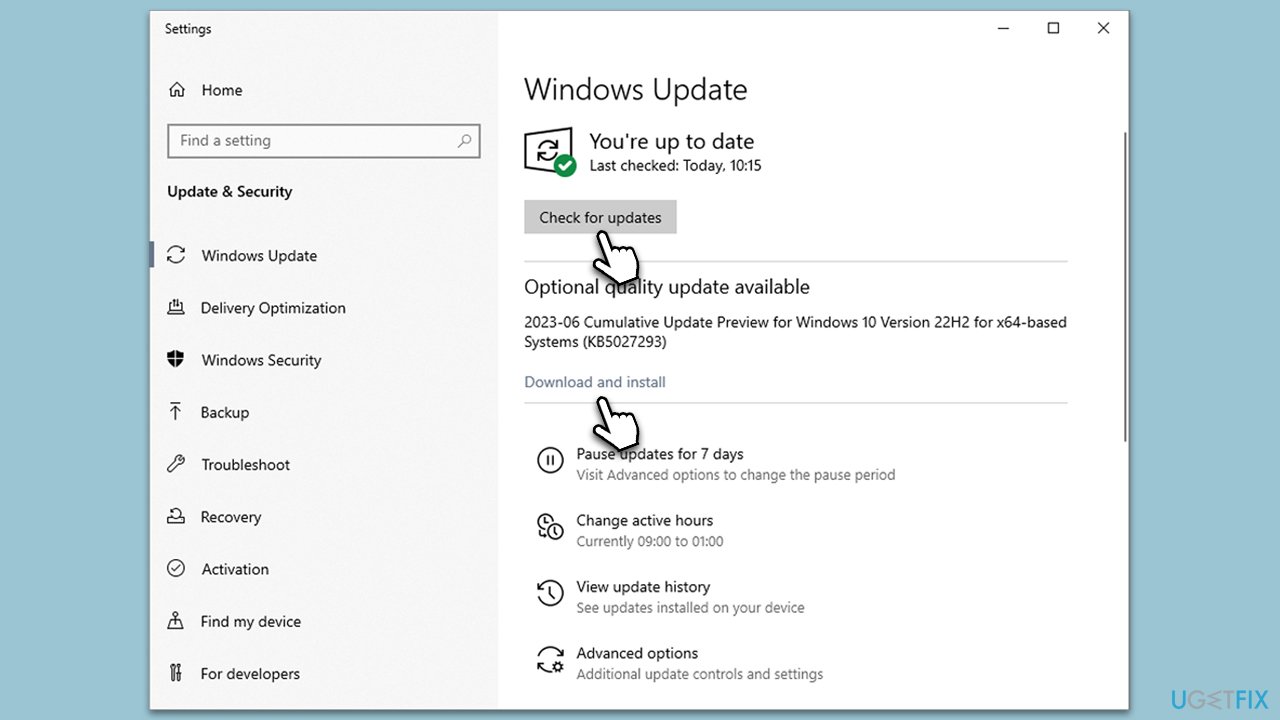
Running Windows Update can resolve compatibility issues that lead to hardware being disabled.
- Type Updates in Windows search and press Enter.
- On the right side of the window, press Check for updates.
- If there are optional updates available, install them as well.
- Restart your device.
Fix 7. Try Clean boot
- Press the Win key + R to open the Run dialog box.
- Type msconfig and press Enter to open the System Configuration utility.
- Go to the Services tab.
- Check the box that says Hide all Microsoft services at the bottom.
- Click Disable all to disable all third-party services.
- Next, go to the Startup tab.
- Click Open Task Manager.
- Disable all startup items by selecting each and then clicking Disable.
- Close Task Manager and go back to the System Configuration utility.
- Click Apply, then OK.
- Restart your computer.
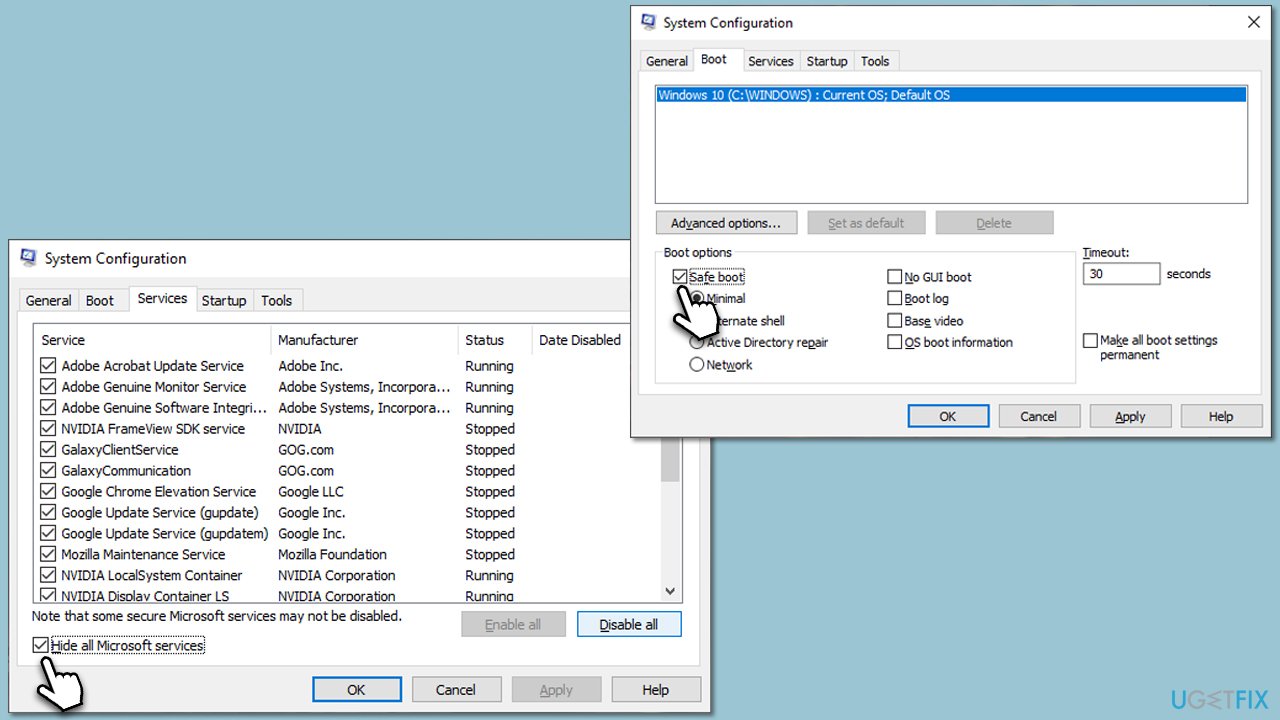
Your system will now boot with only essential services and drivers. Try connecting the previously disabled device again to see if the problem persists. If the device works, it's likely that a third-party service or application was causing the issue. You can then selectively re-enable services and startup items to identify the culprit.
Fix 8. Clear CMOS
CMOS (Complementary Metal-Oxide-Semiconductor) is a small amount of memory on a computer's motherboard that stores the BIOS settings. Occasionally, the CMOS may become corrupted, leading to settings like the system clock or boot order getting messed up and potentially even causing boot-up issues. Clearing (or "cleaning") the CMOS resets these settings to their default state, which can often resolve issues related to system configuration and hardware recognition.
- Turn off and unplug your computer.
- Open the computer case.
- Locate the coin-cell CMOS battery on the motherboard.
- Carefully remove it, wait for about 10 minutes, and then reinsert it.
- Reassemble your computer and power it back on.
Bottom line
To fix the 'This device is disabled (Code 22)' error, you can enable the device via Device Manager, update the device drivers, or tweak system settings. If these methods do not resolve the issue, consider using a PC repair tool to address potential corrupted system files and registry issues.
Frequently asked questions
To enable the device, open Device Manager, right-click on the disabled device, and select 'Enable device.' If the option is grayed out, check for any hardware issues or update your drivers.
If the error persists after enabling the device, try uninstalling the device from Device Manager and then restarting your computer to allow Windows 11 to reinstall it automatically.
Yes, make sure to visit the manufacturer's website to download the latest drivers compatible with your device for Windows 10 or Windows 11, as outdated drivers can often cause Code 22 errors.




Report an issue
What's wrong with this guide? We review every report and update or remove content.
Report received — thank you. We'll review and fix it.
You need a free account to submit a report.
Be the first to comment