How to fix
“This Device Is Not Configured Correctly (Code 1)” bug
on Windows
Resolve the "This Device Is Not Configured Correctly (Code 1)" error on Windows 10 and 11 effortlessly. Expert-tested solutions for a smooth experience!

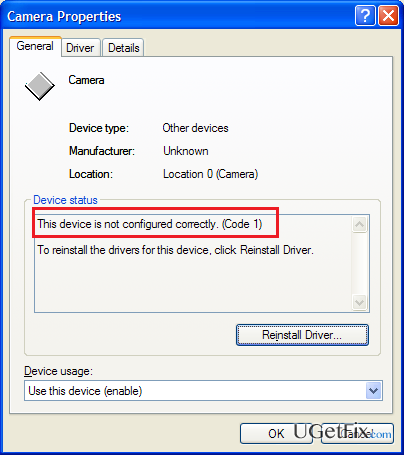
What causes How to fix “This Device Is Not Configured Correctly (Code 1)” bug on Windows?
- Lack of drivers
- Incorrectly configured drivers
- Issues with sound driver
- Problems with other device drivers
- Software that exploits a missing or malfunctioning driver
Repairs Windows system files, removes malware, and restores a clean OS state — without reinstalling.
I assume that my laptop has run into a serious problem. Whenever I try to load a video or music player, I receive a pop-up message saying “This Device Is Not Configured Correctly (Code 1).” Sometimes the same message is thrown when I attempt to open a file with PDF. Is there something I could do to fix this by myself or should I take my laptop to the technician immediately?
This Device Is Not Configured Correctly is an error, which has the Code 1. Although currently it shows up on PCs and laptops that run Windows 10 OS, other Windows types can also run into this bug. The emergence of this error code gives you a warning that your operating system lacks of drivers or that some of them are configured incorrectly. If you are encountering this bug right now, don’t waste your time and don’t try to reboot your PC/laptop because this is not going to help. As long as the issue with the drivers persists, you will see The Device Is Not Configured Correctly (Code 1) error when trying to run the software that exploit a driver which is missing or working inappropriately. Luckily, you can perform several things that may help you to fix Code 1 without paying money for professionals.
How to fix This Device Is Not Configured Correctly (Code 1) bug on Windows?
Fix 1.
This method applies for those who are experiencing Code 1 with the sound driver:
- Click Win key, type Device Manager and select the first option from the search results.
- Expand Sound, video and game controllers on the left side and select IDT High Definition Audio CODEC.
- Click Action tab and select Update Driver Software.
- After that, select Browse my computer for driver software and select High Definition Audio Device driver from the list.
- Click Next and then Yes.
- When the process is finished, restart your PC.
Fix 2.
If The Device Is Not Configured Correctly error does not seem to be related to sound driver, we would recommend you to run an automated Windows troubleshooting service, which can help to detect and fix the issue immediately. Navigate to this page and download Troubleshooting service.
Fix 3.
If the previous methods did not help, you should update the driver that is not working properly. For this purpose, you have to:
- Click Win key and type Device Manager.
- Click on it to open and then expand each menu on the left side until you find the device that is marked with a yellow exclamation mark.
- Once you detect it, click on it.
- Now you should see a bar at the top where you have to find Action. Click this option and then select Update Driver Software.
- Once done, reboot your PC and check if The Device Is Not Configured Correctly bug was successfully fixed.
NOTE: if none of the methods listed above helped, the last piece of advice we want to give is optimize your PC. In some of the cases, bugs like Code 1 are triggered by corrupted registries, malware or other system inconsistencies. Therefore, try to run a full system scan with [d1]. If, however, this did not help too, then it’s about time to bring your PC to professional technician.
Bottom line
To fix the 'This Device Is Not Configured Correctly (Code 1)' error, you can update the sound driver using Device Manager or run an automated Windows troubleshooting service. If these methods do not resolve the issue, consider seeking professional assistance.
Frequently asked questions
This error typically occurs due to driver issues, such as outdated or corrupted drivers, or improper device configuration in Windows 10.
To fix this issue on Windows 11, try uninstalling the device driver and then rebooting your system to allow Windows to reinstall it automatically.
Yes, you can check for driver updates by going to Device Manager, right-clicking on the device, and selecting 'Update Driver' to ensure your drivers are current on either Windows 10 or Windows 11.




Report an issue
What's wrong with this guide? We review every report and update or remove content.
Report received — thank you. We'll review and fix it.
You need a free account to submit a report.
Be the first to comment