How to fix
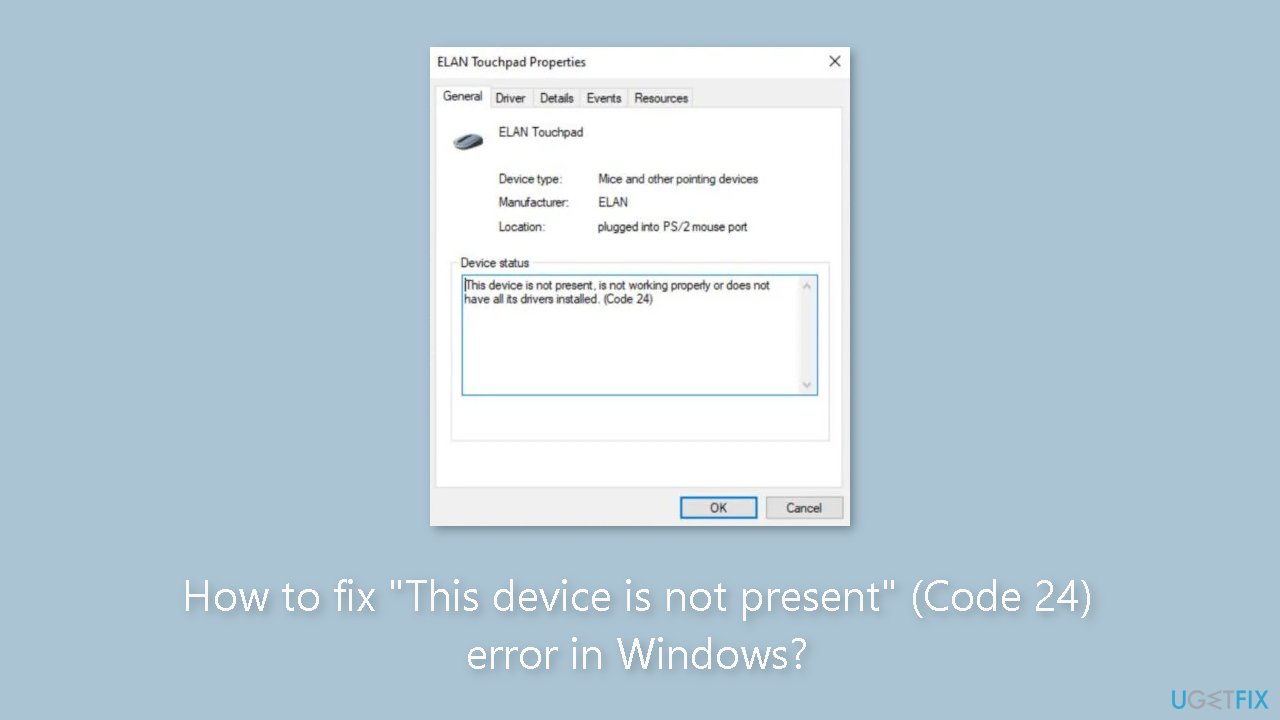
“This device is not present” (Code 24) error
on Windows
Resolve the "This device is not present" (Code 24) error on Windows 10/11 quickly and effortlessly. Expert-tested solutions await!


What causes How to fix “This device is not present” (Code 24) error in Windows?
- Device unplugged without proper uninstallation
- Outdated device drivers
- Incorrect device drivers
- Driver conflicts
- Incompatibility with Windows version
Repairs Windows system files, removes malware, and restores a clean OS state — without reinstalling.
Hello. I keep getting the "This device is not present" message with Code 24 error on my Windows PC. How do I fix this?
"This device is not present" (Code 24) is a Windows error that can occur for a variety of reasons. When a device is unplugged from the PC without being properly uninstalled, this is a common cause. This may cause the device's driver[ref en-1] to be left behind, resulting in conflicts and issues when attempting to use the device again.
Another possible cause of the Code 24 error is the use of outdated or incorrect device drivers. This can occur when the device's driver is not updated to the most recent version, or when the driver installed is incompatible with the version of Windows currently installed on the PC.
The Code 24 error can have a number of consequences for users. For starters, it can prevent the device from functioning, rendering it useless. This can be inconvenient, especially if the device is required for work or daily use. Furthermore, the error can cause system instability and crashes, which can result in data loss or PC damage. In some cases, the error can also prevent other devices from functioning properly, causing a cascade of problems throughout the computer.
Users can try a variety of solutions to resolve the Code 24 error. One option is to reinstall the device, which entails uninstalling the device's driver and reconnecting it to the PC. Another option is to uninstall the device and then reinstall the driver from Device Manager. Users can also attempt to update the device's driver, which entails downloading the most recent driver from the manufacturer's website and installing it on the PC. In some cases, restoring the system to a previous point in time can also help resolve the problem.
In this guide, you will find 5 steps that should help you fix "This device is not present" (Code 24) error in Windows. If you want to avoid a lengthy manual troubleshooting process, you can try using a system repair tool like [d1] that can fix most system errors, BSODs,[ref en-2] corrupted files, and registry[ref en-3] issues. Otherwise, follow the step-by-step instructions below.
Solution 1. Repair Corrupted System Files
Use Command Prompt commands to repair system file corruption:
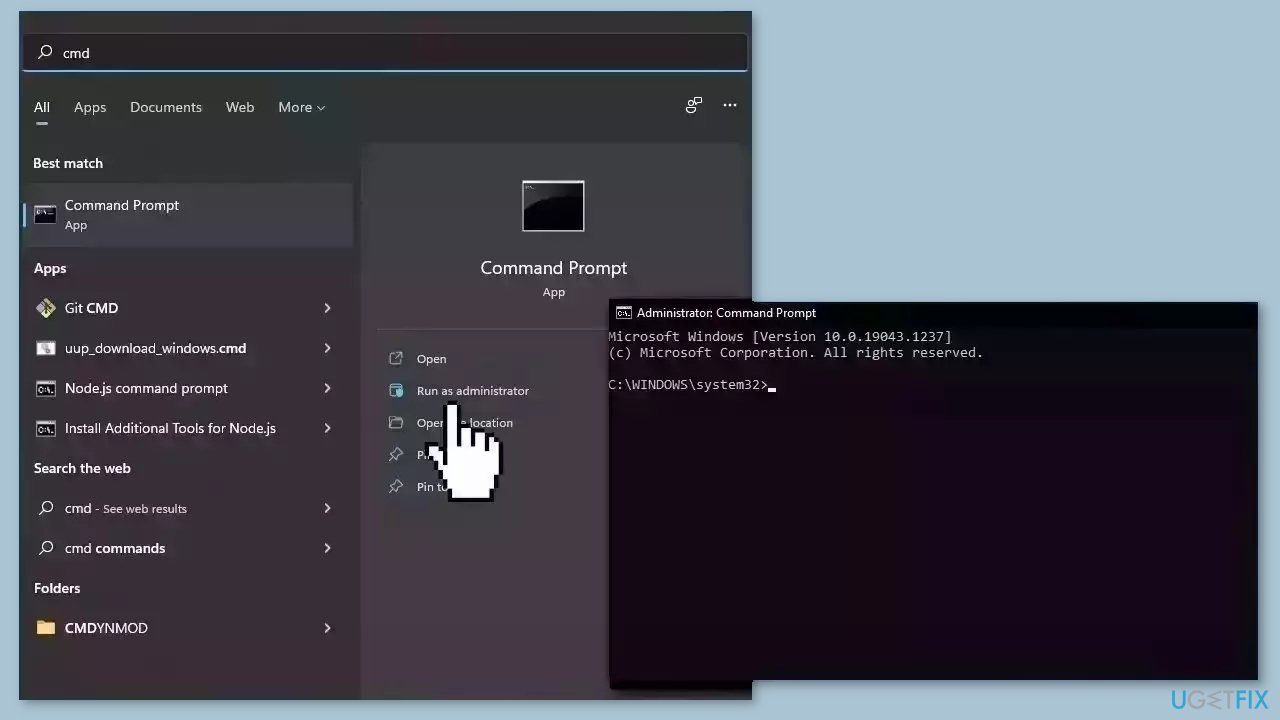
- Open Command Prompt as administrator
- Use the following command and press Enter:
sfc /scannow
- Reboot your system
- If SFC returned an error, then use the following command lines, pressing Enter after each:
DISM /Online /Cleanup-Image /CheckHealth
DISM /Online /Cleanup-Image /ScanHealth
DISM /Online /Cleanup-Image /RestoreHealth
Solution 2. Install Windows Updates
- Press the Windows key + R to open the Run box.
- Type ms-settings:windowsupdate in the text box and press Enter.
- Click the Check for updates button.
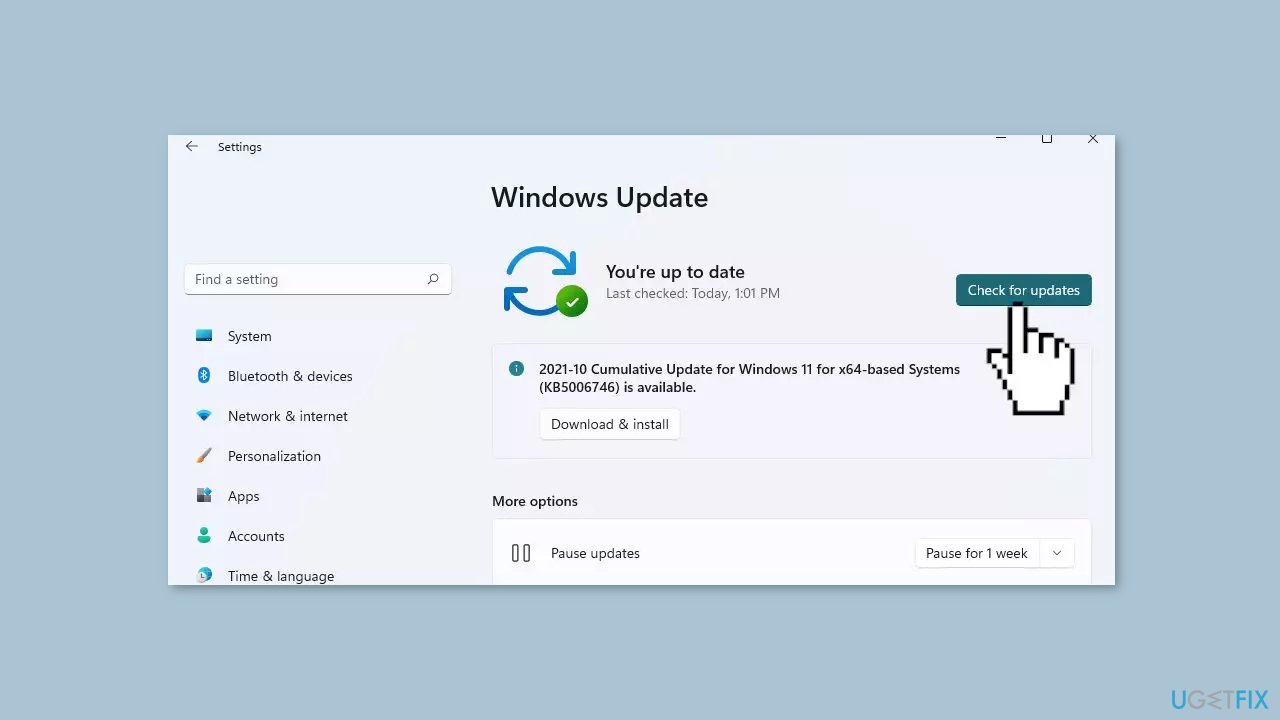
- If a new update is available, click the Download & Install all button.
- Restart your computer after the process is finished and check to see if the problem is fixed.
Solution 3. Update or Reinstall the Driver
- Click on the Windows button located on the bottom left corner of your screen.
- Type Device Manager in the search bar.
- Click on Device Manager in the search results to open the Device Manager window.
- Scroll down the list of devices and click on the affected device.
- Right-click on it.
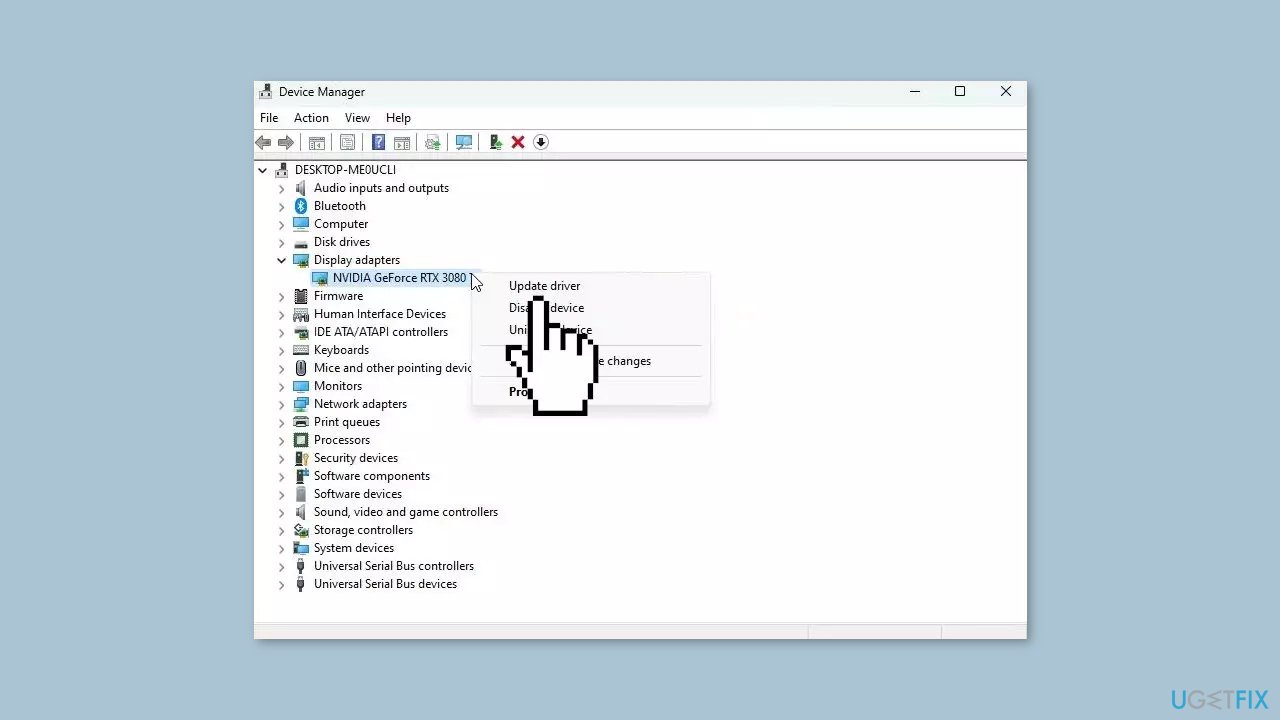
- Select Update driver from the context menu that appears.
- In the Update Drivers window, select Search automatically for drivers.
- Windows will now search for the latest drivers for your graphics card and install them if available.
- Wait for the update process to complete, and then restart your computer if prompted.
- Your device driver should now be updated to the latest version available.
- If the issue persists after updating the driver, click on Uninstall device instead.
- Restart your PC.
You can also use a dedicated utility like [rev id="DriverFix"] that can find the best drivers for your machine and install them automatically.
Solution 4. Use System Restore
System Restore is a feature in Microsoft Windows that allows users to revert their computer's state to a previous point in time. This can be helpful if you have made changes to your system that are causing problems.
- Press the Windows key + R on your keyboard to open the Run box.
- Type SystemPropertiesProtection and press Enter.
- Go to the System Protection tab.
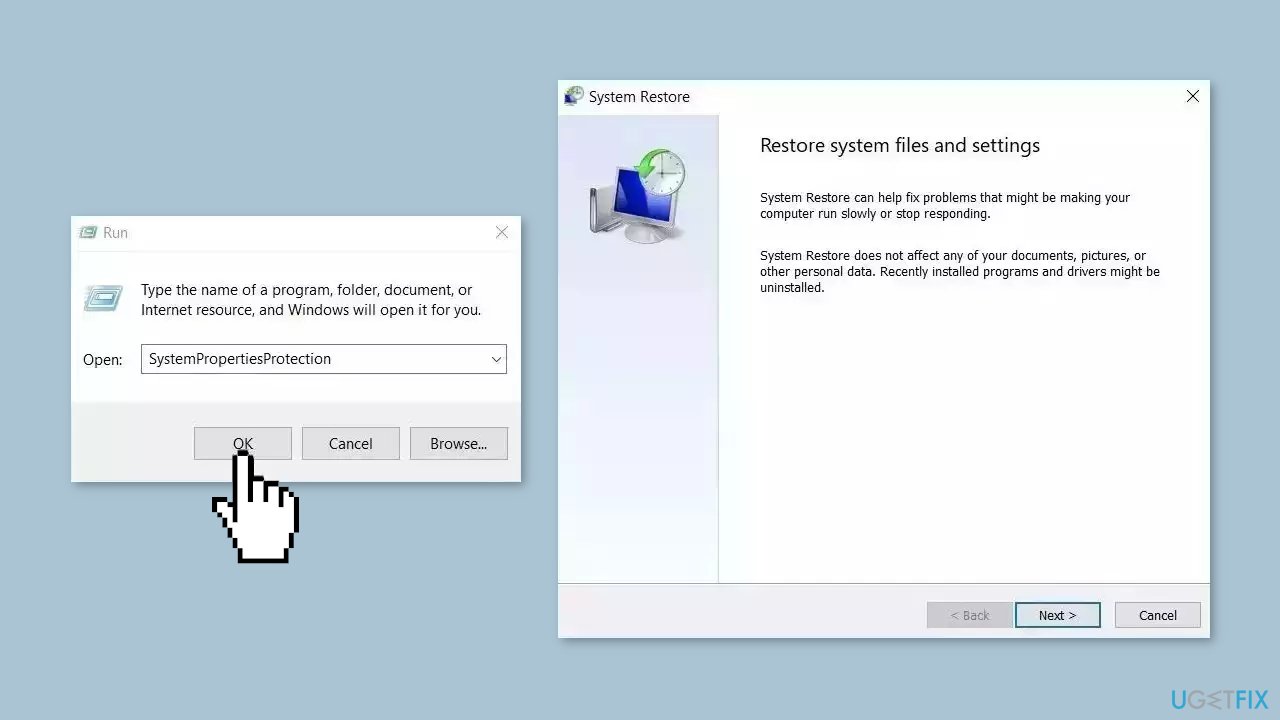
- You will see the System Restore… button. Click it to run System Restore.
- Follow the prompts until you can select a restore point.
- Select the one you want (ideally before the issue started occurring) and go ahead with the process.
Solution 5. Repair Install Windows
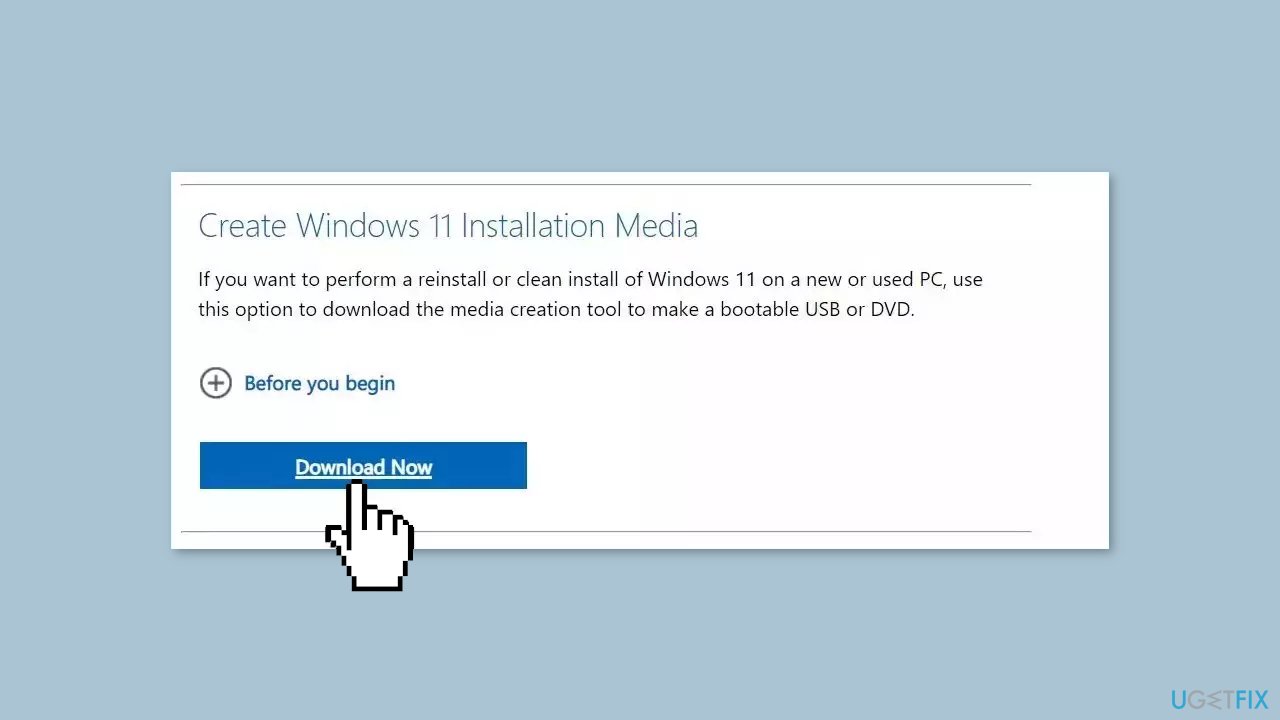
- Visit the official Microsoft website to download Windows 11 or Windows 10 Installation Media.
- Run the Media Creation Tool and select Create Installation Media for another PC.
- Select your USB drive.
- Let the Process complete of writing the Installation files to the USB drive.
- Click Finish.
- On the PC you wish to upgrade, Press Windows + E to open the File Explorer.
- Open the Removable drive and click Setup.exe.
- Accept the license terms on the next screen.
- Confirm the Upgrade options – Files, apps and Settings are kept.
- Click Install, and the upgrade should start.
Bottom line
To fix the Code 24 error, users can try reinstalling the device, uninstalling and reinstalling the driver from Device Manager, or updating the driver from the manufacturer's website. Restoring the system to a previous point may also help. If none of these solutions work, consider using a system repair tool.
Frequently asked questions
This error typically occurs when the device driver is corrupted or the device itself is not recognized by the operating system. It can also be triggered by changes in hardware configuration or system updates.
To fix the Code 24 error, try uninstalling the device from Device Manager and then restarting your computer, which will prompt Windows to reinstall the driver automatically. If that doesn't work, check for any pending Windows updates or reinstall the driver manually.
To prevent the Code 24 error in Windows 10, ensure that your device drivers are always up to date and avoid making abrupt hardware changes. Regularly running Windows Update and using driver management tools can help maintain system stability.




Report an issue
What's wrong with this guide? We review every report and update or remove content.
Report received — thank you. We'll review and fix it.
You need a free account to submit a report.
Be the first to comment