How to fix
“This device isn’t eligible for the requested build” error in iTunes
on Windows
Resolve the "This device isn't eligible for the requested build" error in iTunes on Windows 10 or 11 effortlessly with our expert-tested solutions.

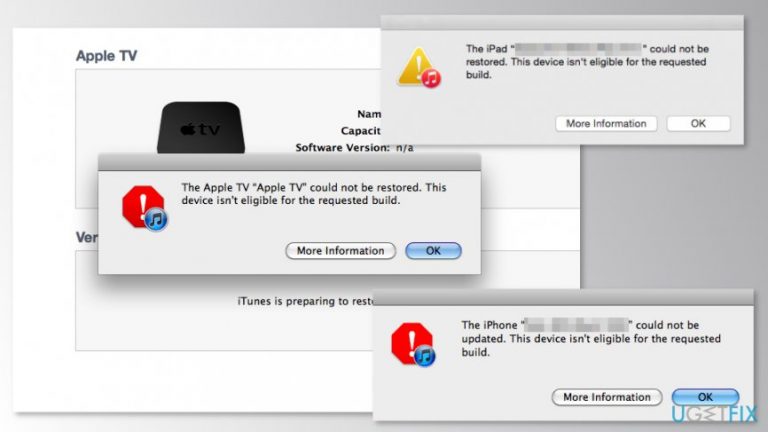
What causes How to fix “This device isn’t eligible for the requested build” error in iTunes?
- Device cannot access Apple update servers
- Available iTunes updates are not installed
- Poor internet connection
- Errors in the hosts file
- Outdated version of iTunes
Repairs Windows system files, removes malware, and restores a clean OS state — without reinstalling.
I cannot install updates via iTunes due to the “This device isn't eligible for the requested build" error. How to fix it?
"This device isn't eligible for the requested build” is an iTunes error that might pop up when users try to update Mac, iPhone or iPod. This problem occurs when the device cannot access Apple update servers. The error might be followed by one of these error codes:
- Error 17;
- Error 1639;
- Errors between 3000 and 3020;
- Error 3194;
- Other errors between 3100 and 3999.
There might be many causes for "This device isn't eligible for the requested build” error. Most of the time, necessary updates cannot be installed due to available iTune updates, poor internet connection or other problems that can be solved quite easily. Ways to get rid of that are described below:
Method 1. Update iTunes to fix "This device isn't eligible for the requested build" error
Start fixing the error by trying the easiest option - updating iTunes on your Mac:
- Open iTunes.
- Click iTunes option in the top right menu bar.
- Click “Check for Updates…”
- If there are any available updates, iTunes will offer you to download them by delivering a message: “A new version of iTunes (number of the version) is available. Would you like to download it now?”
- Click “Download iTunes” to install them.
Update itunes to fix this device isnteligible for the requested build error in itunes
Once the update is installed, you should try to update your device again. If you still receive "This device isn't eligible for the requested build" error, try the second method.
Method 2. Check hosts file for the "This device isn't eligible for the requested build" fix
This method is the hardest one. However, it can help you fix "This device isn't eligible for the requested build" error. Make sure you follow every step in exact order:
- Go to Applications -> Utilities > and open Terminal;
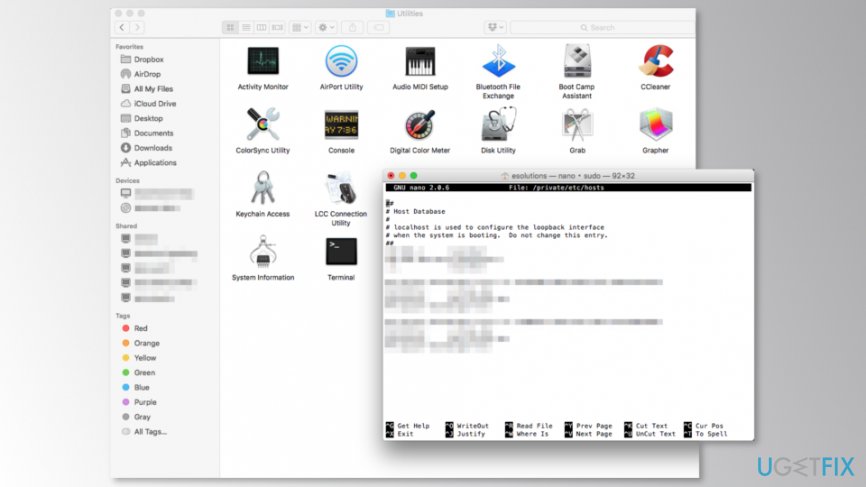
Check hosts file - Copy and paste this command into the terminal:
sudo nano /private/etc/hosts - Press Return. Terminal will deliver you a warning message:
Improper use of the sudo command could lead to data loss…
It means that you should follow the instructions carefully to avoid any possible damage to your data; - Enter your system password and click Enter. Now you should see the hosts file;
- Search for “gs.apple.com" entry;
- Once you find it, add # and space to the beginning of the entry;
- Click Control-O to save the changes;
- When a request for the filename appears, click Return and then Control-X;
- Restart Mac.
Method 3. Check Internet connection and router issues
Sometimes updates cannot be installed due to poor internet connections or when a router blocks access to Apple servers. In order to check the status of internet connection on Mac, follow these steps:
- Go to System Preferences.
- Open Network tab.
- Check if your connection options are correct and working.
If everything is right, you have to take care of the router:
- Connect your computer to modem directly using an ethernet cable. In this way, you will bypass router’s connection.
- Restart the modem.
If this did not help to fix "This device isn't eligible for the requested build" error, you should follow another step.
Method 4. Turn off the security software
Sometimes antivirus, anti-malware, and other security tools can block Apple’s servers. It’s hard to explain such activity. However, you can try to disable your Mac’s protection temporarily (or even uninstall a program) to check if it was an issue. Additionally, you can adjust your antivirus settings and make sure that it does not interfere update installation process.
Now try to install necessary updates through iTunes. However, if nothing has worked, it might be the problem with Mac. Thus, try to install updates using another device.
Bottom line
To fix the "This device isn't eligible for the requested build" error, you can start by updating iTunes and then check the hosts file for any issues. If these methods do not resolve the problem, consider checking your internet connection or seeking further assistance.
Frequently asked questions
First, ensure that you are using the latest version of iTunes. If the issue persists, check your internet connection and make sure your Windows 10 is up to date.
Yes, the steps are similar; update iTunes and Windows 11 to their latest versions. Additionally, verify that the firmware for your device is compatible with the build you are trying to install.
While there is no guaranteed bypass, you can try restoring your device through iTunes in recovery mode, which may help circumvent the error.




Report an issue
What's wrong with this guide? We review every report and update or remove content.
Report received — thank you. We'll review and fix it.
You need a free account to submit a report.
Be the first to comment