How to fix
“This media is write protected” error
on Windows
Resolve the "This media is write protected" error in Windows 10 and 11 effortlessly. Get expert-tested solutions for quick fixes and smooth functionality.


What causes How to fix “This media is write protected” error in Windows?
- Physical write protection switch on the storage device is enabled
- File attributes are set to read-only
- Windows policy settings enforcing write protection
- Possible corruption or failure of the storage device or file system
- Outdated system drivers or firmware
Repairs Windows system files, removes malware, and restores a clean OS state — without reinstalling.
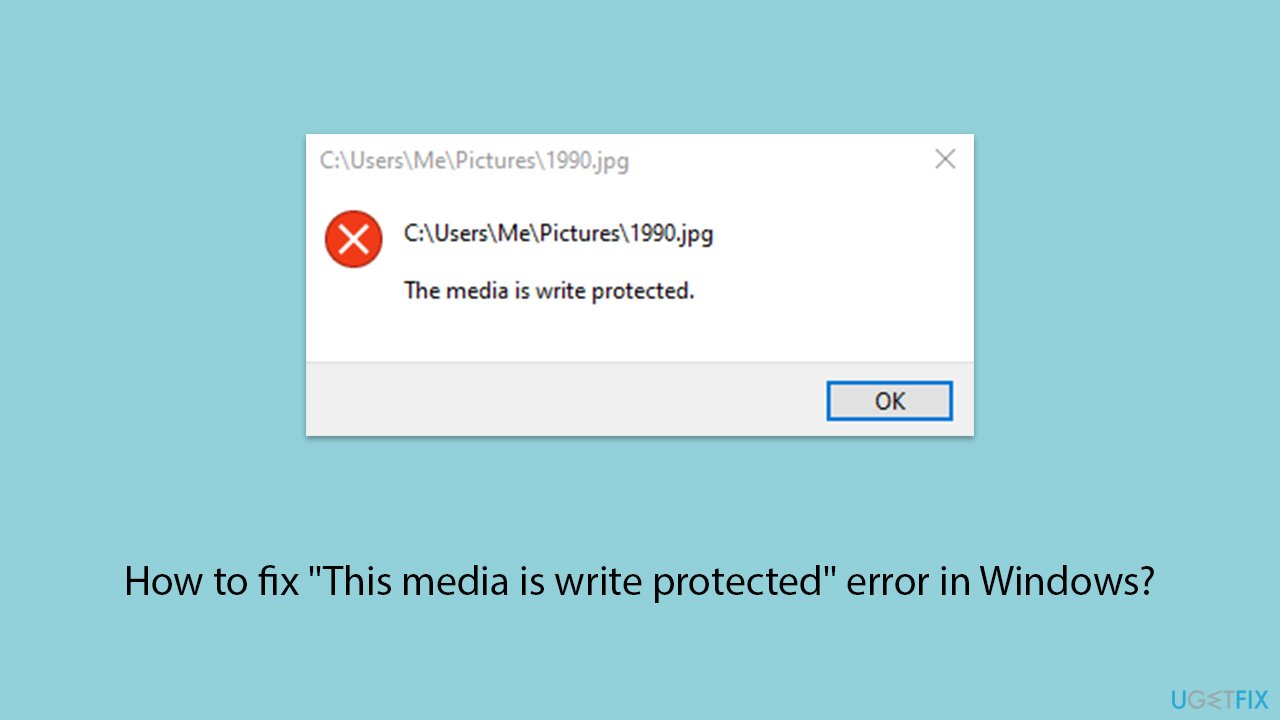
I don't know what happened, but whenever I try to open any picture on my Photos app, it keeps loading for a while and then drops an error "This media is write protected." How do I fix this?
When encountering the "This media is write protected" error in Windows, you are essentially being prevented from making changes to files, such as editing or deleting them. This error frequently appears when attempting to modify or delete files like pictures, photos, or videos. It indicates that Windows has placed restrictions on the file or the storage device, preventing any alterations.
Several reasons can trigger the "This media is write protected" error. Firstly, the storage device itself, such as an SD card or USB drive, might have a physical write protection switch that is set to prevent changes. Ensuring this switch is in the correct position can sometimes resolve the issue immediately.
Secondly, the error could stem from the file's attributes being incorrectly set to read-only within Windows. This setting prevents modifications and can be changed through file properties. Thirdly, Windows may enforce write protection due to policy settings, especially in managed or corporate environments to safeguard data.
In more complicated instances, the error "This media is write protected" may indicate possible corruption or failure of the storage device or file system, pointing to deeper problems. Using Windows' built-in disk error check and repair tools could be helpful in these situations. Furthermore, by guaranteeing optimal compatibility and performance, making sure your system's drivers and firmware are up to date will also assist mitigate these issues.
For individuals who prefer a more direct approach to resolving such issues, using a professional PC repair program [d1] can be a viable option. These tools are intended to automatically diagnose and resolve a wide range of Windows issues, including those involving file and disk management, without the need for substantial technical knowledge.
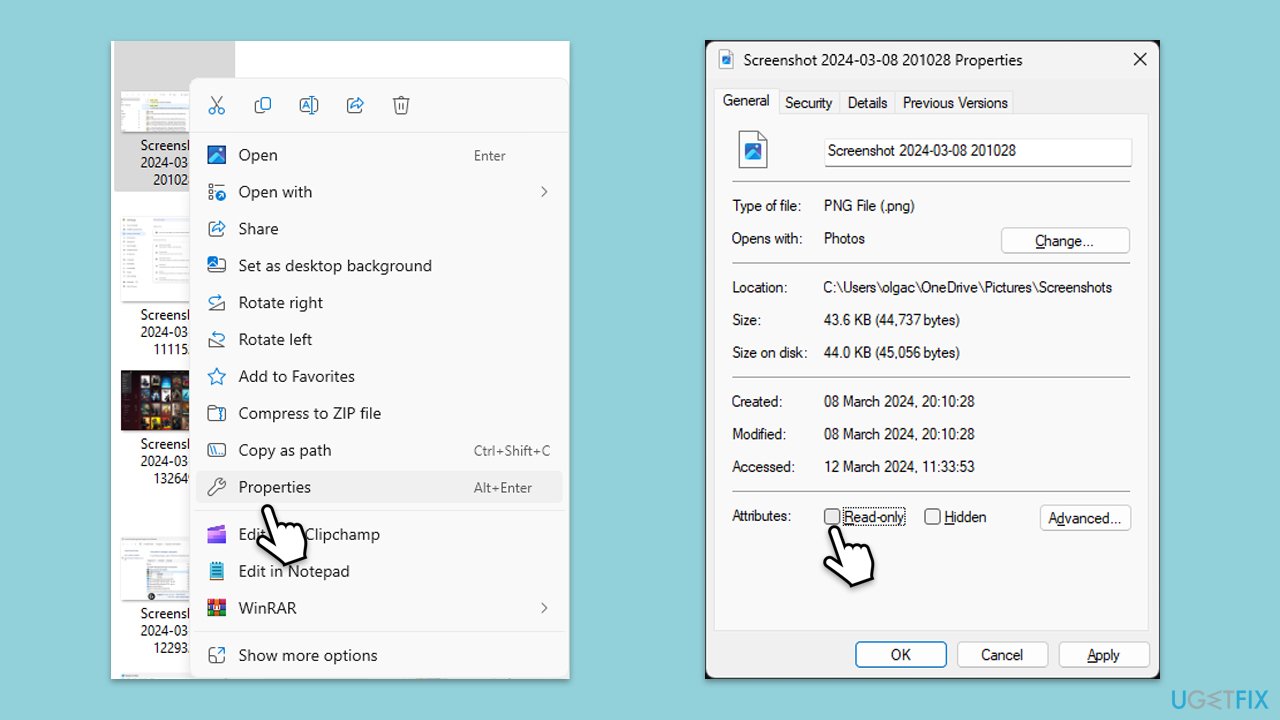
Fix 1. Clear read-only attribute via file properties
Windows allows users to set files as read-only to prevent accidental modifications. If a file is marked as read-only, attempting to alter it will result in a write protection error. Changing this attribute allows for normal file operations.
- Right-click on the file or folder you wish to modify.
- Select Properties from the context menu.
- At the bottom of the Properties window, uncheck the Read-only option.
- Click Apply, then OK to save changes.
- Try opening the file again.
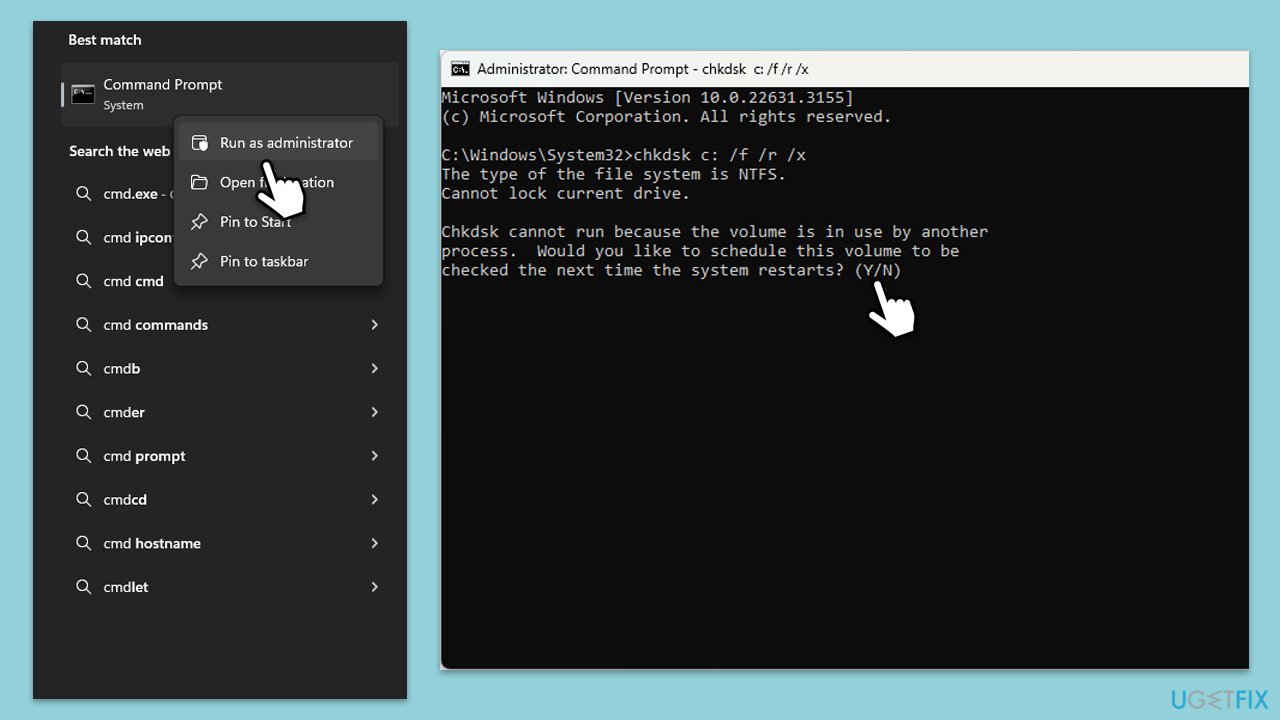
Fix 2. Use CHKDSK to check for disk errors
Corruption within the file system can lead to various issues, including write protection errors. The Check Disk utility (CHKDSK) scans the disk for errors and fixes them, which can restore normal functionality.
- Type cmd in Windows search.
- Right-click on Command Prompt and pick Run as administrator.
- Click Yes when UAC asks for access.
- Type in the following command and press Enter after:
chkdsk c: /f
(Note: use chkdsk c: /f /r /x command if you use SSD as your primary partition). - If you receive an error, type in Y, close down Command Prompt and restart your computer.
- After a restart, Windows will begin to scan your disk. After your system boots back up, you can find the results in the Event Viewer.
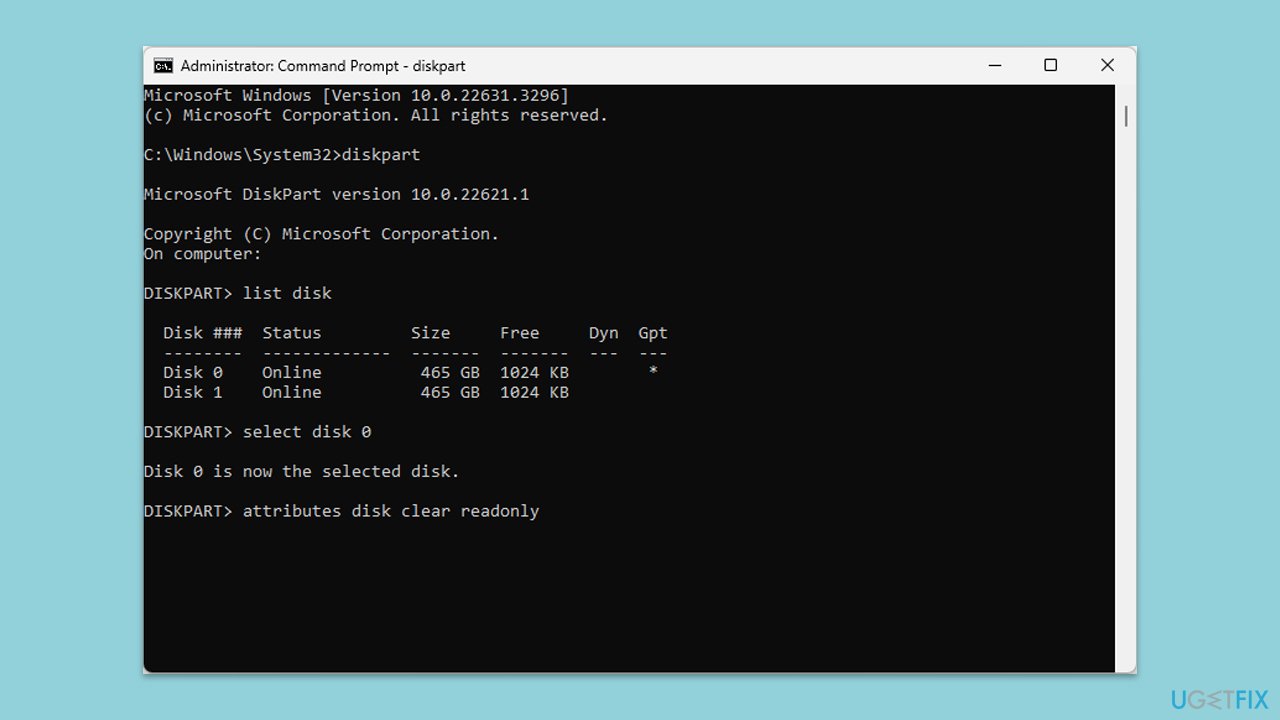
Fix 3. Use Diskpart to remove write protection
Diskpart is a powerful command-line tool in Windows that allows users to manage disks and partitions. It can be used to remove write protection from storage devices, enabling you to modify their contents freely.
- Open Command Prompt as an administrator.
- Type diskpart and press Enter.
- Type list disk and press Enter to display all storage devices connected to your computer.
- Identify the disk number of the write-protected device.
- Type select disk X (replace X with the actual disk number) and press Enter.
- Type attributes disk clear readonly and press Enter to remove write protection.
- Type exit and press Enter to close Diskpart.
Fix 4. Update disk drivers
Outdated or corrupted disk drivers can cause write protection issues. Updating these drivers ensures compatibility and can fix related problems.
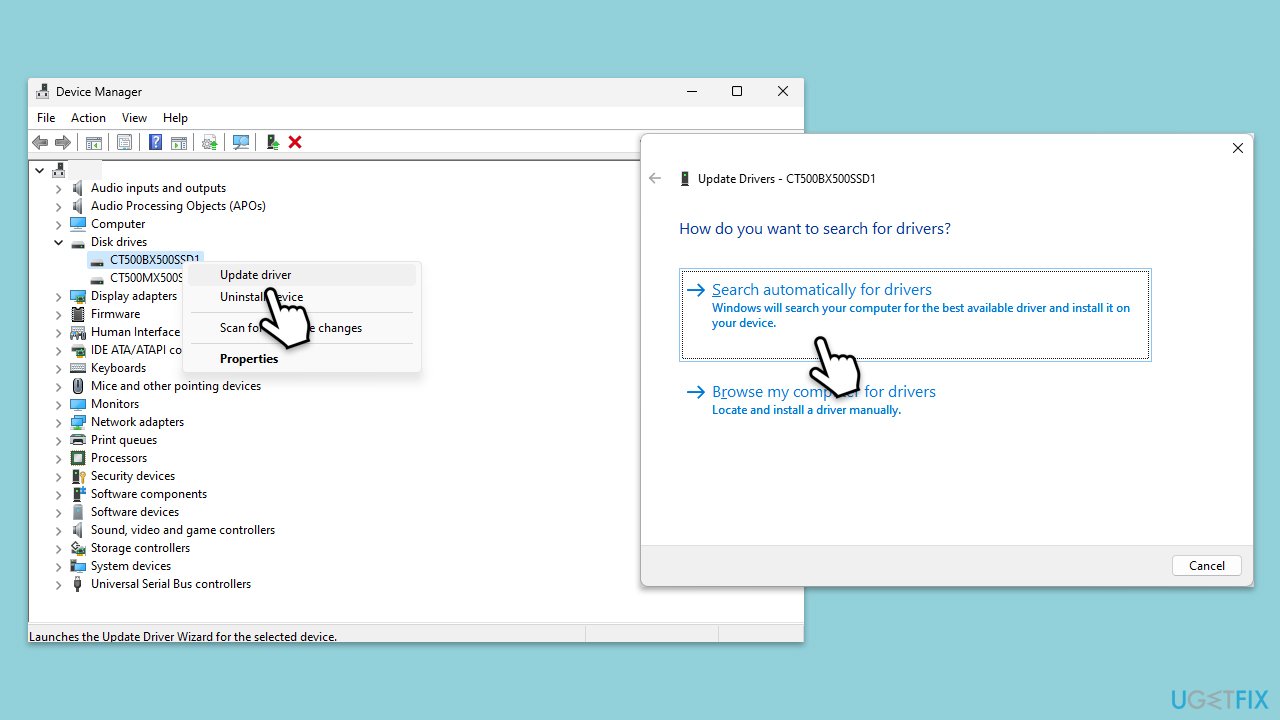
- Right-click on the Start button and select Device Manager.
- Expand the Disk drives section.
- Right-click on the storage device experiencing issues and select Update driver.
- Choose Search automatically for drivers and follow the prompts.
- Restart your computer after the update completes.
- For an easier and more straightforward installation of drivers, we recommend using [rev id="DriverFix"].
Fix 5. Edit Windows Registry to disable write protection
The Windows Registry contains settings and options for the operating system, including those that can enable or disable write protection on storage devices. Modifying these settings can resolve the issue.
- Type regedit in Windows search and press Enter to open the Registry Editor.
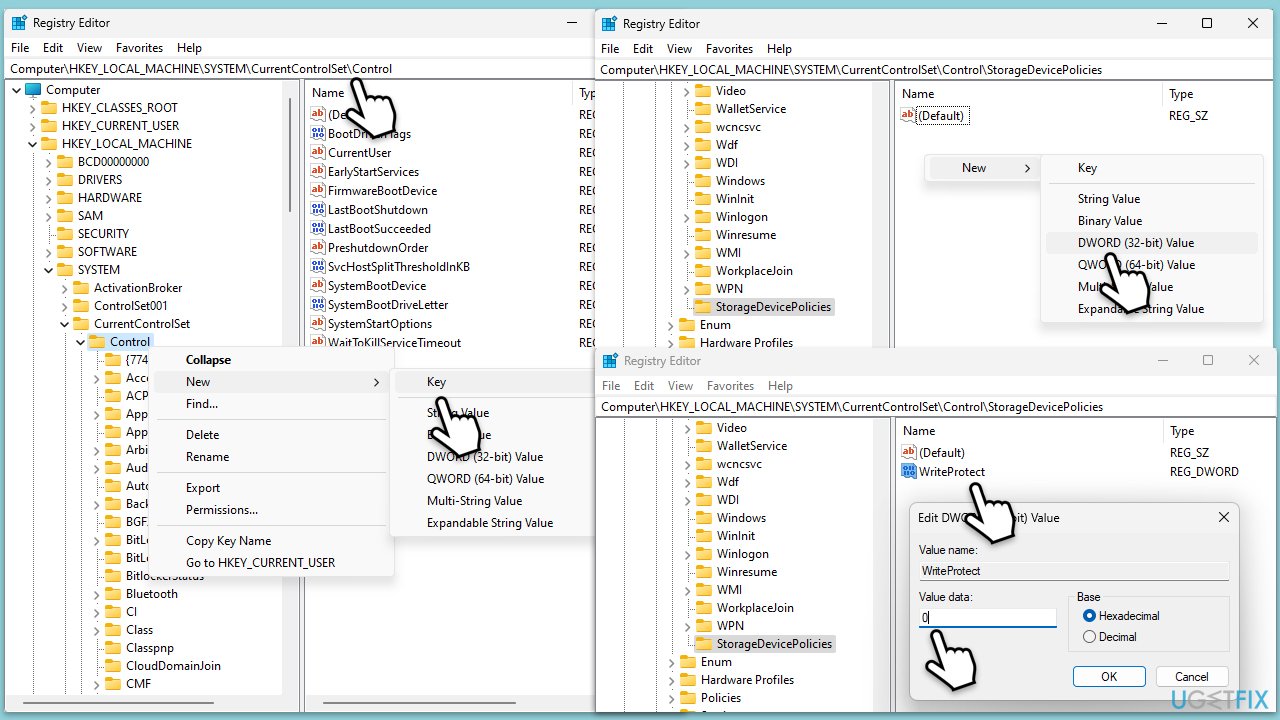
- Navigate to Computer\HKEY_LOCAL_MACHINE\SYSTEM\CurrentControlSet\Control\StorageDevicePolicies.
- If the StorageDevicePolicies key doesn’t exist, right-click on Control, select New > Key, and name it StorageDevicePolicies.
- Select StorageDevicePolicies.
- On the right side of the window, right-click on an empty space, select New > DWORD (32-bit) Value, and name it WriteProtect.
- Double-click on WriteProtect, set its value to 0, and click OK.
- Restart your computer for changes to take effect.
Fix 6. Repair/reset or reinstall Photos (or another) app
If the "This media is write protected" error persists only when using a particular app, you can repair or reset it.
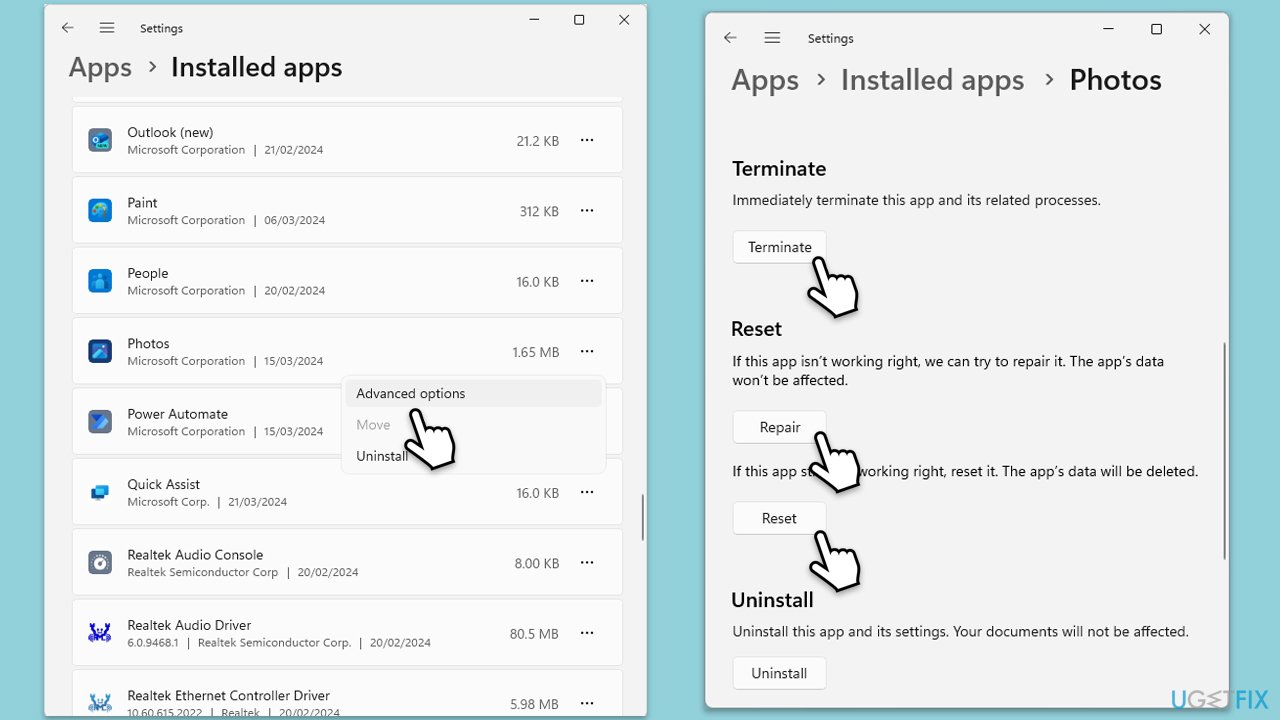
- Right-click on Start and pick Apps & Features/Installed apps.
- Scroll down to locate the Photos and click (three dots>) Advanced options.
- Click Terminate and Repair.
- If that does not help, try the Reset option instead.
If that does not help, you can reinstall the app instead.
- Right-click on Start and pick Apps & Features/Installed apps.
- Scroll down to locate the Photos and click (three dots >) Uninstall.
- Confirm with Uninstall and follow the prompts to finish the process.
- Restart your PC and then reinstall the app.
Bottom line
To fix the 'This media is write protected' error, you can check the physical write protection switch on your device, modify the file attributes to remove the read-only setting, and ensure your drivers and firmware are up to date. If these solutions do not work, consider using a professional PC repair program to diagnose and resolve the issue.
Frequently asked questions
You can remove write protection by checking for a physical switch on the USB drive, or by using Diskpart in Command Prompt. Open Command Prompt, type 'diskpart', select your USB drive, and enter 'attributes disk clear readonly'.
Right-click on the memory card in File Explorer, select 'Properties', and uncheck the 'Read-only' attribute if it's enabled. If that doesn't work, use Diskpart to clear the read-only attributes as described in the previous answer.
Yes, you can try using the Diskpart utility to clear the read-only attributes or check the drive for file system errors using the 'chkdsk' command in Command Prompt. Ensure the external hard drive is connected properly and has no physical write protection switch.




Report an issue
What's wrong with this guide? We review every report and update or remove content.
Report received — thank you. We'll review and fix it.
You need a free account to submit a report.
Be the first to comment