How to fix
“This network connection does not exist” error
on Windows
Resolve the "This network connection does not exist" error in Windows 10 and 11 effortlessly. Get back online quickly with expert-tested solutions.

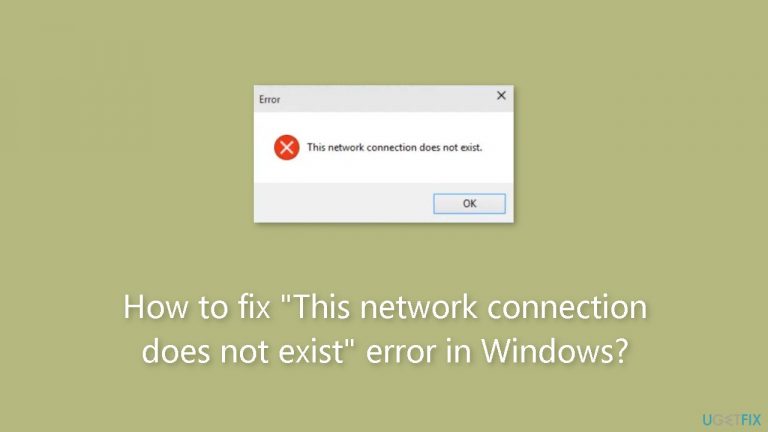
What causes How to fix “This network connection does not exist” error in Windows?
- Mapped network drive is no longer accessible
- Network resources have been disconnected
- Issues with security software or firewalls
- Incorrect drive mappings
- Network setup problems
Repairs Windows system files, removes malware, and restores a clean OS state — without reinstalling.
Hello. When I try to disconnect a network drive on Windows, I get the "This network connection does not exist" error. Is there a way to fix it?
Windows users frequently run into the "This network connection does not exist" error when attempting to access network resources or mapped network storage. When a user tries to access a network drive or resource that has previously been mapped or connected but is no longer accessible via the network, this error frequently happens.
Users who previously had access to shared folders, network printers, or other network resources may find themselves unable to do so when this issue occurs. Productivity may be hampered by this disturbance, particularly in settings where file sharing and cooperation are essential. Users may experience delays, annoyance, and workflow interruptions as a result of their inability to access crucial data or operate effectively with coworkers over the network.
Both ordinary users and companies reliant on network resources may be impacted by this problem. It could make it difficult for individual users to access their own data on network drives or cause them connectivity issues with shared printers. Teams may encounter difficulties in a professional setting while trying to access databases, shared project files, or other essential resources. Downtime, lower productivity, and significant deadline delays might result from this.
To get back seamless network connections, you must fix the "This network connection does not exist" problem. The remedies often entail performing troubleshooting procedures like verifying proper drive mappings, renewing or reestablishing network connections, and looking into potential problems with security software, firewalls, or network setups.
In this guide, you will find 5 steps that should help you fix "This network connection does not exist" error in Windows. You can also try running a repair tool like [d1] that can fix most system errors, BSODs,[ref en-1] corrupted files, and registry[ref en-2] issues. Otherwise, follow the step-by-step instructions below.
Solution 1. Change Drive Letter
- Press the Windows key + R to open the Run dialog box.
- Type diskmgmt.msc into the Run dialog box and press Enter.
- Once the Disk Management tab opens, check the drive letters assigned to your local disks.
- Ensure that no drive shares the same drive letter as the mapped network drive.
- If the drive letters are not the same, you're good to go.
- However, if they are the same, right-click on the drive letter of the local drive.
- Select Change Drive Letter and Paths, then choose Change.

- From the drop-down menu, pick a different drive letter.
- Click OK and confirm by clicking Yes.
- Restart your device to see if the error has been resolved.
Solution 2. Modify Windows Registry
- Click on the Start menu.
- In the search bar, type regedit and press Enter.
- Once the Registry Editor opens, navigate to the path: HKEY_CURRENT_USER\SOFTWARE\Microsoft\Windows\CurrentVersion\Explorer\MountPoints2.
- Right-click on MountPoints2 and choose Delete.
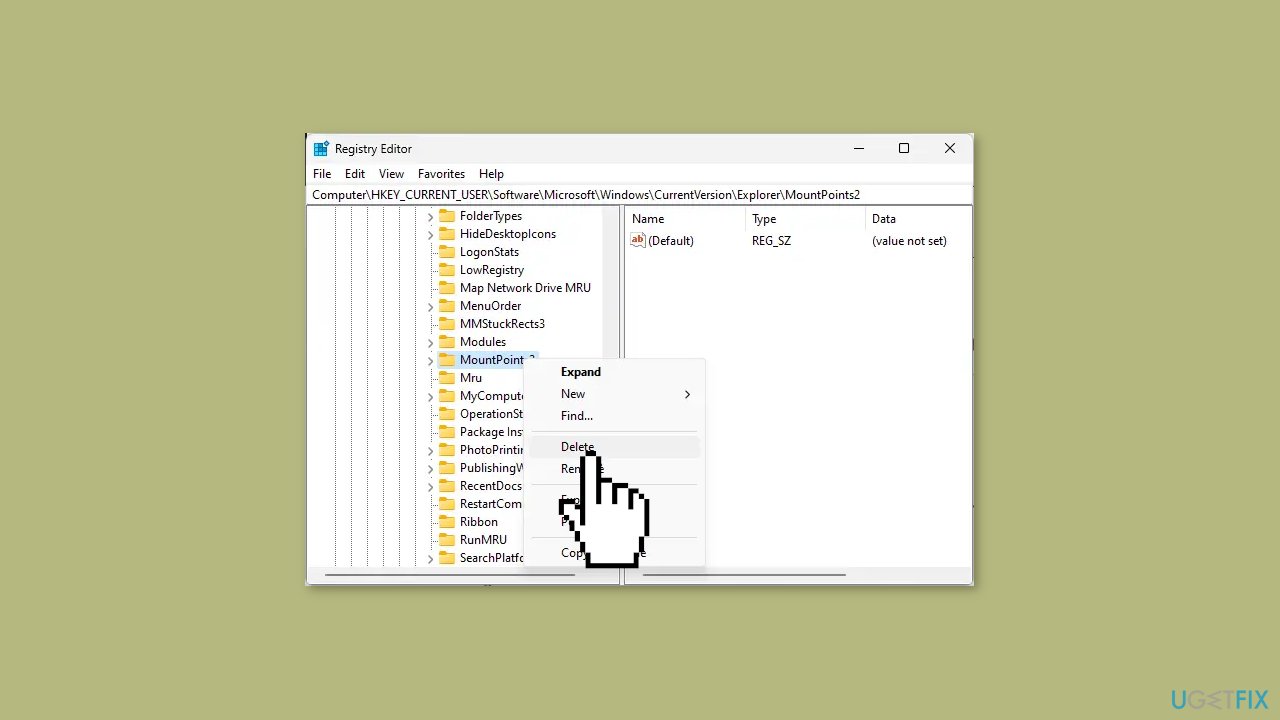
- Navigate to the following path: HKEY_CURRENT_USER\Network.
- Click on the Network key.
- Delete any other keys named using the letter associated with a mapped network drive.
- Restart your system.
- Check if the error is resolved.
Solution 3. Disable Cached Credentials
- Press the Windows key + R to open the Run dialog box.
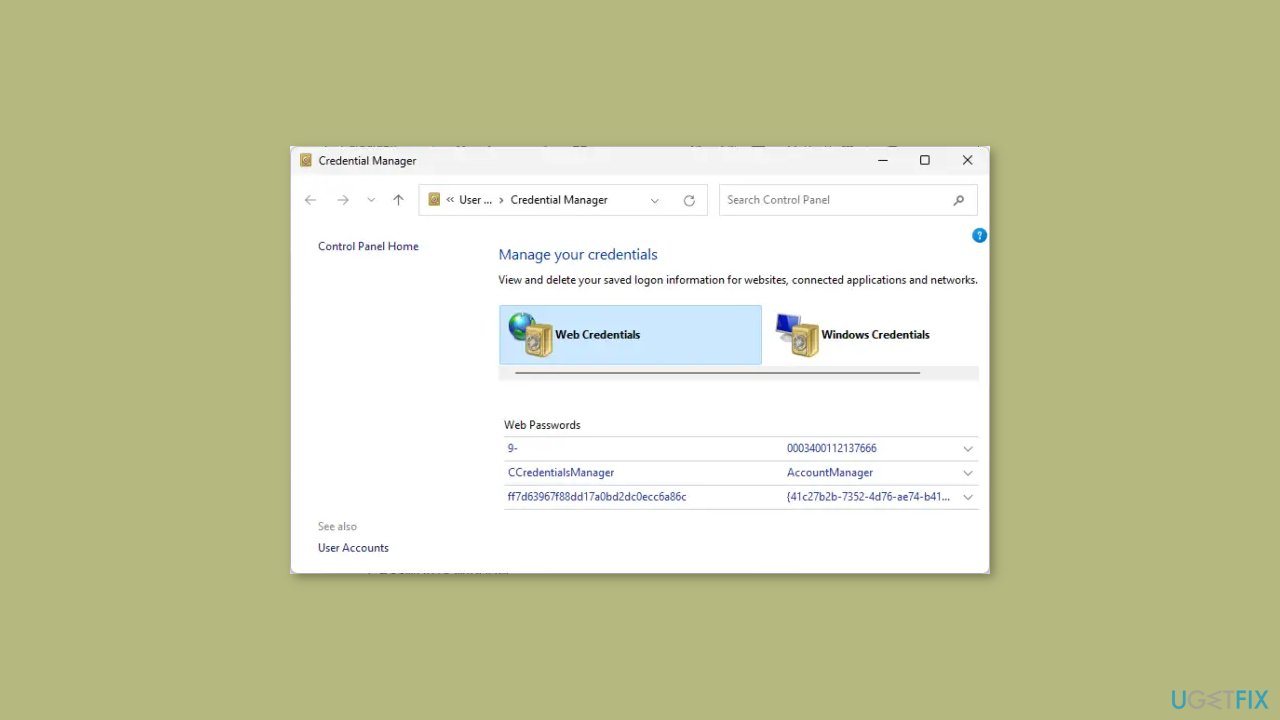
- Type control keymgr.dll into the Run dialog box and press Enter.
- In the Stored User Names and Passwords window, look for entries related to the network drive.
- Remove any entries associated with the network drive.
Solution 4. Disable Firewall and Security Software
Network connection issues might also arise from interruptions caused by firewall and security software. To troubleshoot this, consider temporarily disabling both Windows Defender Firewall and any third-party security software. Check if this action resolves the error.
- Type Windows Security in the search box and press Enter to launch the Windows Security app.
- Click on Firewall & Network Protection to access the corresponding panel.
- In this panel, you will find the Firewall status listed for the following network profiles:
Domain network
Private network
Public network
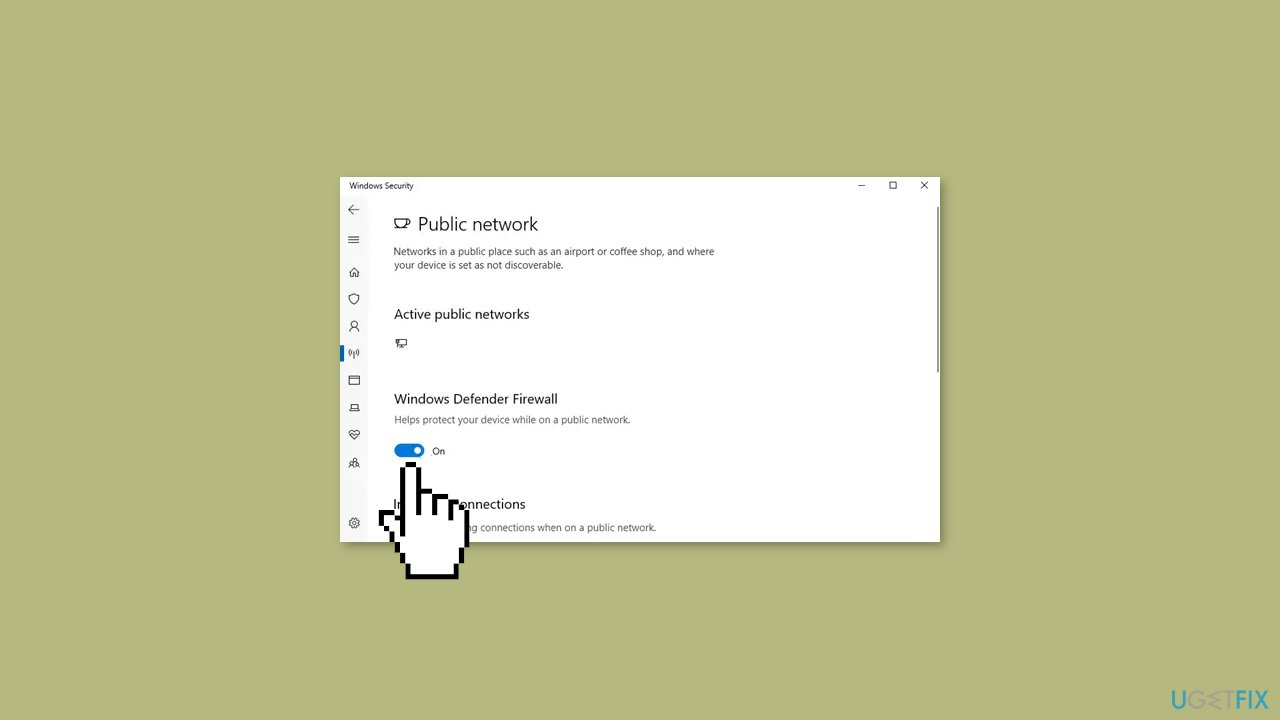
- You can individually choose to disable the Firewall for any of the network profiles.
- To disable the Firewall entirely for all profiles, sequentially click on each of the three profiles.
Solution 5. Disconnect the Network Drive
- Open Command Prompt as an Administrator.
- Type the following command and press Enter. This command will display a list of all active network connections:
net use
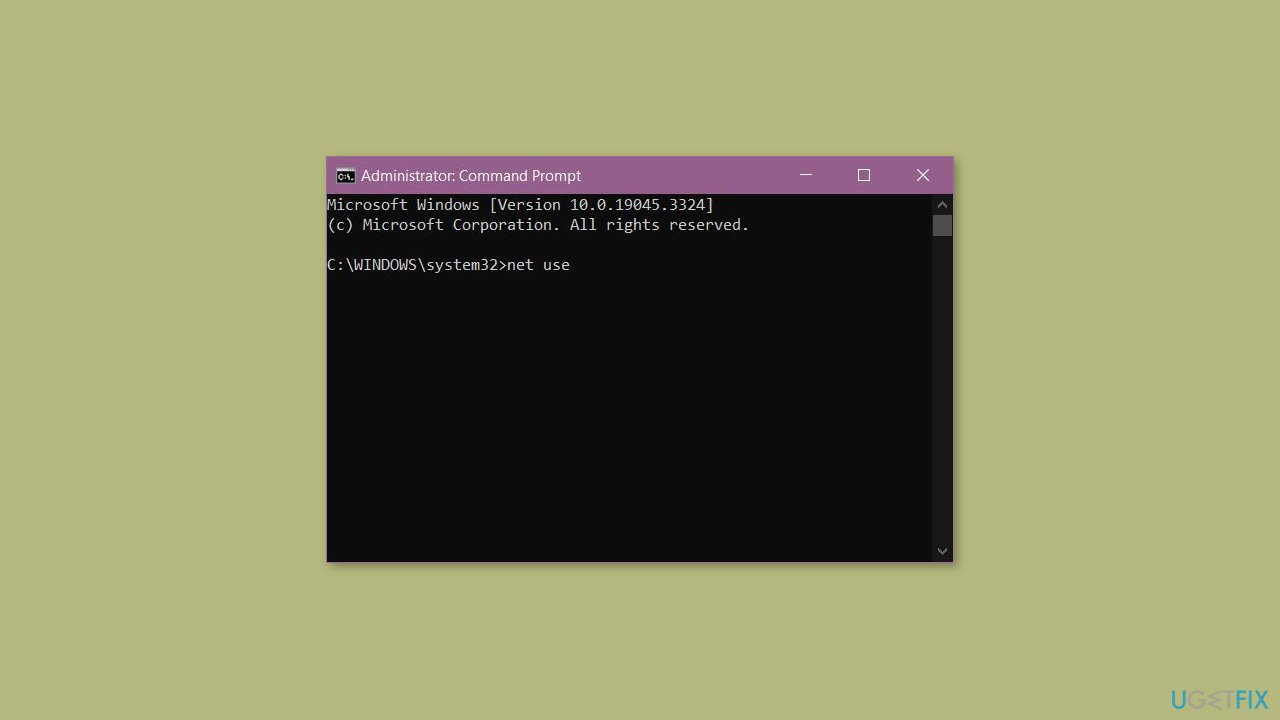
- Identify the network drive that you want to disconnect.
- Run the following command, replacing X with the drive letter of the identified network drive:
net use X: /delete /force
- Restart your computer to ensure that the changes are applied and take effect.
Bottom line
To fix the 'This network connection does not exist' error, you can change the drive letter, verify drive mappings, renew or reestablish network connections, and check for issues with security software or firewalls. If these steps do not resolve the issue, consider running a repair tool that can address system errors and corrupted files.
Frequently asked questions
You can try resetting your network adapter by going to Settings > Network & Internet > Status, then clicking on 'Network reset' to remove and reinstall all your network adapters.
In Windows 11, navigate to Settings > Network & Internet > Advanced network settings, and use the 'Network reset' option to fix any underlying connectivity issues.
Yes, outdated or corrupted network drivers can lead to this error, so make sure to update your network drivers through Device Manager in Windows 10 or Windows 11.




Report an issue
What's wrong with this guide? We review every report and update or remove content.
Report received — thank you. We'll review and fix it.
You need a free account to submit a report.
Be the first to comment