How to fix
“This network may have a captive portal”
on Windows
Resolve the "This network may have a captive portal" issue on Windows 10 or 11 effortlessly. Get expert-tested solutions to restore your connection!

What causes How to fix “This network may have a captive portal” in Windows?
- Router misconfiguration activating captive portal feature
- Device's network settings issue
- Interference from nearby devices or networks
- Accidental changes to router settings
- Software glitches in the router or device
Repairs Windows system files, removes malware, and restores a clean OS state — without reinstalling.
Hi, I am unable to access the internet - I received a message, saying: "This network may have a captive portal." How do I resolve this?
Reliable internet connectivity has become paramount in daily life today. Whether it's for work, entertainment, or communication, uninterrupted access to the web is crucial. Any glitches or barriers in this connection can significantly impact our day-to-day activities.
A common challenge some Windows users face is when trying to connect to Wi-Fi. They are greeted with the message "This network may have a captive portal." While encountering this on public Wi-Fi networks might be expected, it's perplexing when it appears while connecting to private home networks.
A captive portal is essentially a web page that pops up before users can gain access to the broader internet. It typically requires authentication or agreement to terms and conditions. This system is often employed in places like hotels or airports to manage who gets access to the internet.
However, seeing the "This network may have a captive portal" message at home suggests a miscommunication between the device and the network. This could be due to several reasons. Perhaps the router is misconfigured and has unintentionally activated the captive portal feature. It might also be an issue with the device's network settings. In some instances, disruptions from nearby devices or networks can also trigger this message.

If you're facing this issue, the first step usually involves checking the router's settings to ensure there's no activated captive portal feature. Restarting the device and the router can also help. Additionally, examining the environment for potential interference or updating the device's network settings can also be beneficial.
For those dealing with a range of Windows-related challenges, the [d1] PC repair tool can be a handy resource to identify and tackle common problems.
Fix 1. Check the router's captive portal settings
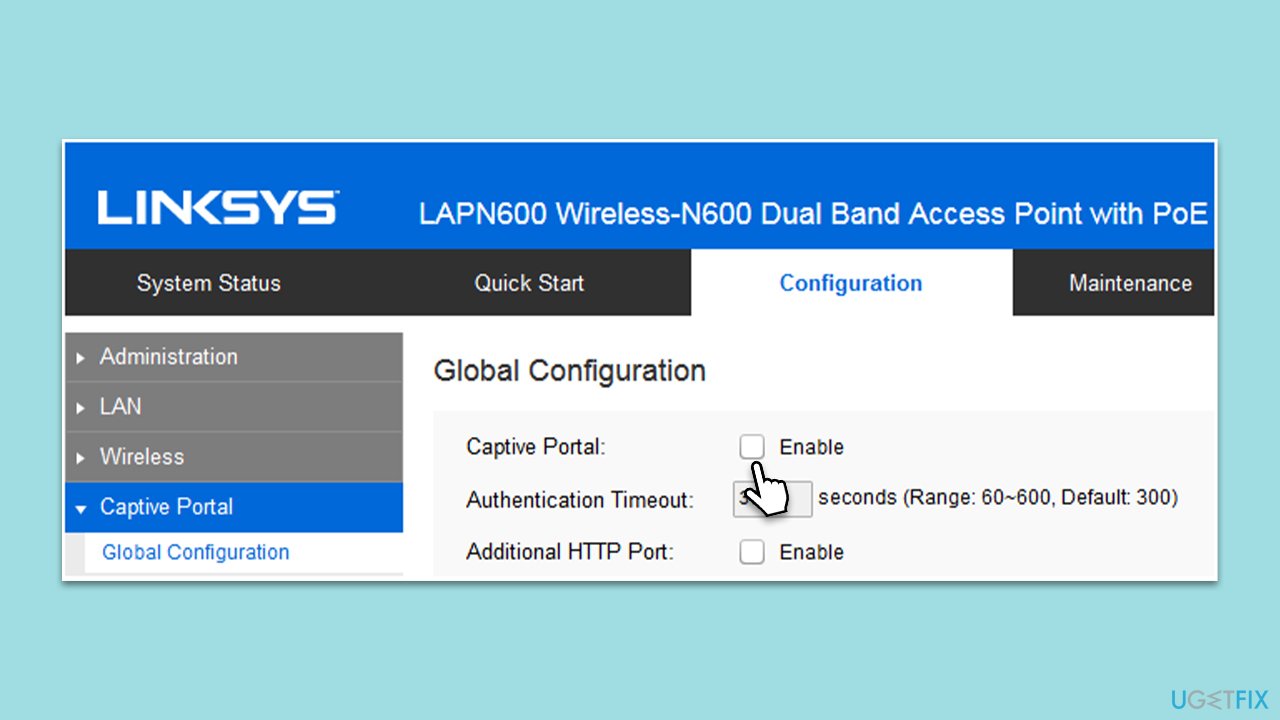
This method involves ensuring that your router isn't mistakenly set up with a captive portal feature, especially if you're at home. Sometimes settings may be changed accidentally, or a software update could initiate a feature you weren't using before.
- Log in to your router's web interface.
- Navigate to the Wireless or Network settings.
- Look for a section labeled captive portal or similar.
- Ensure it's turned off.
- Save changes and restart your router.
Fix 2. Restart your device and router
A simple reboot can often resolve minor connectivity hiccups by resetting temporary configurations or glitches.
- Power off your device.
- Unplug your router from the power source.
- Wait for about 30 seconds.
- Plug your router back in and wait for all lights to stabilize.
- Power on your device and try connecting again.
Fix 3. Run Network troubleshooter
Windows comes equipped with a built-in tool called the Network Troubleshooter that can automatically detect and attempt to fix common connectivity issues. Running this tool can provide insights into any problems and offer potential solutions.
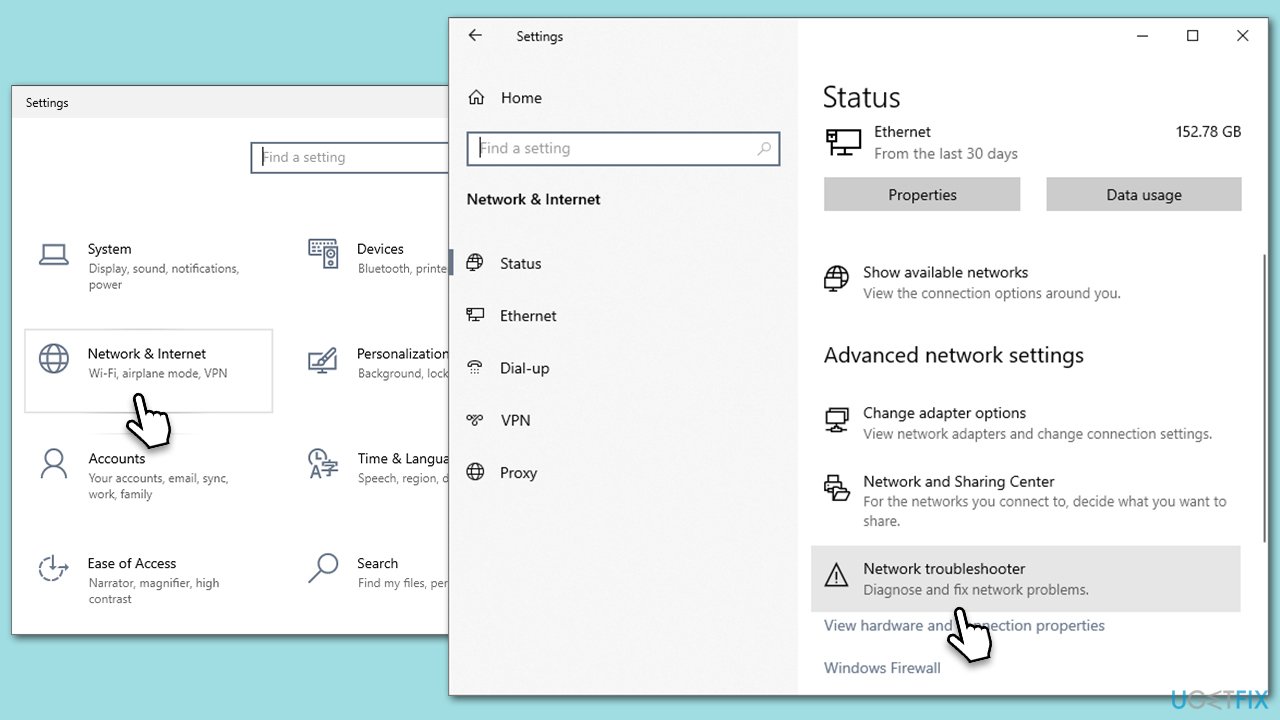
- Right-click on Start and pick Settings.
- Go to Network & Internet section.
- On the right side, find the Advanced network settings section.
- Click Network troubleshooter and wait.
- The fixes will be automatically applied.
Fix 4. Reset network settings
Returning to default settings can clear any configuration errors, such as "This network may have a captive portal."
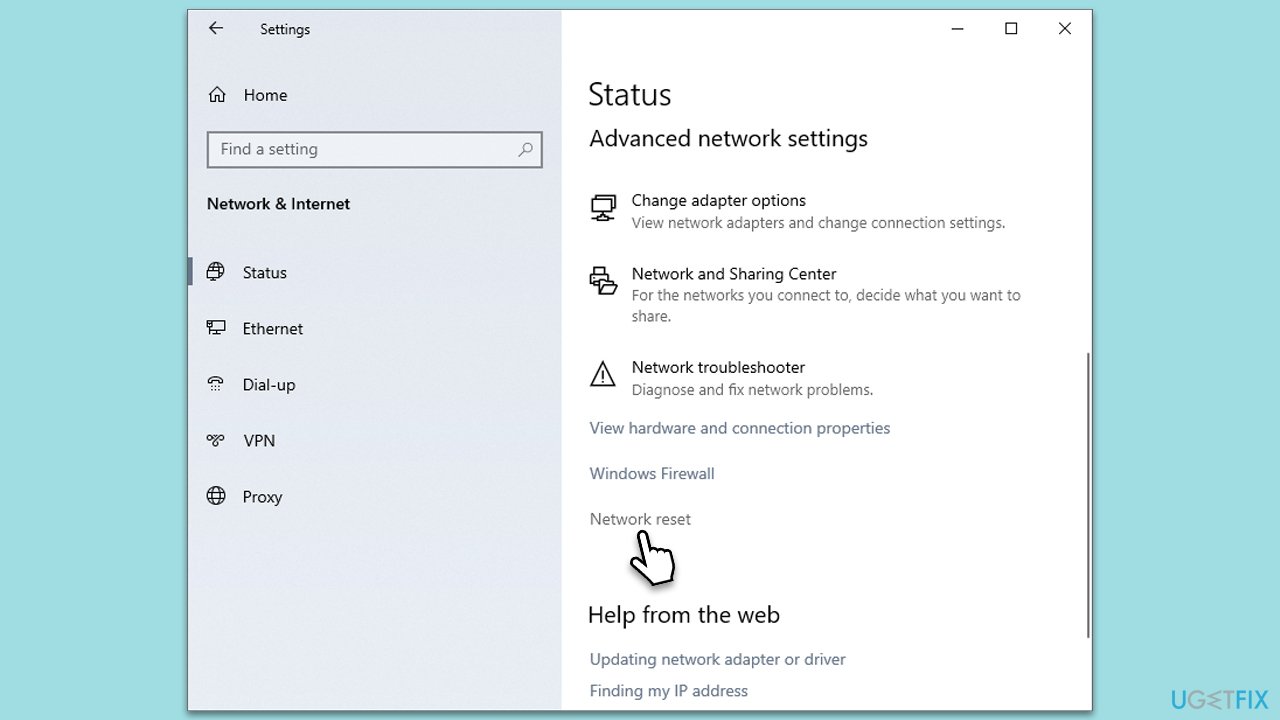
- Right-click on Start and pick Settings.
- Go to Network & Internet section.
- On the right side, find the Advanced network settings section.
- Select the Network reset option and follow the prompts to complete the process.
- Restart your device.
Fix 5. Disable VPN or proxy
VPNs or proxies can sometimes interfere with captive portals. You can disable them in Settings:
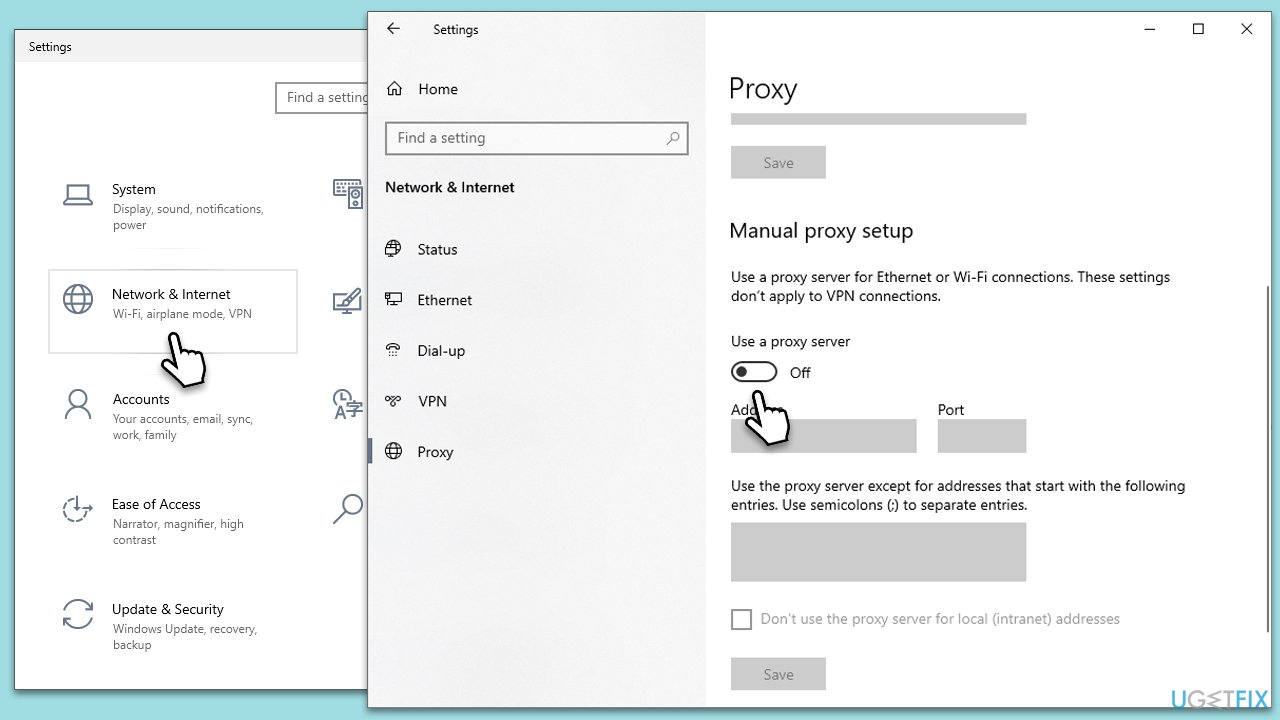
- Open Windows Settings and go to the Network & internet section.
- Here, select VPN.
- If a VPN is available, click Remove.
- Then, select the Proxy section on the left.
- Make sure Use a proxy server is disabled.
Fix 6. Temporarily disable security software
Sometimes, security software like firewalls or antivirus programs can interfere with network connections, mistaking them for potential threats. Disabling them, even briefly, can help ascertain if they are the cause of the problem. It's crucial, however, to remember to turn them back on after testing to keep your device protected.
- Navigate to the system tray at the bottom right of your screen.
- Right-click on your security software's icon.
- Select the option that says Disable or Turn off. (The exact wording may vary depending on the software.)
- Choose a specific time duration if prompted, like 15 minutes or Until restart.
- Try connecting to the network again.
- After testing, ensure you reactivate your security software to stay protected.
Fix 7. Use Google's DNS
Default DNS servers provided by ISPs sometimes face issues, which can affect connectivity. Google's DNS is a reliable alternative that may help improve your network connection.
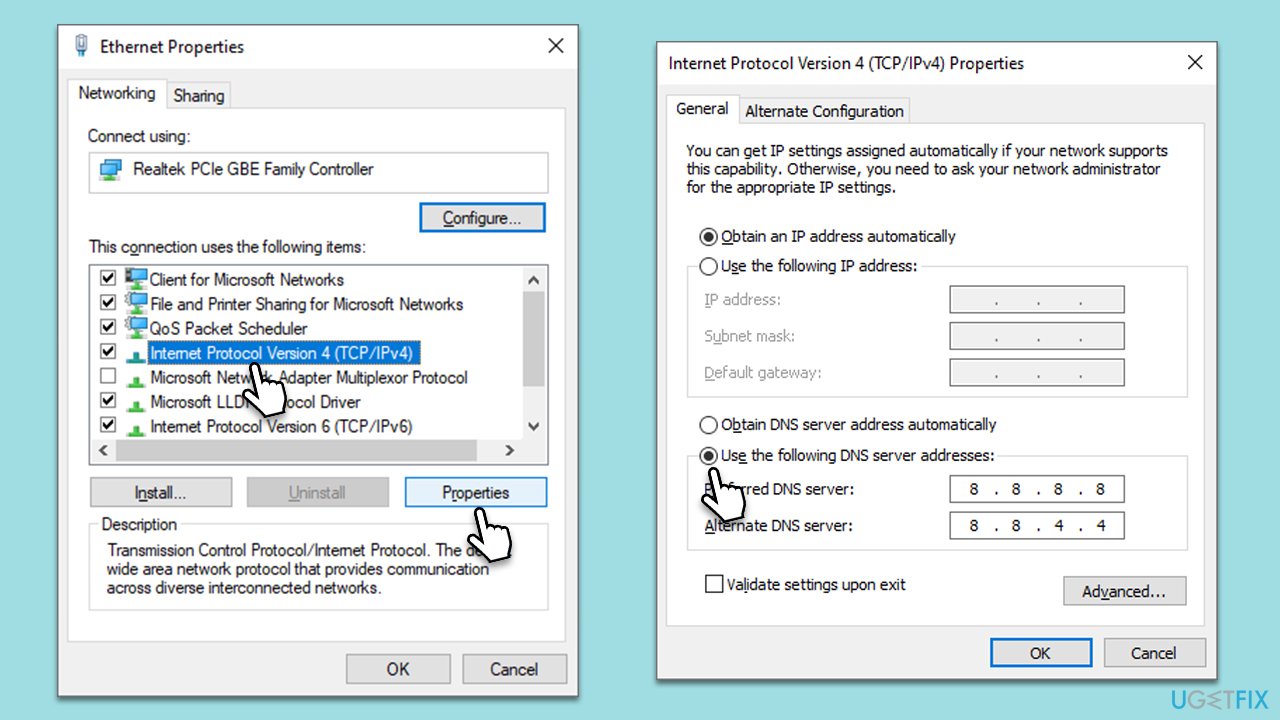
- Open Control Panel.
- Choose Network and Internet followed by Network and Sharing Center.
- On the left side, click on Change adapter settings.
- Right-click on your active network connection (e.g., Wi-Fi or Ethernet) and select Properties.
- In the list, find and select Internet Protocol Version 4 (TCP/IPv4) then click the Properties button below.
- In the new window, select Use the following DNS server addresses.
- Enter 8.8.8.8 for the Preferred DNS server and 8.8.4.4 for the Alternate DNS server.
- Click OK to save the changes.
- Restart your device and try connecting to the network again.
Bottom line
To resolve the 'This network may have a captive portal' issue, check the router's captive portal settings, restart both the device and the router, and examine the environment for potential interference. If these steps do not work, consider updating the device's network settings or using a PC repair tool for further assistance.
Frequently asked questions
This message indicates that your device is connected to a network that requires additional authentication, often through a web page. It typically occurs in public Wi-Fi networks where you need to log in to access the internet.
You can try resetting your network settings, disabling and re-enabling your Wi-Fi adapter, or checking if the network requires a login page by opening a web browser. Additionally, make sure your Windows is updated to avoid compatibility issues.
If you continue to see the message, try forgetting the network and reconnecting, or check your DNS settings to ensure they are set to automatic. You can also try using a different browser to access the login page.




Report an issue
What's wrong with this guide? We review every report and update or remove content.
Report received — thank you. We'll review and fix it.
You need a free account to submit a report.
Be the first to comment