How to fix
This page could not be translated error in Chrome
on Windows
Resolve the "This page could not be translated" error in Chrome on Windows 10 or 11 quickly and effectively, with expert-tested solutions.


What causes How to fix This page could not be translated error in Chrome?
- Clogged up web browser cache
- Incorrectly configured language settings
- Issues with potentially unwanted or malicious extensions
- Page rendered in JavaScript
- Text incorporated into an image
- Language not recognized by Google
Repairs Windows system files, removes malware, and restores a clean OS state — without reinstalling.
Hello, I recently noticed that Google translate on Chrome does not work properly. Once the page loads, the translation is not, and when I click on the translation prompt, it says, "This page could not be translated." This does not happen all the time, so it makes me even more confused.
Chrome is the most popular web browser in the world[ref en-1] - and for a reason. Its parent company Google implemented a lot of useful and advanced features that are interconnected within the browser and various Google accounts. The automatic translate option is just one of the features that the browser can offer, although it does not always work as intended.
Initially, Chrome translates foreign language websites automatically - be it German, French, or Japanese. The feature allows users to access websites they otherwise would understand, hence it is super useful. Unfortunately, many users have been experiencing the "This page could not be translated" error, which makes the translator basically useless.
At the same time, some users can still get the translation service on foreign language websites. Google's explanation for such inconsistencies is that they are caused by a server-side update.
However, as spotted by users on various forums, there seems to be an alternative explanation: Chrome cooperates with Google Translate servers in some cases and not others (the reason might be the client's IP address).[ref en-2]
For example, if you are trying to translate a page from German to English - Google Translate servers will be used. However, if you try translating a page from Russian to English with Chrome browser, it will only use Chrome's (built-in) translator and not order any translation through Google servers because of the way server IP addresses are configured.
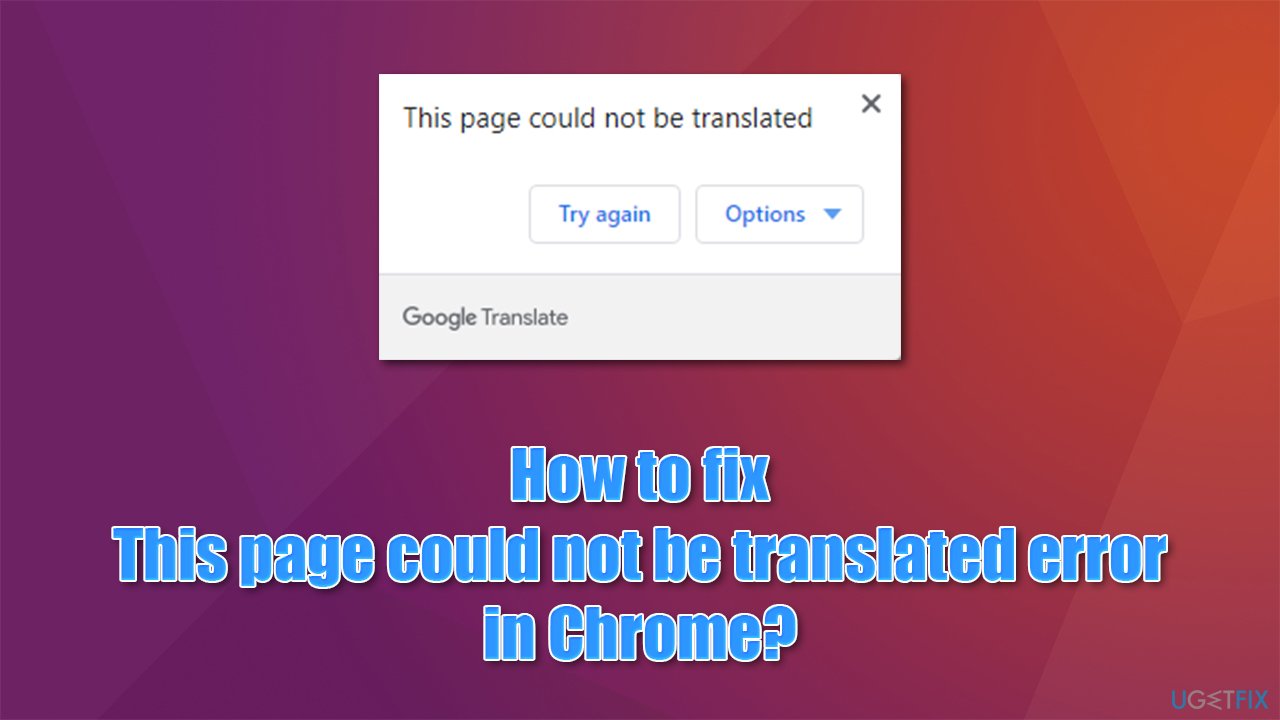
There could be multiple other reasons why you are experiencing the error - clogged up web browser cache, incorrectly configured language settings, issues with potentially unwanted or even malicious extensions, etc. Additionally, sometimes a page simply can't be translated due to it being rendered in JavaScript,[ref en-3] the text being incorporated into an image, or due to language that Google does not recognize. Thus, you should always keep these aspects in mind when facing an error.
Below you will find several methods that should help you fix the "This page could not be translated" error. Before you proceed, we highly recommend you check your system with [d1] - an automatic PC repair tool that could help you solve underlying issues quickly and efficiently.
Fix 1. Scan your system with security software
First of all, you should make sure that there are no potentially unwanted programs or suspicious browser extensions installed on your machine. You can do it manually, although we strongly recommend performing a full system with anti-malware software.
Third-party tools can be used for this, although the deep scan with the built-in Windows defender should also do the job. Here's how:
- Type Windows Security in Windows search and hit Enter
- Select Virus & threat protection and select Scan options
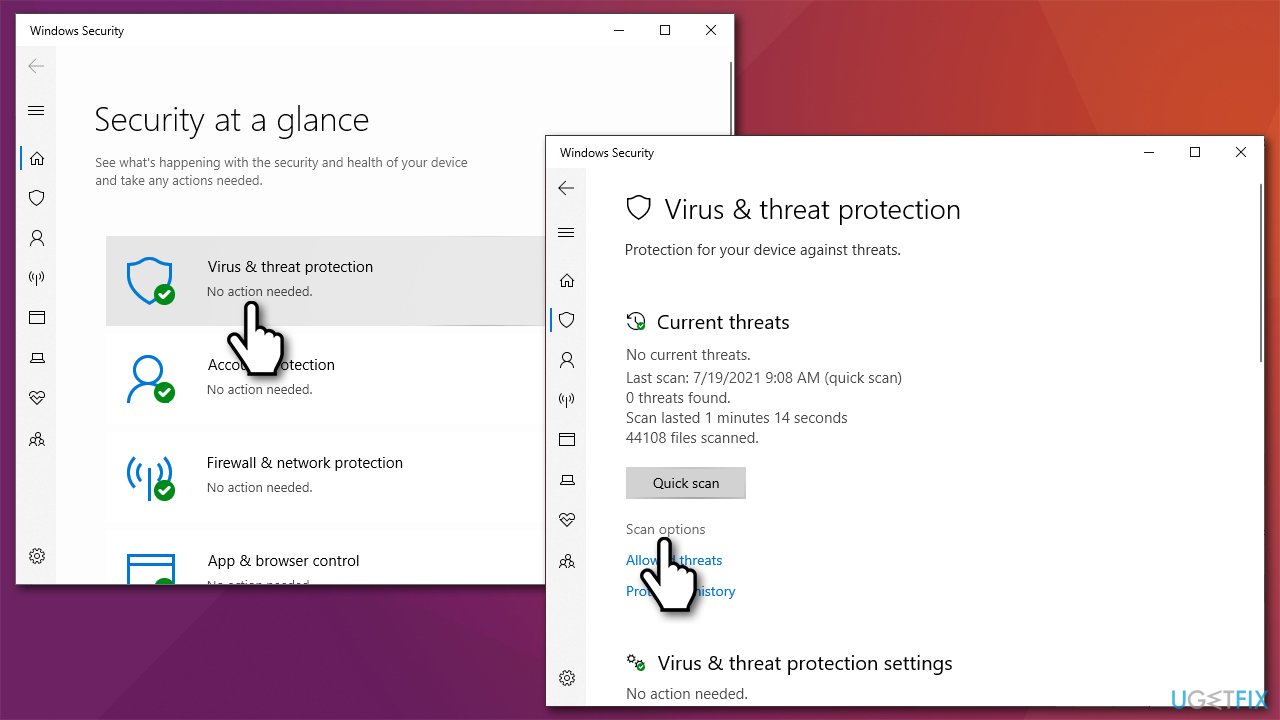
How to fix this page could not be translated error in chrome scan for malware - Choose Microsoft Defender Offline scan and click Scan now
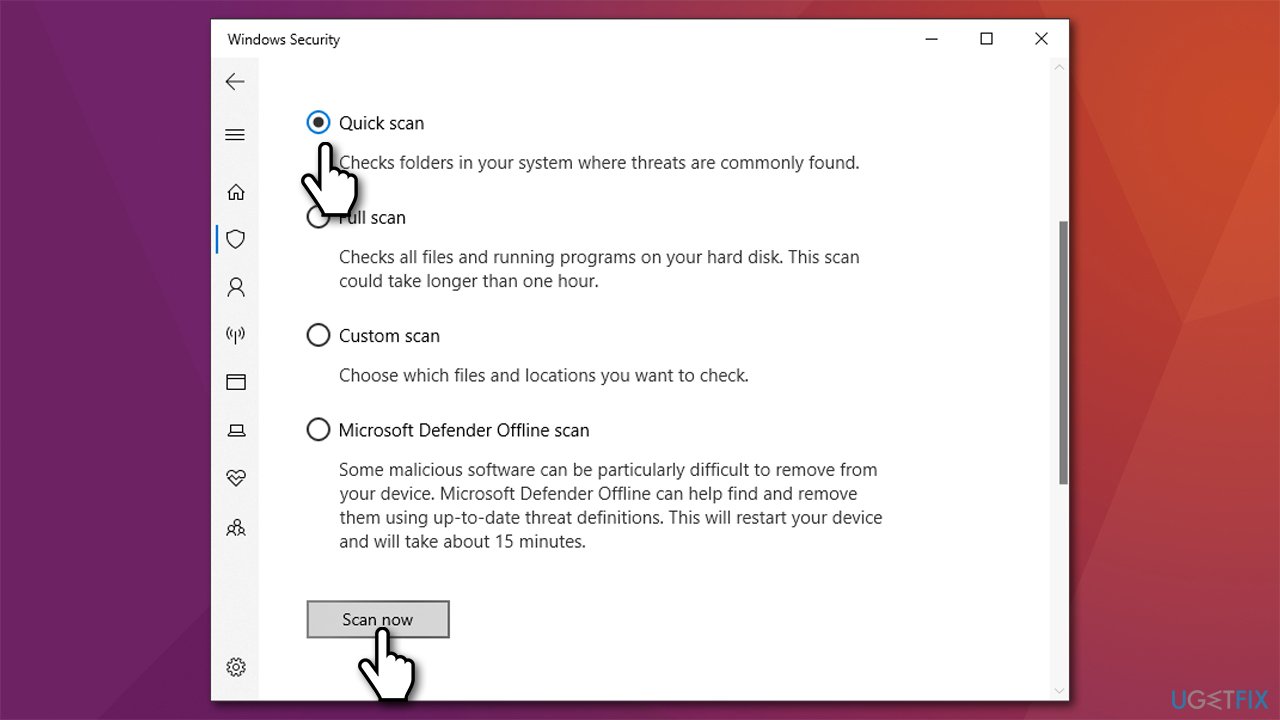
How to fix this page could not be translated error in chrome scan for malware2 - Your PC will now reboot and begin the scan.
Note: some browser extensions can interfere with the Google Translate function. For example, ad-blockers can commonly prevent certain elements of the page from loading fully. Thus, disable all your browser extensions and see if that helped you solve the problem.
Fix 2. Clean cache and cookies
Various browser data can accumulate over time and cause various issues.
- Open Google Chrome and go to Menu > Settings
- Under Privacy and security section, select Clear browsing data
- At the top, you should see Time range - pick All time from the drop-down menu
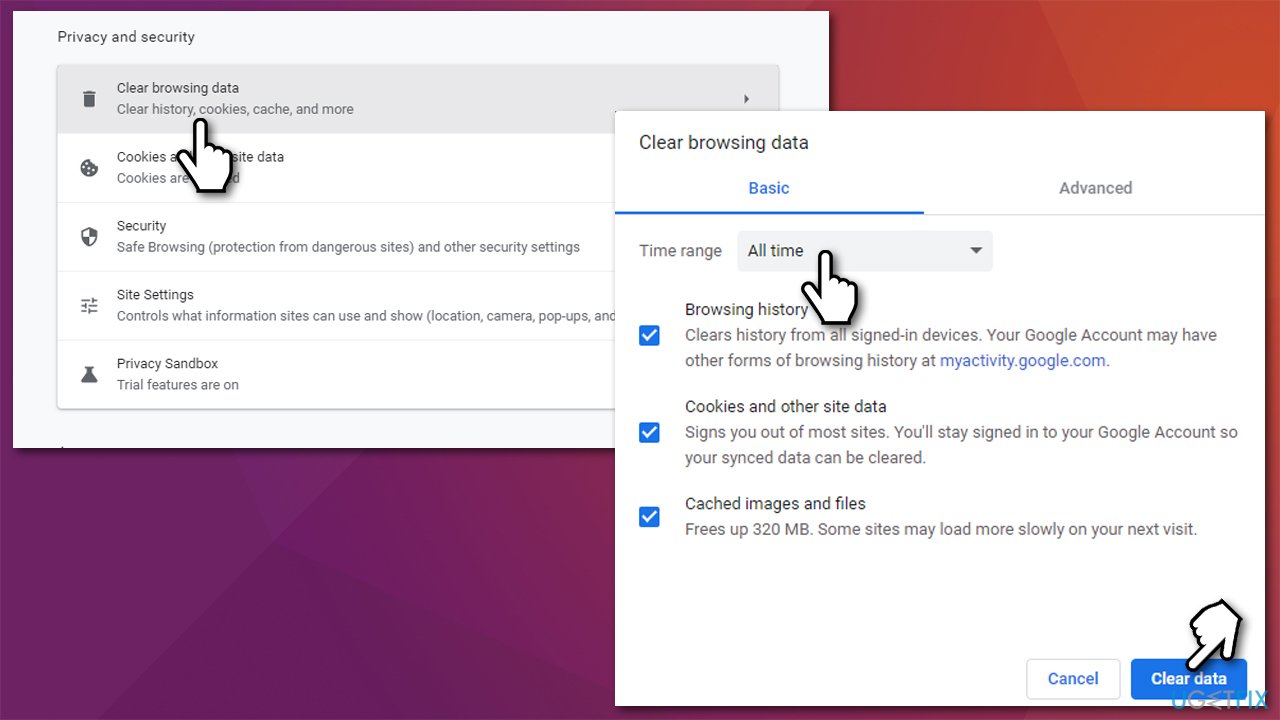
How to fix this page could not be translated error in chrome clear cookies and web data - Now select everything and pick Clear data.
Fix 3. Check language settings
Make sure that the spell check is enabled:
- Open Chrome and go to Menu > Settings
- On the left side, click Advanced and select Languages
- Click on Language and make sure that Offer to translate pages that aren't in a language you read option is enabled.
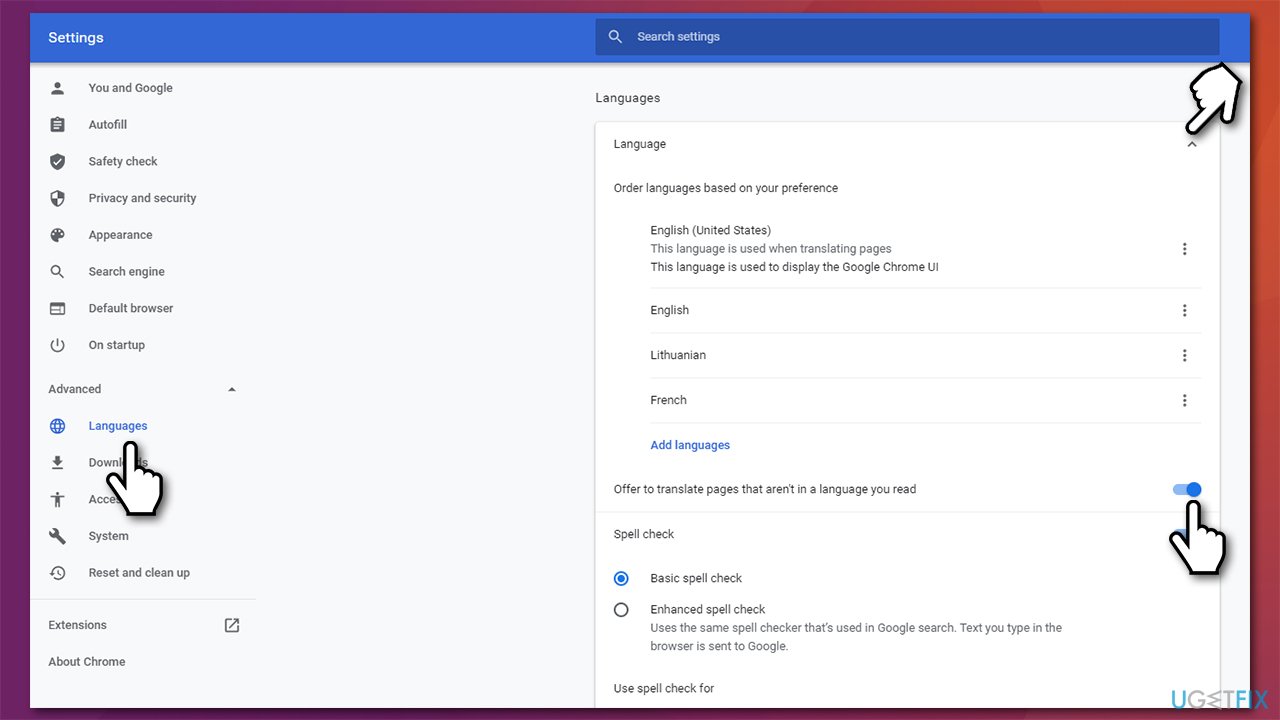
How to fix this page could not be translated error in chrome check language settings
Fix 4. Try incognito
Users said that trying to view the page in the incognito mode fixed the This page could not be translated error on Google Chrome. To access it, go to Menu > New incognito window. From here, use the browser as per usual and see that the page you wanted to be translated actually was.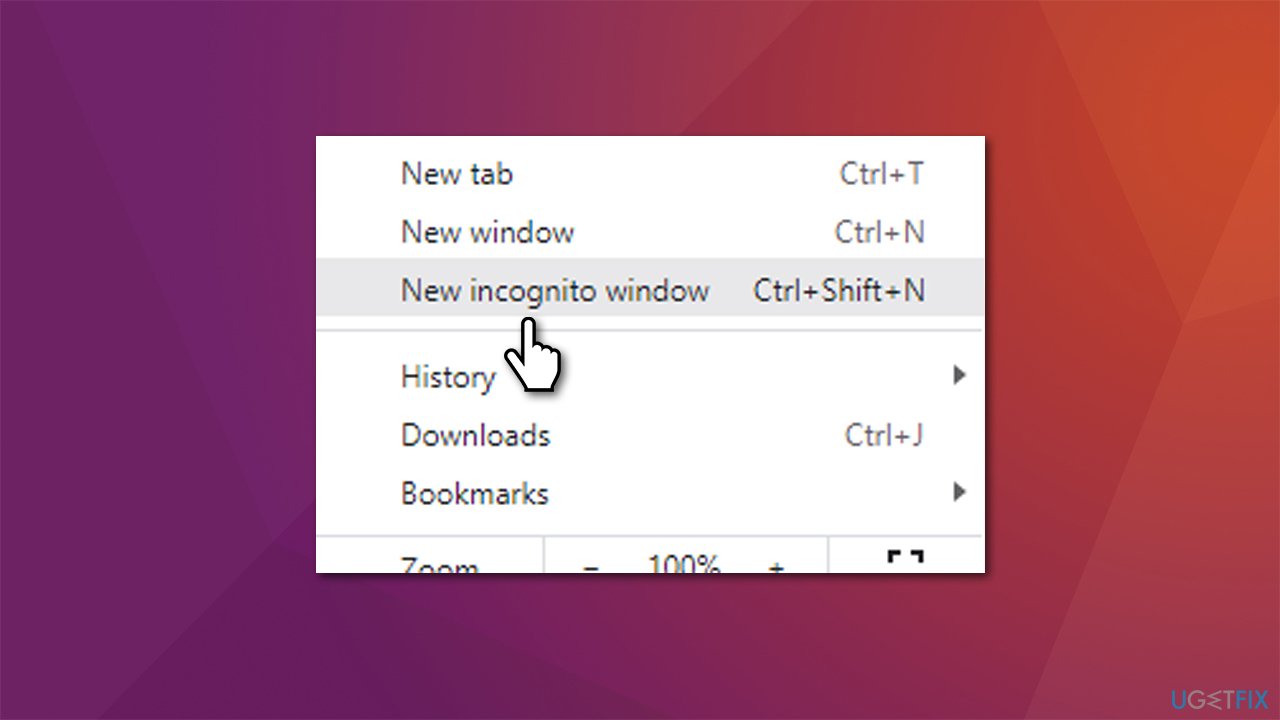
Fix 5. Use the official browser extension
Try using the official Google extension for translation:
- Visit Google Web Store - Google Translate extension page
- Click on Add to Chrome
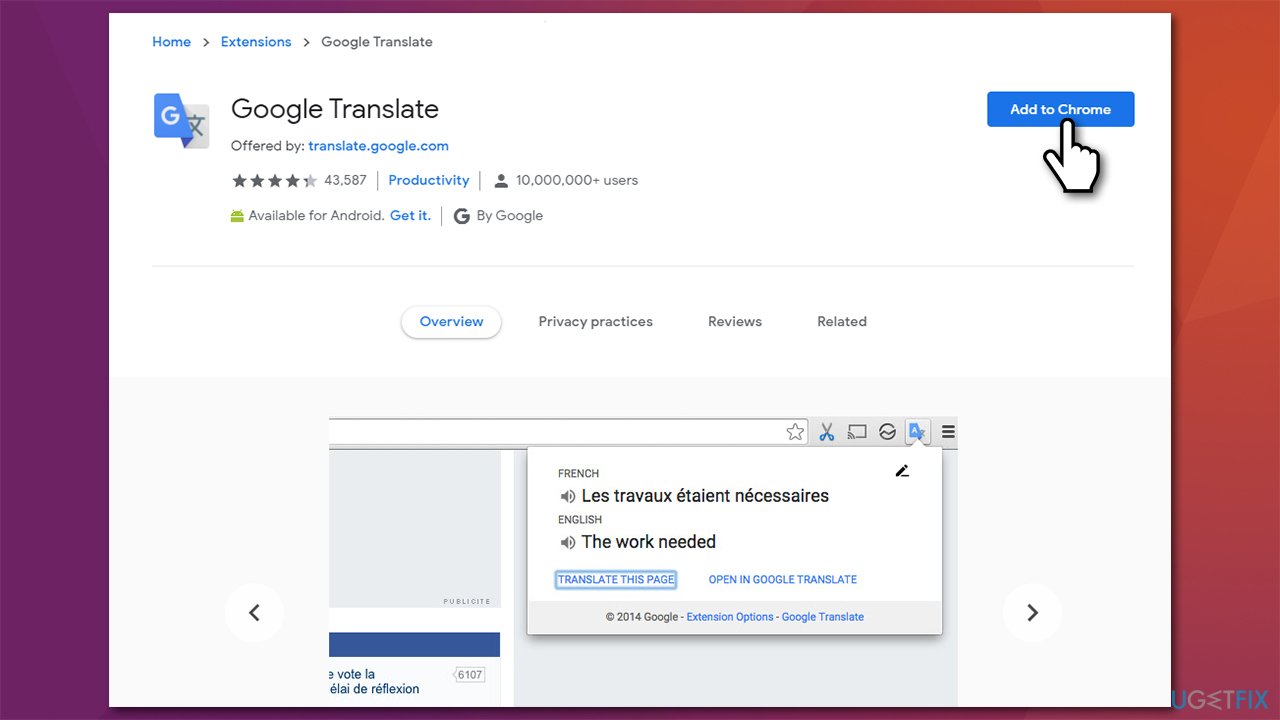
How to fix this page could not be translated error in chrome try translate extension - You are set to go.
Fix 6. Reinstall Chrome
If none of the above helped you to fix the error, you should try reinstalling the web browser altogether:
- Right-click on Start and pick Apps & Features
- Scroll down until you find Google Chrome
- Click on it and select Uninstall > Uninstall
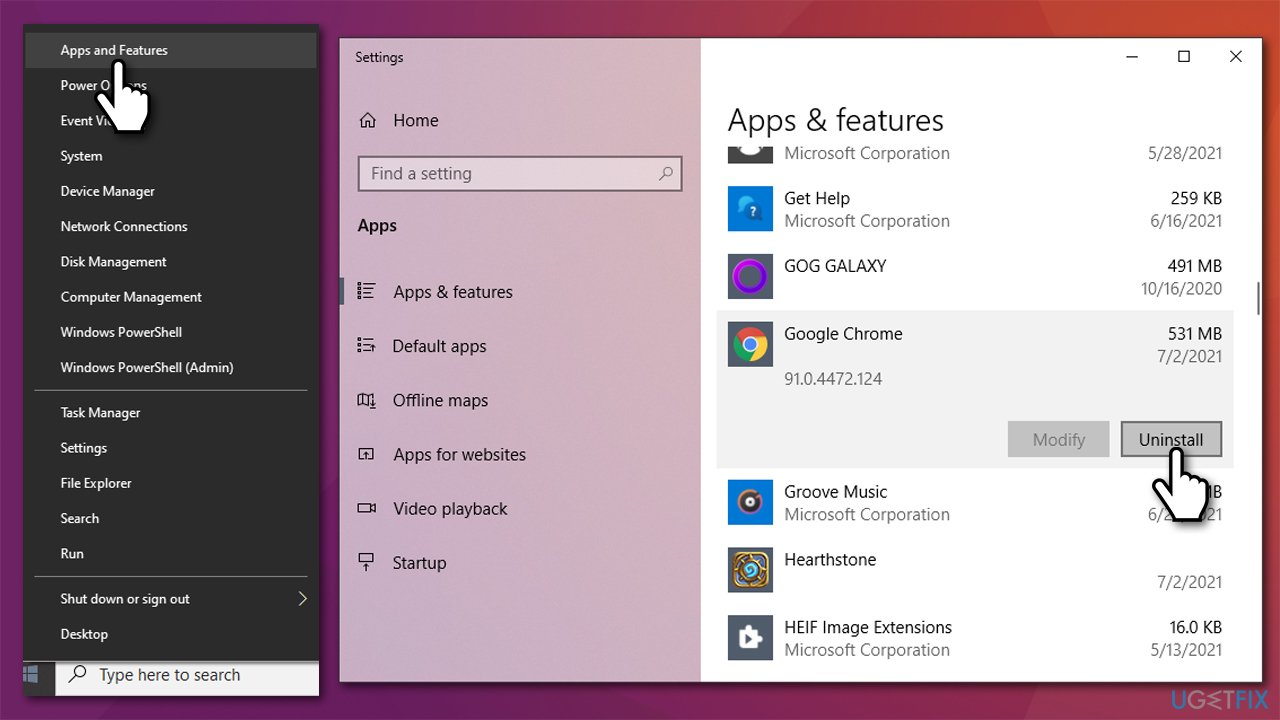
How to fix this page could not be translated error in chrome reinstall browser - Proceed with on-screen instructions to remove the program
- Now go to the official Google website and download/install Chrome anew.
Bottom line
To fix the 'This page could not be translated' error, you can clear your browser cache, check your language settings, and disable any problematic extensions. If the issue persists, consider checking if the page is rendered in JavaScript or if the text is part of an image. If none of these solutions work, further investigation may be needed.
Frequently asked questions
Try clearing your browser cache and cookies, then restart Chrome to see if the issue persists. If that doesn't help, consider resetting Chrome settings to their default.
Ensure that your Chrome is updated to the latest version, as updates often fix bugs including translation issues. Additionally, check your language settings in Chrome to confirm that the desired languages are enabled.
Yes, you can disable any extensions that might interfere with translation features and test translation on an incognito window. This helps identify if the issue is related to your current browser settings or extensions.




Report an issue
What's wrong with this guide? We review every report and update or remove content.
Report received — thank you. We'll review and fix it.
You need a free account to submit a report.
Be the first to comment