How to fix
“This page has been blocked by your administrator” error
on Windows
Resolve the "This page has been blocked by your administrator" error on Windows 10 or 11 with expert-tested solutions that work quickly and effectively.

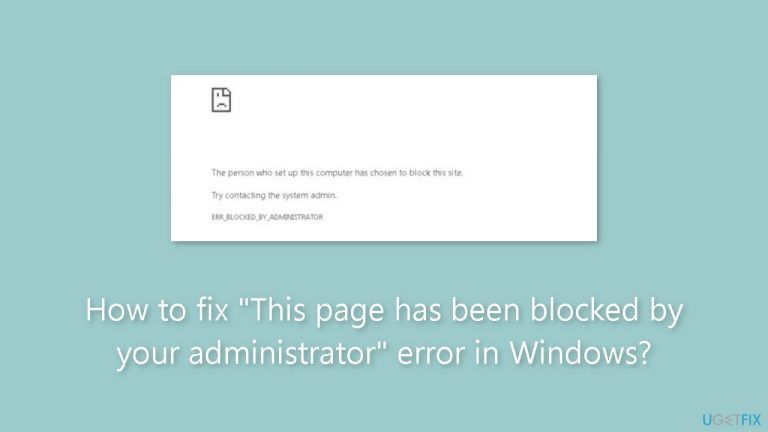
What causes How to fix “This page has been blocked by your administrator” error in Windows?
- Network or computer administrator has blocked access to certain websites
- Security policies enforced by the administrator
- Website filtering settings enabled
- Use of outdated or corrupted system files
Repairs Windows system files, removes malware, and restores a clean OS state — without reinstalling.
Hello. When I try to visit certain websites I get the "This page has been blocked by your administrator" error on my Windows PC. Is there a way to fix this?
Many people have experienced the annoying "This page has been blocked by your administrator" error message on Windows. It usually happens when you try to access particular websites, and it means that the network or computer administrator has blocked your access to those sites. This message can have a major impact on users in a number of ways, even if its main goals are frequently to uphold network security and enforce use limits.
First and foremost, users who depend on these websites for business, research, or personal use may find their everyday activities disrupted by this error. When it comes to work, being unable to access necessary resources might cause delays in tasks or projects and reduce productivity. Employees who are wondering why they aren't able to access important web tools or information could also become confused and frustrated.
Individuals' online experiences may be more negatively impacted when they are unable to access particular websites. It may interfere with their capacity to use instructional materials, interact with social networks, or partake in leisure activities. When people think that the blocked websites are necessary for their purposes, this inconvenience can be more annoying.
Reaching out to the network or system administrator to ask for access to the restricted websites or looking for other sources of the necessary data are potential fixes for this problem. In order to get around network limitations, users may also consider using VPN services or proxy servers, albeit these methods should be utilized carefully.
In this guide, you will find 3 steps that should help you fix "This page has been blocked by your administrator" error. You can also run a maintenance tool like [d1] that can fix most system errors, BSODs,[ref en-1] corrupted files, and registry[ref en-2] issues. Otherwise, follow the step-by-step instructions below.

Solution 1. Disable Website Filtering in your Antivirus
If you are using third-party antivirus software, it could potentially be obstructing your access to the desired website. Certain antivirus programs include website filtering options, but it's important to note that not all of them offer this feature. In the event that your antivirus lacks this functionality, consider temporarily disabling it.
- Open your antivirus software.
- Locate the Website filtering option.
- If you notice any website you’re trying to visit on this list, remove them.

Solution 2. Change the DNS
To change your DNS settings to use Google DNS, you typically need to access your network or device settings and replace the default DNS server addresses provided by your ISP with Google's DNS server addresses, which are 8.8.8.8 (Preferred DNS) and 8.8.4.4 (Alternate DNS). This change can help resolve DNS-related issues, improve your internet experience, and potentially bypass certain restrictions imposed by your ISP.
- Press the Windows key + S and type network.
- Select View network connections.
- Right-click your connection and choose Properties.

- Select Internet Protocol Version 4 (TPC/IPv4) and click on Properties.
- Select Use the following DNS addresses and set 8.8.8.8 as Preferred DNS and 8.8.4.4 as Alternate DNS.
- Save changes.
Solution 3. Use a Proxy Server
Using a proxy server can help fix certain internet-related issues, particularly those related to accessing blocked websites or overcoming regional restrictions. A proxy server acts as an intermediary between your device and the internet, forwarding your web requests and responses through its own IP address and server.
- Press the Windows key + S and enter proxy.
- Select Proxy settings from the list.

- In the Manual proxy setup section, click on the Set up button.
- Next, enable Use a proxy server and enter the proxy server IP address and port.
- Save changes.
Bottom line
To fix the "This page has been blocked by your administrator" error, you can disable website filtering, contact your network administrator for access, or consider using VPN services or proxy servers. If these solutions do not work, running a maintenance tool may help resolve underlying system issues.
Frequently asked questions
First, check your network settings and ensure that you are not connected to a restricted network. If you're on a personal device, try disabling any security software temporarily or adjusting the settings in the Group Policy Editor.
You can resolve this by accessing the Local Group Policy Editor and navigating to User Configuration > Administrative Templates > Windows Components > Internet Explorer. From there, check the settings related to security and content to ensure they are not blocking access.
While you can try using a different browser or incognito mode, it's best to consult with your network administrator for a proper resolution to avoid potential security issues.




Report an issue
What's wrong with this guide? We review every report and update or remove content.
Report received — thank you. We'll review and fix it.
You need a free account to submit a report.
Be the first to comment