How to fix
Thunderbolt driver setup error 0x80070643
on Windows
Resolve the Thunderbolt driver setup error 0x80070643 in Windows 10 and 11 swiftly. Expert-tested solutions guaranteed to fix your issues in minutes.

What causes How to fix Thunderbolt driver setup error 0x80070643 in Windows?
- Thunderbolt driver not properly recognized
- Issues with Windows Update
- Installing faulty updates
- Damaged system files or programs
- Interference from third-party antivirus software
Repairs Windows system files, removes malware, and restores a clean OS state — without reinstalling.
Hey. I have these issues with Thunderbolt driver failure and the 0x80070643 error code. I think the full installation could be the solution, but I would like to try other options instead before this major change. I don't want to damage the machine myself and trigger major issues. Can you help me?
Thunderbolt driver setup issues can create inconvenience if you are facing a problem on your device. The error code 0x80070643 in Windows also can create frustration for users.[ref en-1] Thunderbolt is the driver used with Intel generation processor in Windows 10, mainly. If it is not properly recognized it can trigger issues with the operating system. This is the main cause of the error of the driver setup.
The error code also indicates particular Windows Update issues and security errors, so you might want to check issues with the particular operating system update.[ref en-2] Installing faulty updates can cause these issues with drivers and other system files, so upgrading to an even newer or patched version can solve both issues for you.
These common issues can occur, and common questions about the particular error show that it is affecting many machines out there. Thunderbolt driver setup error 0x80070643 in Windows occurs when you trying to update programs or the system or install particular software. It is fixable, so do not worry that much.
The same error code appears when trying to install a program or during the Windows update. It is not an issue related to infections or malware.[ref en-3] Solving the problem can include repairing some of the systems files or programs that get damaged for various reasons. Failed installation of the OS might be one of them. Sometimes you want to disable the third-party antivirus software or other programs that cause problems with the performance.
Sometimes these system issues and file problems can be solved with repair or system optimization programs like [d1]. Running the quick system check can reveal issues with the program files and altered or corrupted files in system folders. This way you fix the Thunderbolt driver setup error 0x80070643 in Windows. If this is not the proper solution for you, try running through the steps below.
1. Troubleshoot Windows Updates
- Go to Settings by hitting the Windows logo and I keys.
- Locate Update & Security.
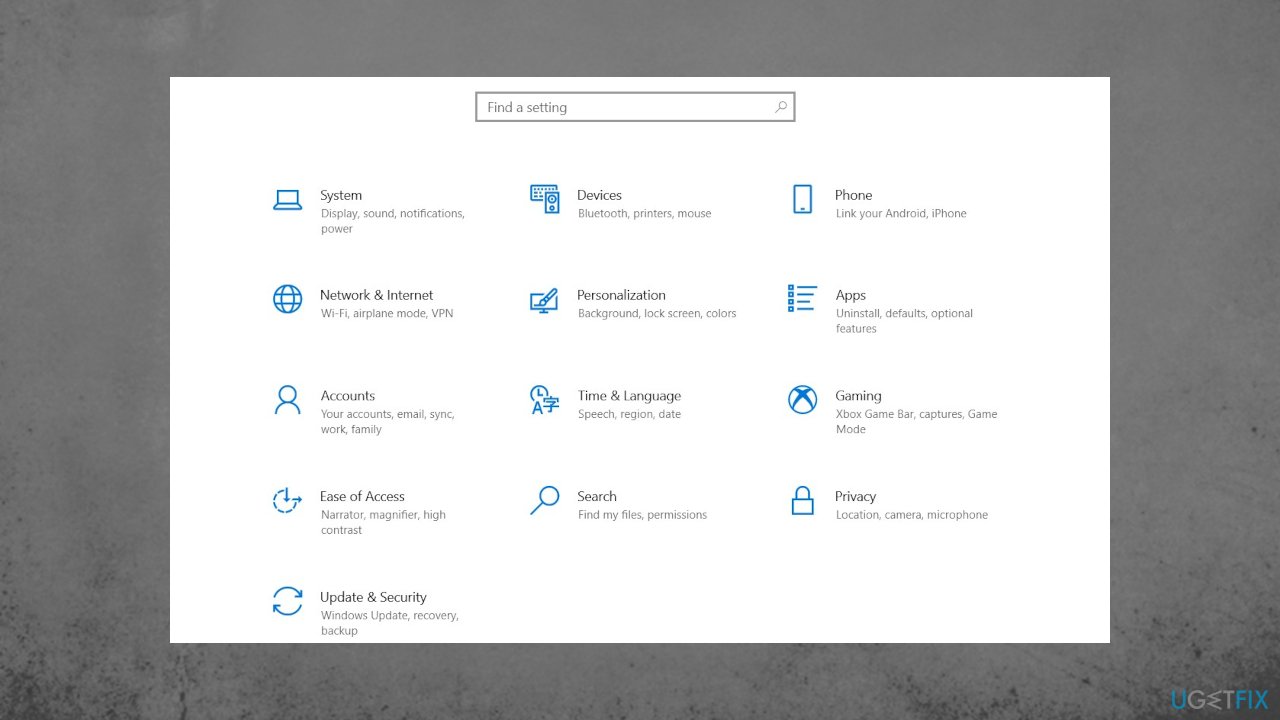
Thunderbolt driver error windows settings - Then find Troubleshoot.
- See Additional troubleshooters.
- Go to Windows Update and select Run Troubleshooter.
2. Update drivers
- Press the Win and R keys to open the Run window.
- Enter devmgmt.msc.
- Hit Enter and open Device Manager.
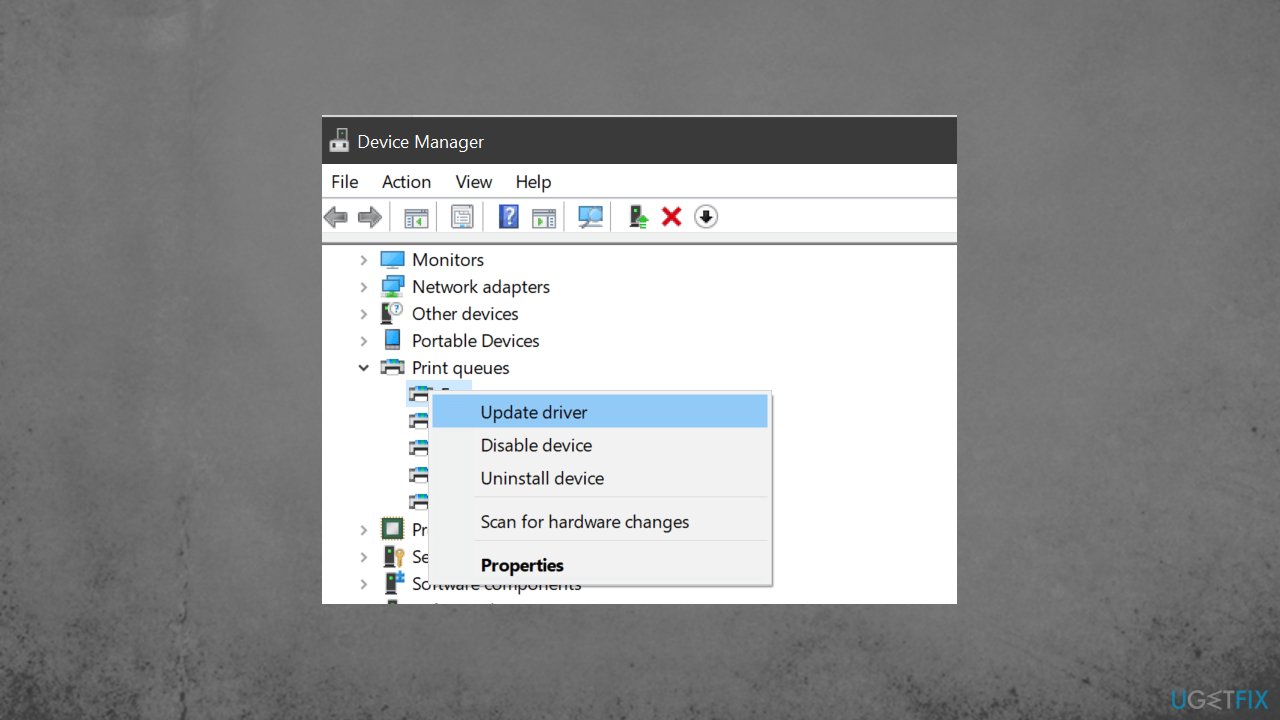
Thunderbolt driver error windows driver - Double-click Display adapters and right-click the display adapter.
- You can choose any other related driver.
- Choose to Update driver.
- Select to search automatically.
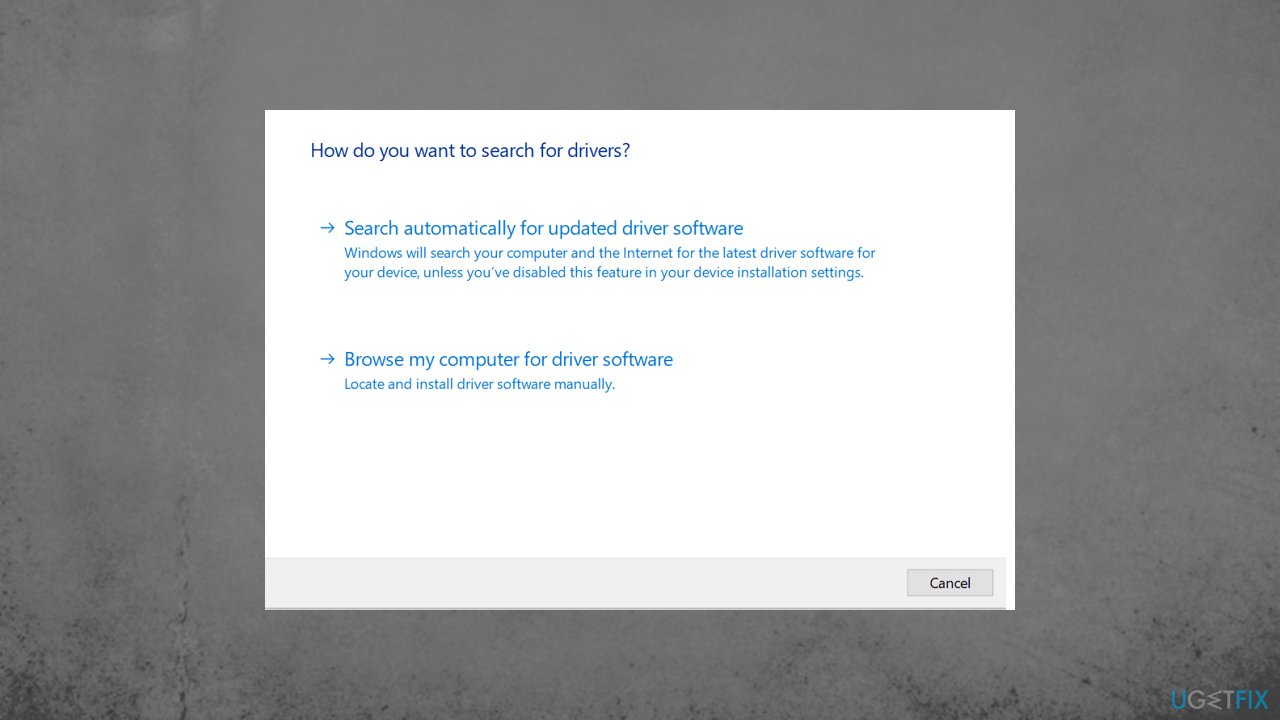
Thunderbolt driver error windows search drivers - You can achieve the same with applications like [rev id="DriverFix"] that automatically searches for updates and installs needed drivers for you saving precious time for you.
3. Run SFC scan
- Type cmd.
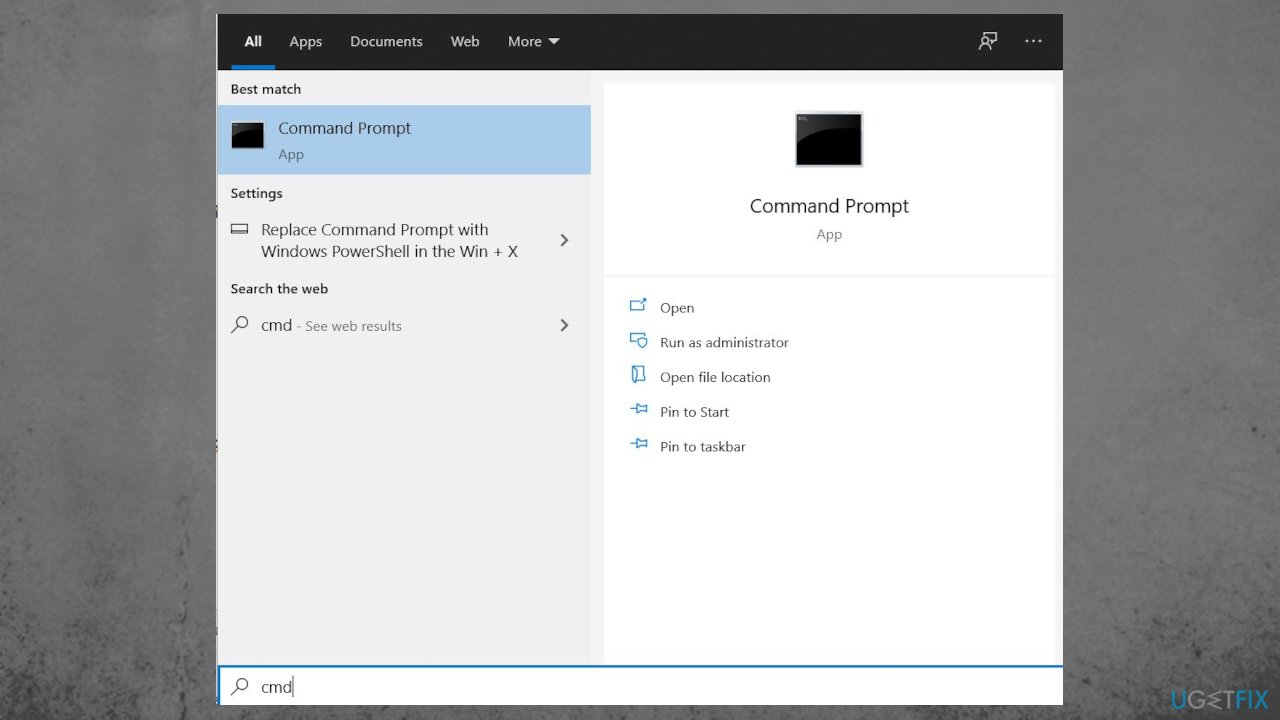
Thunderbolt driver error windows cmd - Right-click on it and select Run as administrator.
- In Command Prompt, type sfc /scannow and press Enter.
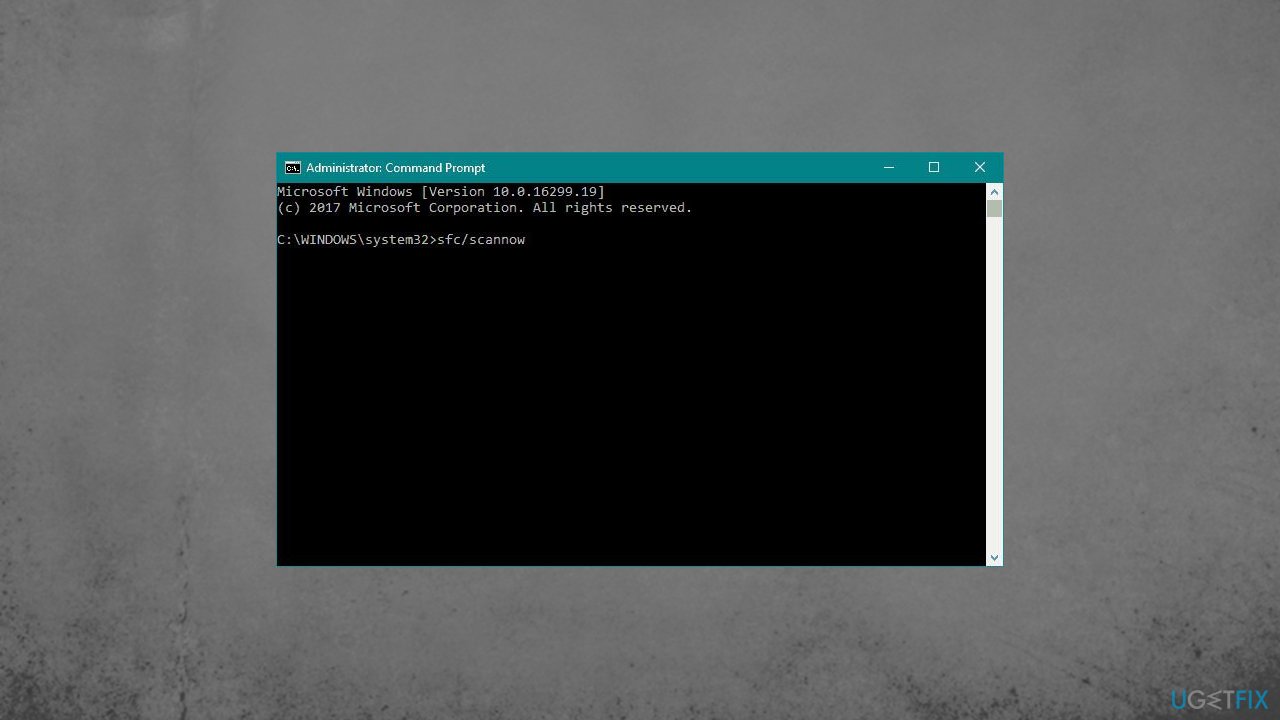
Thunderbolt driver error windows sfc - Wait for the scan to complete.
- Try applying the offered fixes.
4. Restarts Windows installer process
- On your keyboard, press the Windows key and R at the same time to launch the Run box.
- Type services.msc and press Enter to open the Services window.
- Click on Windows Installer, then Restart.
Bottom line
To fix the Thunderbolt driver setup error 0x80070643 in Windows, you can try repairing damaged system files, disabling third-party antivirus software, or running a quick system check. If these solutions do not resolve the issue, consider performing a full installation of the driver as a last resort.
Frequently asked questions
This error is often caused by corrupted driver files, incomplete installations, or conflicts with existing software on your system. Ensuring that your Windows is up to date can also help prevent this error.
You can resolve this error by uninstalling the problematic driver, cleaning the registry, and reinstalling the latest Thunderbolt driver from the manufacturer's website. Additionally, running the Windows Update troubleshooter may also help.
While some third-party tools can help fix driver issues, it's important to choose reputable software to avoid further problems. Always create a system restore point before using any third-party tools.




Report an issue
What's wrong with this guide? We review every report and update or remove content.
Report received — thank you. We'll review and fix it.
You need a free account to submit a report.
Be the first to comment