How to fix
Time Machine stuck on preparing backup
on Windows
Resolve issues with Time Machine stuck on preparing backup on Windows 10 or 11 effortlessly. Quick solutions provided by experts, fixed in minutes.

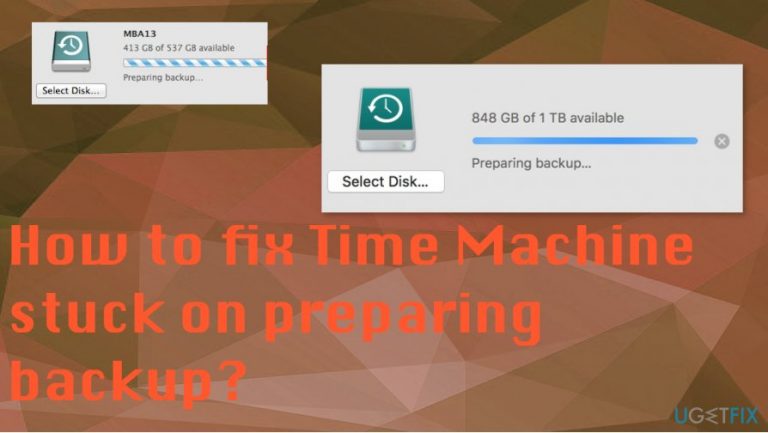
What causes How to fix Time Machine stuck on preparing backup?
- External disk issues
- Connection problems
- Large number of files to process
- Insufficient free space
- Other processes occupying resources
Repairs Windows system files, removes malware, and restores a clean OS state — without reinstalling.
Hello. I have an issue with the Time Machine function on my Mac. Trying to back the system and it gets stuck on the preparing stage and does nothing else. I allowed that to run for a few days now and nothing happens. Time Machine cannot properly work, and I am stuck without backing up my data. Can you offer any solutions for me?
Time Machine stuck on preparing backup issue is pretty common, based on complaints online.[ref en-1] Users that regularly use their macOS running devices should be familiar with the Time Machine feature. It is the application that lets you back up your files and restore data afterward.
Unfortunately, it is often stuck during the preparation stage and users have no options. Time Machine stuck on preparing backup is not a serious issue though, so do not panic. It is not going to damage your files or affect the performance in any other way as more crucial macOS errors may.[ref en-2]
The reason for this issue with Time Machine stuck on preparing backup might reside in an external disk that stores the backup content or the connection, some additional functions. It is possible that the application has a lot of files that need to get processed, so it gets stuck. More frequent backups could eliminate this trigger when.
Also, enough free space makes the application work quicker and more efficiently. The system is busy while preparing the needed logs of the backup content, so other processes occupy the resources and the machine. Processes that involve the data you need to back up can trigger the slowness and keep the Time Machine stuck.
Other programs, conflicts with firmware, corrupted files, or device settings, can cause the issue. You need to fix Time Machine stuck on preparing backup and it is possible. Just pay the attention to details, follow suggestions. Do not panic, there are no issues with malware[ref en-3] and your device is not damaged.
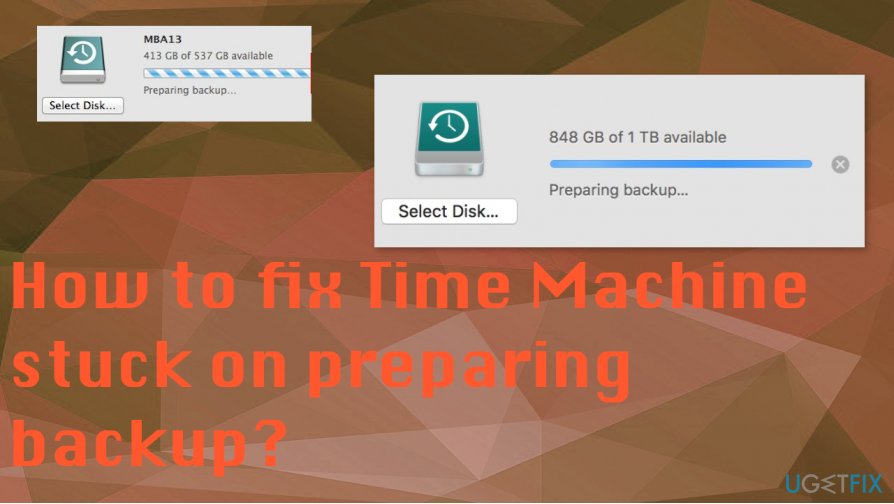
How to fix Time Machine stuck on preparing backup
You can try to do some things to avoid the need to fix Time Machine stuck on preparing backup or other issues. Optimizing the system and keeping the OS fully up-to-date can ensure that there is little to none issues regarding the corrupted files or programs.
Also, it is recommended to take a backup of your drive on Time Machine regularly. It is not taking that long this way. Check connections of the hard drive and make sure there is enough free space. Pay attention to details.
You can follow the guide and fix the fix Time Machine stuck on preparing backup. These methods listed below show particular changes you can make on the device to repair the normal function and achieve what you want.
Start the Backup Process again
You might start the process altogether and get this issue fixed properly. Of you are sure that there are no other issues with your device, you can stop the backup process and restart it later on. You can see the cross button while the backup is preparing, so you can cancel the Time Machine from preparing the backup. Restart the device and try to take the backup later.
Remove the inProgress file to fix Time Machine stuck on preparing backup issue
- Launch the Finder on your Mac and go to the Time Machine drive, so you can open Backups.backupd folder.
- Then navigate to the folder that contains the present backup.
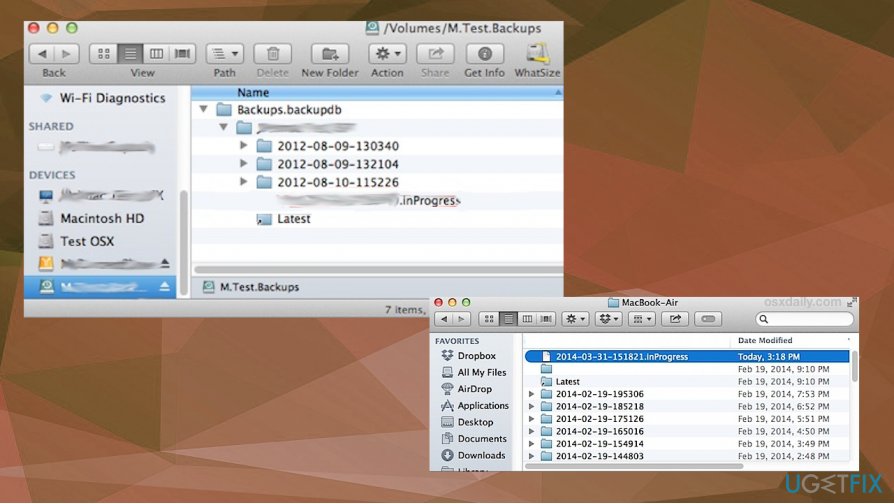
How to fix time machine stuck on preparing backup file - Look for the inProgress file from the ListView or search.
- When you found the file, you can remove it from the folder and try to backup data again.
Stop Spotlight from indexing the Time Machine Operations
- Click on the Apple icon at the top-left corner and locate System Preferences.
- Then got to the Spotlight option and open the Spotlight Preferences window.
- Go to the Privacy tab and open the list of apps and processes that are not indexed by Spotlight.
- Click on the + icon. Then select Time Machine as exclusion and save changes.
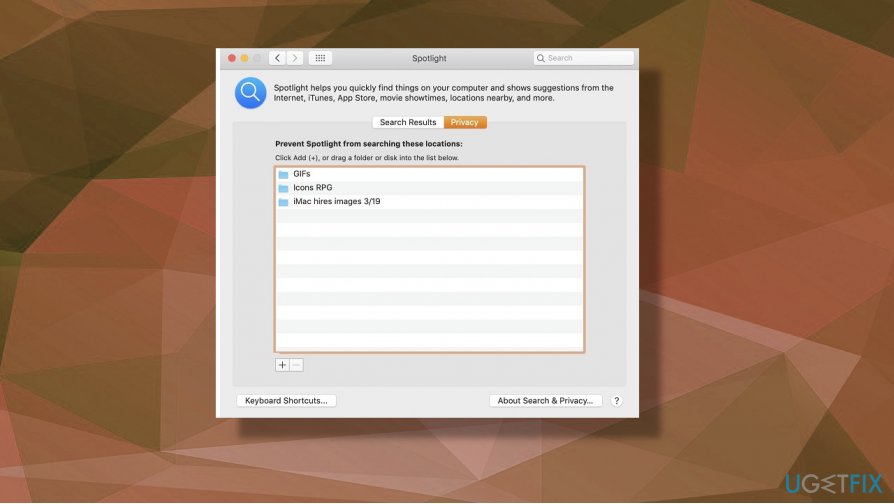
How to fix time machine stuck on preparing backup spotlight
Repair the Time Machine Drive to fix Time Machine stuck on preparing backup
- Go to Applications and then find Utility to launch the Disk Utility application on your machine.
- Select the external hard disk from the sidebar and click the First Aid button from the toolbar on the right.
- Confirm the choice and wait for the application to fix the connected drive.
Update your macOS to fix the Time Machine stalling issue
Sometimes updating the firmware can help to resolve some issues because outdated macOS version on the system triggers errors and makes applications running slow or crashing unexpectedly. Go to Software Update on the computer and check for available updates that can be installed. 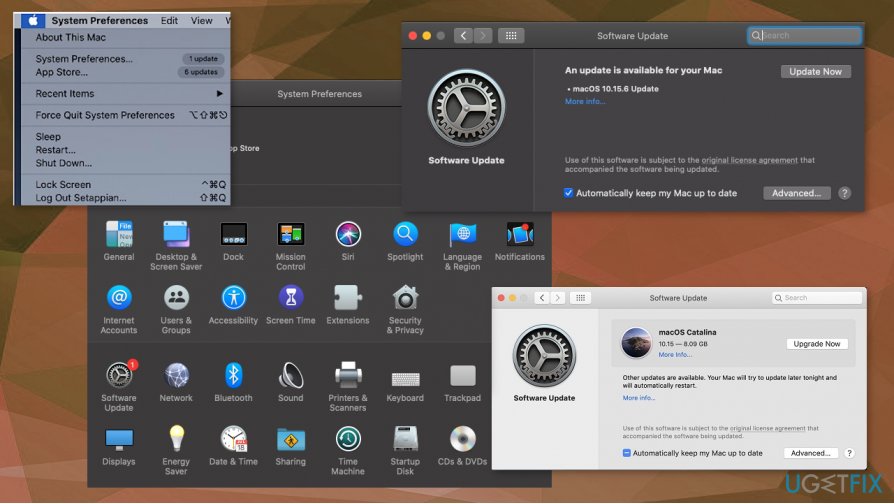
Bottom line
To fix the Time Machine stuck on preparing backup issue, you can try performing more frequent backups, ensuring there is enough free space, and closing other processes that may be using resources. If these solutions do not resolve the problem, consider checking for firmware conflicts or corrupted files.
Frequently asked questions
Since Time Machine is a macOS feature, if you're experiencing backup issues on Windows 10, consider using Windows Backup or a third-party backup solution instead.
You can troubleshoot backup issues on Windows 11 by checking your storage space, running the Windows Backup troubleshooter, or resetting the backup settings in the Control Panel.
To prevent backup processes from stalling on Windows 10 or 11, ensure your system is updated, and regularly check for disk errors using the built-in Check Disk tool.




Report an issue
What's wrong with this guide? We review every report and update or remove content.
Report received — thank you. We'll review and fix it.
You need a free account to submit a report.
Be the first to comment