How to fix
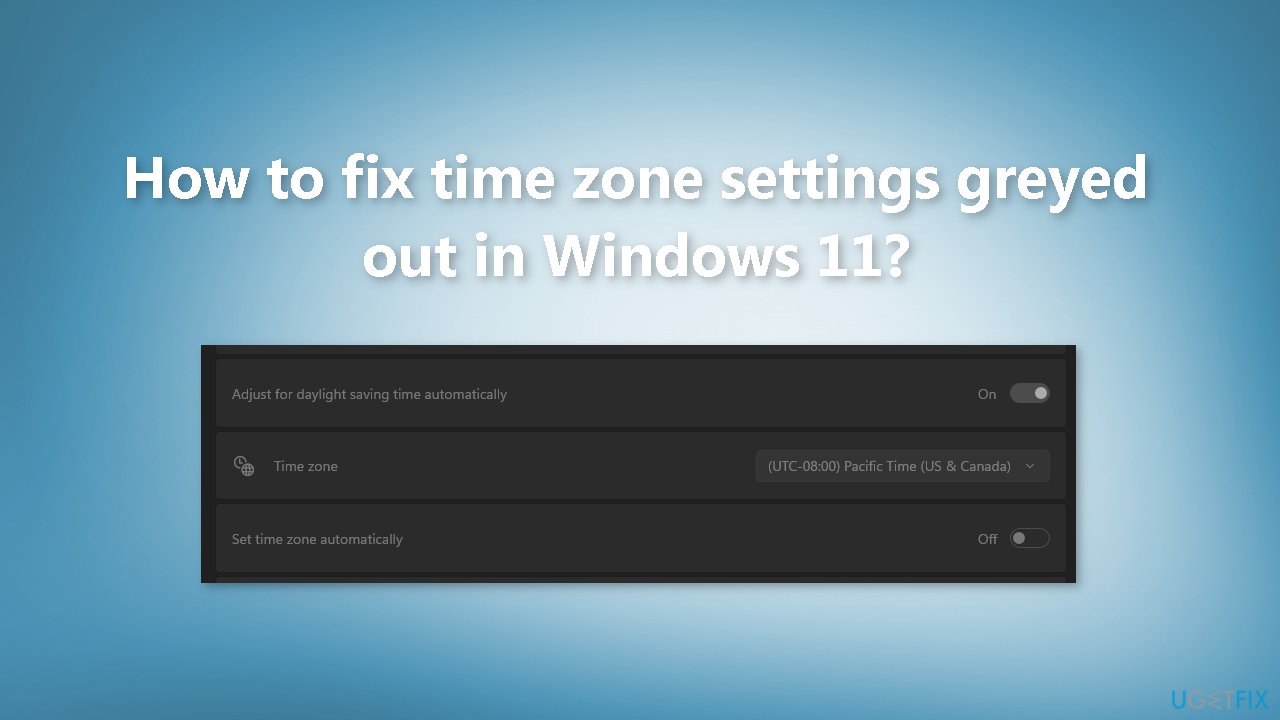
Time zone settings greyed out
on Windows
Fix greyed out time zone settings in Windows 11 with our expert tips. Get your clock right in minutes, ensuring hassle-free scheduling. Updated 2025.


What causes How to fix time zone settings greyed out in Windows 11?
- Lack of permission to access the settings
- Problem with the device's location services
- Corrupted system files
- Group policy settings restricting access
- Registry editor settings restricting access
Repairs Windows system files, removes malware, and restores a clean OS state — without reinstalling.
Hello. I wanted to change the time zone settings on my Windows 11 PC but I can't. All the time zone settings are greyed out and unavailable. What do I do?
The issue of time zone settings being greyed out in Windows 11 can occur due to a variety of reasons, such as a lack of permission to access the settings or a problem with the device's location services. Time settings in Windows include options for setting the date, time, and time zone.
These settings are important as they ensure that the device's clock and calendar are accurate, which is necessary for the proper functioning of the operating system and other software. Accurate time settings are also essential for synchronizing with other devices and servers, as well as for keeping track of time-sensitive tasks and events.
If the time zone settings are greyed out, it can impact users by preventing them from adjusting the time zone to match their current location. This can cause confusion and may lead to incorrect time stamps on files, missed appointments or events, and other problems.
Possible solutions to this issue include checking and adjusting the device's location services settings, checking for and installing updates for the device, and resetting the device's settings. Additionally, in Windows 11, the problem can be solved by checking the group policy settings or registry editor settings, if the issue is related to permissions or access to the settings.
In this guide, you will find 6 steps that should help you fix time zone settings greyed out in Windows 11. You can also use a maintenance tool like [d1] for a faster process. It can repair various system errors, BSODs,[ref en-1] corrupted files, registry[ref en-2] issues, or clear cookies and cache.[ref en-3] Otherwise, follow the step-by-step instructions below.
Method 1. Fix Corrupted System Files
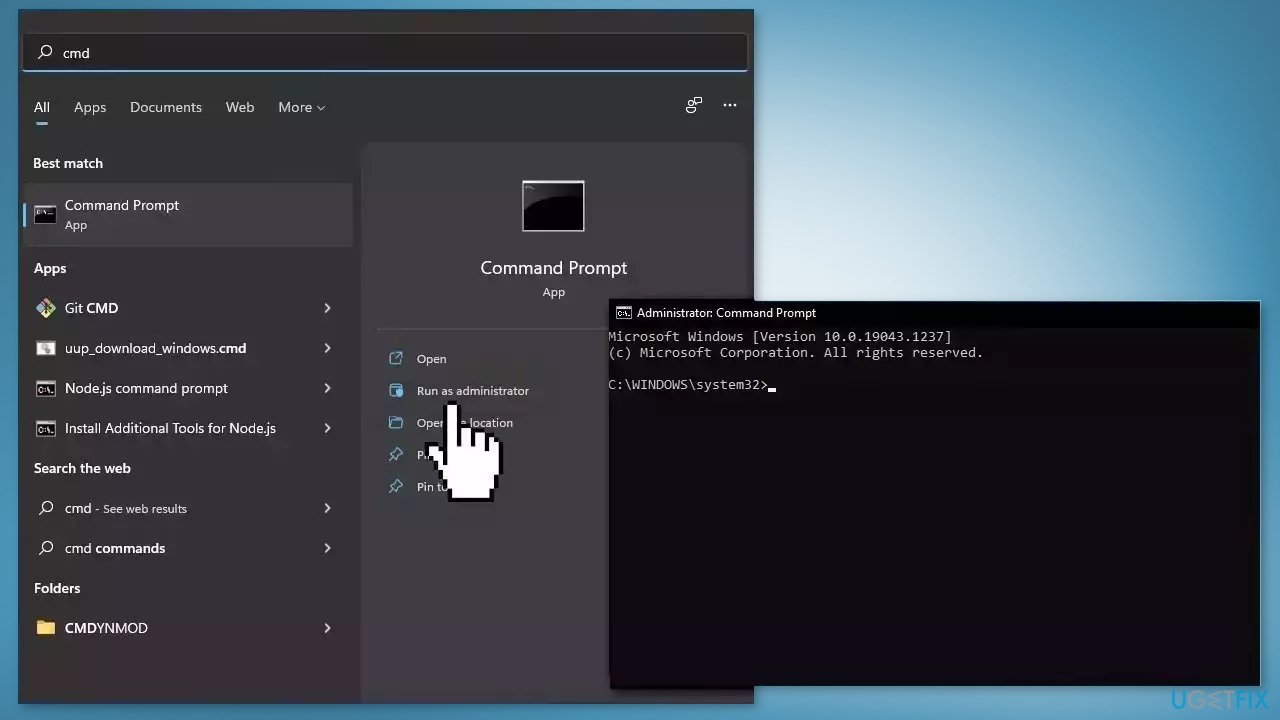
Use Command Prompt commands to repair system file corruption:
- Open Command Prompt as administrator
- Use the following command and press Enter:
sfc /scannow
- Reboot your system
- If SFC returned an error, then use the following command lines, pressing Enter after each:
DISM /Online /Cleanup-Image /CheckHealth
DISM /Online /Cleanup-Image /ScanHealth
DISM /Online /Cleanup-Image /RestoreHealth
Method 2. Install Windows Updates
- Click Start and select Settings
- Go to the Windows Update section
- Click Check for updates and wait
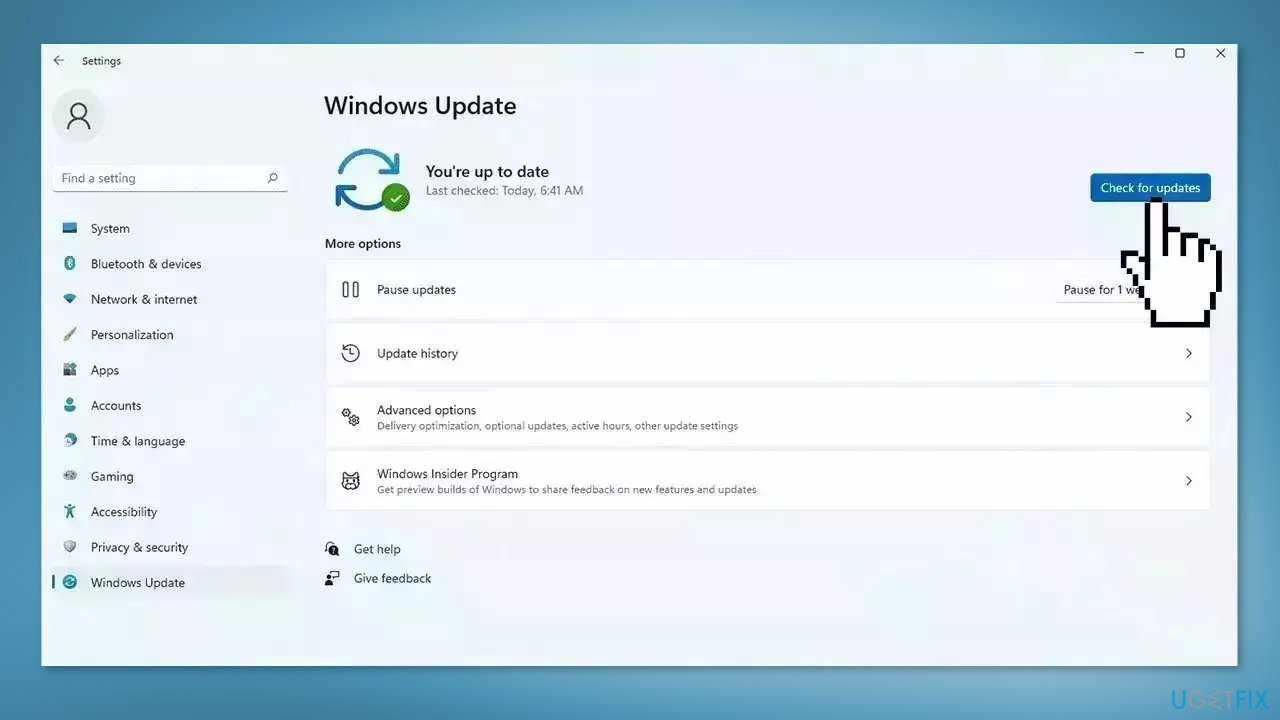
- Go to the Advanced options and install optional updates
- Reboot your system
Method 3. Enable Location Services
- Press the Windows key + I to launch the Settings app
- Click on the Privacy & Security tab
- Scroll down to App permissions and click on Location
- Turn on the Location services and Let apps access your location options
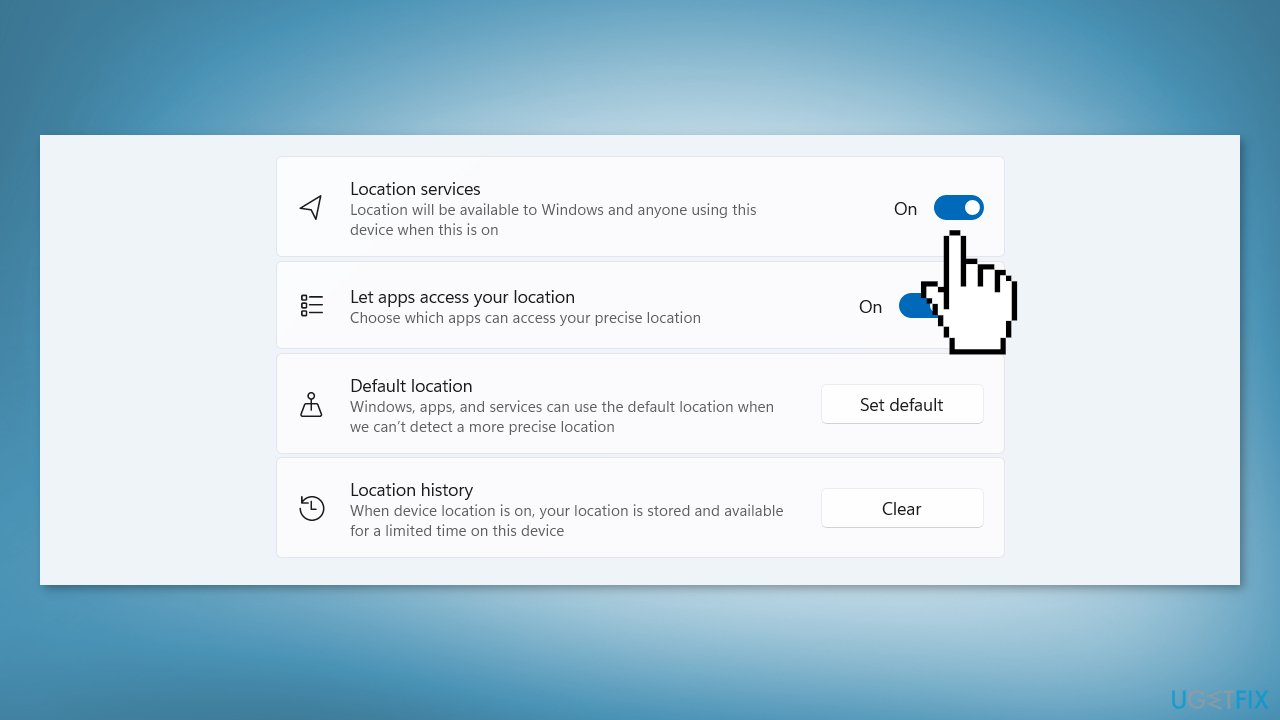
- Restart your PC and check if the issue is resolved
Method 4. Modify the Windows Registry
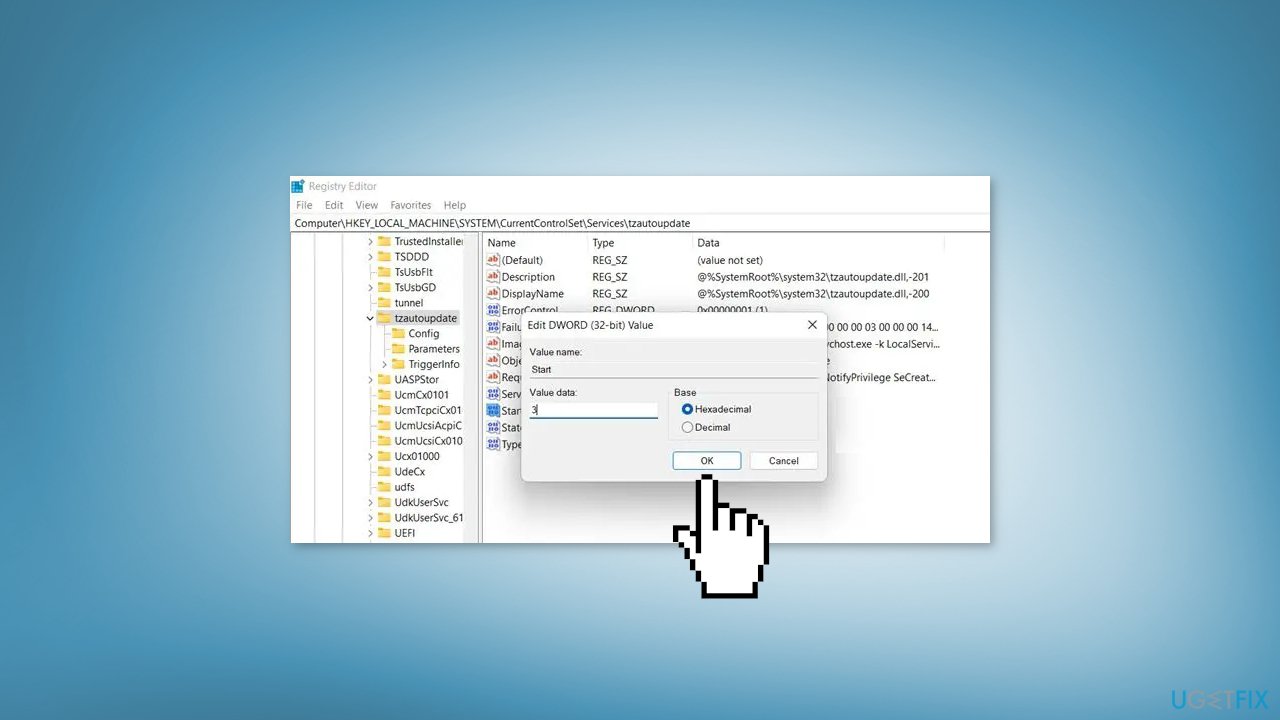
- Open the Registry Editor
- Navigate to the following location: Computer\HKEY_LOCAL_MACHINE\SYSTEM\CurrentControlSet\Services\tzautoupdate
- Look for the value Start and double-click on it
- Set the Value data to 3 to enable Set time zone automatically or 4 to disable it
- To enable the location feature, navigate to the following location in Registry Editor: Computer\HKEY_LOCAL_MACHINE\SOFTWARE\Microsoft\Windows\CurrentVersion\CapabilityAccessManager\ConsentStore\location
- Double-click on the Value and type Allow and click OK
Method 5. Use the Group Policy Editor
- Open the Group Policy Editor
- Navigate to the following setting:
Computer Configuration > Administrative Templates > Windows Components > Location and Sensors > Windows Location Provider > Turn off Windows Location Provider.
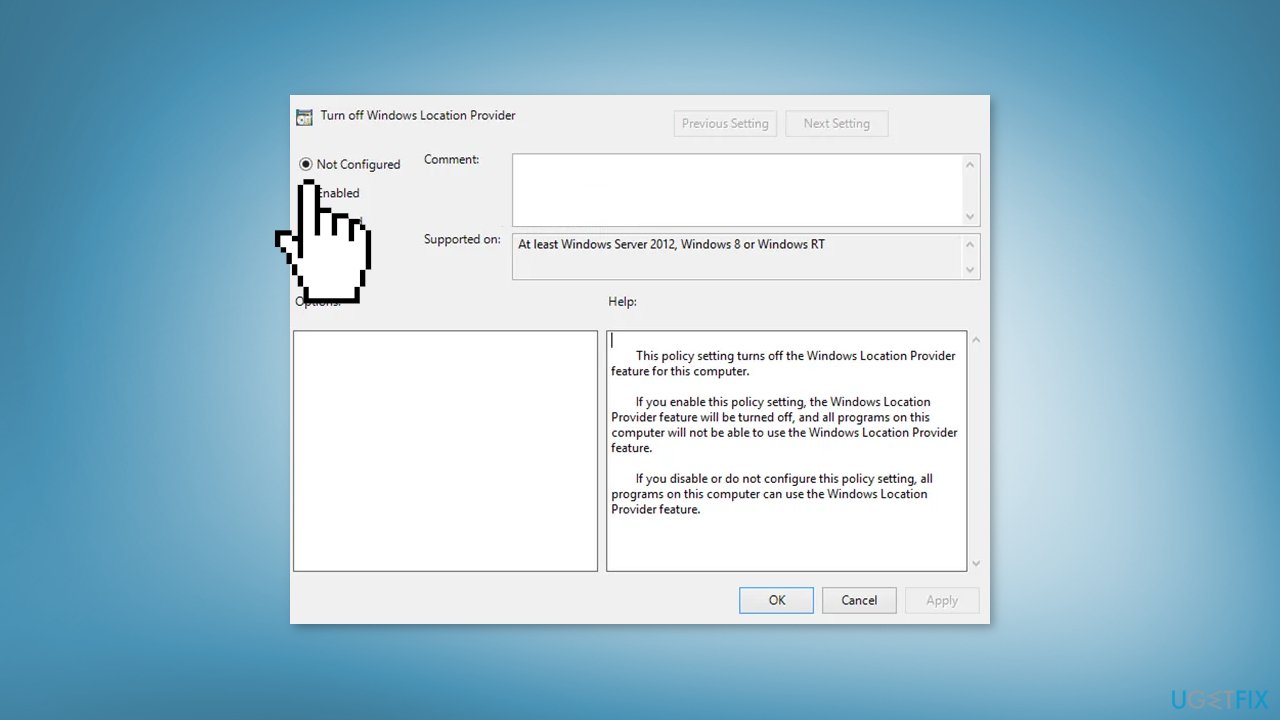
- Set the value of Turn off Windows Location Provider setting to Not Configured
- Click Apply and Exit
Method 6. Try Clean Boot
- Open the Search menu, type in system configuration, and press Enter
- Under the Services tab, tick the Hide all Microsoft services box
- Click on Disable all button
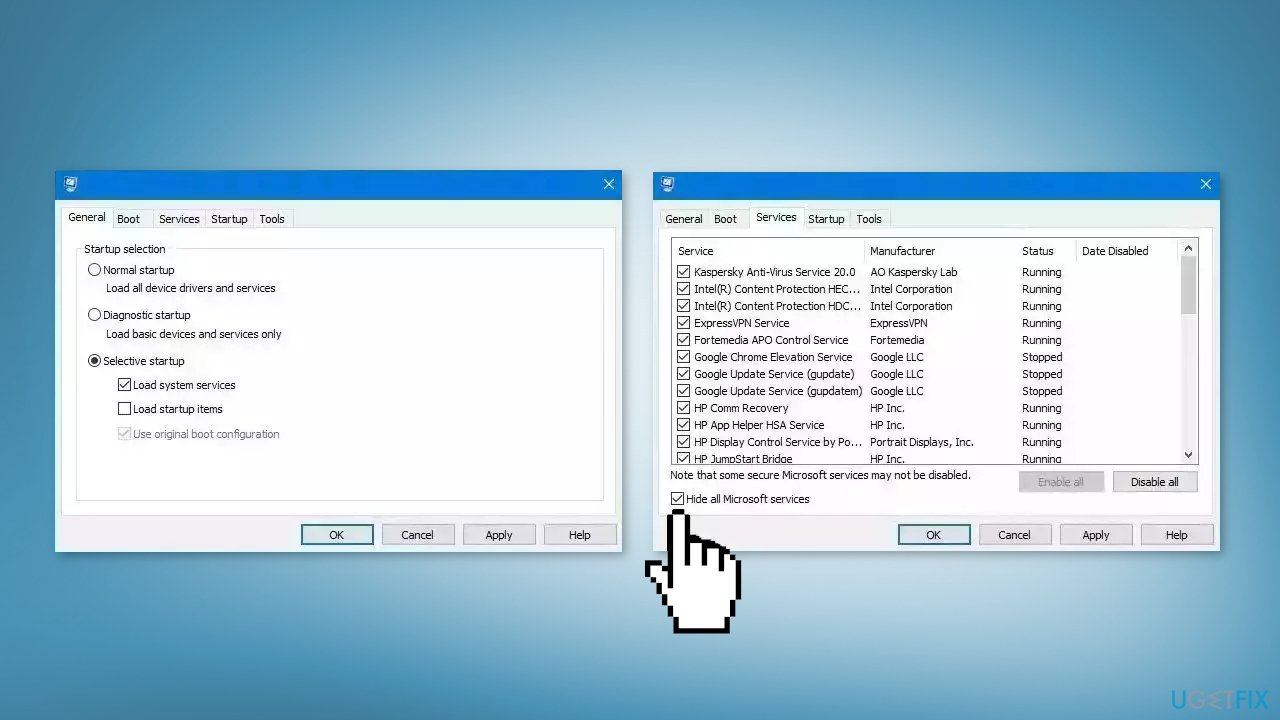
- Head over to the Startup tab and click on Open Task Manager
- Select a third-party program and click on Disable at the top
- Repeat this step to disable all third-party apps and programs
- Restart your PC to enter the clean boot state and see if the issue persists
- If Windows updates in the clean boot state, then you can be certain that a third-party app is causing the issue
- Go through all recently installed apps or programs and remove them one by one
Bottom line
To fix the greyed out time zone settings in Windows 11, you can check and adjust the device's location services, install updates, and repair corrupted system files using Command Prompt. If these methods do not resolve the issue, consider checking group policy and registry settings or using a maintenance tool for further assistance.
Frequently asked questions
The time zone setting may be greyed out due to policies enforced by your organization, incorrect system settings, or issues with the Windows Time service.
To enable time zone settings, check if your system is set to automatically adjust the time zone and ensure that your user account has the necessary permissions.
If changing the time zone settings doesn't work, try restarting the Windows Time service or running the System File Checker to repair any corrupted system files.




Report an issue
What's wrong with this guide? We review every report and update or remove content.
Report received — thank you. We'll review and fix it.
You need a free account to submit a report.
Be the first to comment