How to fix
TKRgFtXp64.sys BSOD error
on Windows
Resolve the TKRgFtXp64.sys BSOD error on Windows 10 and 11 effortlessly. Get expert-tested solutions for a smooth experience, fixed in minutes!

What causes How to fix TKRgFtXp64.sys BSOD error in Windows?
- Outdated drivers
- Malware threats
- System file conflicts
- Third-party software conflicts
Repairs Windows system files, removes malware, and restores a clean OS state — without reinstalling.
Hello. My Windows PC keeps crashing with TKRgFtXp64.sys BSOD error. Is there a way to fix this?
Windows' TKRgFtXp64.sys BSOD error is a serious problem that results from issues with the Tachyon Registry Filter Driver (XP Later). The operating system needs this driver file to function properly, especially when processing registry-related activities. The infamous Blue Screen of Death (BSOD)[ref en-1] error may appear if this file is corrupted or has problems.
There are multiple reasons why the TKRgFtXp64.sys BSOD error may occur. The system's outdated drivers[ref en-2] are one of the main causes. Outdated drivers may become incompatible with newer versions of the operating system, which can cause instability and potential problems like the TKRgFtXp64.sys BSOD.
Furthermore, there is a serious risk to the Tachyon Registry Filter Driver's stability due to malware threats infiltration. System crashes like the dreaded BSOD can be caused by malicious software that corrupts or manipulates system files, including the TKRgFtXp64.sys driver. To reduce this danger, users must continue to be on the lookout for possible malware attacks.
Moreover, system file and third-party software conflicts may be a factor in the TKRgFtXp64.sys BSOD error. Stability and crashes may result from installed programs or drivers interfering with the correct operation of crucial system files. When installing new software, users should make sure it is compatible with their operating system and proceed with caution.
Users are severely impacted by the TKRgFtXp64.sys BSOD error because it frequently causes system failures and data loss. Users may have interruptions in their work or personal life, and the instability may jeopardize the operating system's overall dependability. Users who depend on their systems for a variety of tasks may become frustrated and inconvenienced by the frequent occurrence of BSODs.
There are a few different fixes that users can try to fix the TKRgFtXp64.sys BSOD bug. Getting drivers up to date is a crucial first step in fixing compatibility problems. Malicious attacks can be avoided by regularly checking the system for malware and implementing strong security measures. To reduce conflicts, users should also be cautious while installing third-party apps and make sure they are compatible with the operating system.
In this guide, you will find 7 steps that should help you fix TKRgFtXp64.sys BSOD error in Windows. You can also run a maintenance tool like [d1] that can fix most system errors, BSOD, corrupted files, and registry[ref en-3] issues. Otherwise, follow the step-by-step instructions below.
Method 1. Install Windows Updates
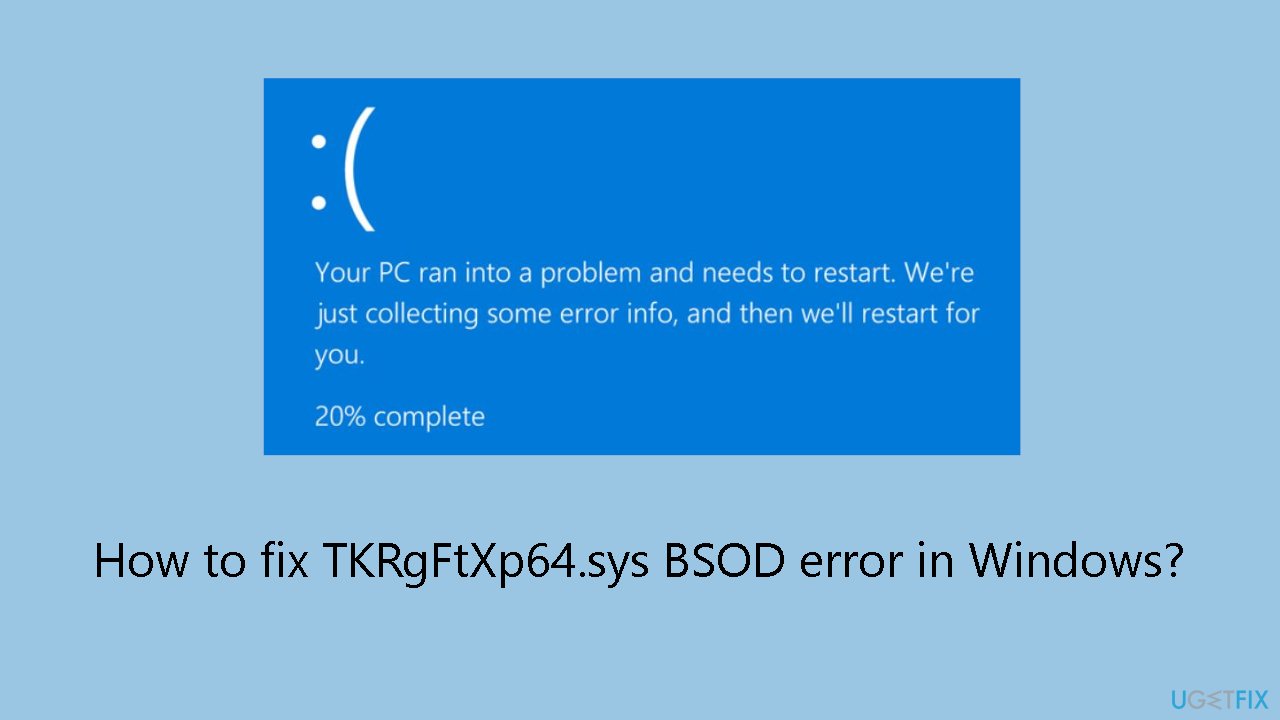
- Press the Windows key + R to open the Run box.
- Type ms-settings:windowsupdate in the text box and press Enter.
- Click the Check for updates button.
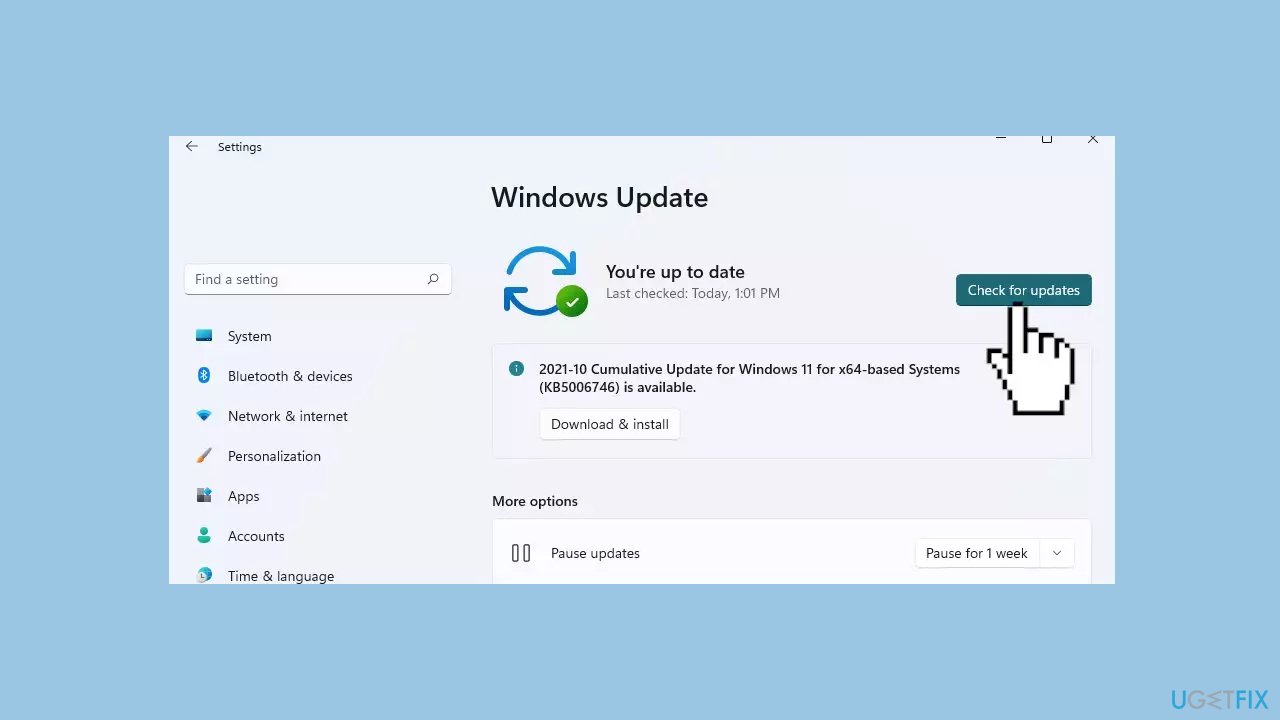
- If a new update is available, click the Download & Install all button.
- Restart your computer after the process is finished and check to see if the problem is fixed.
Method 2. Update Drivers
Outdated drivers could be the cause of this issue. In this case, you can fix it automatically by using [rev id="DriverFix"], which will scan your PC for missing and out-of-date device drivers. Or you can update them manually:
- Open Settings.
- Click on Update & Security.
- Click on Windows Update.
- Click the Check for updates button.
- Click the View optional updates option.
- Click the Driver updates tab.
- Select the driver you want to update.
- Click the Download and install button.
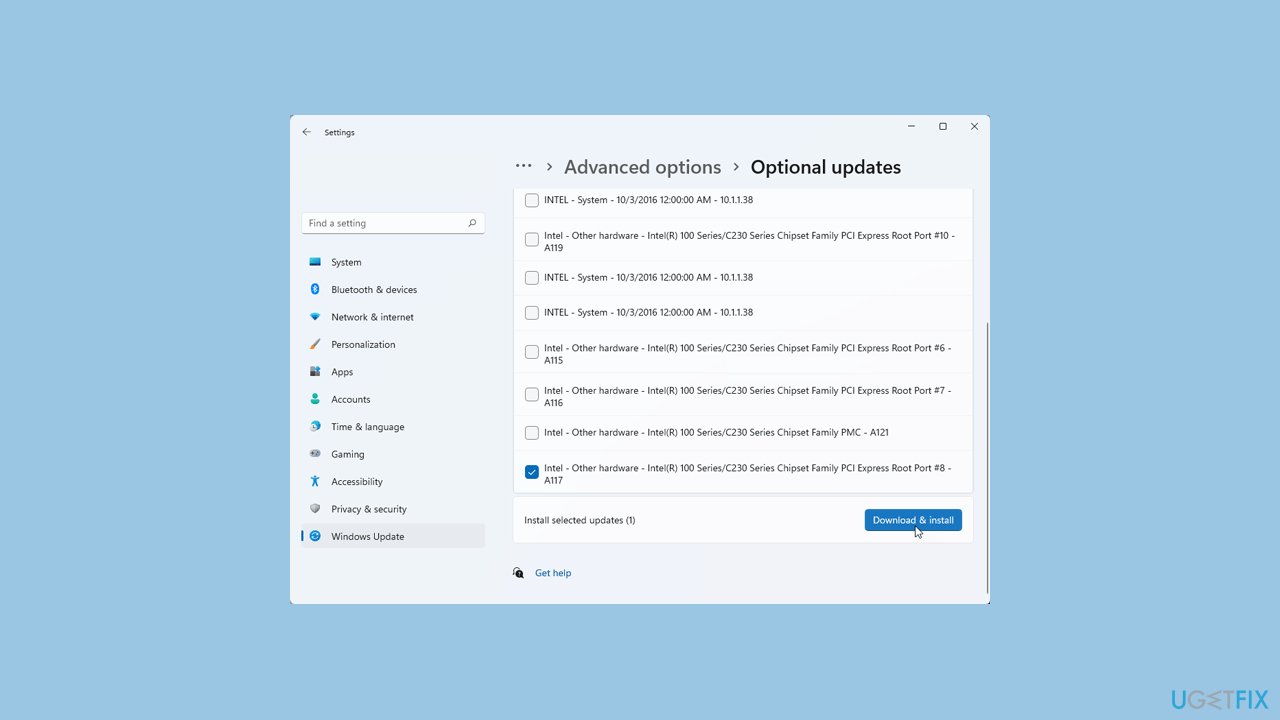
If the View optional updates link is not available after checking for updates, then Windows Update does not have any new drivers or any updates for other products at that particular time.
Method 3. Fix Corrupted System Files
Use Command Prompt commands to repair system file corruption:
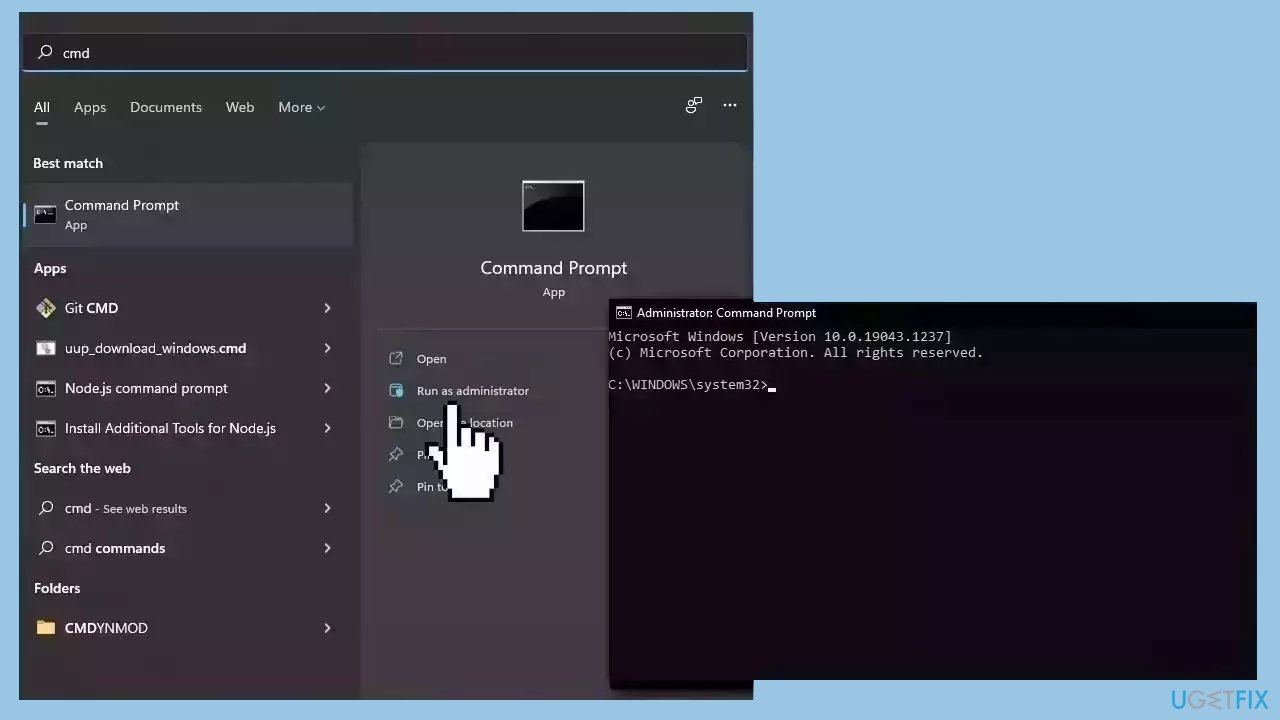
- Open Command Prompt as administrator
- Use the following command and press Enter:
sfc /scannow
- Reboot your system
- If SFC returned an error, then use the following command lines, pressing Enter after each:
DISM /Online /Cleanup-Image /CheckHealth
DISM /Online /Cleanup-Image /ScanHealth
DISM /Online /Cleanup-Image /RestoreHealth
Method 4. Scan for Malware
A malware infection may be the cause of TKRgFtXp64.sys BSOD error in Windows. It is important to run a comprehensive security scan to rule out this possibility and ensure that the computer is not infected. This can help to prevent further issues with the Windows operating system and ensure that it is functioning properly.
If you have access to a security scanner, or if your organization pays for one, you can use it to scan your entire system to check for a virus infection. Otherwise, you can use Windows Defender to scan your system:
- Click on the Windows Start menu or press the Windows key on your keyboard.
- Type Microsoft Defender in the search bar and click on Microsoft Defender Antivirus to open the application.
- Click on the Virus & threat protection option in the left-hand menu.
- Click on the Quick scan or Full scan option, depending on your preference.
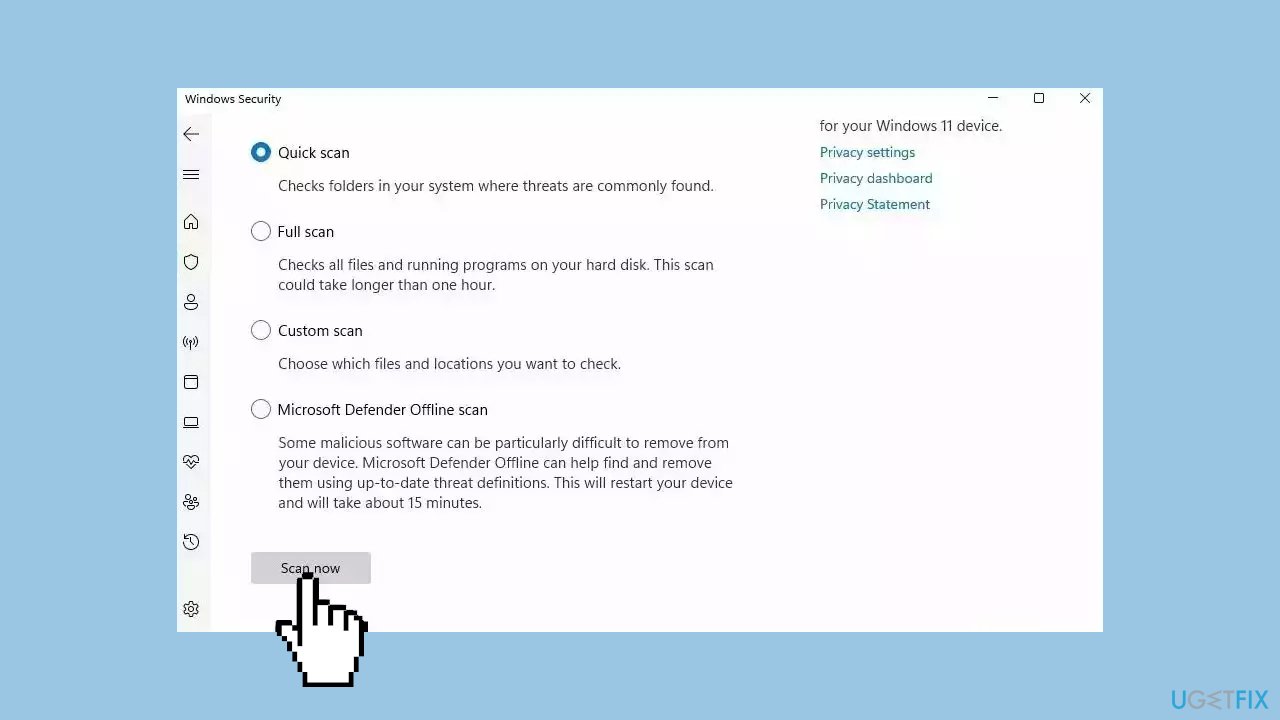
- If you choose Quick scan, Microsoft Defender Antivirus will scan the most vulnerable and commonly infected areas of your computer.
- If you choose Full scan, Microsoft Defender Antivirus will scan your entire computer, including all files, folders, and programs.
- Click on the Scan now button to start the selected scan type and wait for the scan to complete.
- The time it takes will depend on the size of your hard drive and the number of files being scanned.
- Once the scan is complete, you will be informed of any detected threats, and you can choose to quarantine or remove them.
- If no threats are found, Microsoft Defender Antivirus will inform you that your device is secure.
Method 5. Try Clean Boot
- Open the Search menu, type in system configuration, and press Enter.
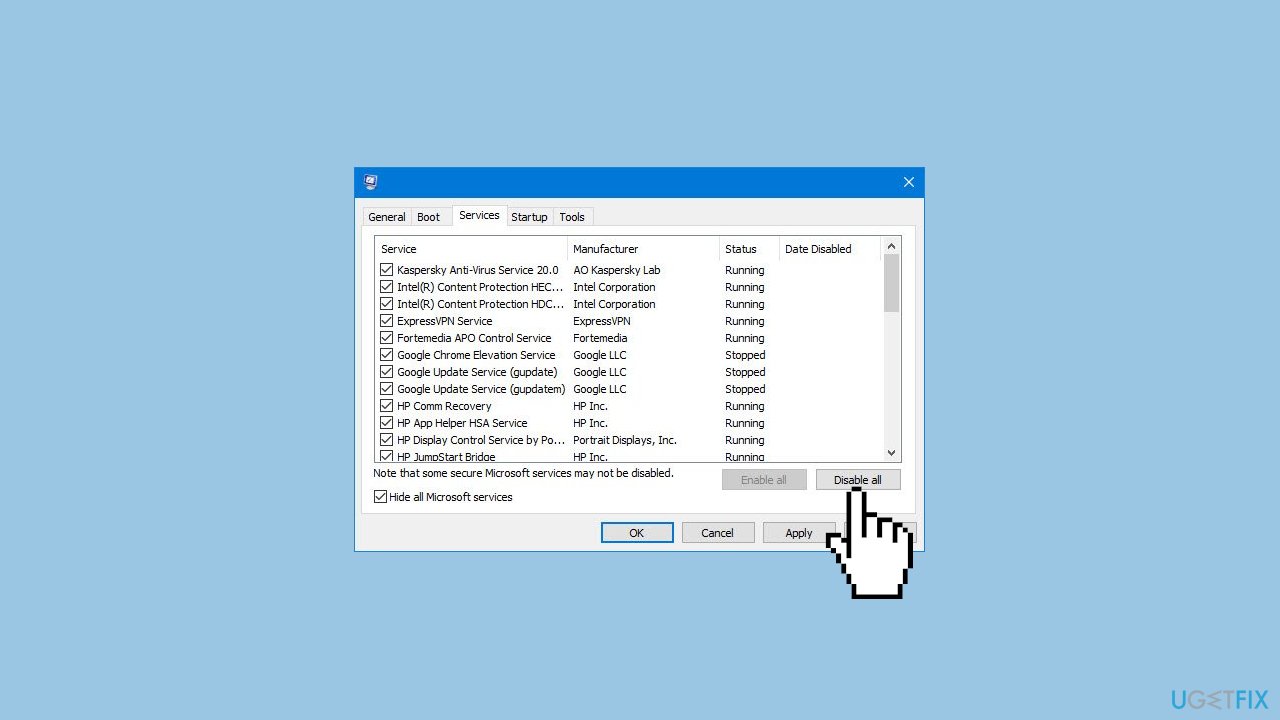
- Under the Services tab, tick the Hide all Microsoft services box.
- Click on Disable all button.
- Head over to the Startup tab and click on Open Task Manager.
- Select a third-party program and click on Disable at the top.
- Repeat this step to disable all third-party apps and programs.
- Restart your PC to enter the clean boot state and see if the issue persists.
- If the issue disappeared in the clean boot state, then you can be certain that a third-party app is causing it.
- Go through all recently installed apps or programs and remove them one by one.
Method 6. Use System Restore
System Restore is a feature in Microsoft Windows that allows users to revert their computer's state to a previous point in time. This can be helpful if you have made changes to your system that are causing problems.
- Press the Windows key + R on your keyboard to open the Run box.
- Type SystemPropertiesProtection and press Enter.
- Go to the System Protection tab.
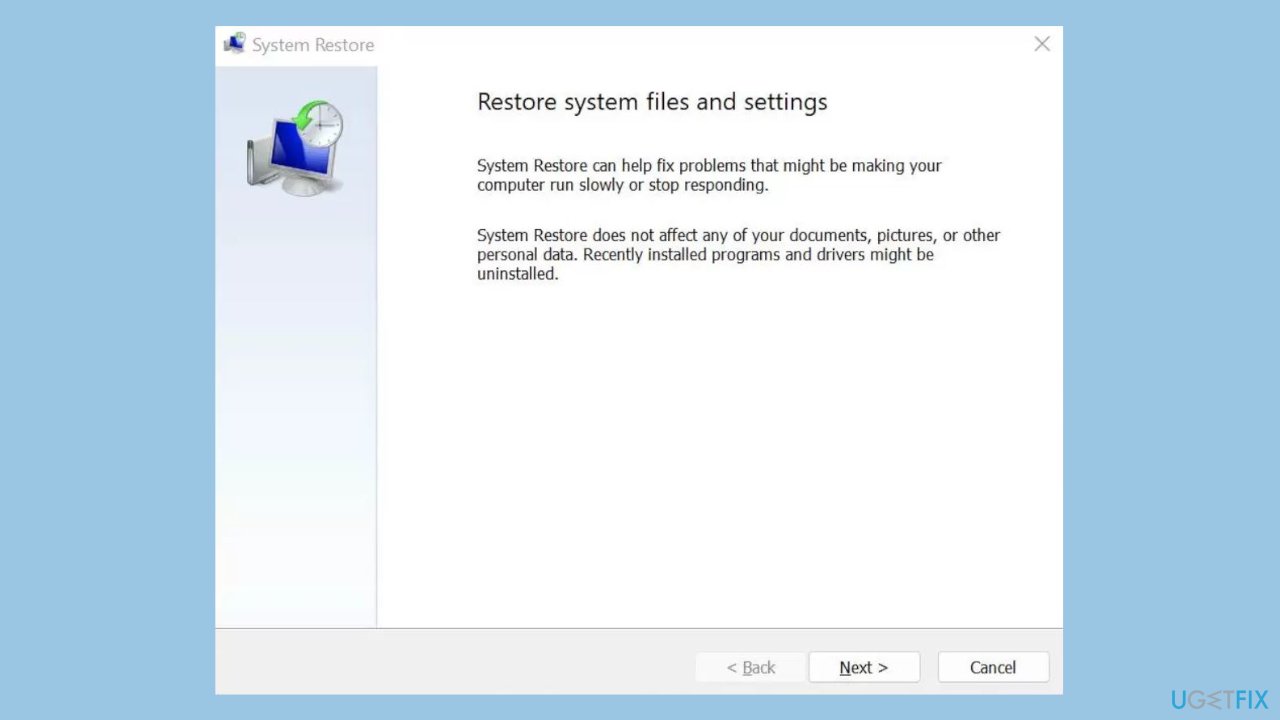
- You will see the System Restore… button. Click it to run System Restore.
- Follow the prompts until you can select a restore point.
- Select the one you want (ideally before the issue started occurring) and go ahead with the process.
Method 7. Repair Install Windows
- Visit the official Microsoft website to download Windows 11 or Windows 10 Installation Media
- Run the Media Creation Tool and select Create Installation Media for another PC.
- Select your USB drive.
- Let the Process complete of writing the Installation files to the USB drive.
- Click Finish.
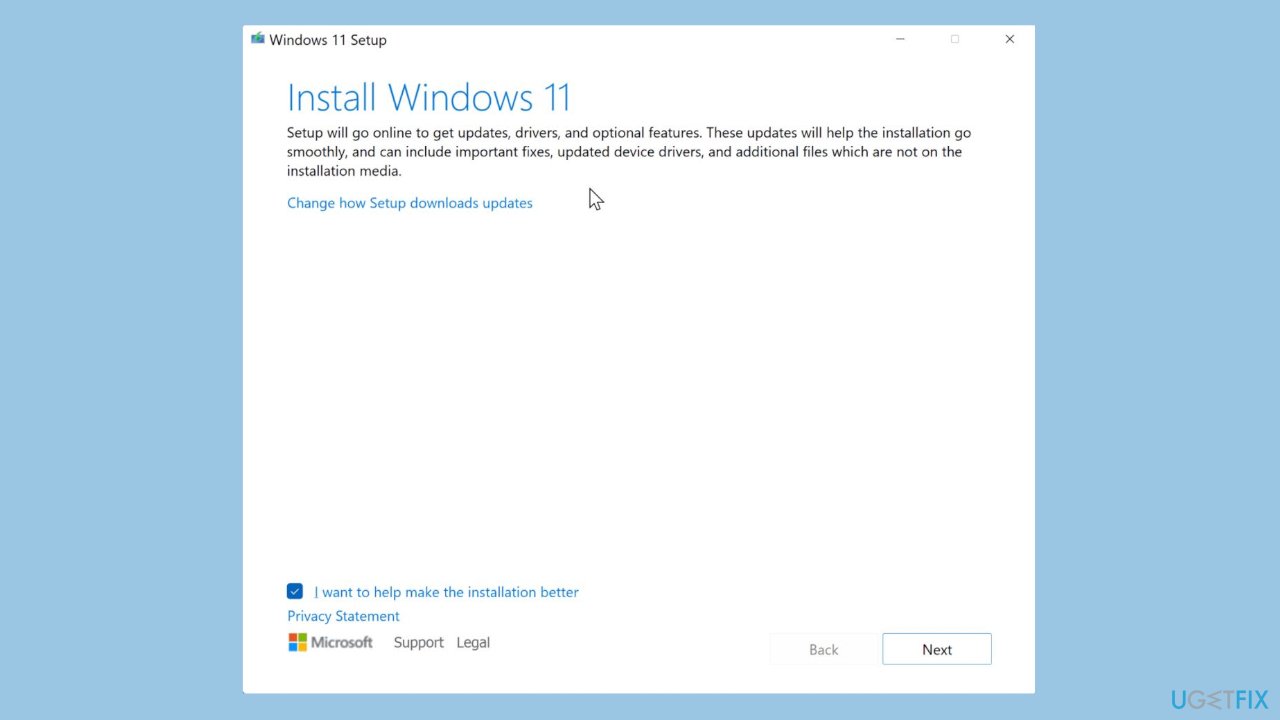
- On the PC you wish to upgrade, Press Windows + E to open the File Explorer.
- Open the Removable drive and click Setup.exe.
- Accept the license terms on the next screen.
- Confirm the Upgrade options – Files, apps and Settings are kept.
- Click Install, and the upgrade should start.
Bottom line
To fix the TKRgFtXp64.sys BSOD error, users should update their drivers, regularly check for malware, and be cautious when installing third-party applications. If these solutions do not resolve the issue, further troubleshooting may be necessary.
Frequently asked questions
The TKRgFtXp64.sys BSOD error is often caused by faulty drivers or incompatible software that conflicts with the system's operation. Updating or reinstalling the related drivers can often resolve the issue.
To troubleshoot the TKRgFtXp64.sys error on Windows 11, you can boot into Safe Mode and uninstall any recently installed applications or updates. Additionally, running the Windows Memory Diagnostic tool may help identify underlying hardware issues.
To prevent the TKRgFtXp64.sys BSOD from recurring in Windows 10, ensure your system drivers are up to date and regularly check for Windows updates. Also, consider using a reliable antivirus program to prevent malware infections that could lead to such errors.




Report an issue
What's wrong with this guide? We review every report and update or remove content.
Report received — thank you. We'll review and fix it.
You need a free account to submit a report.
Be the first to comment