How to fix
“Too many retries” error on Steam
on Windows
Resolve the "Too many retries" error on Steam in Windows 10 or 11 quickly and effectively with our expert-tested solutions. Fixed in minutes!


What causes How to fix “Too many retries” error on Steam?
- Unstable network conditions
- Cached data issues
- Server-side irregularities
- Possible IP restrictions
- Corrupted files or network configuration errors
Repairs Windows system files, removes malware, and restores a clean OS state — without reinstalling.
I've been trying to get into Steam on my new laptop, and I keep getting the "Too many retries" error all the time. Is there anything I can do to bypass it? Should I reinstall Steam, maybe?
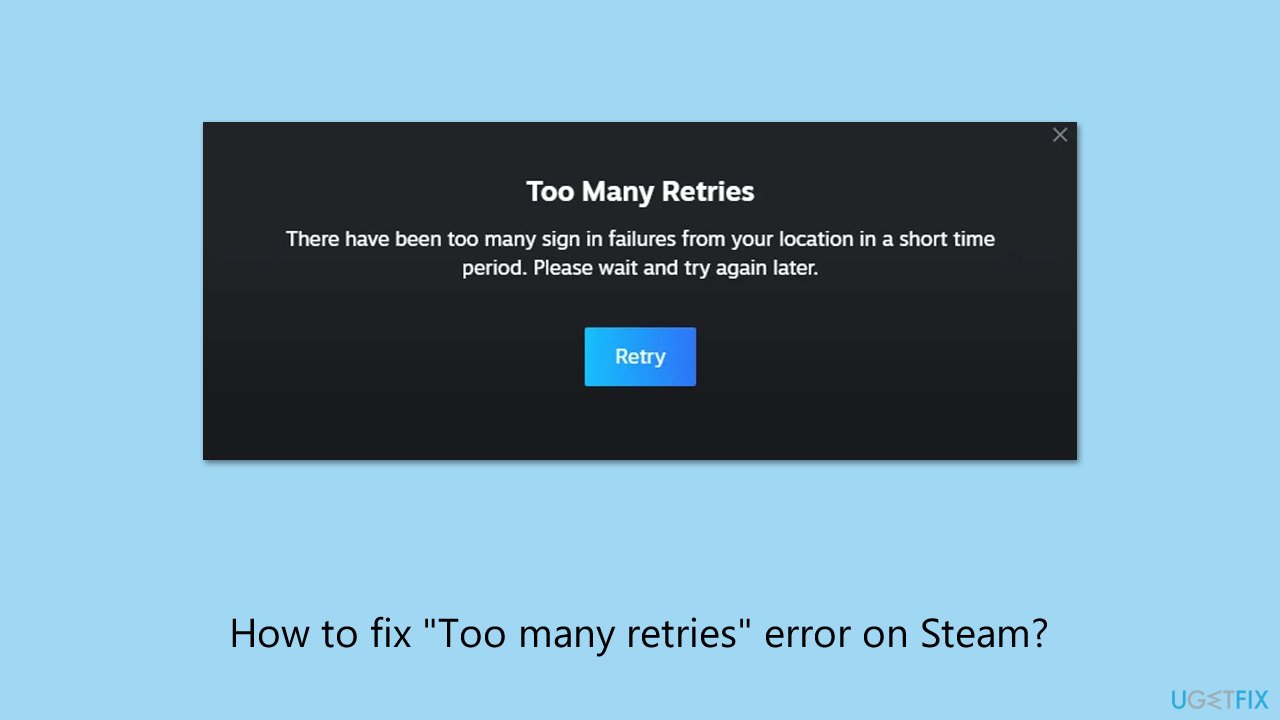
Steam users on Windows frequently encounter disruptions that impede their gaming experience, one of which is the "Too many retries" error. This Steam error "Too many retries" manifests with a message stating, “There have been too many login failures from your location in a short time period. Please wait and try again later,” often appearing after repeated login attempts or unexpectedly.
It serves as a security mechanism to prevent unauthorized access, but factors such as unstable network conditions, cached data issues, or server-side irregularities can also provoke it, barring users from accessing their accounts.
Resolving the Steam error "Too many retries" lacks a universal solution due to its varied triggers. For some, the issue resolves after a short delay, while others face prolonged lockouts, suggesting possible IP restrictions or server-related problems. Potential remedies include resetting network hardware, employing a VPN to alter your IP address, or clearing Steam’s cache to remove problematic data.
Adjustments to Steam Guard settings or switching browsers for login have also proven effective for some, though success depends on identifying whether the root cause lies within the user’s system or Steam’s infrastructure.
Should the Steam error "Too many retries" persist, the [d1] repair tool offers an efficient alternative. It systematically addresses underlying system issues (such as corrupted files or network configuration errors) that may contribute to the problem, providing an automated resolution. Comprehensive instructions to address this error will be outlined subsequently, equipping users with the means to restore access to Steam promptly and reliably.
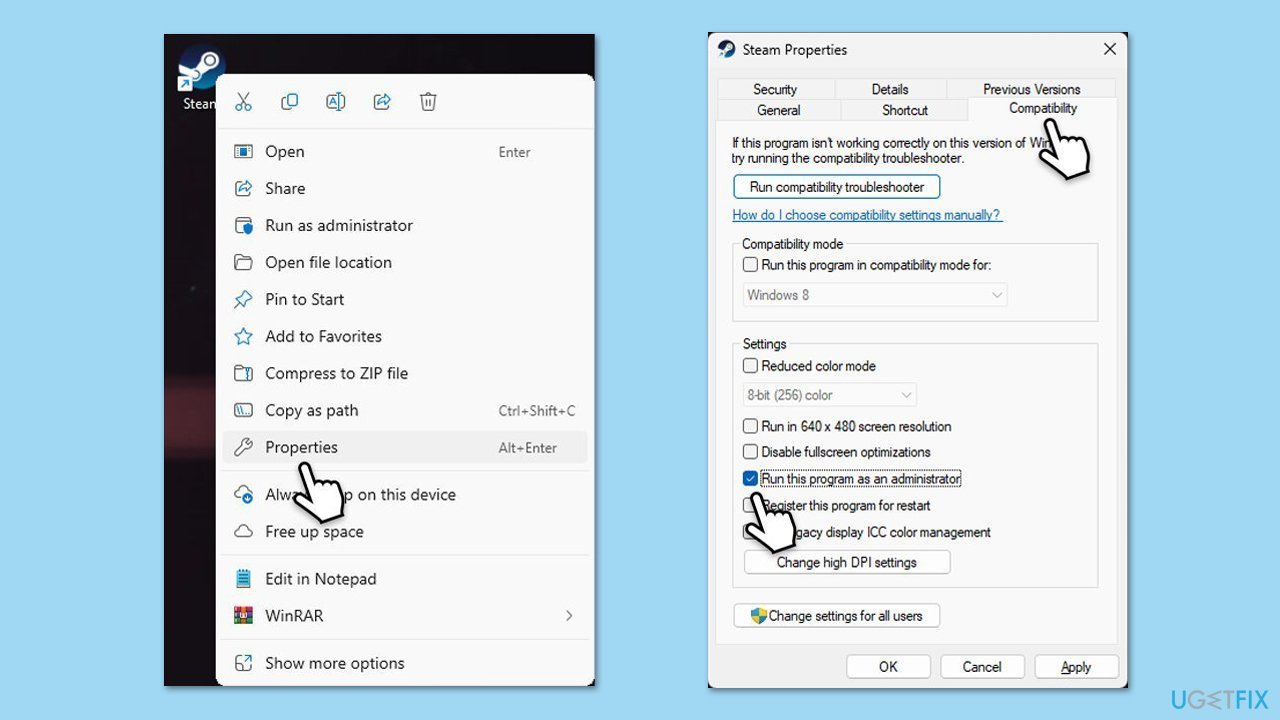
Fix 1. Run Steam as administrator
Insufficient permissions can disrupt Steam’s operations, and running it with elevated rights may fix login issues.
- Right-click on the Steam shortcut on your desktop.
- Select Properties from the context menu.
- Go to the Compatibility tab.
- Check the box next to Run this program as an administrator.
- Click Apply and then OK.
- Double-click on the Steam shortcut to run it as an administrator.
Fix 2. Update Steam client
An outdated Steam version might encounter compatibility problems, and updating it can address the "Too many retries" error.
- Open the Steam client.
- Click on Steam in the upper left corner of the window.
- Select Check for Steam Client Updates.
- If an update is available, follow the prompts to install it.
- Restart Steam after the update is complete.

Fix 3. Clear steam cache
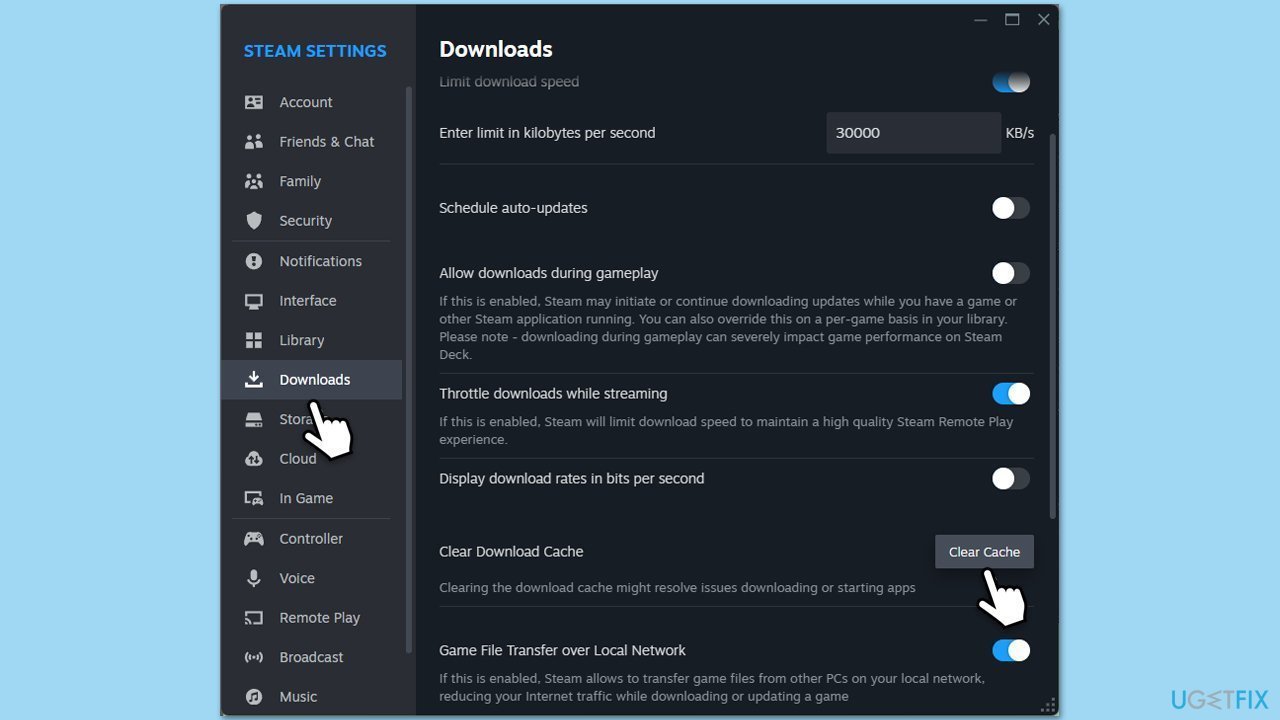
Corrupted cache files can interfere with login attempts, and clearing them may resolve the "Too many retries" issue.
- Open the Steam app.
- Go to Steam > Settings.
- Select the Downloads section on the left.
- Scroll down to the Clear Download cache section.
- Click Clear Cache.
- Next, go to the In Game section on the left.
- Under Delete web browser data, click on Delete.
Alternatively, you could follow these steps:
- Exit Steam entirely.
- Type %appdata%\Steam in Windows search and press Enter.
- Delete all files and folders in the directory.
- Restart Steam and log in again.
Fix 4. Use a VPN to change IP
Steam may flag your IP due to repeated attempts, and a VPN can bypass this by assigning a new address.
- Install a reputable VPN service (for example, [rev id="PrivateInternetAccess"]).
- Connect to a server in a different location.
- Launch Steam and attempt to log in.
Fix 5. Check your network connection
Network instability can trigger the error, and running the dedicated troubleshooter may refresh the connection to Steam’s servers.
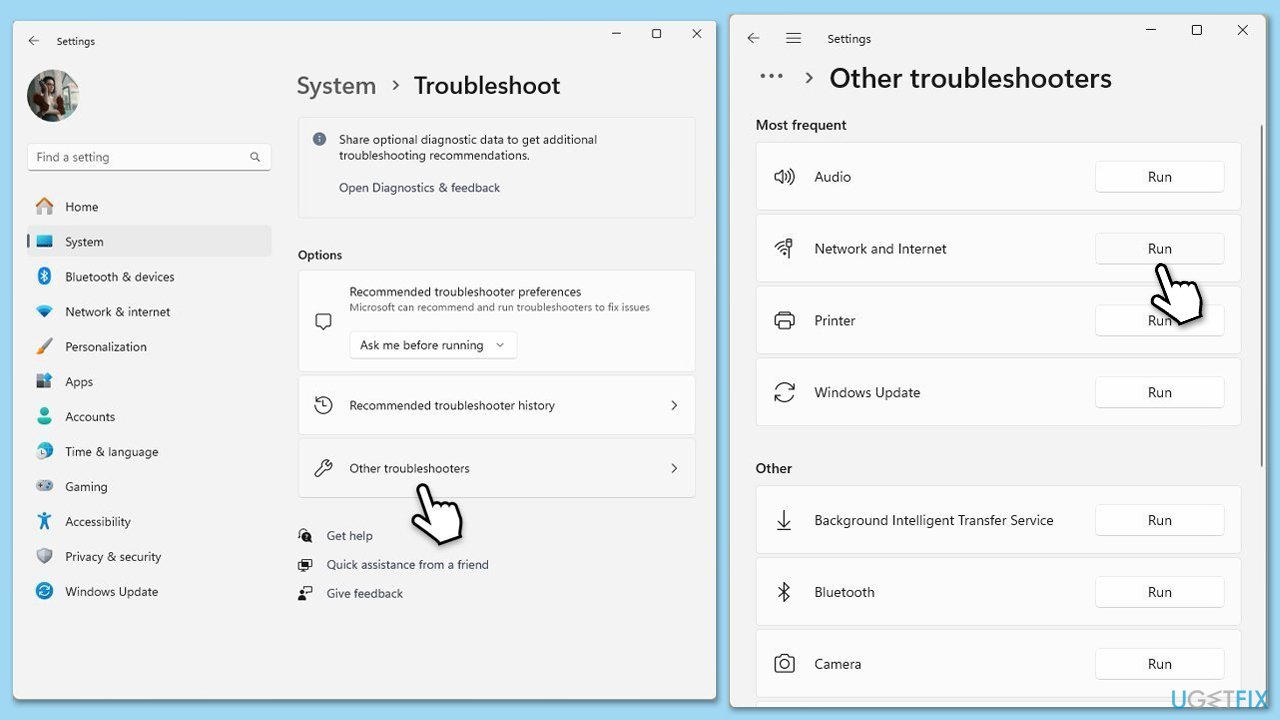
Windows 11
- Type Troubleshoot in Windows search and hit Enter.
- Select Other troubleshooters.
- Locate Network & Internet troubleshooter from the list and click Run.
- Wait till the process is finished and apply the recommended fixes.
- Restart your device.
Windows 10
- Right-click on Start and pick Settings.
- Go to the Network & Internet section.
- On the right side, find the Advanced network settings section.
- Click Network troubleshooter and wait.
- Wait for the scan to finish and apply the changes.
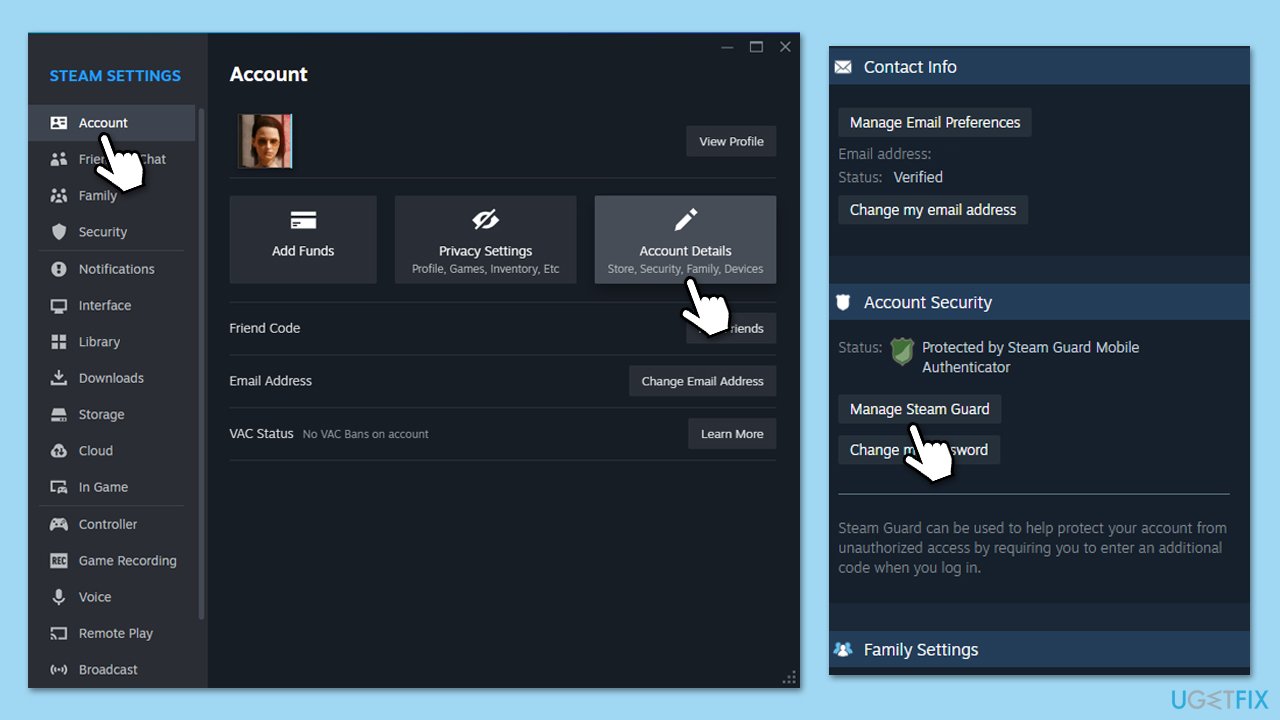
Fix 6. Check Steam Guard
Misconfigured Steam Guard can complicate logins, and reviewing its setup might eliminate the error.
- Open Steam and go to Steam > Settings > Account.
- Select Account Details.
- Scroll down to Account Security section.
- Click Manage Steam Guard.
- Ensure it’s enabled and verify your email or authenticator.
- Log out, then log back in.
Fix 7. Wait and retry later
The Steam error "Too many retries" is often a temporary security lockout, and allowing time for it to reset can restore access.
- Close Steam.
- Wait at least 30 minutes to an hour.
- Relaunch Steam and attempt to log in again.
- Do not try to log in during those 30mins for the counter to reset.
Bottom line
To fix the 'Too many retries' error on Steam, you can try running Steam as an administrator, resetting your network hardware, using a VPN to change your IP address, or clearing Steam’s cache. If the issue persists, consider adjusting your Steam Guard settings or using a different browser for login. If none of these solutions work, the repair tool may provide an automated resolution.
Frequently asked questions
This error usually occurs due to network connectivity issues, server problems, or corrupted Steam cache files. Ensuring a stable internet connection and clearing the cache can help resolve it.
To clear the download cache, open Steam, go to Settings > Downloads, and click on 'Clear Download Cache.' Restart Steam afterward to see if the issue is resolved.
Yes, you can visit the Steam Status page online to check for server outages or issues. Additionally, checking community forums can provide updates on any widespread problems.




Report an issue
What's wrong with this guide? We review every report and update or remove content.
Report received — thank you. We'll review and fix it.
You need a free account to submit a report.
Be the first to comment