How to fix
Toshiba laptop stuck on startup screen
on Windows
Resolve your Toshiba laptop's startup screen issue swiftly with expert tips tailored for Windows 10 and Windows 11. Fixed in minutes!

What causes How to fix Toshiba laptop stuck on startup screen?
- Software flaws
- Corrupted files
- Driver conflicts
- Windows system difficulties
Repairs Windows system files, removes malware, and restores a clean OS state — without reinstalling.
Hello. I've had this Toshiba laptop for some time and everything was working perfectly. However, recently I've come across an issue where it gets stuck on the startup screen. Is there a way to fix this?
A starting screen problem on a Toshiba laptop can be an unpleasant experience for users who have come to value the brand's dependability, sleek design, strong CPUs, and long battery life. Despite Toshiba's reputation for making high-quality laptops, it is not rare for users to encounter Windows system troubles, such as the laptop becoming stuck on the startup screen.
This issue can have a substantial impact on users in a variety of ways. First and foremost, it interrupts routine operations by prohibiting people from accessing their systems and reducing productivity. The inability to progress past the startup screen can be very frustrating for people who rely on their Toshiba laptops for business, education, or personal use. Furthermore, the confusion around the origin of the problem might increase stress, as people may be unaware of whether it is a hardware or software issue.
The problem is exacerbated by the fact that, regardless of brand, Windows system difficulties are rather common. Despite their beneficial features, Toshiba laptops are not immune to the inherent complexity of the Windows operating system. Such problems might be caused by a variety of factors, including software flaws, corrupted files, or driver[ref en-1] conflicts.
While there is no one-size-fits-all solution for a Toshiba laptop stuck on the startup screen, there are a few options that consumers can try. These could include things like executing a system restore, looking for broken system files, or updating drivers. Seeking expert assistance or referring to Toshiba's official support channels may also be recommended, particularly for individuals who are not comfortable with sophisticated troubleshooting methods.
In this guide, you will find 7 steps that should help you fix Toshiba laptop stuck on startup screen. You can also run a system repair tool like [d1] that can fix most system errors, BSODs,[ref en-2] corrupted files, and registry[ref en-3] issues. Otherwise, follow the step-by-step instructions below.
Solution 1. Restart Device without Peripherals
- Press and hold the Power button on your Toshiba laptop until it powers off.
- Disconnect all peripherals, such as printers, scanners, webcams, SD card readers, and USB flash drives.
- Start your computer again.
Solution 2. Boot in Safe Mode
- Power off your computer and restart it. Press the Power button when the Windows logo appears. Repeat this process at least three times until the Automatic Repair screen appears. Click on Advanced options to enter Windows Recovery Environment.
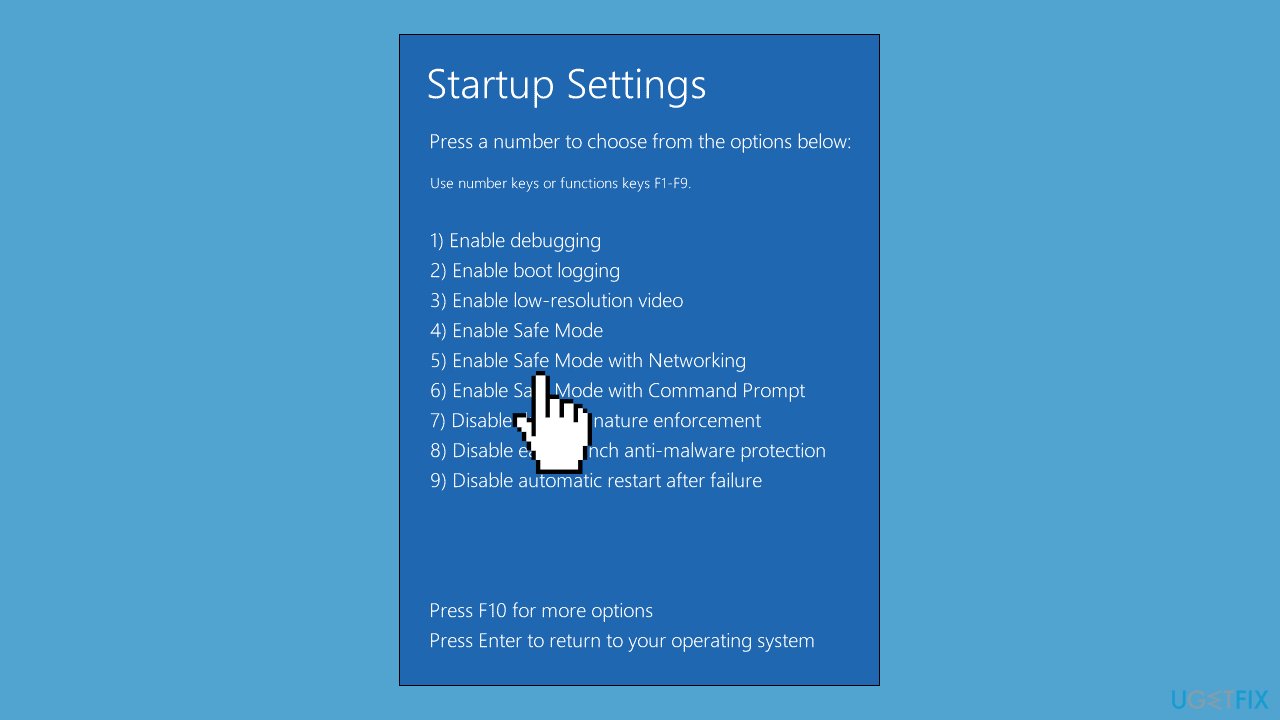
- In Windows Recovery Environment, navigate to Troubleshoot > Advanced options > Startup Settings > Restart.
- After your Toshiba laptop restarts, press F4, F5, or F6 to enable Safe Mode according to your requirements.
Solution 3. Check the RAM
- Power off your computer.
- Open the computer case.
- On the motherboard, carefully remove the RAM modules from the memory slots.
- Reinsert the RAM modules one at a time while attempting to boot after each insertion. If your computer can boot normally without one or more of the RAM modules, those specific modules may be causing the issue.
- Additionally, try placing the RAM modules in different memory slots to identify if any slots are faulty.
Solution 4. Reset BIOS to Default Settings
- Boot your Toshiba laptop into Windows Recovery Environment.
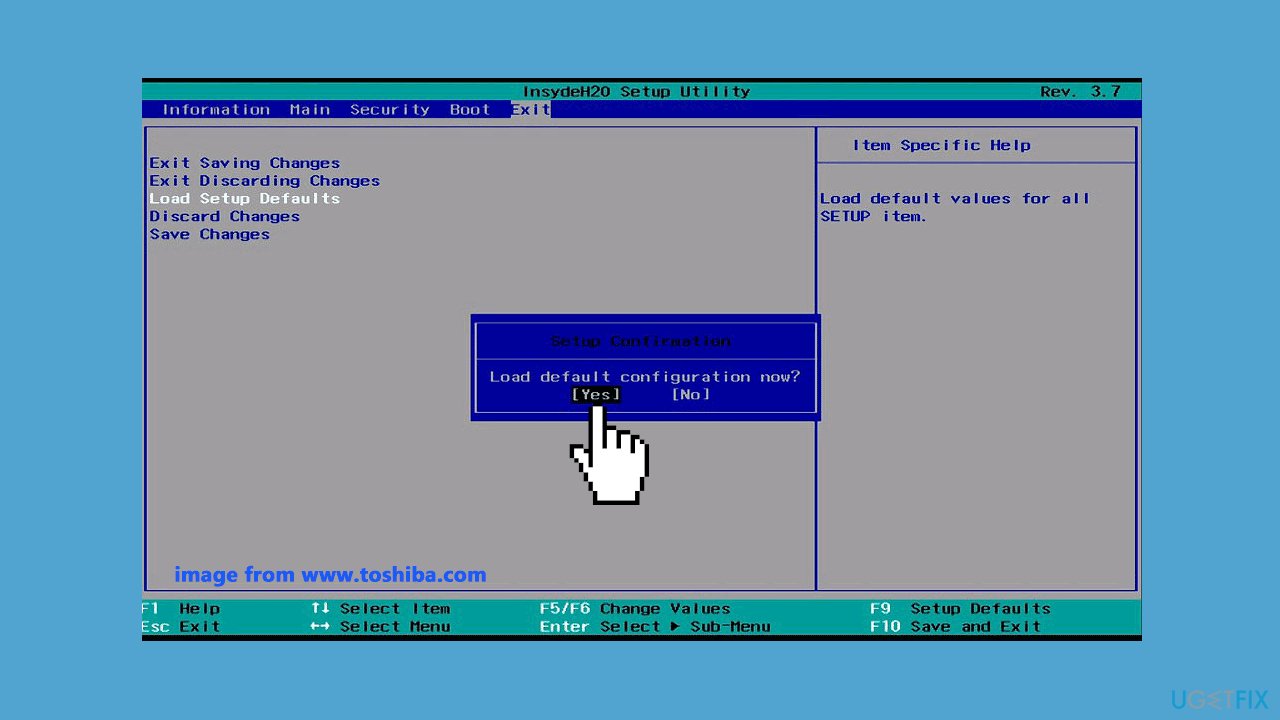
- Navigate to Troubleshoot > Advanced options > UEFI Firmware Settings > Restart to access the BIOS menu.
- In the BIOS menu, use the arrow keys to find the Load Setup Defaults option. Select Yes and press Enter.
- Press F10 to save the changes and exit the BIOS menu.
Solution 5. Clear CMOS
- Turn off your laptop, disconnect all peripherals, and unplug the power connection.
- Remove the computer cover and locate the battery on the board. Take out the battery.
- Wait for several minutes, then reconnect the battery to the computer.
- Reconnect all peripherals and power on your computer.
Solution 6. Perform Startup Repair
- Power off your Toshiba laptop, then press the Power button to reboot it. Press the Power button when the Windows logo appears on the screen. Repeat these steps until prompted by the Automatic Repair screen.
- Click on Advanced options to enter Windows Recovery Environment.
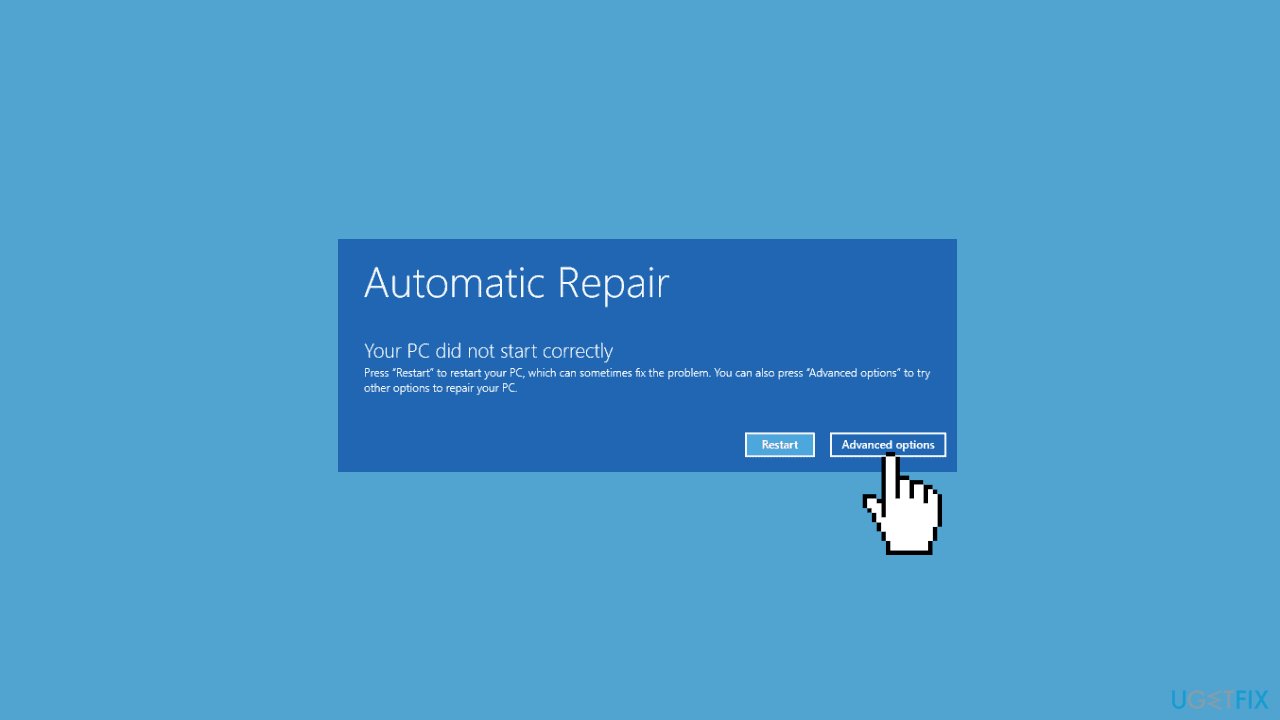
- In Windows Recovery Environment, navigate to Troubleshoot > Advanced options > Startup Repair. This will automatically diagnose and address issues with your Toshiba laptop stuck on the boot screen.
Solution 7. Factory Reset Toshiba Laptop
- Shut down your Toshiba laptop and disconnect unnecessary external peripherals. Ensure your computer is plugged into a power source to prevent power interruptions.
- Press and hold the 0 key on the keyboard while simultaneously pressing the Power button to start your laptop. Release the 0 key when you hear the beeping.
- Respond with Yes when prompted by the warning message to proceed with the system recovery.
- Choose the operating system, select Yes, check Recovery of Factory Default Software, and click Next to continue.
- Tick Recover to out-of-state (System Recovery Options are included) and click Next to initiate the process. Be patient as this process may take some time.
Bottom line
To fix a Toshiba laptop stuck on the startup screen, users can try executing a system restore, checking for broken system files, or updating drivers. If these methods do not resolve the issue, seeking expert assistance or referring to Toshiba's official support channels is recommended.
Frequently asked questions
Try performing a hard reset by removing the battery and unplugging the power adapter for a few minutes before reconnecting. If that doesn't work, boot into Safe Mode to troubleshoot any recent updates or drivers.
You can access recovery options by repeatedly pressing the F12 key during startup to enter the boot menu, then select 'Repair your computer' to access advanced recovery tools.
Yes, you can try booting into Safe Mode and rolling back recent updates or using the Startup Repair option in the recovery menu, which generally preserves your files.




Report an issue
What's wrong with this guide? We review every report and update or remove content.
Report received — thank you. We'll review and fix it.
You need a free account to submit a report.
Be the first to comment