How to fix
Touchpad gestures not working
on Windows
Resolve touchpad gesture issues in Windows 10 or 11 effortlessly. Get expert-tested solutions and regain full control today! Fixed in minutes.

What causes How to fix Touchpad gestures not working in Windows?
- Incompatible touchpad drivers
- Outdated touchpad drivers
- Incorrect touchpad settings
- Conflicts with other software
- Hardware malfunctions
Repairs Windows system files, removes malware, and restores a clean OS state — without reinstalling.
Hello. The touchpad gestures have stopped working on my Windows PC. Is there a way to fix this? Any suggestions would be appreciated.
Touchpad gestures are a collection of predefined finger movements or actions that can be used to interact with a computer or laptop via a touchpad. These gestures provide convenient shortcuts and improve user experience by allowing users to perform a variety of actions without the use of external peripherals such as a mouse. Swiping, scrolling, pinching, zooming, and rotating are all common touchpad gestures.
Touchpad gestures are a set of predefined finger movements or actions that can be performed on a touchpad to interact with a computer or laptop. These gestures provide convenient shortcuts and improve the user experience by allowing users to perform various actions without the use of external peripherals such as a mouse. Swiping, scrolling, pinching, zooming, and rotating are common touchpad gestures.
Touchpad gesture problems can have a variety of causes. It could be due to incompatible or outdated touchpad drivers,[ref en-1] incorrect settings, conflicts with other software or hardware, or even hardware malfunctions. Resolving this issue is critical to restoring the touchpad's full functionality and ensuring a smooth user experience. Users can try a number of potential solutions to the touchpad gesture problem. These may include updating touchpad drivers, adjusting touchpad settings, restarting the computer, checking for software conflicts, and restoring the system.
In this guide, you will find 8 steps that should help you fix Touchpad gestures not working. You can also try running a maintenance tool like [d1] that can fix most system errors, BSODs,[ref en-2] corrupted files, and registry[ref en-3] issues. Otherwise, follow the step-by-step instructions below.
Solution 1. Restart PC
Restarting your computer is a simple yet effective solution to address minor glitches and bugs. By doing so, you refresh the memory of your system and eliminate any misbehaving processes that might be causing issues. Before delving into more complicated troubleshooting methods, it is advisable to restart your computer and assess if this basic step resolves the problem.
Solution 2. Run Hardware and Devices Troubleshooter
- Open the Start menu and search for Command Prompt.
- Right-click on Command Prompt and select Run as administrator.
- In the Command Prompt window, type msdt.exe -id DeviceDiagnostic and press Enter. This will open the Hardware and Devices window.
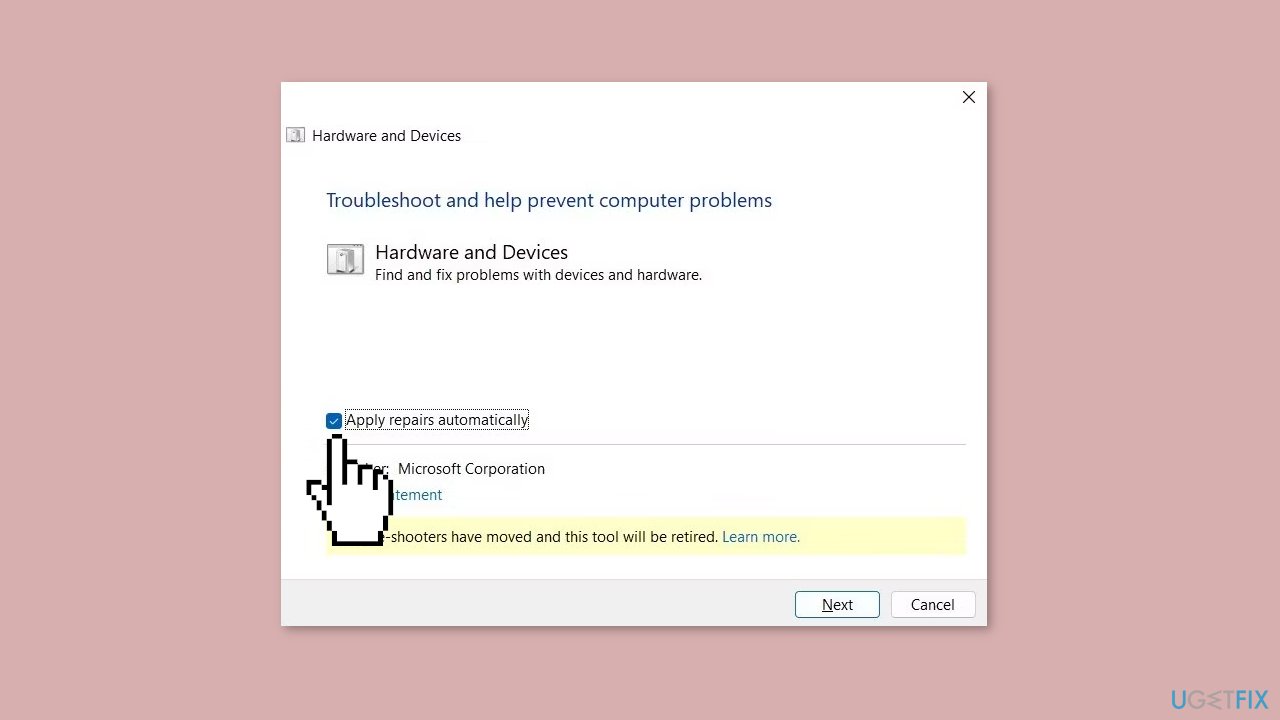
- Click on Advanced.
- Select the option to Apply repairs automatically.
- Click Next to begin the troubleshooting process.
Solution 3. Enable Touchpad Gestures
- Press the Windows key + I on your keyboard to open the Settings menu.
- In the Settings menu, click on Bluetooth & devices in the left sidebar.
- Scroll down in the right pane and click on the Touchpad section.
- Under Gestures & interaction, you'll see several touchpad gesture options.
- Check the boxes for each gesture you want to activate.
- To configure three-finger or four-finger gestures, click on Advanced gestures under Related settings.
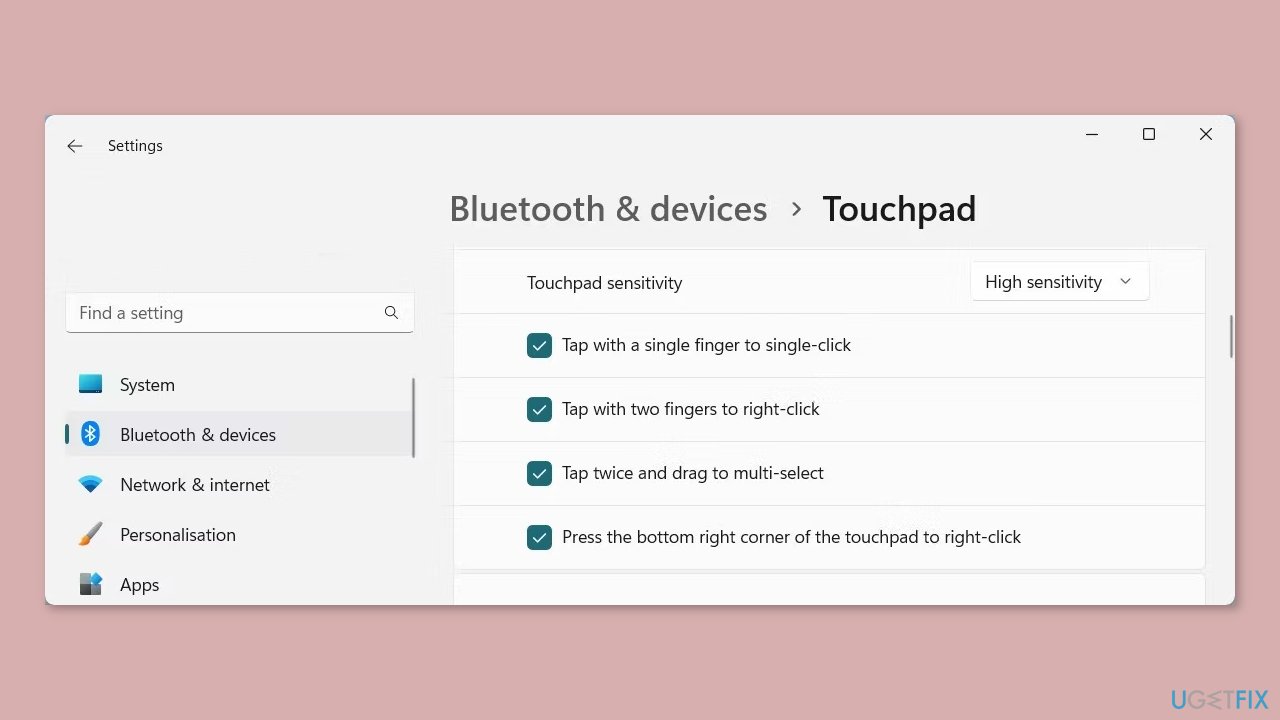
- On the Advanced gestures page, you will see various configuration options for multi-finger gestures.
- Click on the drop-down menu for each gesture and select the action you want to assign to it.
Solution 4. Update Touchpad Drivers
- Press the Windows key + R on your keyboard to open the Run command.
- Type devmgmt.msc in the Run search box and press Enter. This action opens the Device Manager window.
- Scroll down in the Device Manager window and expand the category named Mice and other pointing devices.
- Right-click on your touchpad device listed under this category.
- From the context menu that appears, select Update driver. This action initiates the driver update process for your touchpad.
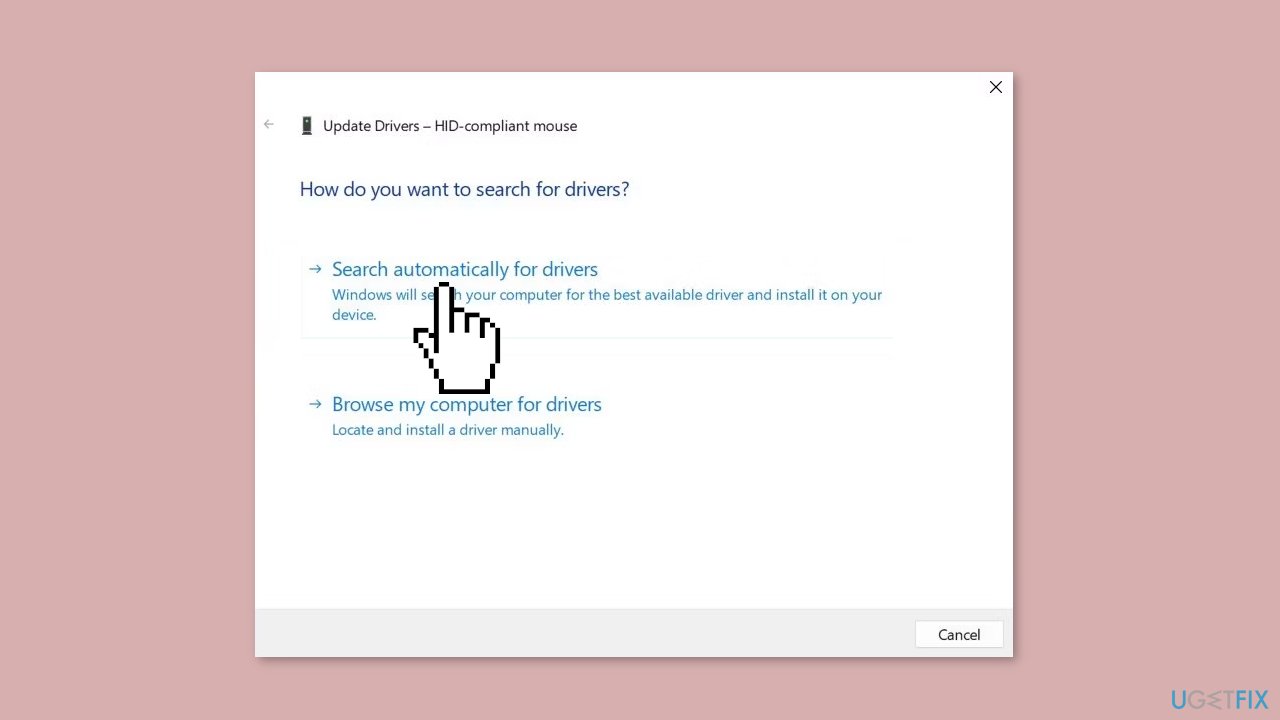
- On the next page, choose the option Search automatically for drivers. This allows your system to search and download the appropriate drivers for your touchpad automatically.
Solution 5. Reinstall Touchpad Drivers
- Right-click on the Start button, and from the menu list, select Device Manager.
- Double-click on the category Mice and other pointing devices to expand it.
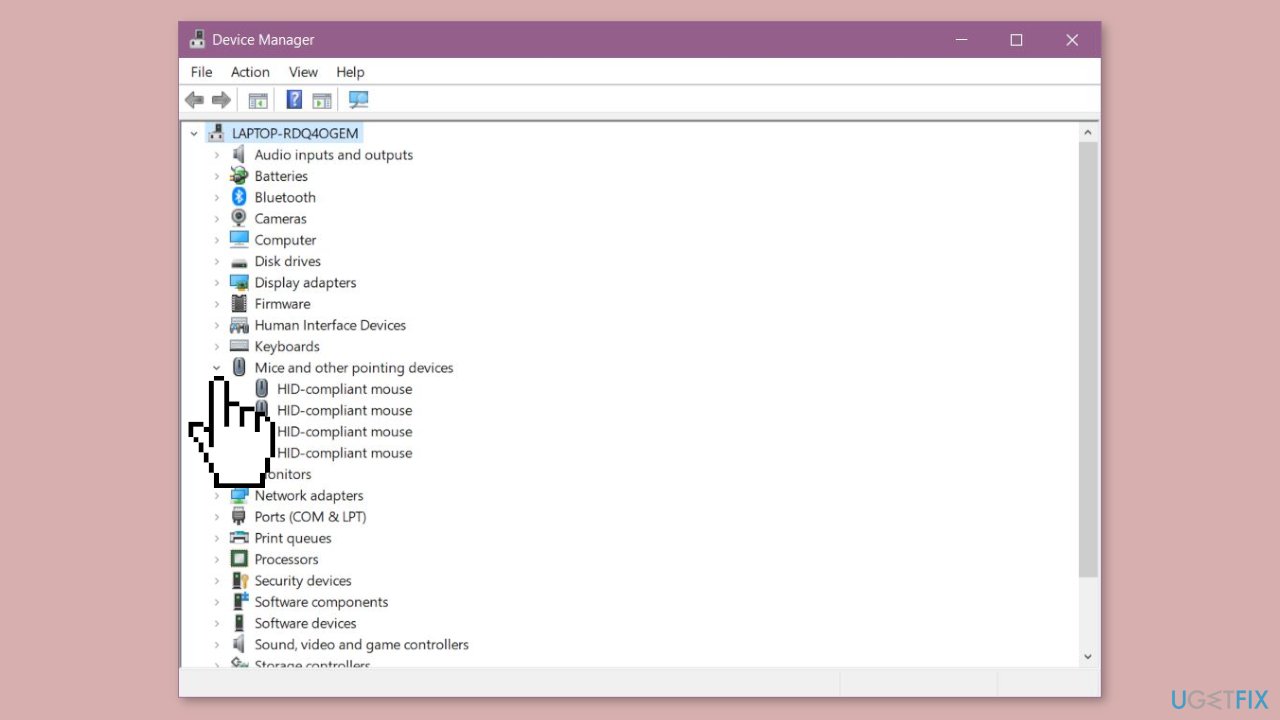
- Right-click on the touchpad device listed within this category.
- From the context menu that appears, select Uninstall device.
- A prompt will appear asking for confirmation to uninstall the device. Click on the Uninstall button to proceed.
Solution 6. Reset Touchpad Gestures Settings
- Open the Settings menu by following the method mentioned in our guide for quick and easy Windows settings access.
- Within the Settings menu, navigate to Bluetooth & devices and select Touchpad.
- Click on Touchpad to expand the options.
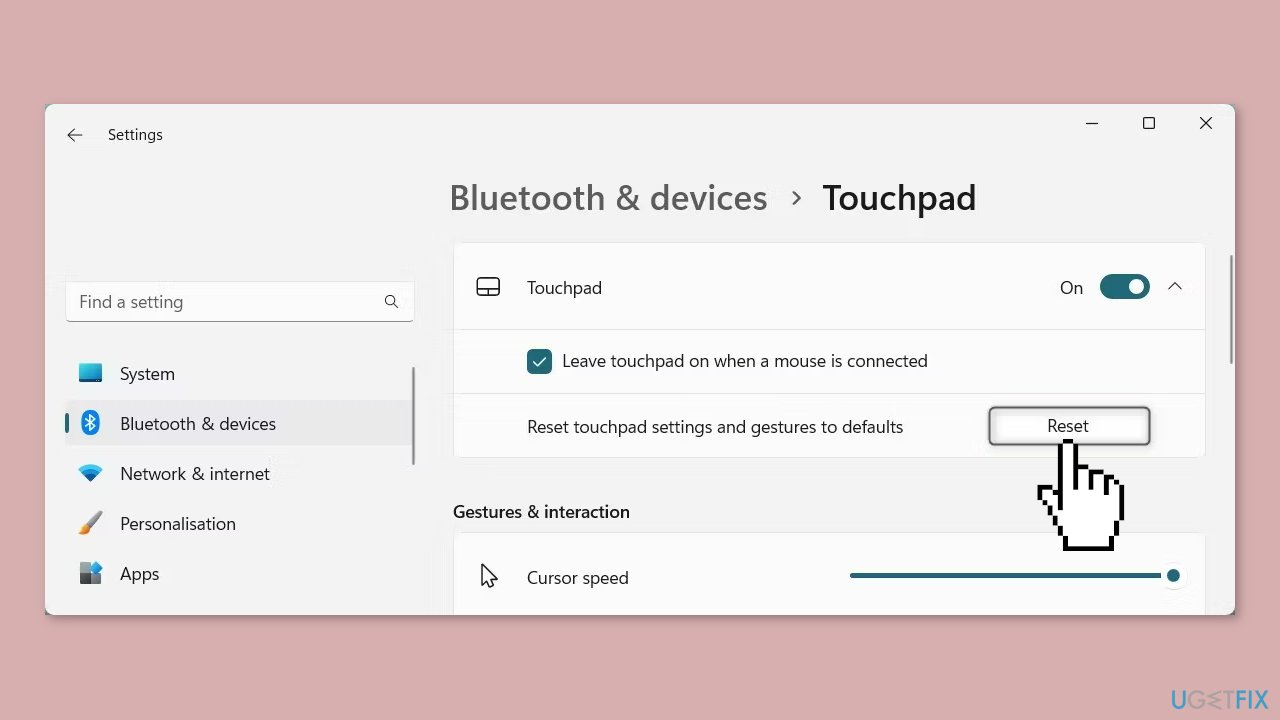
- Look for the Reset button located next to Reset touchpad settings and gestures to default.
- Click on the Reset button to initiate the process of resetting the touchpad settings and gestures back to their default configurations.
Solution 7. Try Clean Boot
- Open the Search menu, type in system configuration, and press Enter.
- Under the Services tab, tick the Hide all Microsoft services box.
- Click on Disable all button.
- Head over to the Startup tab and click on Open Task Manager.
- Select a third-party program and click on Disable at the top.
- Repeat this step to disable all third-party apps and programs.
- Restart your PC to enter the clean boot state and see if the issue persists.
- If the issue disappeared in the clean boot state, then you can be certain that a third-party app is causing it.
- Go through all recently installed apps or programs and remove them one by one.
Solution 8. Run System Restore
System Restore is a feature in Microsoft Windows that allows users to revert their computer's state to a previous point in time. This can be helpful if you have made changes to your system that are causing problems.
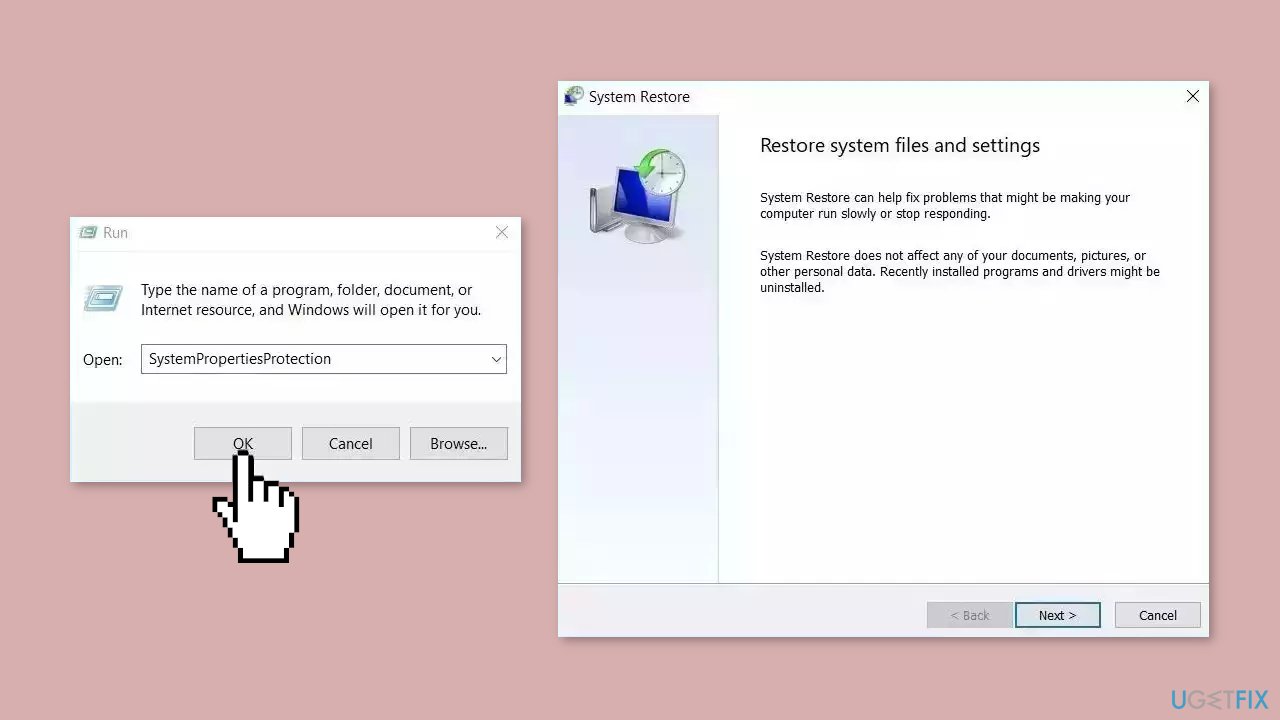
- Press the Windows key + R on your keyboard to open the Run box.
- Type SystemPropertiesProtection and press Enter.
- Go to the System Protection tab.
- You will see the System Restore… button. Click it to run System Restore.
- Follow the prompts until you can select a restore point.
- Select the one you want (ideally before the issue started occurring) and go ahead with the process.
Bottom line
To fix touchpad gestures not working in Windows, users can try updating touchpad drivers, adjusting settings, or restarting the computer. If these steps do not resolve the issue, checking for software conflicts and restoring the system may be necessary.
Frequently asked questions
First, check if the touchpad gestures are enabled in the Settings app under Devices > Touchpad. If they are enabled and still not working, try updating your touchpad drivers through Device Manager.
You can reset your touchpad settings by going to Settings > Devices > Touchpad and clicking on 'Reset' under the touchpad options. This will restore the default settings and may resolve the gesture issues.
Yes, ensure you have the latest touchpad driver installed from your laptop manufacturer's website, as outdated drivers can lead to gesture malfunctions in both Windows 10 and Windows 11.




Report an issue
What's wrong with this guide? We review every report and update or remove content.
Report received — thank you. We'll review and fix it.
You need a free account to submit a report.
Be the first to comment