How to fix
Touchpad settings missing
on Windows
Resolve missing touchpad settings in Windows 10 and 11 effortlessly with our expert-tested solutions. Get your touchpad working in minutes!

What causes How to fix Touchpad settings missing in Windows?
- Out-of-date touchpad driver
- Accidentally disabled settings
- Incorrect configuration of third-party touchpad drivers
- Lack of access to Windows settings menu
- Missing customized touchpad settings
Repairs Windows system files, removes malware, and restores a clean OS state — without reinstalling.
Hello. The touchpad settings on my Windows laptop have disappeared. Why is this happening? Any suggestions would be appreciated.
Users may find it unpleasant when there are no Touchpad options available in a Windows environment since it limits their ability to configure and manage this essential input device. Usually, an out-of-date touchpad driver[ref en-1] or accidentally disabled settings are the cause of this issue. The Touchpad is a crucial part of laptops since it provides a simple and effective way to navigate, greatly improving the entire user experience.
Users may experience a number of annoyances when Touchpad settings are absent or inaccessible. First off, they are unable to adjust the sensitivity and motions of their touchpad, which makes using their laptop less personalized and effective. This can make it challenging to scroll, zoom, or navigate between pages of documents or websites.
Additionally, users might not be able to temporarily disable the touchpad, which is frequently required when they attach an external mouse. This lack of control can be especially annoying while performing precise tasks like graphic design or gaming.
Furthermore, accessibility choices may be hampered by the lack of Touchpad settings. To meet their particular requirements, some users rely on customized touchpad settings, such as changing the pointer speed or enabling tap-to-click. Their ability to use the laptop comfortably may be hampered if these options are unavailable.
There are a few possible options that consumers can look into to solve the missing Touchpad settings problem. The touchpad driver should first be updated because newer versions may have enhanced capabilities and settings. It can also be very important to make sure the touchpad settings are not deactivated in the Windows settings menu. The appropriate configuration of any third-party touchpad-related drivers or applications should also be checked by users.
In this guide, you will find 5 steps that should help you fix missing touchpad settings in Windows. You can also use a maintenance tool like [d1] that can fix most system errors, BSODs,[ref en-2] corrupted files, and registry[ref en-3] issues. Otherwise, follow the step-by-step instructions below.
Method 1. Run the Hardware Troubleshooter
- Press the Windows key + R to open the Run dialog box.
- Type msdt.exe -id DeviceDiagnostic and click OK to open Hardware and Devices troubleshooter.
- Click Advanced.
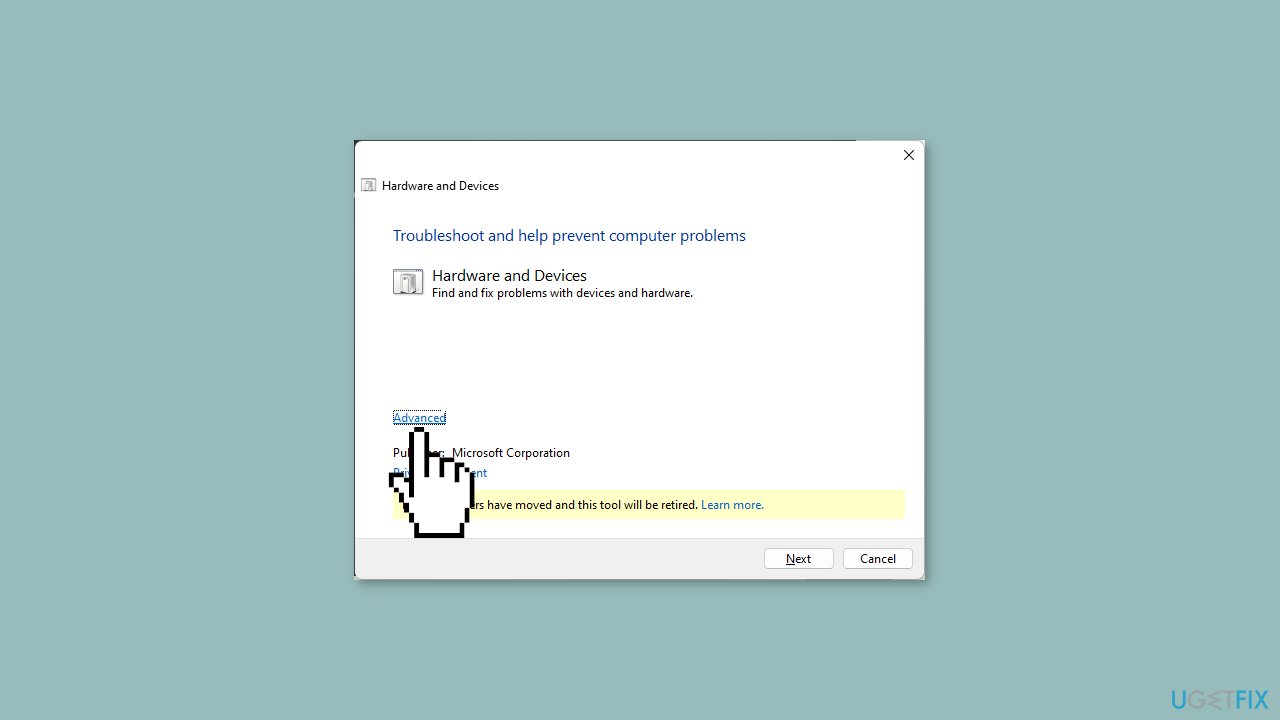
- Select Apply repairs automatically and click Next.
- Next, choose the device to troubleshoot; if you can’t find the device, click the I don’t see my device listed option.
- The tool will try to find the issue and apply fixes to resolve the issue.
- Follow the onscreen instructions to complete the process.
Method 2. Rollback the Touchpad Driver
- Press the Windows key + R to open the Run dialog box.
- Type devmgmt.msc and click OK to open the Device Manager.
- Locate and click Human Interface Devices to expand it.
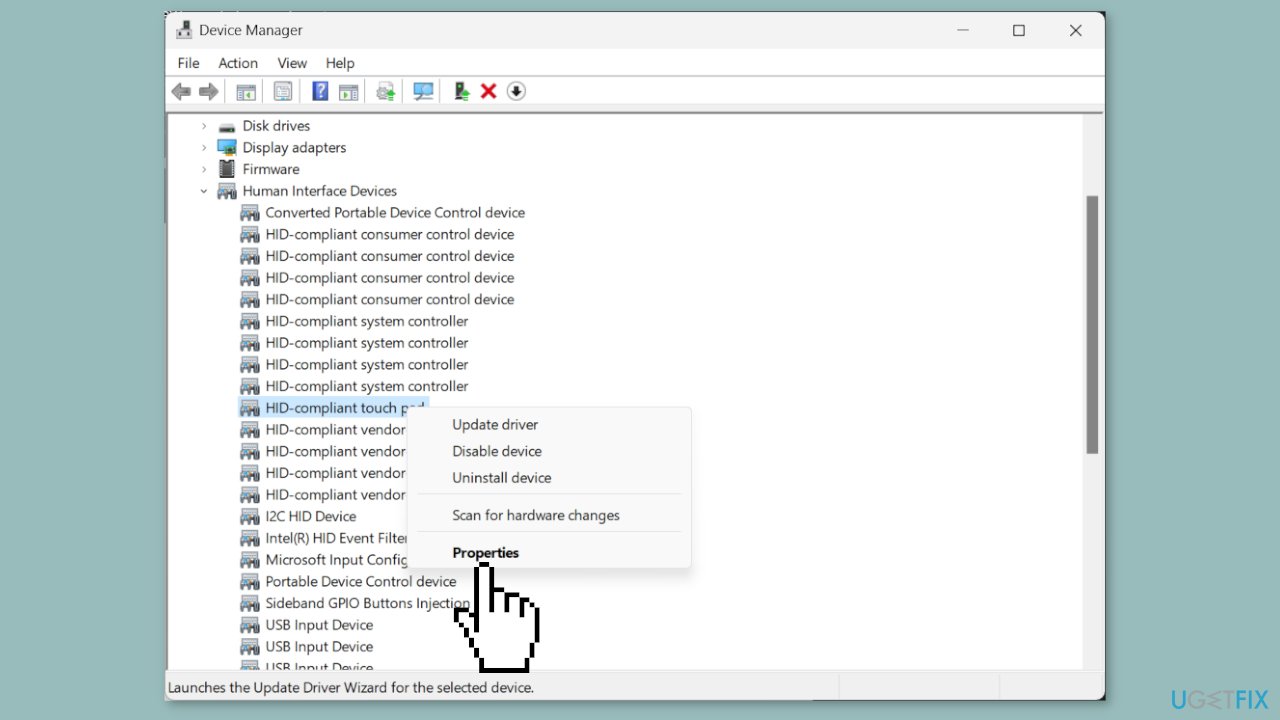
- Right-click the Touchpad driver and select Properties.
- On the Properties window, go to the Drivers tab.
- Click the Roll Back Driver button.
- Select the reason and click Yes to confirm the choice.
Method 3. Re-enable the Touchpad Driver
- Press the Windows + R to open the Run dialog box.
- Type devmgmt.msc and click OK to open the Device Manager.
- Locate and click Human Interface Devices to expand it.
- Look for your Touchpad driver. If you can't find it, click View in the main menu and select Show hidden devices.
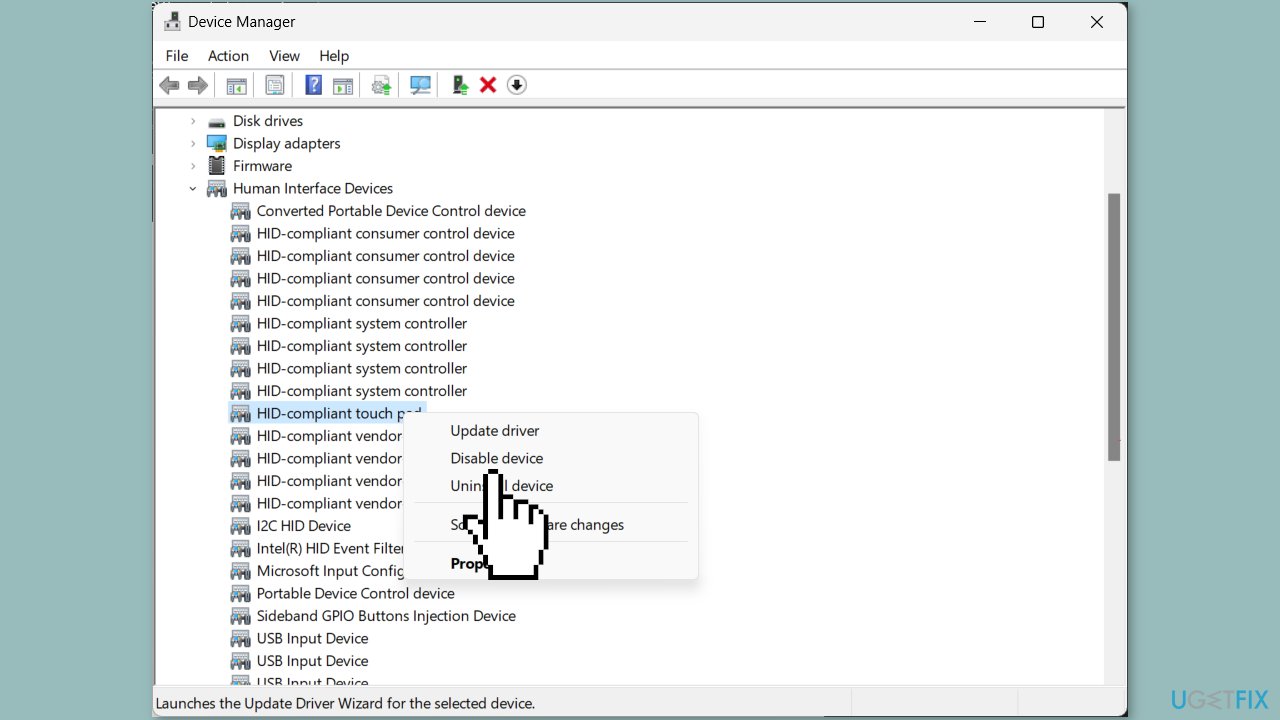
- Return to the list, right-click the Touchpad driver, and select Disable device.
- Wait for a minute, right-click it again, and choose the Enable device option.
- Reboot your computer and check if the issue persists.
Method 4. Update or Reinstall the Touchpad Drivers
- Press the Windows key + R to open the Run dialog box.
- Type devmgmt.msc and click OK to open the Device Manager.
- Locate and click Human Interface Devices to expand it.
- Right-click the touchpad driver and select Update driver.
- Click Search automatically for drivers. If an update is available, follow the on-screen instructions to complete the process.
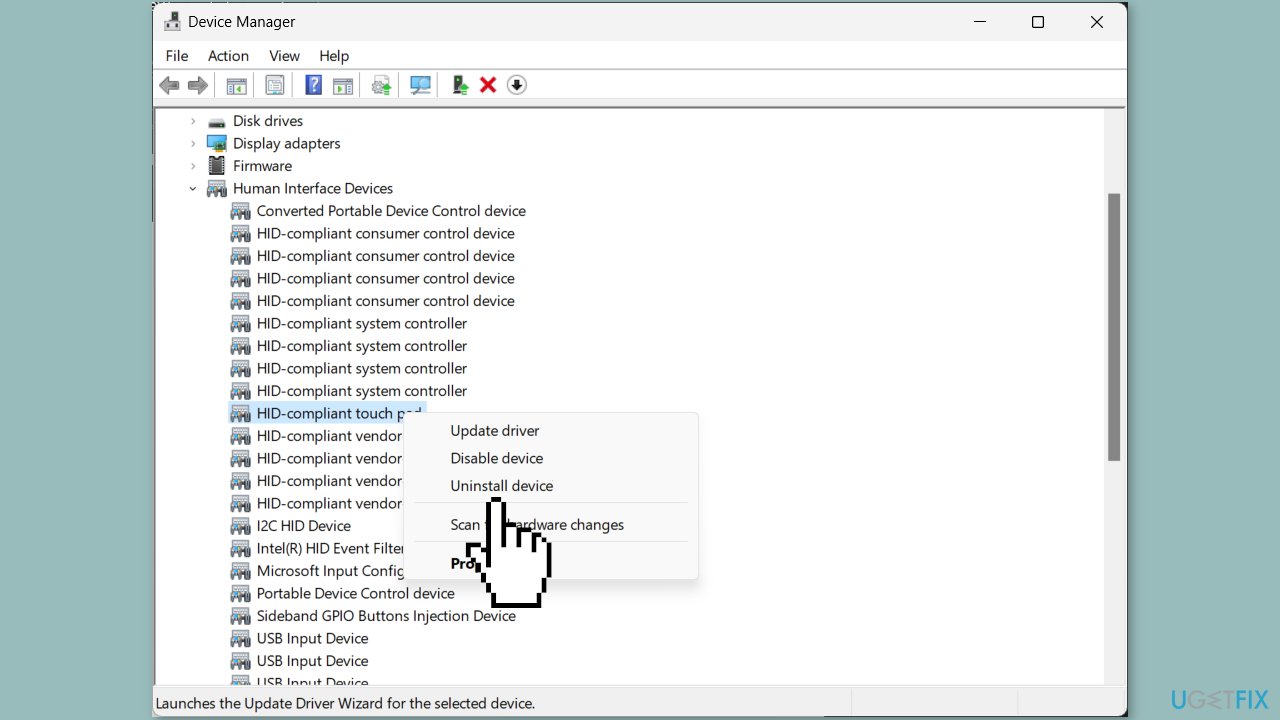
- If there's no update, right-click the driver again and select Uninstall device.
- Go to Action and click Scan for hardware changes to reinstall the driver.
Method 5. Uninstall the latest Windows Update
- Press the Windows key + I to open the Settings app.
- Go to Windows Update, and click Update history.
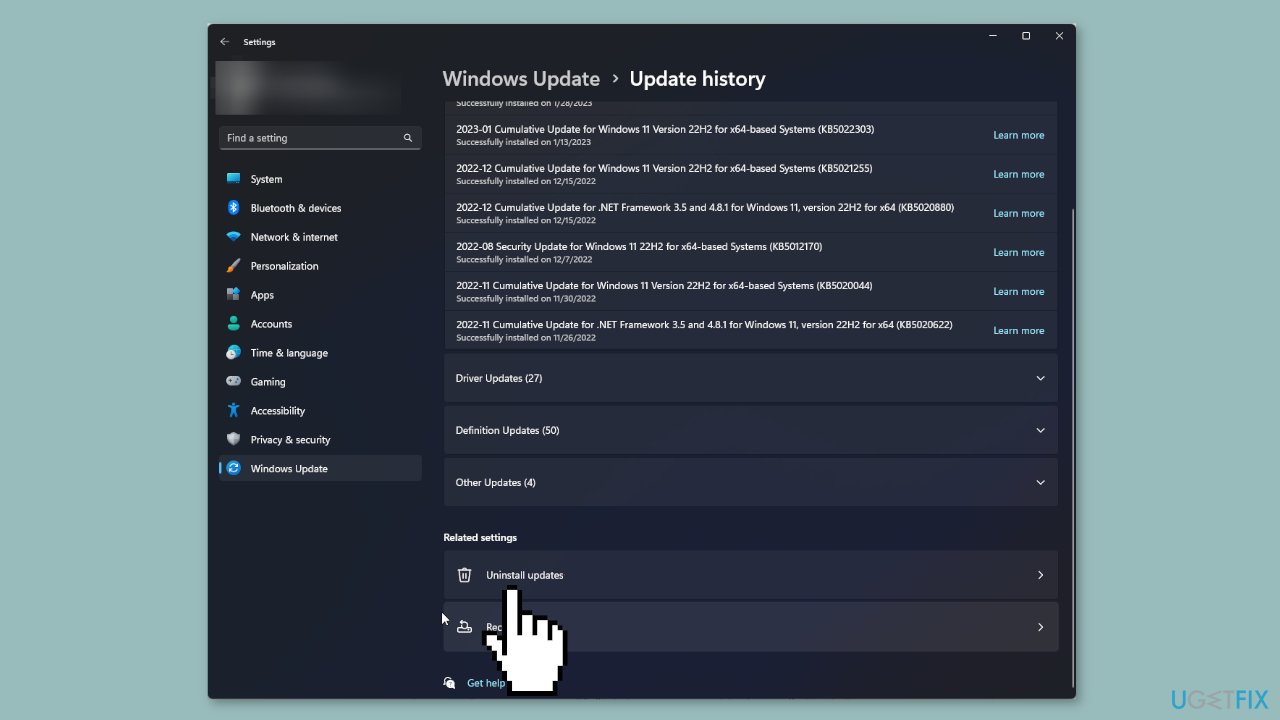
- Scroll to Related settings, and click Uninstall updates.
- Locate the last update and click Uninstall.
- Follow the onscreen instructions to complete the process, then restart your computer.
Bottom line
To fix the missing touchpad settings, users should update the touchpad driver, ensure settings are not disabled in the Windows menu, and check third-party driver configurations. If these steps do not resolve the issue, consider using a maintenance tool to address potential system errors.
Frequently asked questions
Touchpad settings may be missing in Windows 10 due to outdated drivers or incorrect settings in the Device Manager. Try updating your touchpad drivers or checking if the touchpad is disabled in the settings.
To restore touchpad settings in Windows 11, go to Settings > Devices > Touchpad and ensure that the touchpad is enabled. If the option is not visible, reinstalling the touchpad driver may help.
If touchpad settings remain missing after updating drivers in Windows, consider running the Hardware and Devices troubleshooter or resetting your PC's settings to fix any underlying issues.




Report an issue
What's wrong with this guide? We review every report and update or remove content.
Report received — thank you. We'll review and fix it.
You need a free account to submit a report.
Be the first to comment