How to fix
TPMProvisioningservice.exe stopped working
on Windows
Resolve the TPMProvisioningservice.exe error on Windows 10/11 effortlessly. Get expert-tested solutions to restore functionality in minutes.


What causes How to fix TPMProvisioningservice.exe stopped working in Windows?
- Corrupted system files
- Issues with Safe Mode
- Problems with the TPM driver
- Malfunctioning Intel process
- Registry issues
Repairs Windows system files, removes malware, and restores a clean OS state — without reinstalling.
Hello. I cannot use the TPM Provisioning service on my Windows PC because I receive an error "TPMProvisioningservice.exe stopped working." What should I do?
Windows is one of the most popular operating systems in the world. People love it for its user-friendly interface, customization abilities, built-in troubleshooters, and much more. However, it relies on thousands of processes running in the background to work smoothly. If even one of these processes goes rogue, people can experience issues when trying to use a Windows machine.
Recently, users have reported that they cannot use the TPM Provisioning service on their Windows operating system. Those affected report seeing an "Error of service" when attempting to do so. The error of course is related to the Tpmprovisioningservice.exe application.
TPMProvisioningService.exe is an Intel process and it is usually located in the C:\Program Files\Intel\ folder. The Trusted Platform Module (TPM) is a chip. Its primary function is to generate secure cryptographic keys. The TPMProvisioningservice.exe stopped working in Windows problem can cause security issues.
In this guide, you will find 5 methods that could help you fix the TPMProvisioningservice.exe stopped working in Windows error. However, troubleshooting can be a lengthy process, so you can also scan your machine with a maintenance tool like [d1]. It can fix various system errors, BSODs,[ref en-1] corrupted files, and registry[ref en-2] issues. Otherwise, follow the instructions below.

Method 1. Fix Corrupted System Files in Safe Mode
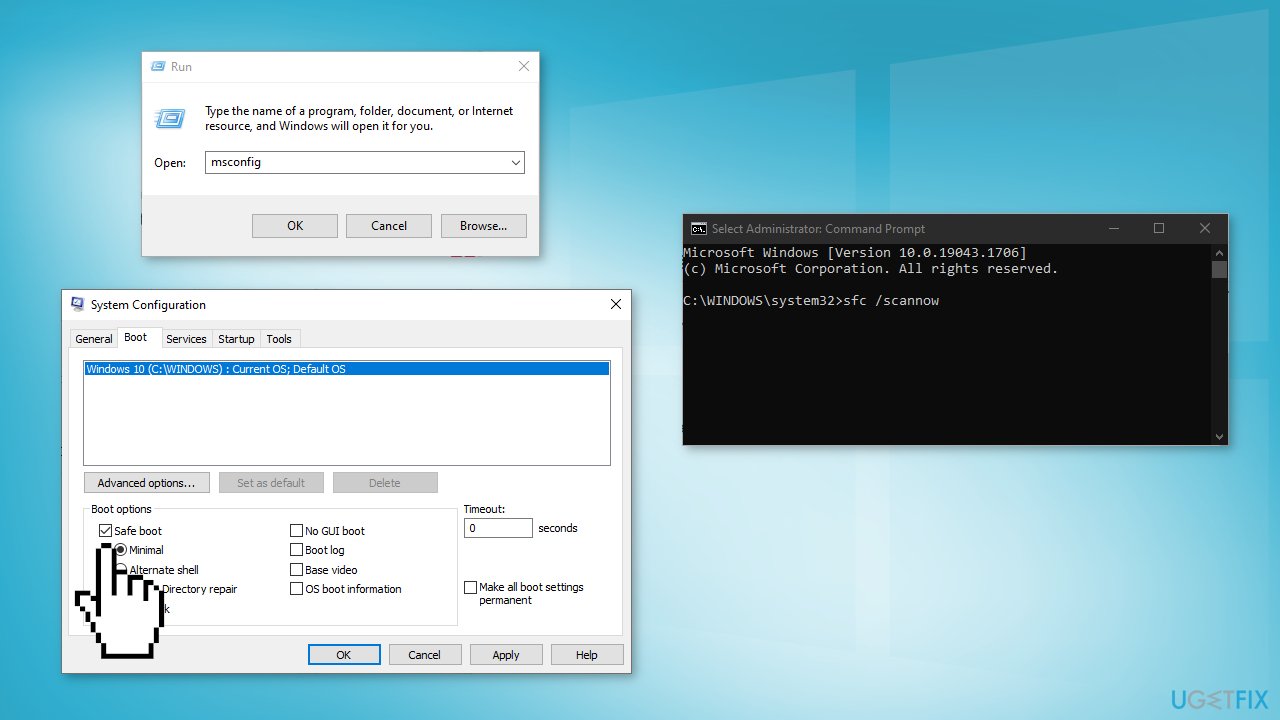
- Press Windows key + R to open the Run dialog box
- Type msconfig and hit Enter
- Open the Boot tab and check the box labeled as Safe boot
- Hit Apply and OK
- Then, click on the Restart button and let your PC reboot
- Inside the Safe Mode, type cmd in the search bar and hit Run as administrator
- Inside the elevated Command Prompt window, type the command mentioned below and hit Enter:
sfc /scannow
- Then, execute the following command:
DISM.exe /Online /Cleanup-image /Restorehealth
- Once done, press Windows key + R to open the Run box
- Type msconfig and hit Enter
- Head over to the Boot tab and uncheck the box against Safe Boot
- Hit OK and then restart Windows
Method 2. Uninstall TPM
- Type Device Manager in the search area of your taskbar and hit Enter
- Once you are inside the Device Manager window, scroll down to Security Devices and expand the menu
- Right-click on Trusted Platform Module 2.0 and select Uninstall device from the menu
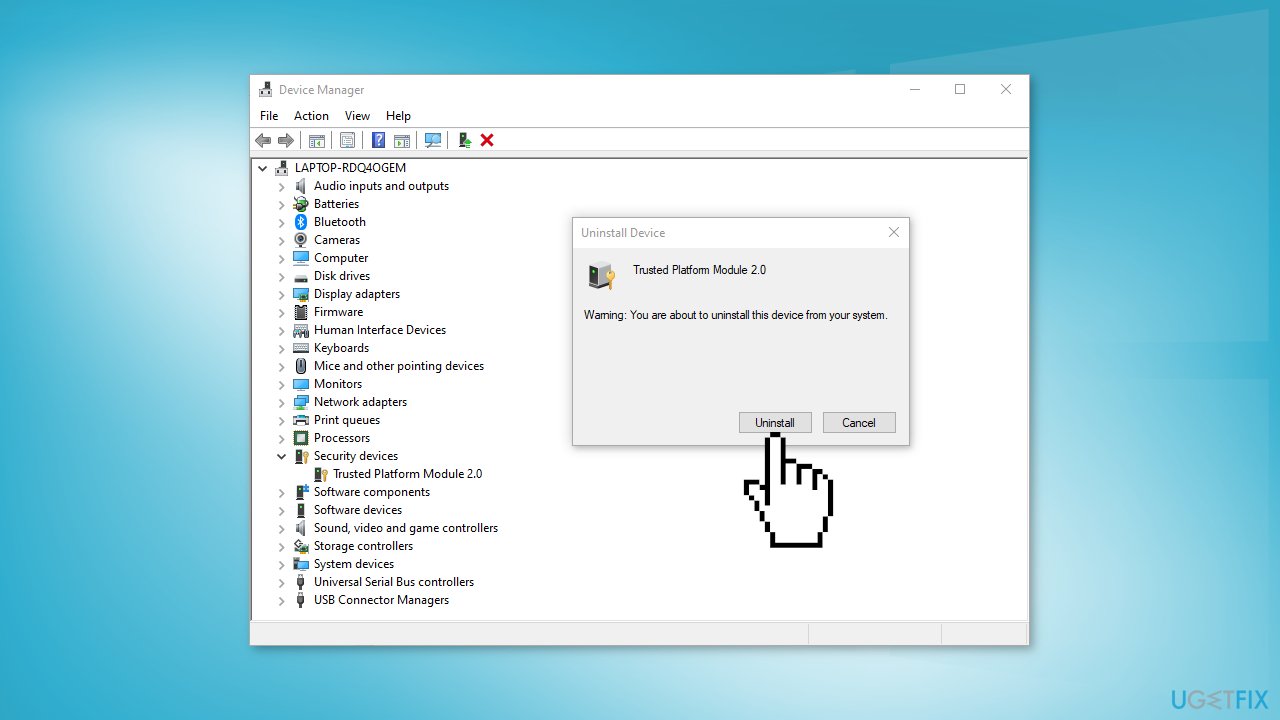
- Select Uninstall again in the confirmation prompt and wait for the process to complete
- Restart your PC and check if the issue was solved
Method 3. Restart TPM Service
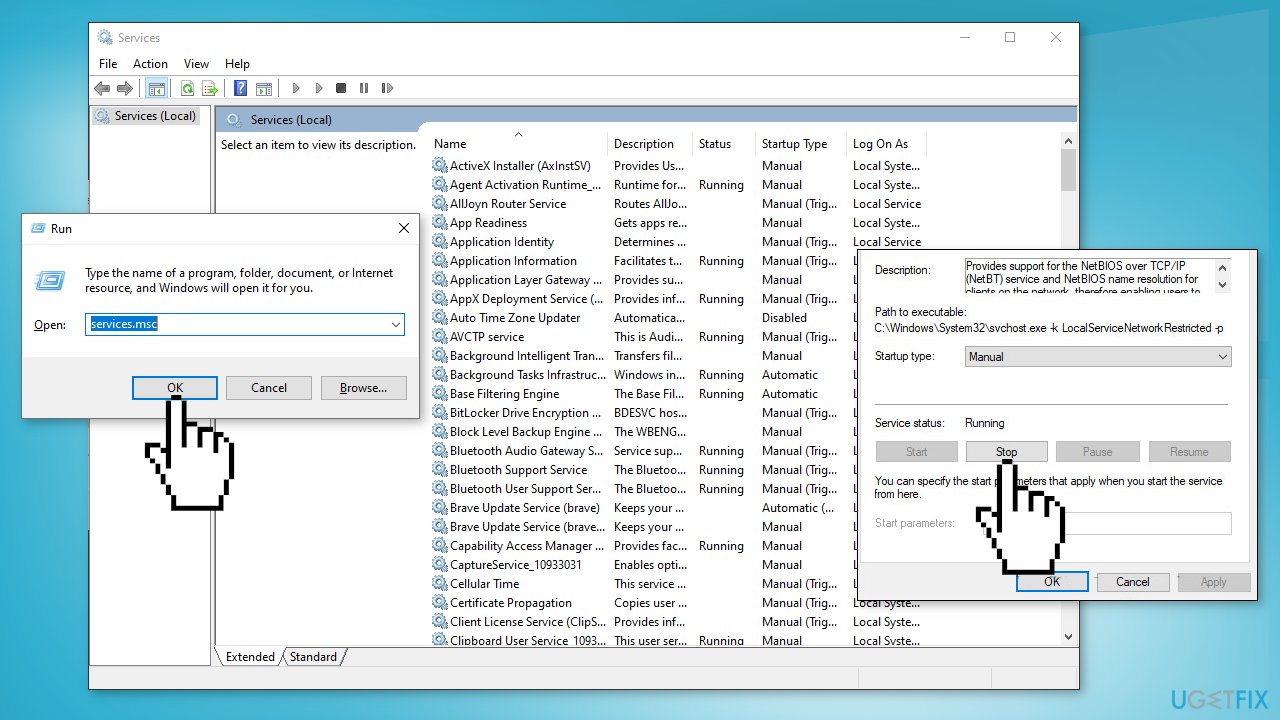
- Press Windows key + R to open a Run dialog box
- Type services.msc and hit Enter
- Once you are inside the Services window, look for TPM service (for instance, Intel TPM Provisioning Service and right-click on it
- Select Properties from the context menu
- Check if the service is stopped. If it is, click on the Start button
- If it is already started, click on the Stop button and then hit Start again
- Check if the issue is fixed
Method 4. Use System Restore
- Launch Control Panel, select System and Security
- Click on System from the list
- Choose System Protection
- Head over to System Protection tab and click on System Restore
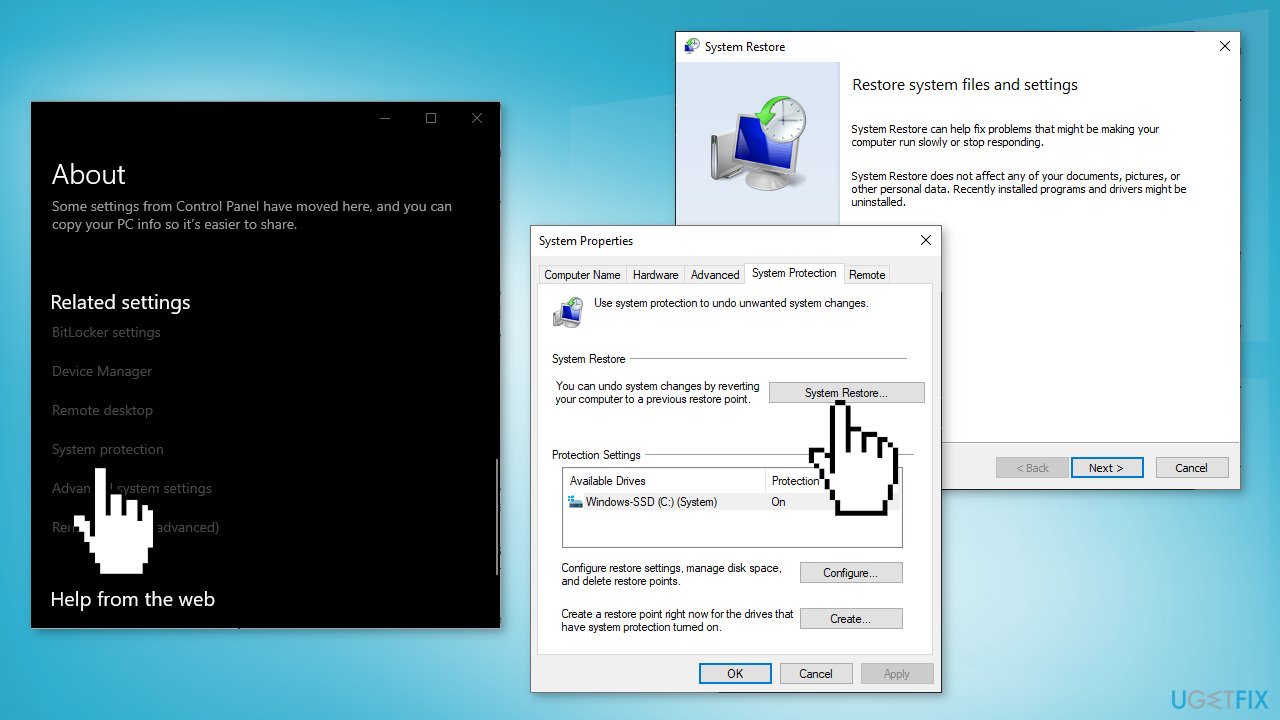
- Follow the on-screen instructions to proceed. Your screen should display a confirmation prompt, choose Recommend Restore
- Once the process is completed, your operating system will move to a previous point in time
Method 5. Reset Your PC
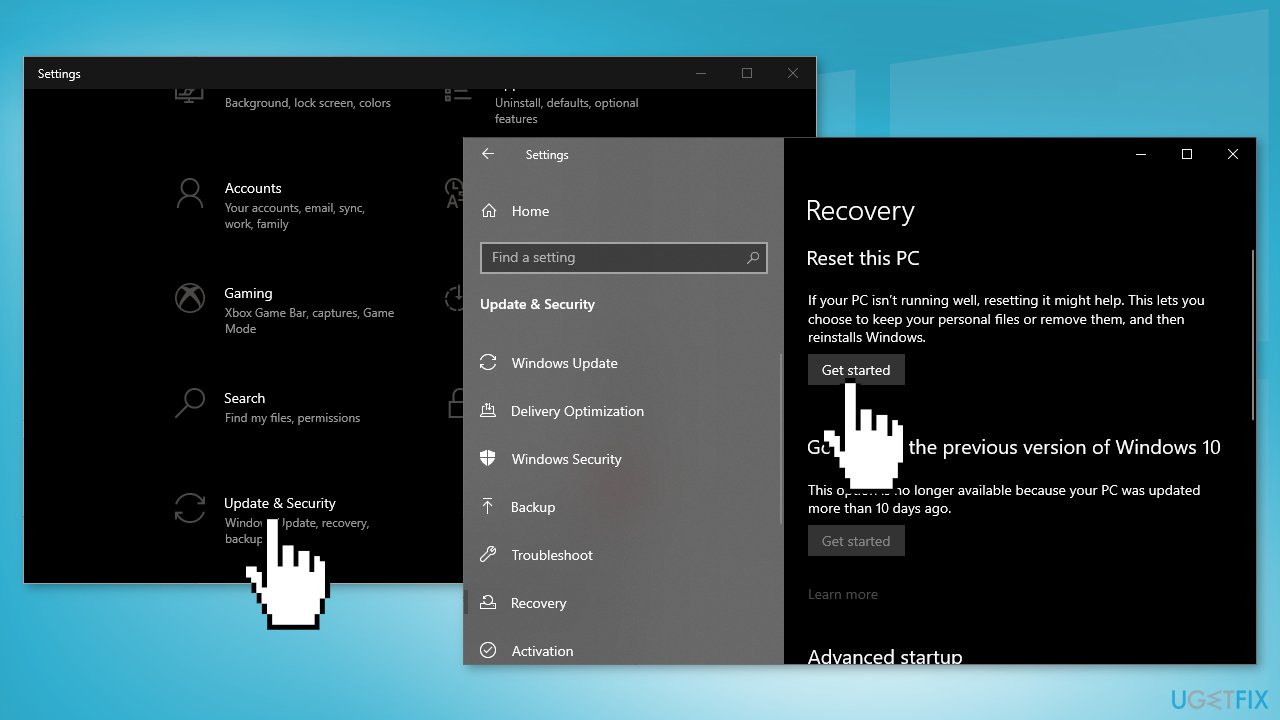
- Launch Windows Settings and choose Update & Security from the list of options available
- Select Recovery from the left pane and hit the Get Started under Reset this PC
- Select Keep my files
- Follow the on-screen instructions to proceed and wait for your PC to reset
- Once the process is completed, check if the TPM Provisioning service is working
Bottom line
To fix the TPMProvisioningservice.exe stopped working error, you can try repairing corrupted system files in Safe Mode, uninstalling the TPM, or using a maintenance tool to address various system errors. If these methods do not resolve the issue, further troubleshooting may be necessary.
Frequently asked questions
The TPMProvisioningservice.exe may stop working due to corrupted system files, conflicts with third-party applications, or issues with the Trusted Platform Module (TPM) itself in Windows 10.
To restart the TPM Provisioning Service in Windows 11, open the Services app, locate 'TPM Provisioning Service', right-click on it, and select 'Restart'.
Yes, you can try running the System File Checker (sfc /scannow) and the DISM tool to repair corrupted files related to TPMProvisioningservice.exe without reinstalling Windows.




Report an issue
What's wrong with this guide? We review every report and update or remove content.
Report received — thank you. We'll review and fix it.
You need a free account to submit a report.
Be the first to comment