How to fix
Twitch Error 4000
on Windows
Resolve Twitch Error 4000 on Windows 10 and 11 with effective solutions and expert tips. Get back to streaming in minutes with our easy fixes!

What causes How to fix Twitch Error 4000?
- Outdated cached files
- Corrupted cached files
- Wrong DNS settings
- Faulty graphic drivers
- Browser issues
Repairs Windows system files, removes malware, and restores a clean OS state — without reinstalling.
Hey, I have been struggling with Twitch recently. No matter which streamer I watch, I occasionally get an error #4000, which also says that the video is either unavailable or not supported. I haven't made any changes to my Windows PC recently, so I am not entirely sure why the problem started and why it is coming back. Any advice on this would be appreciated.
Twitch is the largest live streaming platform that specializes primarily in gaming. From regular gaming enthusiasts who want to share their gaming experience with the audience to large e-Sport events - it has it all. The service also provides a platform for other gaming-unrelated categories such as politics, sports, arts, music, and more.
Twitch is a diverse platform that provides hours of free entertainment for all kinds of people, hence why it is so popular. According to the statistics for 2022, the platform has over 140 million monthly users, with 30 million logging in to check out the streams daily.[ref en-1] With such popularity, things are bound to go wrong sometimes, and Twitch Error 4000 is one of the most common issues viewers encounter.
Users may encounter the error at any time while viewing a stream or when attempting to start it. In fact, the behavior is very similar to other Twitch errors, including error 2000. The message delivered to users reads as follows:
This video is either unavailable or not supported in this browser. (Error #4000)
In some other cases, people may also encounter "Media Resource not supported" or "Resource format not supported," both of which are almost identical to the original message when it comes to its meaning.
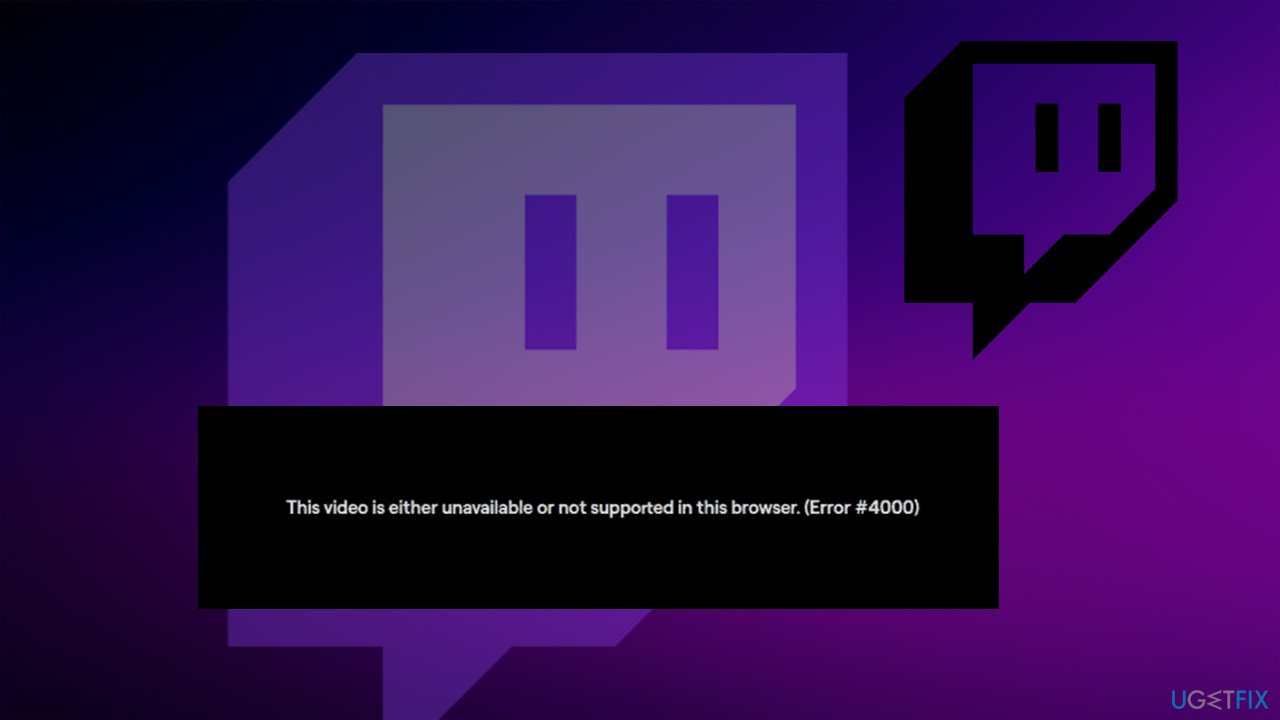
There are plenty of reasons why Twitch Error 4000 might show up while you're streaming. In most cases, the reason is the outdated or corrupted cached files stored on your local machine. Wrong DNS[ref en-2] settings and faulty graphic drivers may also be the reason for the problem arising. Sometimes, restarting the tab or the browser may fix the problem, although it is not the case for most users.
If you want a quick and fast solution, we recommend using [d1] - this repair software is known for finding and replacing damaged system files automatically, clearing corrupted registries, cleaning cached browser files, and fixing malware[ref en-3] damage, and more.
Method 1. Clean your browser caches
One of the most common reasons for Twitch errors is the corrupt cache files, including cookies and other web data. Cleaning them could help you resolve the issue.
Google Chrome
- Click Menu and select Settings
- Go to Privacy and security > Clear browsing data
- Under Time range, select All time
- Mark Cookies and other site data and Cached images and files and click Clear data.
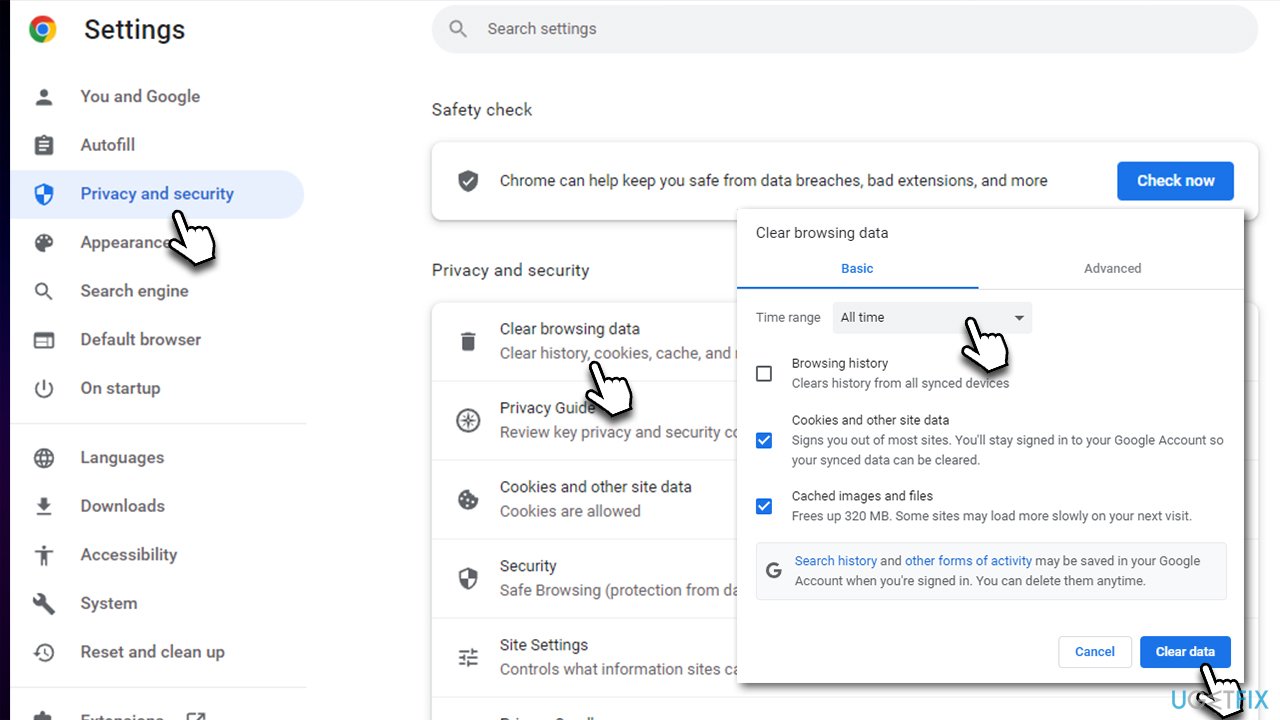
How to fix twitch error 4000 clear chrome cache
Mozilla Firefox
- Click Menu and pick Settings.
- Go to Privacy & Security section.
- Scroll down to locate Cookies and Site Data.
- Click on Clear Data...
- Select Cookies and Site Data, as well as Cached Web Content, and press Clear.
MS Edge
- Click on Menu and go to Settings.
- Select Privacy, search and services.
- Under Clear browsing data, pick Choose what to clear.
- Under Time range, pick All time.
- Select Clear now.
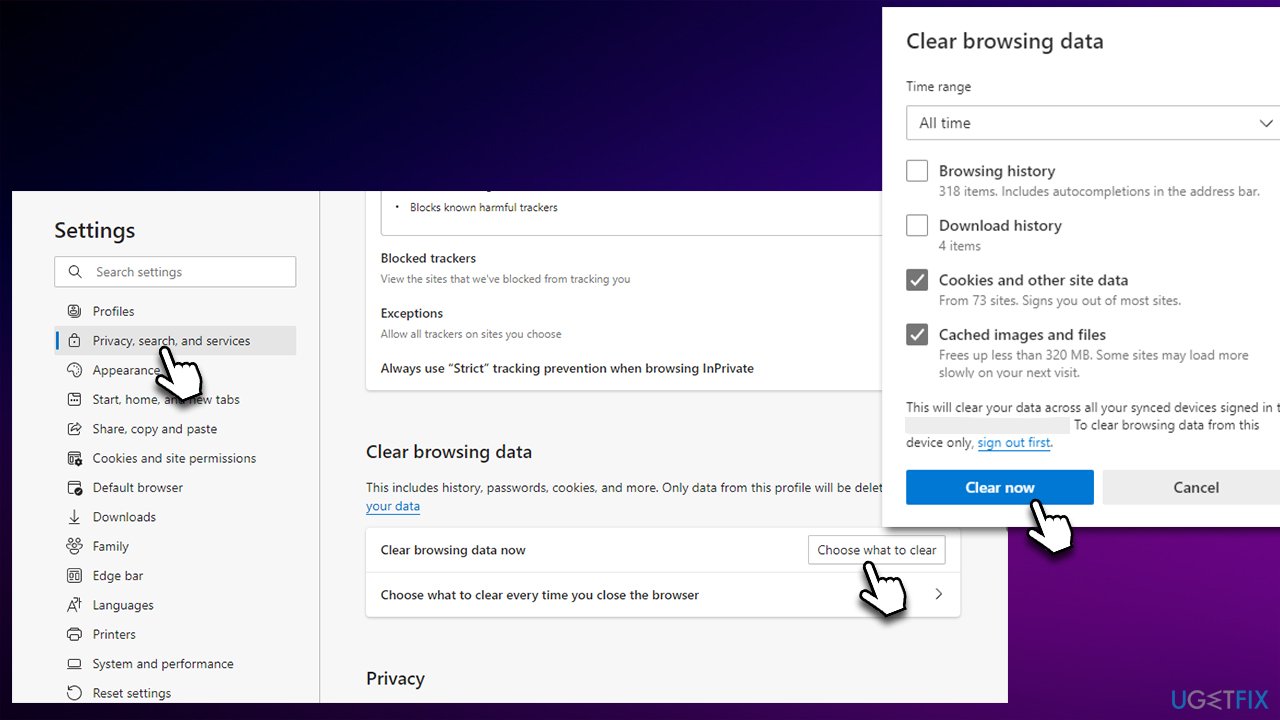
How to fix twitch error 4000 clear edge cache
Safari
- Click Safari > Clear History...
- From the drop-down menu under Clear, pick all history.
- Confirm with Clear History.
Method 2. Reset your internet connection
- Type cmd in Windows search, right click on Command Prompt, and select Run as administrator
- When the new window opens, copy and paste the following commands, pressing Enter after each:
ipconfig /flushdns
ipconfig /registerdns
ipconfig /release
ipconfig /renew
netsh winsock reset - Close down Command Prompt and check if the problem is resolved.
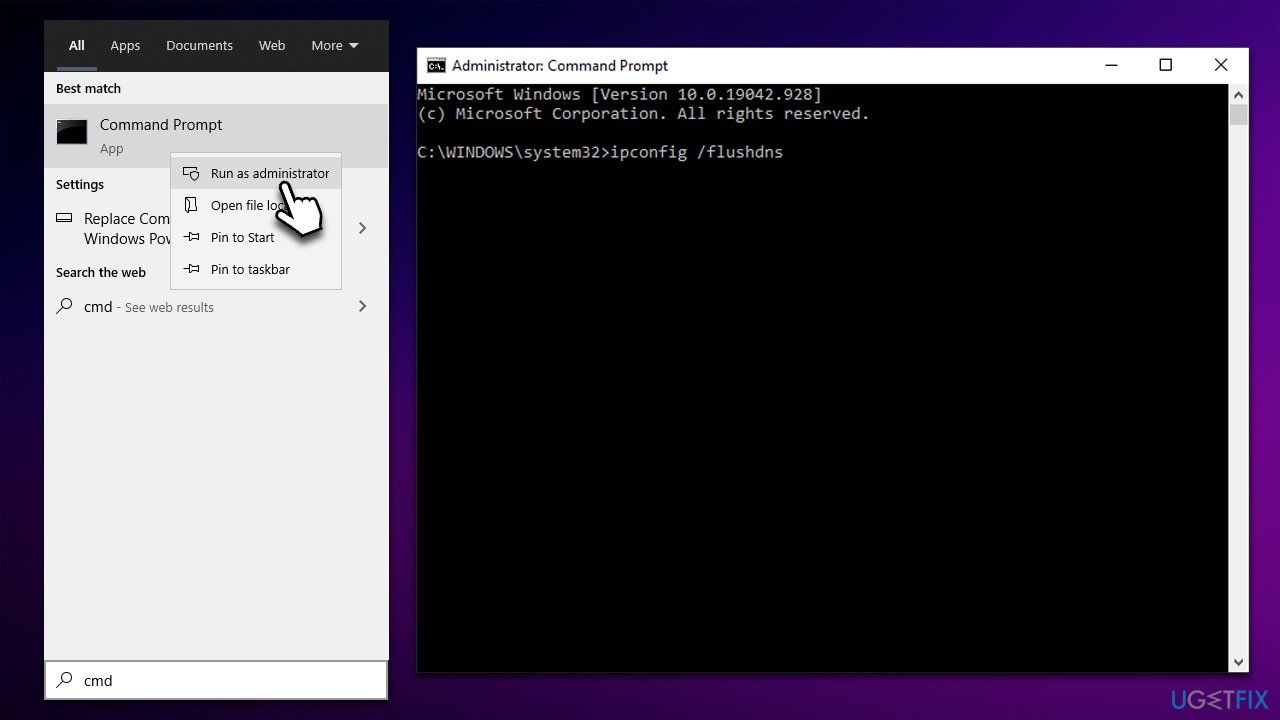
How to fix twitch error 4000 reset internet connection
Method 3. Try alternative DNS
If your DNS settings were corrupted, try using alternative ones. For example, many people choose to use Google's DNS:
- Right-click on Start and pick Network Connections
- Under Advanced network settings, pick Change adapter options
- In the Network Connection window, right-click on your main connection (for example, Ethernet) and select Properties
- Select Internet Protocol Version 4 (TCP/IPv4) and click Properties below
- Click Use the following DNS server address and type the following into the fields:
Preferred DNS server: 8.8.8.8
Alternate DNS server: 8.8.8.9 - Press OK.
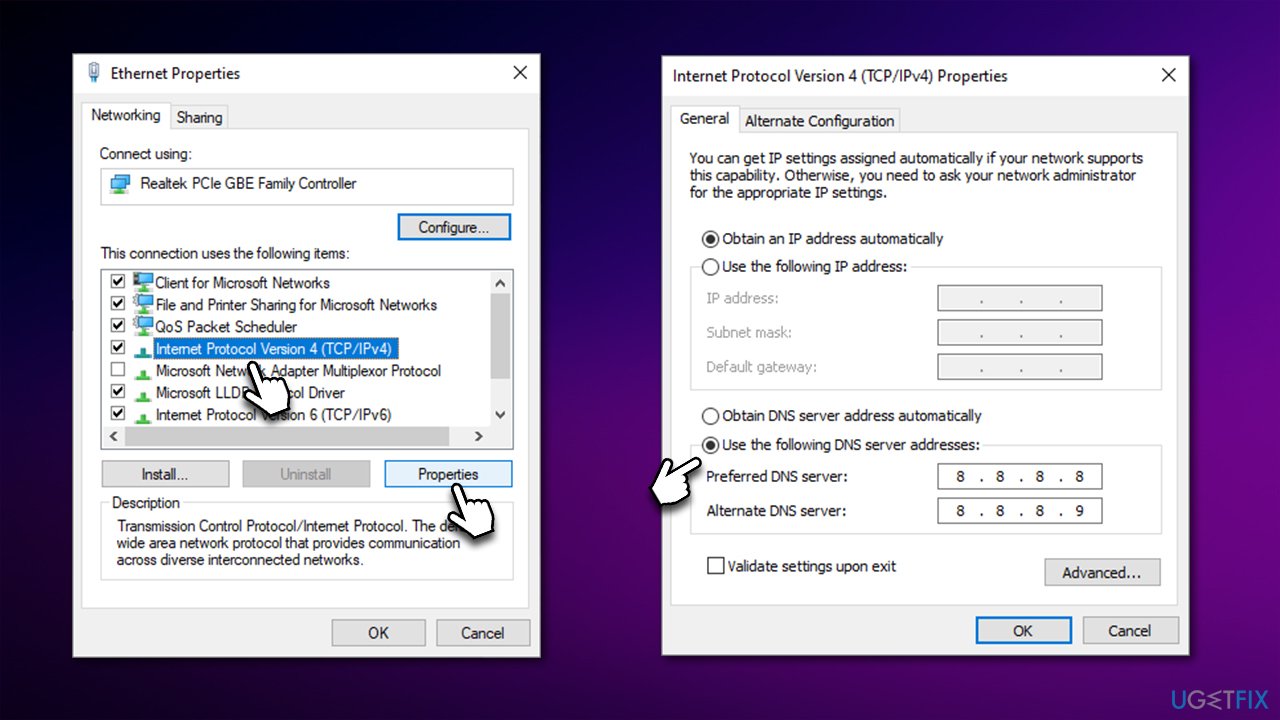
How to fix twitch error 4000 use alternative dns
Method 4. Enable Hardware acceleration
Hardware acceleration can be used to play videos via your GPU instead of CPU, relieving the stress it endures. In some cases, people claimed that enabling the feature helped them fix Twitch Error 4000.
- On Chrome, go to Menu and pick Settings
- On the left side, select System
- Enable the Use hardware acceleration when available option on the right.
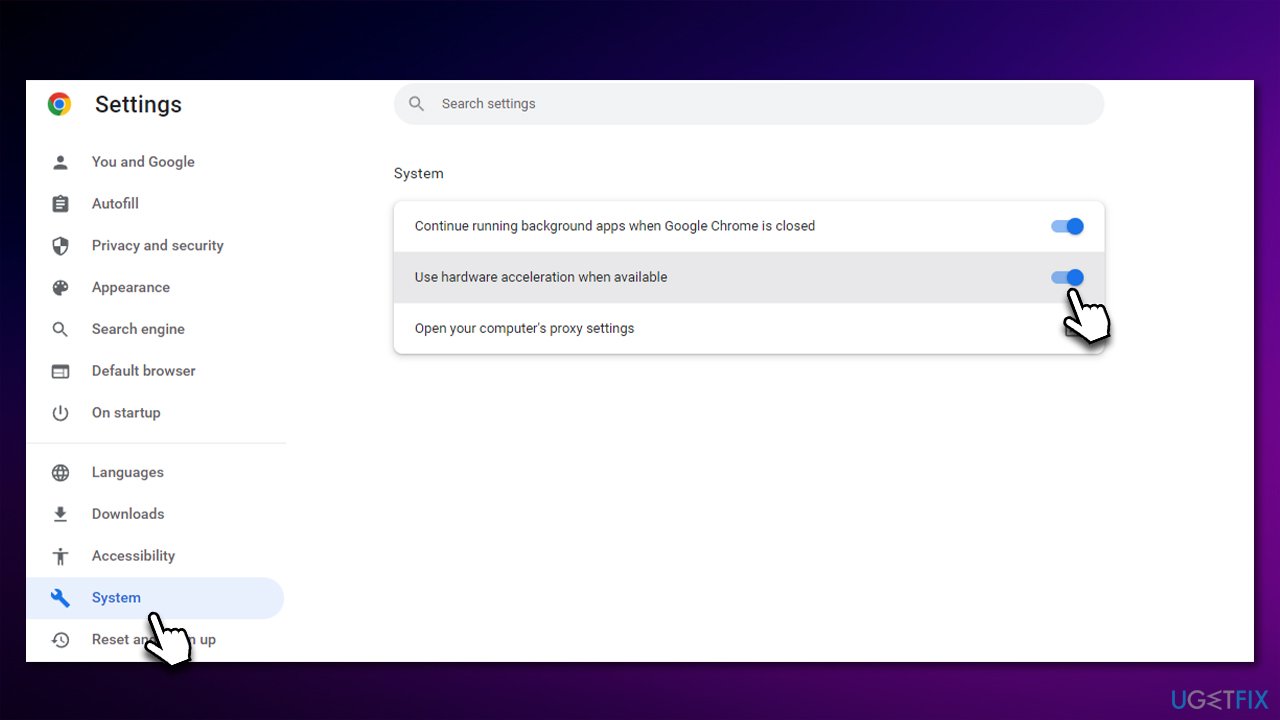
How to fix twitch error 4000 enable hardware acceleration
Method 5. Update your drivers
There are several ways how you can update drivers. The easiest one is by employing [rev id="DriverFix"] automatic driver updater - it can quickly and easily determine which drivers are outdated and update them for your effectively. You can also rely on visiting your hardware manufacturer's websites, although keep in mind that you have to know the item's model to install the correct software. You can also use the Windows Update feature, although it is not as reliable as the other two methods:
- Type Update in Windows search and hit Enter
- Click Check for updates
- Click View optional updates
- Find the Driver Updates section, tick the checkboxes, and click Download and Install
- Restart the PC.
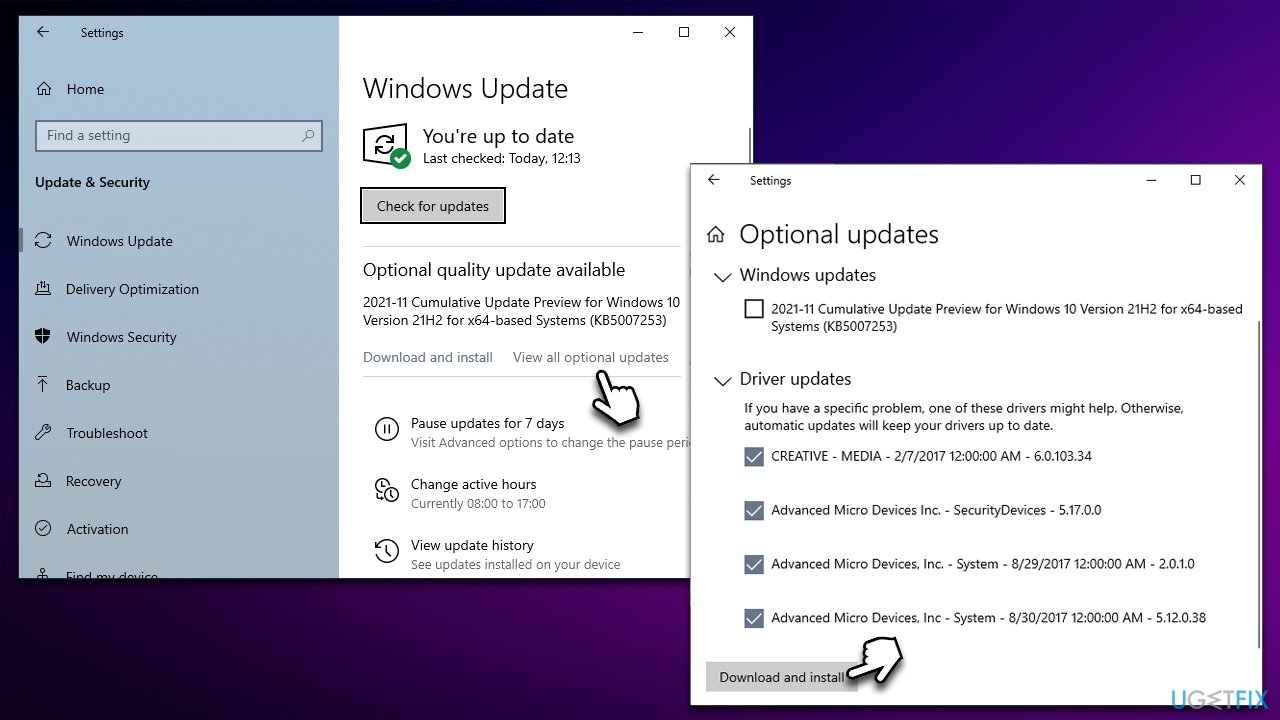
How to fix twitch error 4000 install drivers
Method 6. Set your headset as a default audio device
If you are using a headset or another output device and it is not set as a default one, it may cause Twitch not to work correctly. Correct this problem as follows:
- Right-click on the Speaker icon in your taskbar and select Sounds
- Go to the Playback tab
- Right-click on your headphones/speakers and select Set as Default Device.
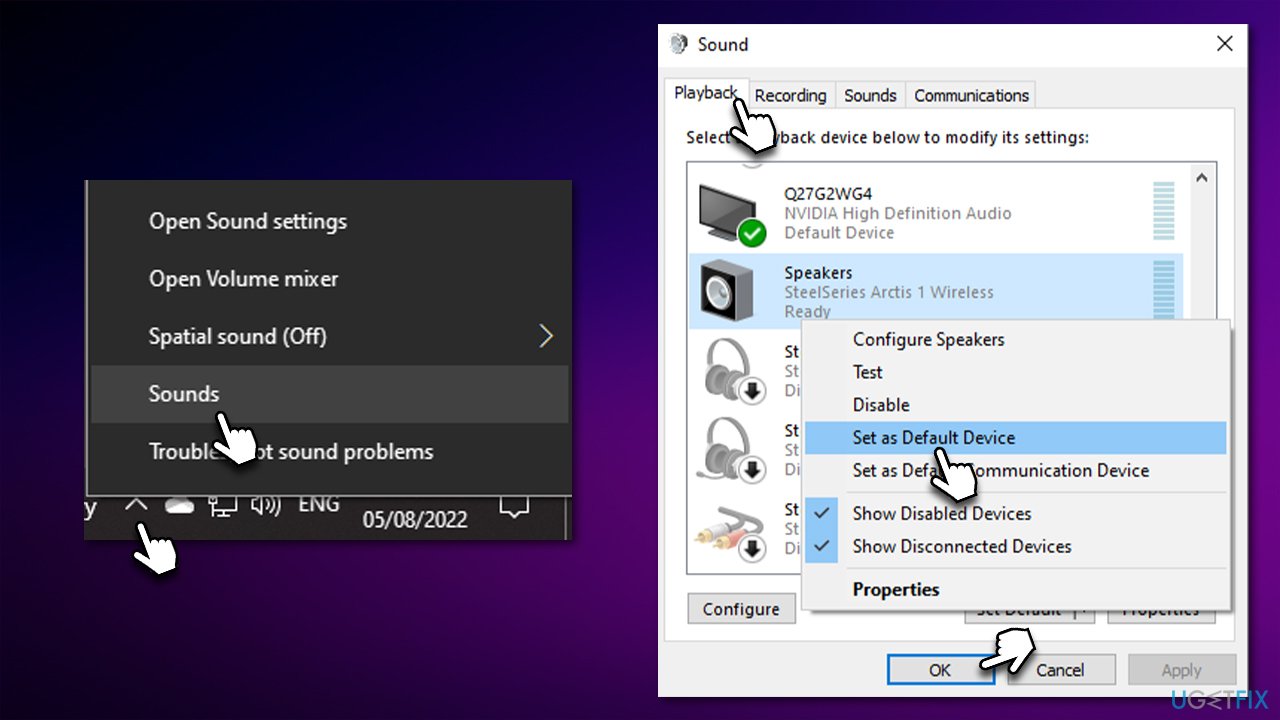
How to fix twitch error 4000 set detault audio device
Method 7. Try using the Twitch app or alternative browser instead
If there's something wrong with your browser, you could try switching it to an alternative source. For example, you could use MS Edge instead of Chrome and see if the problem persists. Also, Twitch has a dedicated application that you could launch directly from your computer and enjoy live streams with just a click of a button.
Bottom line
To fix Twitch Error 4000, try clearing your cached files, checking your DNS settings, and updating your graphic drivers. Restarting the tab or browser may also help, but if these solutions do not work, further troubleshooting may be necessary.
Frequently asked questions
Twitch Error 4000 typically indicates an issue with the streaming service's connection, often caused by network problems or browser-related issues on Windows 10 or Windows 11.
To troubleshoot Twitch Error 4000 on Windows 10, try clearing your browser cache, disabling any VPNs, or switching to a different browser.
Yes, ensuring that your Windows 11 system is up to date can help resolve compatibility issues that may contribute to Twitch Error 4000.




Report an issue
What's wrong with this guide? We review every report and update or remove content.
Report received — thank you. We'll review and fix it.
You need a free account to submit a report.
Be the first to comment