How to fix
Twitch Studio not detecting webcam
on Windows
Resolve Twitch Studio webcam detection issues on Windows 10 and 11 effortlessly. Get back to streaming with expert-tested solutions. Fixed in minutes!

What causes How to fix Twitch Studio not detecting webcam?
- User error in setting up the webcam
- Outdated camera driver
- Incorrect webcam selection in Twitch Studio
- Issues with system errors or corrupted files
Repairs Windows system files, removes malware, and restores a clean OS state — without reinstalling.
Hello. I tried to stream using Twitch Studio but it is not detecting my webcam. How can I fix it?
Twitch is a video live streaming service that focuses on video game live streaming. It also has a Twitch Studio application that is used to stream live content. Since it was designed by the platform for which it was created, users do not encounter incompatibilities sometimes found with third-party streaming software.
By using the Twitch Studio programs, streamers can connect with their Twitch community much easier. It allows them to view their chat activity feed, and alerts, such as new followers and subscribers alongside the live broadcast. Most Twitch streamers like to broadcast with their webcam turned on because it lets the viewer get to know their personality more.
The user-friendly interface of Twitch Studio provides a guided setup process for hardware, away screens, etc. However, some users encountered problems when trying to connect their webcams. People report an issue where the streaming application does not detect the webcam.
It is unknown why exactly this could happen. In this guide, you will find 3 steps that should help you fix Twitch Studio not detecting webcam. Sometimes this could be caused by user error - not setting up the webcam correctly or even an outdated camera driver.[ref en-1]
Manual troubleshooting may be a lengthy process so you can also try using a maintenance tool like [d1]. It can fix most system errors, BSODs,[ref en-2] corrupted files, and registry[ref en-3] issues. It also clears cookies and cache automatically which are often the culprits of many malfunctions. Otherwise, follow the step-by-step instructions below.
Solution 1. Set up the Webcam Correctly
- Open Twitch Studio
- Click on the Edit button next to Gameplay
- Click on Webcam under Layers
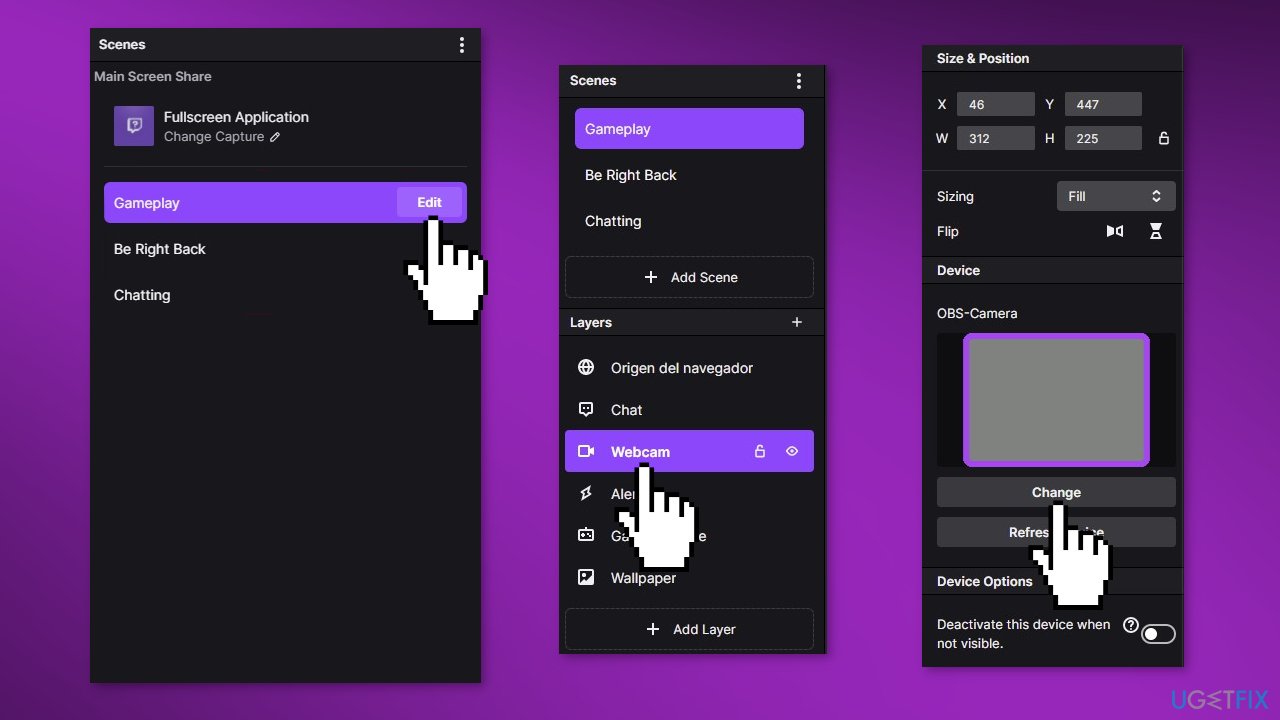
- The preview should be marked with No webcam found
- Click on Change
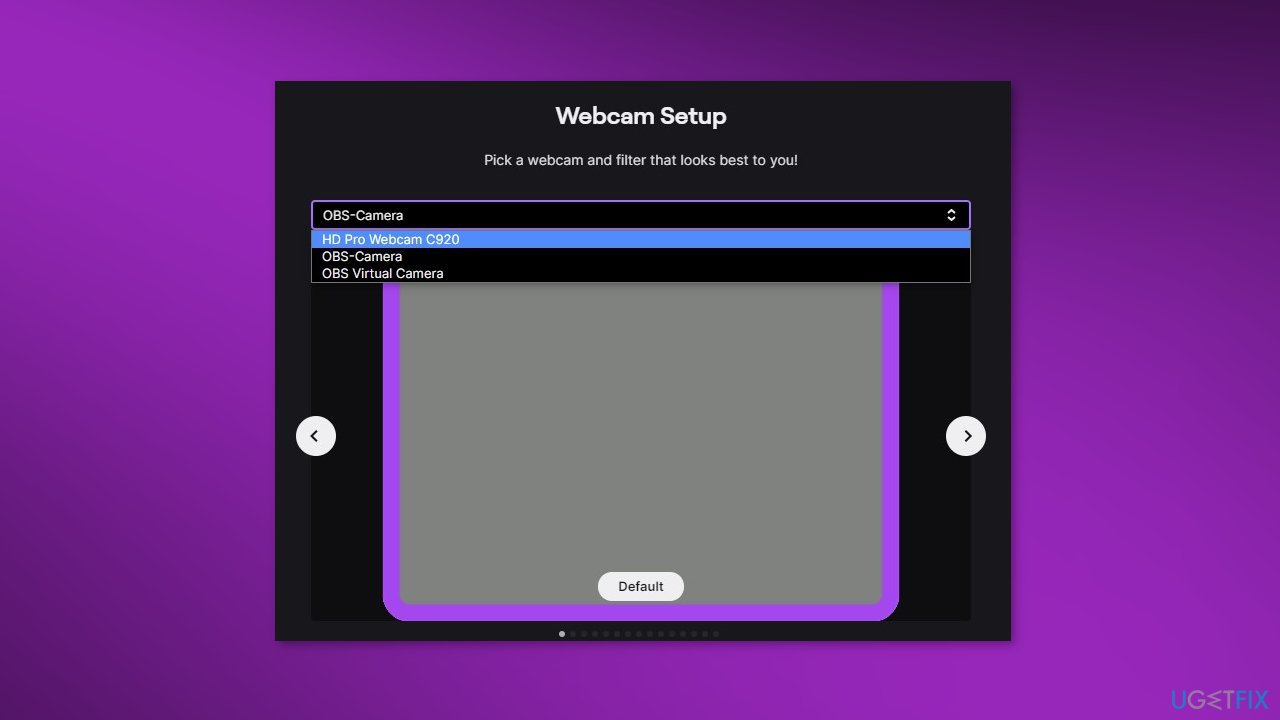
- In the drop-down menu, you can select the connected webcam
- With the arrows next to the preview image, you have the additional possibility to adjust the image of your webcam with different preset filters
- Select the filter you want and then click Done
- Now you will see the image of your webcam set up in the large preview screen located in the center of the program
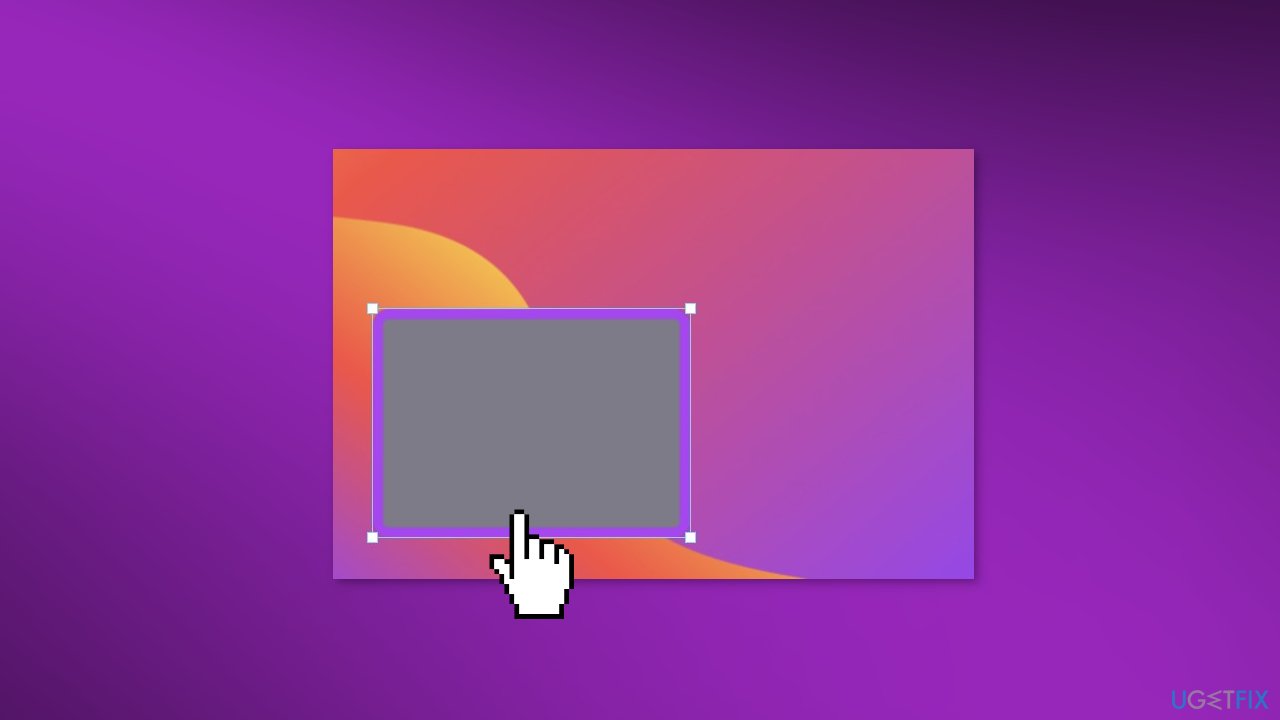
- To adjust both the size and the positioning of the webcam, you can make it smaller or larger with the mouse and move it to the desired area with the left mouse button pressed
- After you are finished, check if the issue is resolved
Solution 2. Install the Xbox Insider App
Some users reported that enrolling in the Xbox Insider program helped them solve the webcam issue.
- Press the Start button, type store, then select Microsoft Store
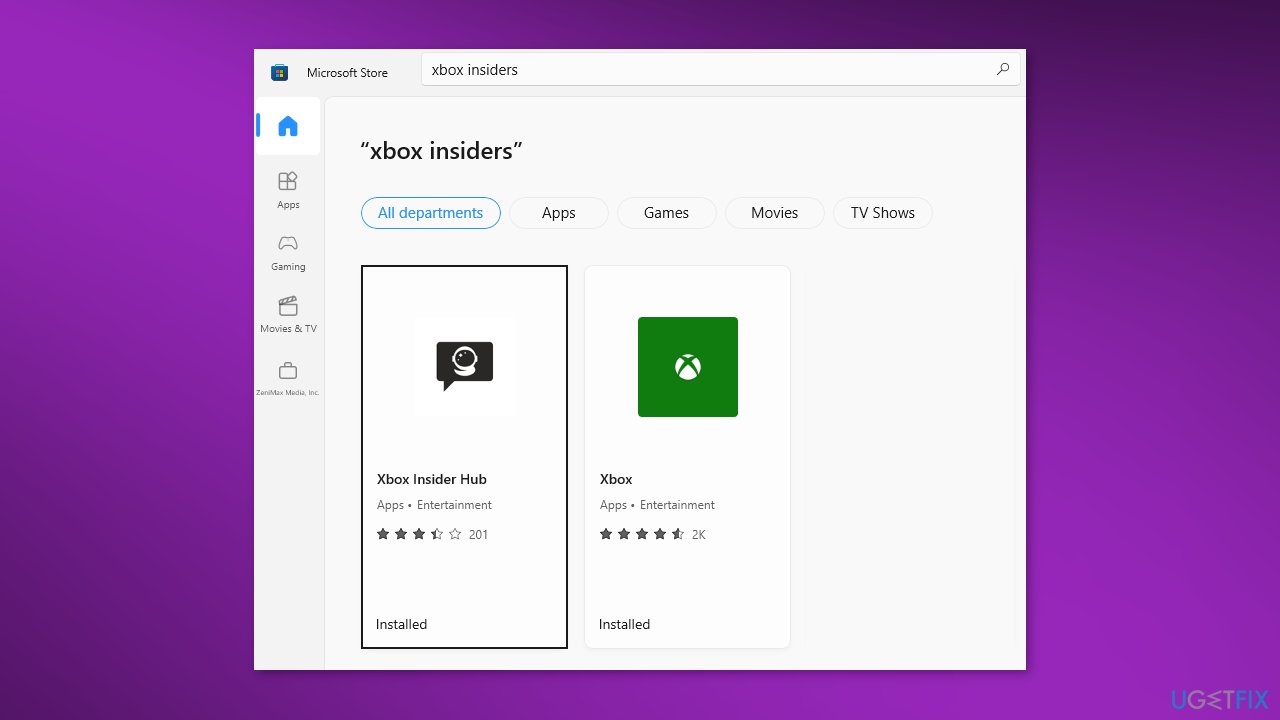
- Select Search, enter insider in the box, then select Xbox Insider Hub
- Select Get or Install
- Update your console and see if the issue is fixed
Solution 3. Update Camera Driver
Your webcam may not be connecting to Twitch Studio because of an outdated driver. Try to update it to see if it solves the problem:
- Go to the Device Manager
- Find Cameras and expand the list
- Choose the camera you are using
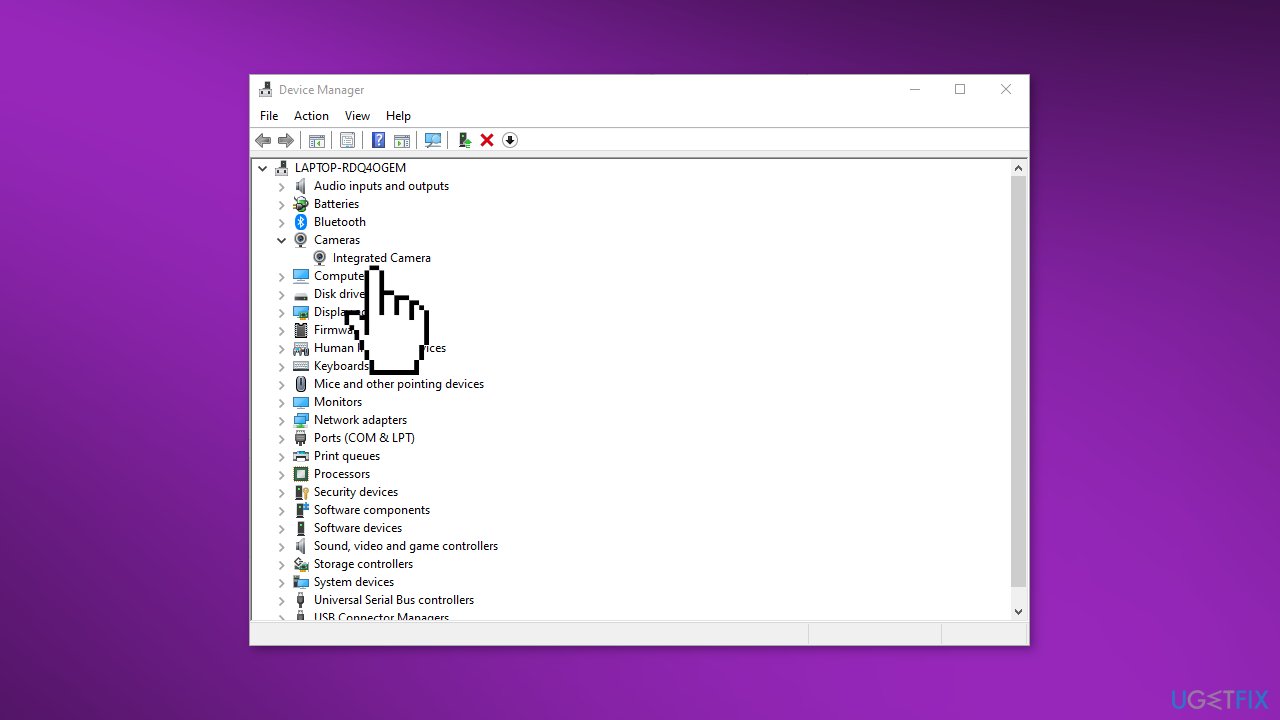
- Right-click on it and choose Update driver
- You can also use an automatic solution, like [rev id="DriverFix"] that can find the best drivers for your system and install them
Bottom line
To fix Twitch Studio not detecting your webcam, ensure the webcam is set up correctly, update your camera driver, and select the correct webcam in the application settings. If these steps do not resolve the issue, consider using a maintenance tool to address potential system errors.
Frequently asked questions
Ensure that your webcam is properly connected and recognized by Windows 10. You can check this in Device Manager under 'Imaging devices'.
In Twitch Studio, navigate to the 'Settings' menu and ensure that the correct webcam is selected under the 'Camera' section.
Try restarting Twitch Studio and your computer, and ensure that no other applications are using the webcam simultaneously.




Report an issue
What's wrong with this guide? We review every report and update or remove content.
Report received — thank you. We'll review and fix it.
You need a free account to submit a report.
Be the first to comment