How to fix
Typing issue
on Windows
Resolve typing issues in Windows 10 dialogue boxes effortlessly. Follow expert-tested solutions to get back to smooth typing in minutes.

What causes How to fix typing issue in Windows 10 dialogue boxes?
- Hardware issues
- Connectivity problems
- Broken keyboard cable
- Outdated video drivers
- Windows 10 update disturbances
- Malicious infections
Repairs Windows system files, removes malware, and restores a clean OS state — without reinstalling.
I cannot type any text in the dialogue boxes such as Calculator or even Windows 10 login screen. Is there any solution for this problem?
Inability to type in dialogue boxes in Windows 10 might be the result of various causes. Similar recurrences have been recorded in different versions of the operating system. In order to solve the problem, it is necessary to identify it at first. Firstly, check for hardware issues or connectivity problems. A broken keyboard cable might be the primary cause for such bothersome phenomenon. Unplug it and plug into a different USB slot. If the light is on the keyboard, you might want it to plug into a different computer. In case, it works with another device but fails to function as the primary PC; there are other options to deal with the problem. Check whether all video drivers are updated. Furthermore, you might need to check whether Windows 10 update causes such disturbance. Revert to the previous built or perform System Recovery and see any positive changes. Check whether the problem occurs in all user accounts on the same device or just one. Lastly, it would be useful to check whether your operating system does not harbor any malicious infections. Run the scan with anti-spyware tool, for example, [d1]. Here are other methods to eliminate the problem.
Option 1. Enabling typing functionality in Windows 10
Step 1. Enable On-Screen Keyboard
- Click on the Start button, then Settings.
- Navigate to Ease of Access and choose Keyboard.
- Move the slider to On-Screen Keyboard. In the Options tab, select the method of the information input.
- With this, you can navigate through the system. Try to implement the following method.
Step 2. Log in as Administrator
- With the On-Screen Keyboard on, reboot the device.
- When the Windows logo appears, click CTRL+ALT+DEL keys and enter into the login screen.
- Type Administrator in the user field and enter the password used during Windows installation.
Option 2. Run System File Checker
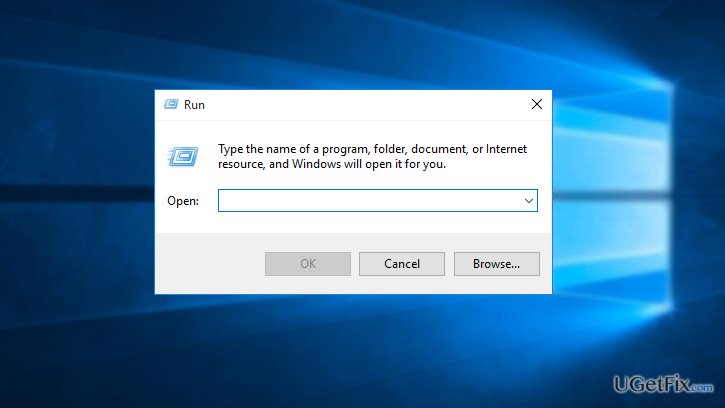
- Click Windows+R.
- If On-Screen Keyboard is active, type sfc /scannow.
- Click Enter and wait for the scan results.
Bottom line
To fix the typing issue in Windows 10 dialogue boxes, you can enable the On-Screen Keyboard, log in as Administrator, or run the System File Checker. If these methods do not resolve the problem, consider checking for hardware issues or performing a system recovery.
Frequently asked questions
Try restarting your computer first, as this can resolve temporary glitches. If the issue persists, check for Windows updates and ensure your keyboard drivers are up to date.
You can run the Keyboard Troubleshooter by going to Settings > Update & Security > Troubleshoot > Additional troubleshooters. This tool can automatically detect and fix common keyboard problems.
Yes, you can reset keyboard settings by navigating to Settings > Devices > Typing and adjusting various options, or you can reset the keyboard layout in the Control Panel.




Report an issue
What's wrong with this guide? We review every report and update or remove content.
Report received — thank you. We'll review and fix it.
You need a free account to submit a report.
Be the first to comment