How to fix
“Ucrtbase_clr0400.dll is either not designed to run
on Windows
Resolve the "Ucrtbase_clr0400.dll" error on Windows 10 and 11 effortlessly. Get fast fixes and expert-tested solutions with zero traces left.

What causes How to fix “Ucrtbase_clr0400.dll is either not designed to run on Windows or it contains an error”?
- File is missing or corrupted
- Incompatibility with application requirements
- Failed Windows updates
- Malware infections
- Out-of-date system components
Repairs Windows system files, removes malware, and restores a clean OS state — without reinstalling.
Hey, I’m getting this "Ucrtbase_clr0400.dll is either not designed to run on Windows or it contains an error" message every time I try to open a program on my Windows 11. What’s causing this, and how can I fix it?
The "Ucrtbase_clr0400.dll is either not designed to run on Windows or it contains an error" message creates frustrating difficulties when you attempt to operate your favorite programs or games on a Windows device. Undoubtedly, when facing this problem, those affected become understandably frustrated; luckily, there is something you can do in order to fix it.
Windows relies on DLL files to function as shared resources that applications access for graphics handling and data manipulation and other services. An application requires specific functions by calling up DLL files that get loaded into memory to conserve space and enhance performance. The Ucrtbase_clr0400.dll error message will appear when applications fail because the file is missing or corrupted or incompatible with their requirements.
The Ucrtbase_clr0400.dll belongs to the Universal C Runtime (UCRT) library which serves as a core Windows 10 component while also being deployable through updates for previous Windows versions. The Ucrtbase_clr0400.dll file serves as the host for Common Language Runtime (CLR) environments which allow C++ and .NET applications to operate smoothly through its essential runtime capabilities. A damaged Ucrtbase_clr0400.dll file causes applications to stop functioning through the Ucrtbase_clr0400.dll error.
Multiple factors lead to Ucrtbase_clr0400.dll error occurrence. The Ucrtbase_clr0400.dll error typically occurs when files become corrupted or disappear because of failed Windows updates or malware infections. System components that are out-of-date including Universal C Runtime library can cause incompatibility issues. System file corruption along with third-party application conflicts can lead to this error.
To fix the Ucrtbase_clr0400.dll error, you might need to update Windows, reinstall the UCRT library, perform a malware scan, or repair system files. For a simpler fix, though, a utility like [d1] can help, using its powerful diagnostics to fend off system errors and restore app performance with ease.

Fix 1. Install Universal C Runtime
Universal C Runtime is now available through Windows update.
- Type Updates in Windows search and press Enter.
- When the new window opens, click Check for updates (or Install all if pending) and wait.
- If there are optional updates available, install them as well.
- After updating, restart your computer.

Fix 2. Perform a malware scan
Malware can corrupt or delete DLL files, and a thorough scan can remove threats impacting your system. You can use a reliable third-party software, a free Microsoft Safety Scanner or even conduct a deep scan with Microsoft Defender:
- Type Windows Security in the Windows search bar and hit Enter.
- Select Virus & threat protection.
- Pick Scan options.
- Choose Microsoft Defender Offline scan and click Scan now.
- Your computer will immediately restart to begin a deep scan.

Fix 3. Re-register the DLL
If the DLL exists but isn’t properly registered, manually registering it can ensure Windows recognizes it correctly.
- Type cmd in Windows search.
- Right-click on Command Prompt and pick Run as administrator.
- User Account Control window will show up - click Yes when prompted.
- In the prompt, type in the following command and press Enter:
regsvr32 /u Ucrtbase_clr0400.dll - After that, type the next command and hit Enter:
regsvr32 /i Ucrtbase_clr0400.dll - Restart your device to apply the changes.

Fix 4. Update Microsoft Visual C++ Redistributable
An outdated or incompatible C++ runtime can cause DLL errors, and updating it ensures proper app support.
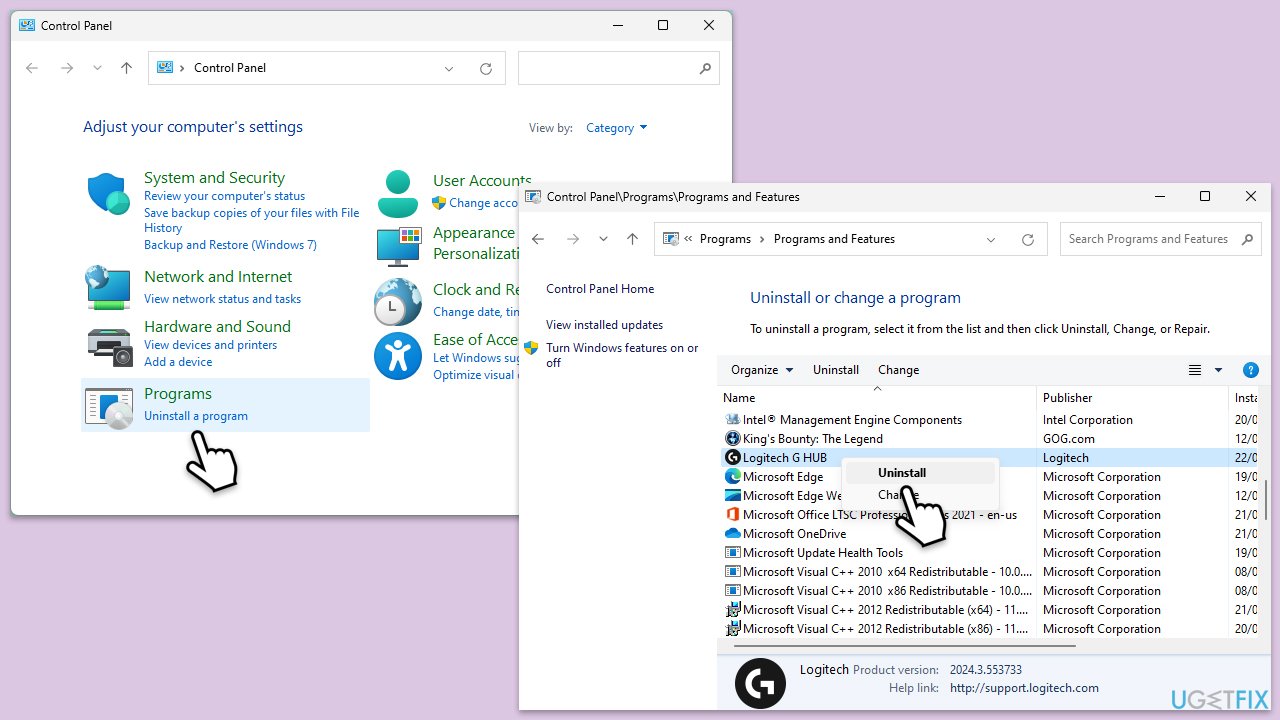
- Type Control Panel in Windows search and press Enter.
- Go to Programs > Uninstall a program.
Here, scroll down and check the list of installed versions of Visual C++.
Open any browser and head over to the official Microsoft Visual C++ download page. - Download and install all the missing versions of Visual Studio (note: if you are using a 64-bit system, install both x86.exe and x64.exe files)
- Restart your PC and check whether the problem is resolved.
- If not, try reinstalling each of the following components:
Microsoft Visual C++ 2010 Redistributable Package (x86)
Visual C++ Redistributable for Visual Studio 2012
Visual C++ Redistributable Packages for Visual Studio 2013
Visual C++ Redistributable Packages for Visual Studio 2015, 2017, 2019, and 2022. - Restart your computer.

Fix 5. Repair system files
Corrupted system files or a damaged Windows image can hinder DLL functionality, and using both tools can restore system integrity.
- Type cmd in Windows search.
- Right-click on Command Prompt and pick Run as administrator.
- User Account Control window will show up - click Yes when prompted.
- Then, copy and paste the following command, pressing Enter after:
sfc /scannow - Wait till the scan is finished. If Windows finds system file integrity violations, it will attempt to fix them. After this, use the set of the following commands, pressing Enter each time:
DISM /Online /Cleanup-Image /CheckHealth
DISM /Online /Cleanup-Image /ScanHealth
DISM /Online /Cleanup-Image /RestoreHealth - (Note: if you get an error executing this last command, add /Source:C:\RepairSource\Windows /LimitAccess to it and try again).
- Close down the Command Prompt and restart your computer.

Fix 6. Reinstall the affected application
A faulty app installation might not have properly linked the DLL, and reinstalling it can correct the issue.
- Type Control Panel in Windows search and pres Enter.
- Go to Programs > Uninstall a program.
- Select the affected application (e.g., Firefox).
- Click on Uninstall and follow the prompts.
- Download the latest version of the application from its official website.
- Install the application following the installation prompts.
Bottom line
To fix the Ucrtbase_clr0400.dll error, you can update Windows, reinstall the UCRT library, perform a malware scan, or repair system files. If these solutions do not resolve the issue, consider using a utility for diagnostics and performance restoration.
Frequently asked questions
This error typically occurs due to a corrupted or missing Ucrtbase_clr0400.dll file, which is part of the Universal C Runtime in Windows. It can also be triggered by system file corruption or compatibility issues with certain applications.
You can repair the error by running the System File Checker tool or performing a Windows Update to replace any corrupted files. Additionally, reinstalling the application that triggers the error may help resolve the issue.
Downloading DLL files from unofficial sources is not recommended, as it may introduce malware or compatibility issues. Instead, use built-in Windows tools or trusted software to repair or replace the file.




Report an issue
What's wrong with this guide? We review every report and update or remove content.
Report received — thank you. We'll review and fix it.
You need a free account to submit a report.
Be the first to comment