How to fix
Ucx01000.sys BSOD
on Windows
Resolve the ucx01000.sys BSOD in Windows 10 or 11 effortlessly with our troubleshooting guide. Expert-tested solutions provided for quick fixes!

What causes How to fix ucx01000.sys BSOD in Windows?
- Corrupted ucx01000.sys file
- Outdated UCSI driver
- Issues with USB Type-C hardware devices
- Corrupted system files
- Incomplete Windows updates
Repairs Windows system files, removes malware, and restores a clean OS state — without reinstalling.
Hello. I keep getting the ucx01000.sys Blue Screen error on my Windows laptop. How can I get rid of it?
The ucx01000.sys BSOD (Blue Screen of Death)[ref en-1] error is a common problem with Windows operating systems, especially Windows 10. This error is related to the ucx01000.sys system file, which is part of the USB Type-C Connector System Software Interface (UCSI) driver.[ref en-2]
On Windows systems, the UCSI driver is in charge of managing USB Type-C and Power Delivery (PD)[ref en-3] functions. The ucx01000.sys file, which is used to communicate with USB Type-C hardware devices, is an essential component of this driver. When the ucx01000.sys file becomes corrupted or encounters an error, a Blue Screen of Death error can occur. Error messages such as "ucx01000.sys failed," "System Thread Exception Not Handled," or "Driver IRQL Not Less or Equal" may be displayed to users.
The BSOD error can cause the system to crash, cause the user to lose unsaved data, or prevent the user from accessing critical files or applications. This error is especially aggravating for users who rely on USB Type-C devices or Power Delivery functions, as it can render those devices inoperable.
Users may need to update or reinstall the UCSI driver to resolve this issue. This can be accomplished by downloading and installing the most recent driver from the manufacturer's website, or by using the Windows Device Manager to automatically update the driver. If the error persists, users may need to perform a system restore or reinstall Windows. In this guide, you will find 7 steps that should help you fix this issue. Follow the step-by-step instructions below.
Method 1. Install Windows Updates
- Press the Windows key + R to open the Run box
- Type ms-settings:windowsupdate in the text box and press Enter
- Click the Check for updates button
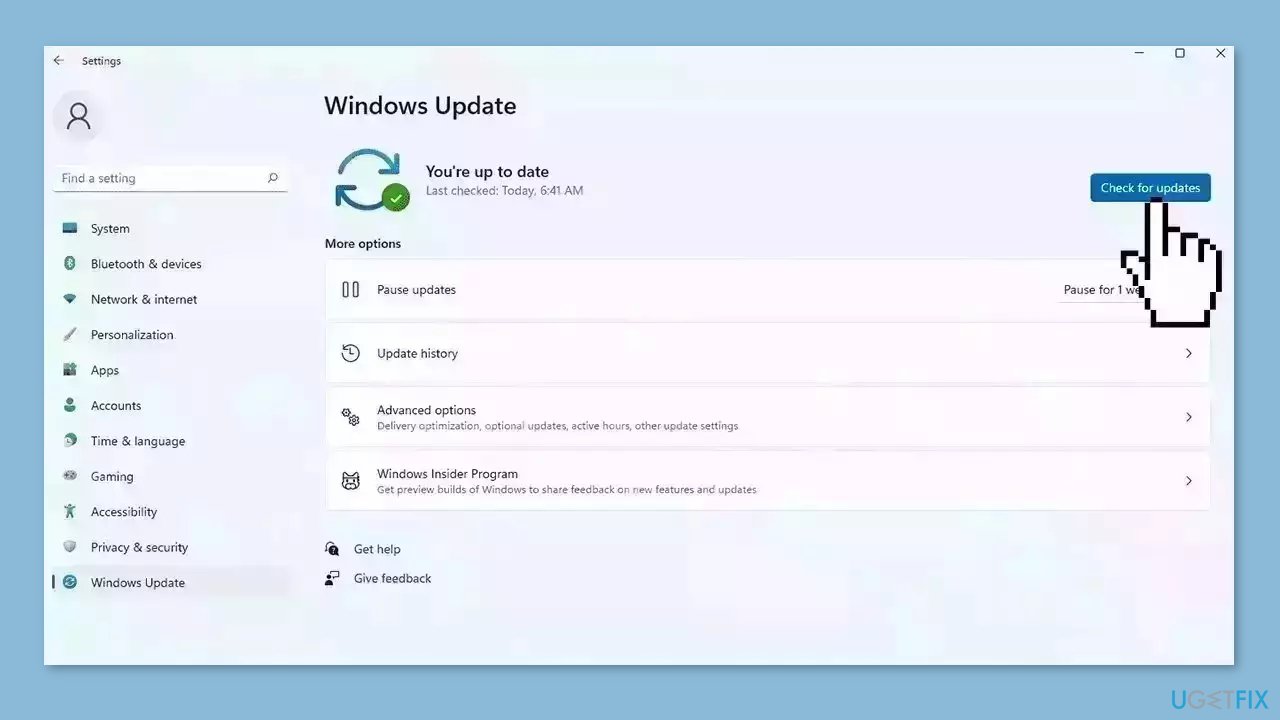
- If a new update is available, click the Download & Install all button.
- Restart your computer after the process is finished and check to see if the problem is fixed
Method 2. Fix Corrupted System Files
Use Command Prompt commands to repair system file corruption:
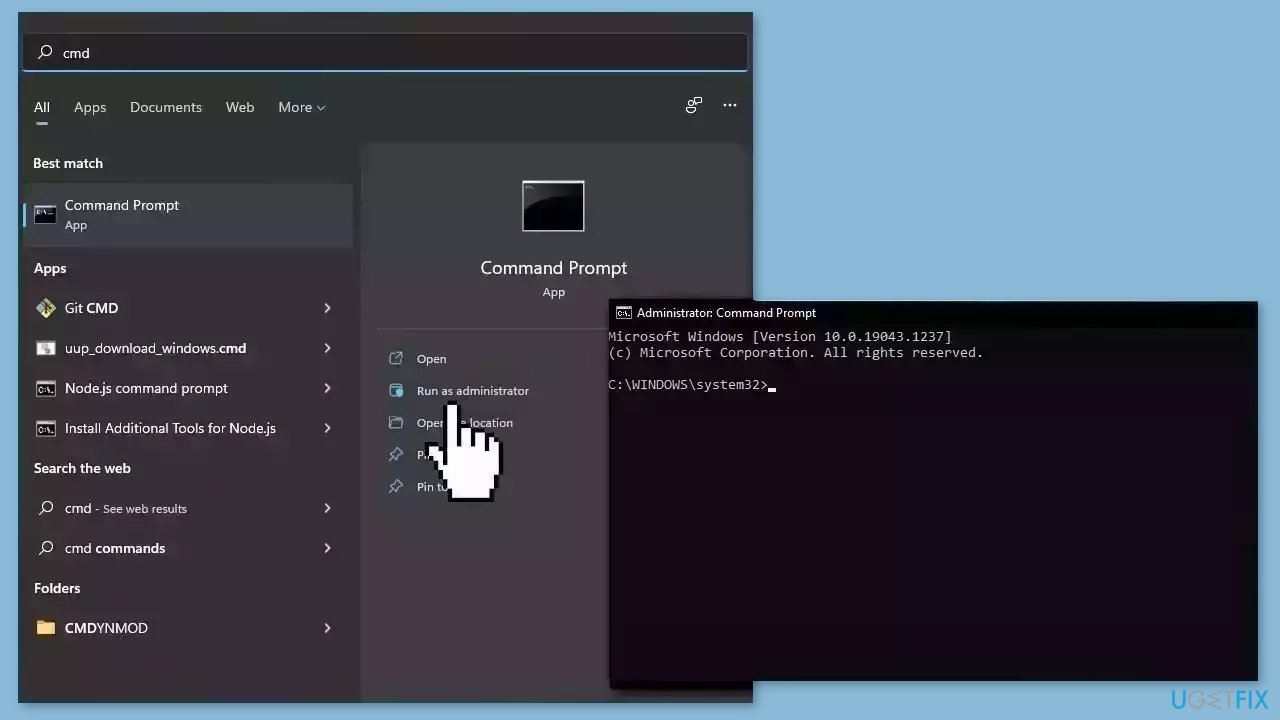
- Open Command Prompt as administrator
- Use the following command and press Enter:
sfc /scannow
- Reboot your system
- If SFC returned an error, then use the following command lines, pressing Enter after each:
DISM /Online /Cleanup-Image /CheckHealth
DISM /Online /Cleanup-Image /ScanHealth
DISM /Online /Cleanup-Image /RestoreHealth
Method 3. Update the UCSI Driver
Outdated drivers could be the cause of this issue. In this case, you can fix it automatically by using [rev id="DriverFix"], which will scan your PC for missing and out-of-date device drivers. Or you can update them manually:
- Open Settings.
- Click on Update & Security.
- Click on Windows Update.
- Click the Check for updates button.
- Click the View optional updates option.
- Click the Driver updates tab.
- Select the driver you want to update.
- Click the Download and install button.
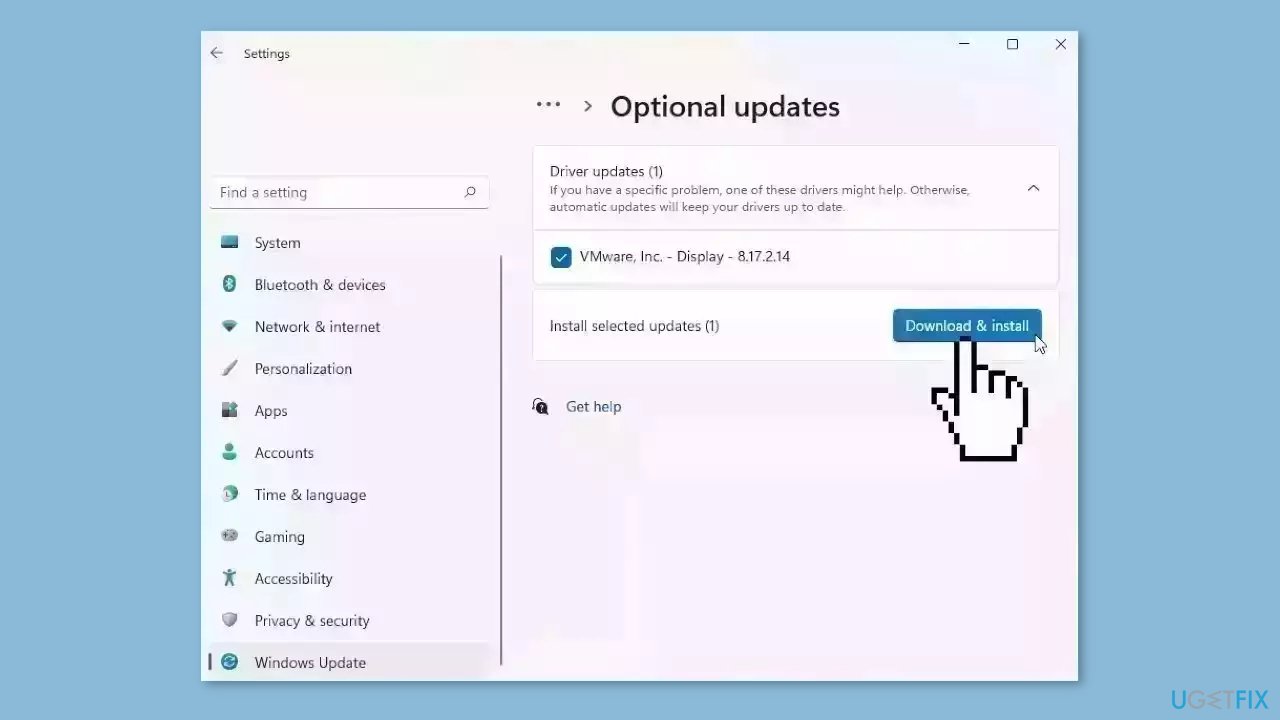
If the View optional updates link is not available after checking for updates, then Windows Update does not have any new drivers or any updates for other products at that particular time.
Method 4. Reinstall the UCSI Driver
- Click the Start button and type Device Manager in the search box.
- Select the Device Manager from the search results.
- Expand the System Devices category.
- Locate and right-click on the Intel(R) UCSI USB Connector Manager or UCSI Device option.
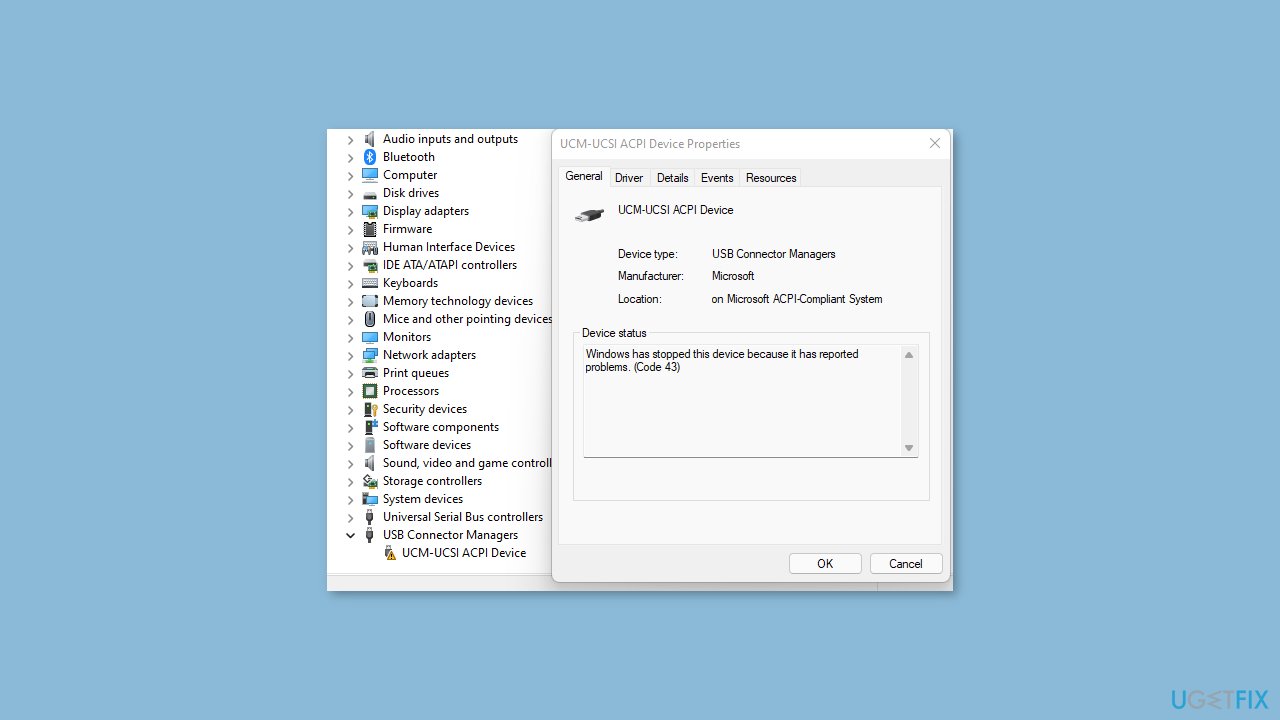
- Select Uninstall device.
- In the Uninstall Device window that appears, select the Delete the driver software for this device checkbox.
- Click on Uninstall.
- After the uninstallation process completes, restart your computer.
- Visit the manufacturer's website to download the latest UCSI driver for your system.
- After downloading the driver, double-click on the installation file.
- Follow the on-screen instructions to install the UCSI driver.
- If the driver is in a zip file format, extract the files to a new folder and then run the setup file.
- After the installation process completes, restart your computer to apply the changes.
Method 5. Use System Restore
System Restore is a feature in Microsoft Windows that allows users to revert their computer's state to a previous point in time. This can be helpful if you have made changes to your system that are causing problems.
- Press the Windows key + R on your keyboard to open the Run box.
- Type SystemPropertiesProtection and press Enter.
- Go to the System Protection tab.
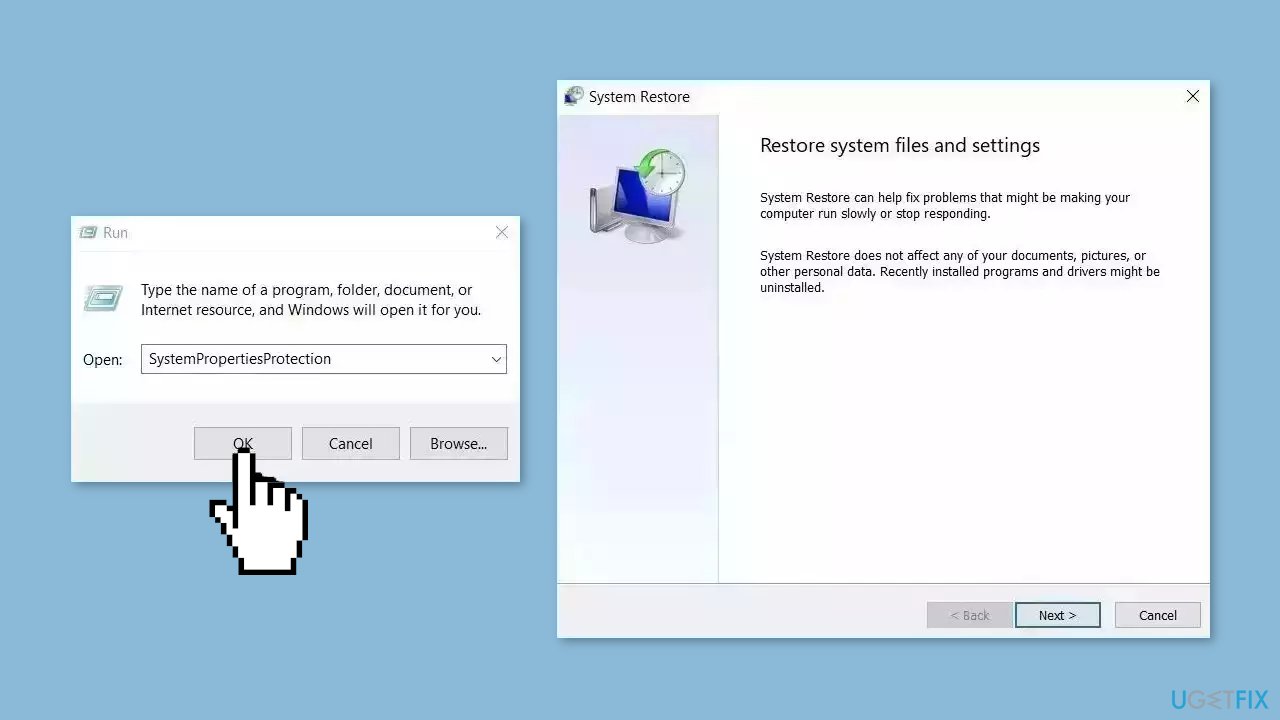
- You will see the System Restore… button. Click it to run System Restore.
- Follow the prompts until you can select a restore point.
- Select the one you want (ideally before the issue started occurring) and go ahead with the process.
Method 6. Run a System Repair Tool
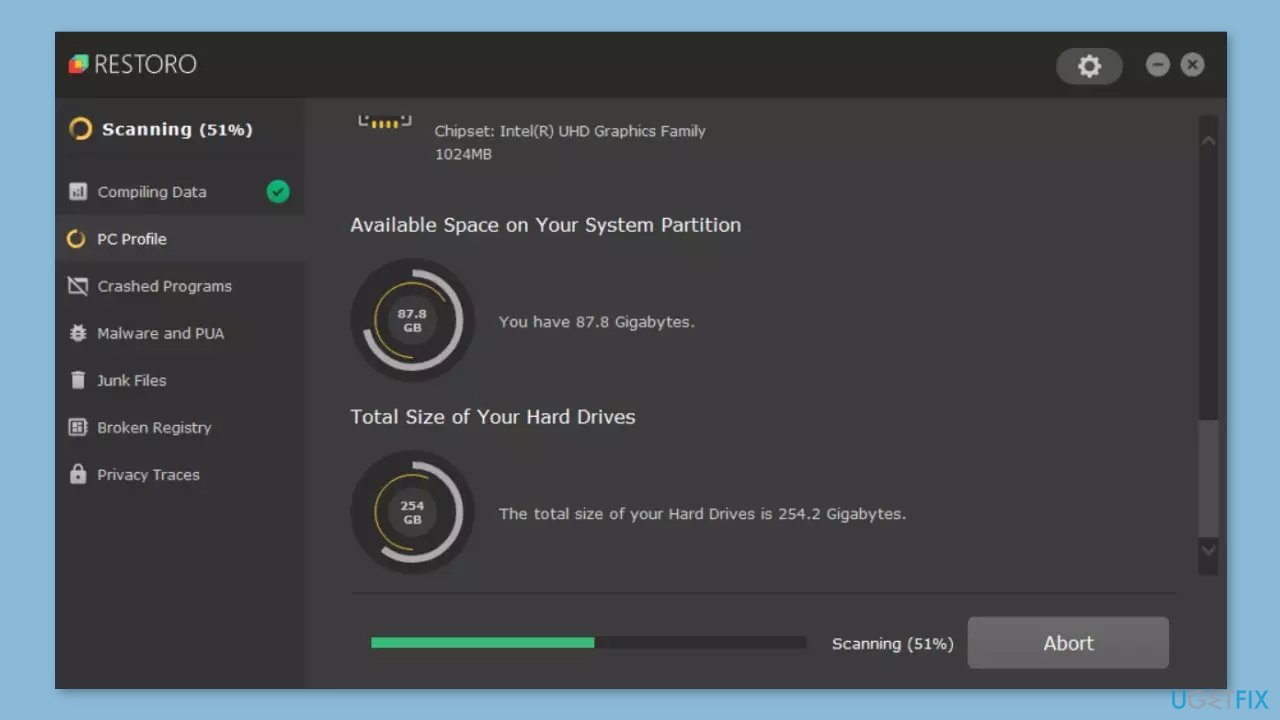
[d1] is a tool that is designed to diagnose and fix problems with a computer's operating system. It can effectively troubleshoot and repair system errors, BSODs, corrupted files, registry issues, and other problems that can cause a computer to perform poorly or become unresponsive. Additionally, it can automatically clear cookies and cache which are often the cause of many malfunctions.
To identify and repair problems, the tool performs a scan of the system and replaces or repairs any damaged or corrupted files and other issues that it finds. While many users have reported that it is effective at fixing certain types of computer problems, it is important to note that it is not a guaranteed solution and may not work for all issues.
Method 7. Repair Install Windows
- Visit the official Microsoft website to download Windows 11 or Windows 10 Installation Media
- Run the Media Creation Tool and select Create Installation Media for another PC.
- Select your USB drive.
- Let the Process complete of writing the Installation files to the USB drive.
- Click Finish.
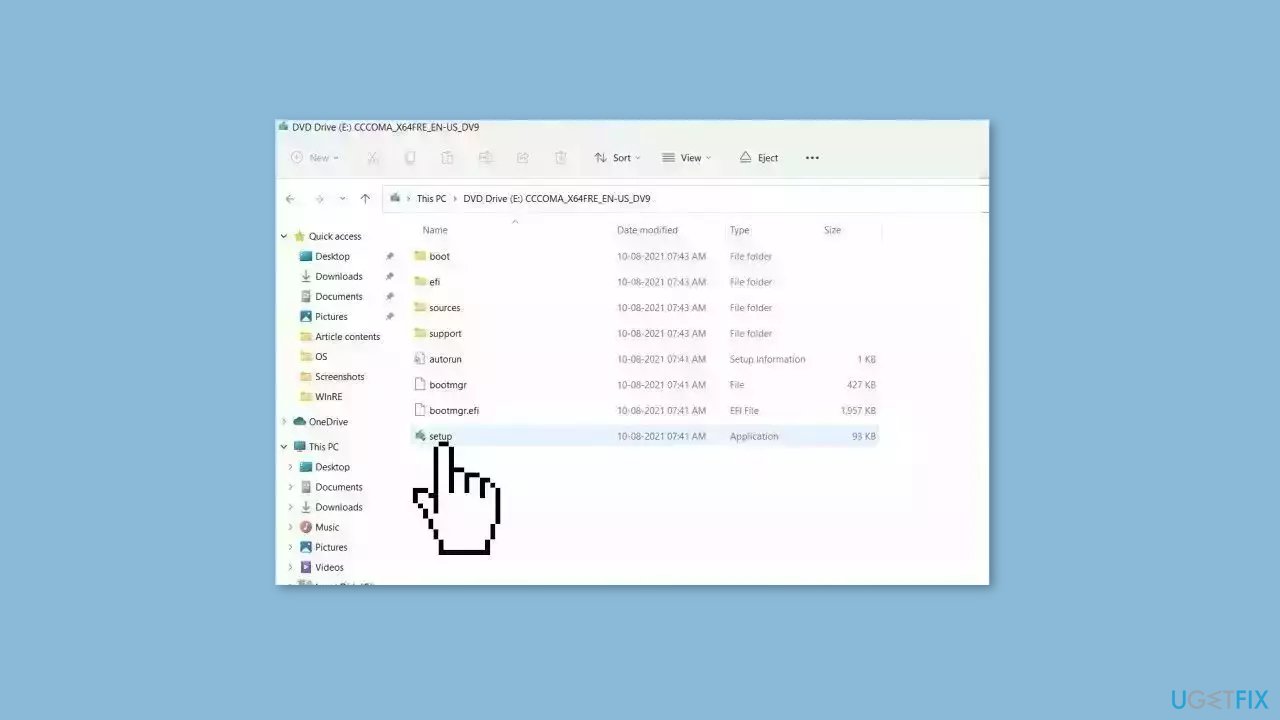
- On the PC you wish to upgrade, Press Windows + E to open the File Explorer.
- Open the Removable drive and click Setup.exe.
- Accept the license terms on the next screen.
- Confirm the Upgrade options – Files, apps and Settings are kept.
- Click Install, and the upgrade should start.
Bottom line
To fix the ucx01000.sys BSOD error, users can install Windows updates, repair corrupted system files using Command Prompt, or update the UCSI driver. If these methods do not resolve the issue, users may need to perform a system restore or reinstall Windows.
Frequently asked questions
The ucx01000.sys BSOD error is typically caused by issues with the Universal Windows Driver framework, often related to hardware drivers or conflicts with installed software.
To fix the ucx01000.sys BSOD error on Windows 10, try updating your device drivers through Device Manager, or uninstall recently installed software that may be causing conflicts.
To prevent the ucx01000.sys BSOD error in Windows 11, ensure that all system drivers are up to date and regularly check for Windows updates to keep your system stable.




Report an issue
What's wrong with this guide? We review every report and update or remove content.
Report received — thank you. We'll review and fix it.
You need a free account to submit a report.
Be the first to comment