How to fix
UE4 Fatal Error in Harvestella
on Windows
Resolve UE4 Fatal Error in Harvestella effortlessly on Windows 10 or 11. Our expert-tested guide ensures quick fixes with zero traces left.

What causes How to fix UE4 Fatal Error in Harvestella?
- Missing Windows updates
- Outdated graphics drivers
- Enabled overclocking
- Corrupted game files
- Registry issues
Repairs Windows system files, removes malware, and restores a clean OS state — without reinstalling.
Hello. I wanted to play Harvestella but it does not even load and I get a crash message saying "UE4 Fatal Error." What should I do?
Harvestella is a role-playing video game developed by Live Wire and published by Square Enix. It was released for the Nintendo Switch and Windows on November 4, 2022. Some users have recently experienced issues when trying to play it. People report seeing the "UE4 Fatal Error."
Gamers explain that the problem arises when they try to launch the game. According to them, it does not load and crashes. It is unknown why exactly this problem appears. However, it could be caused by missing Windows updates, outdated graphics drivers, enabled overclocking,[ref en-1] etc.
In this guide, you will find 6 steps that should help you fix UE4 Fatal Error in Harvestella. You can also try using a maintenance tool like [d1] that can fix most system errors, BSODs,[ref en-2] corrupted files, and registry[ref en-3] issues. This powerful software can also clear cookies and cache which are often the culprits behind many malfunctions. Otherwise, follow the step-by-step instructions below.
Solution 1. Update Windows
- Press the Windows key to open the Start menu
- Type Check For Updates
- Click on Check for Updates
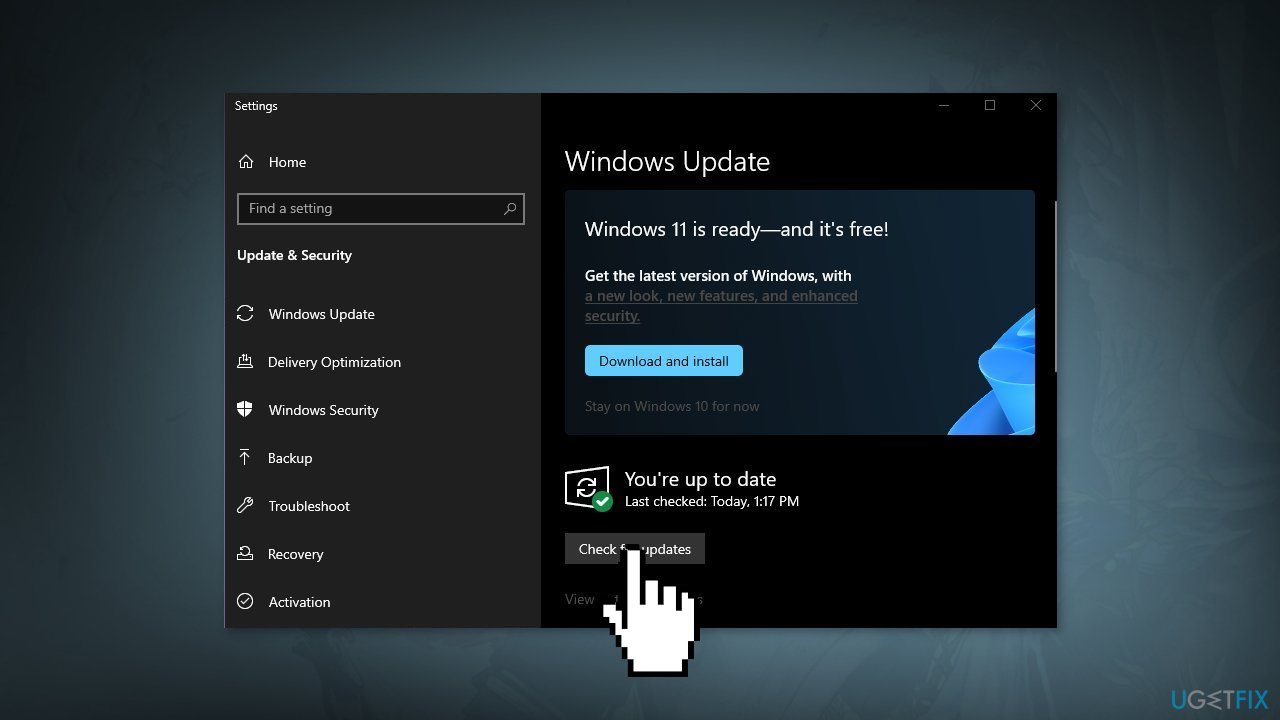
- Install any available recommended updates
Solution 2. Update GPU Driver
- Press the Windows key + R to open the Run box
- Type devmgmt.msc and press Enter
- Under Display adapters, right-click your graphics card and select Properties
- Go to the Driver tab
- Click Update Driver...
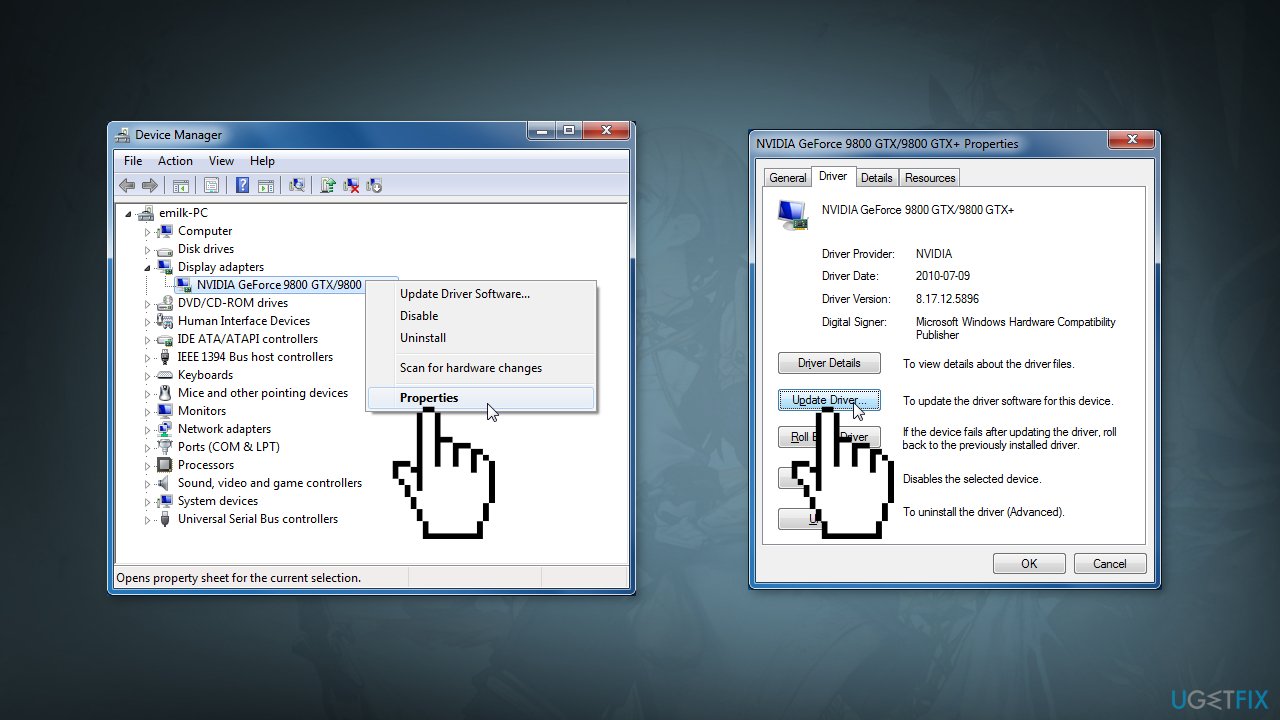
- Click Search automatically for updated driver software
- Follow the on-screen instructions
- Restart your computer
- You can also use an automatic utility like [rev id="DriverFix"] that can find the best drivers for your machine and install them
Solution 3. Verify Integrity of the Games Files
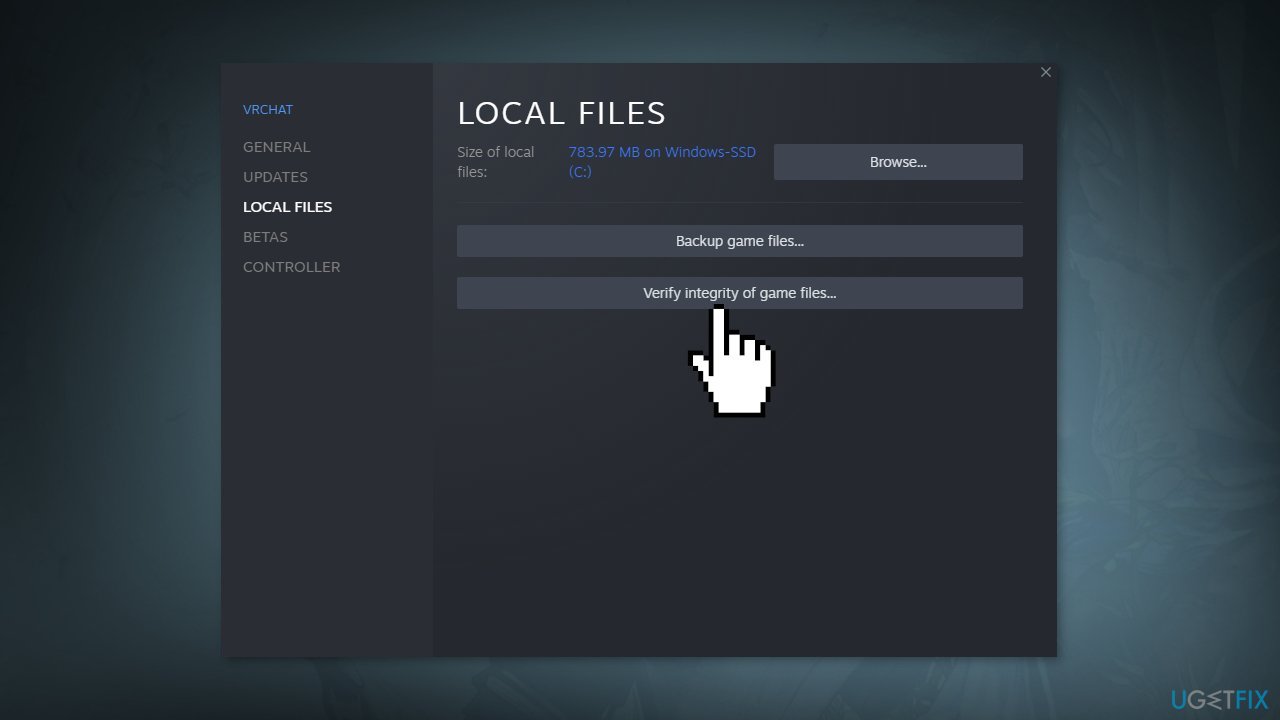
- Open Steam and go to the Library
- Right-click on the game you want to repair and select Properties
- Click Local Files and then choose Verify integrity of game files
Solution 4. Disable Overclocking
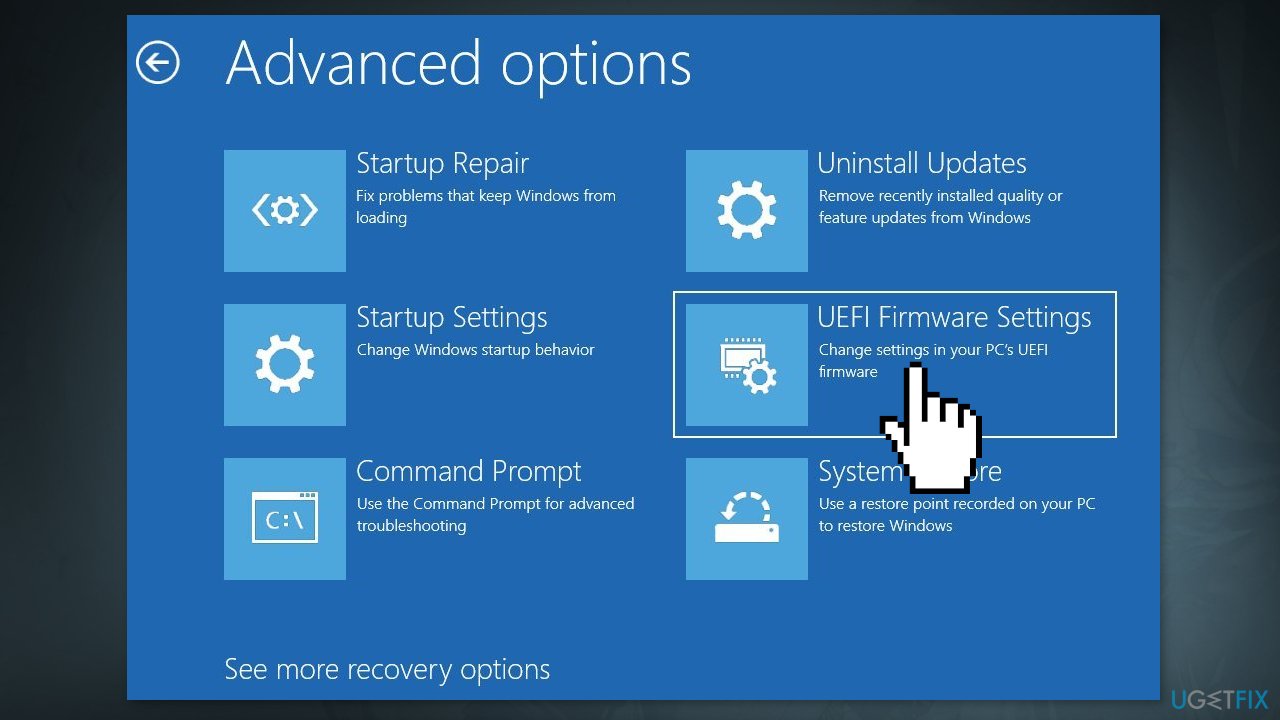
- Hold down the Shift key and then select restart from the power button option. The computer will restart and present you with a special screen with different options.
- Go to Troubleshoot
- Next, to the Advanced Options tab you will find the option for UEFI settings
- Go to the Advanced tab
- Go to Performance
- Look for an option that specifies overclocking or something similar
- If it is enabled, which should be the case if your CPU is overclocking, then disable it
- Save the settings and press Yes to any confirmation dialogue box
- Exit the BIOS menu and restart your computer system
Solution 5. Disable Third-Party Antivirus Software
Some security programs might be conflicting with game servers and data packages, mistakenly perceiving these servers as insecure. Thus, it is known that removing AV software helped some users when trying to play video games on Windows.
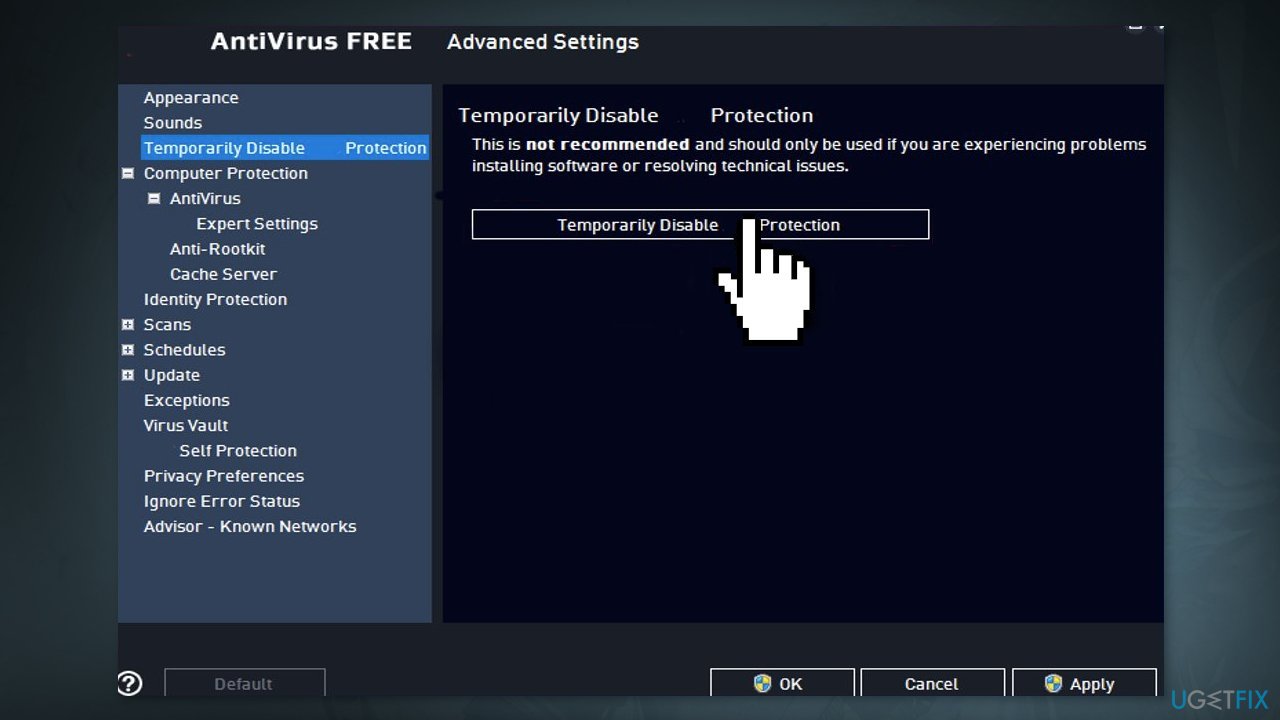
- Right-click the antivirus icon and select Disable
- You can also double-click the antivirus icon and look for a Disable option there
Solution 6. Use System Restore
- Type in Create a System Restore Point in Windows search and hit Enter
- Click on System Restore
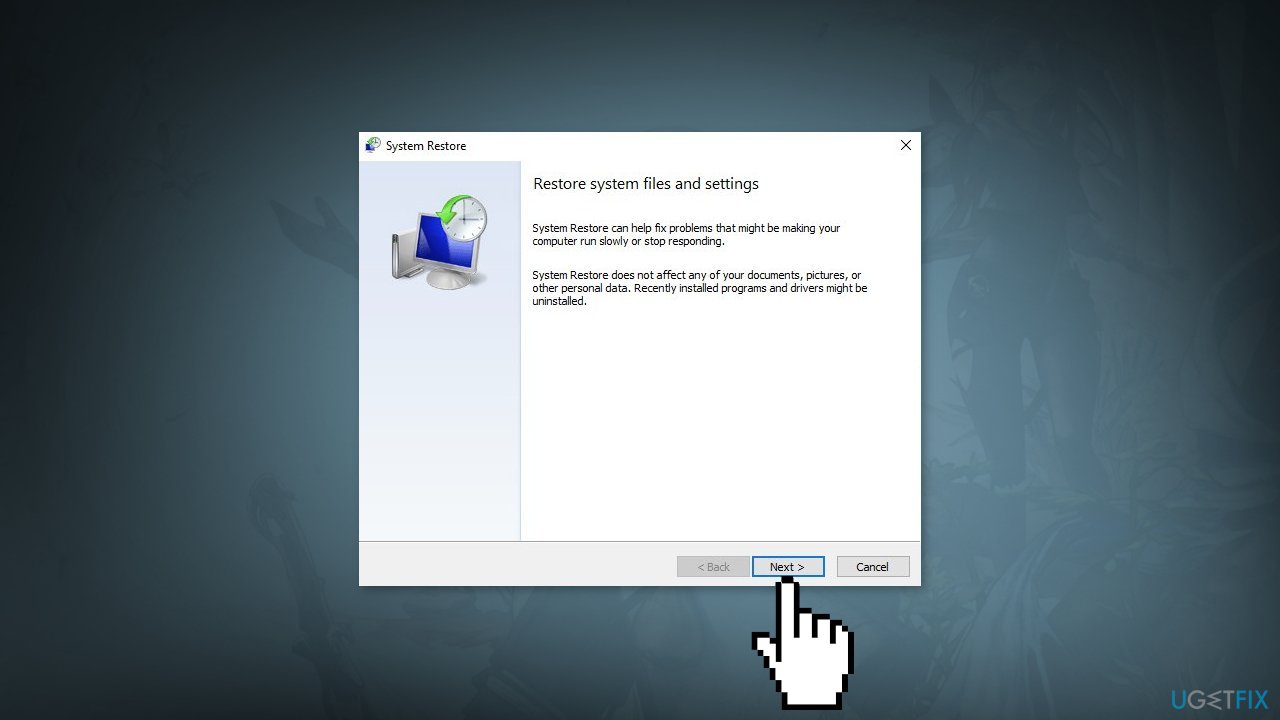
- Select Choose a different restore point (if available) and click Next
- Mark the Show more restore points checkbox
- Choose the date before you start experiencing the issue
- Click Next and reboot the system as required
Bottom line
To fix the UE4 Fatal Error in Harvestella, you can update Windows, update your GPU driver, verify the integrity of the game files, and disable overclocking. If these solutions do not resolve the issue, consider using a maintenance tool to address system errors.
Frequently asked questions
Common causes include outdated graphics drivers, corrupted game files, or compatibility issues with Windows 10 settings. Ensuring your system meets the game's requirements can also help.
You can verify the integrity of game files by right-clicking on Harvestella in your Steam library, selecting 'Properties', then going to the 'Local Files' tab and clicking 'Verify Integrity of Game Files'.
If the error continues, try reinstalling the game or updating your graphics drivers, as these are often effective solutions for resolving persistent issues.




Report an issue
What's wrong with this guide? We review every report and update or remove content.
Report received — thank you. We'll review and fix it.
You need a free account to submit a report.
Be the first to comment