How to fix
UiHost.exe application error
on Windows
Resolve the UiHost.exe application error on Windows 10 and 11 easily with our expert-tested solutions and simple fixes. Get back on track fast!


What causes How to fix UiHost.exe application error in Windows?
- Buggy updates
- Corrupted files
- Malware infection
- Issues after app update
Repairs Windows system files, removes malware, and restores a clean OS state — without reinstalling.
Hello, I keep getting the UiHost.exe application error at random times but I am not sure how to fix it.
In the hopes of making their browser experience more secure, some users opt to install browser extensions dedicated precisely for that purpose. McAfee WebAdvisor is one of such extensions, which is compatible with all major browsers, including Google Chrome, Microsoft Edge, Mozilla Firefox, etc.
Whenever an extension is installed on the browser, it populates its files in a particular location on a computer - usually in the %AppData% folder. One that has McAfee WebAdvisor installed on their device would also have UiHost.exe within that location. While it is necessary for the app's operation, it may cause a UiHost.exe application error for some.
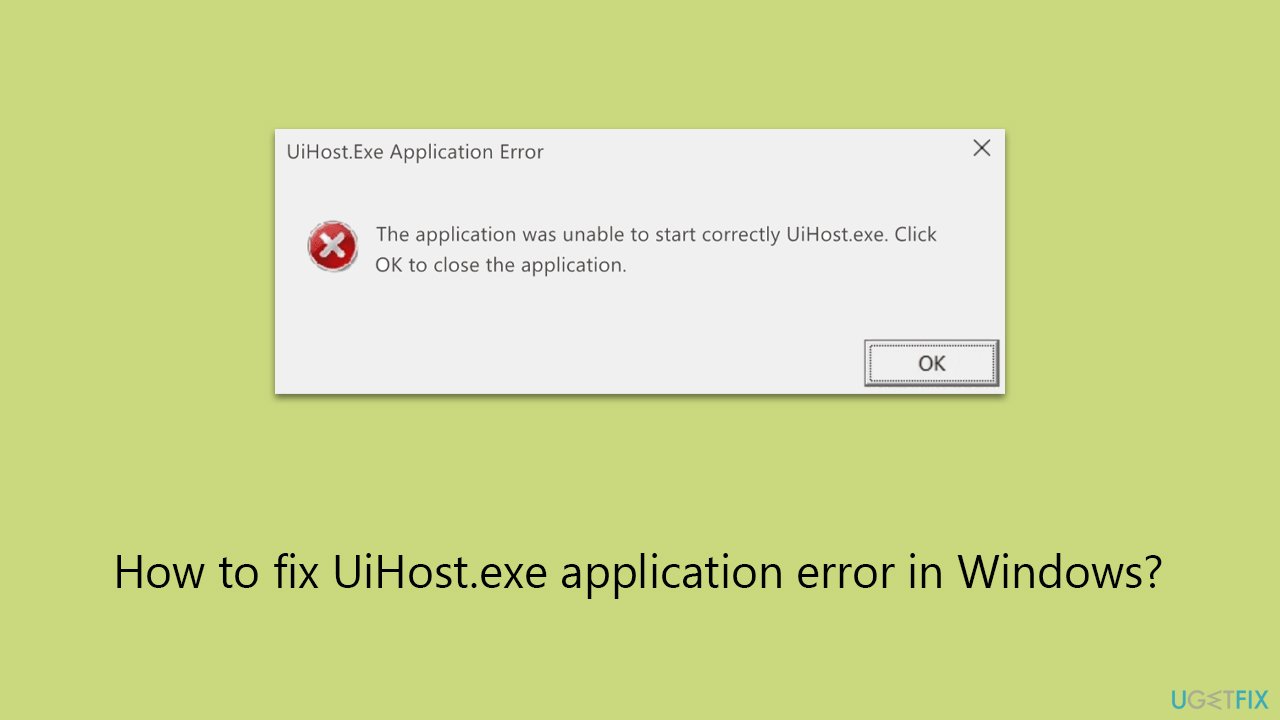
UiHost.exe (UI Interface Host) is an important component of the extension - it is responsible for the user interface. As such, whenever this element malfunctions, users receive the following error:
UiHost.exe Application Error
The application was unable to start correctly UiHost.exe. Click OK to close the application.
As a result, users are unable to use the WebAdvisor app on their systems, potentially leaving them vulnerable without an extra layer of protection.
Some users said that the issue occurred after they updated the app, while others claimed they were unaware of the reasons. In most cases, the UiHost.exe application error is a result of buggy updates, corrupted files, or even malware infection. Luckily, all of these issues can be addressed, and we provide instructions below.
In case you would like to perform a broader scan of your system, we recommend trying the [d1] repair app, capable of repairing system file corruption, clearing caches, and fixing various errors automatically.
Fix 1. Update WebAdvisor
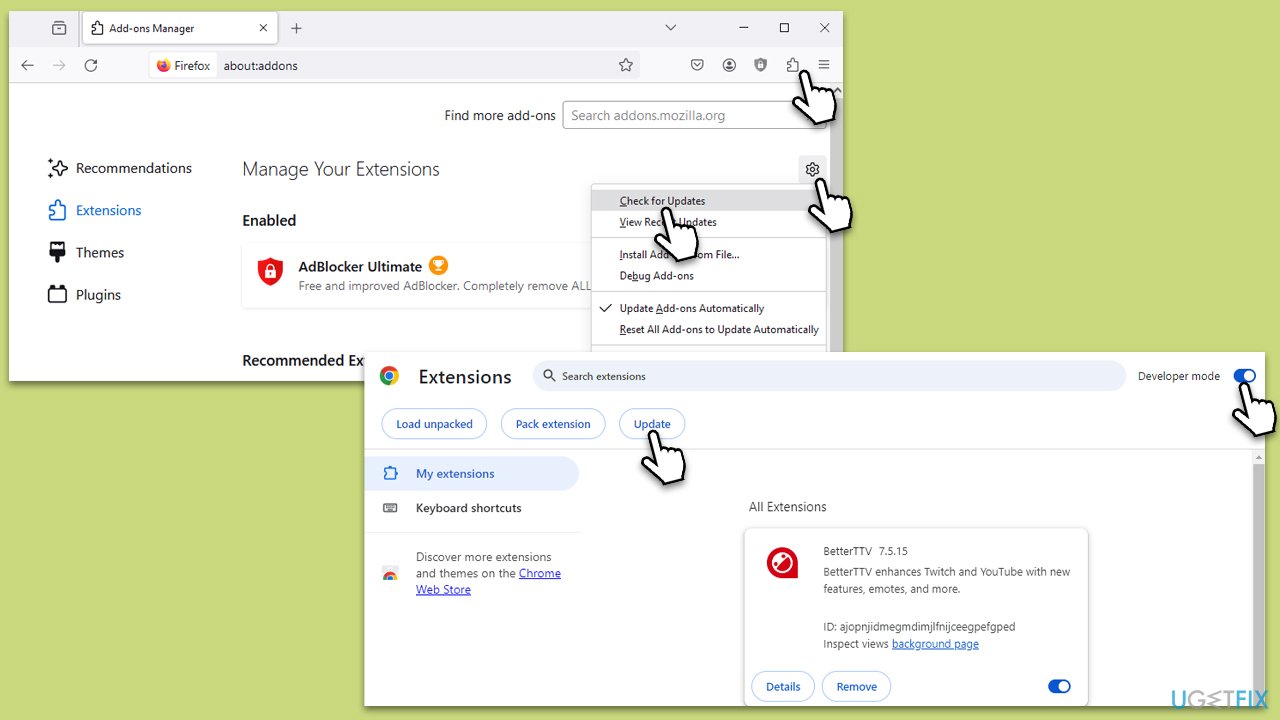
Most users claimed that they started receiving the error soon after an update. McAfee was aware of the issue and released a patch that addressed it. To apply this patch, make sure you update the extension as follows:
- Click on the Extensions button on the browser (typically located in the top-right corner of the window) and select Manage Extensions.
- Toggle the Developer mode switch, located at the top-right on Chrome and Opera, and on the left side on Edge.
- Click Update to update all the installed extensions.
- On Firefox, simply click the Gear icon at the top and click Check for updates.
- Relaunch your browser.
Fix 2. Update browser
Another important component to be updated is the browser itself. Follow these steps:
Google Chrome
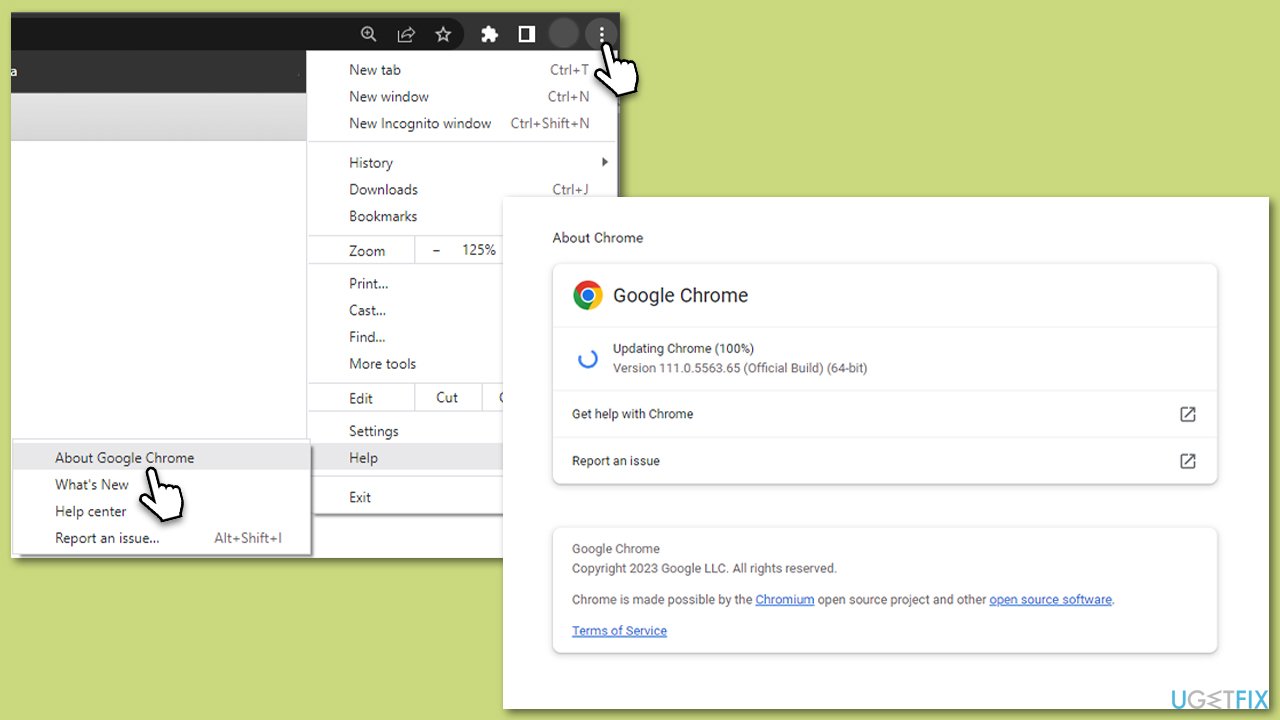
- Click on the menu (three vertical dots in the top-right corner of the browser).
- Select Help > About Google Chrome.
- Wait till the browser is updated and click Relaunch.
Mozilla Firefox
- Click on Menu and click Help.
- Select About Firefox.
- All the updates should download automatically.
- When done, click Restart to update Firefox.
Microsoft Edge
- Click on Settings and more (three horizontal dots).
- Select Help and feedback > About Microsoft Edge.
- Your browser should be updated, then restart it.
Fix 3. Try Clean Boot
Software conflicts may sometimes result in various errors. To ensure this is not the case, access Clean Boot mode and see if the issue persists.
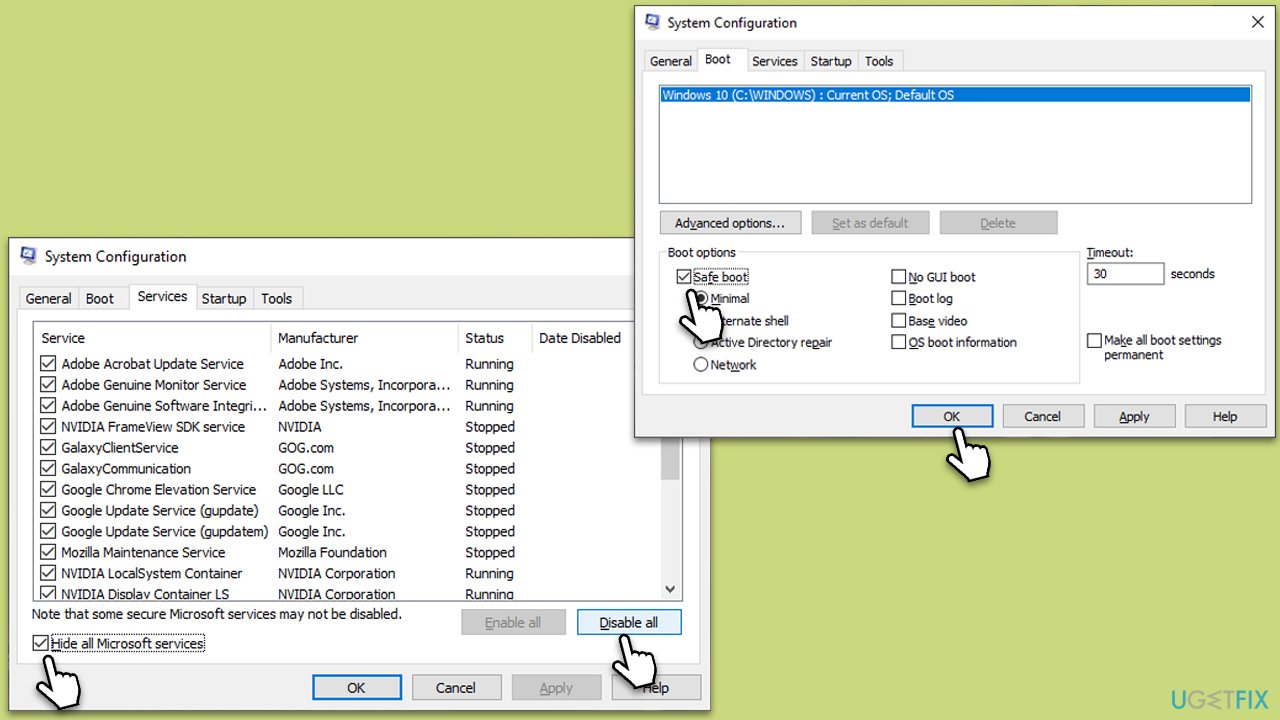
- Type msconfig in Windows search and hit Enter.
- Go to the Services tab and tick the Hide all Microsoft services checkbox.
- Select Disable all.
- Go to the Startup tab and click Open Task Manager.
- Here, right-click on each of the non-Windows entries and select Disable.
- Close down the Task Manager.
- Go to the Boot tab and tick the Safe boot option.
- Restart your device.
- If the issue is not present in the Clean Boot state, you should enable half of the services, restart the PC again, and check if the error shows up. Repeat this process till you find the culprit.
Fix 4. Scan your device for malware
Another reason why security components such as WebAdvisor might malfunction is malware infection. Thus, you should scan your system for malware; it can be done with a reliable third-party, Microsoft Security Scanner, or the built-in Microsoft Defender as follows:
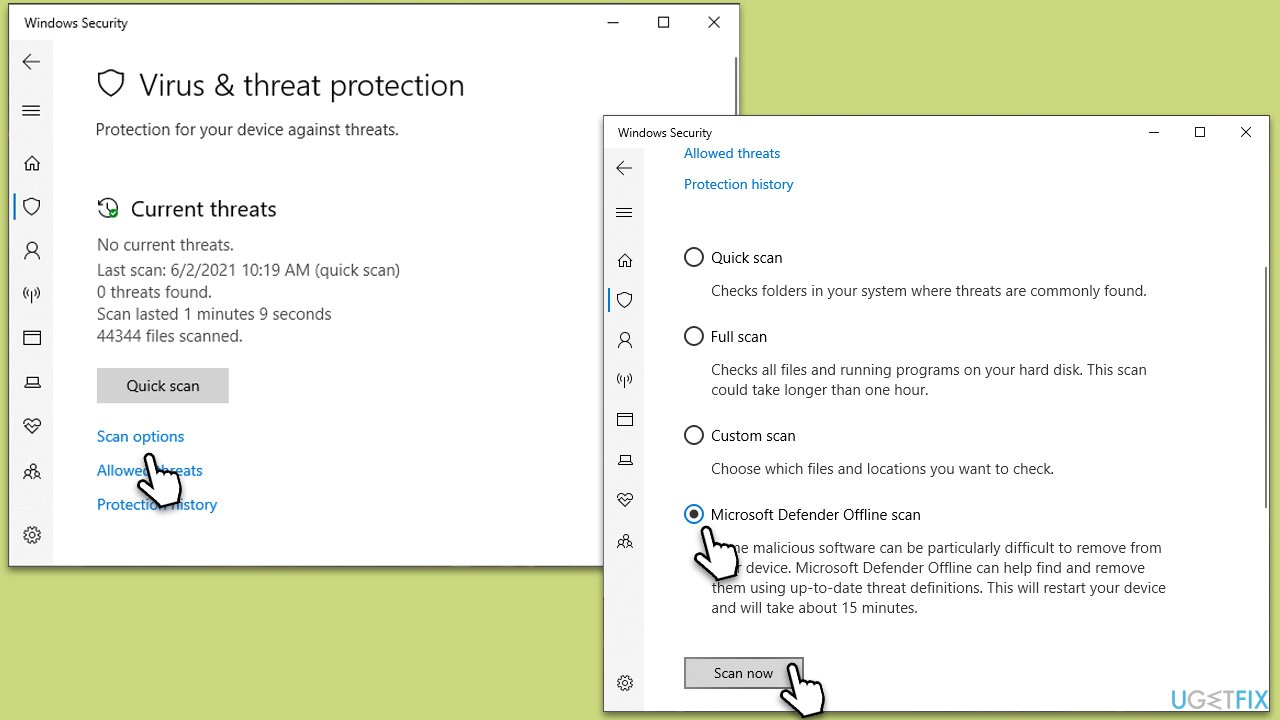
- Type Windows Security in the Windows search bar and hit Enter.
- Select Virus & threat protection.
- Pick Scan options.
- Choose Microsoft Defender Offline scan and click Scan now.
- Your PC will immediately reboot and begin a deep scan.
Fix 5. Reinstall WebAdvisor
If updating the app did not work, you should try reinstalling it to ensure you have the latest version. Proceed with the following steps:
Google Chrome
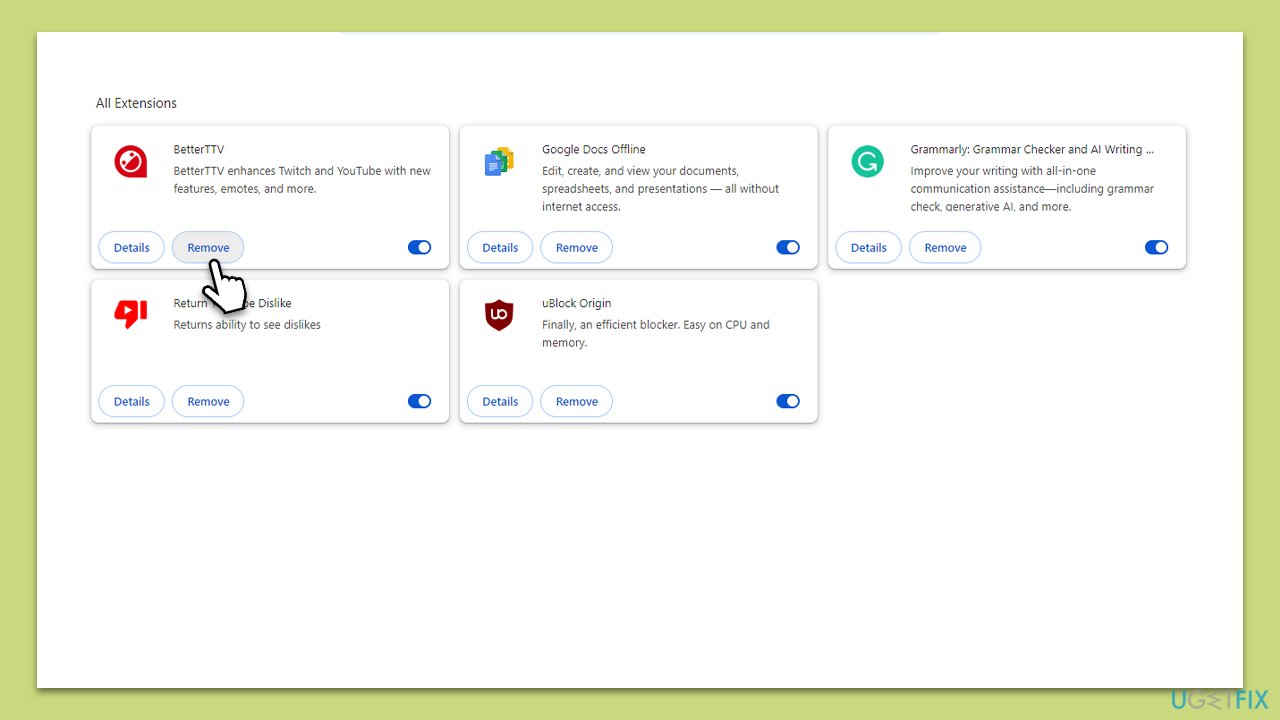
- Open Settings and go to More tools.
- Select Extensions.
- Here, you will find the list of the installed extensions.
- You can either delete them by pressing Remove or toggling the switch to disable them.
Mozilla Firefox
- Click the Extensions button next to the menu.
- Click Extensions on the left.
- Here, you will see the listed extensions.
- You can disable them by toggling the switch or uninstall them by clicking 3 dots and selecting Remove.
Microsoft Edge
- Click the Extensions button next to the address bar.
- Select Manage extensions.
- Here, you can either Remove the extension or disable it by toggling the switch.
Once uninstalled, download the newest version of WebAdvisor from the official website.
Fix 6. Reinstall McAfee application
- Type Control Panel in Windows search and press Enter.
- Go to Programs > Uninstall a program.
- Find all McAfee entries and uninstall them.
- Next, open the web browser and download the removal tool on the official website or follow the direct download link.
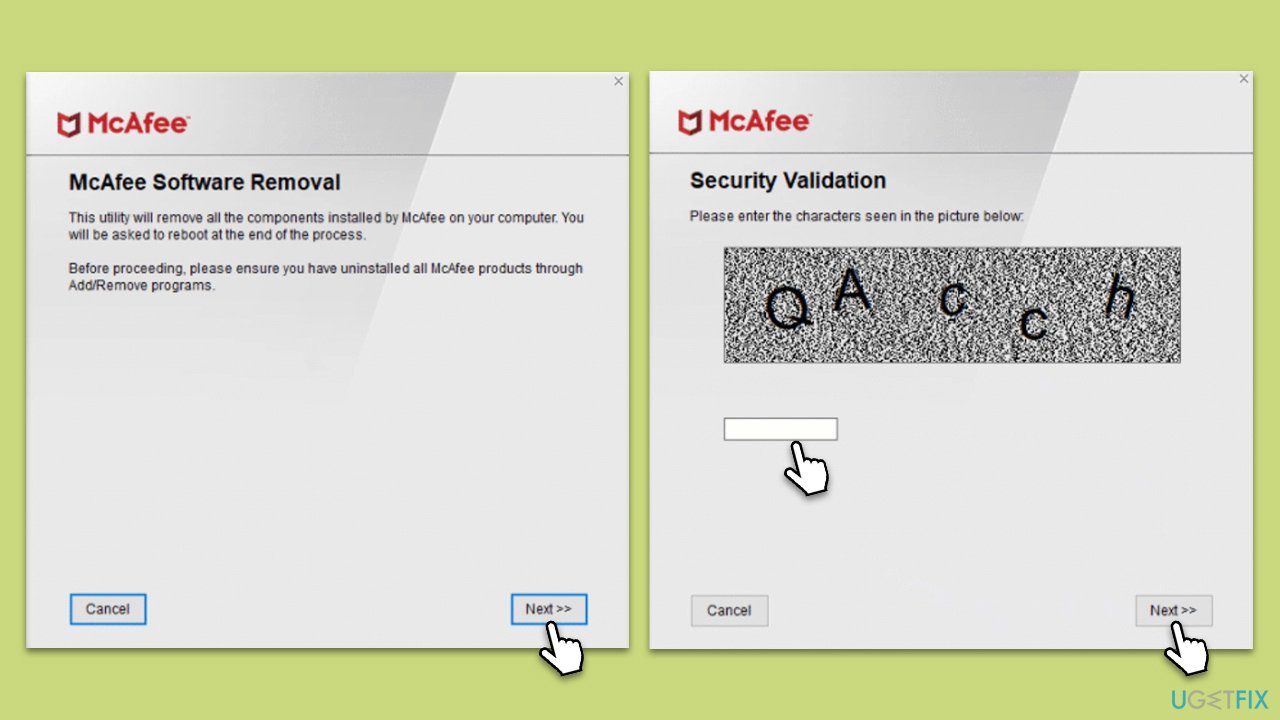
- Once you download the MCPR.exe file, double-click it to launch it. If the UAC shows up, click Yes.
- Click Next and Agree.
- Enter the Security Validation code and click Next.
- Once you see the "Removal Complete" message, hit the Restart button to reboot your system.
- Reinstall the app.
Bottom line
To fix the UiHost.exe application error, users can update the WebAdvisor extension, which may resolve issues caused by recent updates. If the problem persists, consider performing a broader system scan with a repair app to address file corruption and other errors. If none of these solutions work, further investigation may be needed.
Frequently asked questions
The UiHost.exe application error can be caused by corrupted system files, issues with the Windows Store, or conflicts with third-party applications. Running a system file check can help identify and resolve these underlying issues.
You can fix the UiHost.exe error by performing a system file check using the Command Prompt, resetting the Windows Store cache, or reinstalling problematic applications. Additionally, ensure your Windows is updated to the latest version.
Disabling UiHost.exe is not recommended as it is an essential component for certain Windows features. Instead, focus on troubleshooting the error to ensure proper functionality.




Report an issue
What's wrong with this guide? We review every report and update or remove content.
Report received — thank you. We'll review and fix it.
You need a free account to submit a report.
Be the first to comment