How to fix
Unable to Access Apps & Features Setting Issue
on Windows
Resolve the "Unable to Access Apps & Features" issue on Windows 10 effortlessly. Get expert-tested solutions and regain full control of your settings!


What causes How to Fix Unable to Access Apps & Features Setting Issue on Windows 10?
- System files may be corrupted
- Recent Windows 10 cumulative updates may have caused issues
- User profile may have problems
- Conflicts with third-party software
- Settings app may be malfunctioning
Repairs Windows system files, removes malware, and restores a clean OS state — without reinstalling.
I can’t access “Apps & Features” on the Settings app on Windows 10. I click Win key + S, select System, and attempt to access Apps & features on the left pane. However, when I click it, nothing happens except “Apps & features” becomes highlighted in bold. Everything else seems to be working fine. Don’t know why this is happening, so I’ve simply rebooted the system expecting that this problem will disappear. However, it didn’t.
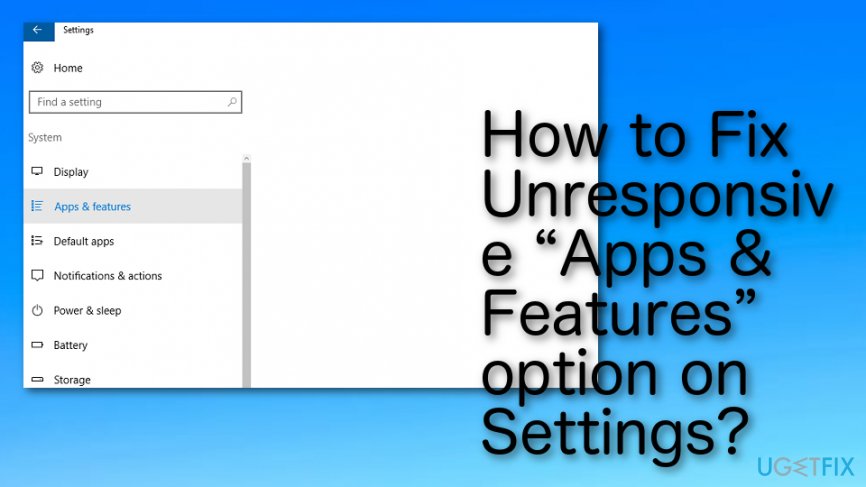
“Apps & features” is an option available on Windows 10[ref en-3] Settings app. Once opened, “Apps & features” provide a list of all applications that are installed on the system and allow the user to Move, Modify or Uninstall them. Thus, it’s similar to the Add/Remove Programs on Control Panel. Unfortunately, but many people who are using Windows 10 (mainly 64-bit version) have reported that they cannot access “Apps & features” via Settings.[ref en-1]
Most of them claim that the problem disappears when the PC is started in a Safe Mode.[ref en-2] Besides, the list of apps can be accessed via “appwiz.cpl,” but not via Settings -> System -> Apps and features. Once clicked, “Apps & Features” is highlighted, but freezes with no response. Clicking the other options on System does not work as well or respond very vaguely.
While the problem Unable to access Apps & Features settings is well-known for many Windows 10 users, Microsoft hasn’t acknowledged it and released a patch yet. Besides, there is no responding information provided by security vendors, meaning that the issue is relatively new and might have been influenced by the latest Windows 10 cumulative updates. Nevertheless, there are several things that you can try to fix Unable to Access “Apps & Features” Settings error:
How to Fix Unresponsive “Apps & Features” option on Settings?
NOTE: none of the solution methods are approved by Microsoft. Nevertheless, all of them have been tested and proved by Windows 10 users who could not access Apps & Features. All these steps are simple and their performance could not damage your OS.
Step 1. Log into Safe Mode
- Click Power button and press Shift key before the Windows logo appears.
- Select Restart and then Troubleshoot.
- Click Advanced options and select Startup Settings.
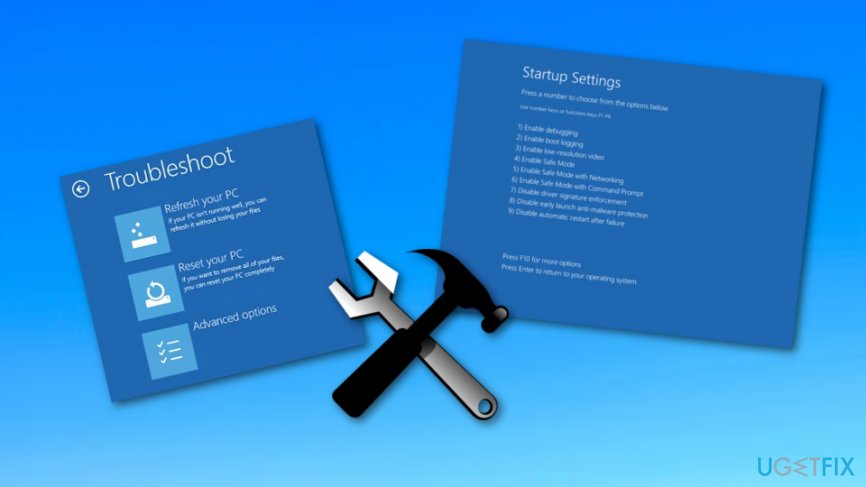
Fixing method nr - Finally, select Restart.
Step 2. Try Clean Boot
- Open search, type System Configuration, and press Enter.
- Go to the Services, select Hide all Microsoft services and then Disable all.
- Open Startup tab and select Task Manager.
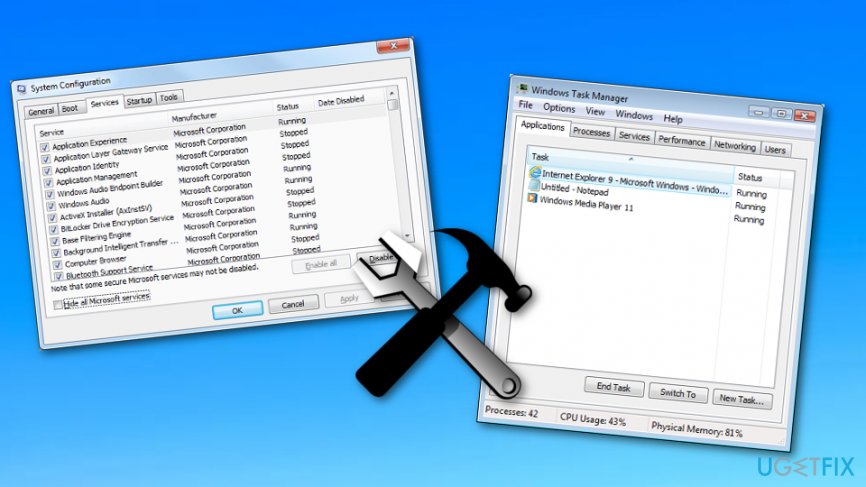
Fixing method nr - Mark all non-Microsoft applications and click Disable.
- Once done, exit Task Manager.
- On the System Configuration dialogue box, click OK.
- Restart the system.
Method 3. Run an elevated Power Shell
- Click Ctrl + Shift + ESC to open Task Manager.
- Select File and then click Run New Task.
- Make sure that the option Create this task with administrative privileges is labeled with a check mark.
- Type Powershell and wait for a new window to open.
- One an elevated Powershell opens, type the following command in it:
Get-AppXPackage -AllUsers |Foreach {Add-AppxPackage -DisableDevelopmentMode -Register "$($_.InstallLocation)\\AppXManifest.xml"} - Close Powershell and check if the issue still persists.
Method 4. Run a scan via Command Prompt
If you are having problems with the Apps and Features Settings opening, you should scan your entire computer system for errors. You can do that by launching your Command Prompt application:
- Go to the search menu on your Windows computer.
- Type "cmd".
- Open the Command Prompt application.
- Select to "Run as Administrator".

Fixing method nr - Type in: sfc/scannow.
- Press Enter.
If you still can’t access Apps & Features via Settings app, then our last recommendation would be to check the system with [d1]. It will scan the system for virus/malware and minor system malfunctions, which might be preventing Apps & Features from opening.
Bottom line
To fix the Unable to Access 'Apps & Features' issue, you can try logging into Safe Mode, using 'appwiz.cpl' to access the list of apps, or other user-tested methods. If none of these solutions work, consider seeking further assistance or waiting for an official Microsoft patch.
Frequently asked questions
You can try running the Windows Troubleshooter for apps to diagnose and resolve any issues that may be preventing access. Additionally, ensure that your Windows 10 is updated to the latest version to fix potential bugs.
Yes, you can run the 'sfc /scannow' command in the Command Prompt to repair system files, which may resolve the access issue. Alternatively, use 'DISM /Online /Cleanup-Image /RestoreHealth' to fix any corrupted Windows images.
You can reset the Apps & Features settings by going to Settings > Apps > Apps & Features, and then selecting the app you want to reset. If you can't access it, consider creating a new user account to see if the issue persists there.




Report an issue
What's wrong with this guide? We review every report and update or remove content.
Report received — thank you. We'll review and fix it.
You need a free account to submit a report.
Be the first to comment