How to fix
“Unable to check for updates. Can’t connect to the Software Update server”
on Windows
Resolve the "Can't connect to the Software Update server" issue on Windows 10 and 11 effortlessly. Expert-tested solutions to get you back on track!

What causes How to fix “Unable to check for updates. Can’t connect to the Software Update server” on Mac?
- Modified OS file to disable update notifications
- Corrupted system files
- Network connectivity issues
- Server-side problems
- Incorrect date and time settings
Repairs Windows system files, removes malware, and restores a clean OS state — without reinstalling.
Hello. I tried to update macOS but I received a message "Unable to check for updates. Can't connect to the Software Update server." What should I do?
MacOS is a Unix[ref en-1] operating system developed by Apple Inc. in 2001. It is the primary operating system for Apple's Mac computers. It is the second most widely used desktop OS, after Microsoft Windows. Just like any other operating system, macOS should be regularly updated to keep it stable, and secure.[ref en-2]
People can use Software Update to install updates and upgrades for macOS and its built-in apps, including Safari. However, sometimes people run into issues when trying to do so. People report trying to update their macOS but failing to connect to the update server. Additionally, they see "Unable to check for updates. Can't connect to the Software Update server" error message.
It is unknown what exactly could cause this. There is a possibility that some users modified an OS file to disable OS update notifications. However, such a modification also disables users' abilities to manually update the operating system. Such a problem could also arise because of corrupted system files.[ref en-3]
In this guide, you will find 3 steps that should help you fix "Unable to check for updates. Can't connect to the Software Update server" on Mac. Proceed with the step-by-step instructions below carefully.
Method 1. Install Updates through the Terminal
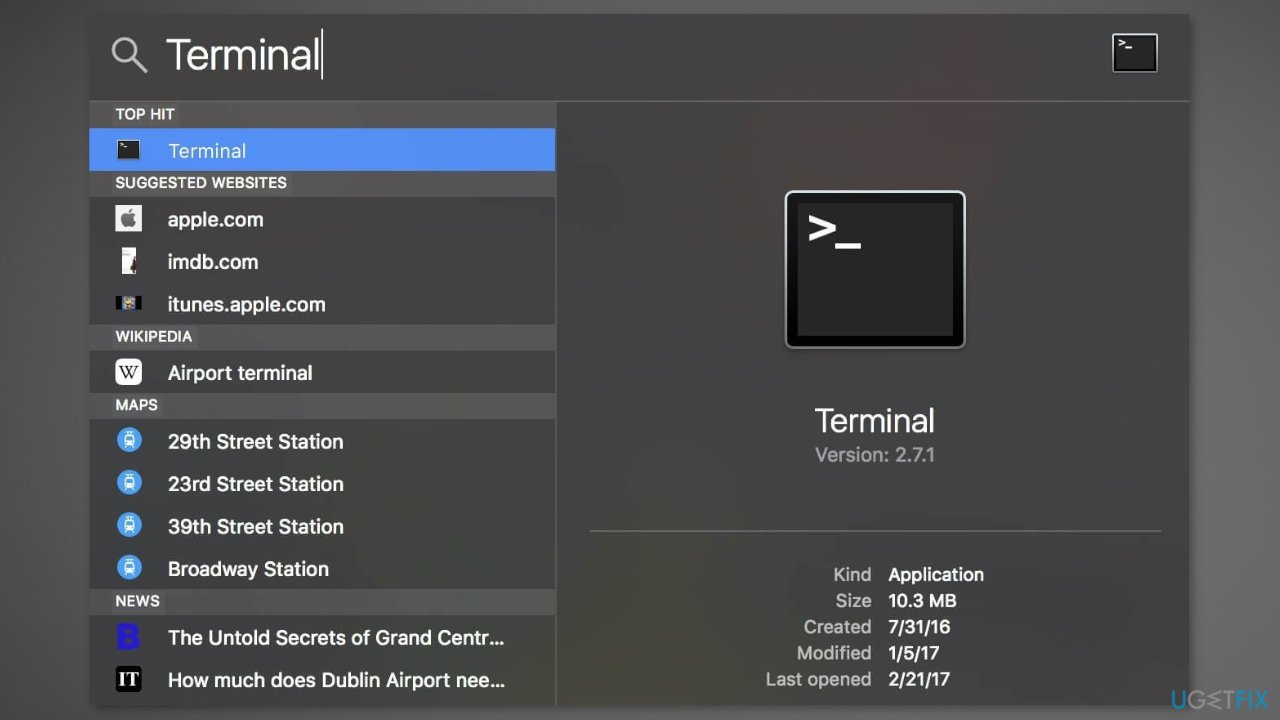
- Click the Launchpad icon in the Dock, type Terminal in the search field, then click Terminal
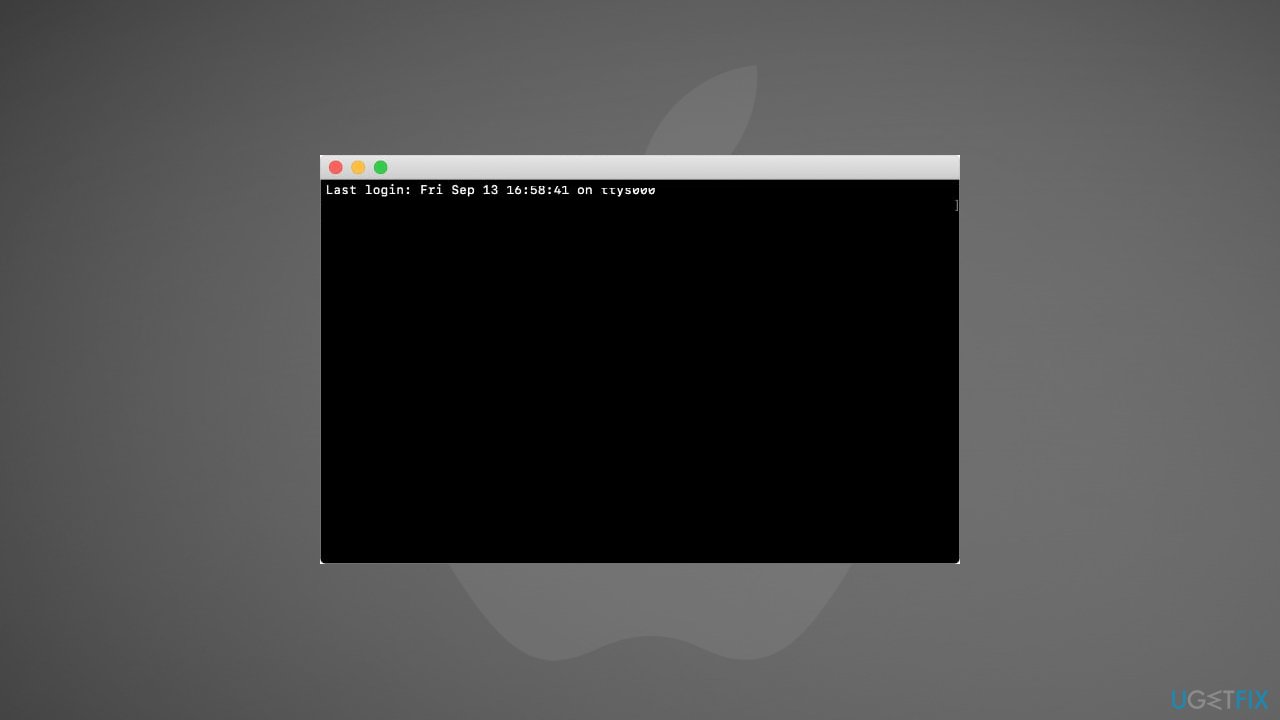
- Enter the following command:
softwareupdate --fetch-full-installer --full-installer-version 11.7
- Instead of full-installer-version 11.7 enter the version you want to update
Method 2. Run Terminal Commands
- Click the Launchpad icon in the Dock, type Terminal in the search field, then click Terminal
- Enter the command below:
softwareupdate --list-full-installers
- Choose the version you want to install from the list and run the following command:
softwareupdate --fetch-full-installer --full-installer-version 11.6.2
- Instead of full-installer-version 11.6.2 enter the version you want to install
- Launch the new application in the Applications folder
- Run the following command:
Title: macOS Big Sur, Version: 11.7, Size: 12118755KiB, Build: 20G817
Method 3. Reinstall macOS
If the previous steps did not help you fix the issue, try to reinstall macOS. The following steps will help you do that through Recovery which should keep your files and apps. However, we always recommend backing up your data before proceeding with the reinstallation.
- Boot your Mac into macOS Recovery. On Intel-based Macs, that means holding down the Cmd + R keys during startup until you see the Apple logo. If you use an Apple silicon Mac, hold down the Power button while turning it on and select Options, then Continue on the Startup Options screen
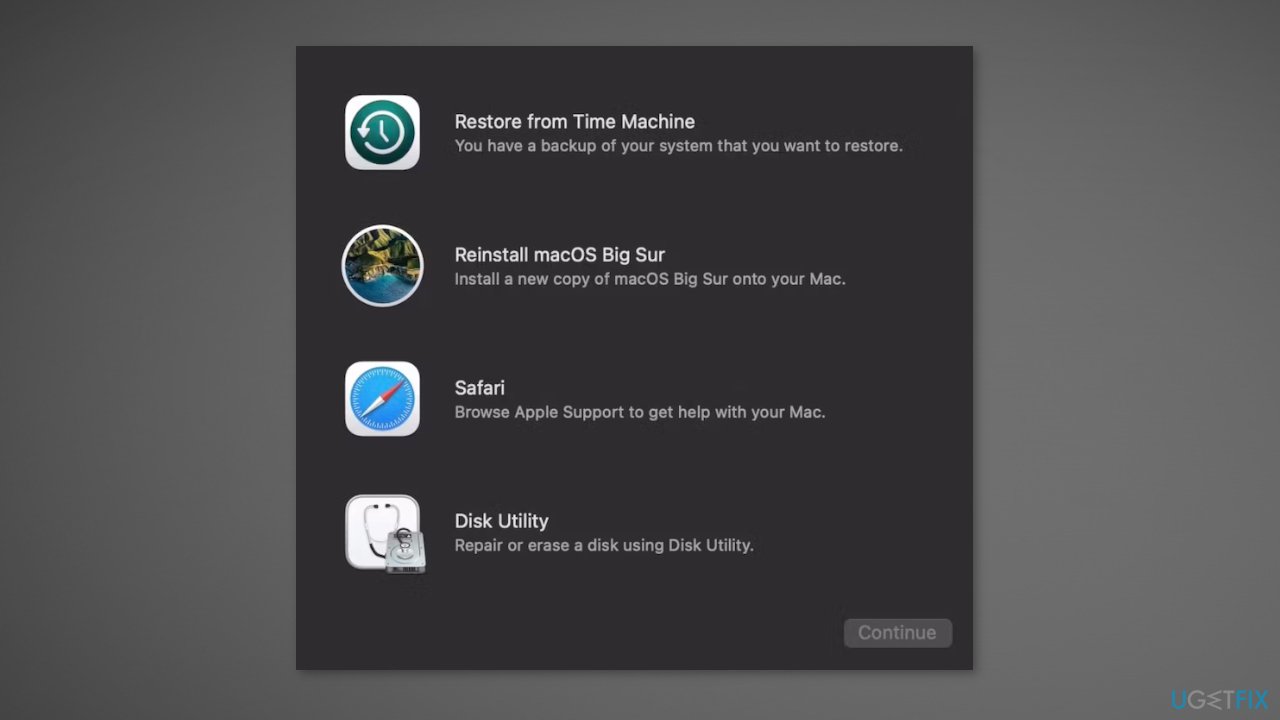
- Select an administrator account (if your Mac prompts you to) and enter its password to load the macOS Recovery menu
- Select Reinstall macOS [Version Name] and Continue
- Agree to Apple’s software license terms
- Select your Mac’s startup drive, for example, Macintosh HD, and select Continue
- Wait for your Mac to finish reinstalling macOS
- The process could take an hour or more. Your Mac will reboot multiple times in the meantime.
Bottom line
To fix the 'Unable to check for updates. Can't connect to the Software Update server' error on Mac, you can try installing updates through the Terminal or running specific terminal commands to fetch full installers. If these methods do not resolve the issue, consider checking your network connection or consulting Apple support for further assistance.
Frequently asked questions
You can try resetting the Windows Update services by running the Command Prompt as an administrator and executing commands like 'net stop wuauserv' and 'net start wuauserv'. Additionally, ensure your internet connection is stable and check your Windows Update settings.
Make sure your Windows 11 is connected to the internet and check for any firewall settings that might be blocking the update services. You can also run the Windows Update Troubleshooter for automated fixes.
Yes, you can go to Settings > Update & Security > Windows Update and click on 'Check for updates' to manually trigger the update process. If this fails, consider restarting your PC or resetting the Windows Update components.




Report an issue
What's wrong with this guide? We review every report and update or remove content.
Report received — thank you. We'll review and fix it.
You need a free account to submit a report.
Be the first to comment