How to fix
“Unable to Connect to NVIDIA” Error
on Windows
Resolve the "Unable to Connect to NVIDIA" error on Windows 10 and 11 with expert-tested tips. Get your GPU back up and running in minutes!


What causes How to fix “Unable to Connect to NVIDIA” Error?
- Nvidia's Network Service crashes while trying to start
- Application cannot start correctly
- Older version of GeForce Experience
- Malware infections corrupting software operation
- Nvidia servers experiencing issues
Repairs Windows system files, removes malware, and restores a clean OS state — without reinstalling.
So whenever I start GeForce experience, I get an unable to connect to NVidia error but then the program window will pop up anyways, likewise, I am unable to download any new updates to drivers with a similar error. Please advise on this issue?
GeForce Experience is used to optimize game settings, automatically update to latest video drivers, capture and share videos, livestreams and screenshots between users. This application assists the GeForce GTX graphics card,[ref en-1] and many users prefer using it for automatic driver updates.
However, users are known to have issues with this application, namely the repeatedly occurring “Unable to Connect to NVIDIA” error. It seems to happen every single time the application is launched. The Window of GeForce Experience launches the error, and remains idle, as updating drivers or changing settings becomes impossible.
To better understand how to fix “Unable to Connect to NVIDIA” error, we need first to find out why it occurs. Simply put, Nvidia’s Network Service crashes while trying to start and ends up at “Starting” status. Because the application cannot start correctly, it displays the following error:
Unable To Connect To NVIDIA Try again later
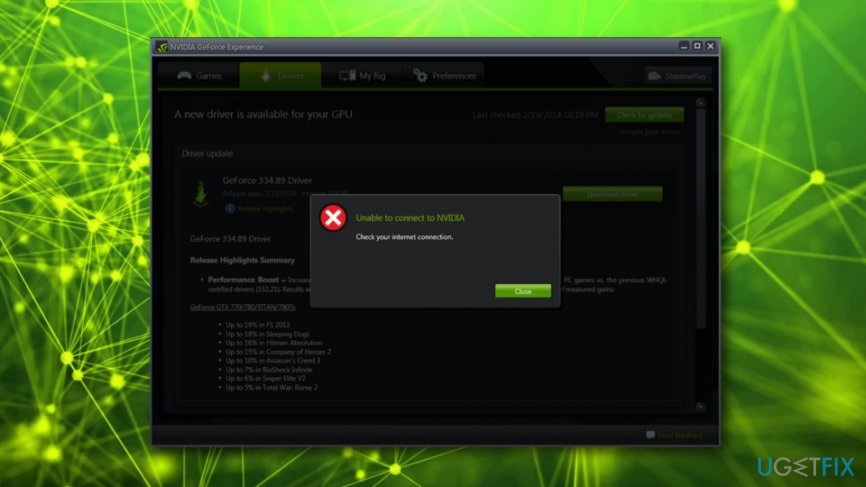
Additionally, GeForce Experience prompts users to check their internet connection:
Unable To Connect To NVIDIA Check your internet connection
While it might be a good idea to do so, there are typically no problems with internet connection, and Nvidia’s servers are at fault. Nevertheless, our security experts compiled few solutions that might help you to fix “Unable to Connect to NVIDIA” error.
Protip: Before proceeding with the solutions, we advise downloading and scanning your machine with [rev id=“Reimage”]. Even if Nvidia servers most likely cause the error, malware[ref en-2] infections can also corrupt the correct operation of the installed software. Thus, install security application and perform a full system scan.
Fix 1. Update your GeForce Experience to the latest version
Nvidia Support announced[ref en-3] that this issue is well-known to developers and they already upgraded the application to fix the “Unable to Connect to NVIDIA” error. Thus, if the version of the software is older than 2.5.X.X, you should manually download a newer client from here.
Fix 2. Delete NSManagedTasks.xml to disable Nvidia services
As we already mentioned, the most probable cause of this error is because of GeForce Experience not being able to start correctly. To fix this problem, follow these steps:
- Hold down Windows logo and press R simultaneously - the Run dialog should appear
- Type in services.msc and press Enter
- In the following window, find NVIDIA Network Service and make sure that the status of the process is Starting
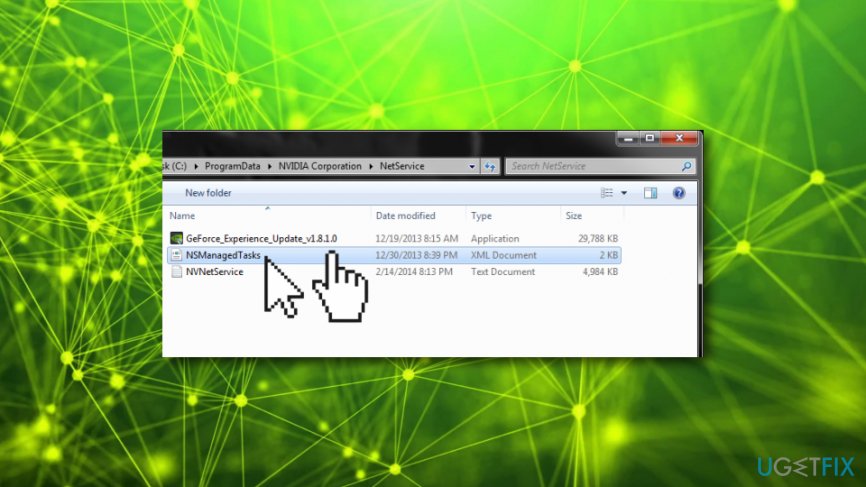
- Now, go to C:\\ProgramData\\NVIDIA Corporation\\NetService
- Find a process called NSManagedTasks.xml and delete it (in case you can’t see it, enable the Show Hidden Files in the main menu)
- Next, press CTRL + Shift + ESC and open Task Manager
- Click on Details and then right-click the NvStreamNetworkService.exe. Follow up with End Task
- Finally, go back to Services, right-click on NVIDIA Network Service and start it again
Fix 3. Update Nvidia graphics driver
If none of the above methods work, you can update Nvidia drivers in other ways. You can do it manually through the Device Manager:
- Click Start Button on your desktop and type in Device Manager into the search box
- Expand categories of your Display Adapters
- Right-click on your graphics card and click Update Driver Software
- Then, select Search automatically for updated driver software
- Windows will then automatically download and install updates for the selected software
- Restart your PC
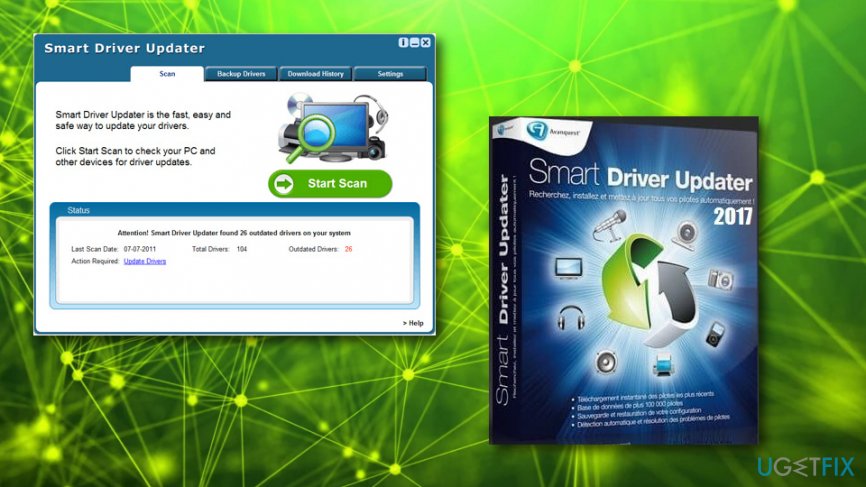
Alternatively, you can use [rev id=”Smart Driver Updater”] to update all drivers automatically.[ref en-4]
Bottom line
To fix the 'Unable to Connect to NVIDIA' error, you can update your GeForce Experience to the latest version, check for malware infections, and ensure your internet connection is stable. If these solutions do not resolve the issue, consider seeking further technical assistance.
Frequently asked questions
First, ensure that your NVIDIA drivers are up to date by visiting the NVIDIA website. If the issue persists, try reinstalling the NVIDIA software and restarting your computer.
Yes, this error can occur on both Windows 10 and Windows 11; updating your graphics drivers and checking your GPU settings can help resolve it.
You can check the status of NVIDIA services by pressing Win + R, typing 'services.msc', and looking for NVIDIA services in the list; ensure they are running.




Report an issue
What's wrong with this guide? We review every report and update or remove content.
Report received — thank you. We'll review and fix it.
You need a free account to submit a report.
Be the first to comment