
How to fix "Unable to delete all specified values" Registry Editor error in Windows?

Prefer to fix it yourself? The manual steps follow.
- 7methods
- 2 minutes to check, 10 to 15 minutes to take ownership
- Intermediate
Applies to Windows 11, Windows 10
7 methods in this guide
I was trying to modify the registry because I had issues with the Photos app, and I received an error "Unable to delete all specified values." I am now stuck with issues with both the Photos app and Registry Editor. Is there anything I could do to resolve this?
"Unable to delete all specified values" means Registry Editor tried to remove the values you selected and Windows refused at least one of them. Most often your account has no delete right on that key, or you selected an empty (Default) entry. Export the key first, then check what you selected and run Registry Editor as administrator.
The message means Windows blocked the delete, not that the registry is damaged. First check that you did not select only (Default) with (value not set): that entry cannot be removed (Fix 1). Then open Registry Editor as administrator (Fix 2). If it still fails, export the key, take ownership and give Administrators Full Control (Fix 4). Defender keys need Windows Security instead.
| Error | Dialog Error Deleting Values with the text Unable to delete all specified values. For a whole key the sister message is Error Deleting Key: Cannot delete <name>: Error while deleting key. |
|---|---|
| Where it appears | Registry Editor (regedit), right after you select one or more values in the right pane, press Delete and confirm. |
| Main cause | Your account may read the key but not delete from it: the key is owned by TrustedInstaller or SYSTEM, or a Deny entry applies, or Registry Editor runs without administrator rights. |
| Fastest fix | Check the selection (Fix 1), then restart Registry Editor with Run as administrator (Fix 2). If that fails, take ownership of the key (Fix 4). |
| Also written as | regedit unable to delete all specified values, unable to delete specified values regedit, error deleting values, cannot delete registry key, error while deleting key. |
| Affects | Registry Editor on Windows 11, Windows 10 and earlier versions. The dialog text has not changed in years. |
| Microsoft's status | Not a bug. Windows is enforcing the key's permissions. Microsoft documents reg delete for scripted deletes and the Sysinternals tool RegDelNull for keys with embedded null characters that standard tools cannot remove. |
| Time to fix | 2 minutes for Fix 1 and Fix 2. 10 to 15 minutes to take ownership and set it back. |
Facts checked on 15 October 2026. Steps written for Windows 11 (25H2 and 26H2) and Windows 10 22H2.
What "Unable to delete all specified values" means in Registry Editor
The registry is made of keys (the folders in the left pane) and values (the entries in the right pane). When you select values and press Delete, Registry Editor asks Windows to remove each one. If Windows refuses even one of them, you get this dialog and the refused values stay where they were.
The two messages Registry Editor shows
Error Deleting Values
Unable to delete all specified values.

Error Deleting Key
Cannot delete Google: Error while deleting key.- "all specified values" means the values you selected in the right pane. Some may be gone and some may not, so refresh with F5 and look again.
- "Error while deleting key" is the same refusal for a whole key in the left pane. The name after Cannot delete is the key, for example Google, WinDefend or a program you removed.
- "Illegal operation attempted on a registry key that has been marked for deletion" is a different case: the key is already deleted but a running process still holds it open. A restart clears it (Fix 7).
- The message never says which value failed or why. The command line in Fix 3 does: it prints
ERROR: Access is denied.when permissions are the cause.
A refused delete changes nothing. If something stopped working after your edits, as in the question above, it was caused by a value that was deleted or changed earlier, not by this dialog. The still-broken section shows how to undo those edits.
Why Registry Editor cannot delete the values, most common cause first
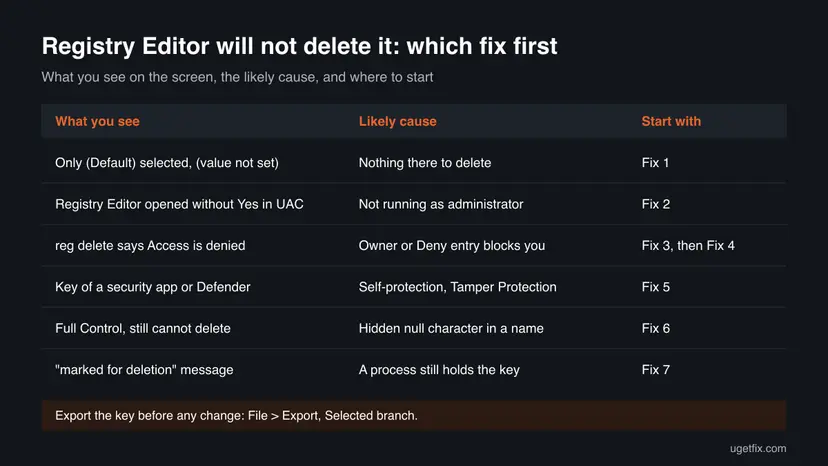
| Cause | How it looks | Fix |
|---|---|---|
| Your account has only Read on the key. Many Windows keys are owned by TrustedInstaller or SYSTEM, and some program keys give Administrators Read only. Most common. | Permissions on the key show Administrators with Read ticked under Allow, but not Full Control. The owner on the Advanced page is TrustedInstaller or SYSTEM. | Fix 2, then Fix 4 |
| You selected (Default) when it shows (value not set). | The selection is only the (Default) row and its Data column says (value not set). | Fix 1 |
| Registry Editor runs without administrator rights. | You opened it without a User Account Control prompt, or from an account that is not an administrator. | Fix 2 |
| A Deny entry on the key or a subkey. | In Permissions, a ticked box in the Deny column for your account, Administrators or Everyone. | Fix 4 |
| A running program protects its keys: a security app's self-protection, or Tamper Protection for Microsoft Defender. | The key belongs to an antivirus, Defender (WinDefend, Windows Defender) or a program that is still installed. | Fix 5 |
| The key or value name contains a hidden null character. Rare, sometimes left by malware. | You have Full Control and still cannot delete or even open the entry. | Fix 6 |
| The key is in use or already marked for deletion. | The "marked for deletion" message, or the key vanishes after a restart. | Fix 7 |
Should you delete this registry value at all
Windows locks a key for a reason. A key owned by TrustedInstaller usually belongs to Windows itself, and removing it can break an app, a feature or even sign-in. Before you force anything, be sure that the value is really what your instructions mean and that the program it belongs to is gone.
- Leftover keys of a program you already uninstalled, such as an old browser or antivirus.
- A policy key a removed program wrote, for example under
HKEY_LOCAL_MACHINE\SOFTWARE\Policies. - A value that your program's maker tells you by name to remove.
- Keys under
HKEY_LOCAL_MACHINE\SYSTEMorMicrosoft\Windowsthat a forum post told you to delete as a general fix. - Microsoft Defender keys. Change Defender in Windows Security instead.
- Keys of an app you still use. Uninstall or reset the app instead.
How to fix "Unable to delete all specified values" in Registry Editor
Fix 1 and Fix 2 take two minutes and solve the simple cases. Fix 3 tells you whether permissions are the cause. Fix 4 is the usual answer for a protected key. Fix 5 to Fix 7 cover protected programs, hidden names and keys in use.
| What you see | Start with |
|---|---|
| Only (Default) is selected and it shows (value not set). | Fix 1 |
| Registry Editor opened without a User Account Control prompt. | Fix 2 |
| You do not know why it fails. | Fix 3 |
| Administrators have only Read, or a Deny box is ticked. | Fix 4 |
| The key belongs to Defender or a security app. | Fix 5 |
| Full Control is set and the delete still fails. | Fix 6, then Fix 7 |
| "marked for deletion" appears. | Fix 7 |
Fix 1. Check what you selected and refresh the view
1 minuteNo riskEveryone, before changing any permission.
Every key shows a (Default) row, even when it holds nothing. When it says (value not set) there is no value to delete, and Windows refuses the request. A user on Microsoft Q&A who tried to remove the (Default) entry of Chrome's NativeMessagingHosts key got exactly this message.
- In Registry Editor, look at the right pane and note which rows are selected.
- If the only selected row is (Default) and its Data column says (value not set), there is nothing to delete. Leave it, or delete the whole key in the left pane instead.
- If (Default) holds data, deleting it only clears the data back to (value not set).
- If you selected several values, click an empty spot, press F5 to refresh and check which values are still there.
- Select only the values that remain and press Delete again.
It worked if: The remaining values are gone after the refresh, or you see that only an empty (Default) entry was left.
If not: If real values remain and the error repeats, go to Fix 2.
Fix 2. Open Registry Editor as administrator
1 minuteLow riskYou opened Registry Editor without a User Account Control prompt, or you are not sure.
Keys under HKEY_LOCAL_MACHINE usually give Administrators more rights than normal users. Registry Editor only gets those rights when it runs elevated, which is what the Yes in User Account Control does.
- Close Registry Editor.
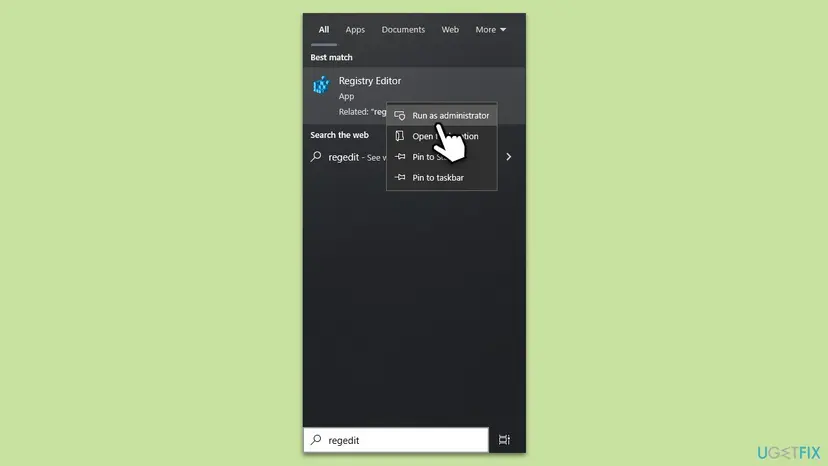
- Select Start and type
regedit. - Right-click Registry Editor and select Run as administrator.
- Select Yes in the User Account Control prompt. If Windows asks for a password, your account is not an administrator: sign in with one.
- Go to the same key and delete the values again.
It worked if: The values disappear without a dialog.
If not: If the dialog comes back even as administrator, find the cause with Fix 3 or go straight to Fix 4.
Fix 3. Back up the key and delete it with reg delete to see the real reason
5 minutesRead the warningFix 2 did not help and you want to know why, or you prefer a command.
Registry Editor shows one vague dialog. The reg delete command does the same delete but prints the reason, so you know whether it is a permission problem (Fix 4) or something else (Fix 6, Fix 7).
A deleted key cannot be undone from Registry Editor. Export it to a .reg file so you can import it back if a program stops working. Step by step: Back up the registry before editing it
- In Registry Editor, right-click the key and select Copy Key Name to copy its full path.
- Right-click Start and select Terminal (Admin). On Windows 10, search for
cmd, right-click Command Prompt and select Run as administrator. - To delete one value, type the first command below with your key path and value name. To delete the whole key, use the second.
- Put the key path in quotes when it contains a space. Replace
HKEY_LOCAL_MACHINEwithHKLMandHKEY_CURRENT_USERwithHKCUif you type it by hand. - Press Enter, type Yes if asked, and read the answer.
reg delete: one value, then a whole key
reg delete "HKLM\SOFTWARE\Mozilla\Firefox\TaskBarIDs" /v "ValueName"

reg delete "HKLM\SOFTWARE\Mozilla\Firefox\TaskBarIDs"| What it prints | What it means | Next |
|---|---|---|
The operation completed successfully. | The value or key is gone. | Refresh Registry Editor with F5 |
ERROR: Access is denied. | Permissions block you, even as administrator. | Fix 4, or Fix 5 for a security app |
ERROR: The system was unable to find the specified registry key or value. | The path or name is wrong, or it has a hidden character. | Check the path, then Fix 6 |
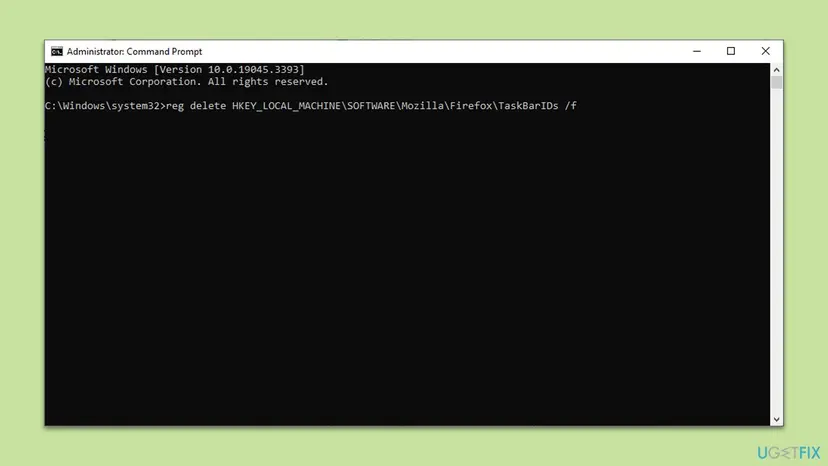
Microsoft's reference lists the switches: /v deletes one value, /va deletes all values but keeps the subkeys, /ve deletes the empty-named default entry, and /f skips the question. Without /v, /va or /ve the whole key and its subkeys go.
It worked if: The command says the operation completed, and the key or value is gone after F5 in Registry Editor.
If not: On Access is denied, take ownership with Fix 4. On cannot find, check the path, then try Fix 6.
Fix 4. Take ownership of the key and give Administrators Full Control
10 minutesRead the warningFix 2 or Fix 3 says access is denied, or Administrators have only Read, or a Deny box is ticked.
Only the owner of a key, or someone with Full Control, can delete it. Keys owned by TrustedInstaller or SYSTEM give Administrators only Read. As an administrator you may take ownership, then grant yourself the right to delete.
Export the key first (Back up the registry before editing it). Do this only for keys you are sure about (see Should you delete it). If you keep the key, set the owner back to NT SERVICE\TrustedInstaller afterwards.
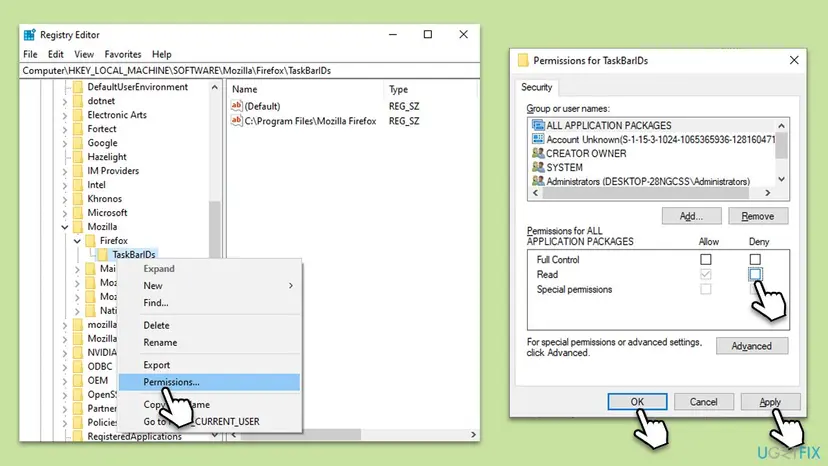
- In Registry Editor opened as administrator, right-click the key and select Permissions.
- If any box in the Deny column is ticked for your account, Administrators or Everyone, clear it and select Apply. Try the delete again.
- If it still fails, select Advanced. Next to Owner (TrustedInstaller or SYSTEM), select Change.
- Type
Administrators, select Check Names, then OK. - Tick Replace owner on subcontainers and objects and select Apply, then OK.
- Back in Permissions, select Administrators, tick Full Control under Allow, and select Apply and OK.
- Delete the values or the key again.
On Microsoft Q&A a volunteer moderator advised one user to open Registry Editor with TrustedInstaller rights through a small download. We do not recommend running such tools from file-sharing links; the ownership steps above use only what Windows has.
It worked if: The values or the key disappear without an error.
If not: If Change is greyed out or Windows refuses the new owner, the key is guarded by a running program: go to Fix 5. If you have Full Control and it still fails, go to Fix 6.
Fix 5. Let the program that guards the key remove it, or change Defender in Windows Security
10 minutesLow riskThe key belongs to an antivirus, to Microsoft Defender (WinDefend, Windows Defender) or to a program that is still installed.
Security apps guard their own keys while they run, and Tamper Protection blocks changes to Defender settings even for administrators. Changing ownership will not help. The program's own uninstaller or settings page is the way in.
- If the program is still installed, uninstall it from Settings > Apps > Installed apps (Windows 10: Apps & features) and restart. Most uninstallers remove their own keys. Step by step: Uninstall a program or app in Windows
- If the program's maker offers a removal tool for leftovers, use that tool rather than editing the registry.
- For Defender, do not delete keys. Open Windows Security > Virus & threat protection > Manage settings and change the setting you wanted there.
- If a third-party antivirus is installed, Defender turns itself off; you do not need to delete its keys for that.
- Only if you must test a delete of a non-Defender key: pause protection for one try and turn it on again at once: Turn off Microsoft Defender protection for a moment
It worked if: The program and its keys are gone after the restart, or the Defender setting is changed in Windows Security.
If not: If leftover keys of an uninstalled program still refuse, use Fix 4 on them.
Fix 6. Delete keys with hidden null characters using RegDelNull
5 minutesRead the warningYou have Full Control and the key still cannot be deleted or opened, or reg delete cannot find a key you can see.
A key name can contain an embedded null character. Registry Editor and reg cannot address such a name, so they fail. Microsoft's Sysinternals tool RegDelNull searches for these keys and deletes them.
RegDelNull asks before each delete. Answer y only for keys you recognise, and run a malware scan afterwards, because hidden names are a known hiding trick: How to scan for malware with Microsoft Defender
- Download RegDelNull from its page on Microsoft Learn (Sysinternals) and unzip it to a folder such as
C:\Tools. - Open Terminal (Admin) and go to that folder with
cd C:\Tools. - Run the command below with the parent key of the stubborn one. The
-sswitch also searches subkeys. - Read each line: the tool replaces null characters with
*. Type y only for the key you want to remove.
RegDelNull: search one branch for null-embedded keys
regdelnull HKLM\SOFTWARE\ProgramName -sIt worked if: The tool lists the key with a * in its name, you confirm, and it reports Scan complete.
If not: If no null-embedded key is found, the key is in use: go to Fix 7.
Fix 7. Restart, or delete the key in Safe Mode
10 minutesLow riskYou see "Illegal operation attempted on a registry key that has been marked for deletion", or a service of the program keeps the key open.
A key that is deleted while a process holds it stays until that process lets go. A restart closes it. Safe Mode starts only basic drivers and services, so most third-party services that hold their keys do not run.
- Restart the PC with Start > Power > Restart and check whether the key is already gone.
- If it is still there, start Safe Mode as shown below.
- In Safe Mode, open Registry Editor as administrator and delete the key.
- Restart normally.
- Restart from Settings…. Open Settings > System > Recovery. Next to Advanced startup, select Restart now and confirm. On Windows 10 the path is Settings > Update & Security > Recovery.
- …or hold Shift and select Restart. Instead of Settings you can select Start > Power, hold Shift and select Restart. This also works from the power button on the sign-in screen.
- Select Troubleshoot. On the blue Choose an option screen, select Troubleshoot.
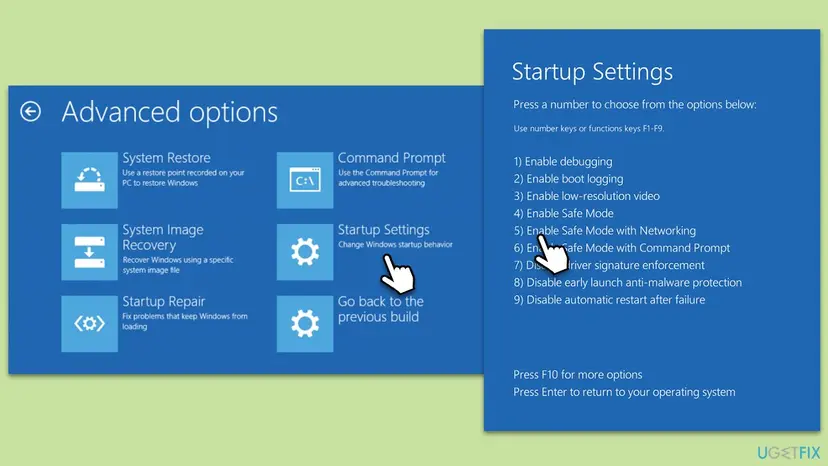
- Open Startup Settings. Select Advanced options > Startup Settings.
- Restart. On the Startup Settings page, select Restart. The PC restarts and shows a numbered list.
- Choose Safe Mode. Press 4 or F4 for Enable Safe Mode. Press 5 or F5 for Enable Safe Mode with Networking if you need the internet, for example to download a scanner or a driver.
- Leave Safe Mode. When you are done, restart the PC normally. Windows starts in normal mode again.
- If it keeps starting in Safe Mode. Press Windows key + R, type msconfig and press Enter. On the Boot tab, clear Safe boot, select OK and restart.
These steps were written for Windows 11 24H2 and later; Windows 10 22H2. The full page with the other versions and what each result means: Start Windows or a Mac in Safe Mode
It worked if: The marked key is gone after the restart, or the delete works in Safe Mode.
If not: If it fails in Safe Mode too, go back to Fix 4 and Fix 6 for that key.
If an app stopped working after your registry edits
The reader above went into the registry to fix the Photos app and ended with two problems. The dialog itself did nothing, but the values that were deleted before it may matter. Undo in this order.
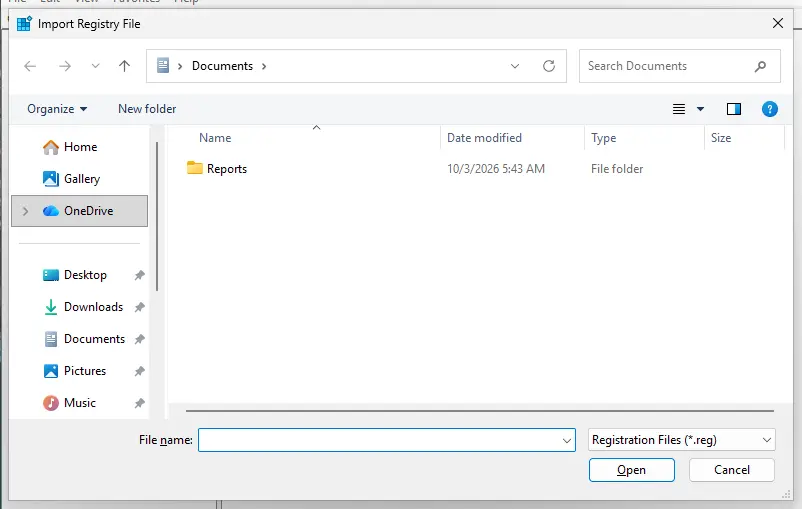
- You exported the key. Double-click the .reg file, confirm, and restart. Or in Registry Editor select File > Import.
- No export, but System Protection is on. Go back to a restore point from before the edits: Undo recent changes with System Restore
- A Store app such as Photos broke. Repair it, then reset it if needed: How to repair or reset an app in Windows For the Photos app see also Photos app unable to save.
- You changed ownership and kept the key. Set the owner back to
NT SERVICE\TrustedInstalleron the Advanced page, and remove the Full Control you added. - Windows itself misbehaves. Repair system files: Run DISM and SFC to repair Windows system files
If you ask for help, give the full key path (right-click the key, Copy Key Name), the exact message, what reg delete printed in Fix 3, and the owner shown on the Advanced page. In a company PC, a Group Policy may lock the key: ask your IT team, because their policy will write it back.
How to edit the registry without hitting this error again
- Export every key before you change it, and keep the .reg files until the PC works.
- Open Registry Editor with Run as administrator when you work under HKEY_LOCAL_MACHINE.
- Remove programs with their uninstaller first and delete only the keys left behind.
- Keep System Protection on for drive C: so a restore point exists.
- Do not take ownership of whole hives such as HKEY_LOCAL_MACHINE\SOFTWARE.
- Do not delete Defender keys; use Windows Security.
- Do not follow registry cleaners or forum lists that delete many keys at once.
- Do not leave Everyone with Full Control on a key after you are done.
Frequently asked questions
What does "Unable to delete all specified values" mean?
It means Registry Editor asked Windows to remove the values you selected and Windows refused at least one of them. The usual reason is permissions: your account can read the key but not change it. The other common case is a selected (Default) entry that shows (value not set), which cannot be deleted because there is nothing in it. The dialog does not mean the registry is damaged, and nothing was changed by the failed attempt.
Why does regedit say unable to delete all specified values even when I am an administrator?
Being an administrator is not the same as running Registry Editor elevated, and even elevated, administrators do not own every key. Many keys belong to TrustedInstaller or SYSTEM and give Administrators only Read. Open Registry Editor with Run as administrator first. If the message remains, take ownership of that one key and give Administrators Full Control, as Fix 4 shows. Export the key before you do it.
How do I fix "Cannot delete: Error while deleting key"?
It is the same refusal for a whole key instead of single values. Check the key's subkeys too: one locked subkey is enough to stop the delete of its parent. Take ownership with the Replace owner on subcontainers and objects box ticked, give Administrators Full Control, and delete again. If reg delete then still says Access is denied, a running program guards the key; uninstall it or use Safe Mode.
Why can't I delete Google or Chrome registry keys?
Chrome and Google Update keys under HKEY_LOCAL_MACHINE can give Administrators only Read, so the message Cannot delete Google: Error while deleting key appears. Make sure Chrome and Google Update are uninstalled and not running, export the key, then take ownership as in Fix 4. If you went there because Chrome said it is managed by your organization, the policy values usually sit under HKEY_LOCAL_MACHINE\SOFTWARE\Policies\Google.
Why can't I delete Windows Defender registry keys?
Microsoft Defender protects its settings with Tamper Protection, so deletes and changes are refused even for administrators, and the key shows Error while deleting key. That is intended. Change Defender settings in Windows Security under Virus and threat protection. If you installed another antivirus, Defender steps back by itself, so there is no reason to delete its keys.
What does "Illegal operation attempted on a registry key that has been marked for deletion" mean?
It means the key was already deleted, but a program or service still had it open, so Windows keeps it until that handle closes. Any further action on it fails with this message. Close the program that used the key, or simply restart the PC; after the restart the key is gone or can be deleted normally. If the message appears at sign-in, restart once more before trying anything else.
Can I delete a registry key with Command Prompt?
Yes. Open Command Prompt or Terminal as administrator and use reg delete with the full key path, for example reg delete "HKLM\SOFTWARE\ProgramName". Add /v and a name to remove one value, or /f to skip the question. The command obeys the same permissions as Registry Editor, so it does not bypass a locked key, but it tells you the reason, such as ERROR: Access is denied.
Is it safe to take ownership of a registry key?
It is safe for one key you are sure about, such as a leftover of an uninstalled program. It removes the protection Windows put on that key, so do not do it for whole branches or for Windows keys a forum told you to delete. Export the key first. If you keep the key afterwards, set the owner back to NT SERVICE\TrustedInstaller and remove the extra Full Control.
I edited the registry and now an app does not work. What should I do?
Import the .reg export you made before the change and restart. Without an export, use System Restore with a point from before the edit. For a Store app such as Photos, Repair and then Reset in Settings usually rebuilds what it needs. The refused delete itself changed nothing, so look at values you removed or changed before the error appeared.
Sources
- Microsoft Learn: reg delete (syntax, /v, /ve, /va, /f, return values) (learn.microsoft.com)
- Microsoft Learn, Sysinternals: RegDelNull v1.11 (delete keys with embedded null characters) (learn.microsoft.com)
- Microsoft Q&A: Can't delete registry key "unable to delete all specified values" (user report, Chrome keys on Windows 11) (learn.microsoft.com)
Did this fix work?
One click, no account. It tells the next reader which guides are worth their time.
Questions and experiences: fix "Unable to delete all specified values" Registry Editor error in Windows
Still broken, or found a fix we did not cover? Ask here: members and our editors answer. Reading is open; writing needs a free account.
…