How to fix
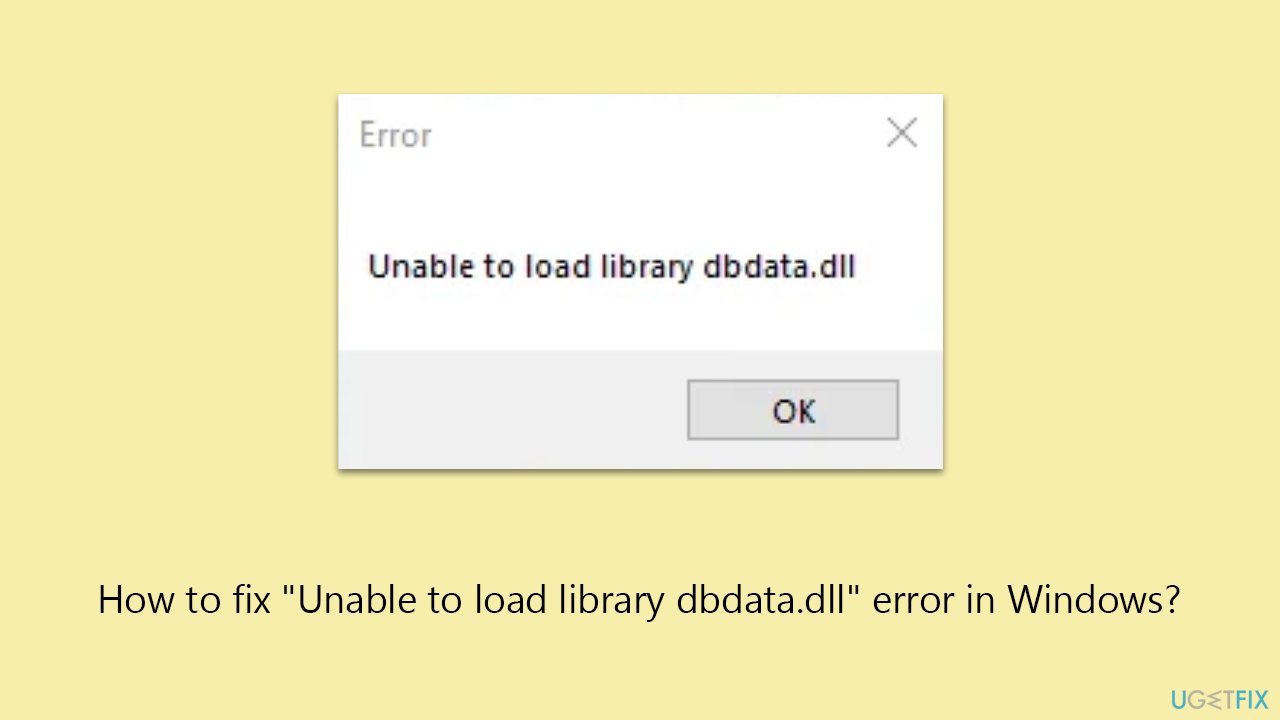
“Unable to load library dbdata.dll” error
on Windows
Resolve the "Unable to load library dbdata.dll" error in Windows 10 and 11 quickly. Expert-tested solutions ensure zero traces left and smooth performance.


What causes How to fix “Unable to load library dbdata.dll” error in Windows?
- Lost dbdata.dll file
- Corrupted dbdata.dll file
- Use of pirated copies of games
- Antivirus software quarantined dbdata.dll
- Firewall blocking essential game files
Repairs Windows system files, removes malware, and restores a clean OS state — without reinstalling.
So, I am trying to launch Assasin's Creed: Odyssey, and I keep getting the error "Unable to load library dbdata.dll." What does it mean, and how can I fix this?
DLL, or Dynamic Link Library, is a vital file structure that enables Windows applications to function optimally. DLL files work like a shared library in the sense that multiple applications can use the functions and resources within them concurrently. They contain code and data that many programs can use simultaneously, thereby reducing memory requirements and improving system performance.
However, occasionally, DLL files can be lost or corrupted, resulting in errors like the "Unable to load library dbdata.dll" error that many Ubisoft game users encounter. This error often manifests when launching games such as Assassin's Creed, Far Cry, Watch Dogs, and others.
A notable cause of the dbdata.dll error could be the use of pirated copies of games. Pirated games not only violate copyright laws but can also expose your system to serious security risks. Your antivirus software may have quarantined the dbdata.dll file because it identified it as malicious, which is common with pirated software.
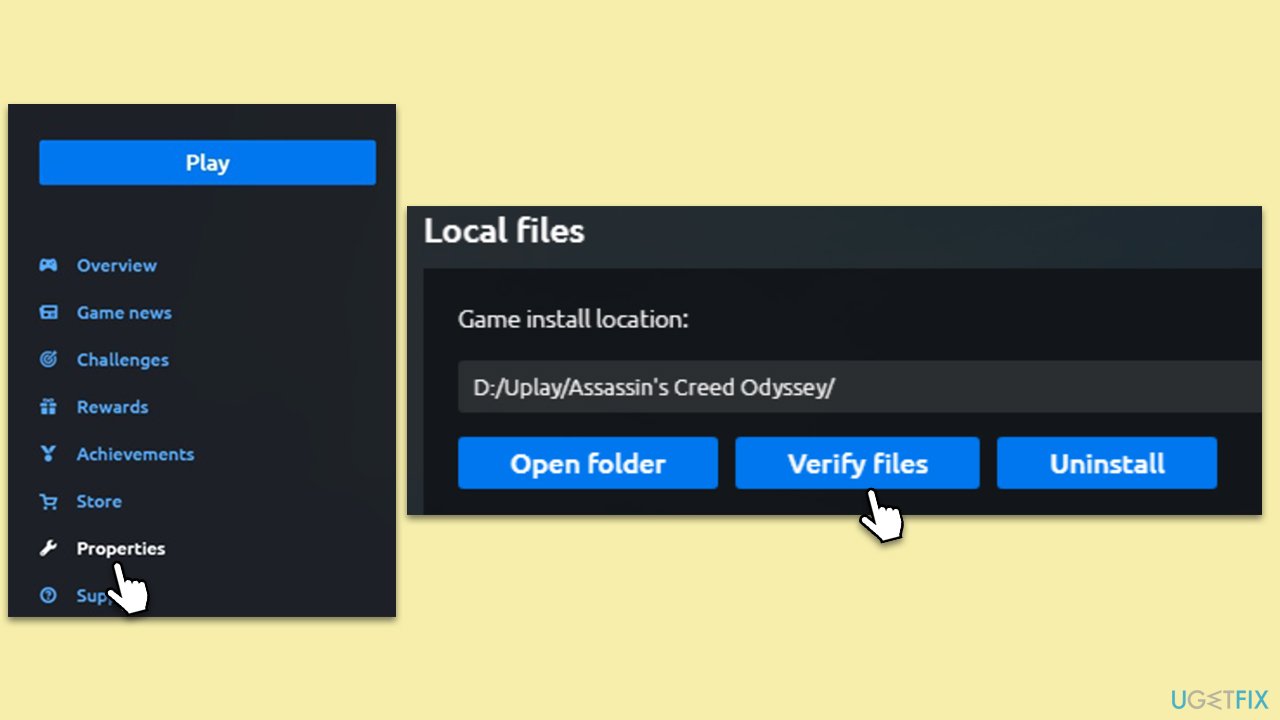
On the other hand, when dealing with legitimate copies of Ubisoft games, several solutions can help rectify the "Unable to load library dbdata.dll" error. The first and perhaps the most straightforward fix involves verifying the integrity of your game files. This action can be performed through the game launcher, and it works by checking and repairing any corrupted or missing game files.
Another possible solution is to add an exception for the affected game in your firewall settings. Firewalls sometimes block essential game files, which leads to DLL errors. If both of these fixes don't work, you may need to resort to reinstalling the game altogether.
While it can be frustrating to encounter such errors, they serve as a reminder of the importance of downloading legitimate copies of software and regularly maintaining your PC. To this end, using a repair tool like [d1] can be highly beneficial. Not only does it resolve various system issues, but it also helps enhance your computer's overall performance, enabling you to enjoy a smoother gaming experience.
Fix 1. Verify the integrity of game files
Before proceeding, remember to close the game fully. It's also advisable to disable any antivirus software temporarily, as this can sometimes interfere with the file verification process.
- Launch Ubisoft Connect and log into your account.
- Click on the Games tab to see your game library.
- Find and click on the affected game, leading you to its page.
- Select the Properties section under the game's title.
- Choose Verify files on the right side of the window.
- Ubisoft Connect will now scan and repair any problematic files.
- Once done, you'll receive a completion notification.
Fix 2. Allow the game through Firewall
A firewall might be blocking the game you are trying to launch. Also, some overly-aggressive security applications might also prevent the game from launching, so disabling third-party security apps could be beneficial. To allow the game through the firewall, follow these steps:
- Type Control Panel in Windows search and press Enter.
- Click on System and Security.
- Select Windows Defender Firewall.
- On the left-hand side, click on Allow an app or feature through Windows Defender Firewall.
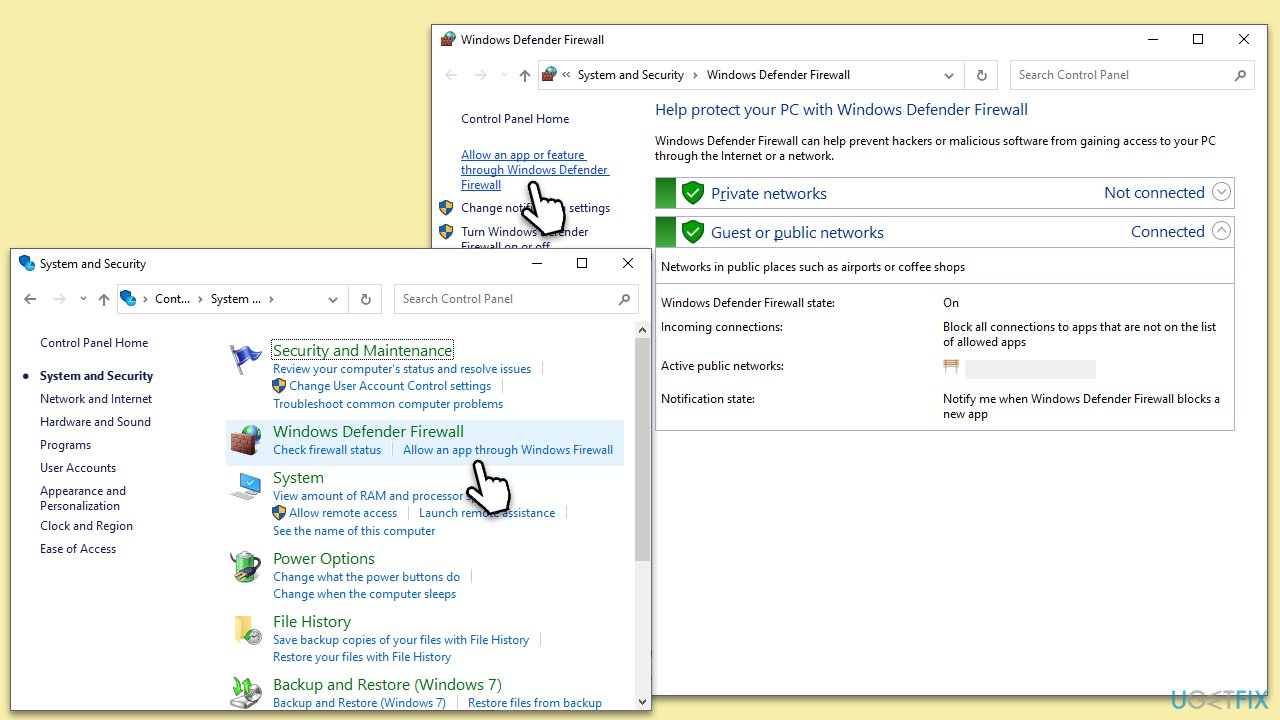
- Click on Change settings.
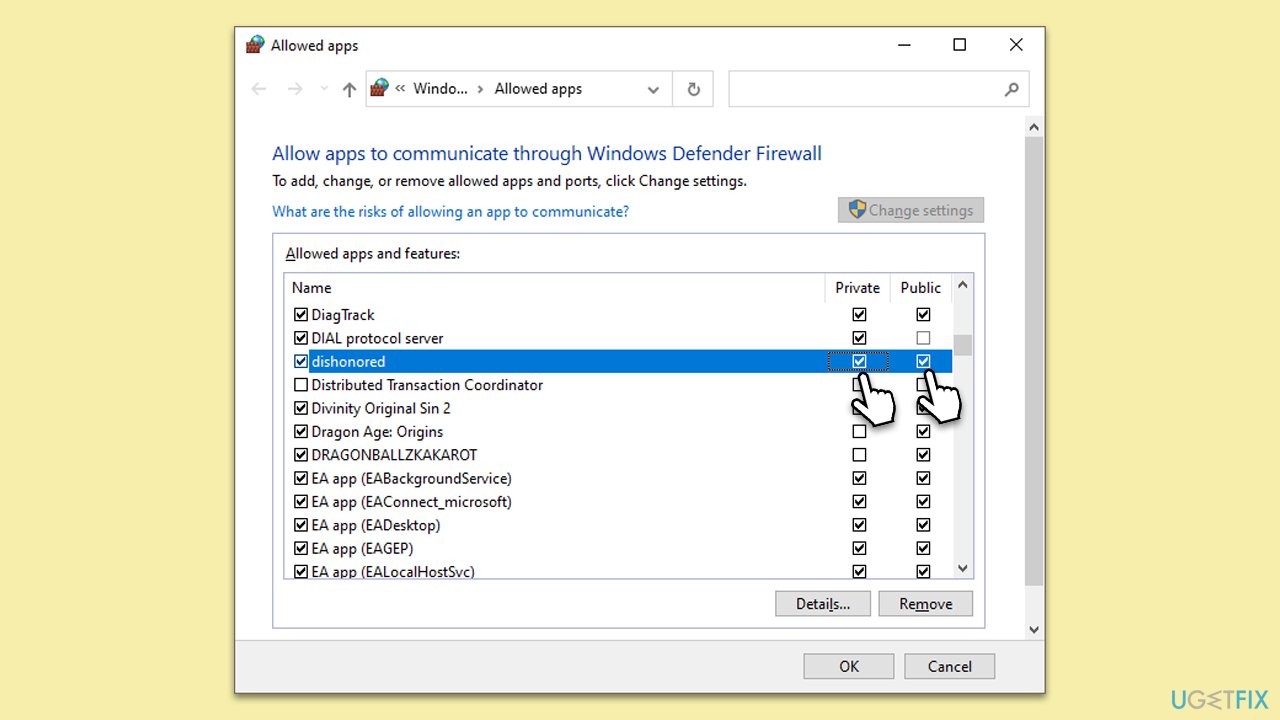
- Scroll down the list to find the game on the list. If it is not present, click on Allow another app, locate it, and add it to the list.
- Ensure both Private and Public checkboxes are ticked
- Finally, click OK to save changes.
Fix 3. Reinstall the game
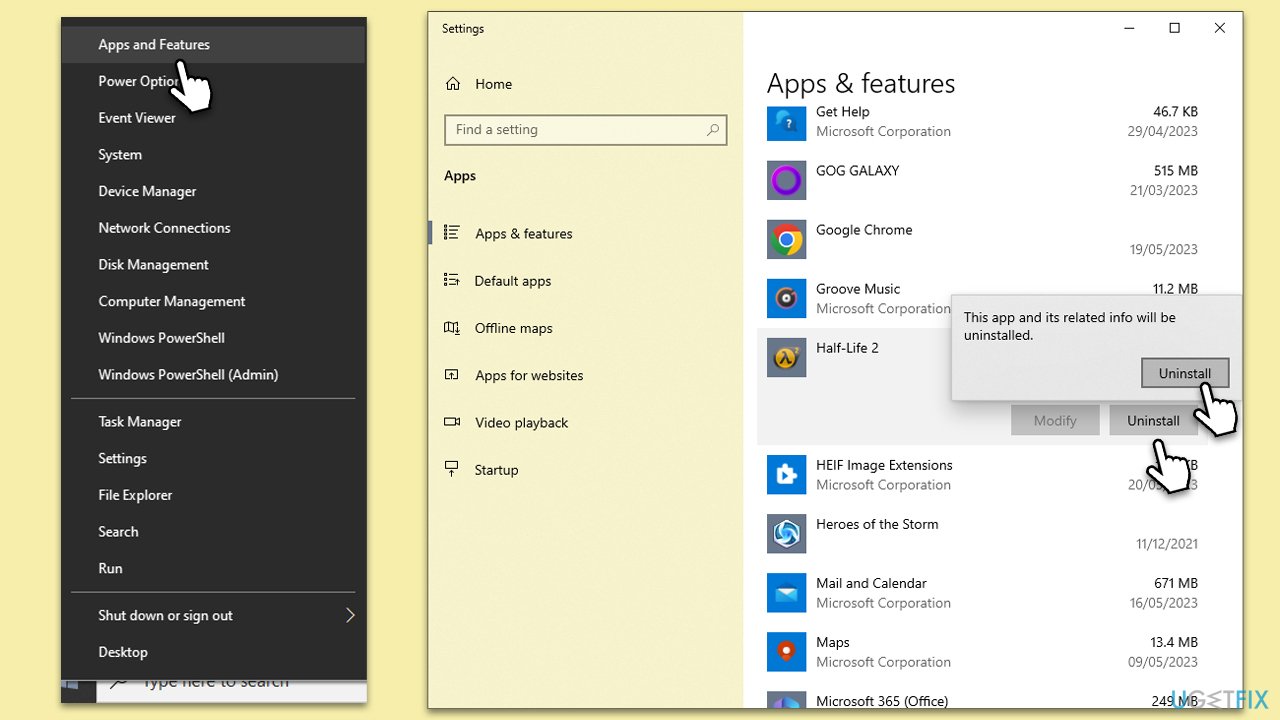
If verifying game files did not work and the issue does not lie within the security of the dbdata.dll file, you should simply reinstall the game to resolve this issue. You can do it through Ubisoft Connect, Steam, or another platform you are using. Also, you can simply use menus in Windows:
- Right-click on Start and pick Apps and Features.
- Scroll down to the game in question.
- Click Uninstall and then confirm with Uninstall.
- Follow the prompts to finalize the process.
- Restart your device and then reinstall the game in question.
Bottom line
To fix the 'Unable to load library dbdata.dll' error, you can verify the integrity of your game files, add an exception for the game in your firewall settings, or reinstall the game. If none of these solutions work, consider using a repair tool or ensuring you have a legitimate copy of the game.
Frequently asked questions
This error typically occurs due to a missing or corrupted dbdata.dll file, often related to software installation issues or malware infections.
You can download a new copy of dbdata.dll from a reputable source and place it in the application's directory or the System32 folder, then restart your computer.
Yes, using a dedicated DLL repair tool or the built-in System File Checker (sfc /scannow) can help automatically fix the dbdata.dll error.




Report an issue
What's wrong with this guide? We review every report and update or remove content.
Report received — thank you. We'll review and fix it.
You need a free account to submit a report.
Be the first to comment