How to fix
Unable to Rename Folders Bug
on Windows
Resolve the Unable to Rename Folders bug in Windows 10 effortlessly. Follow our expert-tested tips for a quick fix and regain control of your files today!

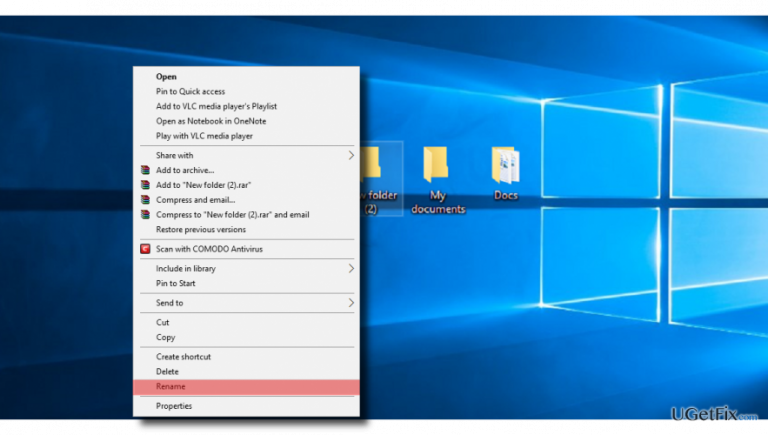
What causes How to Fix Unable to Rename Folders Bug in Windows 10?
- Bug introduced with Creators Update
- User Account permissions
- Ownership issues with specific folders
- Multiple User Accounts on the system
- Inability to rename New folders or sub-folders
Repairs Windows system files, removes malware, and restores a clean OS state — without reinstalling.
I’ve installed Windows 10 from scratch yesterday, so now I’m on Creators Update. I like everything on it except the fact that I can’t rename any folder. It’s strange, but I assume that this bug came along with Creators Update. Does anyone encounter the same issue?
Did you receive "Can’t find the specified file" or "The file or folder does not exist" error when trying to rename a folder? Or maybe when you right-click on a random folder, the Rename function from a drop down menu simply does not respond? While most of the PC users reported about this problem after the installation of Windows 10 or its updates, it has also been registered on Windows 8.1 where people were not allowed to rename folders via Explorer. Apparently, unable to rename folders is an ongoing issue, which hasn’t been solved yet. While a part of Windows 10 users cannot rename New folders or sub-folders only, the others cannot change names for any folders placed in any location of the system. This seemingly negligible bug may become a serious headache because you will no longer be able to manage folders. Consequently, the desktop and other locations may turn into a real mess. Therefore, if you cannot rename folders, there is something you can do to fix that.
Change folder’s ownership
This problem is not very likely to occur on a computer with a single User Account. However, if your PC has several User Accounts, the ability to change particular folders may be assigned to the User Account with administrator privileges. In case you can’t rename any folder on the system, the ownership is not very likely to be the culprit. Nevertheless, if only one or several problematic folders can't be renamed, we would recommend you to perform the following steps:
- Right-click on the problematic folder and select Properties.
- Open Security tab and find Group or User name section.
- Here you should see what users are allowed to manage the folder. If you don’t have the ownership of that folder, select Advanced button.
- Check the Owner section at the top of the Advanced Security Settings window and select Change.
- When the User or Group window opens, select Advanced.
- Enter the name of your User Account and click Check Names or you can do the same by clicking on Find Now button.
- When the list of available accounts is delivered, select your account and click OK.
- Check the Replace owner on sub containers and objects and click OK to save the changes.
Modify the Registry
IMPORTANT: this method should be performed by advanced PC users. Besides, we would strongly recommend you to create registry backups before initiating the following steps:
- Press Windows key + R, type regedit, and press Enter.
- Click on HKEY_LOCAL_MACHINE and open File -> Load Hive.
- Open SOFTWARE hive, rename it and then launch.
- When the SOFTWARE hive is launched, open HKEY_LOCAL_MACHINE\your hive name\Microsoft\Windows\CurrentVersion\Explorer\FolderTypes directory.
- Mark FolderTypes, right-click it and select Export.
- Enter the name and save it.
- Go back to your hive name and close it.
- Then open the File Menu and click Unload Hive -> Yes.
- Close Registry Editor and find the exported registry key.
- Double-click it and import it back to the registry.
- Finally, restart the system.
Hopefully, now you can successfully rename folders on Windows 10. If you still cannot do so, you should report this bug to Microsoft because this problem may be the unfixed Windows 10 bug. Finally, we would recommend scanning the system with [rev id=”Reimage”] to check if the problem is not triggered by malware.
Bottom line
To fix the unable to rename folders issue, you can change the folder's ownership by accessing its properties and adjusting the security settings. If these steps do not resolve the problem, consider checking for updates or seeking further technical assistance.
Frequently asked questions
You can check and modify the folder's permissions by right-clicking the folder, selecting 'Properties', and then adjusting the settings under the 'Security' tab.
Try booting your computer in Safe Mode to see if the issue persists; if renaming works there, uninstall the conflicting software.
You can perform a system file check by running 'sfc /scannow' in the Command Prompt to repair any corrupted system files that might be causing the problem.




Report an issue
What's wrong with this guide? We review every report and update or remove content.
Report received — thank you. We'll review and fix it.
You need a free account to submit a report.
Be the first to comment