How to fix
“Unable to Start Microsoft 365 and Office” error
on Windows
Resolve the "Unable to Start Microsoft 365 and Office" error on Windows 10 and Windows 11 quickly and efficiently. Expert-tested solutions await!


What causes How to fix “Unable to Start Microsoft 365 and Office” error in Windows?
- Corrupted installation files
- Software conflicts
- System registry issues
- Incomplete updates
- Incorrect installation remnants
- Conflicting background processes
Repairs Windows system files, removes malware, and restores a clean OS state — without reinstalling.
Hello there. I am trying to launch Microsoft 365 apps such as Word or Excel, and they simply don't start. I get an error message "Unable to Start Microsoft 365 and Office." Could you help me with this please?
Microsoft 365 and Office are critical productivity software for many Windows users, but some users have been presented with a baffling issue in which the apps will not start, displaying the "Unable to Start Microsoft 365 and Office" error with error code 147-0. The error hinders the usage of valuable apps like Word, Excel, PowerPoint, and Outlook that significantly impacts day-to-day activities and productivity.
The "Unable to Start Microsoft 365 and Office" error is typically an indication of more serious problems that can range from corrupted installation files to software conflicts or system registry issues. Users have indicated that when they attempt to launch Microsoft 365, the programs hang indefinitely or crash outright, with no opportunity to use these critical tools. In some cases, the error occurs after a recent update or modification to the system, suggesting that interrupted or incomplete updates may also be a factor.
A number of users suspect that an incorrect installation or leftover remnants of previous Office installations may be interfering with the normal boot process. Some others have found that conflicting background processes or security settings can get in the way of initializing the Office suite. Although some fixes have been suggested on user forums - ranging from reinstalling or repairing Office, removing temporary files, or updating system files - the "Unable to Start Microsoft 365 and Office" error is a persistent problem for some.
For other users who are not able to resolve the issue using manual troubleshooting, the utilization of the automatic Windows repair tool [d1] is highly recommended. The tool has the ability to diagnose and fix the root system issues that may be preventing Microsoft 365 and Office from opening properly, so you have complete access to your essential applications once again.

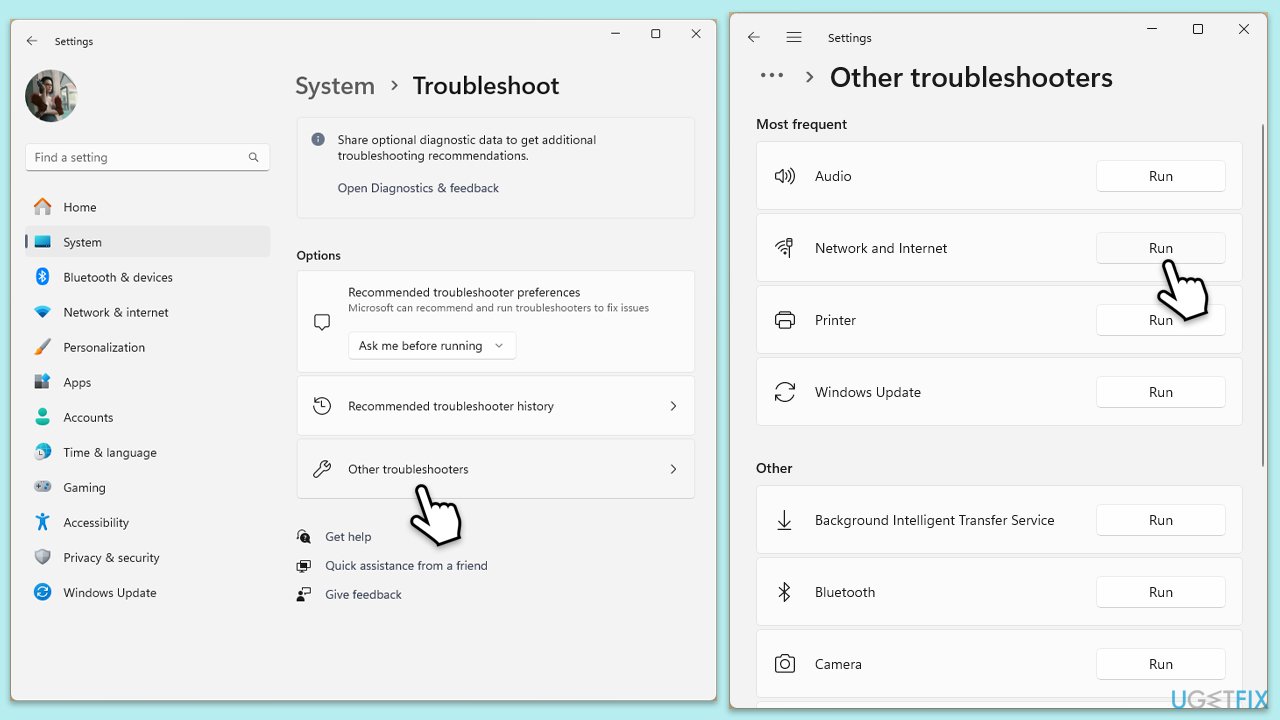
Fix 1. Run Network and Store apps troubleshooter
Start by running the built-in Windows troubleshooters:
- Type troubleshoot in Windows search and press Enter.
- Click on Troubleshoot settings from the search results.
- Go to Additional troubleshooters/Other troubleshooters.
- Scroll down and click on Windows Store Apps.
- Click on Run the troubleshooter/Run and wait for the process to complete.
- Repeat with Network and Internet troubleshooter.
Run Network troubleshooter in Windows 10 as follows:
- Right-click on Start and pick Settings.
- Go to Network & Internet section.
- On the right side, find the Advanced network settings section.
- Click Network troubleshooter and wait.
- The fixes will be automatically applied.
Fix 2. Repair Office
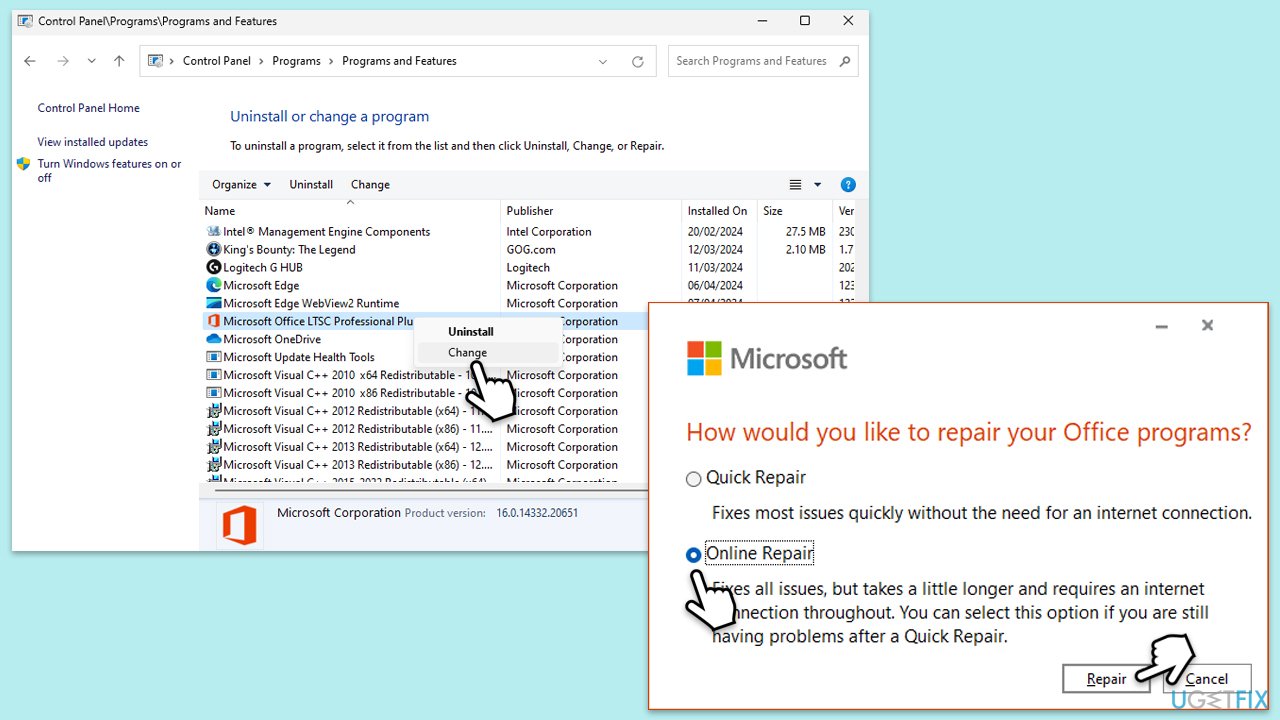
Another simple method to fix "Unable to Start Microsoft 365 and Office" error is to run au automatic repair option.
- Type Control Panel in Windows search and press Enter.
- Select Programs > Programs and Features.
- Select Microsoft Office and click on Change.
- Choose the option for Online Repair and click Repair.
- Follow the prompts to finish the process.
Fix 3. Update Windows
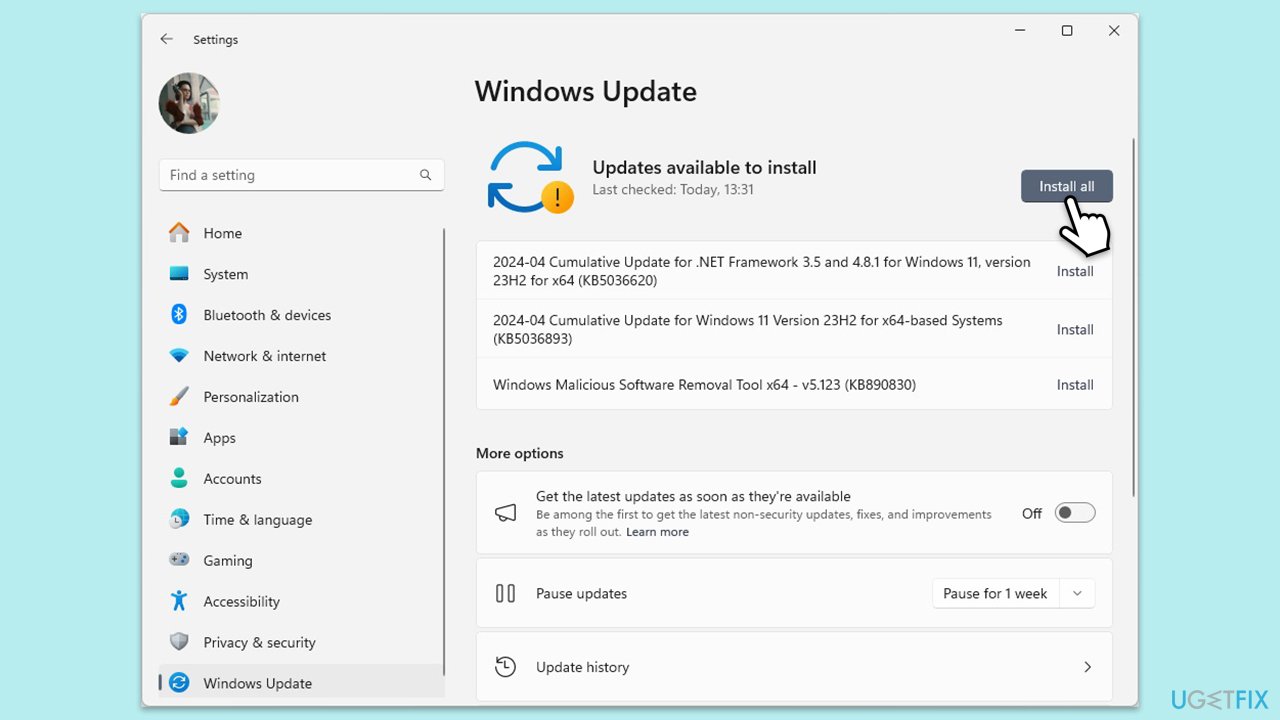
- Type Updates in Windows search and press Enter.
- If updates are available, click Install updates.
- Otherwise, click Check for updates.
- If optional updates are available, install them as well.
- After all the update processes are complete, restart your system.
Fix 4. Clear cache files
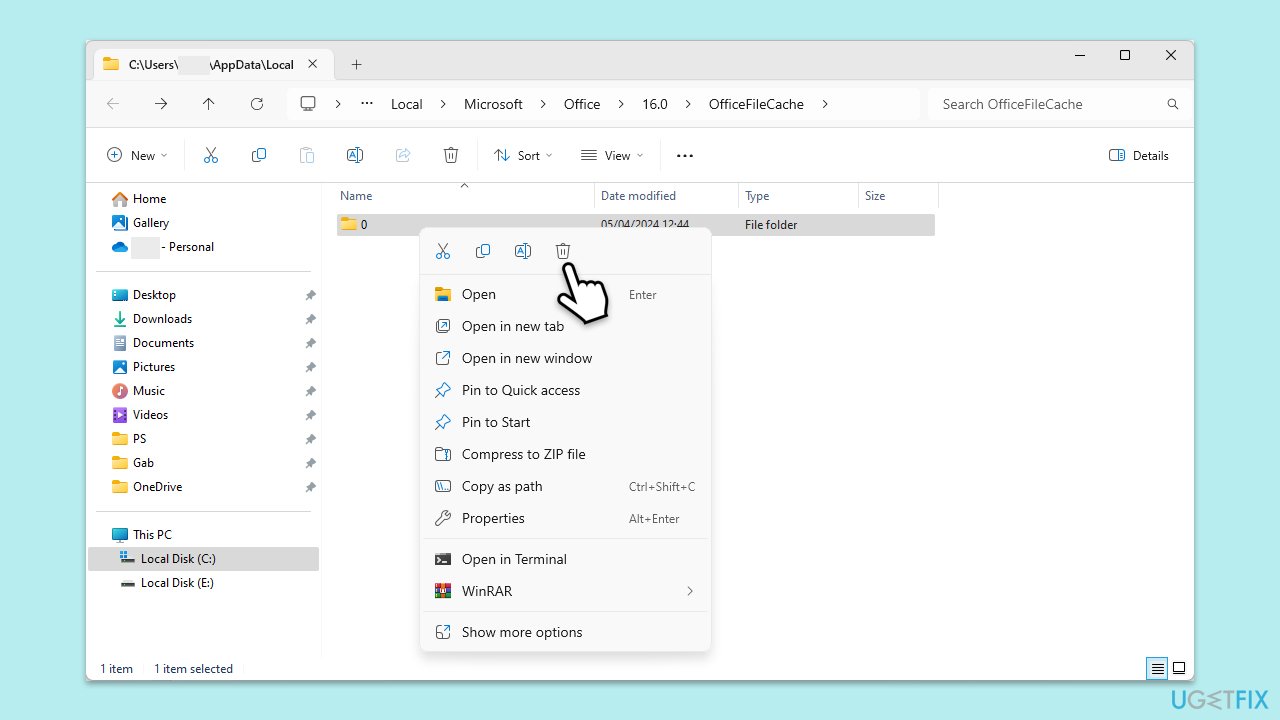
Bugged cache files might cause Office apps to malfunction. To address this, you should access appropriate sections and remove them.
- In Windows search, type %localappdata%\Microsoft\Office\16.0\OfficeFileCache and press Enter to navigate to the OfficeFileCache folder.
- Delete all files within the OfficeFileCache folder - press Shift + Del for quick action.
- After clearing the cache, restart your computer and attempt the Office installation again.
Fix 5. Try Clean Boot
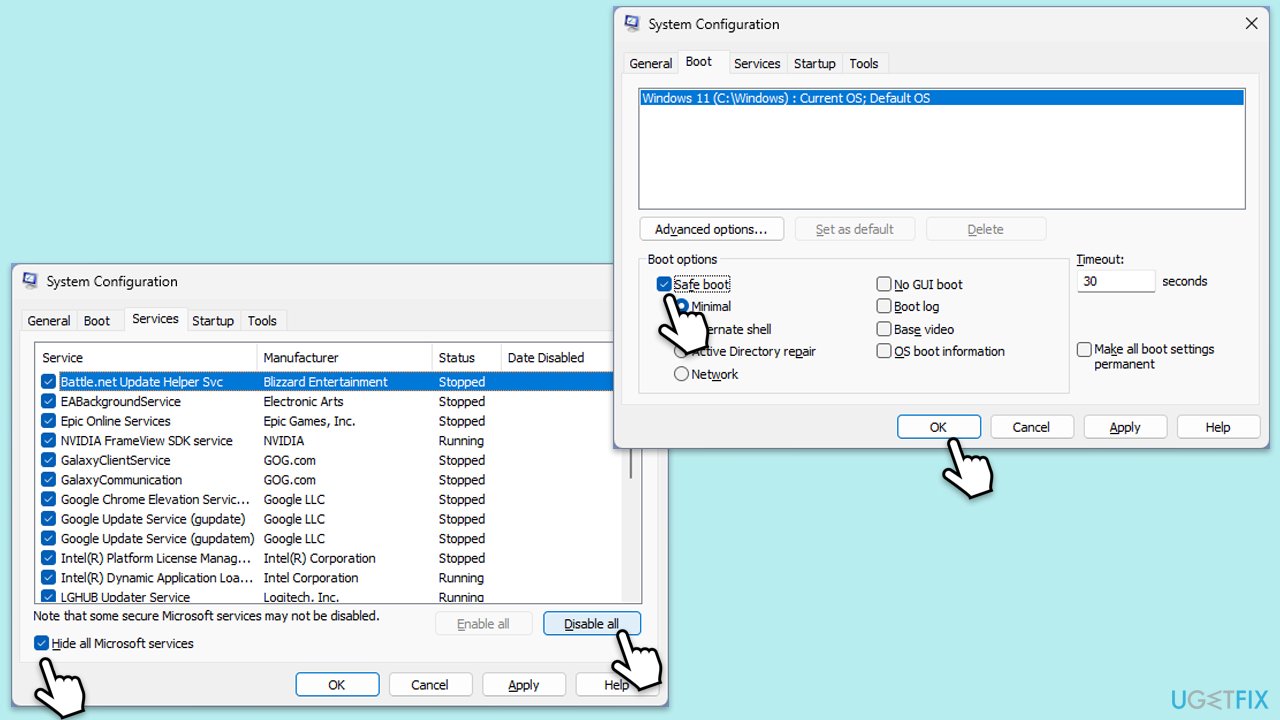
- Type msconfig inWindows Search and press Enter to open the System Configuration window.
- Click on the Services tab and check the Hide all Microsoft Services box.
- Click Disable all to disable non-Microsoft services, then click the Startup tab.
- Open the Task Manager, disable all startup items, and close the Task Manager.
- Go to the Boot tab and mark the Safe boot option.
- Click OK on the System Configuration window and restart your computer.
- If the problem does not exist, third-party software is at fault. To determine which app is causing it try enabling half of the available programs, restarting, and checking if the the problem is still absent. Continue till you find the offending software and either update or uninstall it.
Fix 6. Run SFC and DISM scans
Repair corrupted system files as follows:
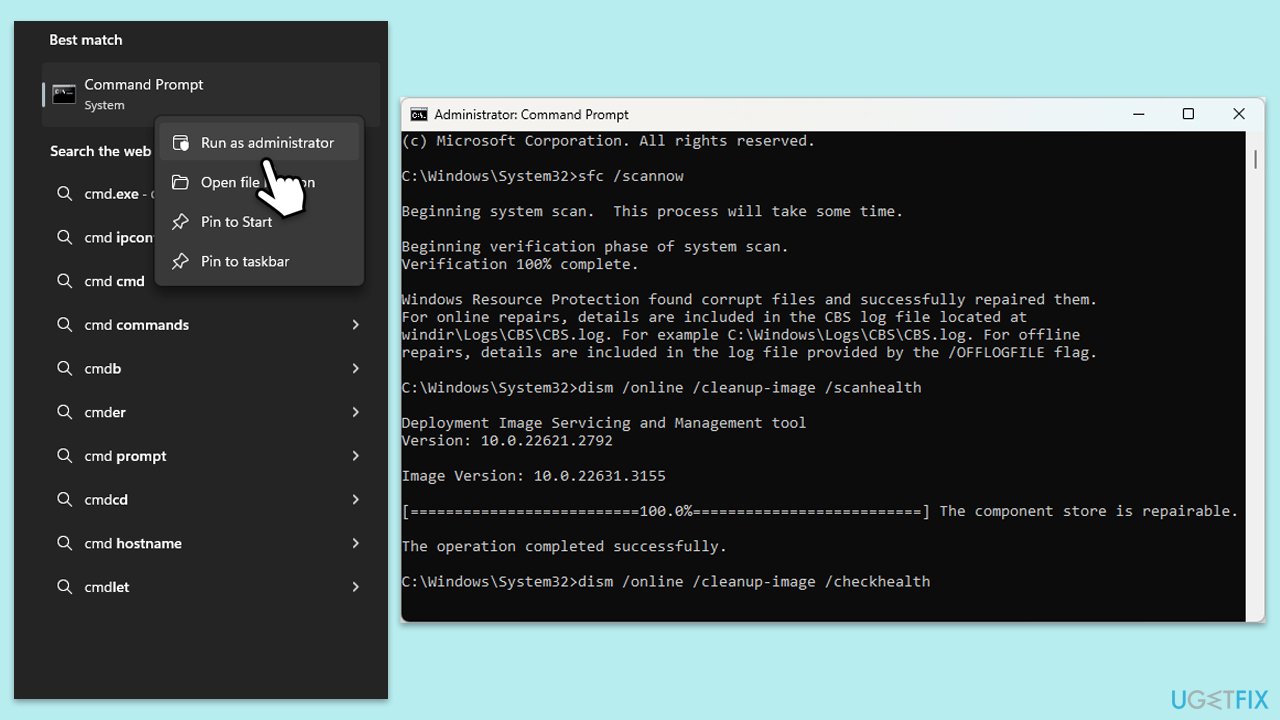
- Type in cmd in Windows search.
- Right-click on Command Prompt and select Run as administrator.
- When User Account Control shows up, click Yes.
- Copy and paste this command and hit Enter:
sfc /scannow - Wait for the scan to finish.
- As soon as it finishes, Windows will report whether integrity violations were found and if they could be fixed. Regardless of the outcome, use these commands next, pressing Enter after each:
Dism /Online /Cleanup-Image /CheckHealth
Dism /Online /Cleanup-Image /ScanHealth
Dism /Online /Cleanup-Image /RestoreHealth
(Note: if you get an error executing this last command, add /Source:C:\RepairSource\Windows /LimitAccess to it and try again). - Close down the Command Prompt and restart your computer.
Fix 7. Reinstall Office
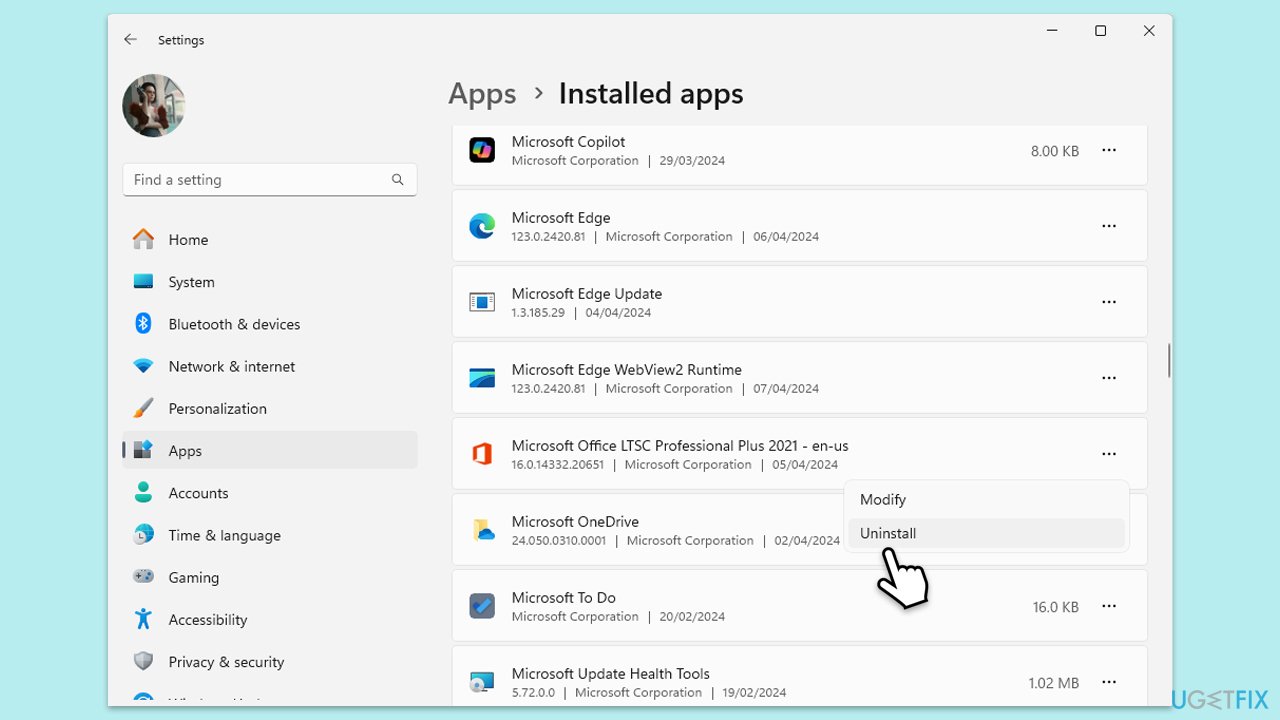
- Right-click on Start and pick Apps and Features/Installed apps.
- Scroll down to find the MS Office installation.
- Click Uninstall and confirm with Uninstall.
- Follow on-screen instructions to remove the app completely.
- Press Win + E to open File Explorer.
- Navigate to the following location and delete its contents:
C:\Program Files\Microsoft Office - Next, type regedit in Windows search and press Enter.
- Go to the following locations in the Registry Editor and delete these items:
Computer\HKEY_LOCAL_MACHINE\SOFTWARE\Microsoft\AppVISV
Computer\HKEY_LOCAL_MACHINE\SOFTWARE\Microsoft\Office\ClickToRun
Computer\HKEY_CURRENT_USER\Software\Microsoft\Office - Reboot the PC and then reinstall Microsoft Office.
Bottom line
To fix the 'Unable to Start Microsoft 365 and Office' error, users can try reinstalling or repairing Office, removing temporary files, or updating system files. If these manual troubleshooting steps do not resolve the issue, it is recommended to utilize the automatic Windows repair tool to diagnose and fix underlying system problems.
Frequently asked questions
Start by checking for any pending Windows updates and install them, as updates can often resolve compatibility issues with Microsoft 365.
You can repair Microsoft 365 by going to Settings > Apps > Apps & features, selecting Microsoft 365, and then clicking on 'Modify' to choose the repair option.
If repairing doesn't resolve the issue, uninstalling and then reinstalling Microsoft 365 may fix the problem, ensuring you have the latest version.




Report an issue
What's wrong with this guide? We review every report and update or remove content.
Report received — thank you. We'll review and fix it.
You need a free account to submit a report.
Be the first to comment