How to fix
“Unable to terminate process” error
on Windows
Resolve the "Unable to terminate process" error on Windows 10 and 11 effortlessly. Get expert-tested solutions that fix issues in minutes!


What causes How to fix “Unable to terminate process” error in Windows?
- Unresponsive programs
- Higher resource utilization
- Insufficient permissions to terminate processes
- Administrative privileges required
- Underlying Windows system issues
Repairs Windows system files, removes malware, and restores a clean OS state — without reinstalling.
Hello. One of my applications in Windows froze. I tried to force quit it but I received the "Unable to terminate process" error in Task Manager. What should I do?
Windows users may find the "Unable to terminate process" or "Access is denied" error a bothersome problem since it prohibits them from terminating undesirable programs and processes using the Task Manager. The performance of the system may be impacted by issues like unresponsive programs, higher resource utilization, and others as a result. There are several potential solutions you can try if you are experiencing this error.
These include using the Alt + F4 keyboard shortcut to close unresponsive programs, running Task Manager as an administrator to gain the necessary permissions to terminate certain processes, using the "taskkill" command in Command Prompt, using WMIC (Windows Management Instrumentation Command-line), or using a Task Manager alternative such as Process Explorer.
It's important to note that you may need to have administrative privileges[ref en-1] in order to use some of these methods to terminate processes. In addition, it's always a good idea to be careful when terminating processes, as ending certain system processes can cause problems or even crash your system. It's always a good idea to do some research and make sure you understand the implications of terminating a particular process before you do so.
If there are any underlying Windows system issues that lead to unresponsive programs, you should use a maintenance tool like [d1]. It can fix most system errors, BSODs,[ref en-2] corrupted files, registry[ref en-3] issues. Otherwise, follow the step-by-step instructions below.
Solution 1. Use the Alt + F4 Shortcut
If you encounter the "Unable to terminate process" error on Windows while using an app or program, you may be able to resolve it by using the Alt + F4 keyboard shortcut. This can be used to close an unresponsive program. To use the shortcut, switch to the program you want to close and press Alt + F4 on your keyboard at the same time. This should allow you to close the program, provided the error was due to a temporary glitch.
Solution 2. Launch Task Manager as an Administrator
To open Task Manager with elevated rights and try to terminate a system process that you are currently unable to end, you can follow these steps:
- Click the magnifying icon on the taskbar to open the
- Type Task Manager in the box and select Run as administrator from the options
- When the User Account Control (UAC) prompt appears, select Yes to continue
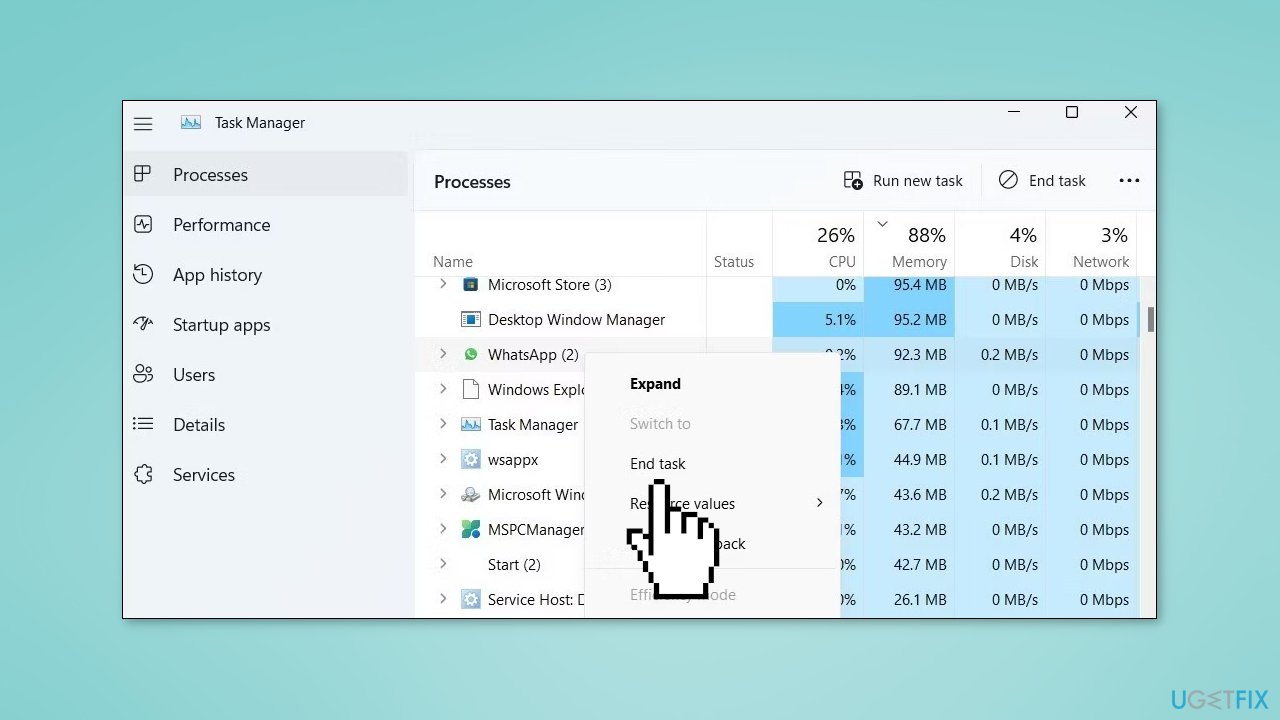
- Right-click on the process you want to terminate and select End task from the context menu
Solution 3. Use the Taskkill Command
You can use the "taskkill" command in Command Prompt to terminate a process on Windows. Here is how to use it:
- Find the name of the process you want to terminate by going to the Details tab in the Task Manager
- Press the Windows key + S to open the search menu and type Command Prompt
- Select Run as administrator from the options
- When the User Account Control (UAC) prompt appears, select Yes to continue
- Type the following command and press Enter:
taskkill /IM "ProcessName" /T /F
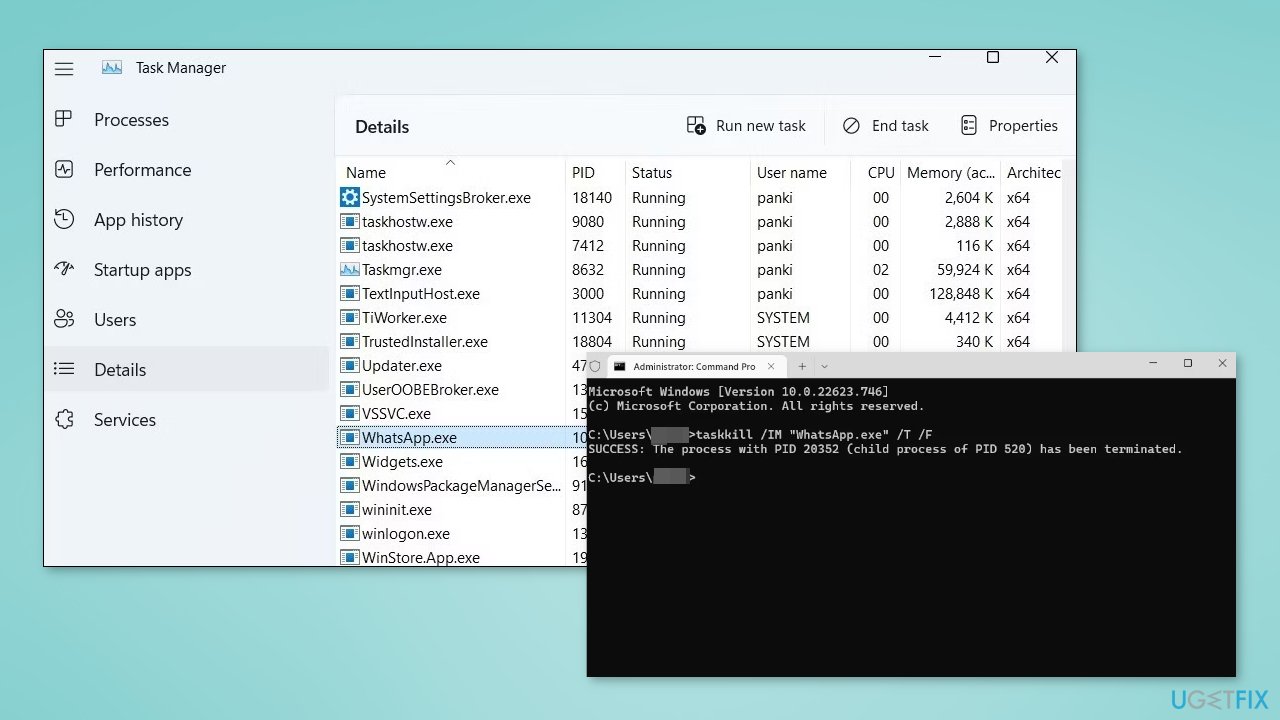
- Replace ProcessName with the actual name of the process you want to terminate
- You should see a confirmation message indicating that the process was terminated successfully
Solution 4. Use the WMIC Command
You can use WMIC (Windows Management Instrumentation Command-line) to terminate a process on Windows. Here is how to do it:
- Find the name of the process you want to terminate
- Open Command Prompt with administrative privileges using any method you prefer
- Paste the following command in the console, replacing ProcessName with the actual name of the process you want to terminate:
wmic process where name='processname.exe' delete
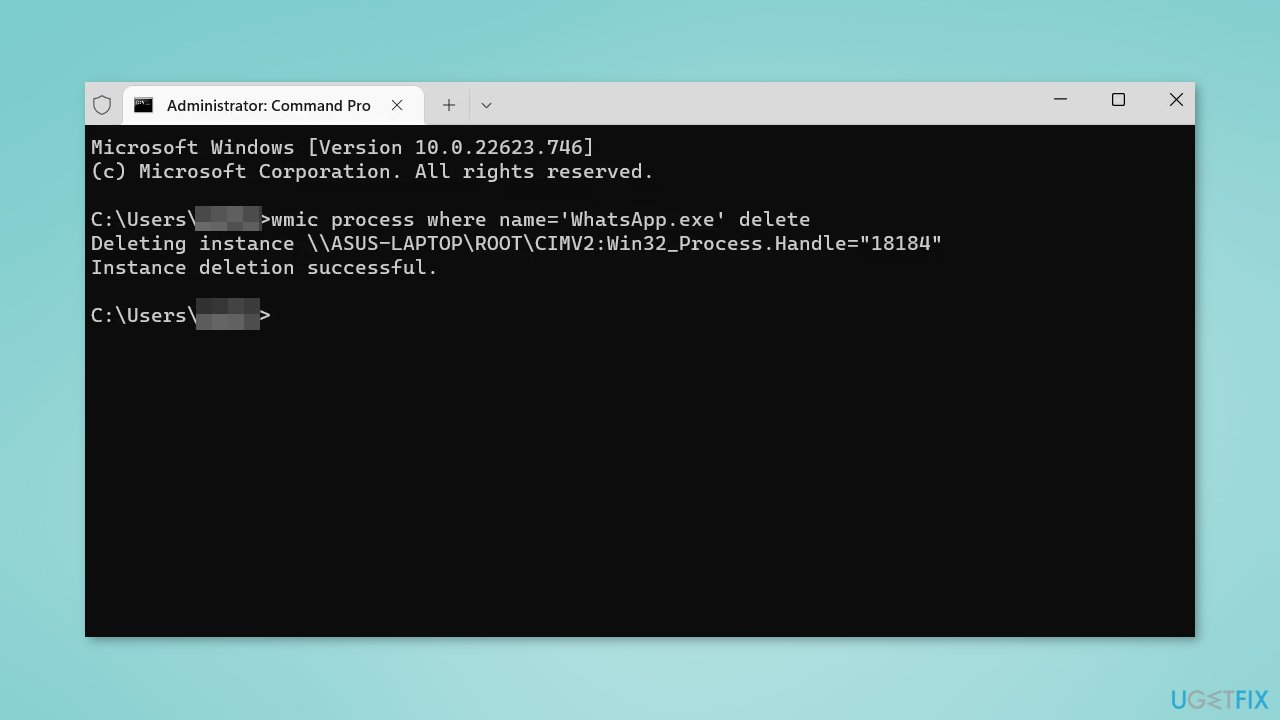
- Press Enter to execute the command. This should terminate the specified process.
Solution 5. Use Process Explorer
If you did not resolve the "Access is denied" error using the methods described above, you may want to consider using a Task Manager alternative such as Process Explorer. Here is how to use it to terminate a process:
- Download Process Explorer from Microsoft on your computer
- Double-click the procexp64.exe file to open Process Explorer
- Locate the process you want to terminate
- Right-click on it and select Kill Process from the resulting menu
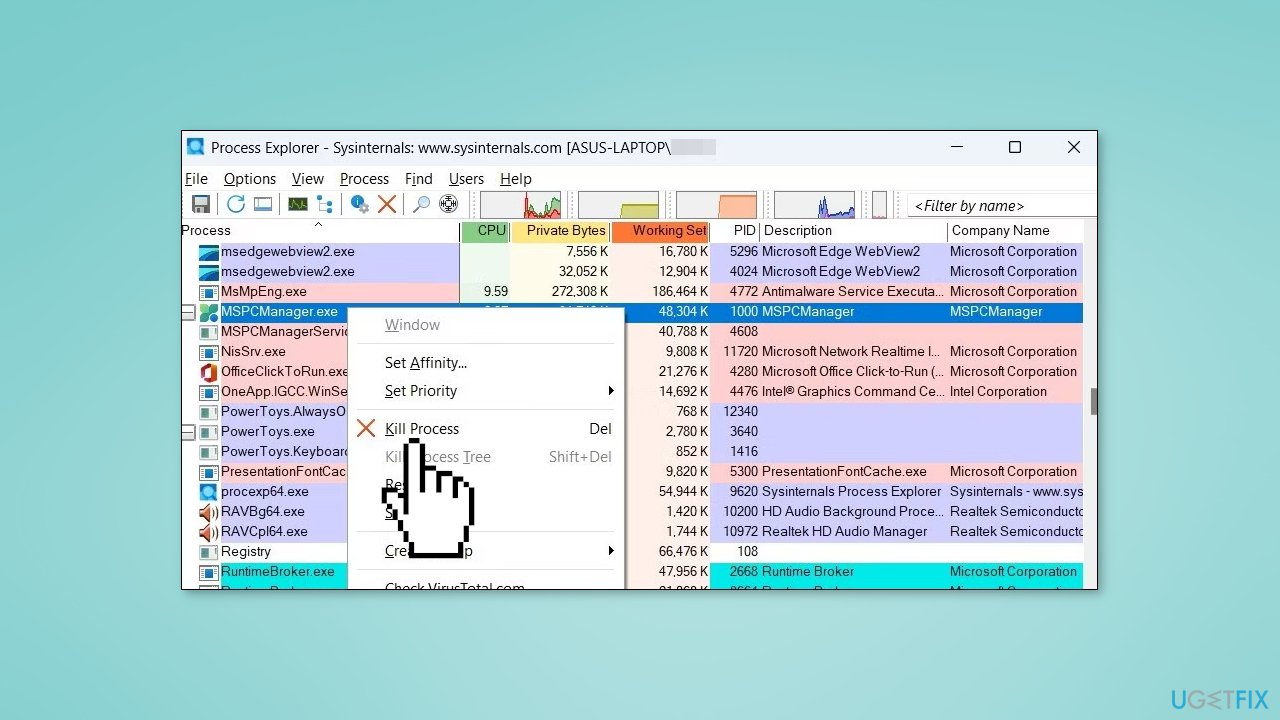
Process Explorer is a system task management utility for Windows that provides detailed information about the processes running on a computer. It is a more advanced version of the built-in Task Manager, with a number of additional features and capabilities.
It was created by Sysinternals, a software company that was acquired by Microsoft in 2006. Sysinternals was known for creating a number of advanced system utilities for Windows, including Process Explorer, as well as tools for network and security analysis, file management, and more.
Solution 6. Restart your Device
Finally, if none of these steps solved the issue, restarting your PC or laptop is the only option left. Restarting your system should definitely get rid of the task you are unable to terminate.
Bottom line
To fix the 'Unable to terminate process' error, you can try using the Alt + F4 shortcut, running Task Manager as an administrator, using the 'taskkill' command, or utilizing WMIC. If these methods do not resolve the issue, consider using a maintenance tool to address any underlying system problems.
Frequently asked questions
This error typically occurs when a process is being used by the system or is running with elevated permissions, preventing it from being terminated normally.
You can try using the Task Manager with administrator privileges or utilize the Command Prompt with the 'taskkill' command to forcefully terminate the process.
Yes, tools like Process Explorer can help you identify and terminate stubborn processes that are causing the error in Windows 10 or Windows 11.




Report an issue
What's wrong with this guide? We review every report and update or remove content.
Report received — thank you. We'll review and fix it.
You need a free account to submit a report.
Be the first to comment