How to fix
“Unarc.dll returned an error code”
on Windows
Resolve the "Unarc.dll returned an error code" issue on Windows 10 and 11 with our expert-tested solutions. Get your system running smoothly in minutes!


What causes How to fix “Unarc.dll returned an error code” in Windows?
- Issues with Microsoft Visual C ++ Redistributable Package
- Presence of malware on your system
- Incomplete or corrupted download
- Problem with the unarc.dll file itself
Repairs Windows system files, removes malware, and restores a clean OS state — without reinstalling.
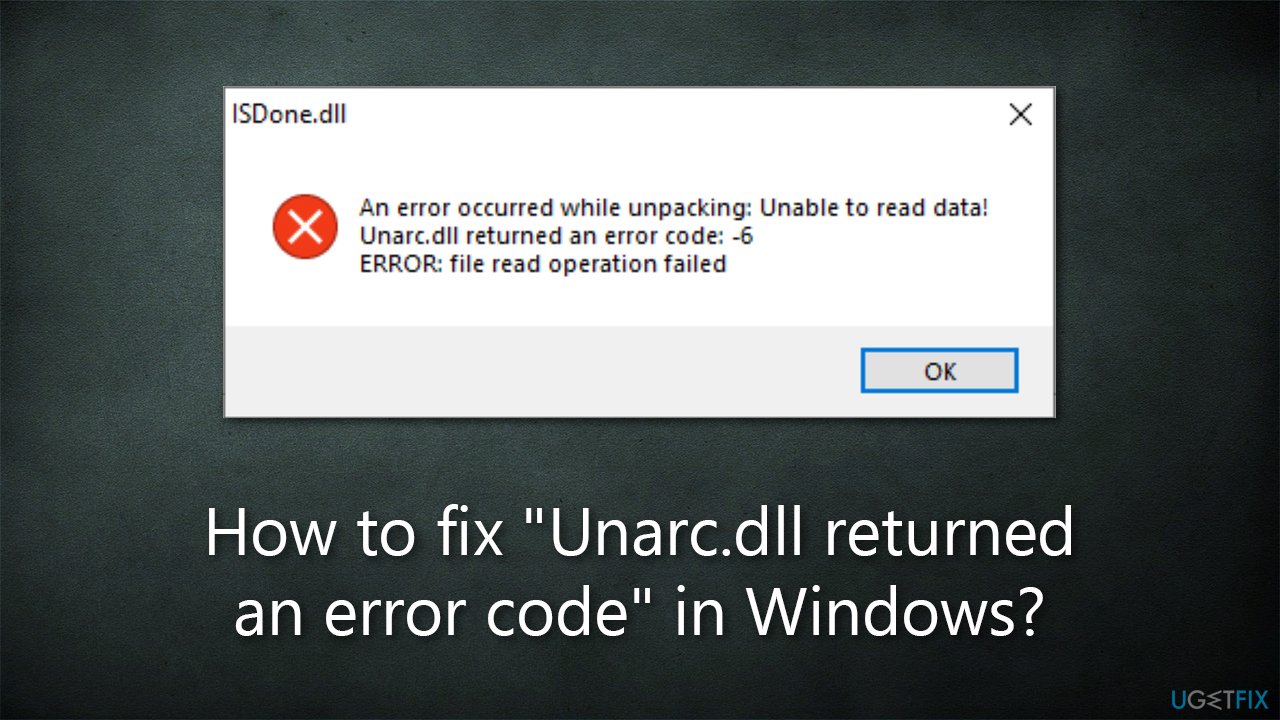
Hello. Every time I attempt to unpack any ZIP, RAR, or any other file, I receive an error "Unarc.dll returned an error code: -11" in Windows. Could you help me with this, please?
Windows operating system is comprised of thousands of files, services, processes, drivers,[ref en-1] registries,[ref en-2] and other vital components, which it relies upon to run smoothly. Unfortunately, sometimes some of these items may malfunction, which can result in errors received by users.
DLL[ref en-3] files are particularly common on Windows, as they are shared library files that are used by several apps and are loaded only when they are needed. If you would open the directory of Windows or any other installed apps, you will see dozens, if not hundreds, of files using the DLL extension.
Unarc.dll is one of the dynamic link library files that is used by various applications to decompress files that have been compressed using certain algorithms. When this file is missing or corrupted, it can cause errors such as "Unarc.dll returned an error code" to be displayed. This error can occur when attempting to install a new program, update an existing program, or extract files from a compressed archive.
There are several potential causes for this error, including the issues with Microsoft Visual C ++ Redistributable Package, the presence of malware on your system, an incomplete or corrupted download, or a problem with the unarc.dll file itself. In order to fix "Unarc.dll returned an error code", you will need to diagnose and address the underlying cause.
It is worth noting that DLL errors on Windows are fairly common (for example, "ntdll.dll error," "dxgi.dll was not found or missing," "Cdp.dll error," and many others), and one of the easiest ways to deal with them is by employing an automatic PC repair tool [d1], which can find and replace the missing or corrupted DLL file if it originates from Windows OS. If you want to try to find solutions manually, please follow the listed methods below.
1. Scan with anti-malware
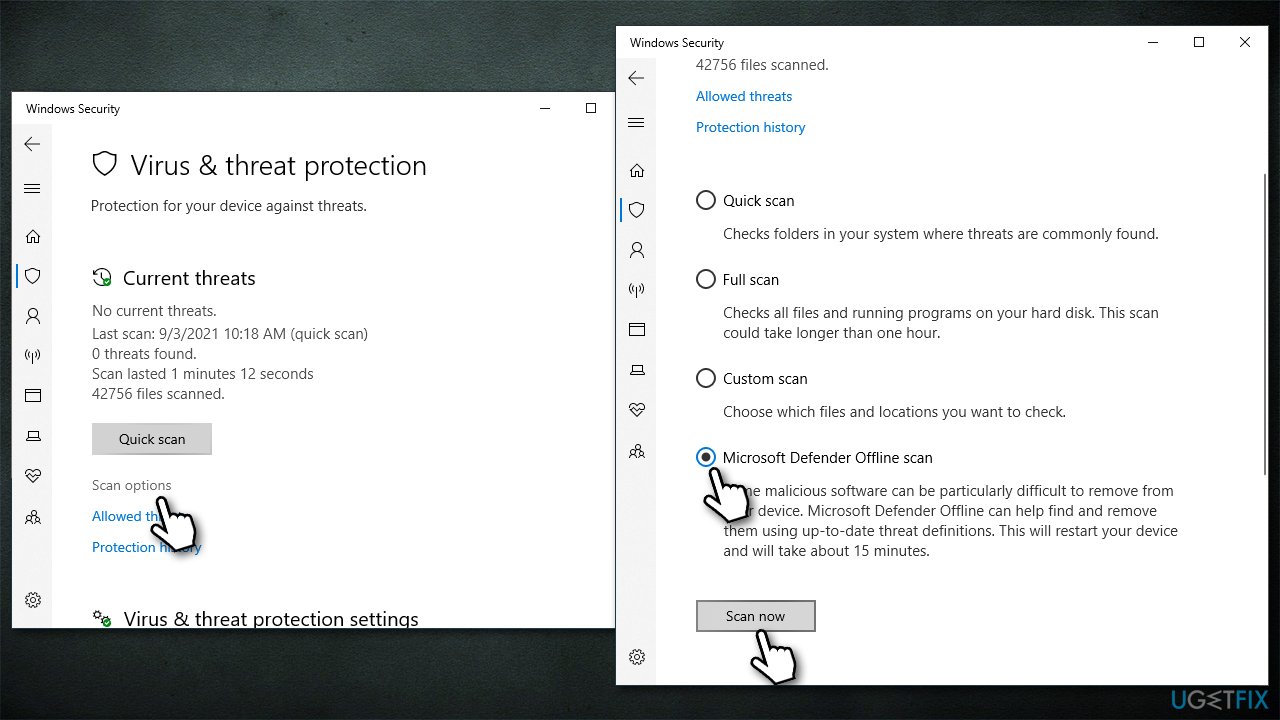
In some cases, malware infections could cause DLL errors, so we recommend checking for infections first. You could use any third-party security software or employ Microsoft Defender as follows:
- Type Windows Security in the Windows search bar and hit Enter
- Select Virus & threat protection
- Pick Scan options
- Choose Microsoft Defender Offline scan and click Scan now
- Your PC will restart, and the scan will begin
- Results will be displayed after you enter Windows again.
Note: if you are using a third-party anti-virus, you should try disabling it temporarily during the installation of a program or when unpacking archived items.
2. Run SFC and DISM
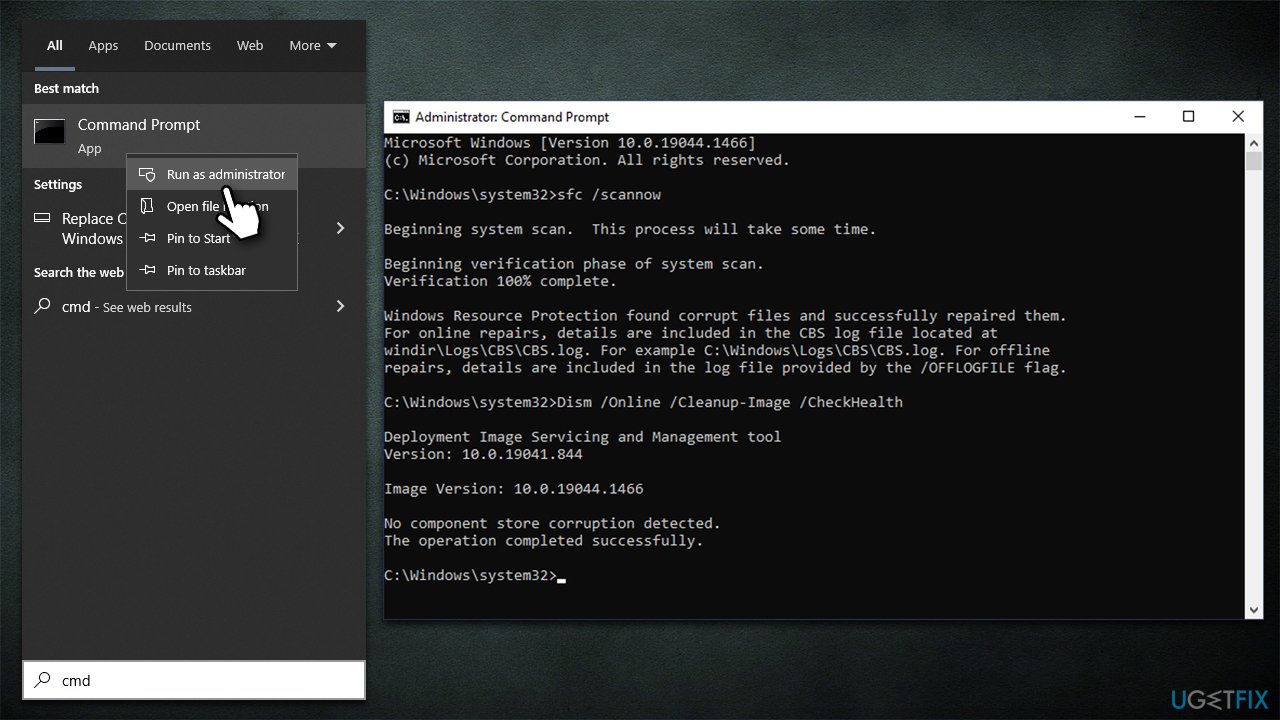
System file corruption might be the reason for the "Unarc.dll returned an error code." You can address this by running commands via an elevated Command Prompt:
- Type cmd in Windows search
- Right-click on Command Prompt search result and select Run as administrator
- When UAC (User Account Control) window shows up, select Yes
- Next, type in the following command and press Enter:
sfc /scannow - Once done, run the following commands as well:
dism /online /cleanup-image /scanhealth
dism /online /cleanup-image /checkhealth
dism /online /cleanup-image /restorehealth - Restart your PC.
3. Increase virtual memory size
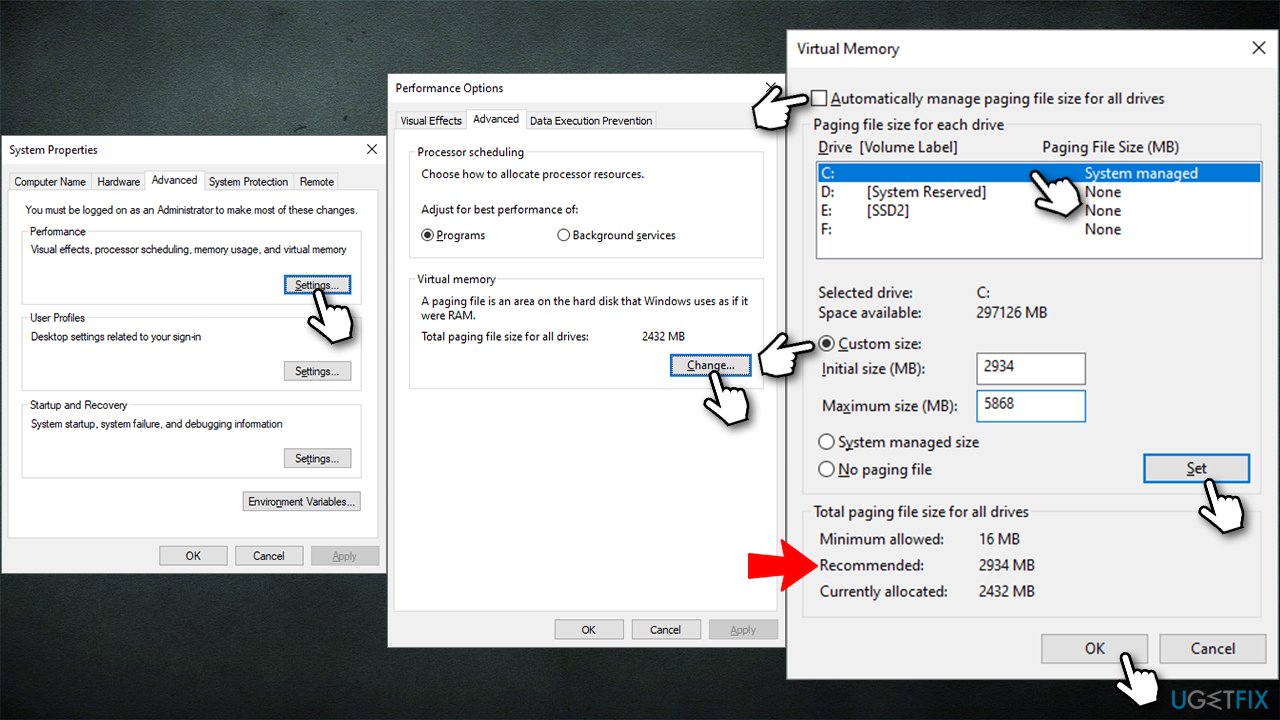
- In Windows search, type in Advanced system settings and press Enter
- Under the Performance section, click Settings
- Go to the Advanced tab
- Under Virtual Memory, select Change
- Untick the Automatically manage paging size for all drives option (make sure your main drive is selected - C: is the default)
- Select Custom size
- At the bottom, check the Recommended memory size and type it into the Initial size (MB) field
- In the Maximum size (MB) field, enter twice a bigger number than that in the Initial size section
- Click Set and OK.
4. Check your disk space
"Unarc.dll returned an error code" can often come along Isdone.dll error as well. You should, in this case, try clearing some space on your drive because these issues arise when extracting large packages of data of games or other programs.
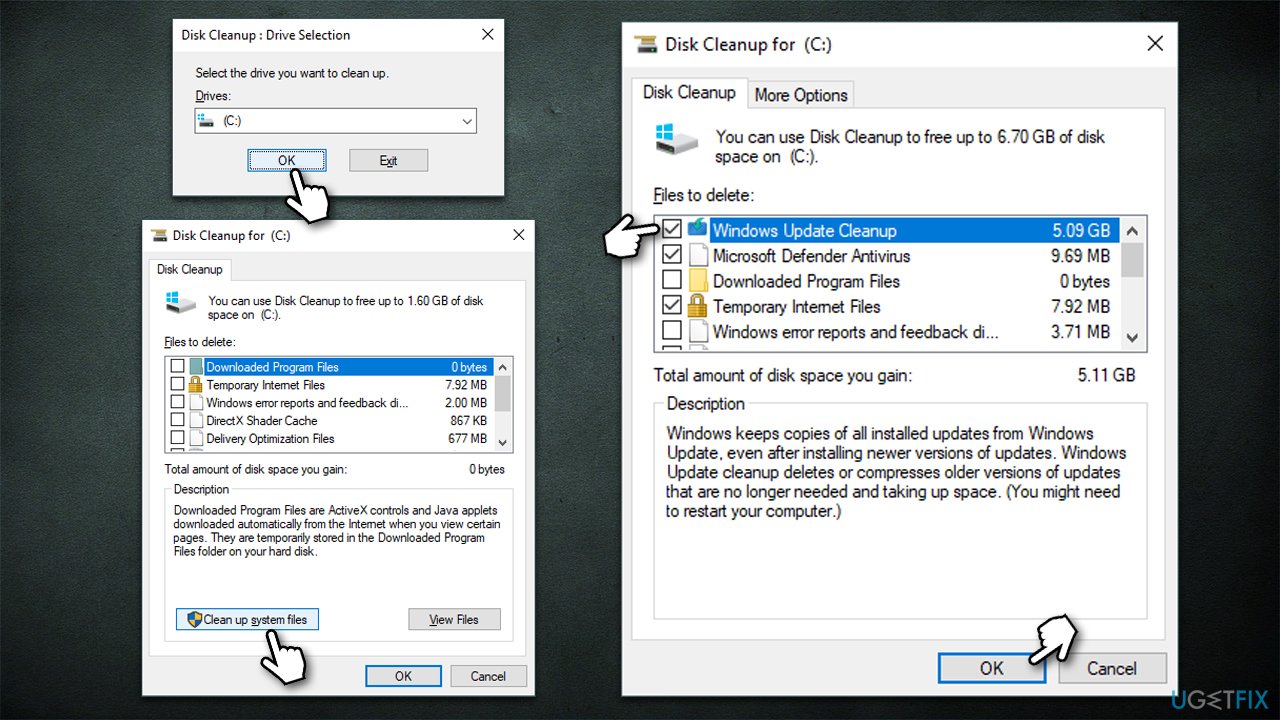
- Type Disk Cleanup in Windows search and hit Enter
- If your Windows is installed on drive C, pick it from the list (should be by default) and press OK
- Click Clean up system files
- Select your main disk again and click OK
- Here, select the largest portions of the data used - these typically include Temporary Internet Files, Windows Update, Temporary Files, Recycle Bin, Delivery Optimization Files, and others.
- Click OK and wait for the cleanup process to finish.
5. Reinstall Microsoft Visual C ++ Redistributable package
Visual C++ is a package often used by games. If you intend to install an older game, you may have old versions of the package installed as well. You can try uninstalling them and then installing new ones from the Microsoft website. If you have many entries, you can try reinstalling them all.
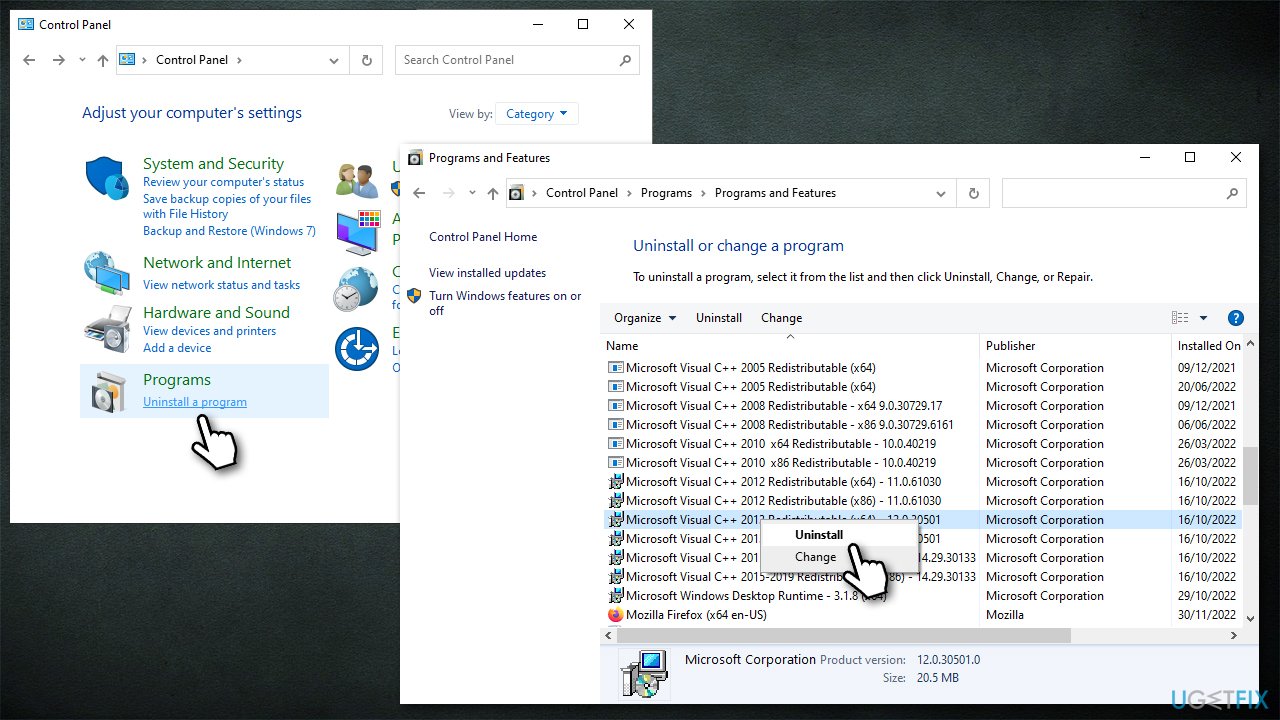
- Type Control Panel in Windows search and press Enter
- Select Programs > Uninstall a program
- Select the most recent Redistributable installed, for example, Microsoft Visual C++ 2015 Redistributable
- Now go to the official Microsoft website
- Download and install both vc_redist.x86.exe (32-bit) and vc_redist.x64.exe (64-bit) versions
- Reboot your system.
6. Fixing "Unarc.dll returned an error code" when installing games
If you are having trouble with an older game, you should try running the installer via the compatibility mode:
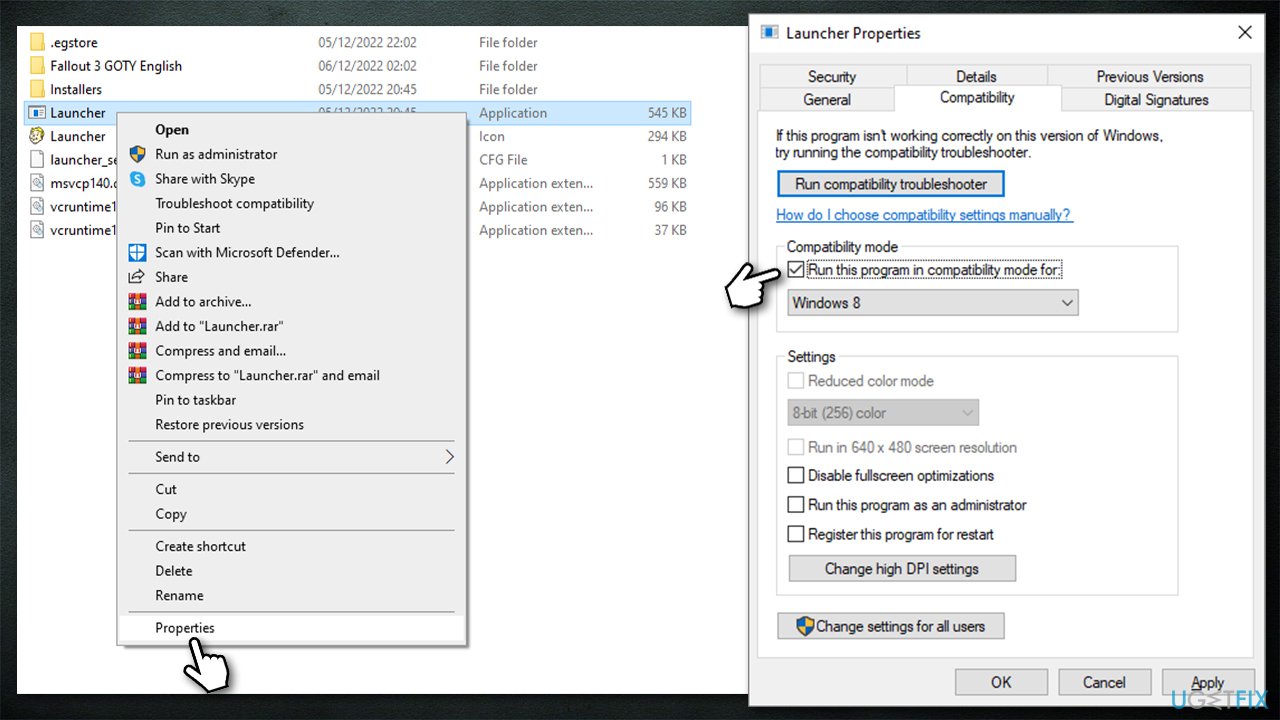
- Right-click on Installer and select Properties
- Go to the Compatibility tab
- Here, tick the Run this program in compatibility mode for and pick an older Windows version
- Click Apply and OK.
Next, if you haven't done so, please try running the EXE file as administrator: right-click on the file and select Run as administrator.
Finally, try selecting the installation path on another drive (for example, pick drive E instead of C).
Bottom line
To fix the 'Unarc.dll returned an error code', you can scan with anti-malware, check the Microsoft Visual C ++ Redistributable Package, and ensure your downloads are complete and not corrupted. If these methods do not resolve the issue, consider using an automatic PC repair tool to address the DLL error.
Frequently asked questions
This error typically occurs due to corrupted installation files, issues with the hard drive, or problems with the Unarc.dll file itself.
You can resolve this issue by verifying the integrity of your installation files, running a disk check, or reinstalling the software that triggered the error.
To prevent this error, ensure that your Windows 11 system is updated regularly, and avoid downloading software from unreliable sources to minimize the risk of corrupted files.




Report an issue
What's wrong with this guide? We review every report and update or remove content.
Report received — thank you. We'll review and fix it.
You need a free account to submit a report.
Be the first to comment