How to fix
UNEXPECTED_STORE_EXCEPTION BSOD
on Windows
Resolve the UNEXPECTED_STORE_EXCEPTION BSOD on Windows 10 effectively with our expert-tested solutions. Get back to smooth performance in minutes.

What causes How to fix UNEXPECTED_STORE_EXCEPTION BSOD on Windows 10?
- Corrupted drivers
- Incorrectly installed applications
- Software conflicts
- Issues after upgrading from an older version of Windows
Repairs Windows system files, removes malware, and restores a clean OS state — without reinstalling.
Two weeks ago I upgraded to Win 10 from Win 7. Maybe it’s just a coincidence, but after that, I’ve been getting a BSOD UNEXPECTED STORE EXCEPTION on a daily basis. Could you please explain why this error shows up and how could I fix it? Thanks!
UNEXPECTED STORE EXCEPTION is a Blue Screen error[ref en-1] that emerges on Windows 10 operating systems abruptly. BSODs are a phenomenon that most users have encountered in their lifetimes and, while most are solved as soon as the PC is restarted, others remain to bug people constantly.
In some cases, stop errors might also prevent users from accessing their Windows entirely. Luckily, Unexpected Store Exception does not result in the latter. Although the issue can be particularly annoying due to its frequency - it can interrupt peoples' work at any time, making them lose some data or unsaved files.
Unexpected Store Exception can have several reasons to show up. It does not explain much to users, as the following message is shown before the PC reboots:
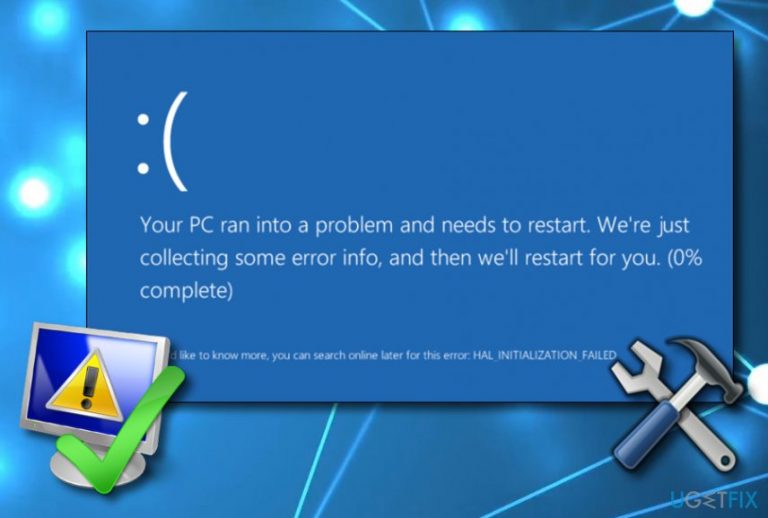
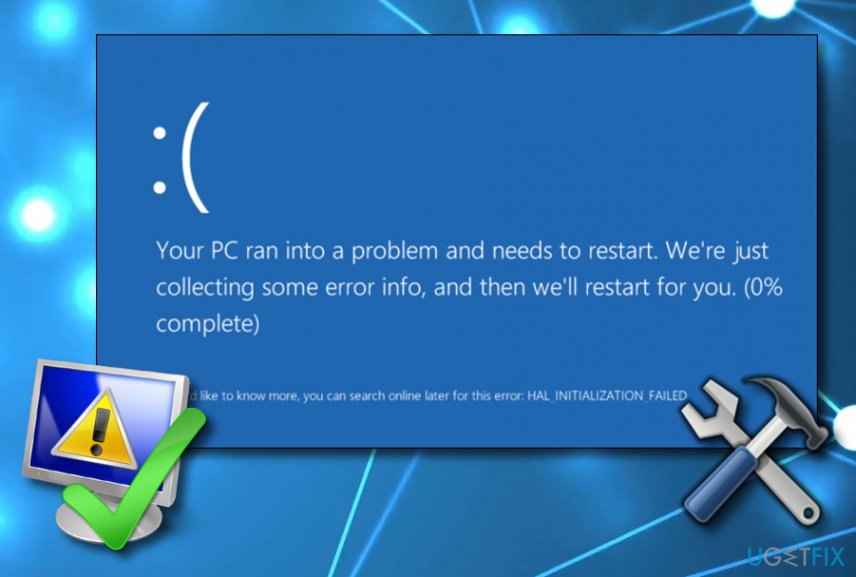
Your PC ran into a problem and needs to restart. We're just collecting some error info, and then we'll restart for you. (0% complete)
If you'd like to know more, you can search online later for this error: UNEXPECTED STORE EXCEPTION
This error is commonly caused by some type of software issue, for example, corrupted drivers incorrectly installed application. In order to fix it, you need to apply the solutions below - step by step.
Users reported that UNEXPECTED STORE EXCEPTION BSOD started showing a couple of weeks after upgrading the older version of the OS to Windows 10. Sometimes it may be thrown when trying to launch the software, sometimes when web browsing, or you may find it after waking your device from sleep.
The worst thing related to it is the total system freeze[ref en-3], which is why people have to force the system to shut down regardless of all the work that they were doing with the machine before the stop error emerged. We will provide some tips on how to fix UNEXPECTED_STORE_EXCEPTION BSOD error.
Fix UNEXPECTED_STORE_EXCEPTION BSOD on Windows 10
We have provided some methods below which will help you solve the problem. Go through all of them to get rid of this BSOD. The most primitive way to fix UNEXPECTED STORE EXCEPTION error is checking the system with [d1] or another PC repair tool and following its recommendations. If the scan did not solve this issue (your PC/laptop is not showing this error message because of registry-related issues), check the following options.
Solution 1. Check your driver to get rid of UNEXPECTED STORE EXCEPTION BSOD
- Right-click on Start and select Device Manager.
- Click on the first option from the search results to open Device Manager:
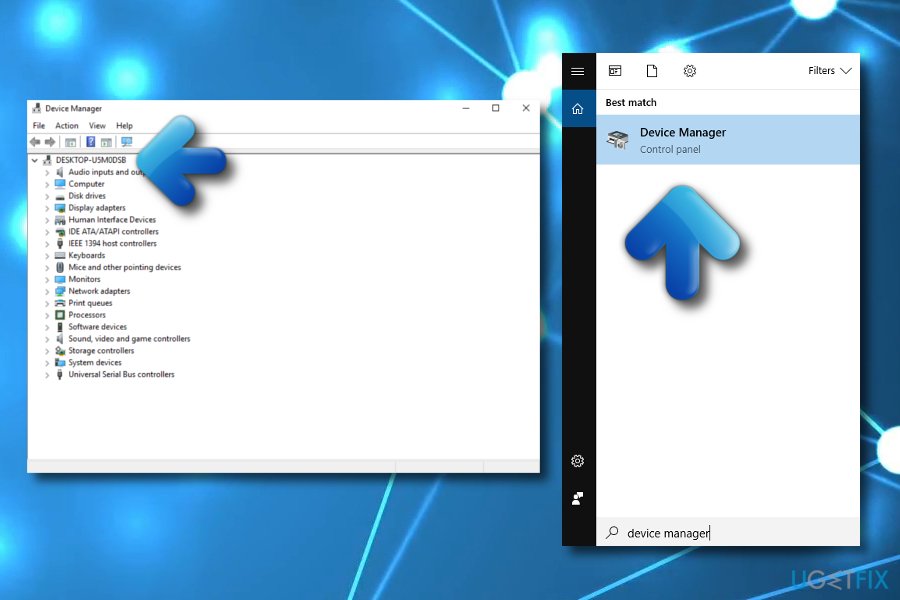
- Expand all menus that are given on the left side and look for drivers that are marked with a yellow exclamation mark.
- If you detect a conflicting driver, right-click on it and select Action tab.
- After that, select Update Driver Software and wait for the update procedure to finish.
- Once done, reboot your PC.
While the Device manager can give you access to some basic drivers, it is by far not perfect and can often fail to identify and download the latest driver updates. Besides, the time spent looking for all the drivers manually can be a real pain. Therefore, we highly recommend using an automatic driver updating software such as [rev id="DriverFix"] instead.
Solution 2. Check if all apps are installed properly
- Click Win key and type Windows Powershell.
- When the run dialogue opens, paste the following command in it and press Enter.
Get-AppXPackage | Foreach {Add-AppxPackage -DisableDevelopmentMode -Register "$($_.InstallLocation)\\AppXManifest.xml
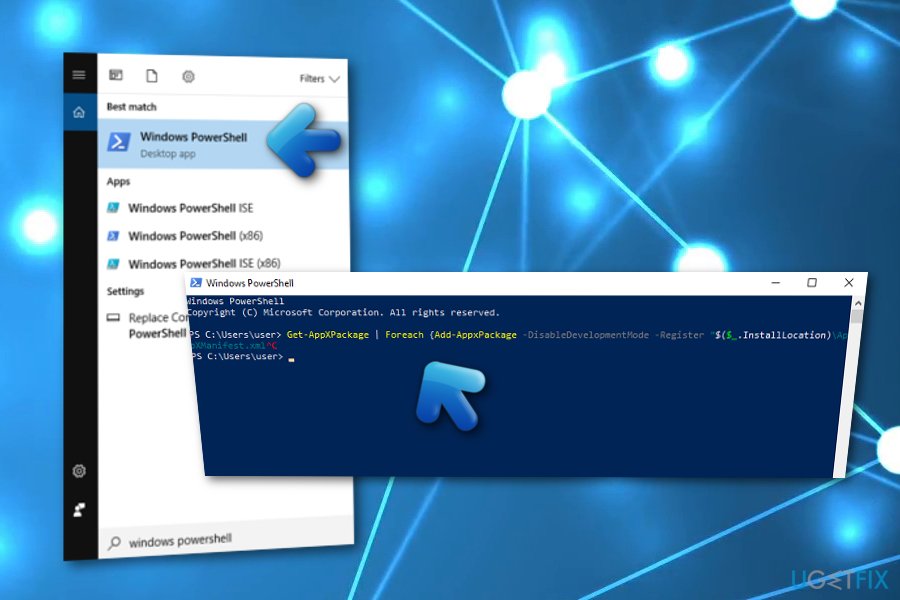
This way, you will be able to check if all applications on your device are properly installed.
Solution 3. Install the latest Windows Updates
You should also run all available Windows updates because UNEXPECTED_STORE_EXCEPTION may be triggered by outdated software/hardware. For this purpose, you simply have to:
- Click on Win key and type Windows Updates.
- Click on the very first search results. When Windows Updates window shows up, select Check for Updates.
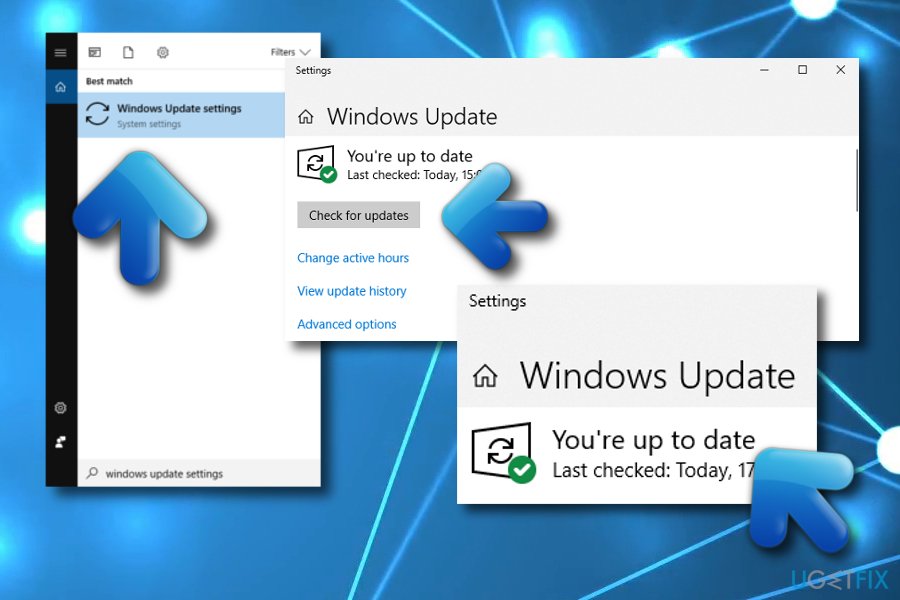
- Now the system should be performing a scan, so be patient and wait until it finishes.
- If you receive a list with the available updates, select Install Updates.
- Again you will have to wait for a while since the system needs some time to run the updates properly.
- Finally, restart your PC.
Solution 4. Check system files for disk errors
Check system files for errors. For that, you have to use CMD[ref en-4]:
- Right-click on the Win key and select Command Prompt (Admin).
- Once the run dialogue is opened, paste sfc /scannow and click Enter.
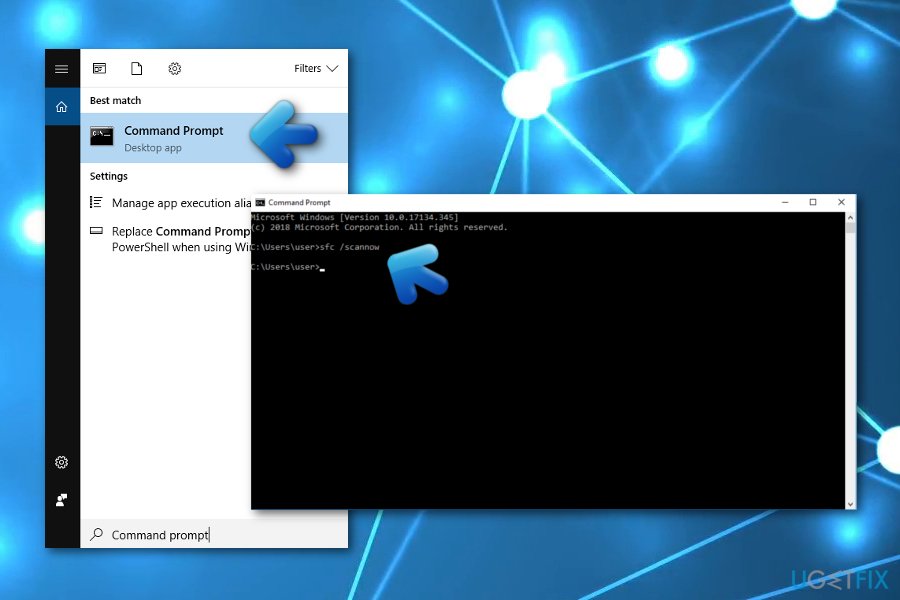
- After that, paste chkdsk /f /r and press Enter to check the disk for errors.
- Finally, restart your PC.
Solution 5. Reset Windows Store
This solution will help you if the BSOD is caused by a buggy Windows Store:
- Type in the following command in Windows search:
WSReset
- Press Enter and wait.
- A pop-up windows should flash briefly.
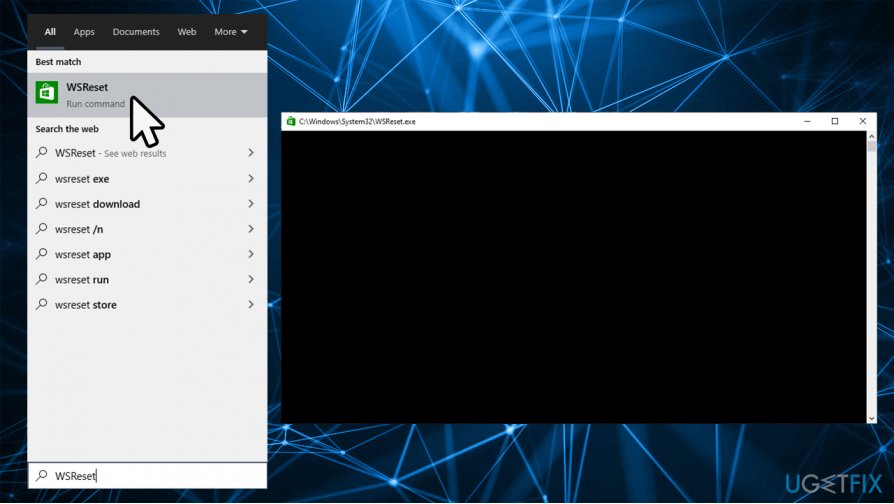
- Once it is gone, your Windows Store will open - means you successfully carried out a store reset.
Solution 6. Run apps troubleshooter
App troubleshooters are extremely useful tools that could help you find issues on your system. Since this error is likely related to Windows Store, we recommend you run the AppStore troubleshooter.
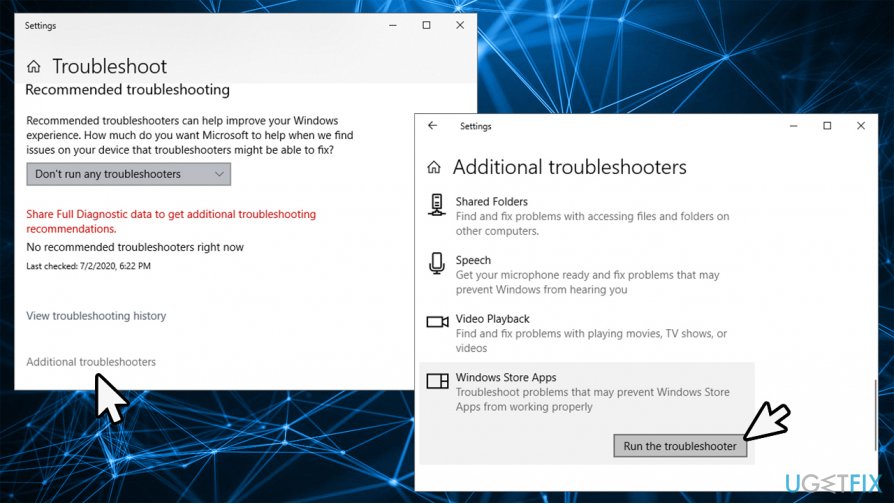
- Type Troubleshoot in Windows search and press Enter.
- In here, you will find a list of available troubleshooters.
- If you can't see any, press Additional troubleshooters.
- Scroll down to locate Windows Store Apps and press Run the troubleshooter.
Solution 7. Check your hard drive
In some cases, UNEXPECTED STORE EXCEPTION can be caused by failing hardware components. In this particular case, it could be the hard drive. This device holds all the information needed for your computer to operate, as well as everything you write on the disk.
To check your hard drive, run a check disk function:
- Press Win + E to open File Explorer.
- Go to the This PC (you can find it on the left of the window).
- Right-click on your main drive (C: by default) and select Properties.
- Go to Tools tab.
- Under Error checking, click Check.
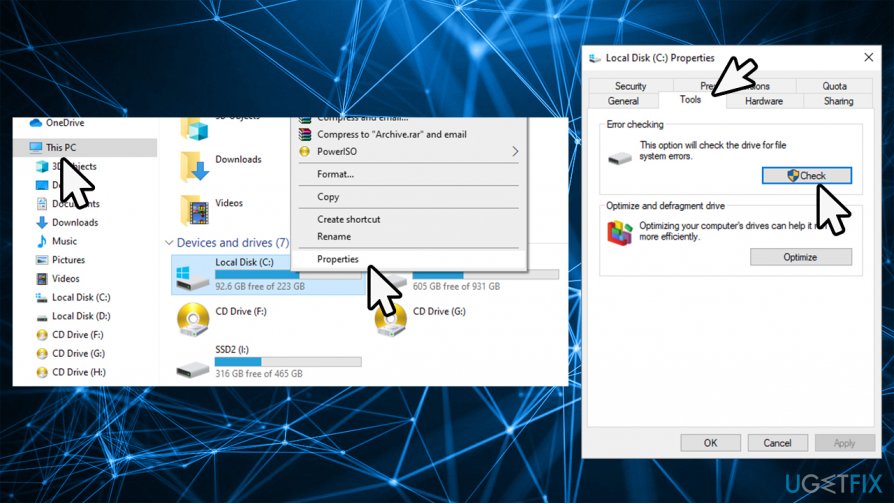
- Wait till scan is complete to see if any issues were found.
Bottom line
To fix the UNEXPECTED_STORE_EXCEPTION BSOD, users can try updating or reinstalling drivers, uninstalling problematic applications, and checking for software conflicts. If these solutions do not resolve the issue, consider seeking further technical support or reinstalling Windows.
Frequently asked questions
This BSOD error is often triggered by issues related to hardware compatibility, corrupted system files, or faulty drivers. Ensuring that your Windows 10 is up to date and checking for hardware problems can help resolve the issue.
You can try running the Windows Memory Diagnostic tool and performing a system file check using the 'sfc /scannow' command. Additionally, updating your drivers and checking for disk errors with CHKDSK can also help.
To prevent this error, regularly update your Windows 10 and device drivers, and perform routine system maintenance. Keeping your hardware in good condition and ensuring compatibility with new updates can also minimize the risk.




Report an issue
What's wrong with this guide? We review every report and update or remove content.
Report received — thank you. We'll review and fix it.
You need a free account to submit a report.
Be the first to comment