How to fix
Universal Device Client Device not working
on Windows
Resolve the Universal Device Client issues on Windows 10 and 11 quickly with our expert-tested solutions. Get your devices working flawlessly, fixed in …


What causes How to fix Universal Device Client Device not working in Windows?
- Driver compatibility issues
- Corrupt or missing driver files
- Recent driver updates causing problems
- Device not recognized by the operating system
Repairs Windows system files, removes malware, and restores a clean OS state — without reinstalling.
Hello. Today I noticed that Universal Device Client Device in Device Manager has an exclamation mark and when I open properties, it says that the device is not working properly. What should I do?
Drivers provide communication between a computer's hardware and software, making them crucial parts of the Windows operating system. For computers to perform as well as possible, they must be in good working order, especially for specialized programs and hardware.
The Universal Device Client Device is a specific example of such a driver, tailored for Lenovo devices. It is part of the Lenovo Device Intelligence utility, which comes pre-installed on these devices to ensure efficient communication between the device and the operating system. However, some users may encounter issues with the Universal Device Client Device not working properly on Windows (this also often comes with code 31). This problem can lead to devices not being recognized or certain functionalities not performing as expected.
To fix the Universal Device Client Device not working on Windows, several troubleshooting steps can be performed. These include updating the driver to the latest version, reinstalling the driver to replace any corrupt or missing files, and possibly rolling back to a previous driver version if recent updates have caused the problem.
However, it is worth noting that other fixes might be necessary, as updating or reinstalling drivers might not work for some. Therefore, we prepared instructions for different instances of this problem - you can find them all below the article.
Utilizing a PC repair program [d1] is advised for individuals seeking a simpler fix to deal with underlying Windows issues. These technologies are intended to automatically detect and resolve a variety of problems, promoting a seamless and effective computing experience.
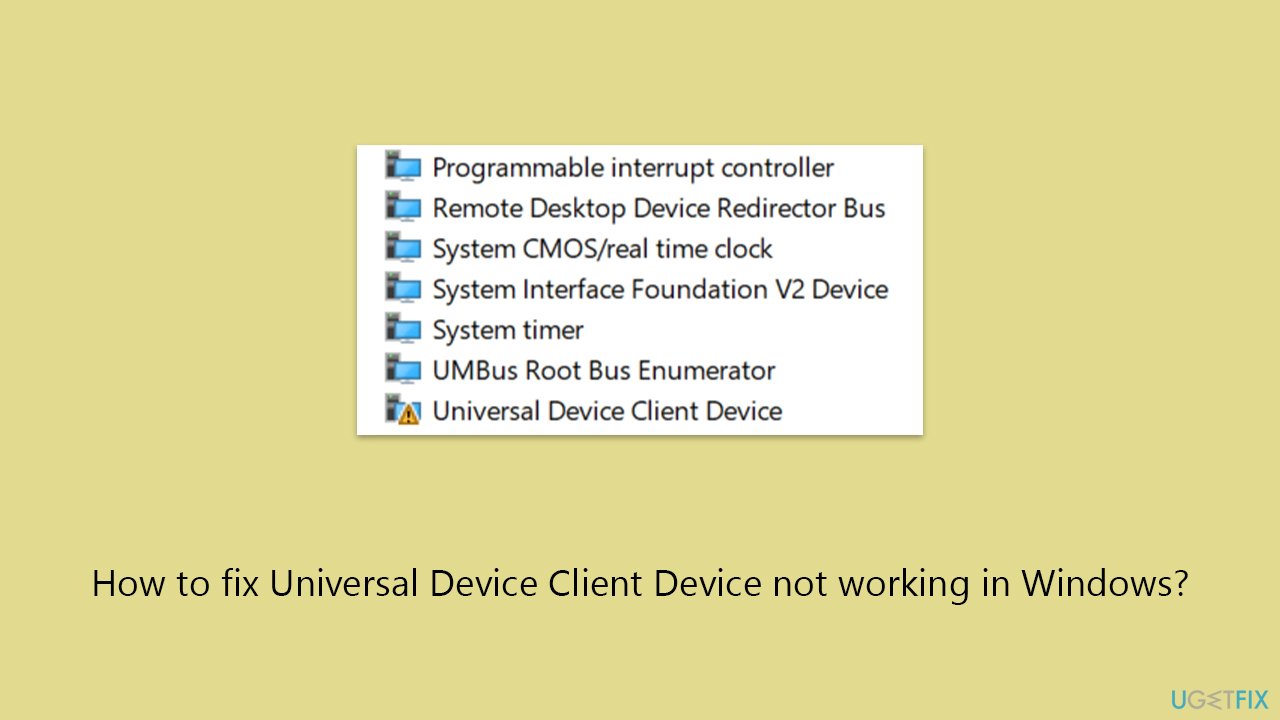
Fix 1. Update driver
Updating the driver can resolve compatibility issues and improve device functionality by ensuring the latest version is installed. This process involves locating the device in Device Manager, checking for available updates, and installing them if available.
- Right-click on Start and pick Device Manager.
- Expand the System section.
- Scroll down to find Universal Device Client Device.
- Right-click on it and select Update driver.
- Pick Search automatically for drivers and wait for all the files to be installed.
- When done, Reboot your system.
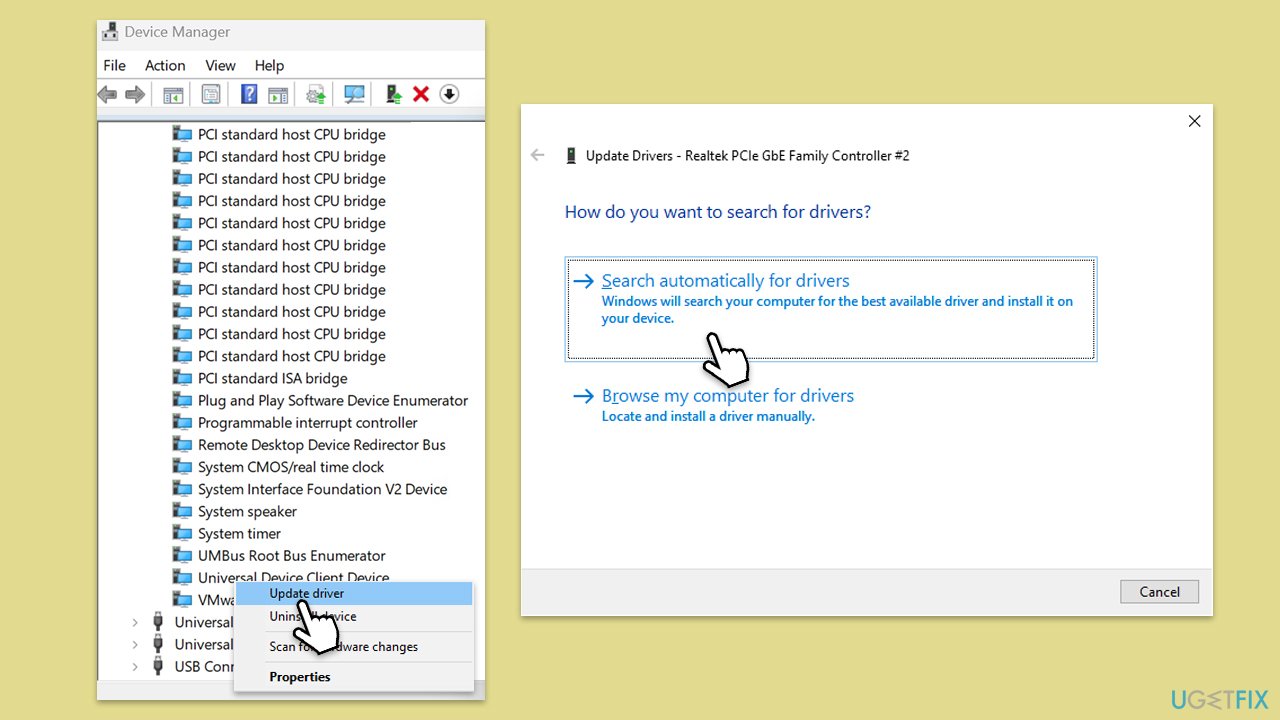
If you would rather employ an automatic method, we recommend using [rev id="DriverFix"], which can quickly scan your system, determine which drivers are outdated or obsolete, and fix problems related to those drivers.
Fix 2. Roll back driver
Rolling back the Universal Device Client Device helped most people resolve the issues they were having.
- Right-click on Start and pick Device Manager.
- Expand the System section.
- Scroll down to find Universal Device Client Device.
- Right-click on it and select Properties.
- Go to the Driver tab.
- Select Roll Back Driver and confirm prompts.
- Restart your system.
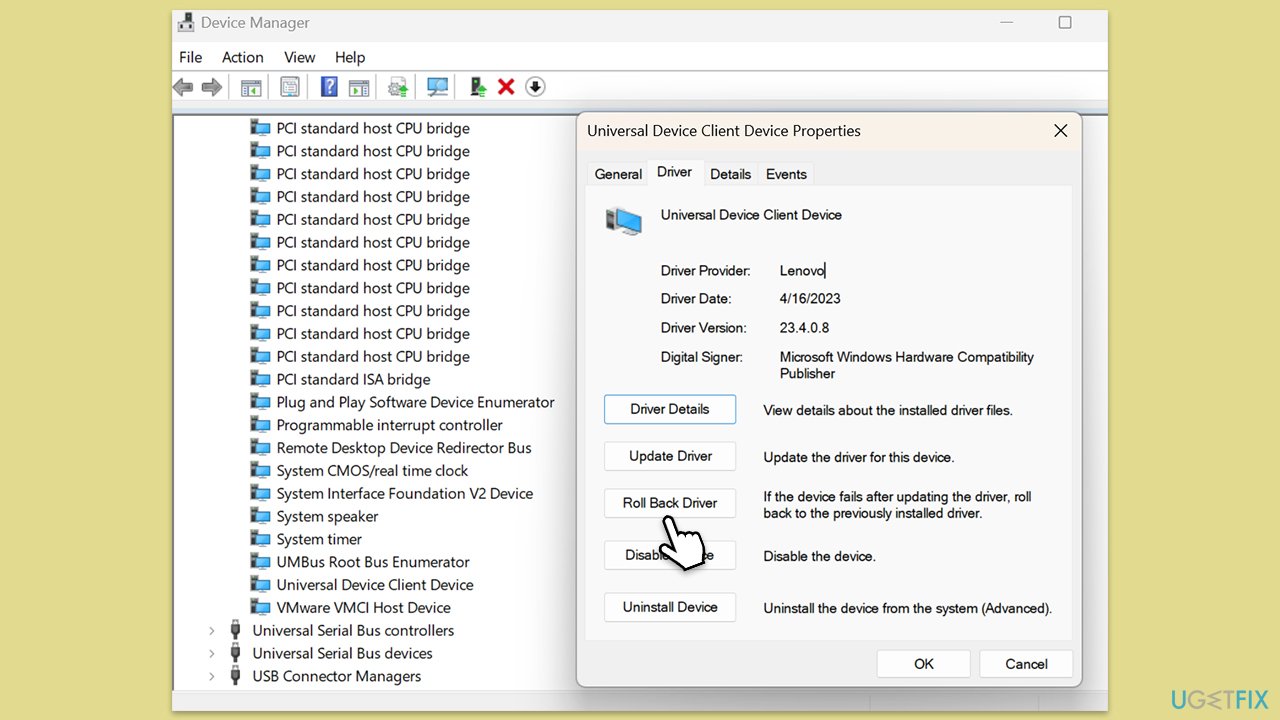
Fix 3. Reinstall driver
Reinstalling a driver can fix issues caused by corrupt or missing files by completely removing the current version and installing it anew.
- Open Device Manager.
- Open System section.
- Right-click on the Universal Device Client Device and select Uninstall device.
- Confirm the action if prompted.
- Restart your computer to ensure the changes take effect.
- You can use one of the methods mentioned in Fix 1 to install the newest version of the driver.
Fix 4. Install all Windows updates
Ensuring all Windows updates are installed can improve system stability and performance, including resolving driver issues by installing the latest software patches and improvements.
- Type Updates in Windows search and press Enter.
- Here, click Check for updates.
- Wait till Windows downloads and installs all the files.
- If optional updates are available, install them as well.
- Reboot your device.
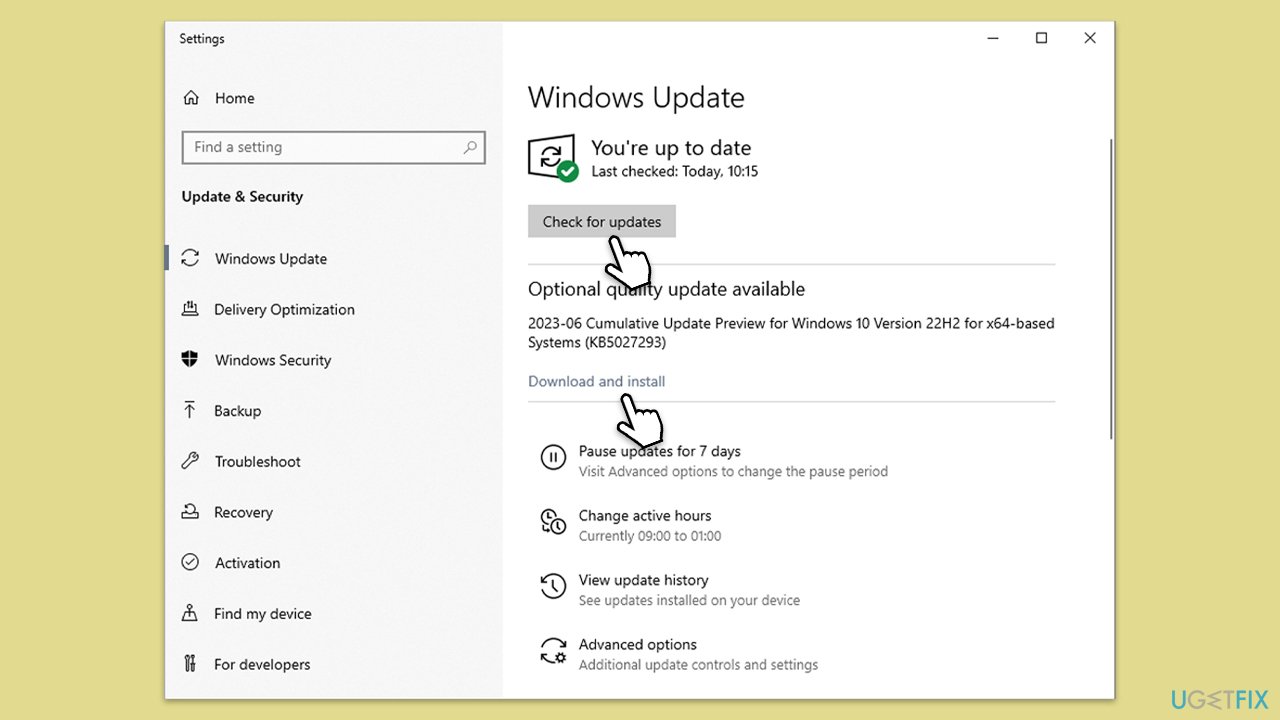
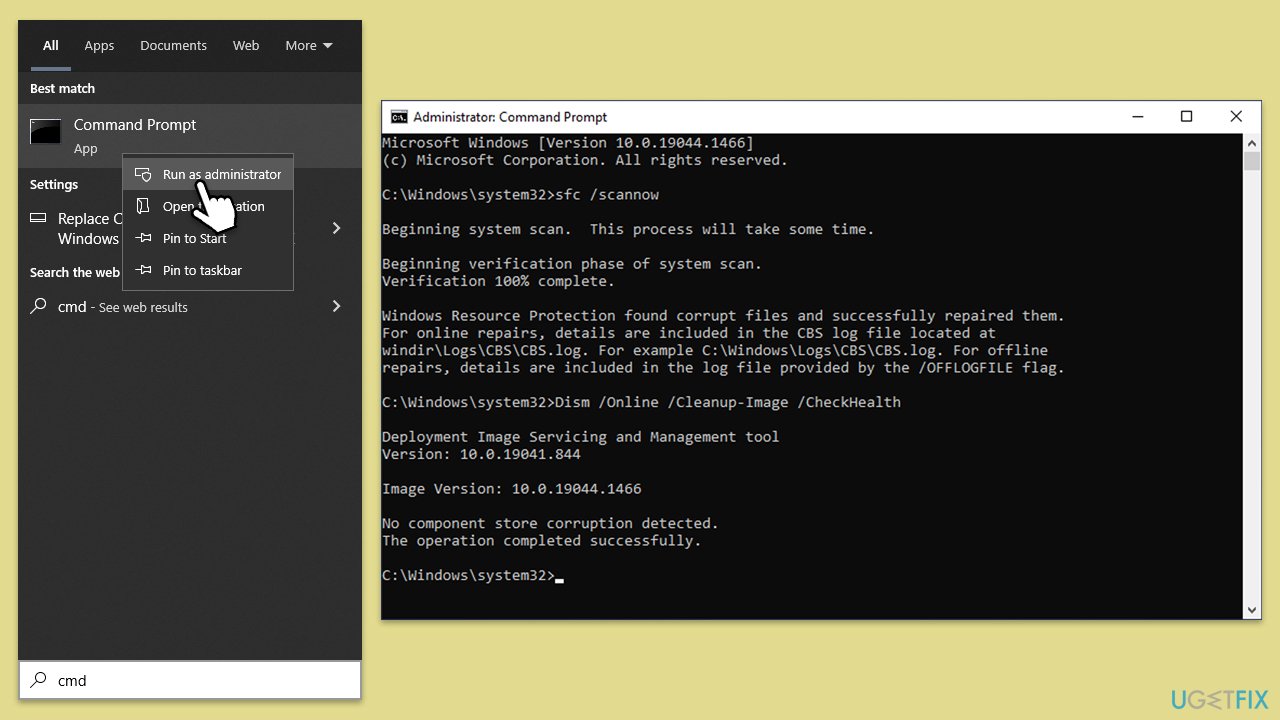
Fix 5. Run SFC and DISM
System File Checker and Deployment Image Servicing and Management utilities can repair Windows system files and resolve underlying system issues that might be causing driver problems.
- Type cmd in Windows search.
- Right-click on Command Prompt and pick Run as administrator.
- The User Account Control window will ask whether you want to allow changes - click Yes.
- In the Command Prompt window, paste the following command and hit Enter:
sfc /scannow - Once the scan is complete, use the following commands and press Enter after each:
Dism /Online /Cleanup-Image /CheckHealth
Dism /Online /Cleanup-Image /ScanHealth
Dism /Online /Cleanup-Image /RestoreHealth - (Note: if you get an error executing this last command, add /Source:C:\RepairSource\Windows /LimitAccess to it and try again).
- Restart your system.
Fix 6. Use System Restore
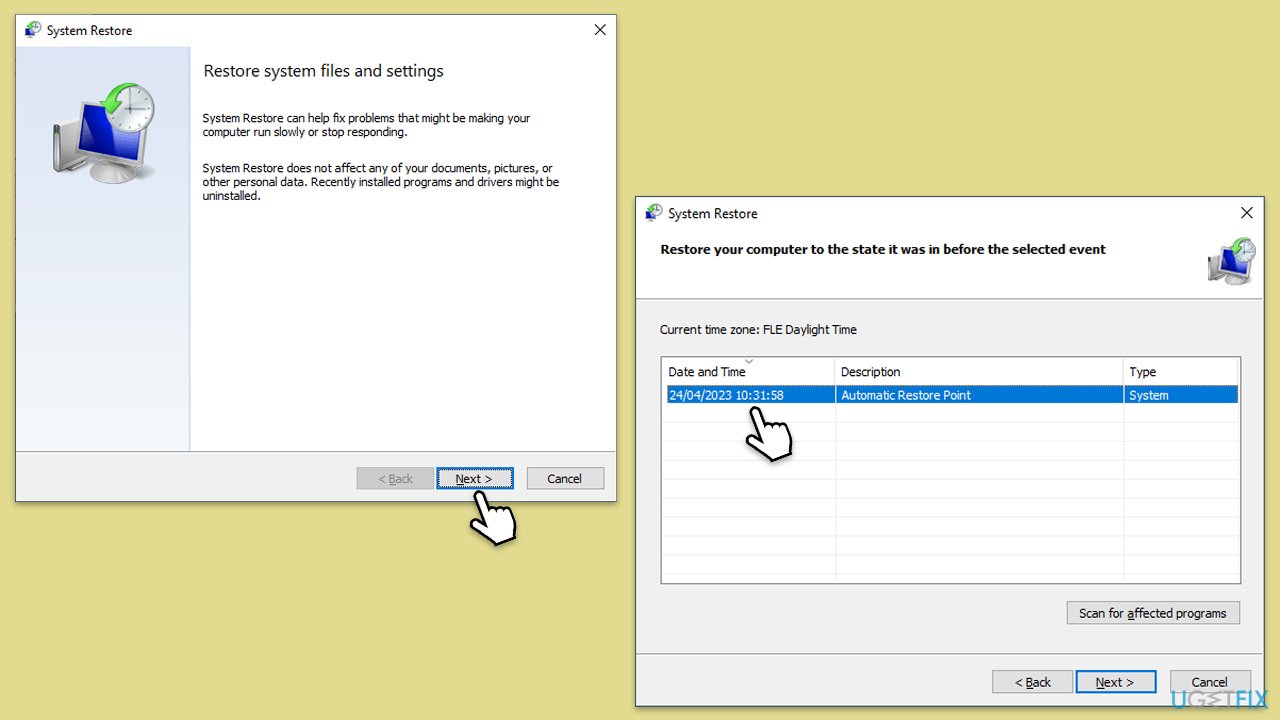
System Restore can revert your system's settings to a previous point in time, which can resolve issues caused by recent changes to the system or drivers.
- Type in Create a Restore point in Windows search and hit Enter.
- Go to the System Protection tab and pick System Restore.
- Click Next.
- Click Show more restore points (if available).
- Pick the time before the problem occurred and click Next.
- Follow the prompts to finish the process.
Bottom line
To fix the Universal Device Client Device not working in Windows, you can update the driver, reinstall it, or roll back to a previous version if recent updates caused the issue. If these solutions do not resolve the problem, consider utilizing a PC repair program for further assistance.
Frequently asked questions
Ensure that your Windows 10 or Windows 11 system has the latest updates installed, as these often include necessary drivers for device compatibility. Additionally, check the device connections and restart your computer to refresh the hardware recognition.
First, roll back the recent Windows update from the Update History settings, as it may have caused compatibility issues. If the problem persists, consider reinstalling the Universal Device Client software.
Verify that the device is enabled in the Device Manager and check the network settings to ensure that the device is properly connected to the network. Additionally, make sure that any firewall settings are not blocking the Universal Device Client.




Report an issue
What's wrong with this guide? We review every report and update or remove content.
Report received — thank you. We'll review and fix it.
You need a free account to submit a report.
Be the first to comment