How to fix
UNMOUNTABLE_BOOT_VOLUME BSOD
on Windows
Resolve the UNMOUNTABLE_BOOT_VOLUME BSOD on Windows 10 or 11 quickly and effectively. Expert-tested solutions ensure your system runs smoothly.


What causes How to fix UNMOUNTABLE_BOOT_VOLUME BSOD on Windows?
- Windows unable to read information from the hard drive or SSD
- Damaged hardware or bad sectors on HDD/SSD
- Outdated computer attempting to upgrade to a newer Windows version
- Malware damaging critical system files
- Error occurring during installation setup or Windows startup
Repairs Windows system files, removes malware, and restores a clean OS state — without reinstalling.
Windows 10 returns a BSOD UNMOUNTABLE_BOOT_VOLUME during the boot phase. The system gets frozen and I cannot access my desktop. I cannot find relevant information about this issue, so I would highly appreciate your help.
UNMOUNTABLE_BOOT_VOLUME is a Blue Screen of Death[ref en-1] (BSOD) or Stop error, which may affect various versions of Windows, including Windows 10, 8.1, 8, 7, and XP. The error shows up during the boot phase of the machine, and completely prevents users from accessing their desktops and performing usual tasks - this is why getting an UNMOUNTABLE BOOT VOLUME fix becomes critical. Nevertheless, some users might experience the BSOD suddenly - during the operation of the PC.
Unmountable Boot Volume error has a value 0x000000ED, so both the code and the technical name of the bug[ref en-3] may be used interchangeably. The 0x000000ED error means that the I/O subsystem on the machine failed to mount the boot volume. There are several reasons why this happens, however.
Most common reasons for UNMOUNTABLE_BOOT_VOLUME error include:
- One of the most common reasons for the issue to arise is due to Windows not being able to read the information for the hard drive or solid-state drive where the operating system is located. This usually indicates damaged hardware or that the HDD/SSD has some bad sectors;
- Another common culprit for Unmountable Boot Volume error is an outdated computer. Users who are trying to upgrade an old machine to the newest Windows version (usually Windows 10), might receive this error.
- Malware[ref en-2] changes the way Windows machine operates - it might sometimes damage critical system files and cause various Blue Screen and other errors.

The culprit may be identified according to the conditions in which the UNMOUNTABLE_BOOT_VOLUME BSOD occurs. For example, Windows may be stroked during installation setup, Windows startup, or in the middle of some important work. The following message with the blue screen background occurs:
Your PC ran into a problem and needs to restart. We’re just collecting some error info, and then we’ll restart for you. (30% complete)
If you’d like to know more, you can search online later for this error: UNMOUNTABLE_BOOT_VOLUME
Fix 1. Make use of Startup repair feature
If you have managed to boot up Windows successfully, you should run Startup Repair to prevent UNMOUNTABLE_BOOT_VOLUME error from reoccurring. For this purpose, perform these steps:
- Remove all external drives (CD, DVD USB) from your PC.
- Press Power button to reboot.
- During the Windows boot, press and hold F8 key.
- Using the arrow keys on your keyboard, navigate to the Repair your computer option and press Enter.
- Select keyboard layout and click Next.
- Select user name, type in the password, and press OK.
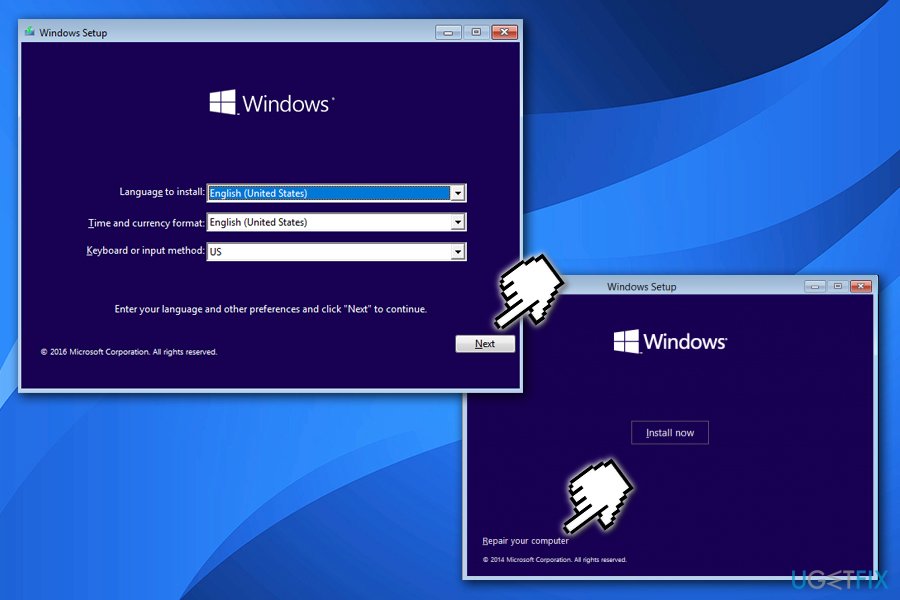
Fix unmountable boot volume repair your computer - When the System Recovery Option menu shows up, select Startup Repair.
- If necessary, reboot the system.
Fix 1.1 Use Startup repair function (when not bootable)
If, unfortunately, your PC got stuck with the 0x000000ED BSOD during startup, prepare USB or DVD with the Windows 10 Installation Media. If you don't have the disc/flash USB yet, you can create it by following the steps given on this page. For this purpose, you will have to have another PC running Windows OS. Once ready, plug in the bootable Windows 10 Installation Media and follow these steps:
- Reboot the PC.
- Press any key to boot from the installation media.
- Select language, time, currency, and keyboard/input method and press Next.
- Click Repair your computer (NOT Install Windows) and select the type of OS you want to repair.
- Click Troubleshoot.
- Select Advanced options and click Automatic Repair or Startup Repair.
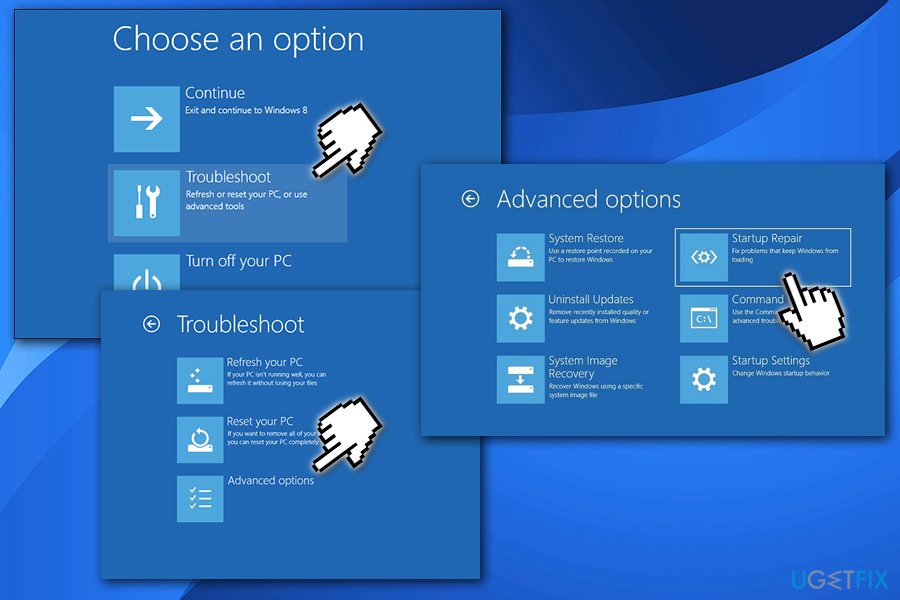
Fix unmountable boot volume use startup repair - When the system detects the OS, select the one that is running on your PC.
- Finally, unplug the USB or remove DVD bootable media and try to boot your device.
Fix 2. Run System File Checker
- Go to Troubleshoot option as described in the previous step
- Select Advanced option
- Pick Command Prompt
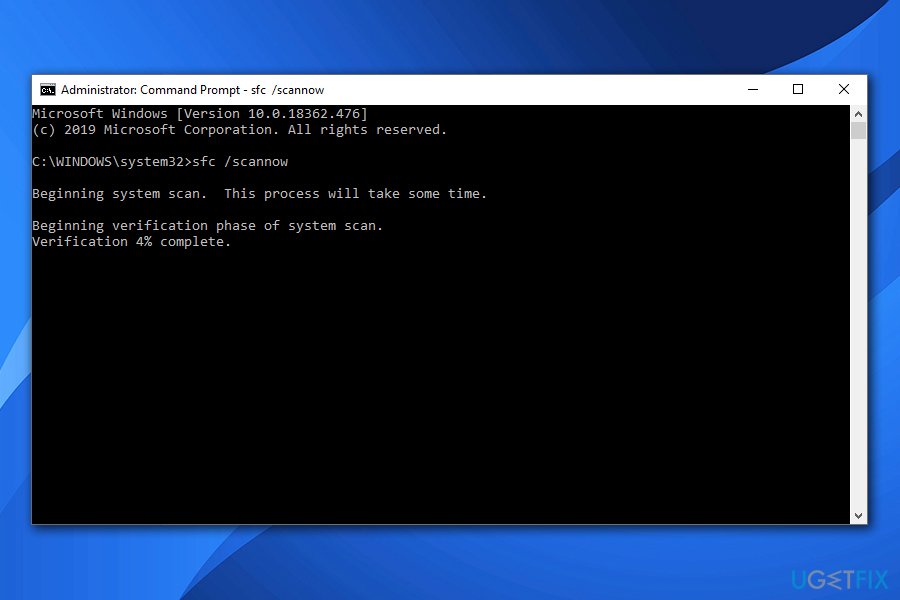
Fix unmountable boot volume run system file checker - Once the new window opens, type in the following command and press Enter:
sfc /scannow
This allows the system to check for any system errors or corruption, which might be able to help you fix UNMOUNTABLE BOOT VOLUME error.
Fix 3. Run chkdsk command via Command Prompt
- Go back to Advanced option
- Pick Command Prompt
- Type in the following command and press Enter:
chkdsk /r c:
- Type Y and press Enter
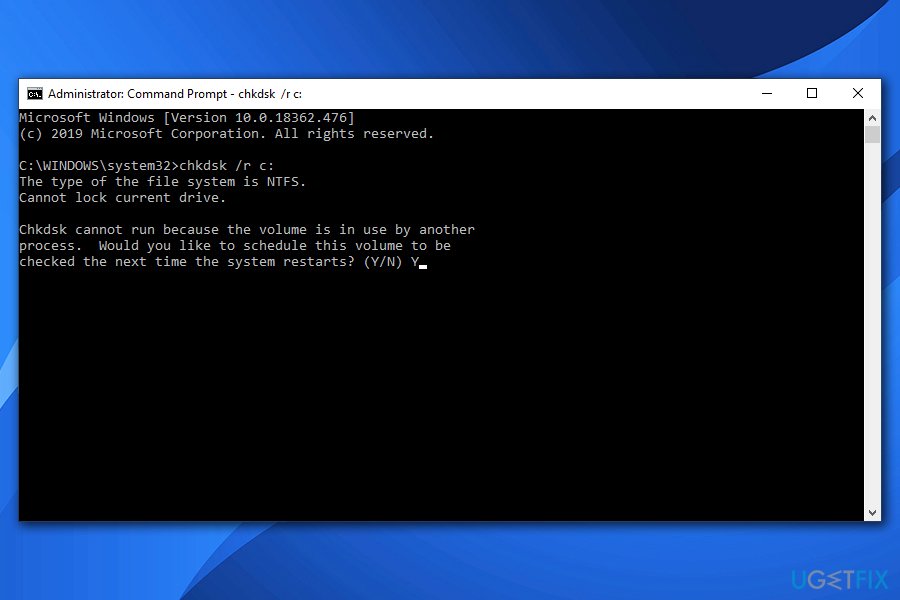
Fix unmountable boot volume run check disk on command prompt - Reboot
Fix 4. Repair Master Boot Record
- Click Power button and try to boot your PC.
- Press F8 key repeatedly at boot and select Repair your computer.
- Select Command Prompt and type the following commands.
- Press Enter after each one and DO NOT remove the space before / symbol.
bootrec /fixMBR
bootrec /fixBoot
bootrec /rebuildBCD
If you want to fix UNMOUNTABLE BOOT VOLUME error automatically, we recommend you scan your machine with [d1]
Bottom line
To fix the UNMOUNTABLE_BOOT_VOLUME error, users can check their hard drive for errors, update their system, and scan for malware. If these solutions do not resolve the issue, further hardware diagnostics may be necessary.
Frequently asked questions
The UNMOUNTABLE_BOOT_VOLUME error indicates that Windows cannot access the system partition, often due to file system corruption or hardware issues.
You can fix this error by booting into the Windows recovery environment, selecting 'Repair your computer,' and then using 'Command Prompt' to run the CHKDSK command.
Yes, in many cases, you can resolve the UNMOUNTABLE_BOOT_VOLUME error through troubleshooting steps like running disk checks or repairing the boot sector without needing to reinstall Windows.




Report an issue
What's wrong with this guide? We review every report and update or remove content.
Report received — thank you. We'll review and fix it.
You need a free account to submit a report.
Be the first to comment