How to fix
Unwanted language keeps showing up in Keyboard Layout
on Windows
Eliminate unwanted keyboard layout language issues in Windows 10 or 11 effortlessly. Follow our expert-tested tips for a seamless experience.


What causes How to fix unwanted language keeps showing up in Keyboard Layout in Windows?
- Windows adds languages without user consent
- Users alter input methods causing clutter
- Standard procedures fail to remove layouts
- Inability to control input methods efficiently
- Keyboard settings may be corrupted
Repairs Windows system files, removes malware, and restores a clean OS state — without reinstalling.
Hello. If I open Keyboard Layout from Taskbar I find 4 different layouts, 2 of which I did not add. Windows keeps adding these languages every time I remove them. Can you help?
Many users have been unaware of the persistent appearance of undesired keyboard layouts in Windows' Keyboard Layout settings. This issue can be particularly aggravating because it often happens without the user's knowledge or consent, and once these undesired layouts are introduced, they frequently can't be taken out using standard procedures. Users may have significant effects from this problem, including inconvenience, possible confusion, and disruption of their productivity.
This problem mostly impacts users by clogging the language bar with unnecessary keyboard configurations. These undesired layouts show up in the language bar as users add new languages or alter their input methods, creating a cluttered and perplexing interface. This can slow down typing and lead to users accidentally switching to a bad keyboard layout, which can lead to mistakes.
The inability to exclude these undesirable keyboard layouts from the Keyboard Layout options is another effect. Users are used to controlling their input methods using the Settings app or Control Panel, but the problem makes it difficult for them to do it efficiently. Users who anticipate having more control over their system preferences may find this to be frustrating and bewildering.
The fundamental causes of this problem make addressing it difficult, but there are some potential fixes, such as manually deleting undesirable keyboard layouts from the Windows Registry or resetting the keyboard settings using PowerShell scripts. This guide includes 4 methods that should assist you in removing unnecessary language from Keyboard Layout.
You can also try running a maintenance tool like [d1] that can fix most system errors, BSODs,[ref en-1] corrupted files, and registry[ref en-2] issues. Otherwise, follow the step-by-step instructions provided below.
Method 1. Remove the Unwanted Keyboard Layout
- Access Settings.
- Navigate to Time & Language.
- Select Language.
- In the Preferred languages section, choose the language you wish to remove.
- Click on the Options button.
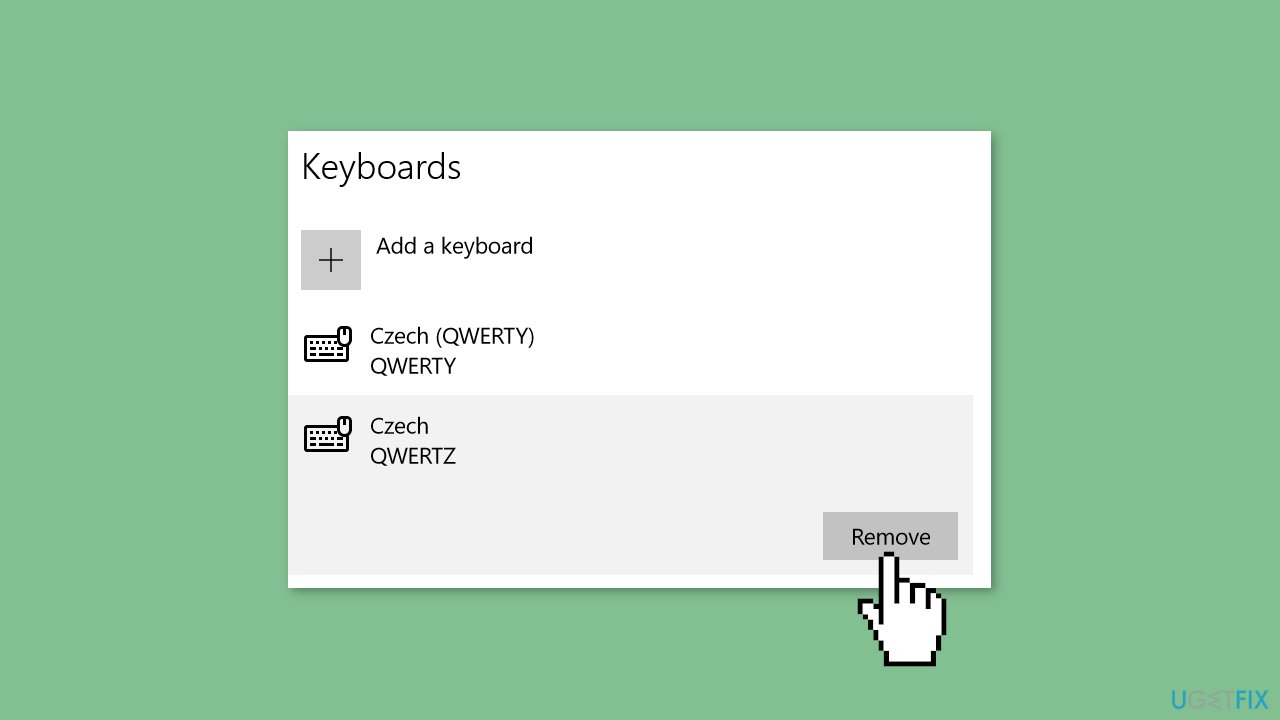
- Under the Keyboards section, remove the unwanted keyboard layout.
- Confirm your changes by clicking the Save button.
Method 2. Disable Automatic Keyboard Layout Change
- Begin by launching the Windows Settings app.
- Go to the Time & language tab.
- Locate and click on the Typing option in the right pane.
- Next, select the Advanced keyboard settings option.
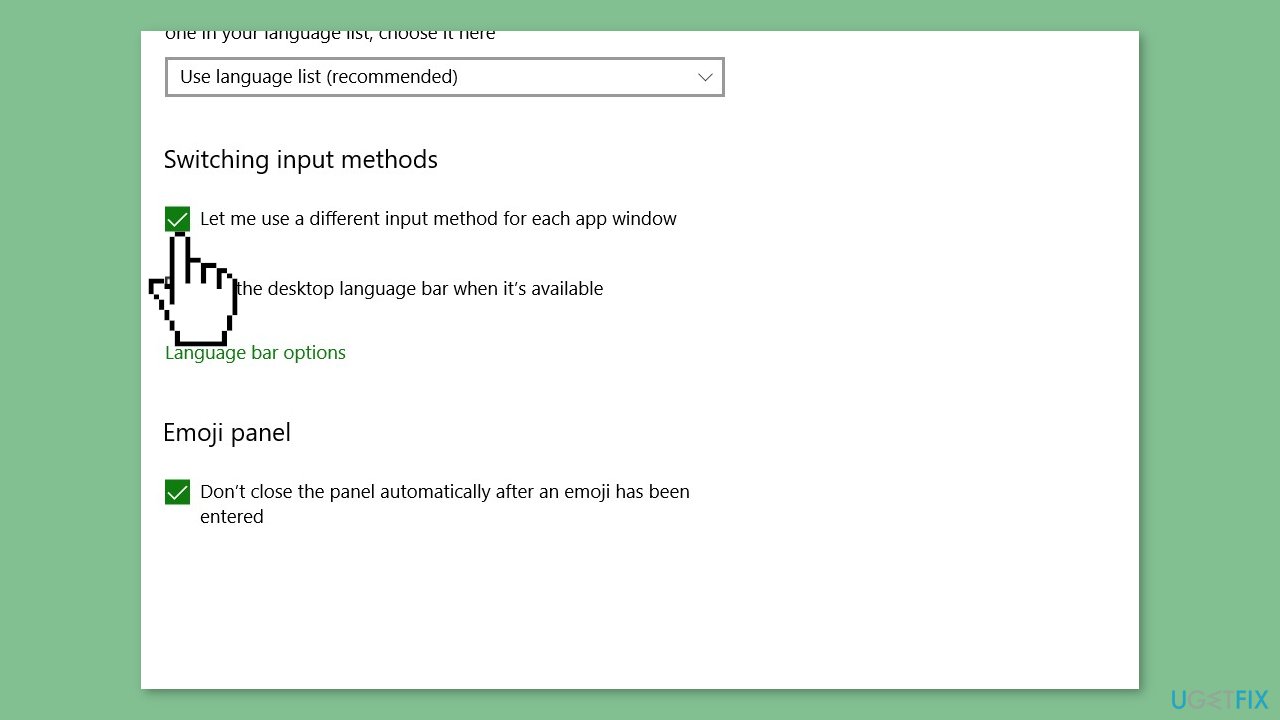
- Within the Advanced keyboard settings page, find the option labeled Let me use a different input method for each app window and uncheck it.
- Confirm whether this resolves the issue for you.
Method 3. Reset the Keyboard Settings
- Start by accessing the Start menu and clicking on the gear icon to open the Settings.
- Navigate to Time & Language, and then select Language.
- Click on the Administrative language settings link.
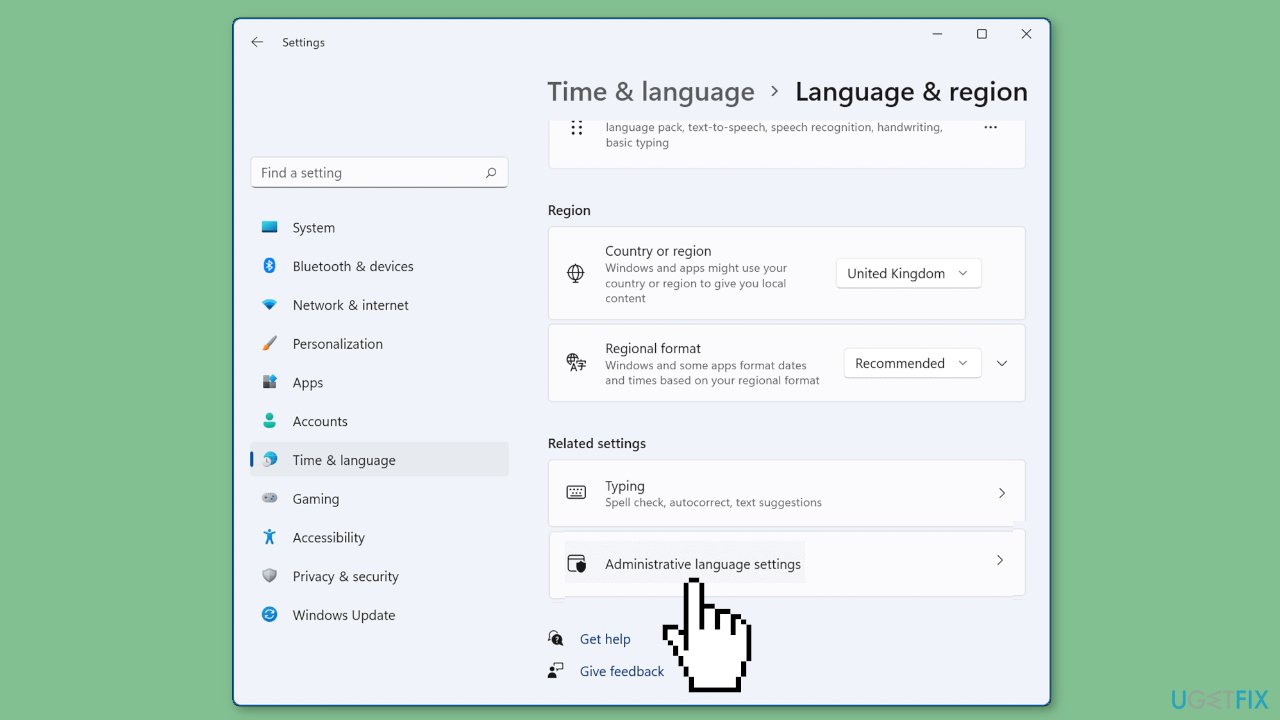
- Within the Region tab, locate and click the Copy settings button.
- Check the checkboxes labeled Welcome screen and system accounts and New user accounts.
- Confirm your changes by clicking on the OK button, followed by Apply.
Method 4. Modify the Registry
- Begin by pressing the Windows key + R to open the Run dialog box.
- In the Run dialog box, type regedit and press Enter to open the Registry Editor app.
- Within the Registry Editor, navigate to the following key: HKEY_LOCAL_MACHINE\SYSTEM\CurrentControlSet\Control\Keyboard Layout
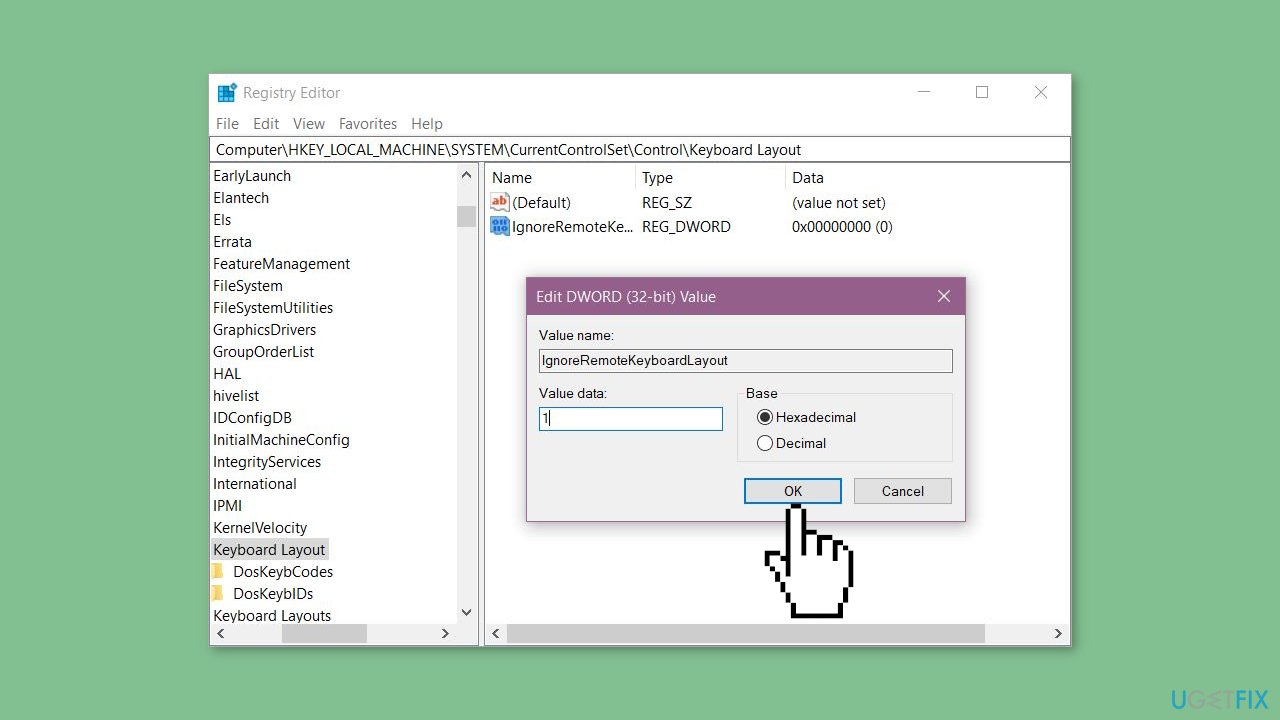
- Right-click in the right panel of the editor and choose the DWORD (32-bit) Value option from the context menu.
- Assign the name IgnoreRemoteKeyboardLayout to the newly created DWORD.
- Double-click on the IgnoreRemoteKeyboardLayout DWORD and set its value to 1.
- Close the Registry Editor application.
- Reboot your PC to apply the changes.
Bottom line
To fix the unwanted language issue, you can manually delete keyboard layouts from the Windows Registry or reset keyboard settings using PowerShell scripts. Additionally, consider using a maintenance tool to address system errors. If these methods do not resolve the issue, further troubleshooting may be necessary.
Frequently asked questions
To remove an unwanted keyboard layout in Windows 10, go to Settings > Time & Language > Language, select the language you want to remove, and click on 'Options' to delete the keyboard layout.
An unwanted language may keep appearing in Windows 11 if it's set as a default input method; you can fix this by adjusting your language preferences in Settings > Time & Language > Language.
If the keyboard layout keeps reverting in Windows, check if any third-party software or sync settings are causing this behavior and disable them if necessary.




Report an issue
What's wrong with this guide? We review every report and update or remove content.
Report received — thank you. We'll review and fix it.
You need a free account to submit a report.
Be the first to comment