How to fix
Update error 0x80070422
on Windows
Resolve the update error 0x80070422 on Windows 10 quickly and effectively with our expert-tested solutions. Fix it in minutes, hassle-free!

What causes How to fix update error 0x80070422 on Windows 10?
- Error code 0x80070422 is encountered when checking for updates
- The issue may arise when upgrading from a previous version of Windows
- Automatic Windows updates may be disabled
- Problems with the Windows Update service
- Issues with Microsoft Store updates
Repairs Windows system files, removes malware, and restores a clean OS state — without reinstalling.
Hi. I‘m using Asus Desktop computer and installed Windows 10 a week or two ago. I‘m quite satisfied with how it works, but there is one thing that I‘ve noticed - I‘m not getting any Windows 10 updates. Whenever I access Windows Updates and check for them, I receive an error code 0x80070422. Does anyone know why and what should I do?
Error Code 0x80070422 is usually encountered by users who are trying to patch their Windows 10 machines with the latest updates.[ref en-1] The issue may also arise when they upgrade from the previous version of Windows to the newer one (for example, from 8 to 10), as well as while trying to update or download applications in Microsoft Store.[ref en-2]
In most of the cases, users have Automatic Windows updates enabled, simply because that is how the OS is shipped. The updates are essential not only for bug fixes, performance, and stability improvements but also for patching critical vulnerabilities[ref en-3] that may allow malware authors to inject malicious code without user interaction automatically. Thus, the continual errors (such as 0x80070422) that prevent Windows updates from being applied can cause serious security issues
0x80070422 error is provided via a notification, which appears when a PC owner attempts so check for updates via Windows Updates service. The full message reads as follows:
There were some problems installing updates, but we'll try again later. If you keep seeing this and want to search the web or contact support for information, this may help: (0x80070422)
While contacting Microsoft support does not cost anything, it might be time-consuming. However, there are several ways how you can fix 0x80070422 error without reaching out for professionals - you can either do it manually by following detailed instructions below or by installing PC repair software [d1].
Manual error 0x80070422 fix will involve you trying various solutions, as some might work for you while others might not. Thus, if you decided to get rid of this issue, simply follow steps as shown in the guide below, and you will find the method that works for you.
Fix 1. Run Windows Update Troubleshooter
It is true that Windows users may encounter several errors when dealing with various situations on Windows operating systems. This is because the OS highly customizable, and reasons for 0x80070422 or other error appearances may greatly vary from system to system. Luckily, Microsoft deploys the OS with multiple built-in tools that can help users solve several issues on their own.[ref en-4] Thus, as a first attempt to fix 0x80070422 error, you should try running Windows Update troubleshooter:
- Right-click on Start button and select Settings
- Pick Update & Security
- On the left pane, click Troubleshoot
- Click on Windows Update once and then select Run the troubleshooter
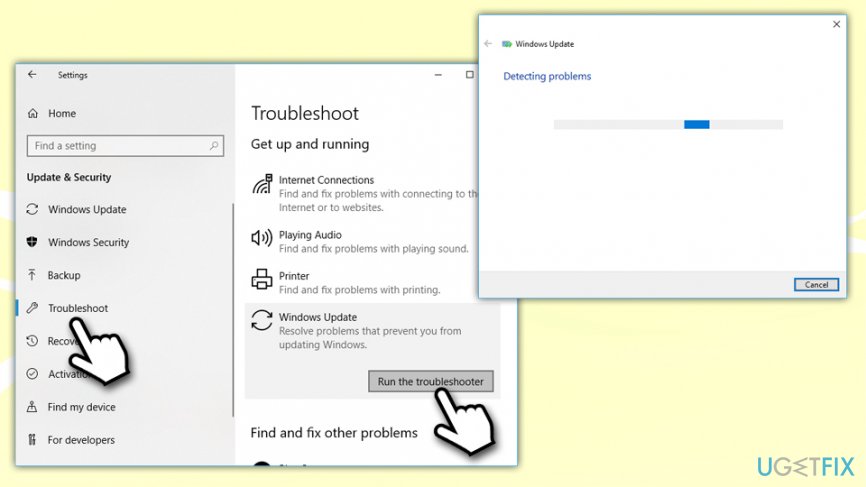
How to fix 0x80070422 error run windows update troubleshooter - Wait till Windows diagnoses problems and suggests methods to fix them
Fix 2. Disable IPv6 connection
If the previous method failed to help, you might try to disable IPv6, which is the recent version of the Internet Protocol (IP). Several people have pointed out that disabling IPv6 resolved 0x80070422 issue:
- Right-click on Start button and pick Network Connections
- Scroll down a bit and select Change adapter options
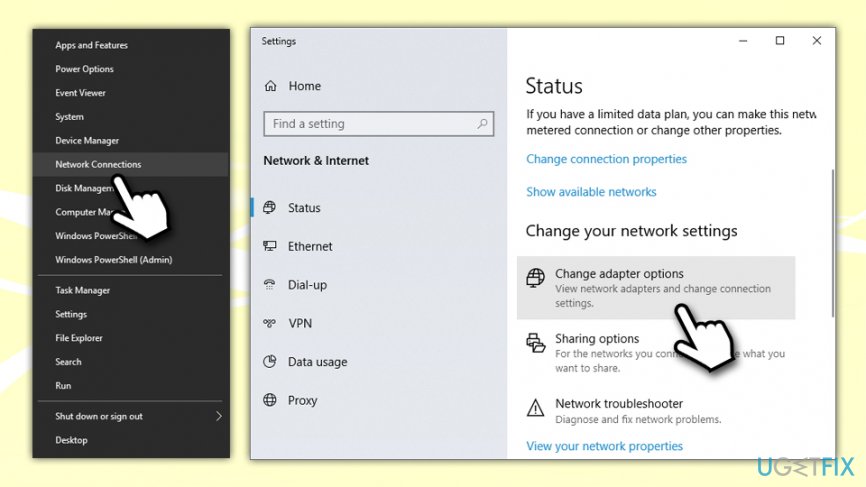
How to fix 0x80070422 error change adapter options - Right-click on Ethernet (or any other connection you are using) and pick Properties
- Find Internet Protocol Version 6 (TCP/IPv6) and untick the marker next to it
- Click OK
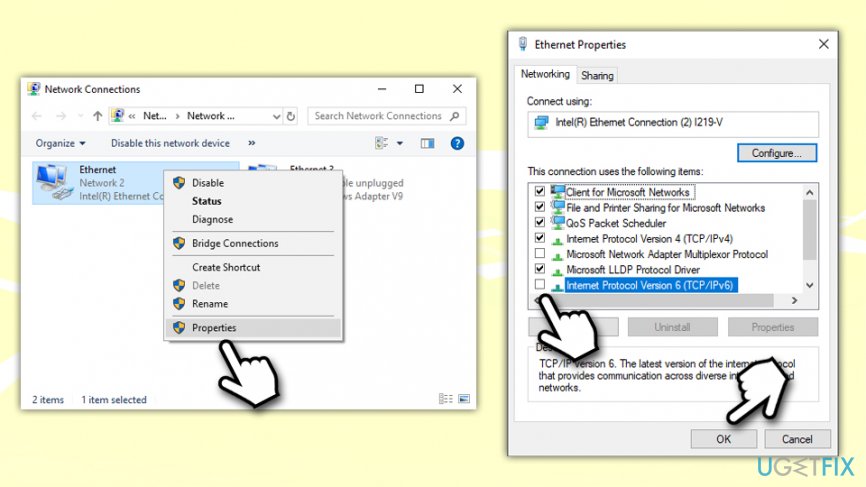
How to fix 0x80070422 error disable ipv6
Fix 3. Set Windows Update Service to be started automatically
You need to make sure that you are logging in as an administrator before performing the following actions:
- Type in services.msc into Cortana's search box or the Run dialog by pressing Win + R and then hit Enter
- Scroll down to locate Windows Update Service
- Right-click and pick Properties
- In General tab, under the Startup type, click the drop-down menu
- Select Automatic and then click Start, finishing with OK
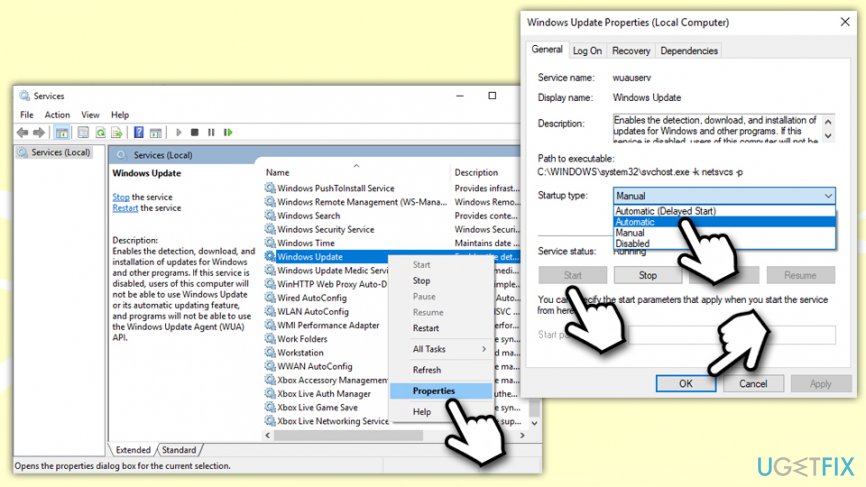
How to fix 0x80070422 error windows update service
Fix 4. Restart Network List Service
Some users reported that restarting another Windows service, called Network List, helped them fix 0x80070422 error. Follow these steps:
- Open Services once again as detailed above
- Scroll down and locate Network List Service
- Right-click and select Restart
- Wait for Service Control prompt to restart the service for you
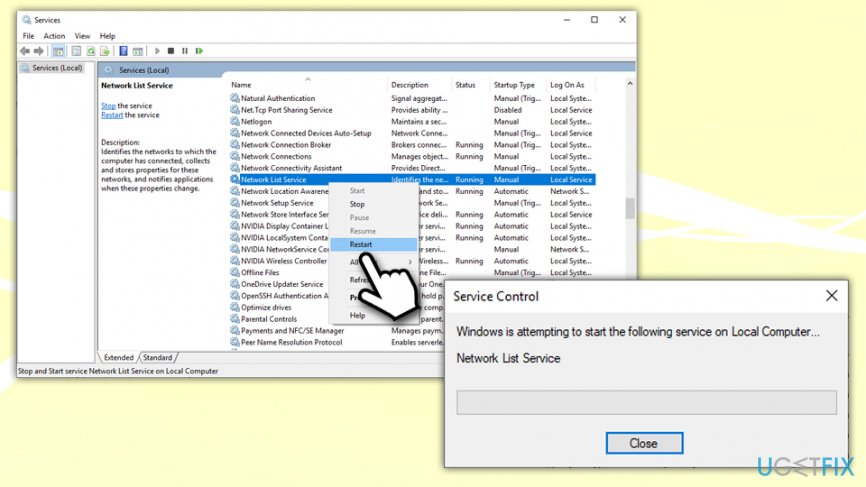
How to fix 0x80070422 error restoart network list service
Fix 5. Use Windows Registry Editor to fix 0x80070422 error
Please be aware you should be very careful when dealing with Windows Registry, as any incorrect actions may cause malfunctions, crashes, and even Windows OS corruption. You are advised to backup your registry before performing any changes to it.
- Type in Regedit into Cortana's search box
- Once the Registry Editor opens, located the following key:
HKEY_LOCAL_MACHINE\\SOFTWARE\\Microsoft\\Windows\\CurrentVersion\\ Windows Update\\Auto Update
- Locate EnableFeaturedSoftware and make sure its value is set to 1
- If you cannot find the key, they you need to create it. Right-click on a blank space in the right pane and then pick New > DWORD( 32-bit) Value and name it EnableFeaturedSoftware
- Double-click it and set its value to 1
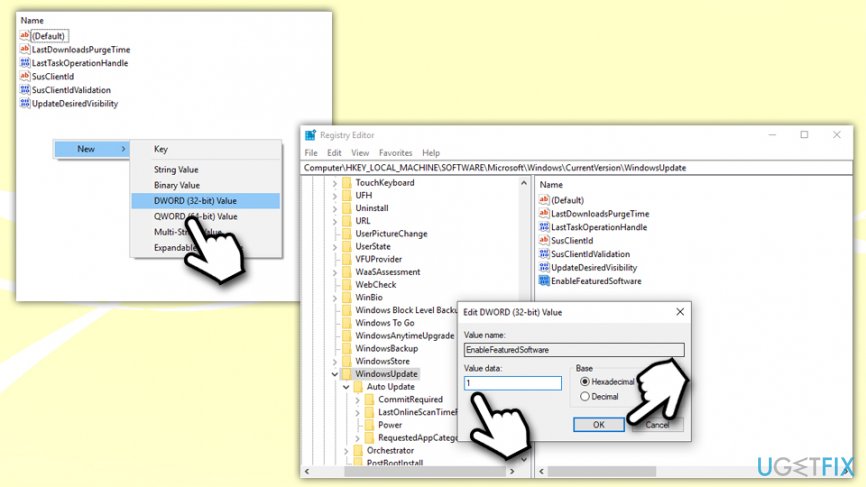
How to fix 0x80070422 error edit windows registry - Click OK and close down Registry Editor
Bottom line
To fix the 0x80070422 error, you can try running the Windows Update service, ensuring that Automatic Updates are enabled, and checking for issues with the Microsoft Store. If none of these solutions work, consider contacting Microsoft support or using PC repair software.
Frequently asked questions
The update error 0x80070422 usually indicates that the Windows Update service is not running, preventing updates from being installed properly.
To start the Windows Update service, press Win + R, type 'services.msc', find 'Windows Update' in the list, right-click it, and select 'Start'.
Yes, you can also try resetting the Windows Update components or running the Windows Update Troubleshooter to automatically fix any issues.




Report an issue
What's wrong with this guide? We review every report and update or remove content.
Report received — thank you. We'll review and fix it.
You need a free account to submit a report.
Be the first to comment