How to fix
Update Error Code 0x80240fff
on Windows
Resolve Update Error Code 0x80240fff in Windows 10 quickly and effectively. Get expert-tested solutions and enjoy a smooth update experience.

What causes How to fix Update Error Code 0x80240fff in Windows 10?
- Matching Product and Category names in System Center Updates Publisher (SCUP)
- Windows Firewall not functioning properly
- Errors in hard disk operation process
- Corrupted files on the computer system
- Inability to search for updates
Repairs Windows system files, removes malware, and restores a clean OS state — without reinstalling.
I bought a new computer with Windows 10 OS. I tried to check whether there are some updates available but I just received error code 0x80240fff. It seems that the computer cannot even search for updates. What might cause this error and how to install Windows updates?
Error Code 0x80240fff is quite common for Windows 10 users, especially those who use Windows 10 build 10240. The inability to install updates not only prevents users from using all the latest features and improving their work. It may also lead to serious issues and even put our computer at risk.
Malware and viruses of the uses flaws in the security, outdated software or system to launch the attack. Therefore, you should not ignore any update errors and install them as soon as they are available. Talking about the 0x80240fff error prevents the system from searching for the available updates. As a result, users cannot download and install them.
Microsoft explains that this error might be related to the matching Product and Category names. For example, when a user creates a product within System Center Updates Publisher (SCUP) named “Tools,” it may arise an issue. When evaluating the category, there are two same names – the product named “Tools” and an update classification under the same name. To fix Update Error Code 0x80240fff, you may need to find and decline (or modify) that custom content that has a matching product name with Category name.
However, there might be several other options why you are seeing the Error Code 0x80240fff on your Windows computer system. The problem can appear if your Windows Firewall has stopped working properly, there might be some errors in your hard disk's operation process or there are some corrupted files remaining on your computer system that has been provoking Error Code 0x80240fff to show up lately.
If you have been wondering how to fix Update Error Code 0x80240fff in Windows 10, you have come to the right place. We decided to provide our visitors with several different manual techniques that can be used for fixing this problem, find all of them out below. Also, if you have found some corrupted files in your system, you can always try repairing them with a system repair tool such as [d1].
How to fix Update Error Code 0x80240fff?
Method 1. Execute Windows Update Troubleshooter
Microsoft’s Support engineers suggest using Windows Update troubleshooter as a way to discover the cause of Update Error Code 0x80240fff in Windows 10. If you want to succeed in this task, complete the following instructing steps:
- Press Windows + X and select Control Panel.
- In the search bar type troubleshooter. When Troubleshooting appears on the list, click it.
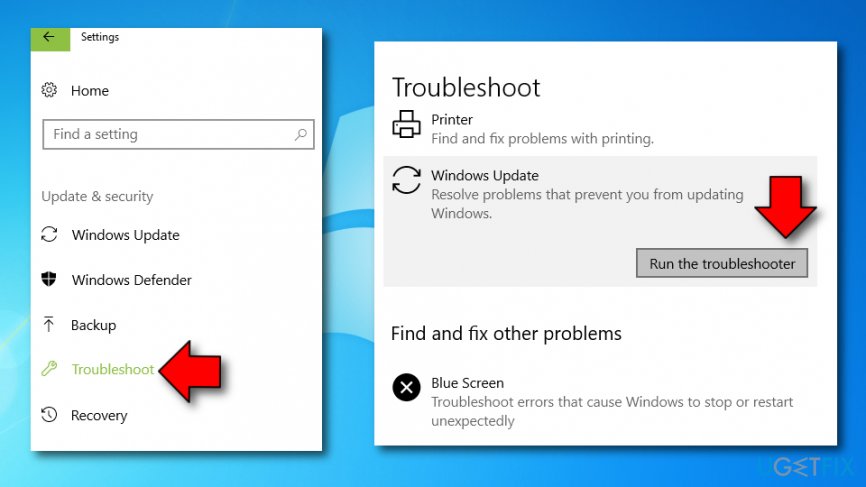
Run the troubleshooter - Click Fix problems with Windows Updates which is under the System and Security.
NOTE. Your computer must be connected to the Internet while completing this method.
Method 2. Try restarting the Background Intelligent Transfer Services
- Press Windows + R and type services.msc in the box.
- In the list look for Background Intelligent Transfer Service (BITS), right-click on it and select Properties.
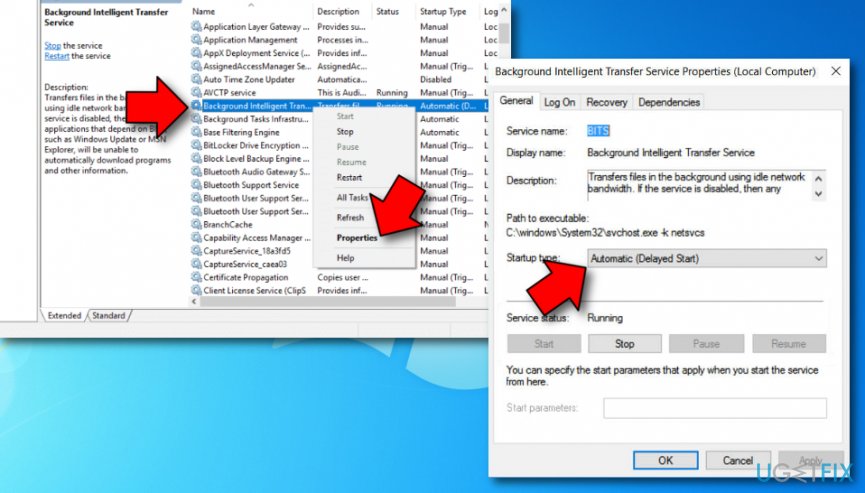
Modify background intelligence transfer service - Make sure that Automatic (Delayed Start) is selected on the General tab, which is next to Startup type. If it isn‘t, select it and click Apply.
- Next to the Service status, check to see whether the service has started or not. If not, click Start.
However, many users who tried these methods reported that they are not working. If they did not help you too, below you will find additional methods that should fix this error.
Note. Fixing Error Code 0x80240fff includes different steps for Windows 10 Pro users and Windows 10 home users.
Method 3. Suitable for Windows 10 Pro users
Try deferring Windows updates as a way to fix Update Error Code 0x80240fff in Windows 10. You can learn how to accomplish such a task by taking a look at the below-provides instructing lines:
- Go to Windows Update Settings.
- At the bottom of the page look for Advanced Options and click it.
- Select Defer Updates.
- Try installing updates again. Hopefully, you won’t receive a 0x80240fff error.
Method 4. Suitable for Windows 10 Pro and Windows Home users
Windows Home version users cannot use the Defer Upgrades option, however, there are other options available. In order to try to fix Update Error Code 0x80240fff in Windows 10, you have to use Media Creation Tool and download necessary updates on your device.
Method 5. Recover Windows Update components
- Go to Windows Search.
- Type "cmd" in the search bar.
- Execute the Command Prompt.
- Make sure that you pick administrative privileges also.
- Paste these four commands after the blinking cursor by clicking the Enter key after each line: net stop msiserver, net stop wuauserv, net stop bits, net stop cryptSvc.
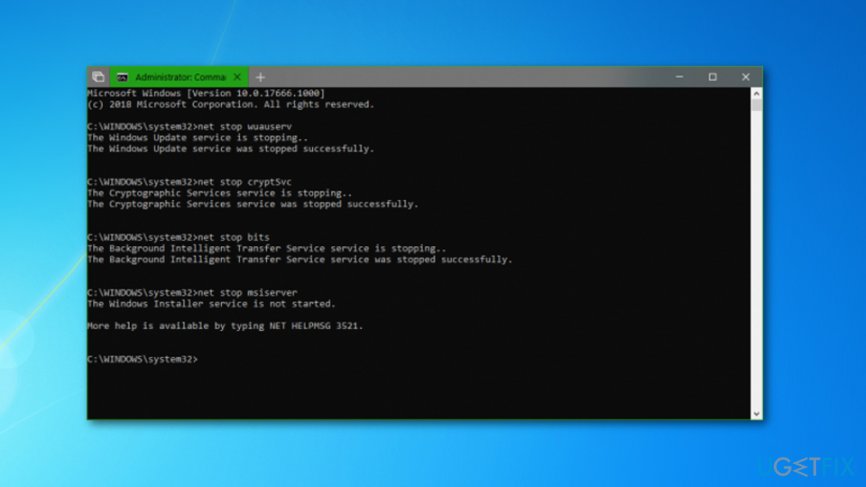
Run cmd - Afterward, type these commands into the Command Prompt window by pressing Enter after each one: ren C:\\Windows\\SoftwareDistribution SoftwareDistribution.old, ren C:\\Windows\\System32\\catroot2 Catroot2.old.
- Wait for these commands to execute and then continue. Type in the following lines in the black Command Prompt box: net start wuauserv, net start cryptSvc, net start bits, net start msiserver.
- When the process is finished, close Command Prompt and reboot your Windows computer system.
Method 6. Turn off Windows Firewall
In some cases, Error Code 0x80240fff in Windows 10 might be a result of some type of malfunctioning happening with your Windows Firewall software. If you want to find out if this program has been preventing you from fixing the error, you have to disable it temporarily. To complete this process, perform the following tasks:
- Hold the Windows key + R button and write "Control Panel".
- Afterward, open the Control Panel and continue with System and Security.
- Select Windows Firewall.
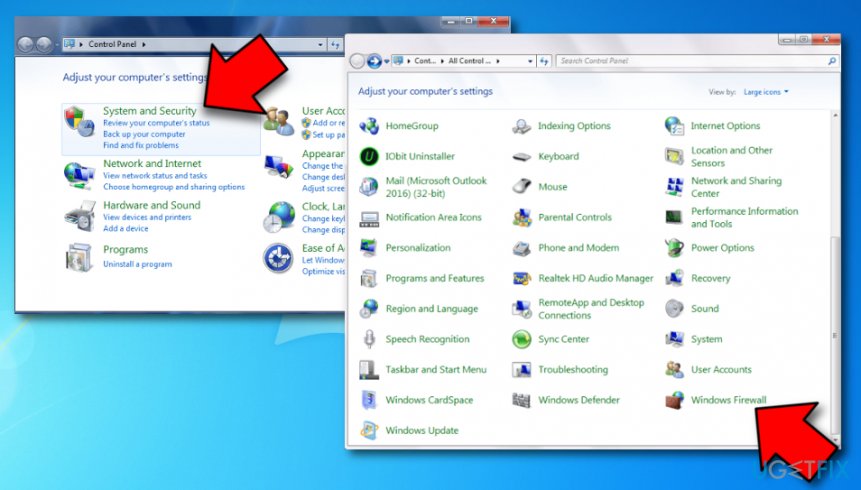
Disable windows firewall software - Look on your left and you should see the Turn Windows Firewall on/off option.
- Then, opt for the option that says "Turn off windows firewall in private and public network options".
Method 7. Run a file checkup
In case Update Error Code 0x80240fff is a result of some type of file corruption, you should scan your computer for an ultimate file checkup process. Perform this method via Command Prompt:
- Go to Windows search and type "cmd".
- One the black window appears, make sure that you are running the services as an Administrator.
- Then, type sfc /scannow after the blinking cursor and hit the Enter key.
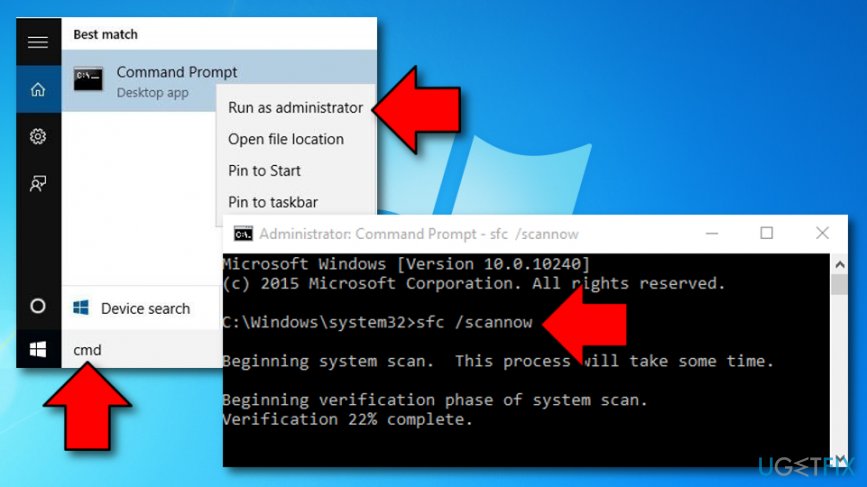
Run an sfc scan - Once the command finishes its job, reboot your machine system.
Method 8. Check your disk for possible corruption
- Open Windows search and launch the Command Prompt there.
- Run it as an Administrator.
- Type chkdsk /f after the blinking cursor.
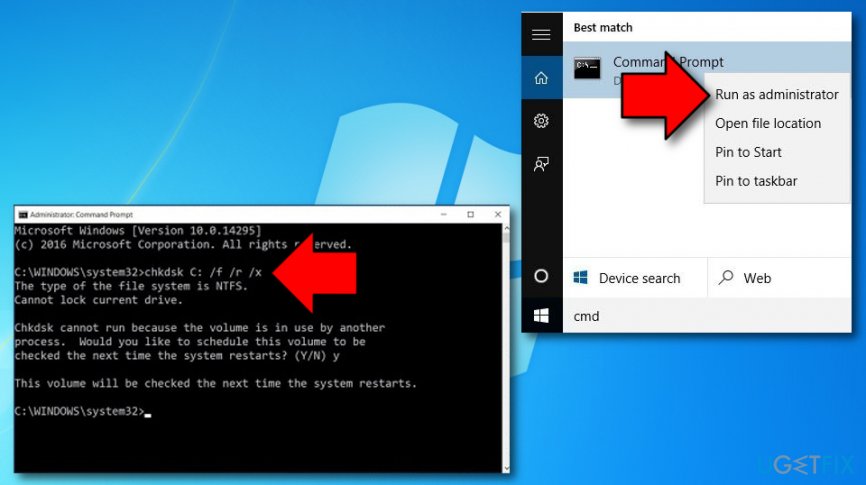
Run disk check - Hit Enter and wait for the process to finish.
- Restart your Windows computer.
Bottom line
To fix Update Error Code 0x80240fff, you may need to modify or decline custom content with matching product and category names, check your Windows Firewall, and repair any hard disk errors or corrupted files. If these solutions do not resolve the issue, consider seeking further technical assistance.
Frequently asked questions
The error code 0x80240fff typically indicates a problem with Windows Update, usually related to network connectivity or issues with the update server.
To fix the 0x80240fff error, try running the Windows Update Troubleshooter and ensure your internet connection is stable.
Yes, resetting Windows Update components can often resolve the 0x80240fff error in Windows 10 by clearing any corrupted files or settings.




Report an issue
What's wrong with this guide? We review every report and update or remove content.
Report received — thank you. We'll review and fix it.
You need a free account to submit a report.
Be the first to comment