
How to fix "Upgrade to iCloud for Windows failed" error in Windows?

Prefer to fix it yourself? The manual steps follow.
- 8methods
- 2 to 30 minutes
- Intermediate
Applies to iCloud for Windows from the Microsoft Store on Windows 11 and Windows 10 22H2, including PCs that once had the older iCloud from Apple's website
8 methods in this guide
After I install iCloud from the Microsoft Store, it works fine at first. However, after I reboot, sometimes after several reboots, I get the "Upgrade to iCloud for Windows failed" error. Are there any other troubleshooting steps I can take?
"Upgrade to iCloud for Windows failed" appears in an iCloud Migration window when iCloud cannot move its old settings and components to the version the Microsoft Store just installed. Your photos and files in iCloud are not touched. Do a full restart first, then update iCloud and Windows; most other cases end with a repair or a clean reinstall.
The message comes from iCloud's own upgrade step, not from Windows. Use Restart, not Shut down, and open iCloud once (Fix 1). If it returns, update iCloud in the Microsoft Store and install Windows updates (Fix 2), then repair or reset the iCloud app (Fix 3). A clean reinstall with every old iCloud removed (Fix 5) solves most of the rest.
| Error | Upgrade to iCloud for Windows 11.1 failed. Please reboot and try again. (Error 101) in a window titled iCloud Migration with a red cross and an OK button. The version and the error number change. |
|---|---|
| Where it appears | When iCloud for Windows starts after an install or an update, often right after a restart. |
| Main cause | iCloud could not finish moving its previous version to the new one: an upgrade left half done, an old iCloud still installed, or a missing system component. |
| Fastest fix | A full Restart, then open iCloud once and wait (Fix 1). |
| Also written as | "upgrade to iCloud for Windows 15.8 failed", the same with 15.9, 15.7, 15.2, 14.1, 14.0, 13.4 or 13.0, "iCloud migration error 7", errors 6, 8 and 101. |
| Affects | iCloud for Windows from the Microsoft Store. Apple says the latest version needs Windows 11 or later. |
| Vendor status | Apple has a general article on iCloud for Windows that does not install or update, but no article for this message and no list of what the error numbers mean (checked 15 October 2026). |
| Your data | Photos, iCloud Drive files, mail and contacts stored in iCloud stay on Apple's servers and on iCloud.com. Only the PC's local copy is affected. |
| Time to fix | 2 minutes for a restart, 10 minutes for a repair, 20 to 30 minutes for a clean reinstall. |
Facts checked on 15 October 2026. Steps written for Windows 11 (25H2 and 26H2) and Windows 10 22H2 with iCloud for Windows from the Microsoft Store.
What "Upgrade to iCloud for Windows failed" means
The window is titled iCloud Migration. After the Microsoft Store installs a new iCloud for Windows, the app runs a one-time step that moves the settings and parts of the previous version into the new one. When that step stops, you see "Upgrade to iCloud for Windows 11.1 failed. Please reboot and try again. (Error 101)", with your version number in place of 11.1.
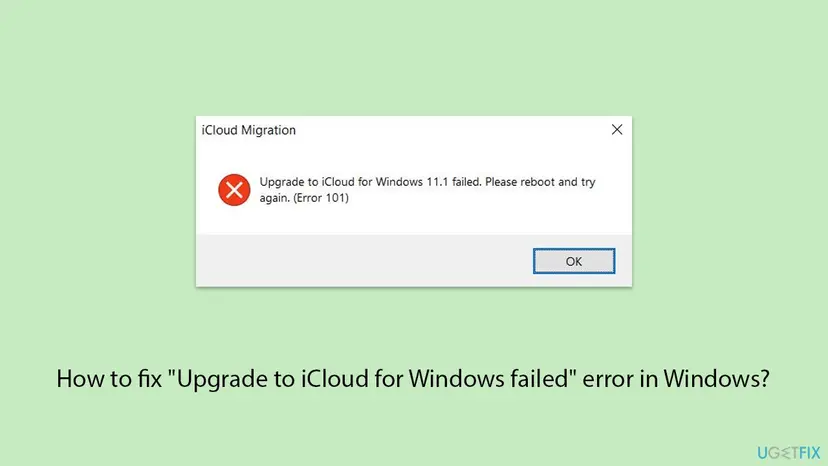
| Part of the message | What it tells you |
|---|---|
| iCloud Migration in the title bar | The upgrade step of iCloud itself failed, not the Microsoft Store download and not Windows Update. |
| 11.1, 13.0, 14.1, 15.8, 15.9 | The iCloud version the app tried to reach. Searches for 15.7, 15.8 and 15.9 are the most common now. |
| Please reboot and try again | iCloud's own first advice. A real restart, not a shut down, is Fix 1. |
| (Error 6), (Error 7), (Error 8), (Error 101) | Users report all four. Apple does not publish what each number means, so the fixes are the same for all of them. |
It is not a virus and not a sign that your Apple Account or your iCloud data is damaged. Everything stored in iCloud is still on iCloud.com while the app on the PC is fixed.
What causes the "Upgrade to iCloud for Windows failed" error, most common first
The reader's question above shows the typical pattern: iCloud works after the install, then the message appears after a restart. That points to the upgrade step, which runs when iCloud starts, rather than to the download. The causes below are ranked by how often the matching fix helps in user reports, since Apple publishes no ranking.
| How often | Cause | Signs | Fix |
|---|---|---|---|
| Most often | The upgrade was cut off and needs one clean start | The message appears once after an update or a shut down | Fix 1 |
| Often | iCloud or Windows is out of date | Updates are waiting in the Store Library or in Windows Update; Windows 10 | Fix 2 |
| Often | The iCloud app's own files are damaged | The message returns after every restart | Fix 3 |
| Often | Visual C++ runtime files are missing or broken | Other apps also fail to start; a fresh Windows install | Fix 4 |
| Less often | An older iCloud from Apple's website is still installed next to the Store app | Two iCloud entries in Installed apps | Fix 5 |
| Less often | The Microsoft Store cannot finish the install | The Store shows a pending or failed iCloud download | Fix 6 |
| Rarely | Media Features are missing (N editions) | A message that the computer is missing Media features | Fix 7 |
| Rarely | Another program blocks the upgrade | Nothing above helps | Fix 8 |
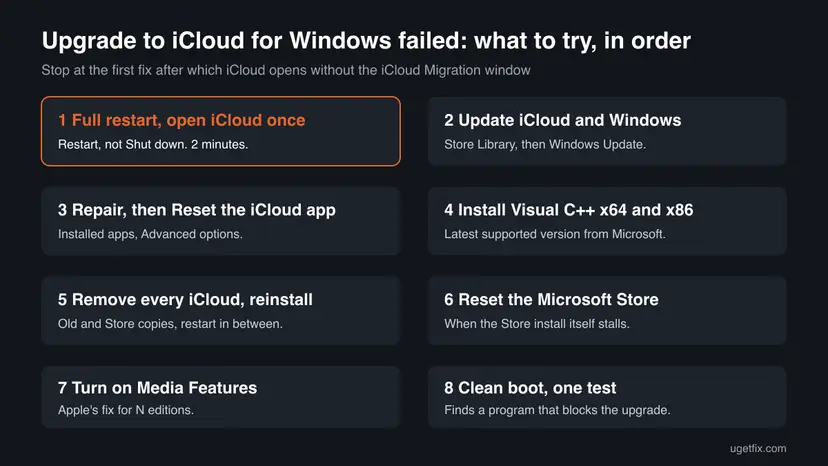
How to fix "Upgrade to iCloud for Windows failed"
Fix 1 is what the message itself asks for, done properly. Fixes 2 to 5 cover nearly every other report, from an outdated app to an old iCloud left behind. Fixes 6 to 8 are for rarer cases. Use the table to start at the right place.
| What you see or have | Start with |
|---|---|
| The message appeared once, after an iCloud update | Fix 1 |
| You are on Windows 10, or Windows Update has updates waiting | Fix 2 |
| The message returns after every restart, as in the question above | Fix 3, then Fix 5 |
| Error 8 or Error 101 on a new or freshly reinstalled PC | Fix 4 |
| You once installed iCloud from Apple's website | Fix 5 |
| The Microsoft Store will not finish installing iCloud | Fix 6 |
| Windows says Media features are missing | Fix 7 |
Fix 1. Restart Windows fully and let iCloud finish the upgrade
2 minutesNo riskEveryone, first: the message itself asks for it, and it changes nothing on the PC.
The upgrade step runs when iCloud starts. A Shut down with Fast Startup turned on does not restart Windows fully, so files the old iCloud held open can stay locked. Restart clears them, and the step can run again on a clean start.
- Select OK in the iCloud Migration window.
- Save your work, select Start > Power > Restart. Do not use Shut down.
- After you sign in, wait one or two minutes before you open anything.
- Select Start, type iCloud and open the iCloud app.
- Leave the window open until it shows your account and the list of services, or asks you to sign in with your Apple Account.
Turning off Fast Startup makes every shut down a full one. It is a safe setting to change and easy to undo: Turn off Fast Startup.
It worked if: iCloud opens to your account or to the sign-in screen, with no iCloud Migration window.
If not: If the message is back after the restart, the upgrade cannot finish on its own: update iCloud and Windows with Fix 2.
Fix 2. Update iCloud in the Microsoft Store and install Windows updates
10 to 20 minutesLow riskUpdates are waiting, you are on Windows 10, or the message names an older iCloud version.
A newer iCloud build may install over the half-finished one and complete the upgrade. Apple also says the latest iCloud for Windows needs Windows 11 or later, so on an older Windows the Store can offer a version the PC does not fully support.
- Open Microsoft Store, select Library at the bottom left and select Get updates.
- If iCloud is in the list, let it update and wait until it shows Open.
- Press Win + I and open Windows Update. Select Check for updates, then Install all or Download & install.
- Restart the PC when Windows asks, then open iCloud from the Start menu.
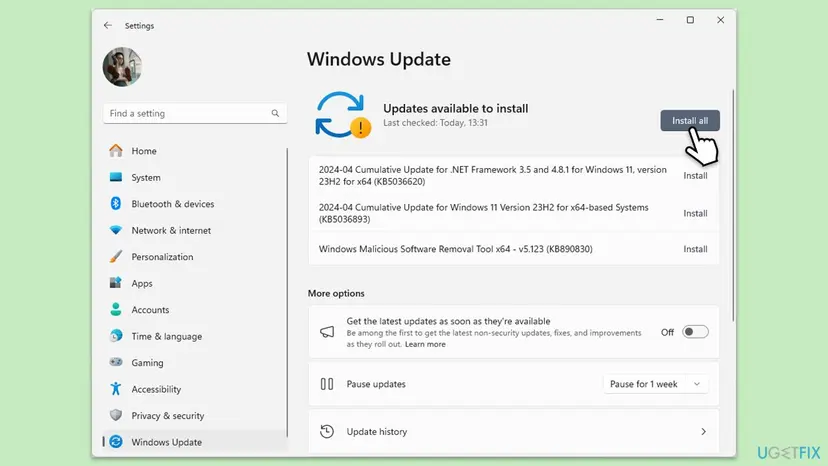
Windows 10 reached the end of support on 14 October 2025, and Apple says the latest iCloud for Windows needs Windows 11 or later. On Windows 10 22H2 an older iCloud may still install, but upgrades can fail. Check your version with winver.
It worked if: The Store shows Open next to iCloud, Windows Update says You're up to date, and iCloud starts without the message.
If not: If iCloud is current and the message is still there, the app's own files are damaged: repair or reset it with Fix 3.
Fix 3. Repair, then reset the iCloud app in Settings
5 to 10 minutesRead the warningThe message returns after every restart even though iCloud is up to date.
Repair checks the files of the Store app and replaces damaged ones while it keeps your settings. Reset goes further and clears the app's local data, including the record of the half-done upgrade that makes the step fail again on every start.
Repair keeps your settings; Reset clears them, and you sign in again. Data in iCloud stays online. If your iCloud Drive folder holds files you added on this PC recently, copy them to another folder first, in case they had not finished uploading.
- Right-click the iCloud icon next to the clock, if it is there, and quit iCloud.
- Press Win + I and open Apps > Installed apps. On Windows 10 open Apps > Apps & features.
- Select the three dots next to iCloud and choose Advanced options.
- Under Reset, select Repair. Wait for the check mark, then open iCloud.
- If the message is still there, come back and select Reset, confirm, and open iCloud again.
- Open Installed apps. Select Start > Settings > Apps > Installed apps.
- Open the app's advanced options. Find the app in the list, select the three dots next to it and select Advanced options. Some apps do not have this option: for those, see the section about desktop programs below.
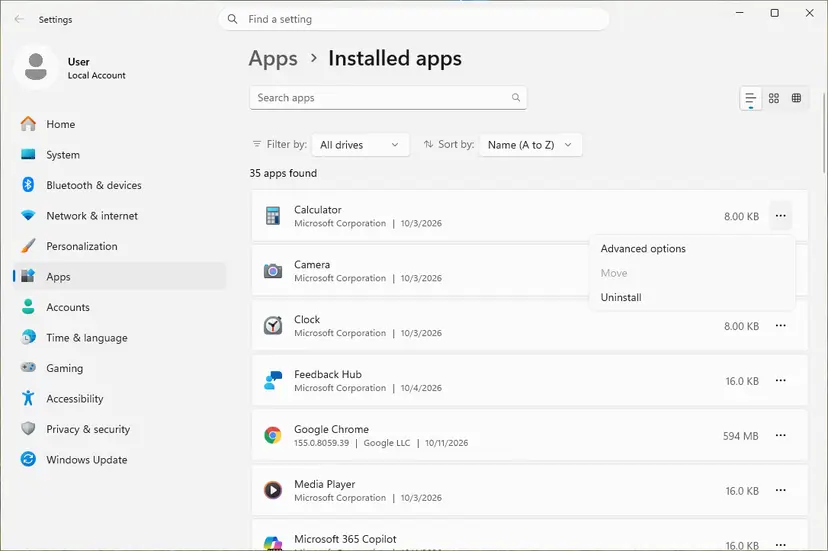
The three dots next to an app open Advanced options. Screenshot: Windows 11 26H2. - Repair first. On the page that opens, select Repair if it is there. The app's data stays. Open the app and check whether it works.

Repair keeps the app data. Reset deletes it. Screenshot: Windows 11 26H2. - Reset if Repair did not help. Select Reset. This deletes the app's data on this PC, including sign-in details and settings. Open the app and set it up again.
These steps were written for Windows 11 25H2 and 26H2. The full page with the other versions and what each result means: How to repair or reset an app in Windows
It worked if: iCloud opens to the sign-in screen or to your account, and the iCloud Migration window does not appear after the next restart.
If not: If Advanced options is missing or Reset does not help, install the Visual C++ runtime with Fix 4.
Fix 4. Install the latest Microsoft Visual C++ Redistributable, x64 and x86
5 minutesLow riskA new or freshly reinstalled PC, Error 8 or Error 101, or other desktop apps fail to start too.
iCloud's Windows components need the Visual C++ runtime. An independent advisor on Microsoft Q&A recommends installing both the x86 and x64 versions of the latest supported package for exactly this message, then restarting.
- Open Microsoft's page Latest supported Visual C++ Redistributable downloads.
- Under Latest supported redistributable version, download the X64 and the X86 installers.
- Run each one. If it offers Repair, select Repair; otherwise select Install.
- Restart the PC and open iCloud.
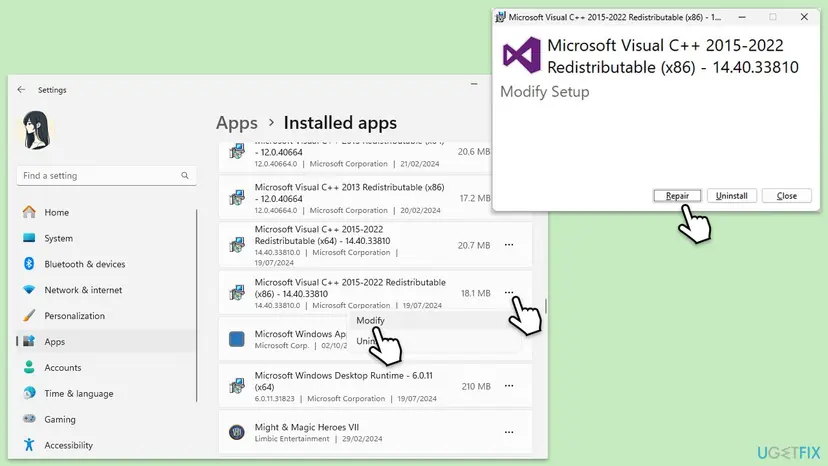
Repairing the packages already on the PC, and the .NET Framework next to them, step by step: How to repair Microsoft Visual C++ Redistributable and .NET Framework.
It worked if: Both installers end with Setup Successful or a finished repair, and iCloud starts normally after the restart.
If not: If the message stays, remove every iCloud copy and install fresh with Fix 5.
Fix 5. Uninstall every iCloud copy, restart, and install iCloud again from the Microsoft Store
20 to 30 minutesRead the warningFixes 1 to 4 did not help, or you once used the older iCloud from Apple's website.
The upgrade step tries to move an earlier iCloud into the new one. If an old desktop iCloud or a broken Store copy is still registered, the step keeps failing. With every copy removed there is nothing left to migrate, and the Store installs a clean app.
Uninstalling removes the app, and you sign in again afterwards. Data stored in iCloud stays on iCloud.com. Copy any file you added on this PC recently to another folder first, because a file that never uploaded exists only on this PC.
- Quit iCloud from the icon next to the clock.
- Press Win + R, type
appwiz.cpland select OK. Uninstall every entry named iCloud or iCloud for Windows. - Open Settings > Apps > Installed apps, search for iCloud and uninstall anything still listed there.
- Restart the PC.
- Install iCloud from its Microsoft Store page, the download link Apple gives.
- Open iCloud, sign in with your Apple Account and choose what to sync.
Uninstalling from Control Panel and Settings with Windows 11 screenshots: Uninstall a program or app in Windows. You need a Microsoft account in the Store, as Apple notes.
It worked if: Only one iCloud entry is in Installed apps, and the new install opens to the Apple Account sign-in without the iCloud Migration window.
If not: If the Store will not install iCloud at all, reset the Store with Fix 6.
Fix 6. Reset the Microsoft Store and install iCloud again
5 minutesLow riskThe iCloud download in the Store stays pending, fails, or ends with a Store error code.
iCloud for Windows comes only from the Microsoft Store now. A damaged Store cache can deliver a broken package, which then fails at its first start. A reset clears the cache without touching your apps.
- Close the Microsoft Store.
- Press Win + R, type
wsreset.exeand select OK. A blank window opens and the Store starts by itself when the reset is done. - Open Library, find iCloud and install or update it again.
- Clear the Store cache. Press Windows + R, type wsreset.exe and select OK. A blank Command Prompt window opens; after a short while it closes and Microsoft Store opens by itself.
- Open System components. If the problem stays, select Start > Settings > System > System components. Next to Microsoft Store, select the three dots and Advanced options. If Microsoft Store is not listed there, look for it in Settings > Apps > Installed apps.
- Repair first. Scroll to Reset and select Repair. Repair keeps the app's data. Open the Store and check whether it works.
- Reset if Repair did not help. Select Reset and confirm. This deletes the Store app's data on this PC; your purchases stay in your Microsoft account. Open the Store and sign in again.
These steps were written for Windows 11 26H2 (build 26300). The full page with the other versions and what each result means: Reset the Microsoft Store
It worked if: The Store finishes the iCloud download and shows Open.
If not: If Windows reports that Media features are missing, use Fix 7. Otherwise try a clean boot with Fix 8.
Fix 7. Turn on Media Features or install the Media Feature Pack
5 minutesLow riskWindows or iCloud says the computer is missing Media features, usually on N and KN editions.
Apple lists missing Media features as a known reason iCloud for Windows will not install. iCloud uses Windows media components for photos and video, and N editions sold in Europe and KN editions in South Korea come without them.
- Press Win + R, type
optionalfeaturesand select OK to open Turn Windows features on or off. - Tick Media Features and select OK.
- Restart the PC when Windows asks, then open iCloud.
- If Media Features is not in the list, open Settings > System > Optional features, select View features, add Media Feature Pack, and restart.
It worked if: Media Features is ticked or Media Feature Pack is installed, and iCloud installs and starts without the message.
If not: If your edition already has Media features, look for a program that blocks the upgrade with Fix 8.
Fix 8. Run one clean boot test to find a program that blocks the upgrade
15 minutesLow riskReaders who tried Fixes 1 to 7 and still see the message, especially with a security suite, backup tool or another sync app installed.
Security suites, backup tools and other sync clients can lock files in the folders iCloud moves during the upgrade. A clean boot starts Windows with Microsoft services only, so if iCloud upgrades there, one of your programs is the cause.
- Open System Configuration. Select Search on the taskbar, type msconfig and select System Configuration from the results.
- Hide Microsoft services. On the Services tab, select the Hide all Microsoft services check box. Only services from other companies stay in the list.

With Hide all Microsoft services ticked, only third-party services stay in the list. Screenshot: Windows 11 26H2. - Disable the remaining services. Select Disable all, then select Apply.
- Open Task Manager. On the Startup tab of System Configuration, select Open Task Manager.

The Startup tab only links to Task Manager. Screenshot: Windows 11 26H2. - Disable the startup apps. On the Startup apps tab in Task Manager, select each item whose status is Enabled and select Disable. Write down or take a screenshot of the items you disable: you need the list to turn them back on.

Select an app, then Disable. Screenshot: Windows 11 26H2. - Confirm the changes. Close Task Manager. On the Startup tab of System Configuration, select OK.
- Restart and test. Restart the PC. Windows now starts in a clean boot environment: try again the thing that failed (run the app, install the update, uninstall the program).
These steps were written for Windows 11 25H2 and 26H2. The full page with the other versions and what each result means: How to perform a clean boot in Windows
- In the clean boot, open iCloud and let the upgrade finish.
- Turn your services and startup apps back on as the procedure shows, and restart normally.
- If the message returns, turn the programs back on in halves to find the one that blocks iCloud, then update or remove it.
If you suspect your antivirus, pause it for one iCloud start only and turn it back on right after: Turn off Microsoft Defender protection for a moment. Then add iCloud to its exceptions instead of leaving protection off.
It worked if: iCloud opens without the message in the clean boot, which points to a program you turned off.
If not: If it fails even in a clean boot, read the next section and contact Apple Support.
If "Upgrade to iCloud for Windows failed" is still there
Apple does not publish a log file or an Event Viewer entry for this message, and we could not confirm one. Write down the facts Apple Support will ask for before you contact them.
- The exact message, with the iCloud version and the error number, for example "15.8" and "Error 8".
- Your Windows edition and version from
winver. Apple says the latest iCloud for Windows needs Windows 11 or later. - What is installed: every iCloud entry in Installed apps, and whether you ever used the iCloud from Apple's website.
- What you tried from this page, and whether iCloud started in a clean boot.
- Your account type. Apple says iCloud for Windows does not support Managed Apple Accounts, the kind a school or company creates.
Sign in at iCloud.com in any browser. Photos, iCloud Drive, mail, contacts and calendars are all there while the app is fixed. Apple's System Status page shows whether iCloud itself has an outage.
How to keep "Upgrade to iCloud for Windows failed" from coming back
- Install iCloud only from the Microsoft Store, the source Apple links to.
- Use Restart after an iCloud update, and let iCloud open once.
- Keep Windows 11 and the Visual C++ runtime up to date.
- Quit iCloud before you update it by hand in the Store.
- Do not keep an old iCloud from Apple's website next to the Store app.
- Do not delete iCloud folders by hand or with a cleaner tool.
- Do not leave the antivirus off after a test.
- Do not delete your iCloud Drive folder to start over before you check that every file is on iCloud.com.
Frequently asked questions
How do I fix "Upgrade to iCloud for Windows 15.8 failed"?
Start with a full Restart, not a shut down, and open iCloud once (Fix 1). If the message returns, update iCloud in the Microsoft Store Library and install Windows updates (Fix 2), then repair or reset the iCloud app in Installed apps (Fix 3). On a new PC, install the latest Visual C++ Redistributable, x64 and x86 (Fix 4). If that fails too, uninstall every iCloud entry, restart and install iCloud fresh from the Store (Fix 5). The same steps apply to 15.9 and 15.7.
What do Error 6, Error 7, Error 8 and Error 101 mean?
Apple does not publish what each number means, and we could not confirm a meaning from any official source. Users report all four with the same "Please reboot and try again" text, and the same fixes help: a full restart, an update, a repair or reset of the app, the Visual C++ runtime, and a clean reinstall. Note the number anyway, because Apple Support asks for it. A search for "iCloud migration error 7" is about this same window, which is titled iCloud Migration. We could not confirm the full text of an iCloud message that starts with "failed to create"; if iCloud shows one at start, use the same fixes, starting with Fix 3.
Why does the error appear only after I restart the PC?
Because the upgrade step runs when iCloud starts, and iCloud starts with Windows. The install itself can finish fine, as in the reader's question above. On the next start, iCloud tries to move the previous version's settings into the new one and fails. A repair or reset of the app (Fix 3) clears that half-done state, and a clean reinstall (Fix 5) removes the old copy it keeps trying to migrate.
Is "Upgrade to iCloud for Windows failed" a virus?
No. The window is iCloud's own upgrade message, titled iCloud Migration, and it comes from the iCloud app you installed. It does not ask you to call a number, open a website or pay for anything. If you see a message that does, or one that claims to be from Apple in a browser tab, that is a different thing and not this error. To be sure your PC is clean, run a Microsoft Defender scan: How to scan for malware with Microsoft Defender.
Will I lose my photos if I reset or reinstall iCloud?
Photos and files stored in iCloud are not deleted: they stay on Apple's servers and on iCloud.com. Resetting or uninstalling the app removes only the program and its settings on this PC, and you sign in again afterwards. The one risk is a file you added on this PC that had not finished uploading. Copy recent files from your iCloud Drive and iCloud Photos folders to another folder before Fix 3 or Fix 5.
Does iCloud for Windows still work on Windows 10?
Apple says the latest version of iCloud for Windows needs Windows 11 or later, and Outlook 2021 or later for mail and contacts in Outlook. Its install article still mentions the Windows 10 May 2019 Update as the minimum to install, so an older iCloud may still run. Windows 10 reached the end of support on 14 October 2025, so upgrade failures there are more likely to stay. Moving to Windows 11 is the lasting fix.
Should I run the iCloud installer as administrator?
Not for the current iCloud. It installs from the Microsoft Store, and there is no setup file to right-click. Old guides that say "run the installer as administrator" date from the time Apple offered iCloud as a download from its own website. If you still have such an installer, do not use it: uninstall that old iCloud and install the Store version instead (Fix 5).
I tried everything and iCloud still refuses to upgrade. What now?
Run Fix 8, the clean boot test, because a program that locks iCloud's folders is the cause that the other fixes cannot reach. If iCloud fails even in a clean boot, contact Apple Support with the facts listed under "If the error is still there": the version, the error number, your Windows version and what you tried. Meanwhile, use iCloud.com in a browser for your photos and files.
I searched in another language. Is this the right page?
Yes, if you saw the iCloud Migration window. Searches such as "fehler 101", "errore 6", "co to znamena", "kenapa muncul ini", "nichts funktioniert", "対処法", "如何解決?" and "為什麼?" reached this page, and they all ask what the message means and how to fix it. The answer is the same: a full restart, then an update, a repair and a clean reinstall of iCloud. This page is in English only.
Sources
- Apple Support: If you can't download or install iCloud for Windows (support.apple.com)
- Apple Support: Download iCloud for Windows (Windows 11 requirement, Managed Apple Accounts) (support.apple.com)
- Microsoft Q&A: Upgrade to iCloud for Windows 15.8 failed. Error 8 (user report and advisor answer) (learn.microsoft.com)
Did this fix work?
One click, no account. It tells the next reader which guides are worth their time.
Questions and experiences: fix "Upgrade to iCloud for Windows failed" error in Windows
Still broken, or found a fix we did not cover? Ask here: members and our editors answer. Reading is open; writing needs a free account.
…