How to fix
USB Printer not detected
on Windows
Resolve USB printer detection issues on Windows 10 or 11 quickly and easily. Get expert-tested solutions that fix the problem in minutes.


What causes How to fix USB Printer not detected in Windows?
- Windows upgrade or reinstallation
- Outdated printer drivers
- Missing operating system updates
- Faulty USB port
- Printer not powered on
Repairs Windows system files, removes malware, and restores a clean OS state — without reinstalling.
Hello. I recently upgraded my Windows laptop and when I try to plug in my printer via the USB connection it is not detected. What should I do?
People have the ability to connect various devices to their Windows computers. There is a wide range of output peripherals, like speakers, headphones, printers, etc. When trying to connect them, people can experience difficulties for whatever reason. For example, we recently wrote about the headphone jack not recognized in Windows 11 issue.
People also report their USB printers not being detected in Windows. Such problems can appear after performing a Windows upgrade or reinstallation as some configurations can get lost during the process. Running a built-in troubleshooter should fix minor problems.
However, it is possible that the USB printer is not detected because the printer drivers[ref en-1] are outdated. You should also check if your operating system is up-to-date as missing updates can cause various malfunctions. Most importantly, check if the problem is not the USB port itself by trying to plug in another device.
In this guide, you will find 5 steps that should help you fix USB Printer not detected in Windows. Keep in mind that manual troubleshooting can be a lengthy process so you can use a maintenance tool like [d1]. It can fix most system errors, BSODs,[ref en-2] corrupted files, and registry[ref en-3] issues. Otherwise, follow the step-by-step instructions below.
Solution 1. Run the Printer Troubleshooter
- Open the Settings app by pressing Windows + I key
- Select Update & Security > Troubleshoot
- Select Additional troubleshooters
- Select Printer and hit Run the troubleshooter
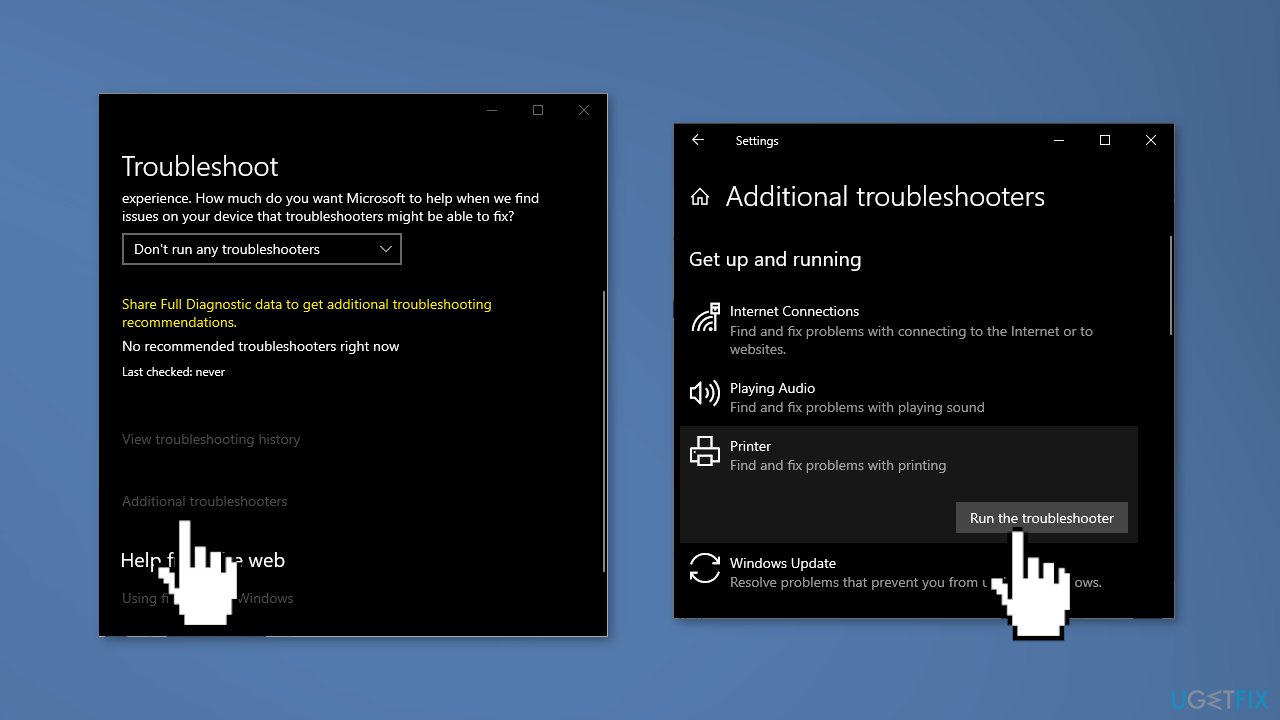
- Wait for a minute until your system detects and fixes the problem automatically
Solution 2. Update Printer Drivers
- Press the Windows key and type Device Manager into the search bar
- Click on the Device Manager option
- Locate the printer device
- Right-click on the device driver name and select Update driver
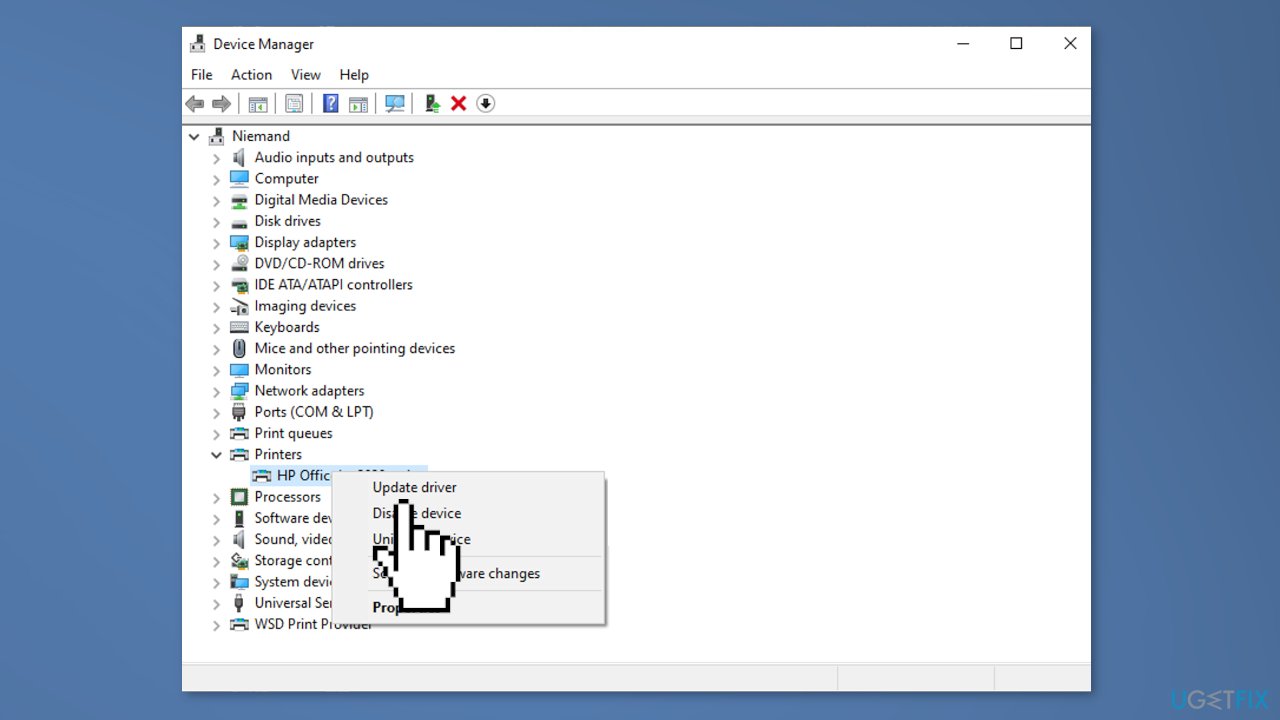
- Select the Search automatically for updated driver software option
- The system should automatically search for available drivers
- Finally, restart Windows to finish up with the installation
- You can also use [rev id="DriverFix"] as the automatic driver updater software as it finds and installs needed drivers from its database automatically choosing the right ones
Solution 3. Install Windows Updates
When you update, you will get the latest fixes and security improvements, helping your device run efficiently and stay protected:
- Type Updates in Windows search and press Enter
- On the right side of the window, click Check for updates
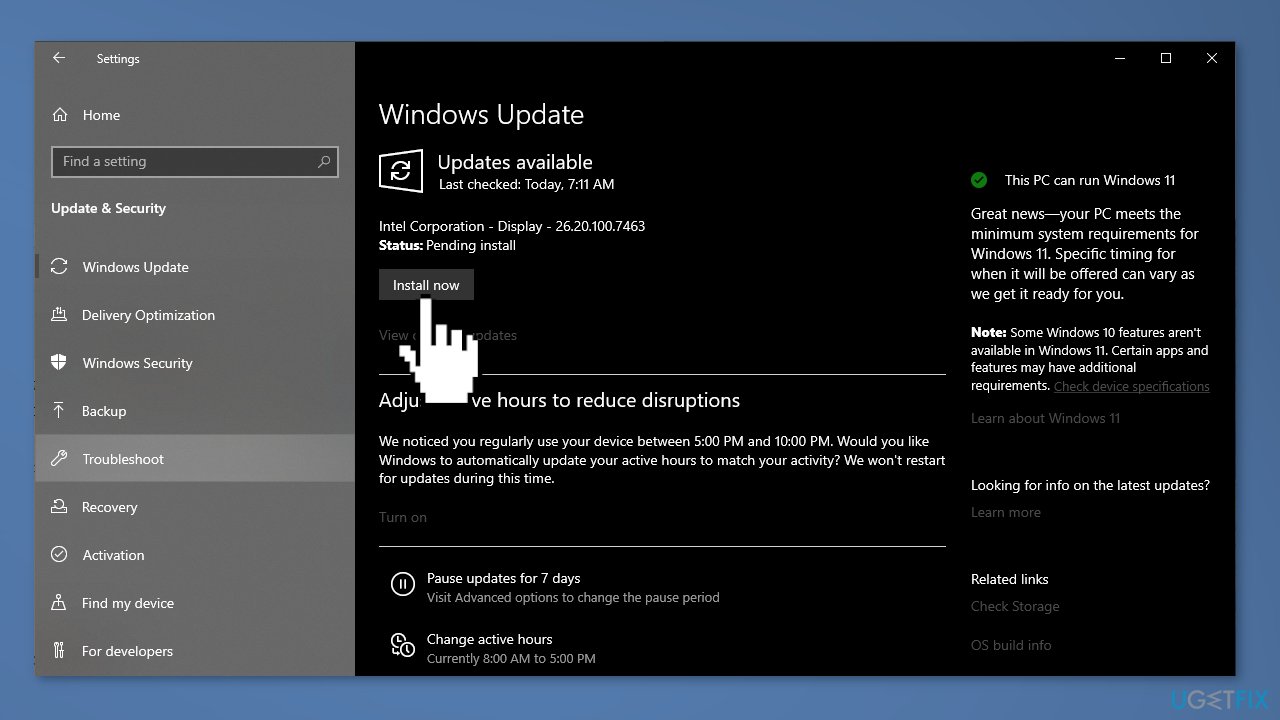
- Install all the optional updates as well
- Restart your PC
Solution 4. Restart Print Spooler
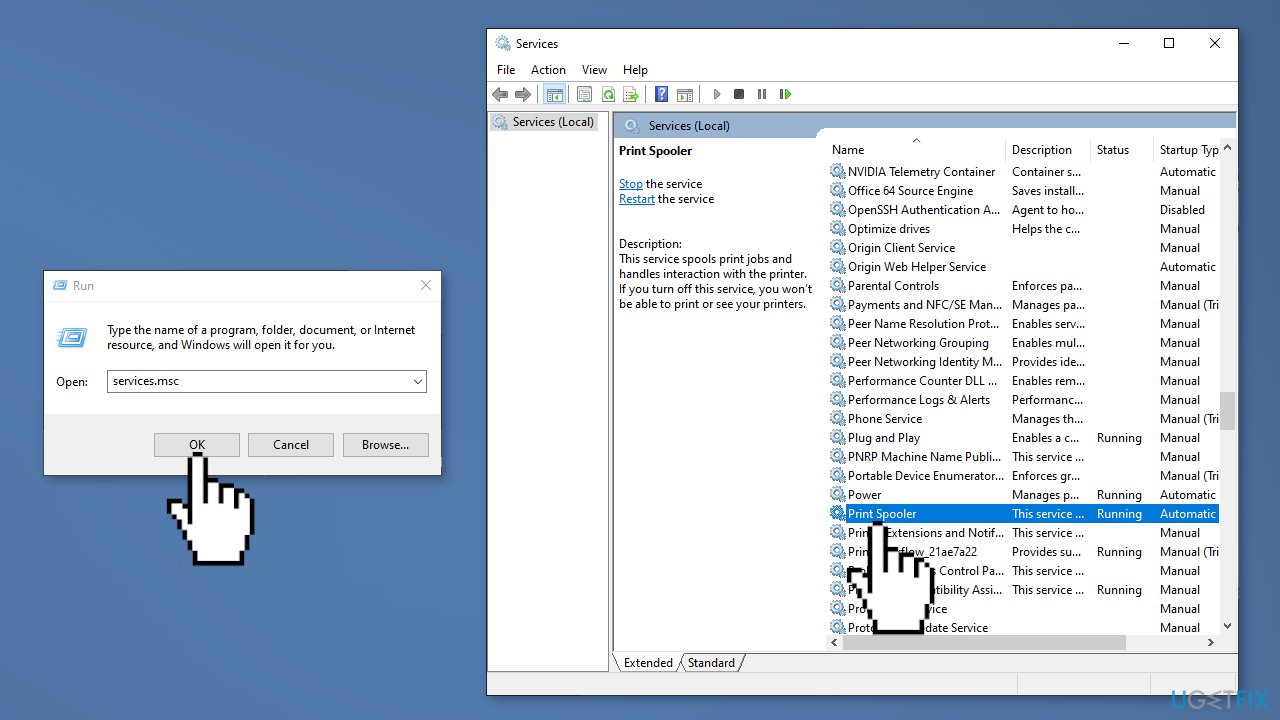
- Press Windows + R to open the Run box
- Type services.msc and hit OK
- Scroll down and look for the print spooler service
- Right-click on the print spooler
- Once the menu appears select Restart
- If the service is not started, right-click on print spooler select properties
- Change the startup type to automatic
- Choose to start the service under the status
- Hit ok and apply to save changes
- Now try to connect to the printer
Solution 5. Set the Printer as Default
- Open the Control Panel
- Click on View devices and printers under the Hardware and sound section
- Select the printer you want to set as the default and click on Set as default
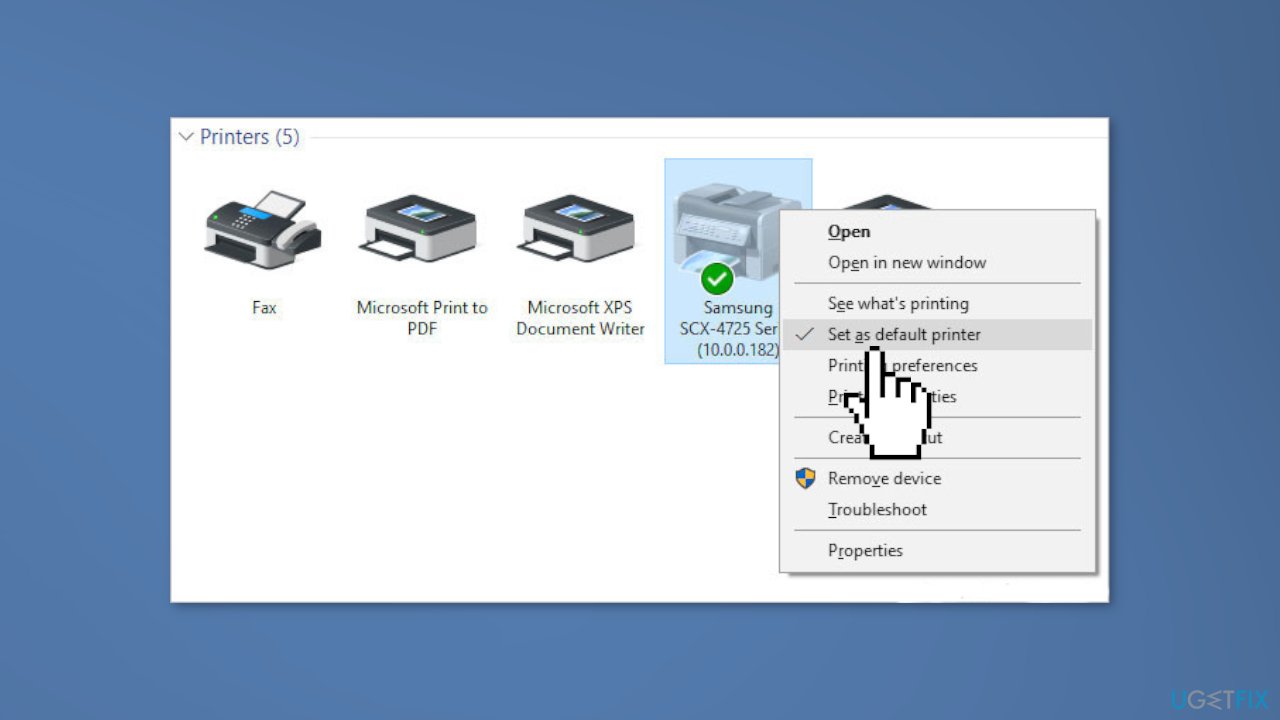
- If you don’t see an option to set a printer as default, use the Let Windows manage my default printer option
Bottom line
To fix the USB printer not detected issue, you can run the Printer Troubleshooter, update the printer drivers, and ensure your operating system is up-to-date. If these steps do not resolve the problem, consider using a maintenance tool or checking the USB port and printer connection.
Frequently asked questions
First, ensure that the printer is properly connected and powered on. Then, try using a different USB port or cable, and check for any driver updates in Device Manager.
You can start by running the Printer Troubleshooter from the Settings app, which can help identify and fix common issues. Also, verify that the printer is set as the default printer in your Devices and Printers settings.
Yes, you can uninstall the printer driver from Device Manager, then restart your computer and reconnect the printer to allow Windows 10 or Windows 11 to automatically reinstall the driver.




Report an issue
What's wrong with this guide? We review every report and update or remove content.
Report received — thank you. We'll review and fix it.
You need a free account to submit a report.
Be the first to comment